MICROSOFT TEAMS
Edited by Riccardo Dominici
MICROSOFT 365 APPLICATIONS FOR WORK COURSES - Tell your friends about them, they're very cheap
SEARCH ENGINE AND COURSE CARDS ON
MICROSOFT 365 APPLICATIONS
ORGANIZE YOUR STUDY WITH THIS GANTT CHART
WIKI CARDS EXPLORER WITH AUTOMATIC
SUMMARY ON CLICK
CHAPTER 1 WHAT IS MICROSOFT TEAMS?
1.1 Evolution and Integration with Microsoft 365.
1.2 Core Features Supporting Teamwork
1.3 Extensibility, security and modern use cases
CHAPTER 2 SIGNING IN AND GETTING STARTED
2.1 Navigating the Teams interface: chat, teams, calendar, calls, files
2.2 Onboarding support: help, tips, status, and customizing your experience
2.3 Meetings, mobile access, deeper integrations, and security considerations
3.1 Teams as containers, channels as subdivisions
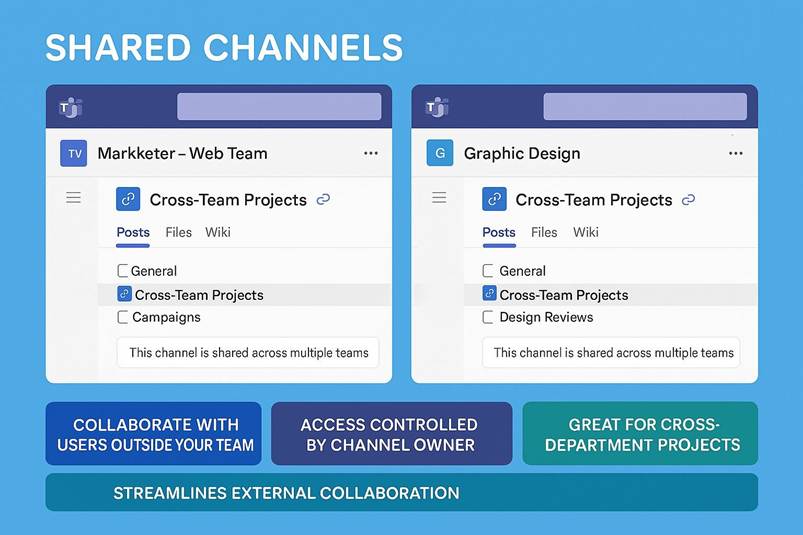
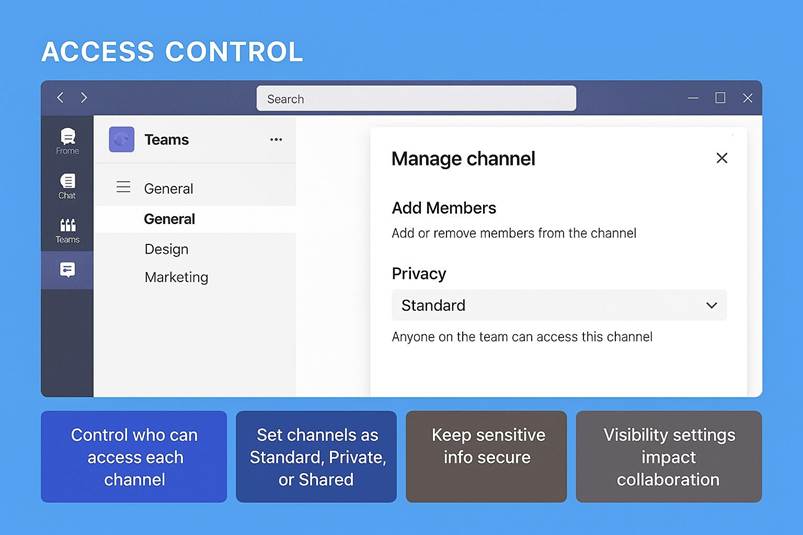
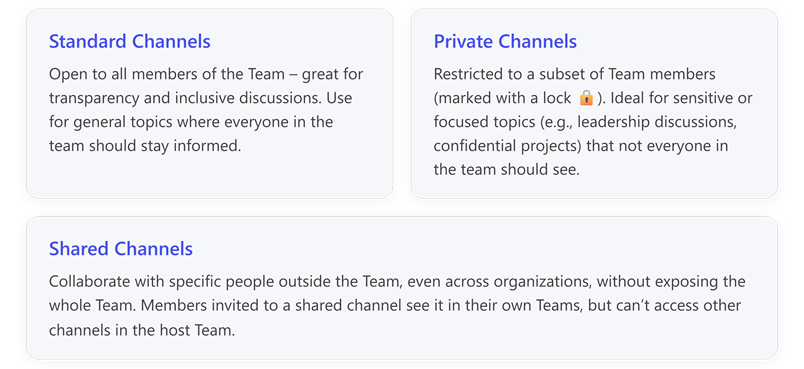
3.2 Standard, private, and shared channels: access and use cases
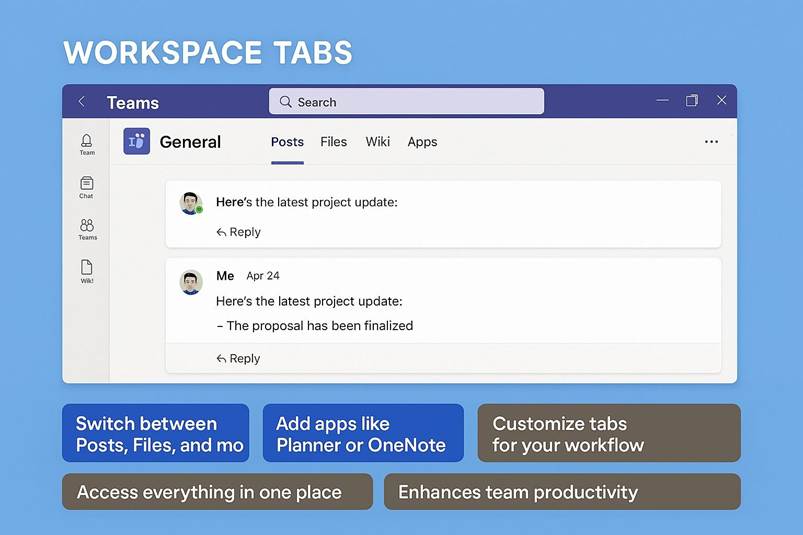
3.3 Inside a channel: posts, files and tabs.
3.4 Centralizing communication and resources in One Place
3.5 - Managing your workspace: pinning, notifications, and lifecycle
3.6 Use cases: education and governance considerations
CHAPTER 4 CHAT AND CONVERSATIONS
4.1 Starting and managing chats: One-on-One, group and threads
4.2 Expressiveness and productivity in chat: emojis, files, mentions and search
4.3 Integration with meetings, notifications, mobile and security
4.4 Meeting chats, chat history management and the impact on collaboration
GUIDED EXERCISES ON THE TOPICS COVERED IN THE CHAPTER
1. Starting and managing chats
2. Expressiveness and productivity in chat
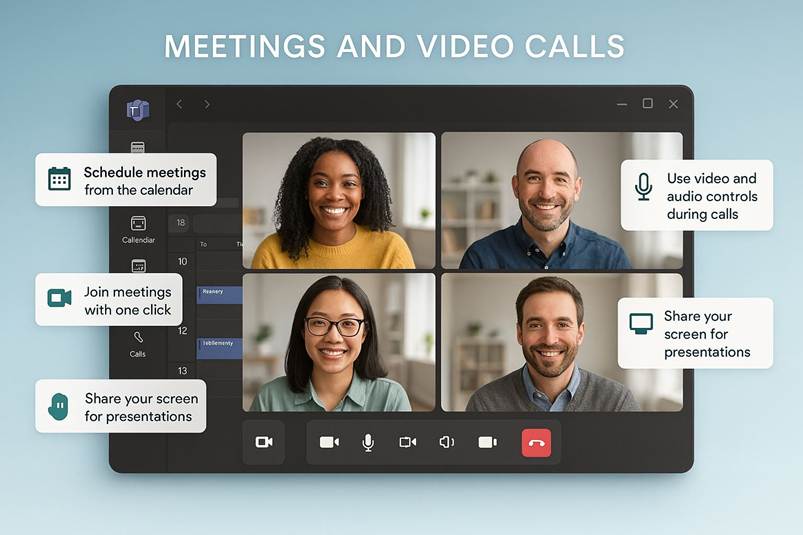
CHAPTER 5 MEETINGS AND VIDEO CALLS
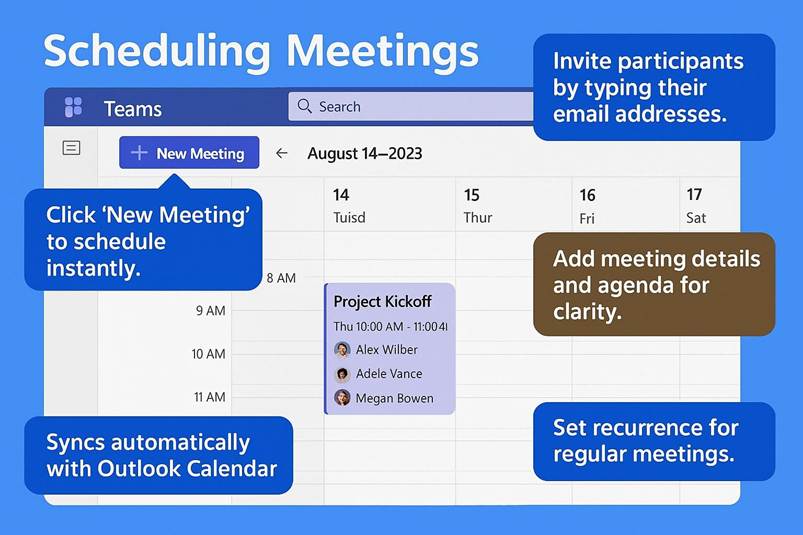
5.1 Scheduling meetings with the integrated calendar and Outlook
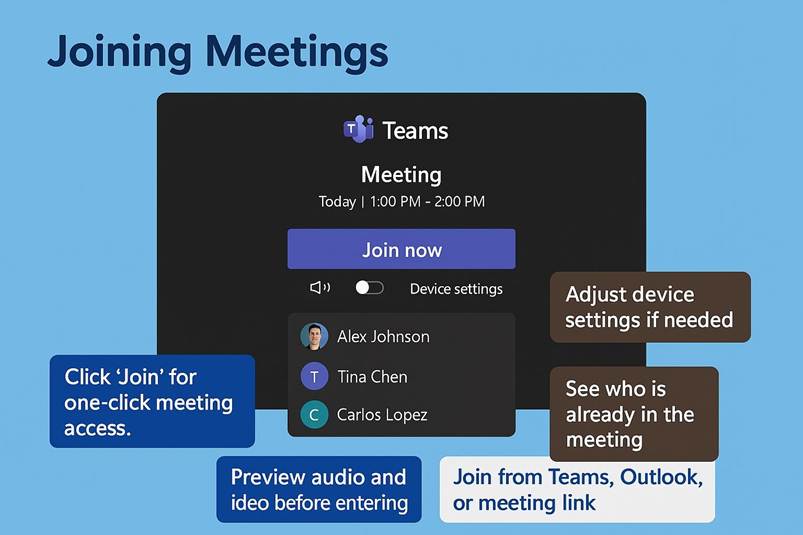
5.2 Joining Meetings: One-Click access and user experience
5.3 Audio and video options: customizing your meeting presence
5.4 Screen sharing capabilities and use cases
5.5 In-Meeting collaboration: chat, reactions and file sharing
5.6 Recording meetings: saving and sharing meeting content
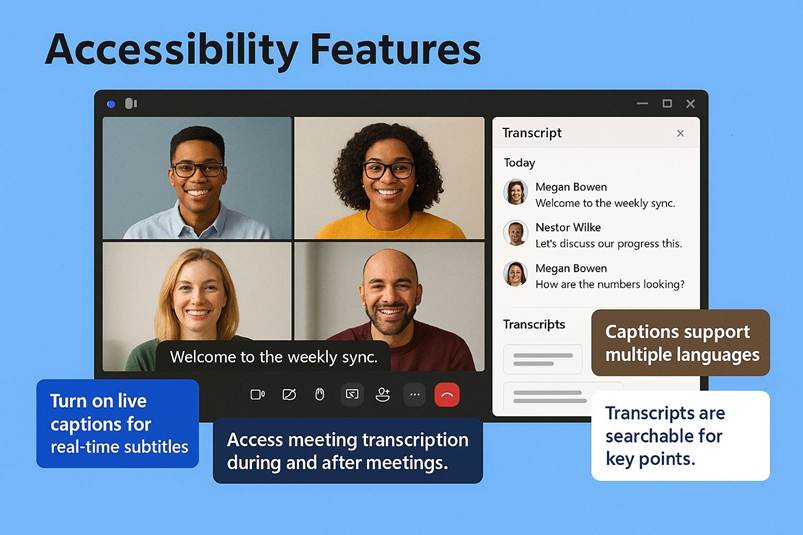
5.7 Accessibility features: live captions and transcription
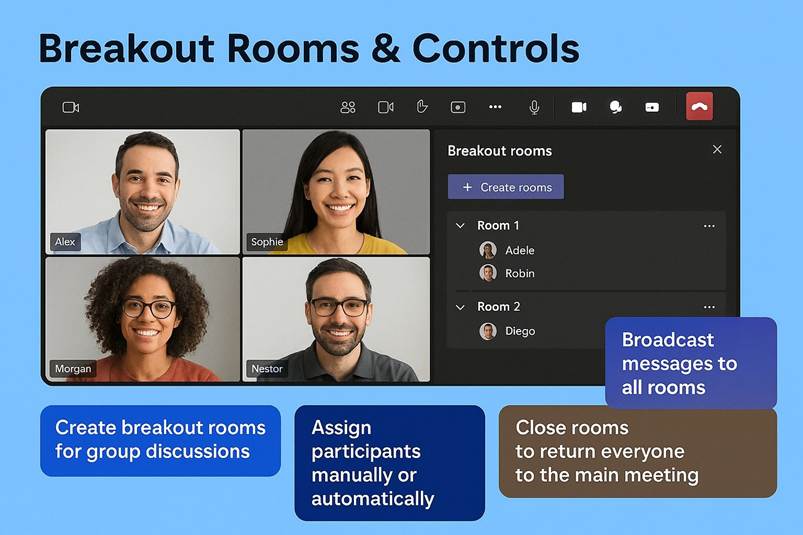
5.8 Advanced features: breakout rooms and meeting controls
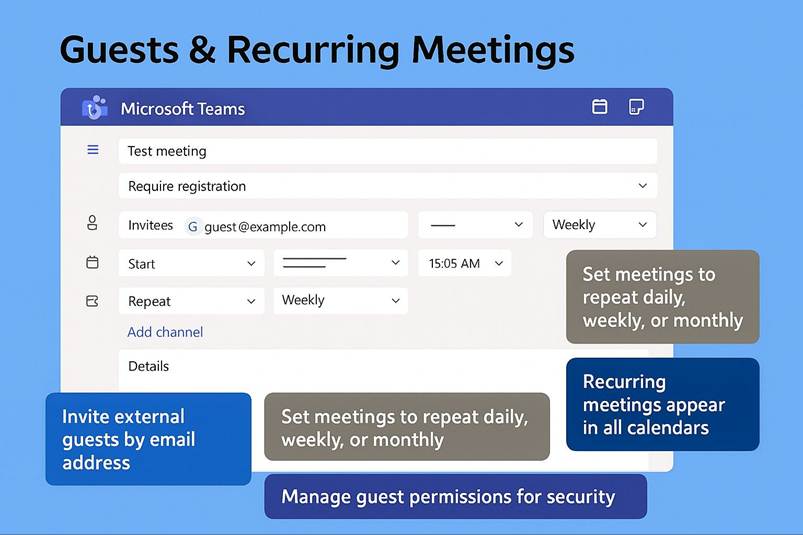
5.9 External guests, recurring meetings, and integration with Microsoft 365
GUIDED EXERCISES ON THE TOPICS COVERED IN THE CHAPTER
1. Scheduling meetings with the integrated calendar and Outlook
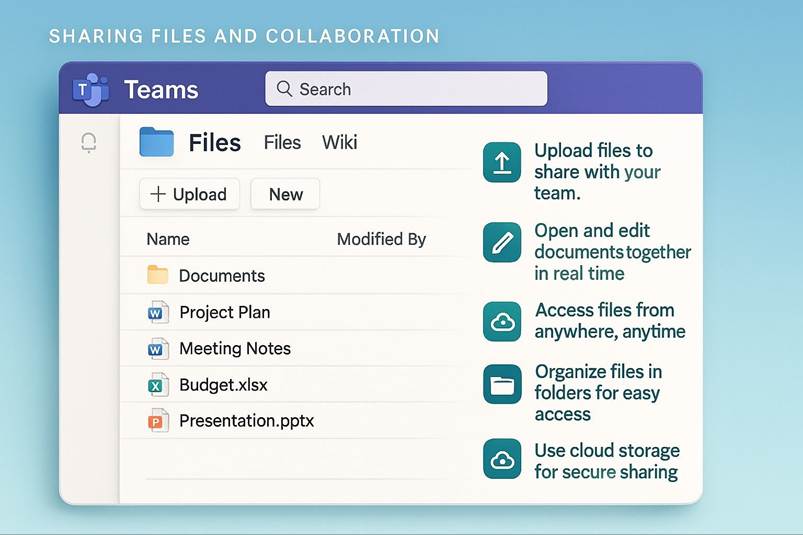
CHAPTER 6 SHARING FILES AND COLLABORATION
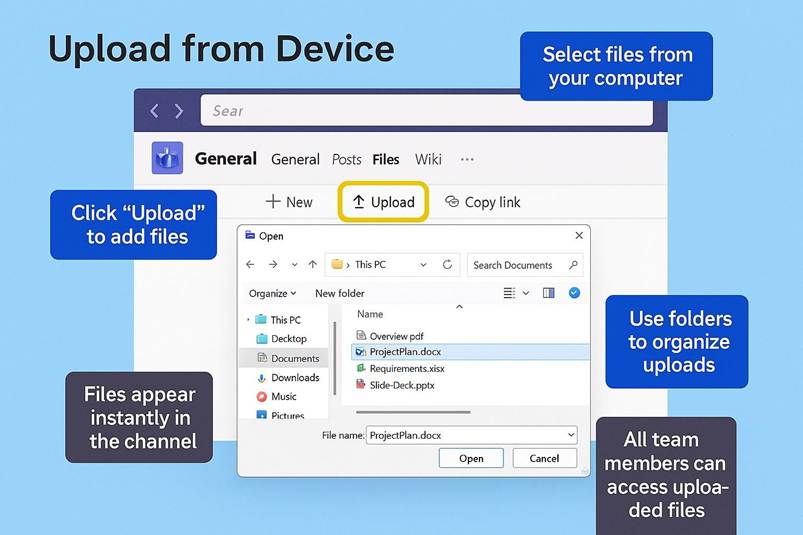
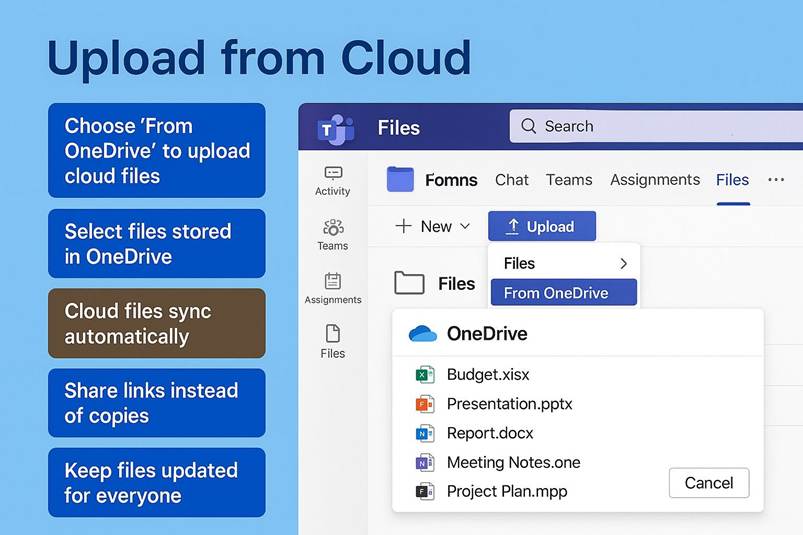
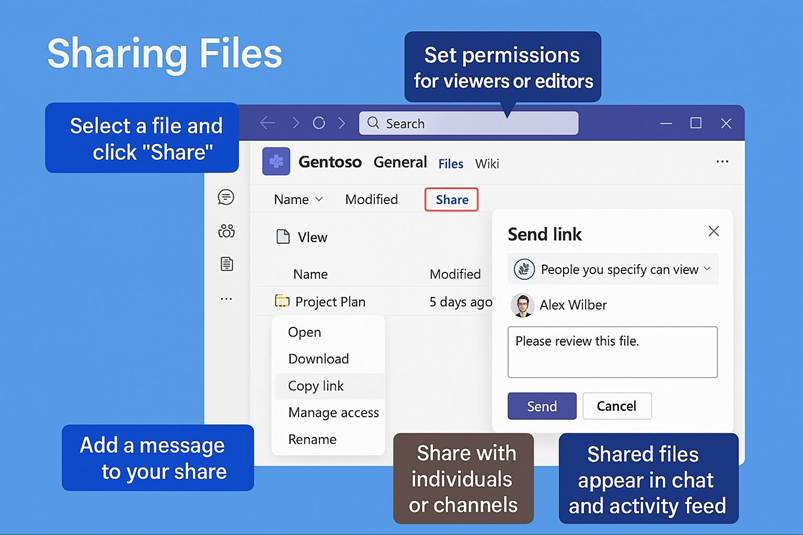
6.1 Uploading and sharing files: from device or cloud into teams
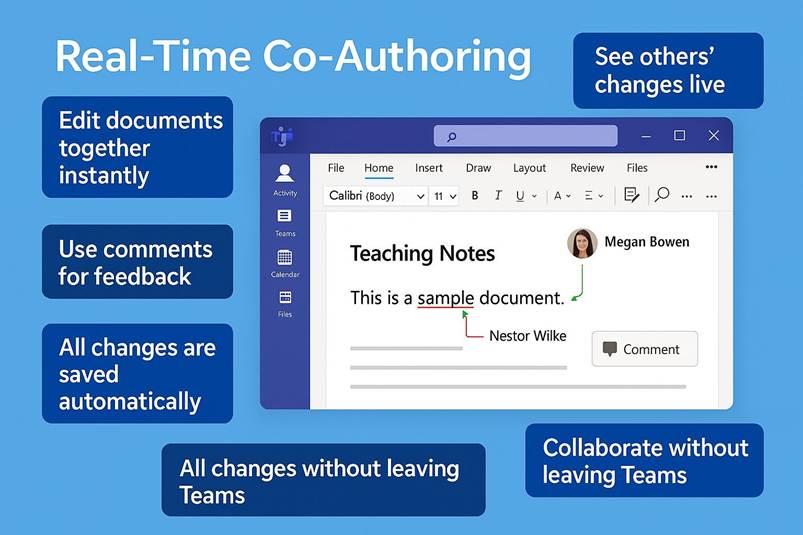
6.2 Real-Time Co-Authoring: working together on documents instantly
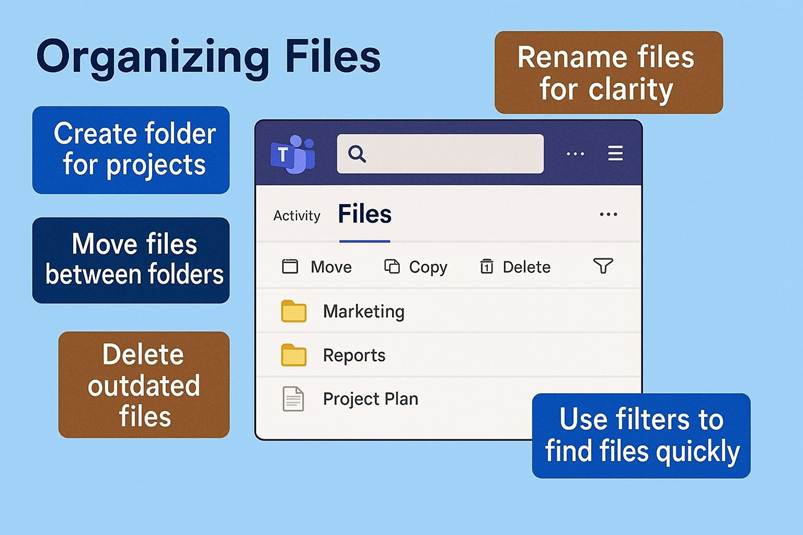
6.3 Organizing and Managing Files
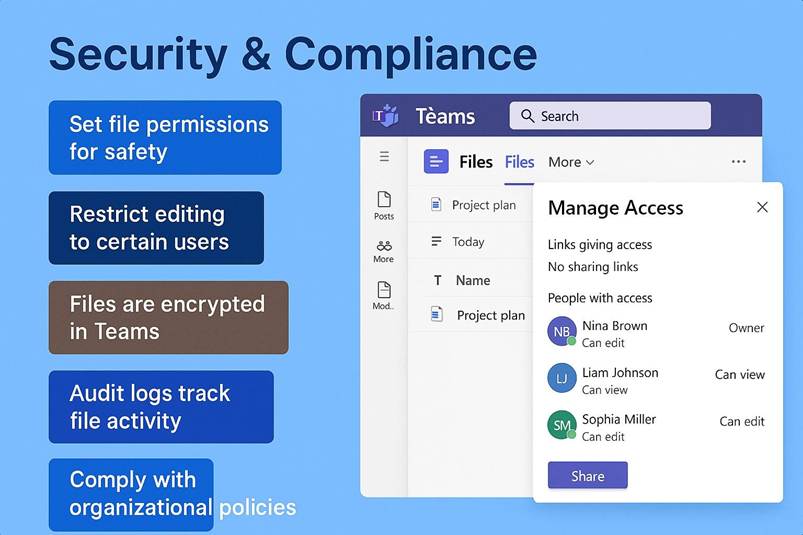
6.4 Security and compliance: keeping shared files safe and controlled
6.5 Contextual collaboration: comments, mentions and integrations
6.6 External collaboration, structured workflows, and use cases
GUIDED EXERCISES ON THE TOPICS COVERED IN THE CHAPTER
1. Uploading and sharing files
3. Organizing and managing files
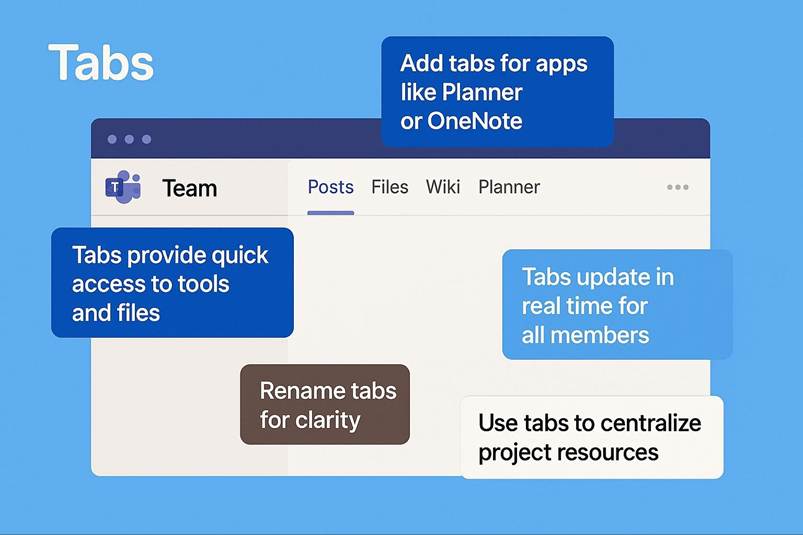
7.1 Tabs: quick access to important tools and files
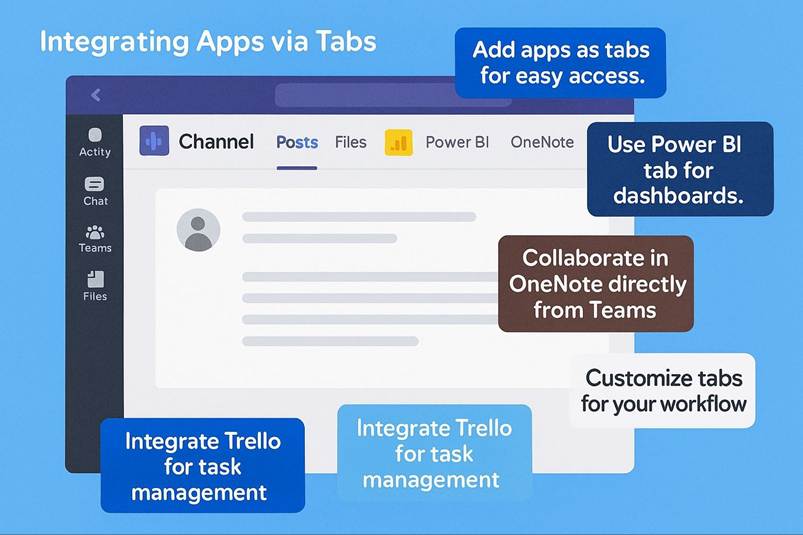
7.2 Integrating Apps via Tabs: examples and use cases
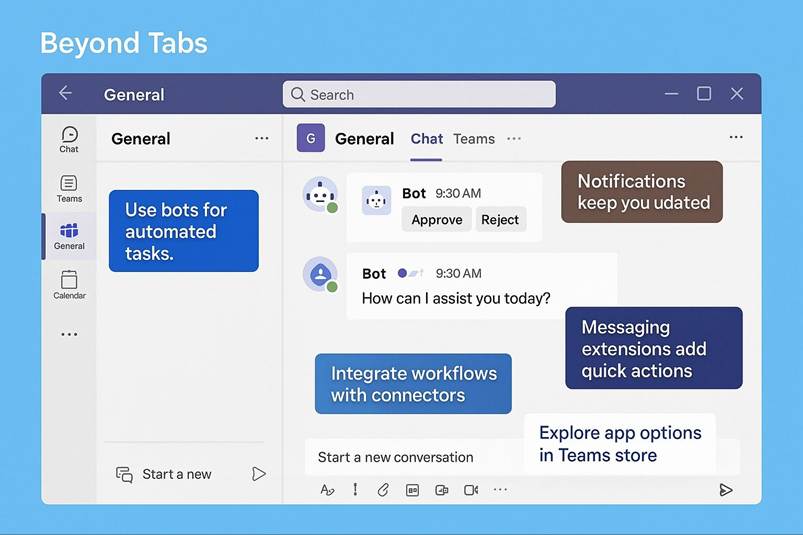
7.3 Beyond Tabs: bots, messaging extensions and notifications
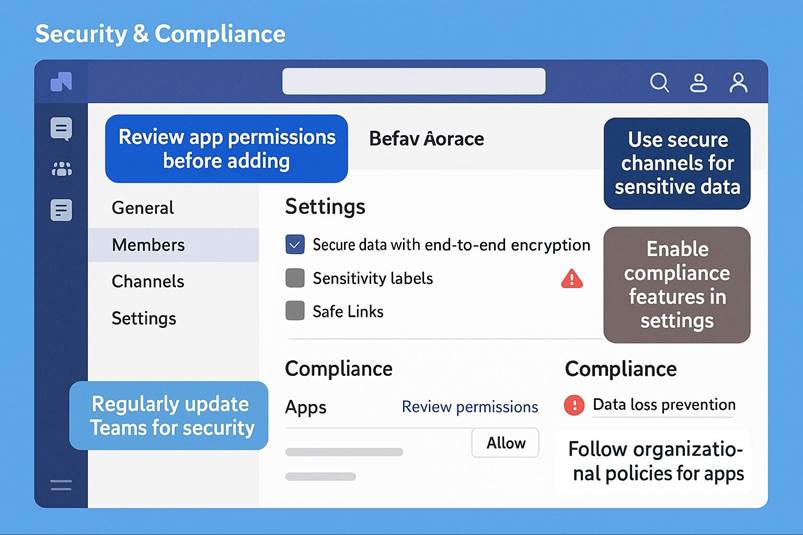
7.4 Security, compliance and best practices for Tabs and Apps
7.5 Use cases recap. Project management, education and remote work
GUIDED EXERCISES ON THE TOPICS COVERED IN THE CHAPTER
1. Learn to use Tabs in Teams channels and chats
5. Project Management, Education and Remote Work
CHAPTER 8 NOTIFICATIONS AND ACTIVITY FEED
8.1 Purpose and Importance of Notifications and the Activity Feed
8.2 How the activity feed works
8.3 Notification types and delivery methods
8.4 Customizing notification settings
8.5 Advanced features and best practices
GUIDED EXERCISES ON THE TOPICS COVERED IN THE CHAPTER
1. Messages, mentions, or updates
2. How the activity feed works
3. Notification types and delivery methods.
4. Customizing notification settings
CHAPTER 9 SETTINGS AND PERSONALIZATION
9.1 Accessing settings and updating your profile
9.2 Notification settings: staying informed without overload
9.3 Appearance and theme customization
9.4 Privacy and security settings
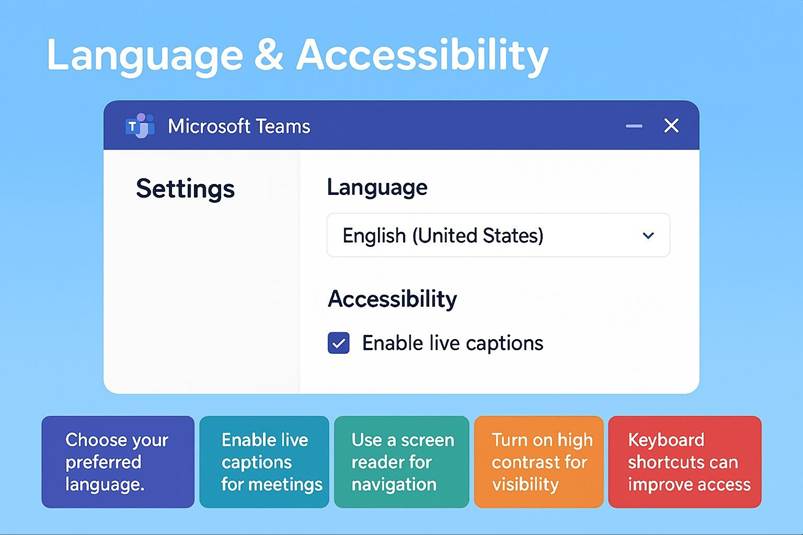
9.5 Language, regional and accessibility options
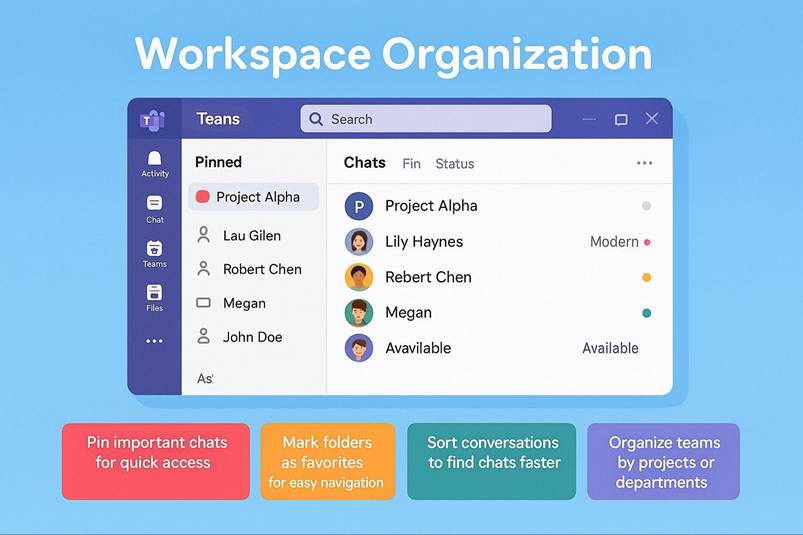
9.6 Organizing your workspace: pinned Items, favorites and status
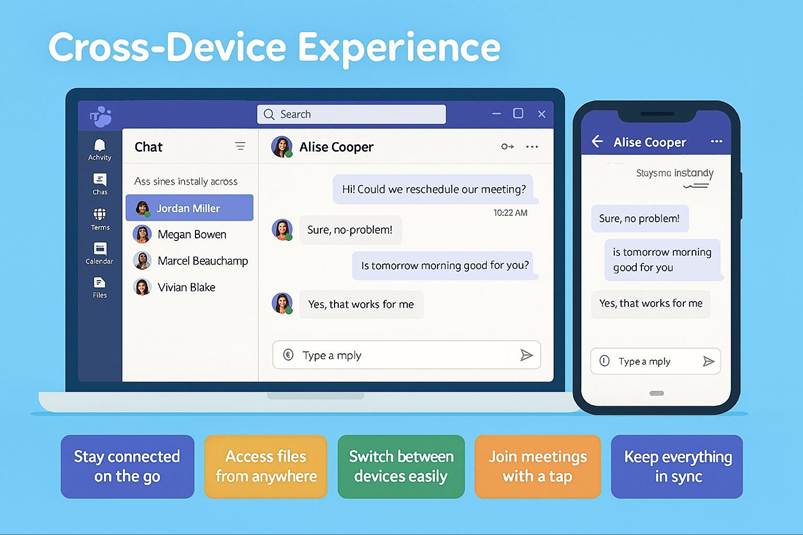
9.7 Cross-Device experience, education use and conclusion
GUIDED EXERCISES ON THE TOPICS COVERED IN THE CHAPTER
1. Accessing settings and updating your profile
3. Appearance and theme customization
4. Privacy and security settings
5. Language, regional and accessibility options
6. Pinned items, favorites and status
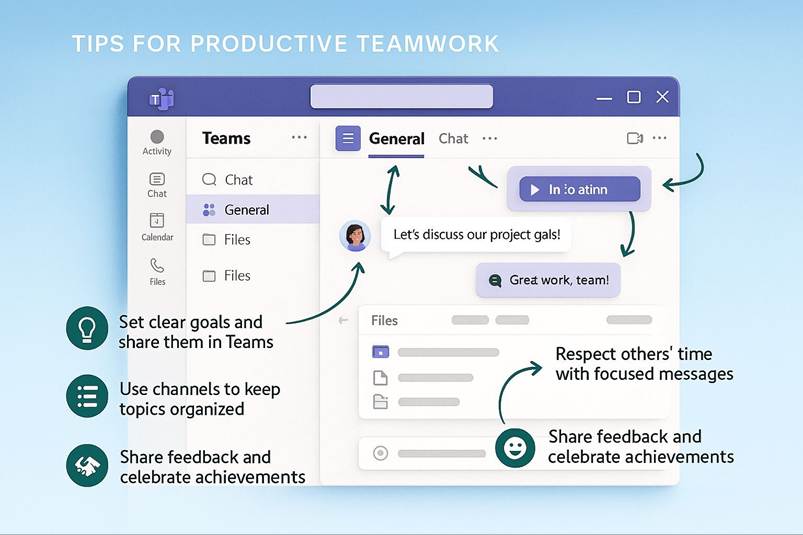
CHAPTER 10 TIPS FOR PRODUCTIVE TEAMWORK
10.1 Structuring channels by topic or function
10.2 Open, respectful and structured communication
10.3 Sharing feedback and celebrating achievements
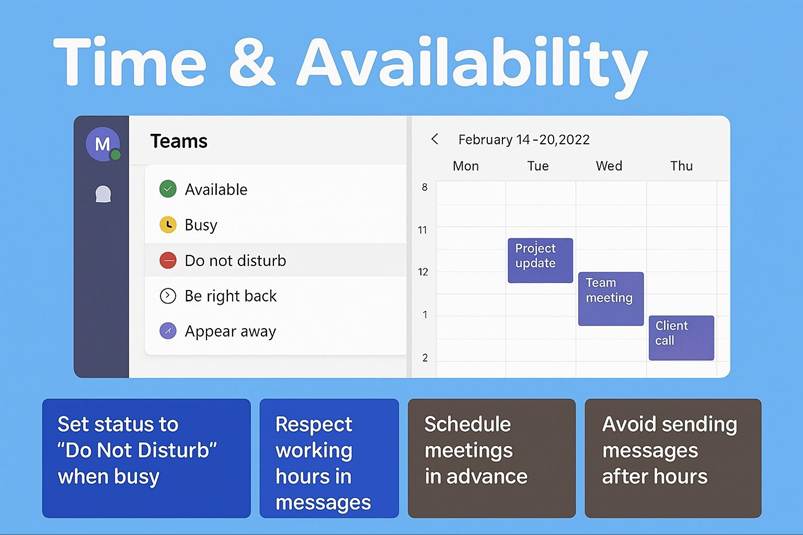
10.4 Respecting time and availability
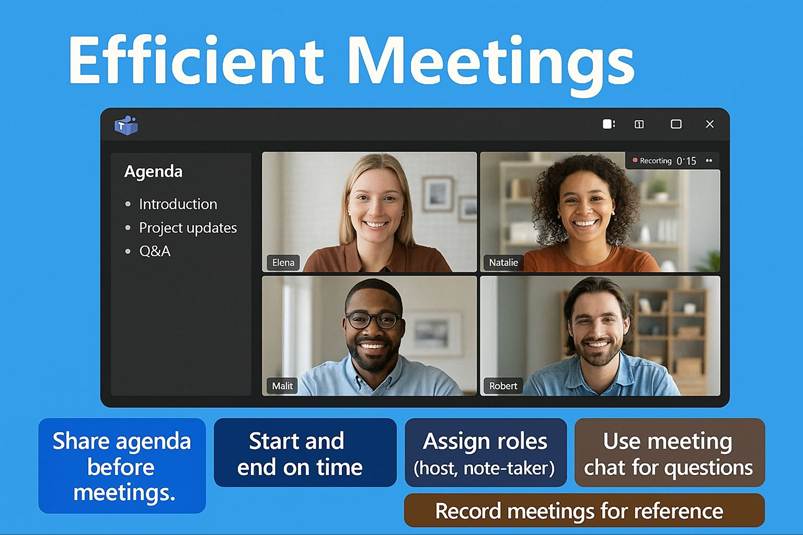
10.5 Planning and running efficient meetings
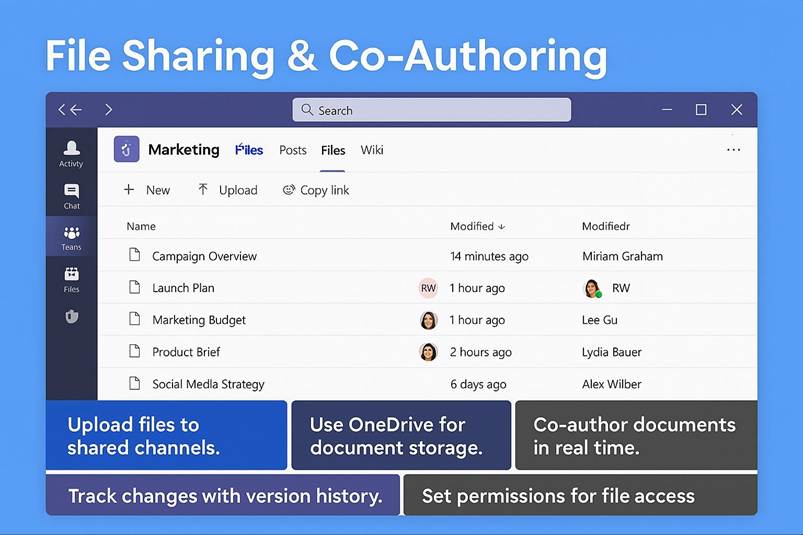
10.6 Streamlining collaboration with file sharing and Co-Authoring
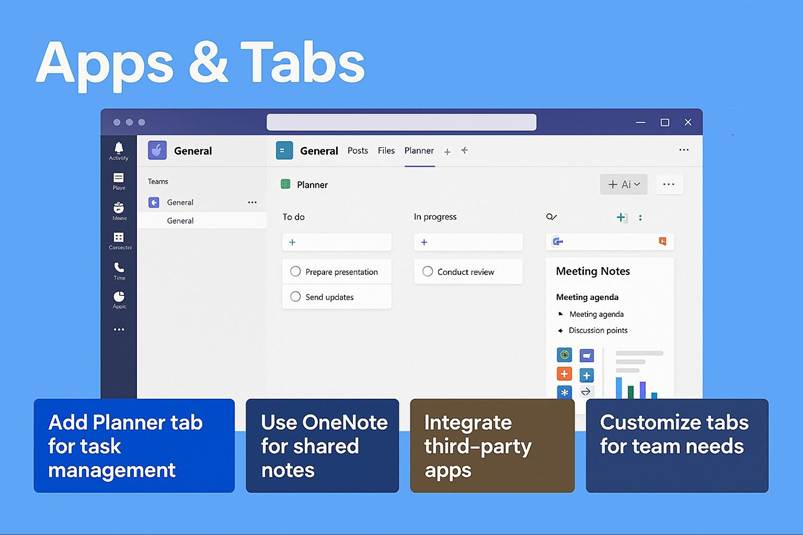
10.7 Enhancing teamwork with Apps and Tabs
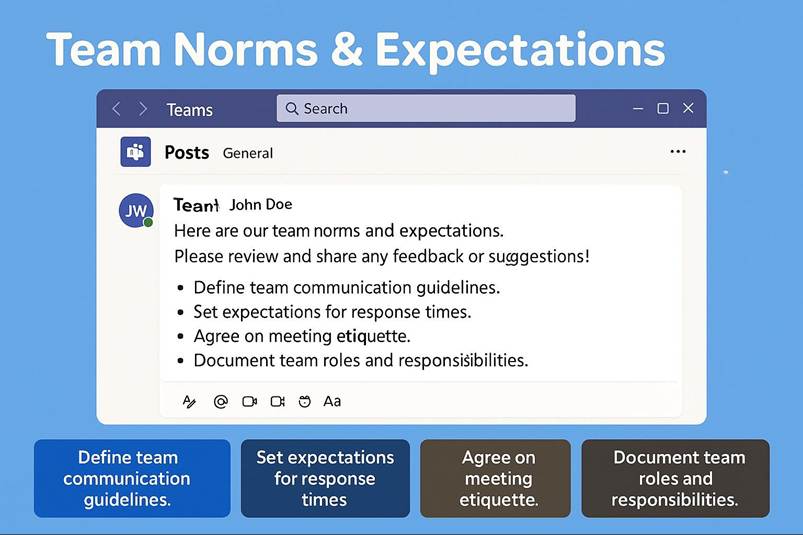
10.8 Establishing team norms and expectations
GUIDED EXERCISES ON THE TOPICS COVERED IN THE CHAPTER
1. Structuring channels by topic or function
5. Planning and running efficient meetings.
7. Enhancing teamwork with Apps and Tabs.
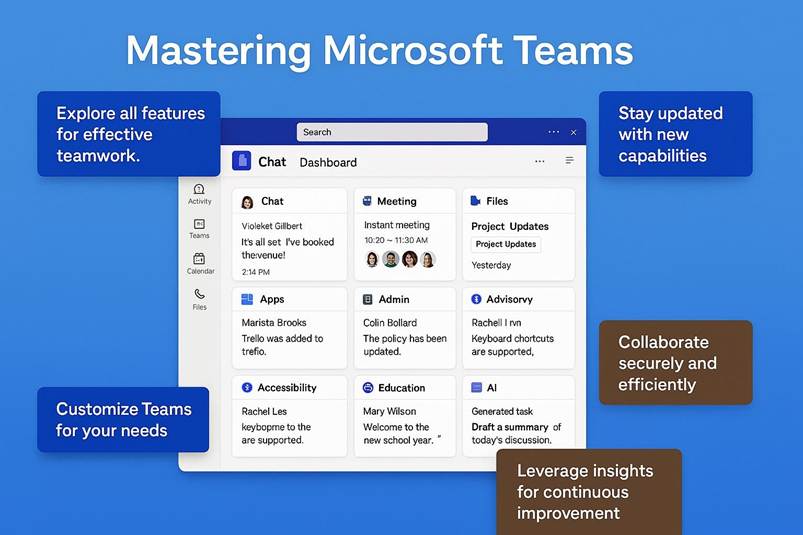
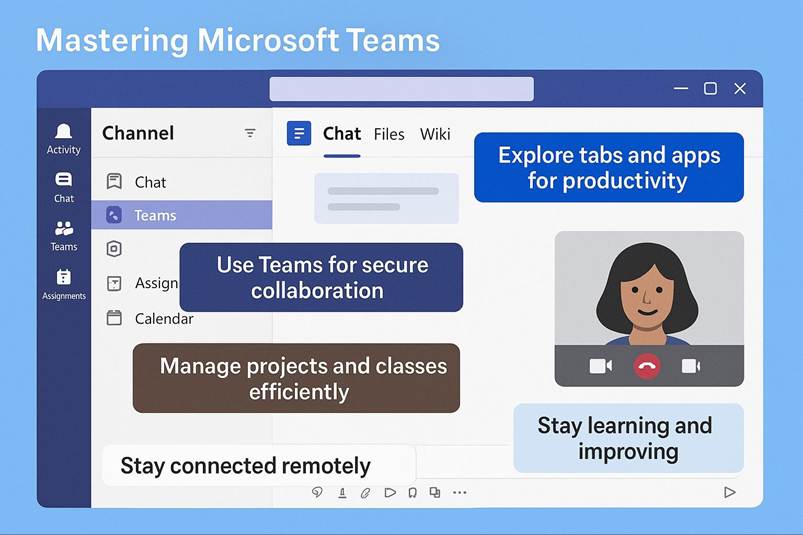
In today s fast-paced business environment, collaboration is no longer a luxury it is a necessity. Microsoft Teams stands at the forefront of this transformation, offering organizations a unified platform that redefines how people connect, communicate, and create together. This ebook is designed to guide you through the immense potential of Microsoft Teams, not only as a communication tool but as a strategic enabler for modern enterprises.
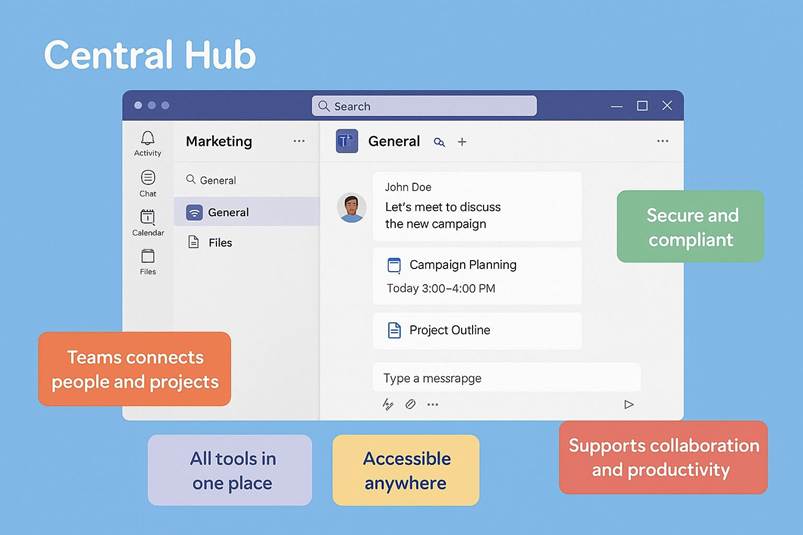
Microsoft Teams is more than just chat and video calls. It is a hub for teamwork that integrates seamlessly with Microsoft 365, bringing together conversations, files, and workflows into one secure and accessible space. Whether you are managing projects, hosting virtual meetings, or collaborating on documents in real time, Teams provides the flexibility and scalability that businesses need to thrive in a digital-first world.
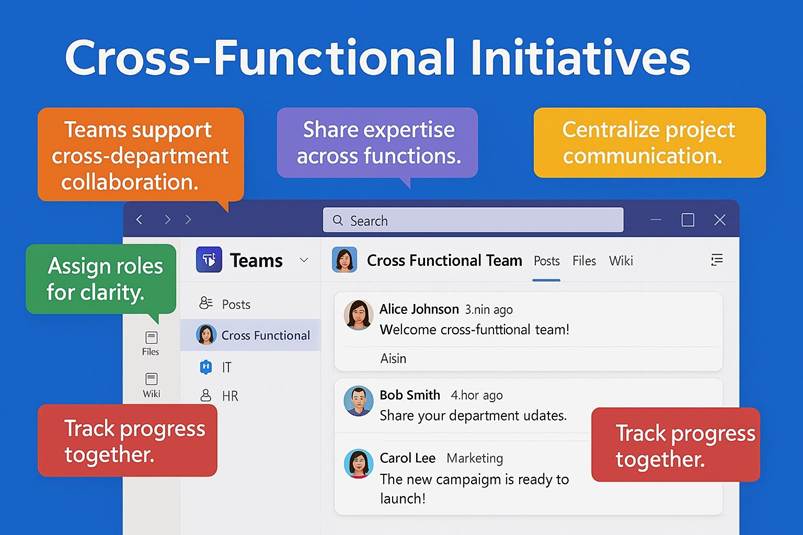
For companies, the benefits are clear: streamlined communication, reduced email overload, and enhanced productivity through automation and integration. Teams allows departments to break down silos, enabling cross-functional collaboration that accelerates decision-making and innovation. From HR onboarding sessions to global marketing campaigns, every process can be centralized and optimized within Teams.
Beyond its operational advantages, Microsoft Teams opens doors to new career opportunities. As organizations adopt hybrid and remote work models, proficiency in Teams has become a sought-after skill. Roles such as Teams Administrator, Collaboration Specialist, and Unified Communications Engineer are emerging as critical positions in IT and digital transformation strategies. Professionals who master Teams can position themselves as indispensable assets in fields like project management, customer success, and technical support.
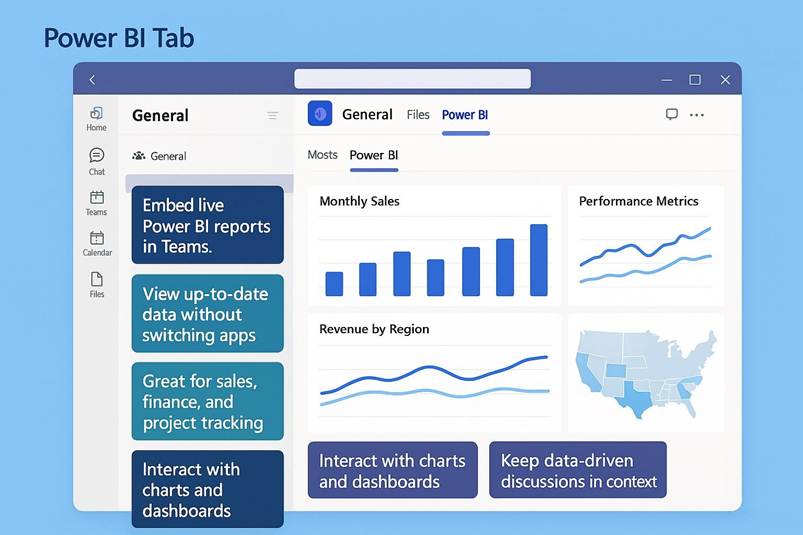
Moreover, Teams fosters inclusivity and accessibility, ensuring that every voice is heard regardless of location or device. Its integration with apps and third-party services creates a dynamic ecosystem where creativity and efficiency coexist. From automating routine tasks with Power Automate to analyzing data through Power BI dashboards embedded in Teams, the possibilities are endless.
This ebook will explore these dimensions in depth, equipping you with practical knowledge and strategic insights. Whether you are an IT professional, a team leader, or an aspiring digital consultant, you will discover how to leverage Teams to drive collaboration, enhance productivity, and unlock new career paths.
Welcome to a journey that goes beyond technology it is about shaping the future of work. Let s dive in and uncover how Microsoft Teams can transform your organization and your professional trajectory.
CHAPTER 1 WHAT IS MICROSOFT TEAMS?
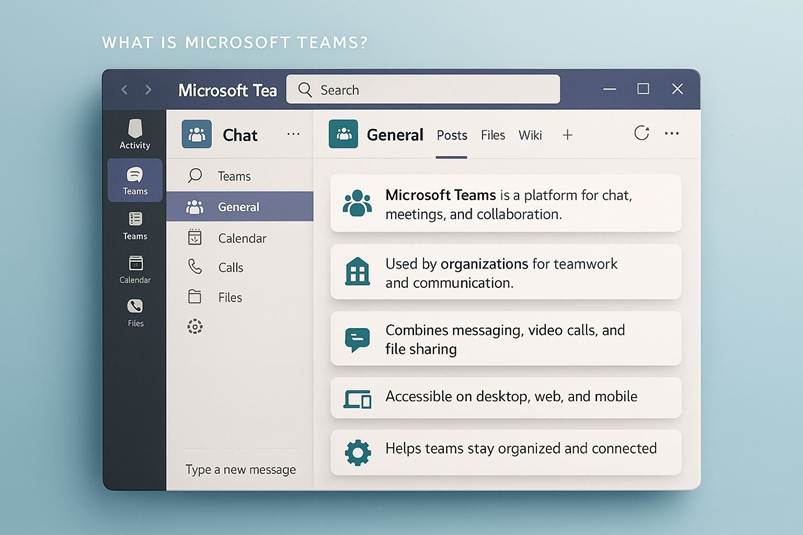
Microsoft Teams is a comprehensive team collaboration platform developed by Microsoft as part of the Microsoft 365 suite. It serves as a central hub for teamwork, integrating real-time chat, video conferencing, calling, file sharing, and many other tools into a single unified interface. Launched globally in 2017, Teams was designed to streamline communication and enhance productivity for organizations of all sizes, from small businesses to large enterprises and educational institutions. In the modern workplace especially with the rise of hybrid and remote work Teams plays a pivotal role by enabling colleagues to collaborate seamlessly from anywhere, whether through instant messaging, virtual meetings, or co-authoring documents in real time. Over the past several years, Teams has evolved into a cornerstone of digital workplace transformation, gradually replacing earlier Microsoft tools like Skype for Business and becoming one of the world s most widely used collaboration solutions. As of 2023, the platform is used by hundreds of millions of people every month, illustrating its importance in today s work environments.
1.1 Evolution and Integration with Microsoft 365
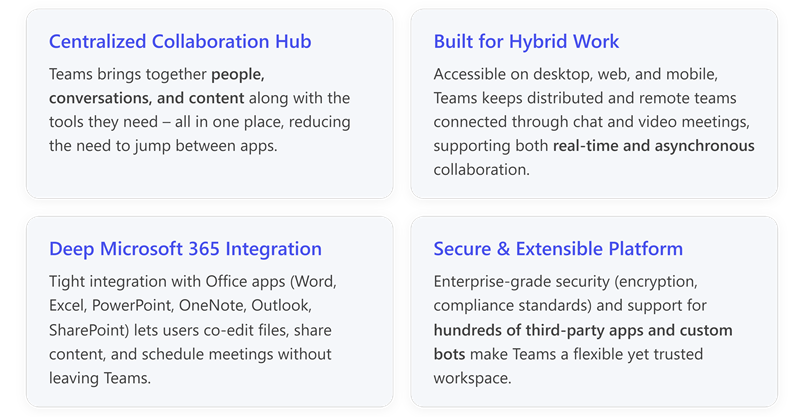
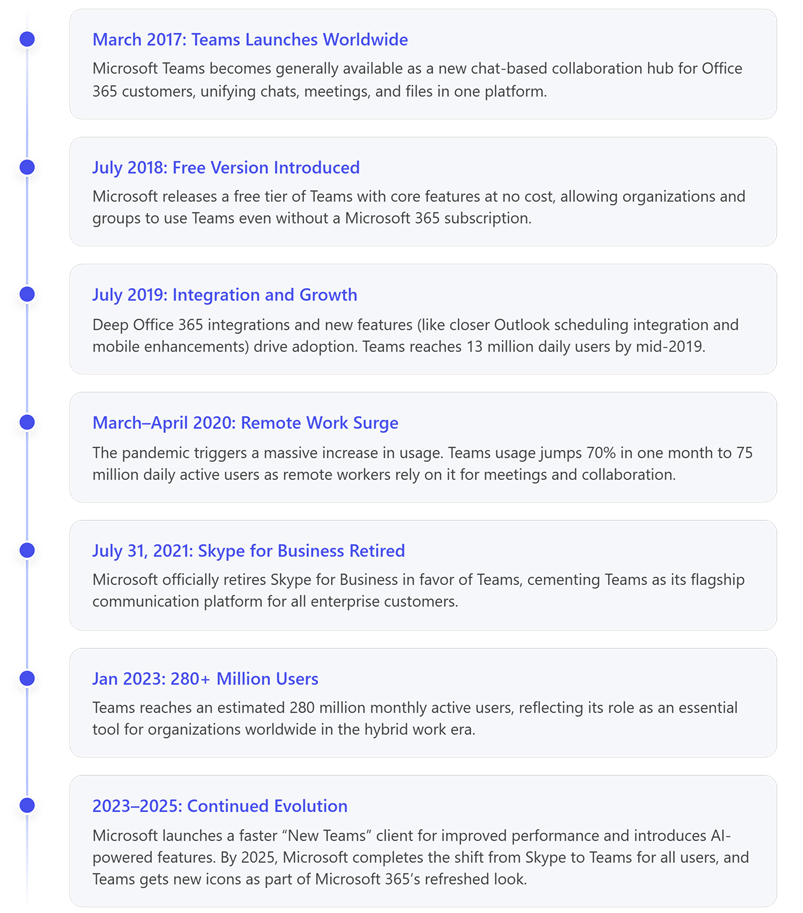
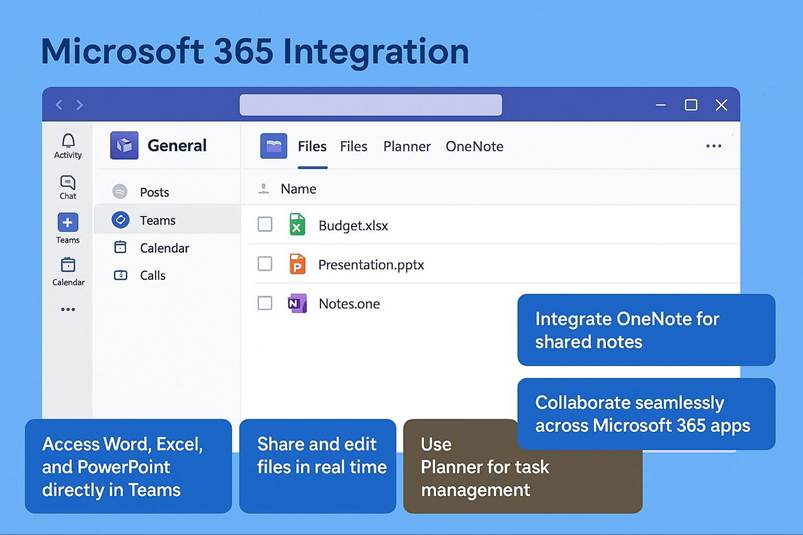
Microsoft introduced Teams in March 2017 as a chat-based workspace within Office 365 (now Microsoft 365). From the outset, Teams was built on the foundation of Office 365 integration, meaning it worked seamlessly with other Microsoft applications and services. For example, users can open, edit, and collaborate on Word documents or Excel spreadsheets right inside Teams without switching to another app. This tight coupling with SharePoint and OneDrive for file storage, Outlook for scheduling meetings, and OneNote for notetaking was intended to enhance productivity by keeping everything in one context. Microsoft Teams brings together the full breadth and depth of Office 365 to provide a true hub for teamwork, as Microsoft described at launch. Word, Excel, PowerPoint, SharePoint, OneNote, Planner, Power BI, and more were all built into Teams from day one. This means a project team working in Teams can chat about a task, jump into a video call, co-author a PowerPoint presentation, and schedule the next check-in meeting, all without leaving the Teams app.
The history of Teams is one of rapid growth and continuous improvement. Initially announced in late 2016 as Microsoft s answer to the rising popularity of workplace chat apps like Slack, Teams was made broadly available in Office 365 by March 2017. Early on, Microsoft positioned Teams to eventually replace Skype for Business for enterprise communications. Over the next few years, Microsoft steadily enhanced Teams: they introduced a free version of Teams in 2018 to broaden its user base beyond paid Office 365 subscribers, and by 2019 had optimized it for firstline workers (employees on the frontline of industries, using mobile or shared devices) to expand its use in retail, manufacturing, and other sectors. A landmark change came in July 2021, when Skype for Business was officially retired, marking Teams as the company s primary unified communications tool going forward.
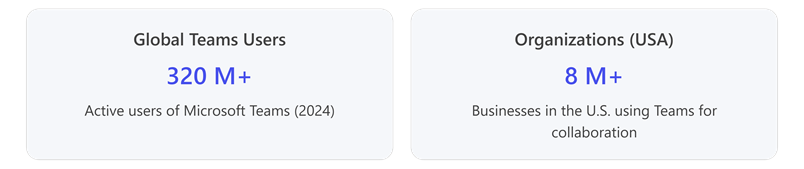
External events significantly accelerated Teams adoption. During the COVID-19 pandemic in 2020, as organizations worldwide shifted to remote work practically overnight, Teams saw explosive growth. Microsoft reported that the number of daily active users jumped from 44 million in early March 2020 to 75 million by April 2020, as companies and schools relied on Teams for virtual meetings and remote collaboration. This surge continued into the following years: by January 2023, Teams had roughly 280 million monthly active users. Such widespread use prompted Microsoft to keep refining the platform; for instance, in 2023 Microsoft began rolling out a redesigned Teams 2.0 client, rebuilt for faster performance and lower resource use, recognizing that many users keep Teams open all day. By late 2025, Microsoft even updated the Teams logo and visuals as part of a refreshed Microsoft 365 design, underscoring Teams mature place in the Office ecosystem. Meanwhile, Microsoft completed the transition from older communication products: in 2025 the consumer Skype service was slated for final retirement with users encouraged to move to Teams.
1.2 Core Features Supporting Teamwork
At its core, Microsoft Teams offers a rich set of features that facilitate both synchronous and asynchronous communication, enabling teams to work together effectively regardless of location or time zone. Key among these features are chat, channels, meetings (video and audio conferencing), and file sharing with collaborative editing. Together, these create a digital workplace where conversations, content, and tasks are seamlessly connected.
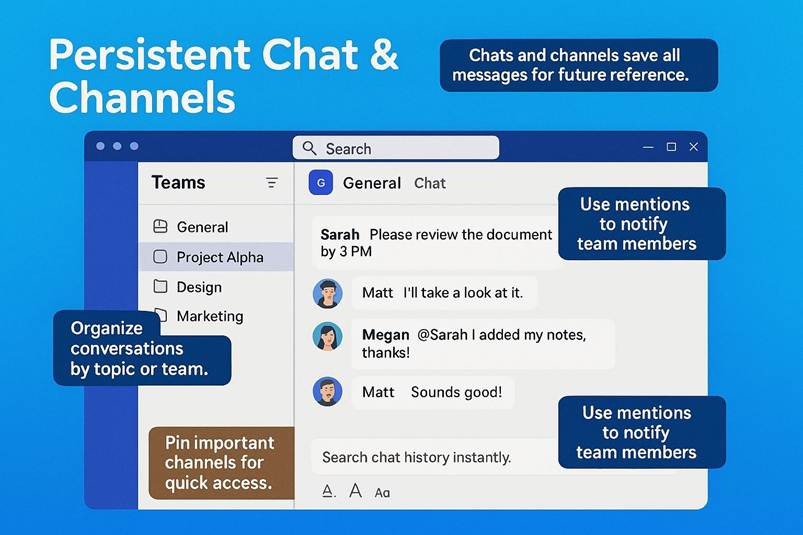
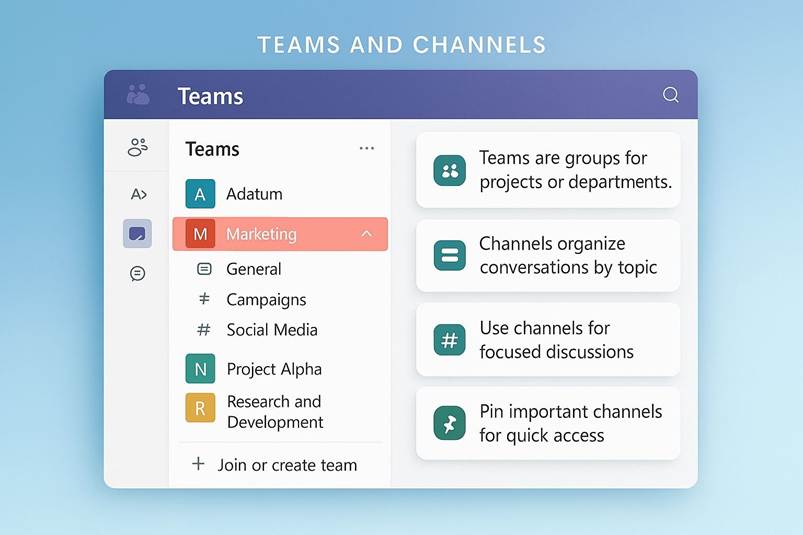
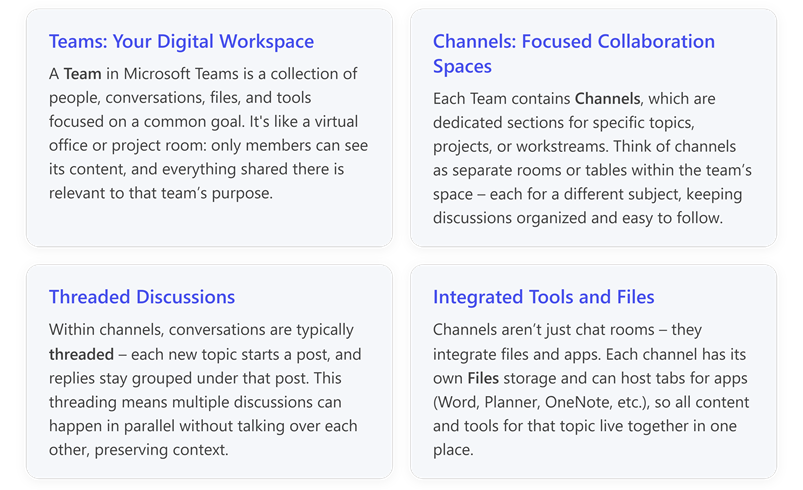
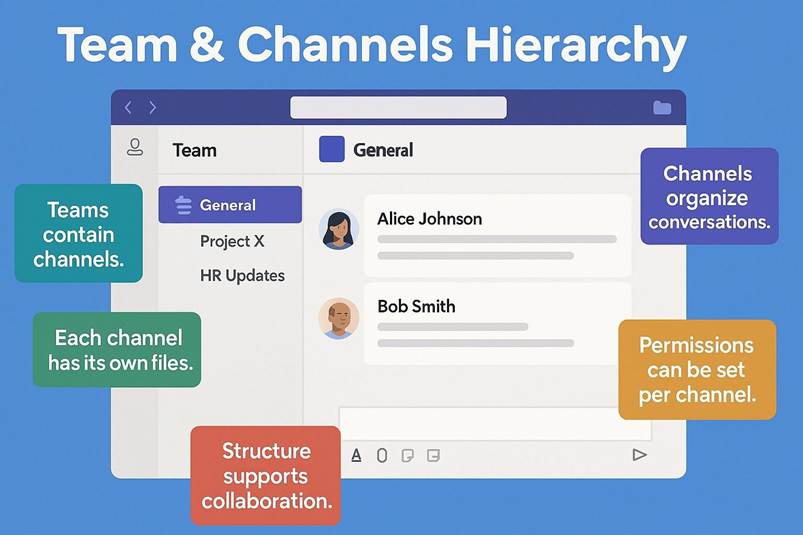
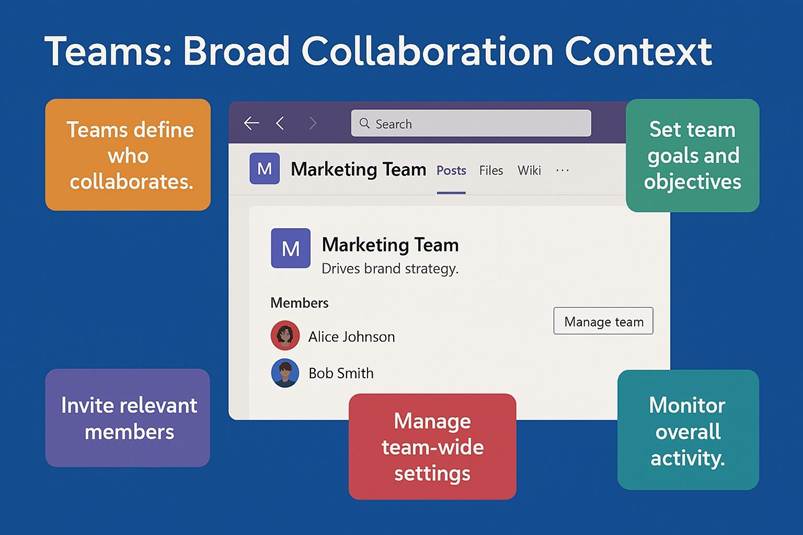
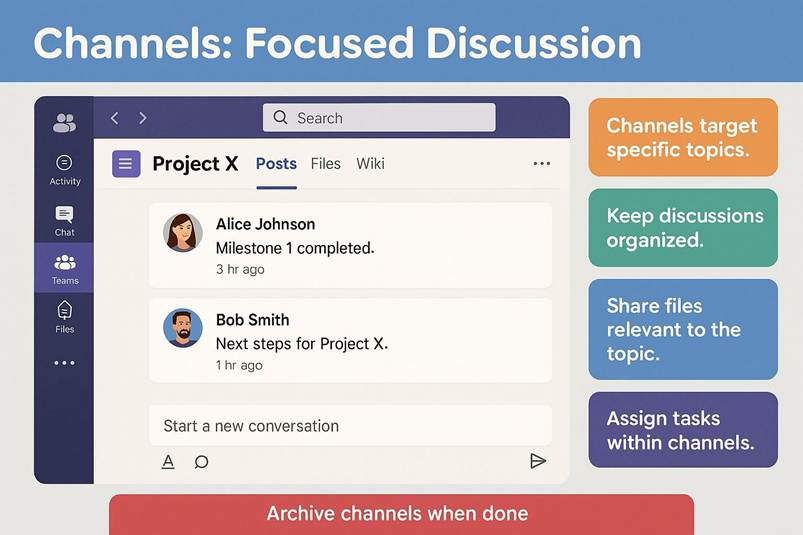
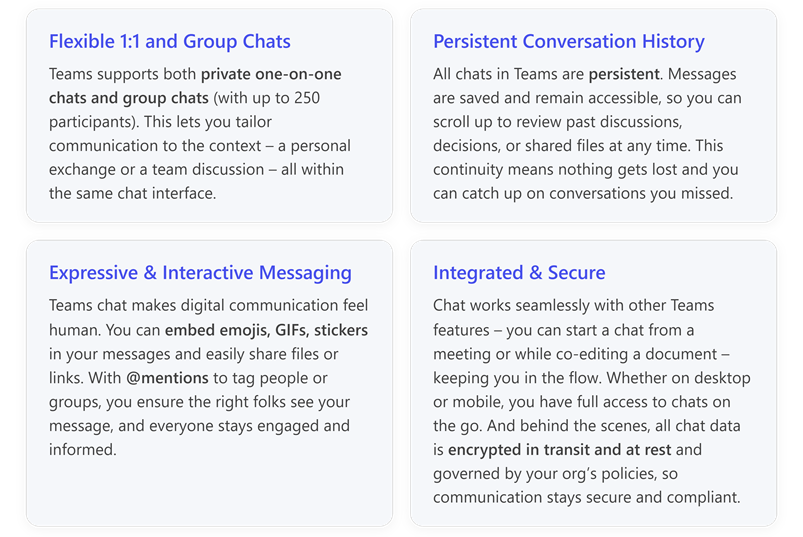
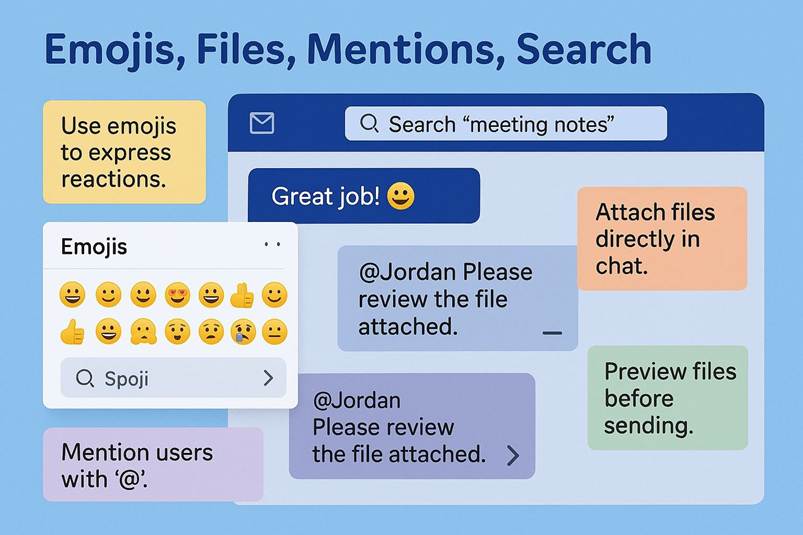
Persistent chat and channels: Teams provides persistent chat capabilities, meaning conversations don t disappear when you close the app; they remain for later reference, which is crucial for asynchronous work. Users can engage in one-on-one or group chats as well as in channel discussions within a team. A Team in Microsoft Teams is typically a group of people (e.g. a department, project group, or class) with a shared set of channels. Each channel is an organized space dedicated to a specific topic, project, or purpose, containing its own conversation thread and files. For example, a Marketing Team might have channels like Campaign Planning and Design Assets to keep discussions focused. Conversations in channels are threaded, meaning you can reply to a specific message and maintain context, which makes it easier to follow discussions on multiple sub-topics without confusion. By default, channel messages are visible to the whole team, fostering transparency, while private chats and private channels allow confidential discussions when needed. Within chats and channels, users can share rich content text messages, images, GIFs, stickers, and links creating an engaging communication experience. The chat interface supports mentions (pinging a colleague by name), inline file attachments, and even features like the ability to message yourself (a personal draft space or notepad introduced in 2022). This blend of open group conversation and targeted private messaging means Teams accommodates both open collaboration and focused dialogue.
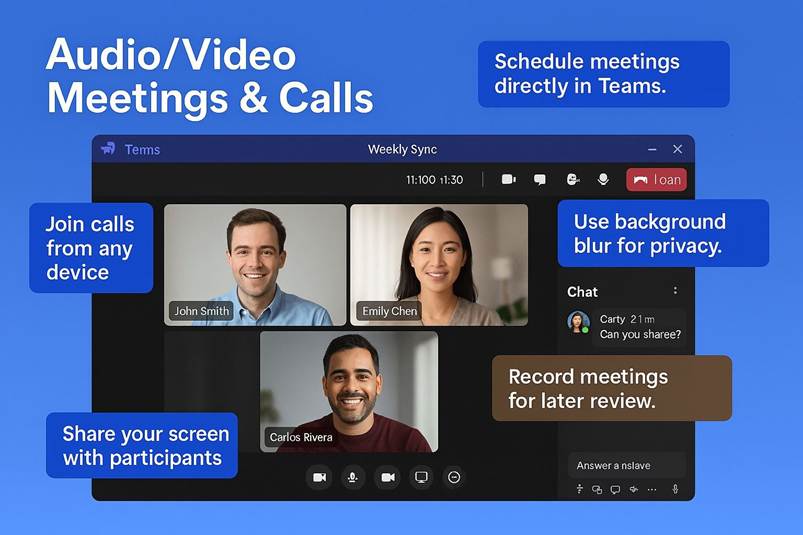
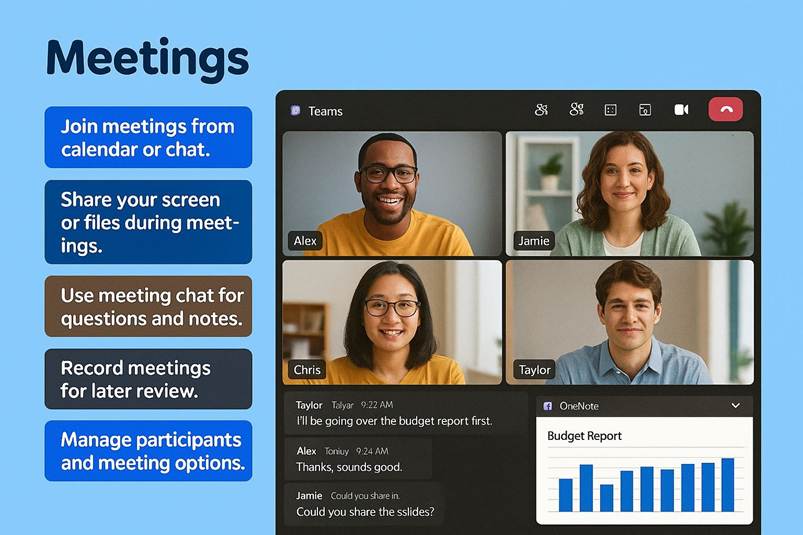
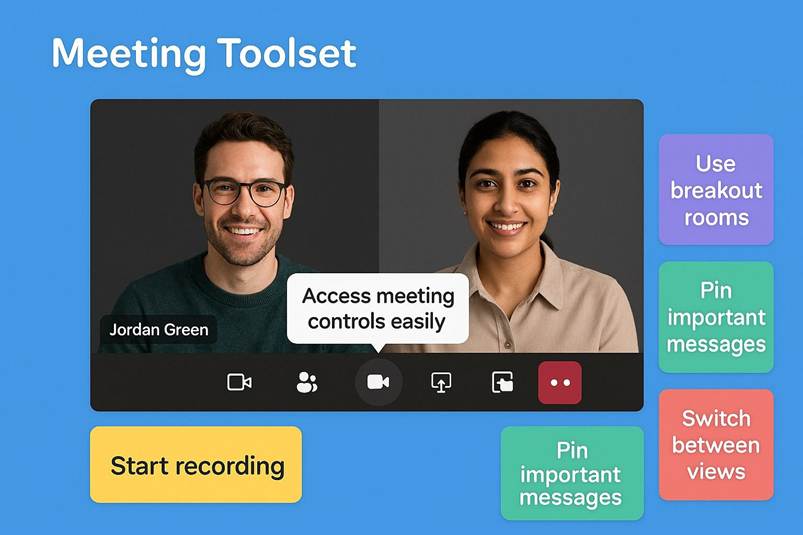
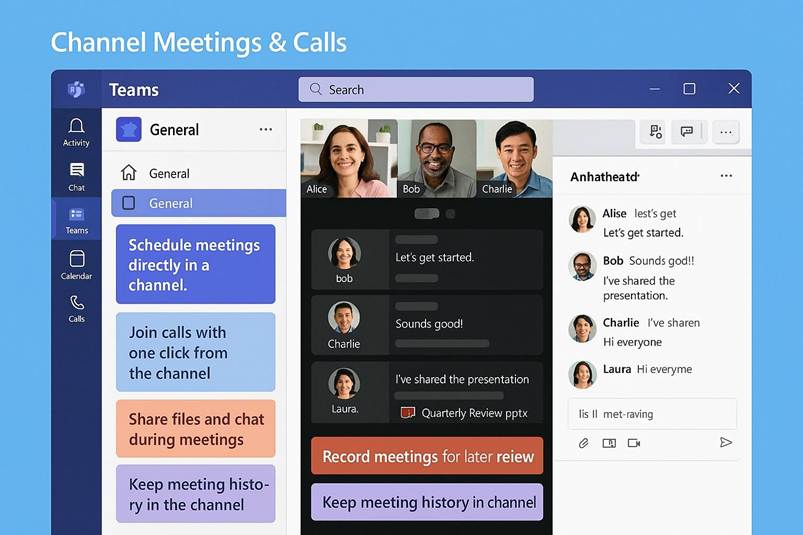
Audio/video meetings and calls: One of Teams most powerful capabilities is its built-in support for voice and video meetings. Users can easily jump from a chat into a real-time call or schedule a full-fledged meeting with a calendar invitation (Teams integrates with Outlook calendar for scheduling). Video conferences in Teams can range from quick one-on-one video calls to large all-hands meetings. The platform supports interactive meetings with up to 1,000 participants, and view-only broadcasts that scale to 10,000 attendees for webinars or live events. In meetings, participants have access to a wide array of collaboration tools: they can share their screen or even just a specific application window to show presentations or demos; they can use a digital whiteboard or annotate shared content; and they can chat in a side panel during the meeting (useful for sharing links or for those who might not have audio access). Teams meetings also include features to enhance communication and inclusivity, such as live captions (automatically transcribing speech to text in real time), live transcription (a post-meeting transcript of what was said), and meeting recording. These features help ensure that people who couldn t attend can catch up later, thereby supporting asynchronous work. For interactive sessions, breakout rooms can be created to split participants into smaller groups for workshops or brainstorming, with a click to return everyone to the main room later. Microsoft has also introduced innovative viewing modes notably Together Mode, which uses AI to digitally place participants in a shared background (like an auditorium or coffee shop) so that it feels like everyone is in the same room. Together Mode and another layout called Front Row (where remote attendees video feeds appear along the bottom of the screen near eye level) are designed to make virtual meetings more engaging and to reduce meeting fatigue by presenting participants more naturally. Teams also offers a full dial-in/dial-out conferencing service and a telephony system called Teams Phone. With appropriate licenses, organizations can use Teams as a replacement for traditional phone systems, allowing users to make and receive phone calls to external numbers via the PSTN (public telephone network) directly from Teams interface. This means voice calls, voicemail, and other telephony features are unified into the same app that people use for chat and meetings, simplifying communications infrastructure.
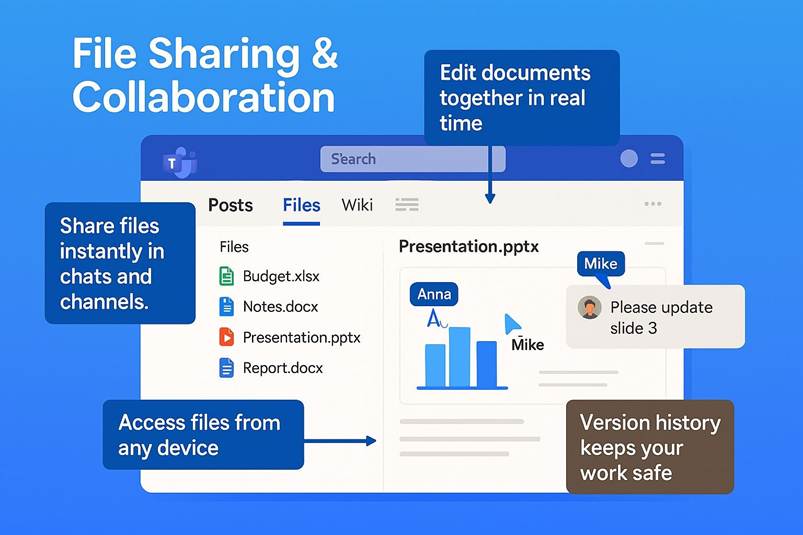
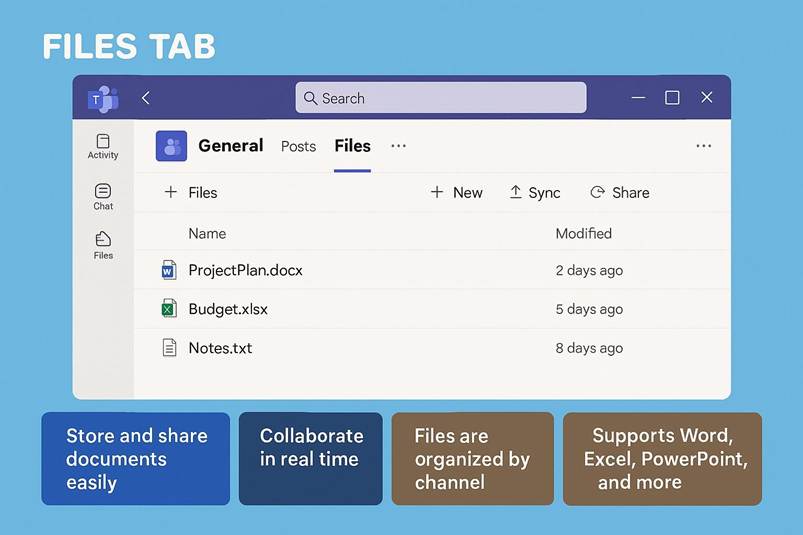
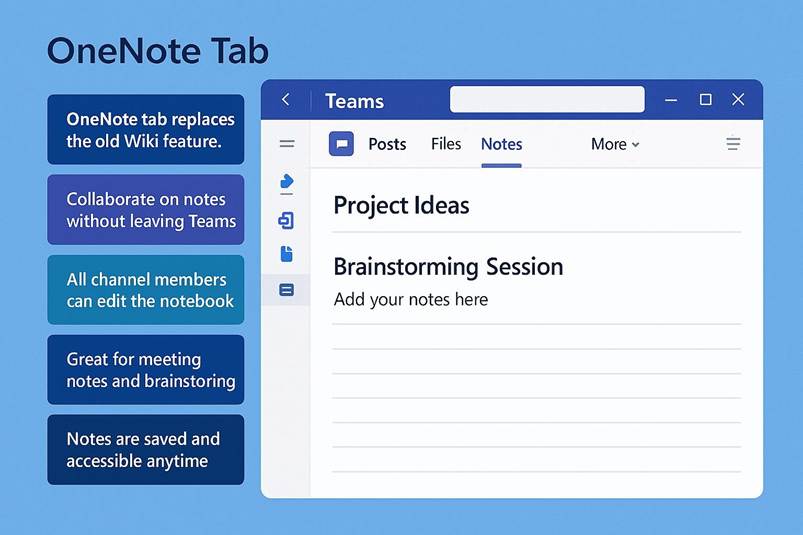
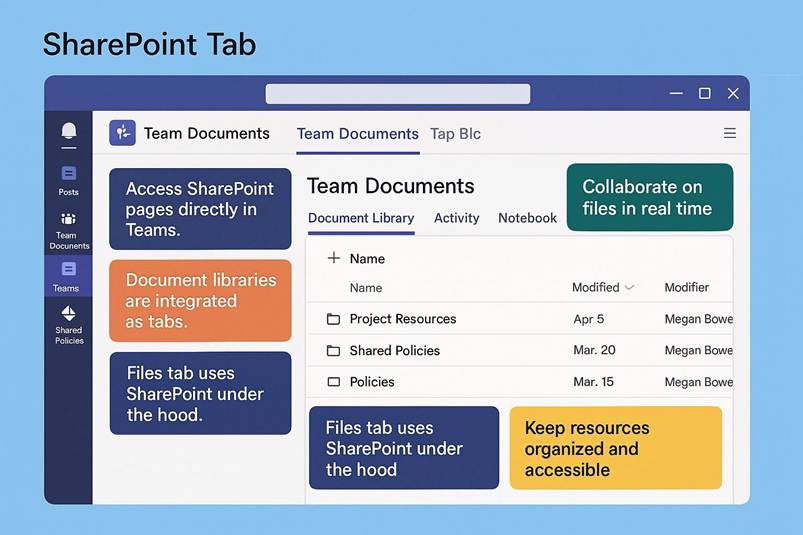
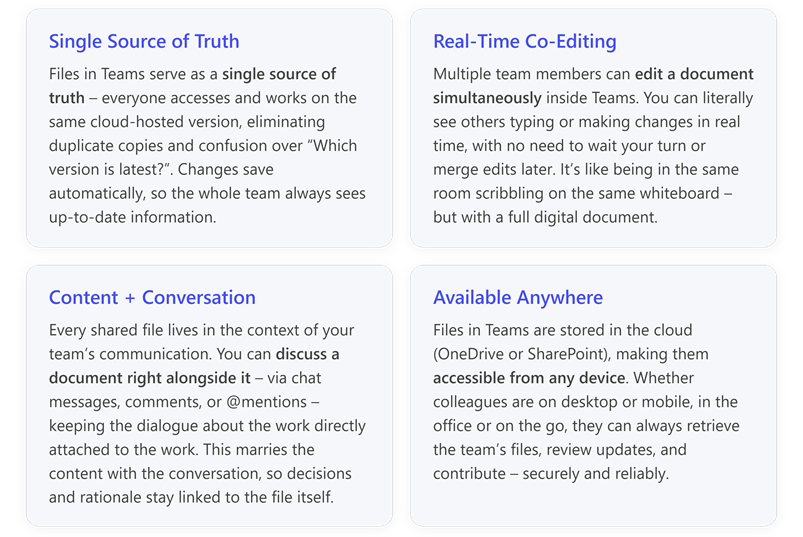
File sharing and real-time collaboration: Sharing and collaborating on files is central to the Teams experience. Rather than emailing attachments back and forth, team members can upload files directly into a Teams chat or channel, where those documents are instantly accessible to everyone in that conversation (with permissions automatically managed via SharePoint and OneDrive in the background). For instance, if a Word document or Excel spreadsheet is shared in a channel, all members of that team can open it, often right within Teams itself. Thanks to Microsoft 365 integration, multiple people can co-edit documents simultaneously using Office Online or their desktop Office apps, seeing each other s changes in real time. Teams keeps track of version history through SharePoint, so it s easy to retrieve earlier versions if needed. This real-time co-authoring eliminates the confusion of having separate copies of files; every team member is always looking at the latest single version of the content. Within a team, the Files tab in each channel provides an organized view of all documents shared there, essentially backed by a SharePoint document library. Users can even start a conversation around a file for example, discussing edits to a proposal in a chat alongside the document which keeps context tied to the content. Moreover, OneNote notebooks can be used inside Teams for collaborative notetaking, and recently the older Wiki feature in Teams channels was replaced with OneNote integration to provide a more robust wiki/notes experience. All of this means Teams acts as the single source of truth for project information: the chats discuss the work, the meetings enable live discussion, and the files tab holds the working documents. Everyone always has access to the current information they need to do their jobs, which greatly reduces duplication and miscommunication. Also, because files in Teams are stored in the cloud, they are available on any device a team member can start drafting a document in the office on a PC and later review or edit it from home on a tablet via Teams.
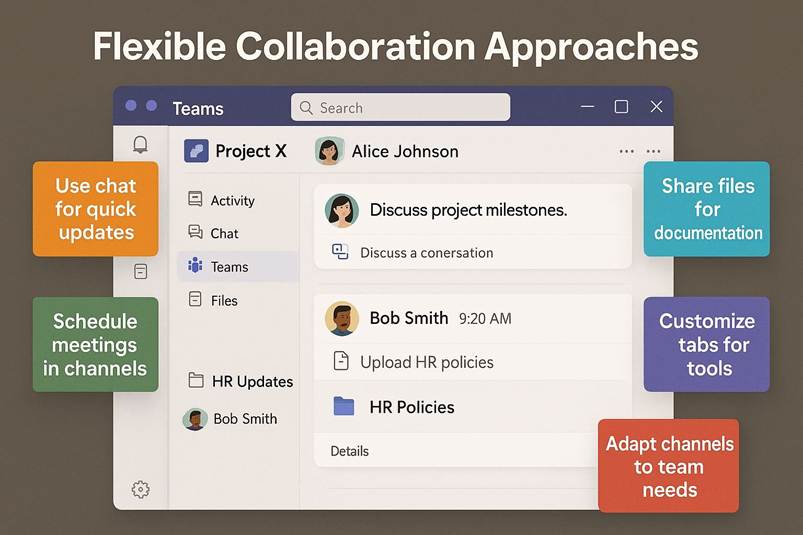
Overall, these core features chat and channels for ongoing discussions, meetings for real-time interaction, and integrated file collaboration underpin Microsoft Teams value as a one-stop shop for teamwork. Team members can move fluidly from sending a quick message to launching a video call to co-authoring a report, all within the same application. This cohesion not only saves time (no more juggling five different apps to get things done) but also helps maintain context continuity: the conversation about a project, the files for that project, and the meeting notes from discussions about that project all live together. By supporting both synchronous work (like live meetings or instant chat responses) and asynchronous work (like leaving messages for teammates in other time zones, or reviewing a meeting recording later), Teams accommodates diverse workflows and schedules. This has been particularly invaluable for globally distributed teams and remote workers. People can contribute on their own schedule without feeling out of the loop, because everything is captured in the Teams workspace for later reference.
1.3 Extensibility, security and modern use cases
Beyond its core functionality, Microsoft Teams offers a host of additional capabilities that make it a flexible platform capable of adapting to various organizational needs. These range from integrations with third-party apps and custom bots, to enterprise-grade security and compliance features, administrative controls for IT management, accessibility options, and specialized use cases like education. Together, these aspects have solidified Teams as not just a communication tool, but a foundational digital workspace driving transformation in how organizations operate.
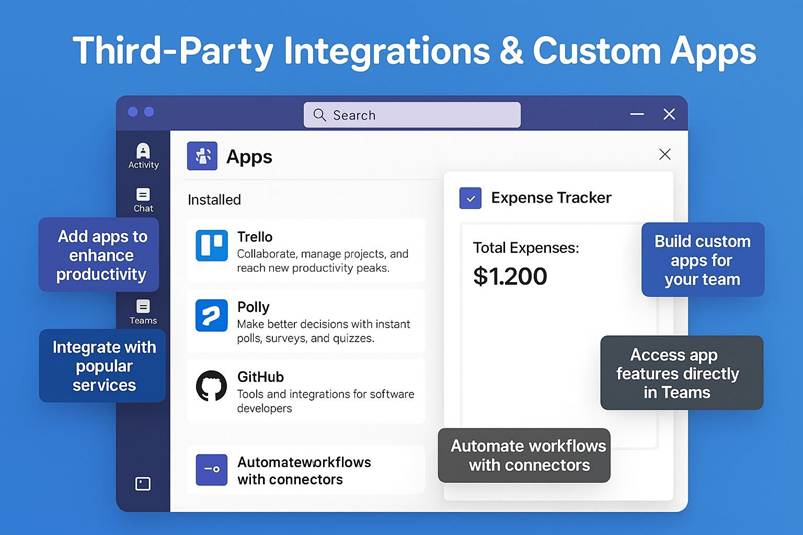
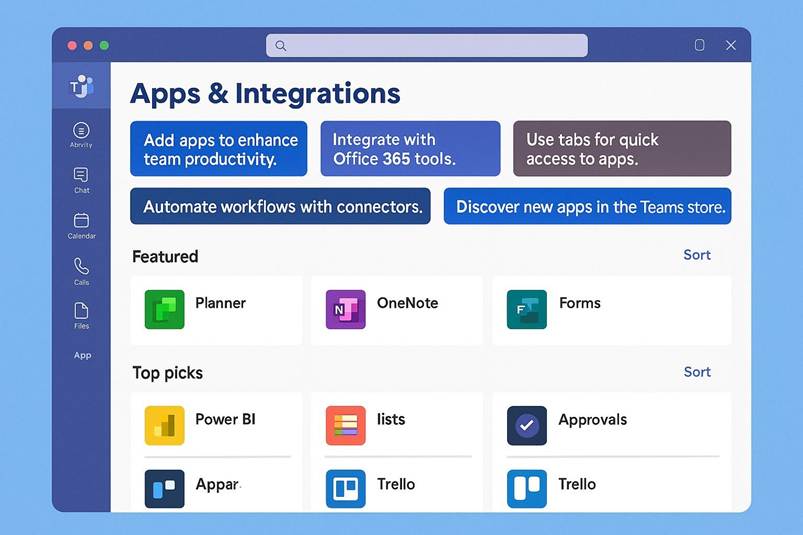
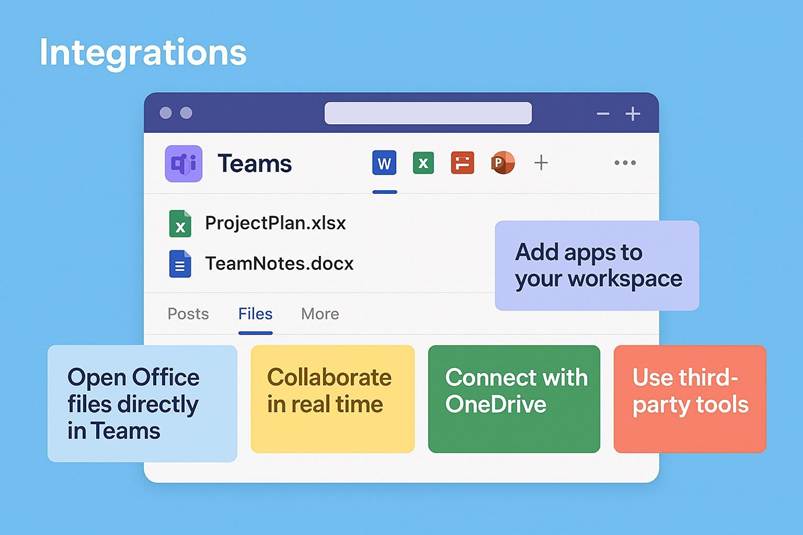
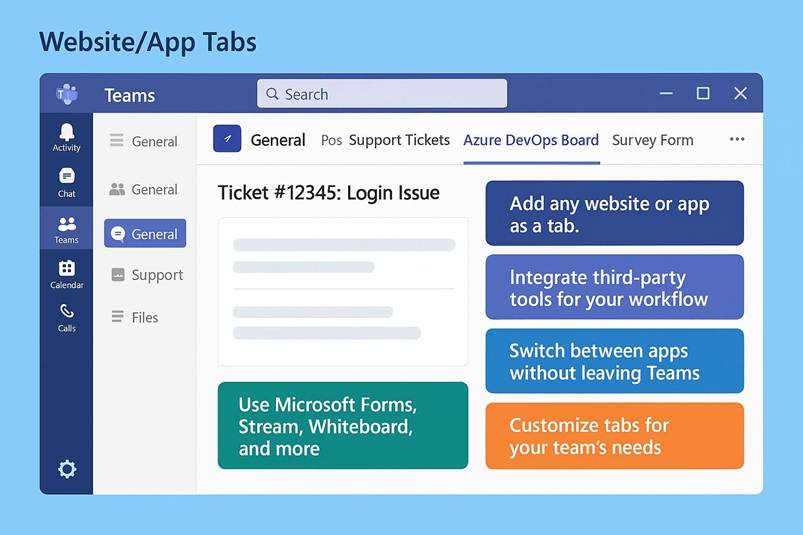
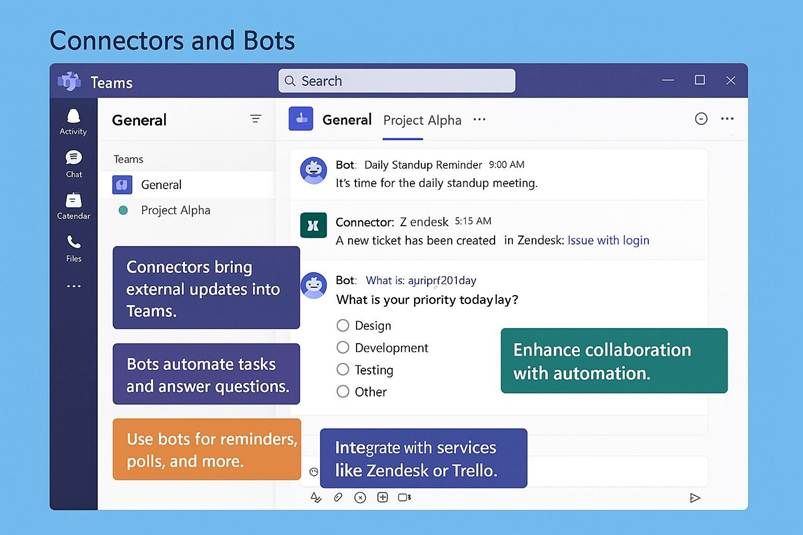
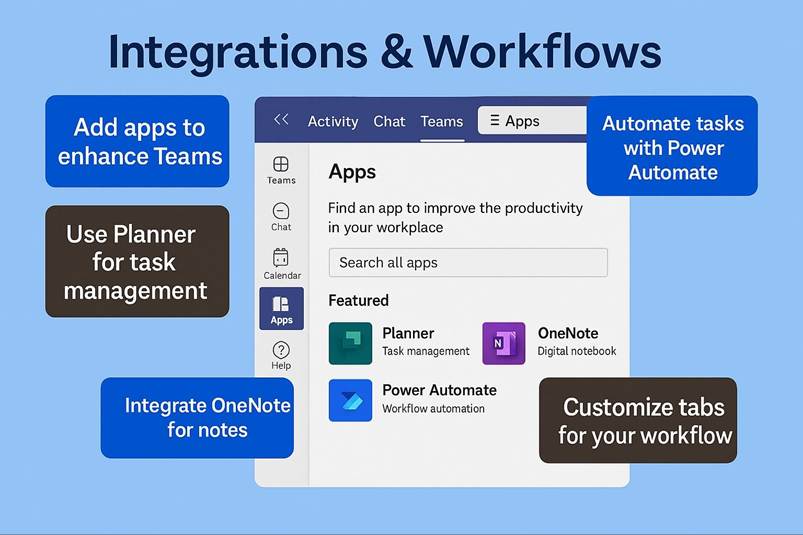
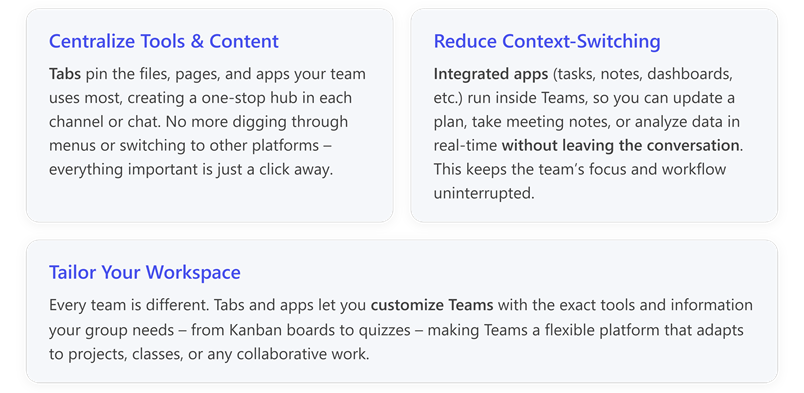
Third-party integrations and custom apps: A key strength of Teams is its extensibility. Microsoft provides an app store and an open developer platform for Teams, allowing thousands of third-party applications and services to integrate directly into the Teams environment. This means users can bring their favorite tools into the hub where they re already collaborating. For example, project management apps like Trello or Asana can be added as tabs in a channel to display task boards; customer service platforms like Zendesk can post notifications into Teams when a ticket is updated; polling and survey tools like Polly or Forms enable quick feedback during meetings; and you can even include rival meeting apps like Zoom as an integration within Teams. At launch, Microsoft showcased integrations with over 150 partners including services such as Twitter, GitHub, and Hootsuite, and the ecosystem has grown substantially since then. Users can add connectors to get news and updates from external services, or pin Tabs in channels that might show a PowerBI dashboard, a SharePoint page, or an external website critical to the project. Teams also supports bots and automated assistants built on the Microsoft Bot Framework. These bots can be summoned in chat to perform tasks or answer questions (for instance, a Helpdesk bot might create an IT support ticket when you message it). For organizations with specific needs, Teams allows building custom apps either for internal use or to publish to others using tools like Power Apps and Teams developer toolkit. This lets companies tailor Teams to their workflows; for example, a manufacturing company could have a custom Teams app that pulls inventory data from an internal system when asked. All these integrations mean Teams can truly be the single pane of glass through which users interact with multiple systems. Instead of constantly context-switching between different applications, workers see relevant updates and can take action right inside Teams. This not only saves time but also simplifies user adoption of various enterprise tools, because Teams becomes a unified interface. In essence, Microsoft Teams evolves from a communication platform into a customizable digital workspace that can be molded to fit nearly any collaboration scenario.
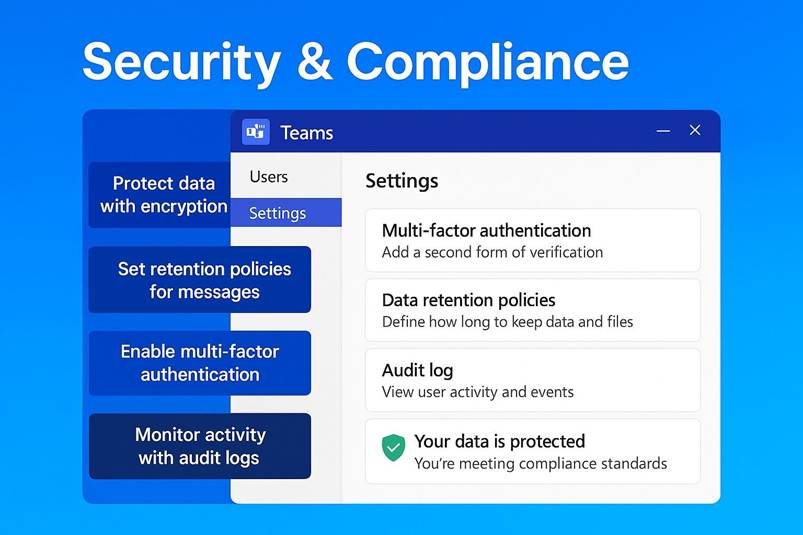
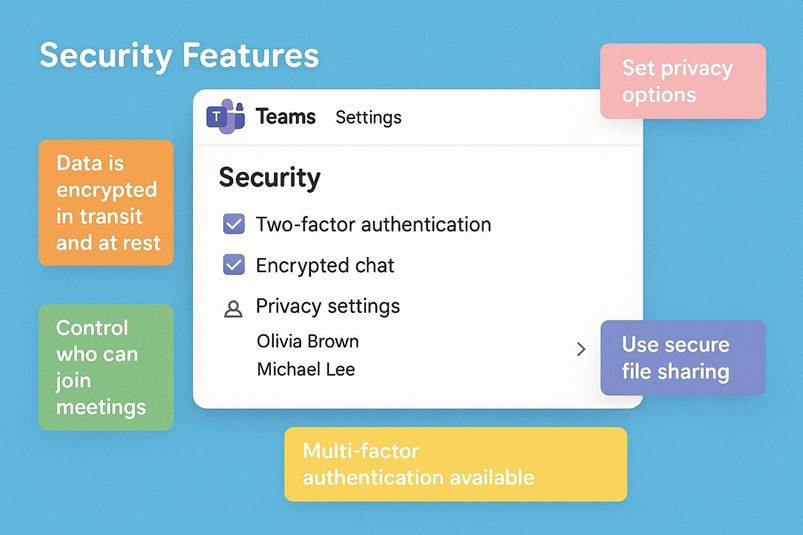
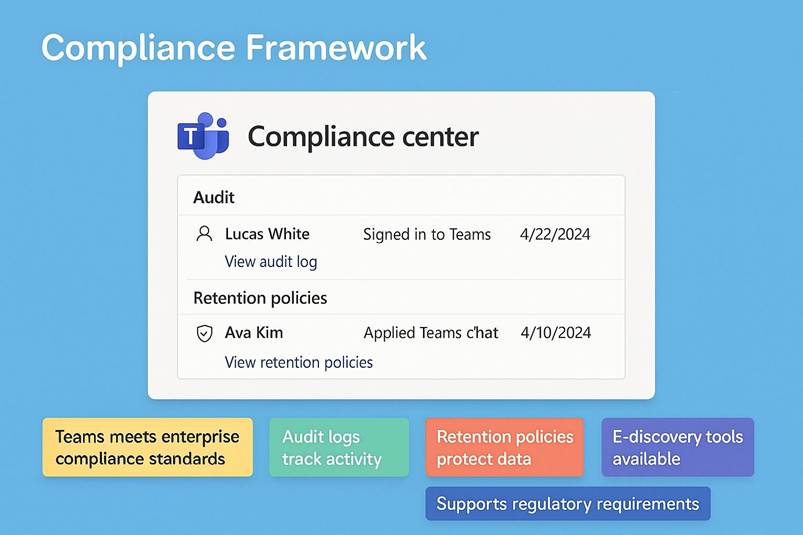
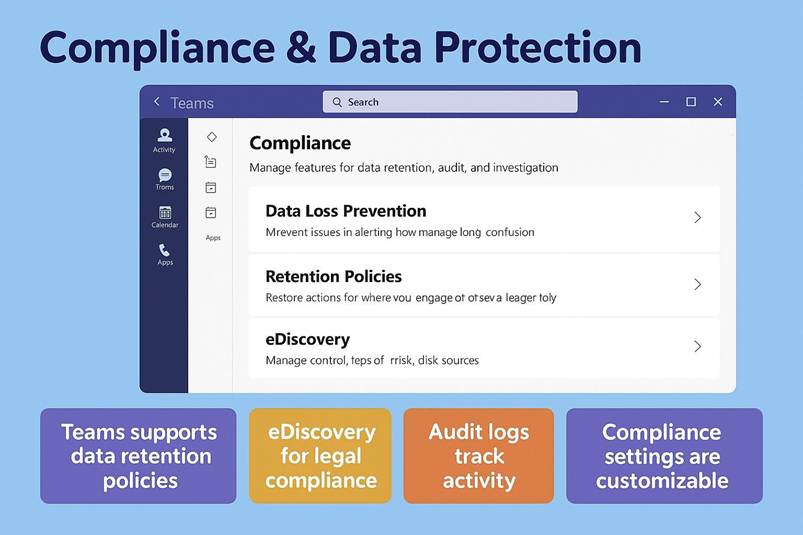
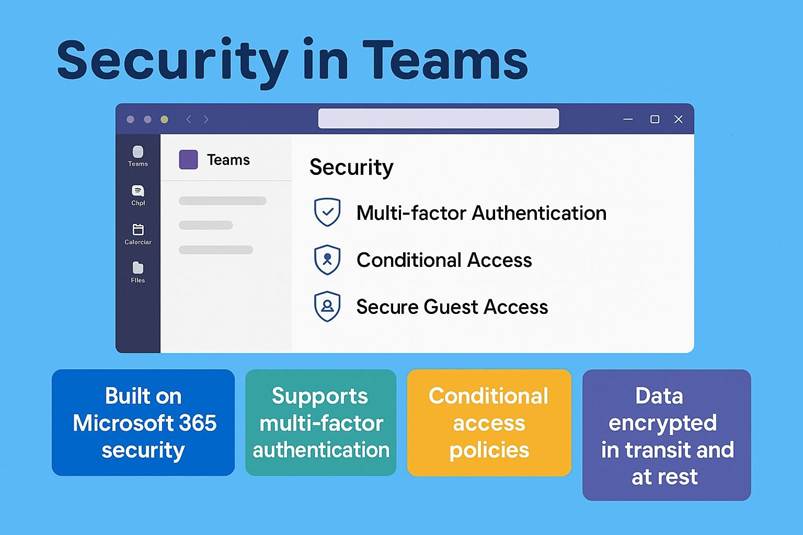
Security and compliance: With the widespread use of Teams in business, education, government, and even healthcare, Microsoft has built the platform on a strong foundation of security and compliance features. Teams inherits many of the enterprise security capabilities of Microsoft 365. Data in Teams (messages, files, recordings, etc.) is encrypted in transit and at rest, ensuring that communications cannot be easily intercepted. Access to Teams requires secure authentication including the option for multi-factor authentication (MFA) to add an extra layer beyond just passwords. All the data is stored in Microsoft s hyper-scale cloud data centers, and customer content is not accessible to Microsoft employees thanks to a trustworthy by design approach (no standing administrative access to customer data). On the compliance front, Teams meets a broad range of industry standards and regulatory requirements. At launch it supported EU Model Clauses, ISO/IEC 27001, SOC 1 and SOC 2, HIPAA (for healthcare privacy in the US), and others. Over time it has added compliance with GDPR (the European data protection regulation), FERPA (for educational records in the US), and more. For organizations that need to archive communications or perform eDiscovery (legal holds of content), Teams data can be managed via the compliance center in Microsoft 365 for example, all chat messages can be retained for a specified period and are searchable by compliance officers. In mid-2021, Microsoft even introduced end-to-end encryption for one-to-one Teams calls, an optional feature for highly sensitive conversations. All these capabilities give organizations confidence that adopting Teams won t create security gaps or compliance issues. Many companies in regulated sectors (finance, healthcare, government) have embraced Teams specifically because it can be configured to meet strict requirements. Microsoft continuously updates Teams security including features like Safe Links to prevent clicking phishing URLs and information barriers to prevent certain internal groups from communicating when needed (for compliance with things like Chinese Wall policies in financial firms). In short, Teams is enterprise-ready, allowing even large and security-conscious organizations to use it as their central collaboration tool without compromising on data protection.
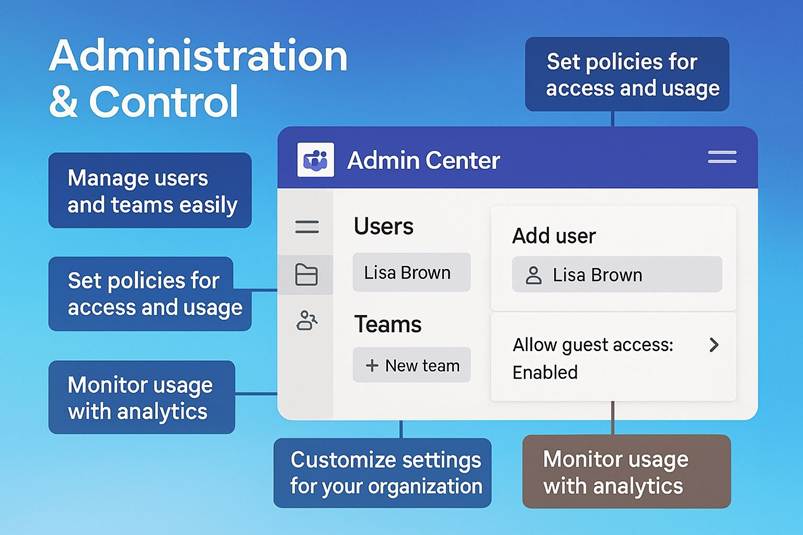
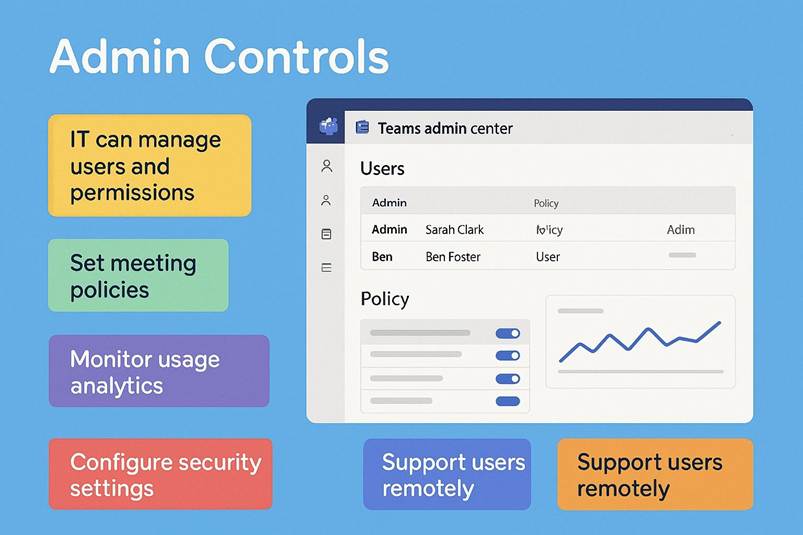
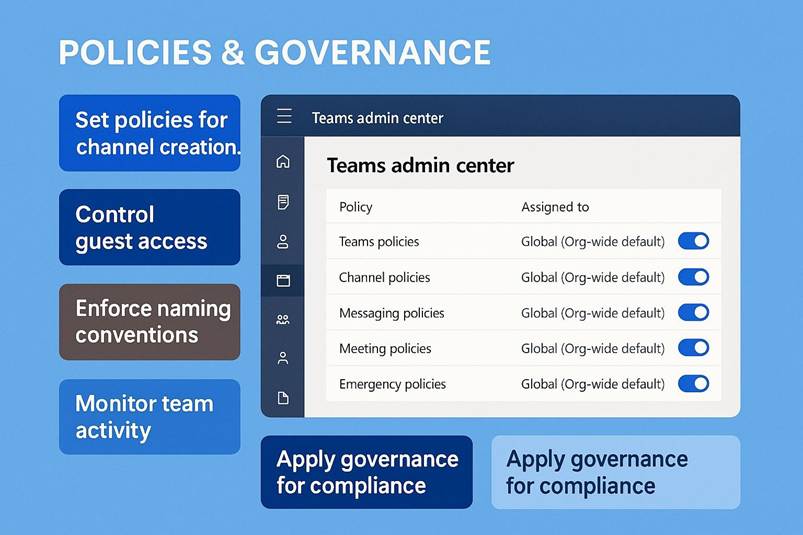
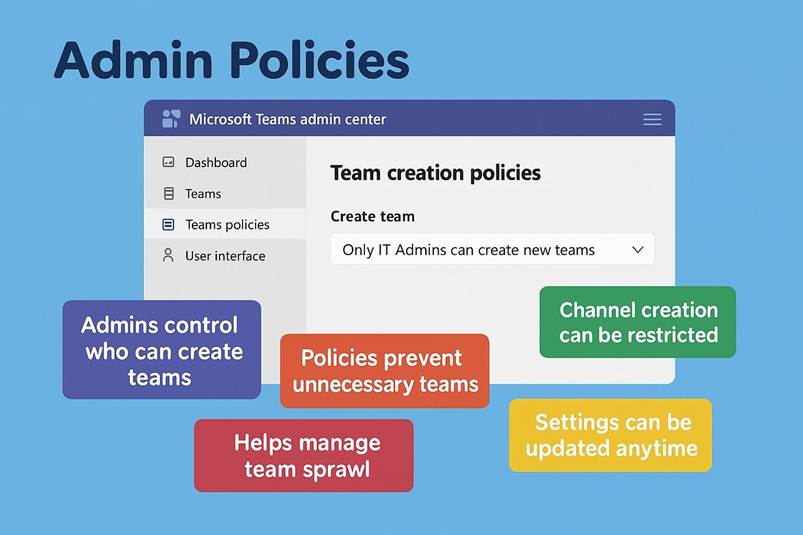
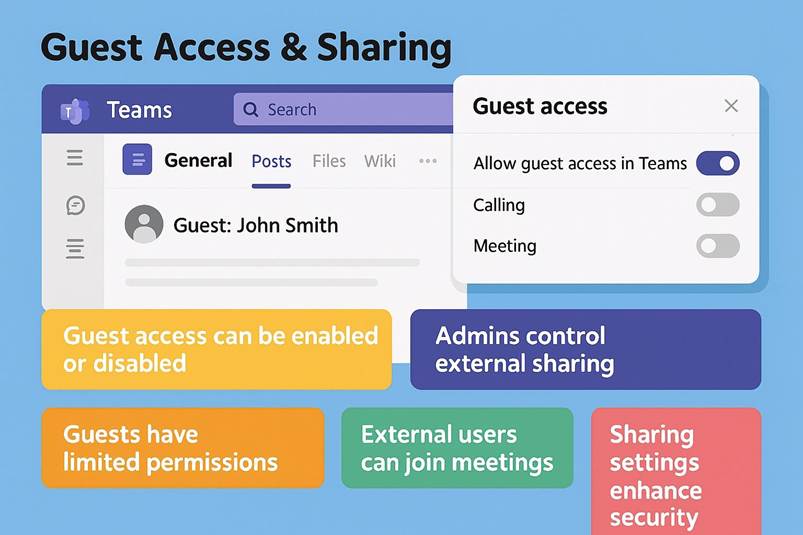
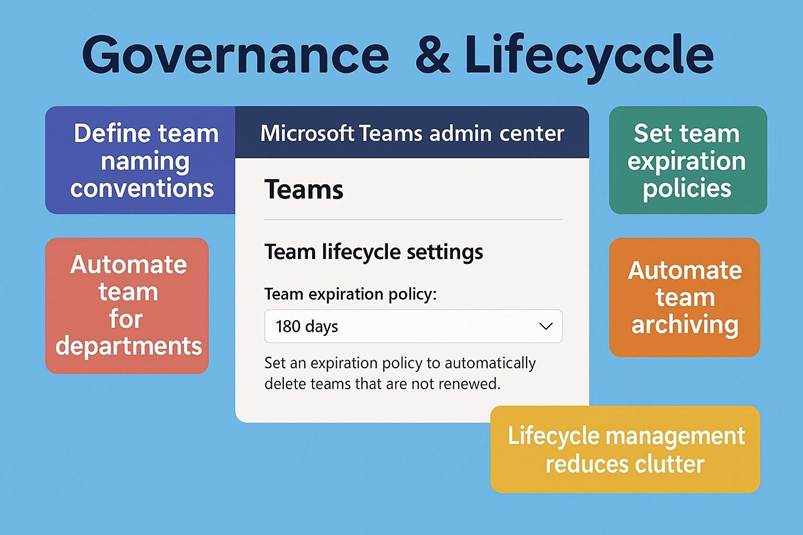
Administration and control: For IT administrators, Microsoft Teams provides robust controls to manage how the platform is used across an organization. The Teams Admin Center is a dedicated management console that allows IT pros to configure settings, policies, and user permissions for Teams. From here, administrators can create or archive teams, manage users and groups, and set granular policies. For instance, they can control who can create new teams or channels (to prevent sprawl), enable or disable guest access (allowing external partners to join teams if desired), and define messaging policies (such as blocking the use of GIFs or memes for a more controlled environment, if needed). They can also manage meeting policies for example, specifying whether meetings can be recorded or if PSTN dial-in is enabled and calling policies to control telephony usage. Importantly, usage reporting and analytics are provided, so admins can monitor Teams adoption and identify how it s being used (e.g., number of active users, number of meetings held, etc.). This helps in measuring ROI and understanding collaboration patterns. Through Microsoft 365 s wider admin tools, organizations can also enforce compliance features on Teams such as retention policies (how long data is kept), DLP (Data Loss Prevention) rules to prevent sensitive info from being posted, and eDiscovery holds as mentioned. All Teams settings are centralized, which is critical for larger enterprises with many teams and users it ensures governance. For example, a company can ensure that all Teams created follow a naming convention and have at least two owners, or that certain sensitive team sites have restrictions on external sharing. Moreover, integration with Azure Active Directory means Teams inherits whatever conditional access policies an organization wants (like only allowing logins from compliant devices, etc.). In summary, IT can tailor Teams to the organization s needs and policies, balancing openness and collaboration with necessary controls. These administration capabilities have made it possible for even heavily regulated industries to deploy Teams widely. And from the end-user perspective, many of these controls are behind-the-scenes, so users still enjoy a frictionless experience, while IT maintains oversight.
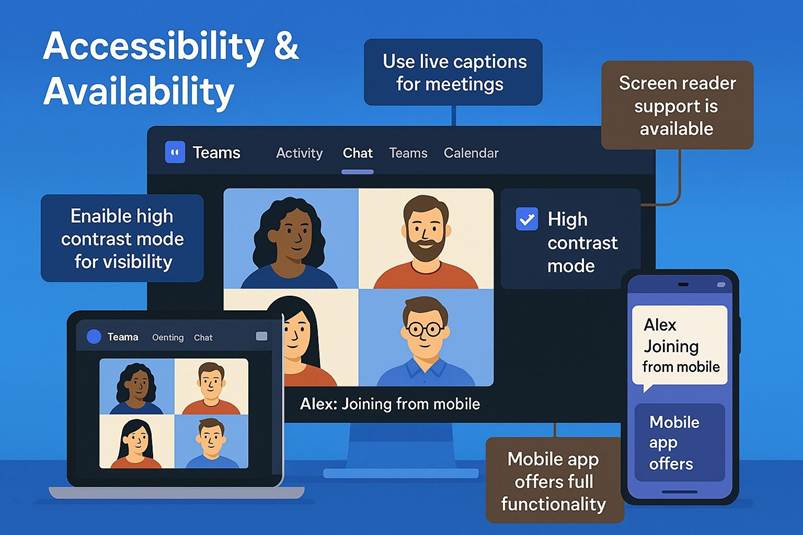
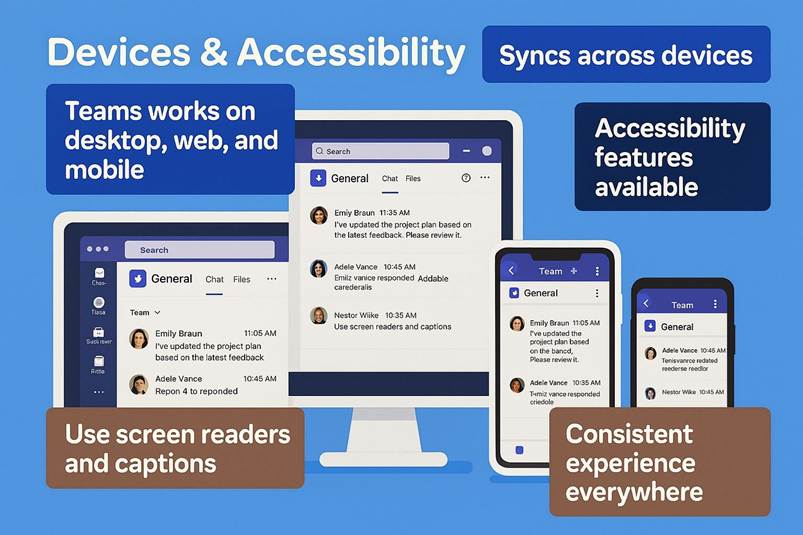
Accessibility and cross-platform availability: Microsoft has put a focus on making Teams accessible to all users, including those with disabilities. The application includes features like screen reader support (ensuring that blind or low-vision users can navigate chats and calls), keyboard shortcuts for those who can t use a mouse, and high contrast themes for better visibility. In meetings, features such as live captions help the hearing-impaired, and Microsoft has added support for sign language interpreters by allowing a sign language video to be pinned and prominently displayed for those who need it (a feature introduced around 2022 2023). The Immersive Reader is built into Teams posts, enabling users to have messages read aloud or to adjust text sizing and spacing for easier reading. These accessibility options make Teams more inclusive, ensuring that all colleagues can participate effectively. Furthermore, Teams is truly cross-platform: it has apps for Windows and macOS, mobile apps for iOS and Android, and a fully functional web version that runs in modern browsers. There s even a Linux client (though Microsoft shifted to supporting Linux via the web app after 2022). This broad availability means that whether someone is at their desk, using a Mac at home, or on the go with a smartphone, they can access their Teams chats, meetings, and files. This ubiquity is essential in supporting remote and hybrid work you can start a conversation on your phone while commuting and then continue it on your laptop at home. Teams also offers offline access for some capabilities (like reading message history or composing messages to send later), which is useful if you temporarily have no internet. All these factors ensure that Teams is available to users whenever and wherever they need it, and to users of differing abilities aligning with the modern expectation that work can happen from anywhere by anyone.
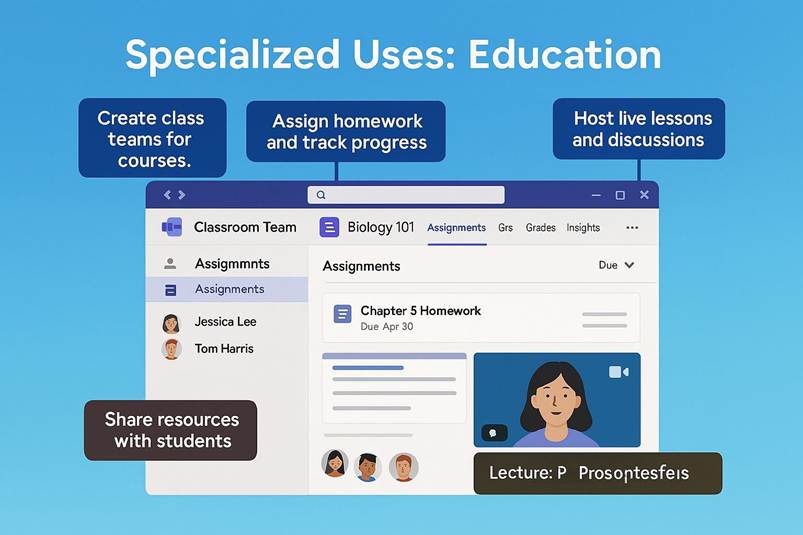
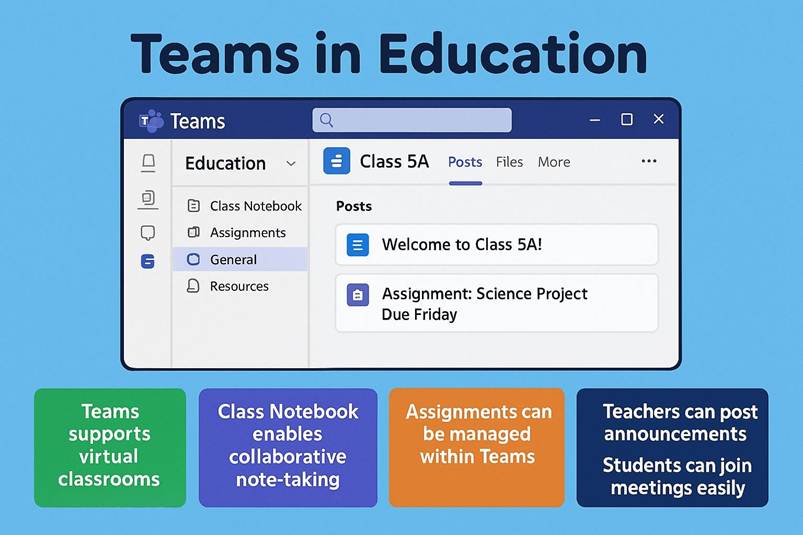
Specialized uses (education and beyond): While Microsoft Teams is primarily known as a business collaboration tool, it has also become vital in education and other sectors. Teams for Education is a version tailored for schools and universities, offering classroom-specific features. Educators can create Class teams which come with special tabs for Assignments and Grades. Through the Assignments feature, teachers distribute homework or quizzes to students within Teams, students turn in their work digitally, and teachers can provide feedback and grades, all in one place. Integration with tools like OneNote Class Notebook gives each class a digital notebook for lesson materials and student notetaking. During the COVID-19 pandemic, many schools used Teams as their virtual classroom, leveraging its video conferencing for lectures and its channels for class discussions and Q&A. Even parent-teacher meetings and school town halls have been conducted via Teams. Microsoft has integrated LMS (Learning Management System) connectivity as well for instance, Teams can work with systems like Canvas or Blackboard, so that meetings and rosters sync up. The result is a platform where teachers, students, and even parents (in some scenarios) interact, making remote and hybrid learning possible at scale. Outside of education, Teams has specialized applications in healthcare (with features like virtual clinical visits and integration with electronic health record systems), and frontline worker scenarios (with a Walkie-Talkie feature for push-to-talk communication on mobile devices, and shift scheduling apps). These diverse use cases demonstrate Teams flexibility to serve not just office workers, but employees in various roles and industries.
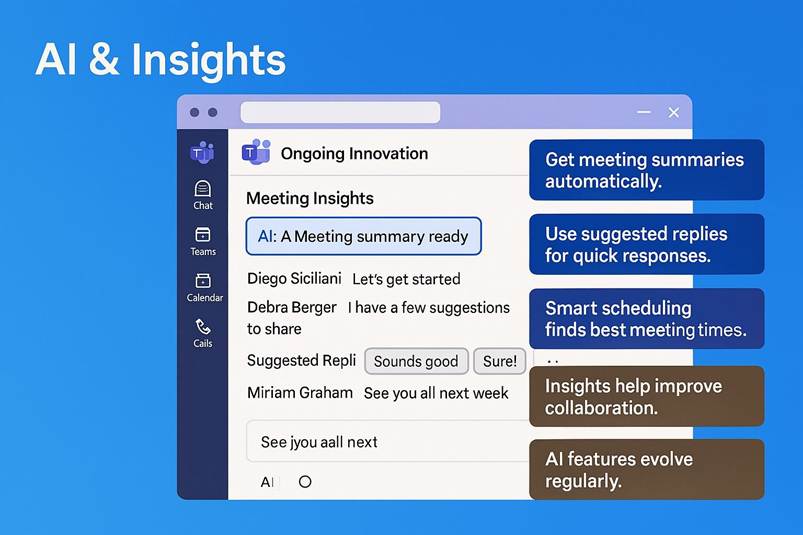
Ongoing innovation ai and insights: Microsoft continually adds new features to Teams, often leveraging the latest technology trends. Two notable additions in recent years are Together Mode and Microsoft Viva Insights, which highlight how Teams is evolving. Together Mode, introduced in 2020, as mentioned, uses AI segmentation to put meeting attendees together in a virtual space, helping to humanize virtual meetings and keep people more engaged. Viva Insights, on the other hand, is part of Microsoft s Viva suite of employee experience tools and appears as an app within Teams that provides personalized analytics and suggestions to users about their work habits. For example, Viva Insights might remind you to take regular breaks, suggest scheduling focus time for uninterrupted work, or prompt you to praise colleagues for their good work all based on analyzing your work patterns (emails, meetings, chat frequency) privately. It can even guide you through mindfulness exercises or suggest times to disconnect at the end of the day to improve work-life balance. For managers (with privacy safeguards in place), Viva can aggregate team-level insights like whether employees are at risk of burnout (e.g., consistently working after hours). These insights are surfaced in Teams because it s a place where people already spend much of their workday. Moreover, Microsoft has been infusing AI features into Teams, such as background noise suppression in meetings, automatic framing and eye contact correction, and most recently Microsoft 365 Copilot integration (an AI assistant that can summarize meetings, draft messages, or find info in your workspace on command). While Copilot is a brand-new innovation (as of 2024 2025) still rolling out, it represents the future direction: using artificial intelligence to make collaboration smarter and more efficient. For instance, with AI assistance, someone who missed a meeting could ask Teams to generate a summary of what was discussed and what tasks were assigned, gleaned from the transcript. Or a user could ask in natural language, Hey Teams, find the budget Excel file that John shared last week about Project X, and get an instant result if they have access. These advancements show Microsoft s commitment to keeping Teams at the cutting edge of productivity technology.
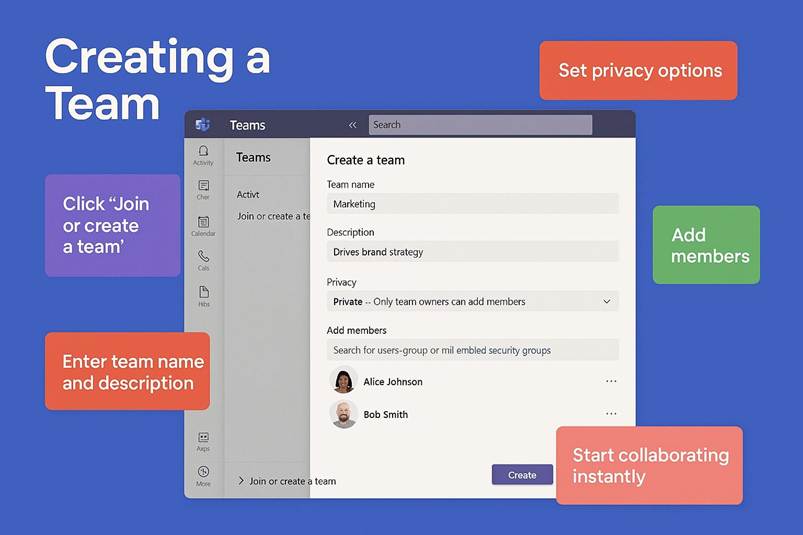
In summary, Microsoft Teams today is far more than a chat app or meeting app it is a holistic digital workspace. It combines the capabilities of many standalone tools into one platform and is continually growing with new integrations and intelligence. Teams enables organizations to transform how they work: communication becomes more streamlined, information flows more freely, and people can collaborate without traditional barriers of location or incompatible software. By consolidating communication, collaboration, and business processes, Teams not only makes individual tasks more efficient but also helps foster a culture of openness and agility. Employees can create a team for a new initiative in minutes, brainstorm in a persistent chat, jump into video calls with whiteboarding to solve problems, and integrate all the apps they need this agility is the essence of digital transformation in workflow. Indeed, many companies find that adopting Teams is a catalyst for rethinking old processes (for example, replacing long email threads with channel discussions or replacing weekly status meetings with more dynamic updates in Teams). According to industry experts, Microsoft Teams has become a key driver of digital transformation, empowering organizations to operate efficiently and adapt quickly. It helps break down silos between departments by providing a common collaboration space, and it encourages knowledge sharing and transparency. Whether it s used for a quick check-in with a colleague, a large-scale webinar, a remote classroom, or integrating an entire project s toolset, Microsoft Teams provides the infrastructure to make it happen in one place securely, seamlessly, and at scale. As the modern workplace continues to evolve, Microsoft Teams stands out as an indispensable tool for keeping teams connected, productive, and ready to tackle the challenges of a digital era.
CHAPTER 2 SIGNING IN AND GETTING STARTED
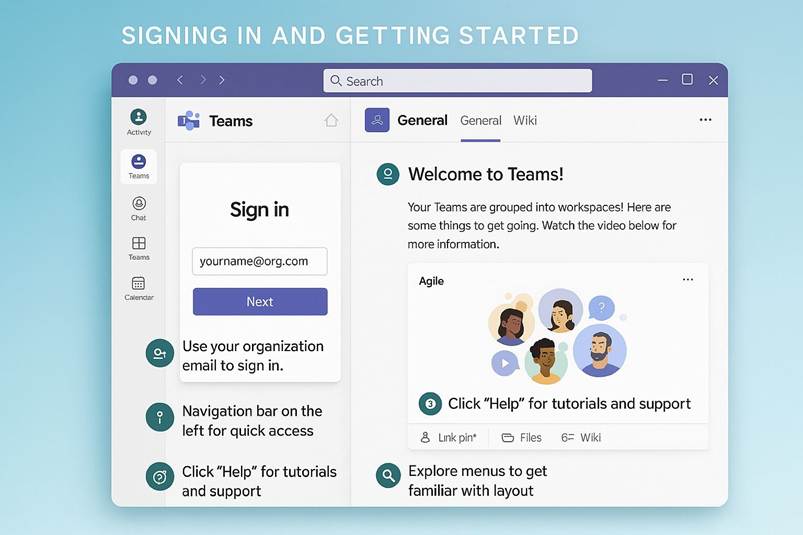
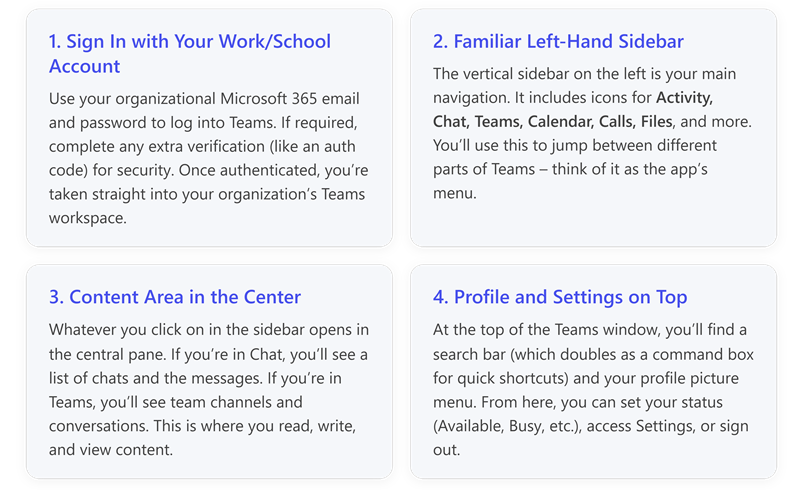
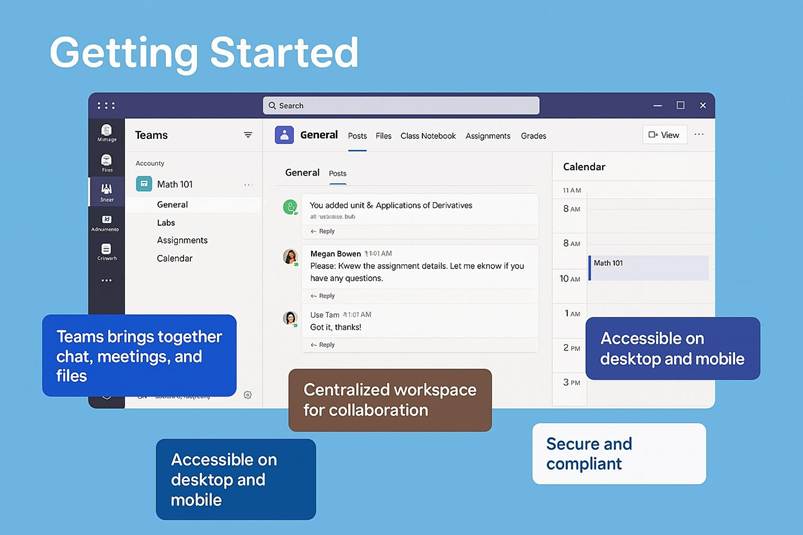
Microsoft Teams is designed to make your first steps simple and intuitive, guiding you from sign-in through to your first chats and meetings. To begin using Teams, you ll use the organizational email address provided by your employer, school, or institution. This email (and its associated Microsoft 365 account) grants you access to your organization s Teams environment. Launch the Teams application (on Windows via the Start menu, on Mac via Applications, or by visiting the Teams web app) and enter your Microsoft 365 username and password when prompted. In many cases, if you re already signed into Microsoft 365 on your device, Teams will log you in automatically. Otherwise, after entering your credentials you may be asked to complete any additional security steps your organization requires (for example, inputting a code from a mobile app if multi-factor authentication is enabled). Upon successful authentication, Teams will load and welcome you into its interface, which is built to be user-friendly even for newcomers. The main window of Teams is divided into a few key areas: a vertical navigation bar on the left, a large content area in the center, and a top bar with search and settings. The first time you sign in, you might see a brief tutorial or welcome messages highlighting key features, but generally you ll land directly in the Teams app s default view often the Activity feed or Chat section. At a glance, the layout is clean and modern, using a dark sidebar and light main pane by default (themes can be changed later). Your attention is naturally drawn to the left-hand navigation bar, which serves as the primary control panel for everything in Teams. This nav bar contains icons for the core areas: Activity, Chat, Teams, Calendar, Calls, Files, and possibly additional apps depending on your organization s setup. By clicking these icons, you can move between different parts of Teams with ease, allowing you to seamlessly switch from a private conversation to a team channel, or from your meeting schedule to a shared file library. In the middle of the window is the content area that displays whatever you ve selected for instance, your chat messages or the documents in a channel and on the top bar you ll find a search/command box and your profile menu for settings and status. This cohesive layout ensures that once you ve signed in, you can quickly orient yourself: navigation on the left, content in the center, and personal settings up top. Even if you re brand new to digital collaboration tools, Microsoft Teams gently introduces its features, making the onboarding experience smooth and welcoming.
2.1 Navigating the Teams interface: chat, teams, calendar, calls, files
After signing in, mastering the left navigation bar is the key to getting around Teams. This vertical toolbar is your gateway to all of Teams major functions. The icons you see may vary slightly by organization (and you can pin additional apps here), but most users will have the following core sections:
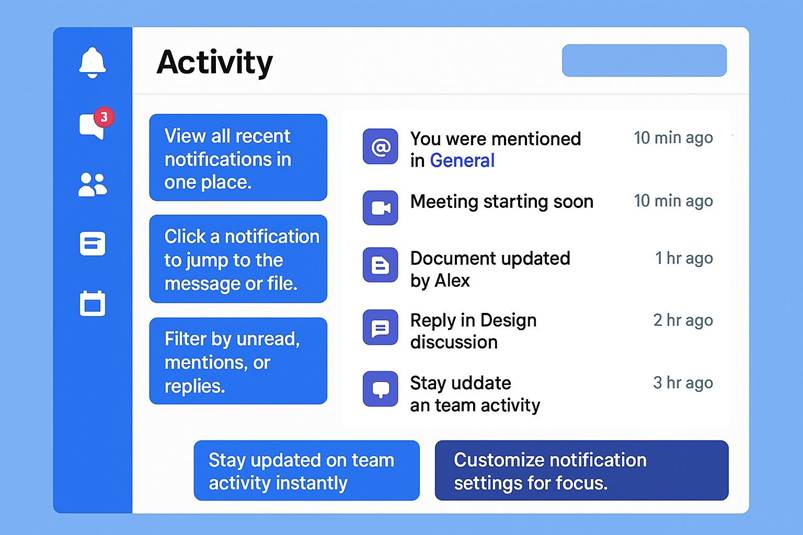
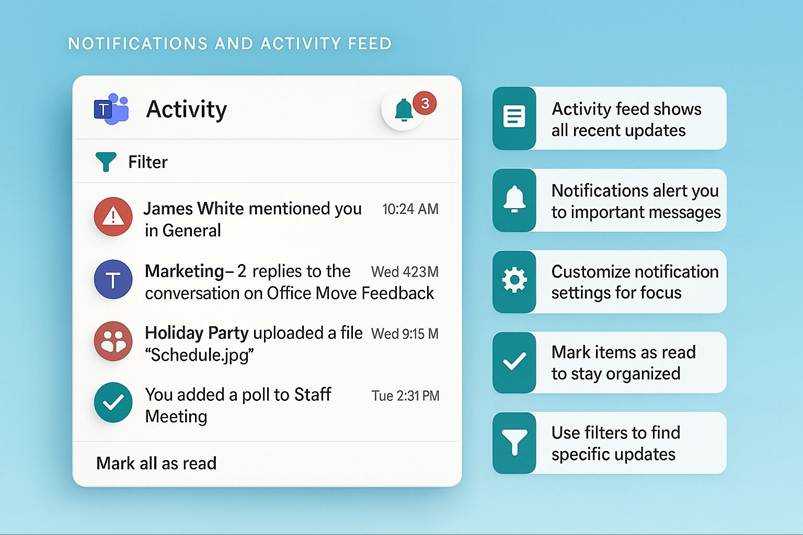
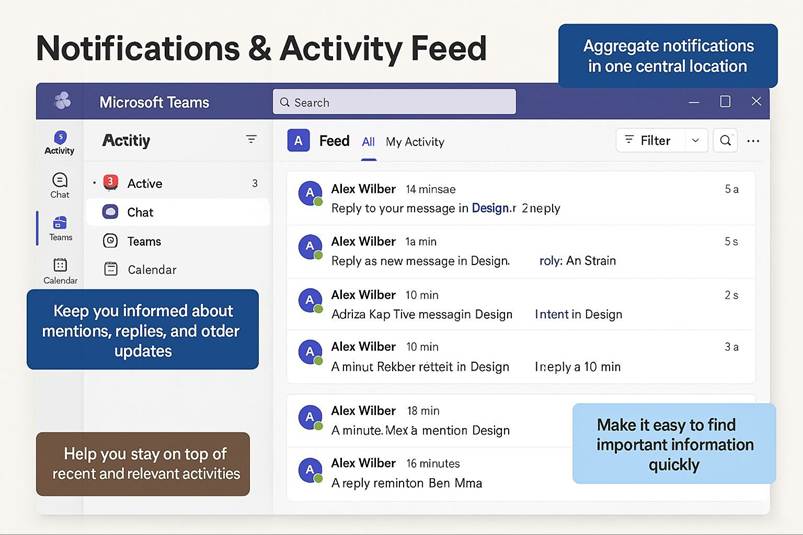
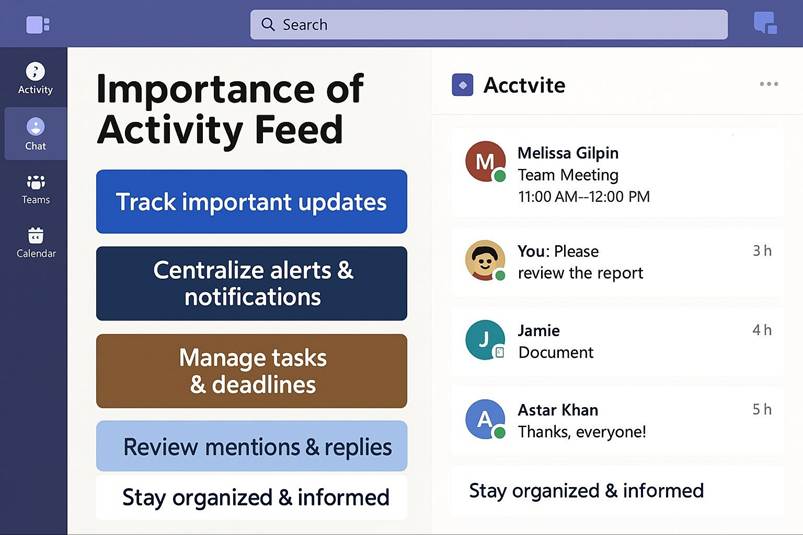
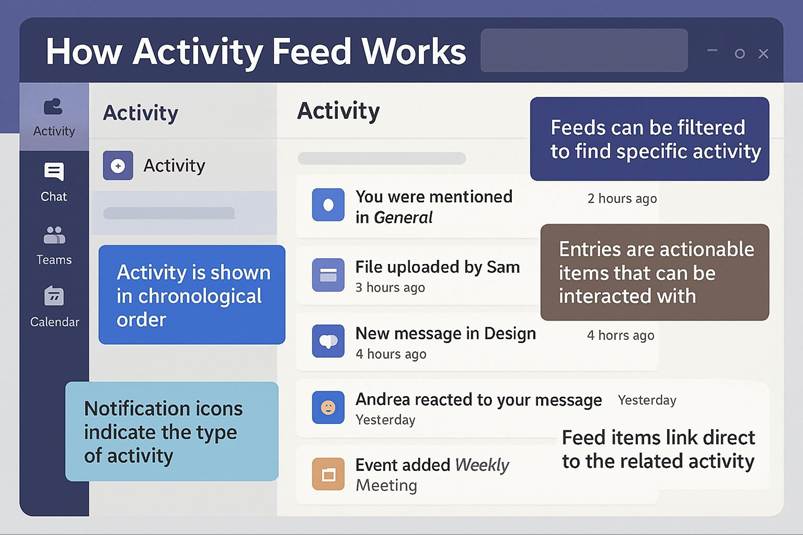
Activity: When you open Microsoft Teams, one of the first things you ll notice at the top is the Activity feed. It s represented by a little bell icon, and it s basically your personal notification center. Think of it as the place where Teams gathers everything that might need your attention. If something happens that involves you, it s going to show up here. That means if someone mentions you in a conversation using the @ symbol, you ll see it. If someone replies to a thread you re part of, that s here too. If you ve been added to a new team or channel, guess what? It s in Activity. It s like a smart assistant that keeps track of all the important stuff so you don t have to dig through every channel or chat to figure out what s new. Imagine you re working on a project and you re part of three different teams. People are chatting, sharing files, and posting updates all the time. It can get overwhelming, right? Instead of jumping from one channel to another, you just click on Activity. Suddenly, everything that matters to you is in one neat list. It s not random noise it s curated for you. If someone tagged you in a message, you ll see that. If there s a reply to a conversation you started, it s there. If your manager added you to a new team, you ll know immediately. It s like having a dashboard for your interactions. When you click the Activity icon, a pane opens on the left side of Teams. This pane lists all the recent events that involve you. Each item is clickable, and when you click one, Teams takes you straight to the context. So if someone mentioned you in a channel post, clicking that notification will open the exact conversation where it happened. No hunting around, no scrolling endlessly. You land right where you need to be. That s a huge time-saver, especially if you re juggling multiple projects. The Activity feed is designed to keep you focused and informed without feeling overwhelmed. It s simple, it s clear, and it s always there when you need it.
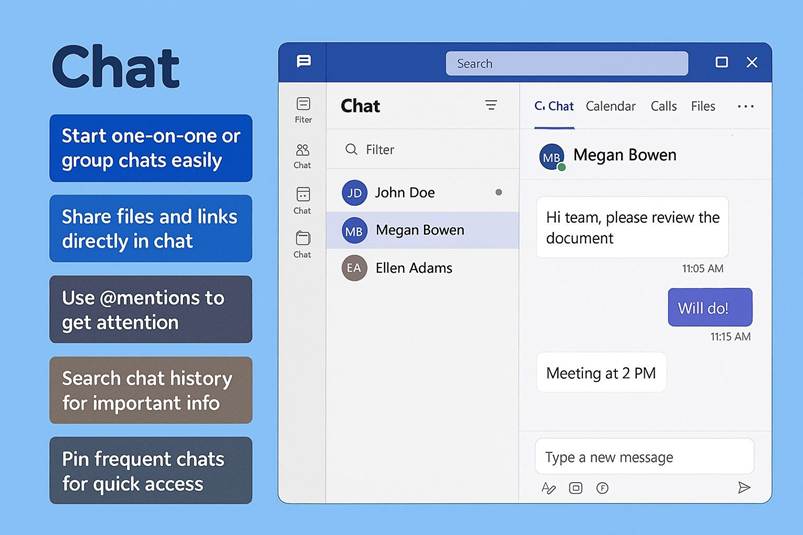
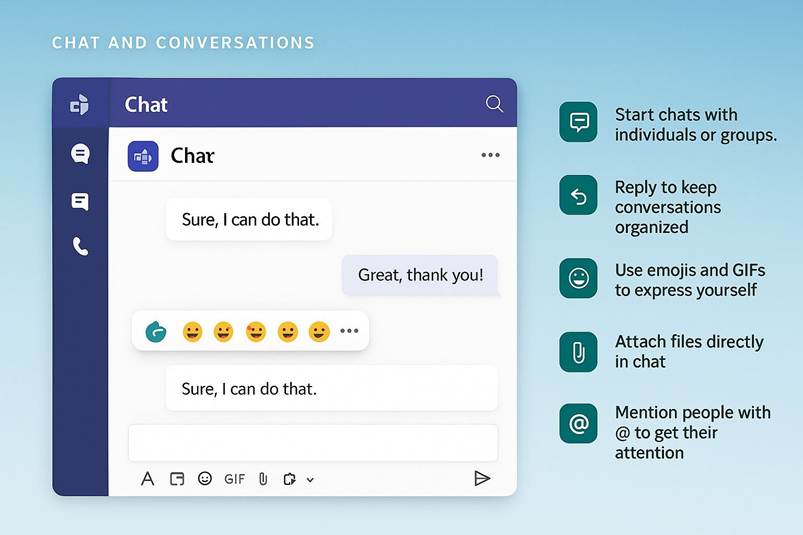
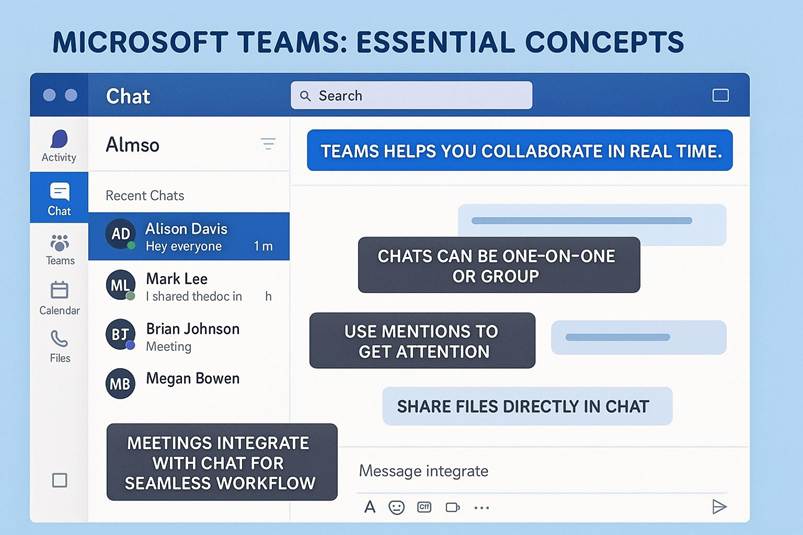
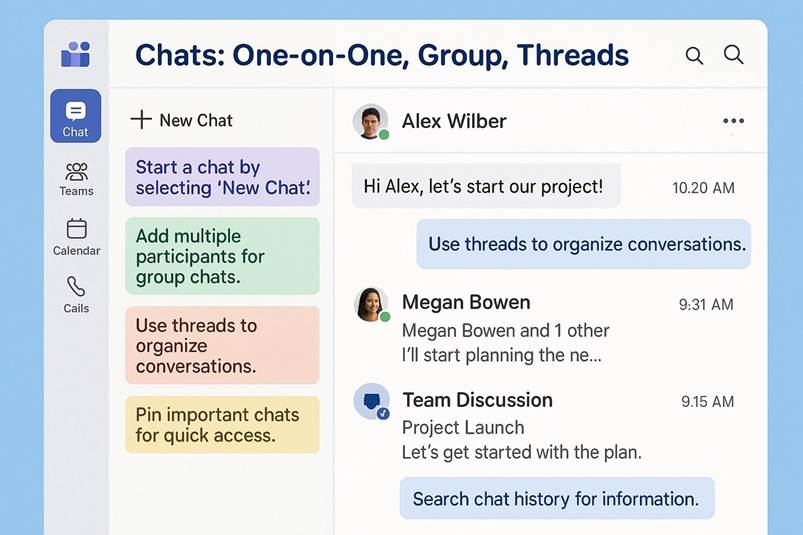
Chat: This section is the hub for private 1:1 and small group conversations. It works much like a messaging app you ll see a list of recent chats on the left of the chat pane (middle column), and the selected chat s message history on the right. In Chat, you can send messages to individuals or to multiple people at once (group chats). You re not limited to text: Teams chat supports rich formatting, emojis, GIFs, and file sharing. If you need to share a document, you can simply attach it into the chat; it will be uploaded to OneDrive for Business behind the scenes and accessible to everyone in that chat. One powerful feature is the ability to escalate a chat into a call or meeting at the top of any chat window, you ll find buttons to initiate a video call or audio call with the person or group you re chatting with. This means if a text discussion isn t cutting it, you can jump into a real-time conversation with one click. For instance, imagine you re chatting with a colleague about a project detail and realize it d be easier to talk it through; you can hit the video call button and immediately speak face-to-face (virtually) without needing to open another app. Chat also supports file collaboration: if someone shares a Word or Excel file in the chat, you and your colleagues can open it right in Teams and even co-edit it in real time. All your recent chats stay in the list, making it easy to resume any conversation. You can pin chats that you use frequently (so they stay at the top), or hide/mute chats to reduce clutter, ensuring your chat list adapts to who you talk with most often. In short, the Chat section is your go-to for quick messaging and informal collaboration with individuals or groups outside of a structured team channel.
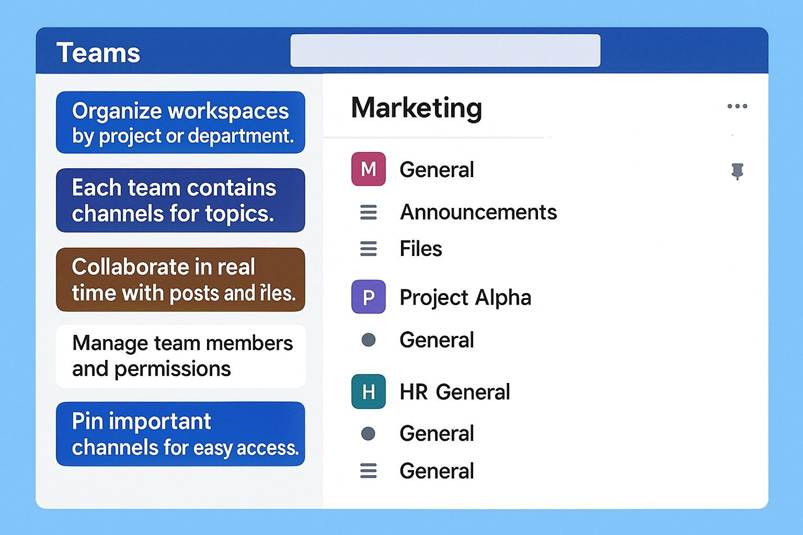
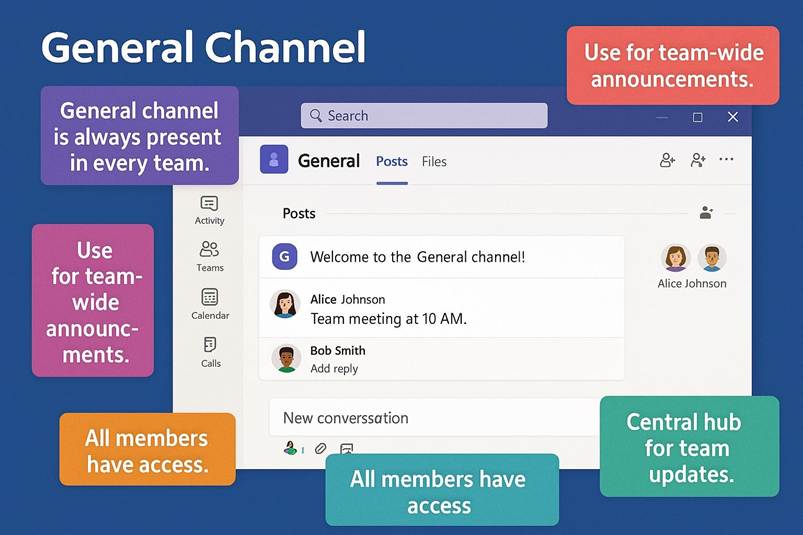
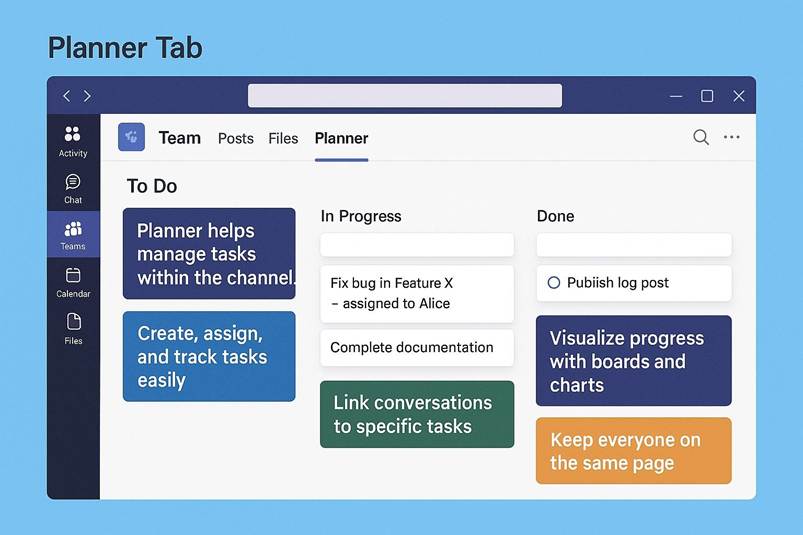
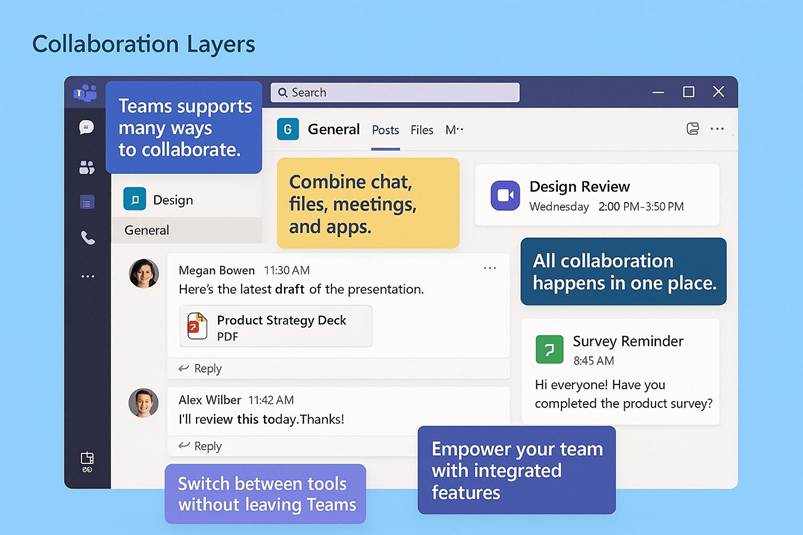
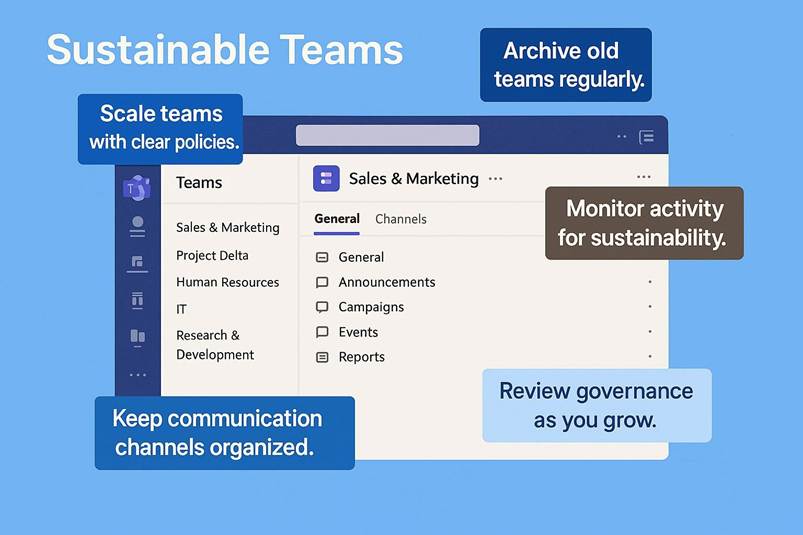
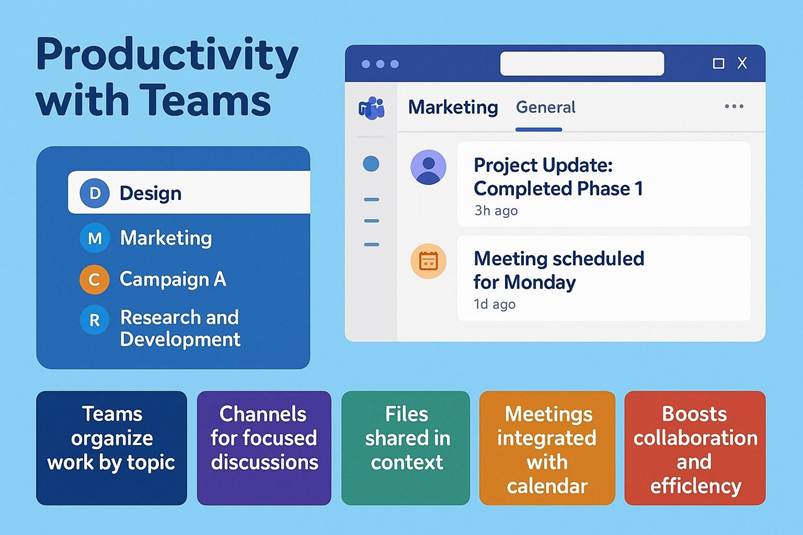
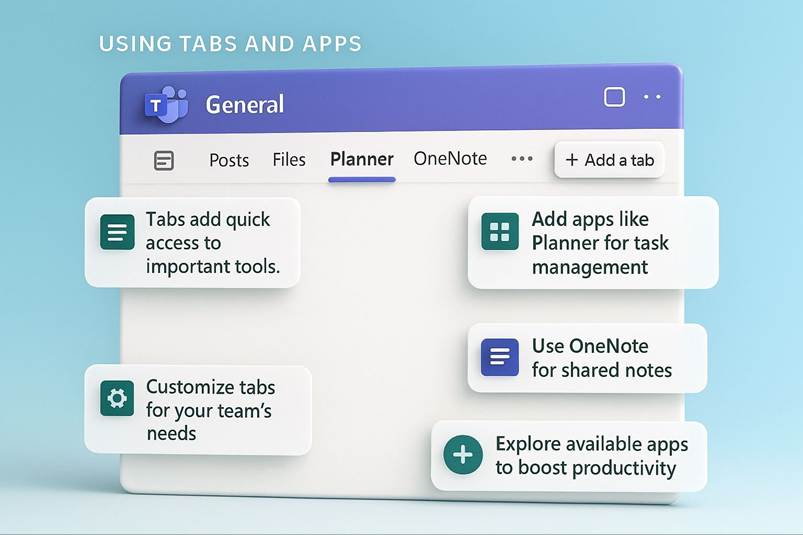
Teams: The Teams icon leads you into the world of teamwork in channels. When you click this, you ll see a list of teams (groups of people, usually corresponding to departments, projects, or other organizational units) that you are a member of. Each Team is represented as a collapsible heading; under each Team, you ll find its channels. A channel is essentially a dedicated discussion forum for a specific topic or purpose within that team. For example, if you have a Team called "Marketing Dept", it might have channels like "General", "Campaign A", "Design Reviews", etc. By selecting a channel, the main area will display the content of that channel typically the Posts tab by default, which is a threaded conversation board. Channel conversations are threaded, meaning that when someone posts a new conversation topic, replies to that post are kept together in a thread, separate from other topics. This threading keeps discussions organized and easy to follow (contrast with chat, which is a single running thread). Everyone in the team can see channel conversations (unless it s a private channel), so this is great for open communication. Teams and channels are where more structured, project-oriented collaboration happens. Files shared in a channel are stored in that team s SharePoint site and are accessible to all members of the channel, and you can add tabs in channels to integrate other tools (more on that shortly). Each channel can have additional tabs besides Posts and Files for instance, a OneNote notebook, a Planner board, or a PowerPoint to centralize relevant resources. The Teams section is also where you might create new teams or join teams (if your organization allows self-service creation or public teams). It s common for organizations to have some default teams for departments (like All Company or division-specific teams) already visible when you first log in. A tip for beginners: pick a team and channel and start exploring the posts and files there to get a feel for how information is organized. For example, in a project channel, you might see a conversation (thread) where team members discuss the latest design draft, with the file attached in the thread. You can reply in-line, react with an emoji, or open the file directly from the conversation. This structured but flexible setup in the Teams section is what makes Teams a powerful collaboration space: it keeps related chats, files, and tools together in one place.
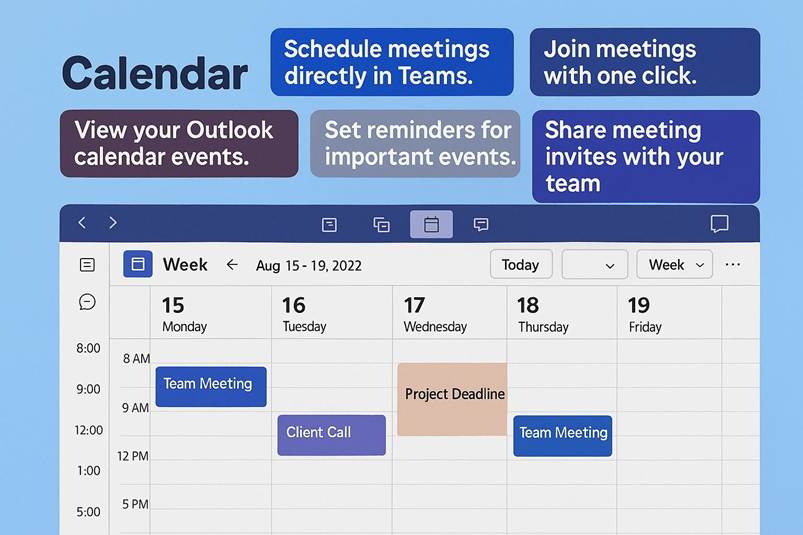
Calendar: This section syncs with your Outlook calendar to show your schedule of meetings (and any other appointments) in a daily/weekly view. If you have any Teams meetings scheduled (which appear as entries often with a Join button), they will show up here. You can create new meeting invitations directly from the Teams calendar by clicking New Meeting and filling in details (which essentially sends an Outlook invite to participants, but you can do it all within Teams). When it s time for a meeting, you can join it straight from this Calendar tab just select the meeting and click Join. Teams will handle connecting you to the call (no separate Skype or other app needed). If a meeting is about to start, Teams might even give you a pop-up notification or show a meeting join banner as a reminder, making it very easy to hop in with one click. This tight integration means you don t have to switch to Outlook to keep track of or launch your meetings; your daily agenda is part of your collaboration hub. For example, let s say it s 5 minutes before your 10:00 AM team sync. You ll see it in your Teams calendar and possibly a prompt saying Meeting starting soon Join now . Clicking join launches the meeting. After meetings, if recordings or transcripts are saved, those can also be accessed via the calendar entry or the meeting s chat. Essentially, the Calendar section ensures you can manage and attend your Teams meetings without leaving the app, which is especially convenient in a work-from-home scenario where you might be jumping between chat and meetings frequently.
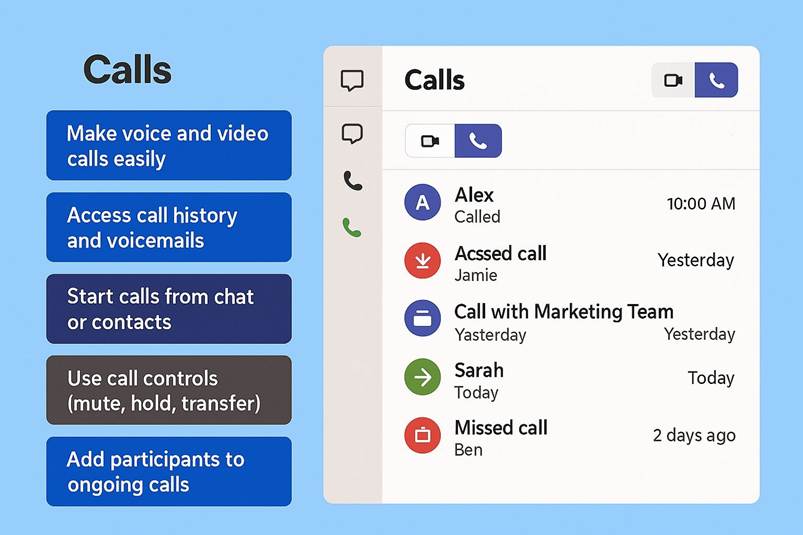
Calls: If enabled for your organization, the Calls section is where you can make and receive voice or video calls through Teams (beyond the quick call buttons in the Chat section). This can function as a softphone; you might have a dial pad (if your account has an associated phone number or plan) to call traditional phone numbers, and you ll definitely have a history of past calls and voicemails. For many businesses, Teams replaces or supplements the phone system, so the Calls section is where you d go to find a coworker s number or call them directly (by name, if they re internal, or by dialing out if you have that capability). Even if your company doesn t use Teams as a full phone system, this area lists your peer-to-peer Teams calls and lets you call any Teams user in your organization (audio or video) on demand. For instance, instead of dialing an extension on a desk phone, you could search a colleague s name in the Calls tab and call them via Teams. This section also houses your voicemail (with transcription of voicemails in many cases), speed dial contacts, and call queues if applicable. It s worth noting that one can initiate calls from other places (like chat), but the Calls hub is useful for quick access to a company directory and call records.
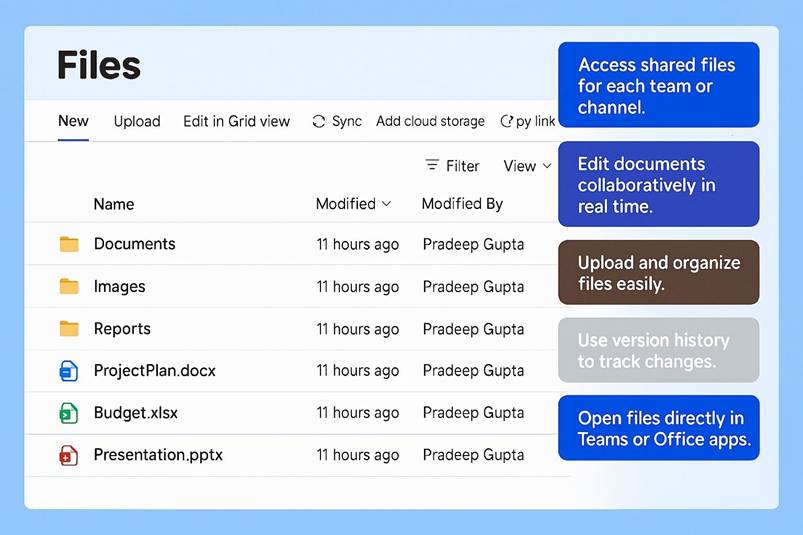
Files: The Files section provides a centralized view of files related to your work in Teams. Rather than hunting through individual chats or channels for a document, the Files app (as it s sometimes called) lets you find what you need in one place. It s essentially an interface to your OneDrive and your recent Teams files. By default, when you open Files, you ll see OneDrive (for your work account) and possibly sections like Recent, Microsoft Teams (to filter files that were shared in Teams), and Downloads (files you ve downloaded from Teams). OneDrive in Teams will show files you ve stored in your own OneDrive and those shared with you, categorized by Recent, My files, Shared, etc., which helps you quickly locate personal work files. There s also a Browse Teams or Quick access section that lets you navigate to files within specific team sites and channels (essentially surfacing the SharePoint document libraries behind each team). The idea is that you don t need to leave Teams or open SharePoint/OneDrive separately all your Office 365 files live here. For example, imagine you worked on a PowerPoint last week that someone shared in a meeting chat you could go to Files > Recent and likely find it without remembering which chat or channel it was in. Or if a teammate tells you they put a document in the Project X Design channel, you can go to Files, find the Team Project X , and open the Design channel s file folder right from within Teams. And of course, clicking any file in the Files section will open it (either within the Teams interface using Office Online or in the corresponding desktop app, depending on the file type and your settings). From there you can read or edit it with others. The Files section is a major productivity boon: it leverages the fact that Teams sits on top of SharePoint and OneDrive to give you unified file access. New users might not explore it immediately, but as soon as you ve dealt with a handful of files in chats/channels, the Files tab becomes incredibly useful for staying organized.
In addition to these major sections, you might see ellipsis ( ) icon on the sidebar which opens the Apps or More menu, allowing you to find other apps and features not pinned by default. Some organizations pin additional icons on the nav bar, such as Tasks (Planner), Shifts (for scheduling shifts in frontline worker scenarios), or Assignments (in education). And at the very bottom of the nav bar, there s a Help icon (a question mark) which we ll discuss next, as it s particularly helpful when you re just getting started.
Each section of Teams (Chat, Teams, Calendar, etc.) plays a role in supporting collaboration. Chat enables quick, informal communication and ad-hoc collaboration (you can spin up a group chat for a short-term discussion, for example). Teams/channels provide structured, transparent collaboration spaces where information is organized by topic and accessible to all relevant people. Calendar and Calls handle real-time interactions meetings and voice conversations that integrate with your communications. Files ties it all together by ensuring content is easy to find and share. As a new user, a great way to become comfortable is to click through each of these and see how they look. You might send a chat message to a colleague as a test, then click on Teams and browse a channel, then peek at your Calendar. Teams interface is built to encourage exploration: it s hard to break anything by clicking around, and you ll soon see how the pieces interconnect (for example, scheduling a meeting in the Calendar also posts a notice in a channel if it s a channel meeting, and uploading a file in a chat makes it show up in Files). Microsoft Teams keeps these tools at your fingertips so you can effortlessly move between asynchronous work (chatting, posting, editing files) and synchronous work (calls, meetings) within one platform.
2.2 Onboarding support: help, tips, status, and customizing your experience
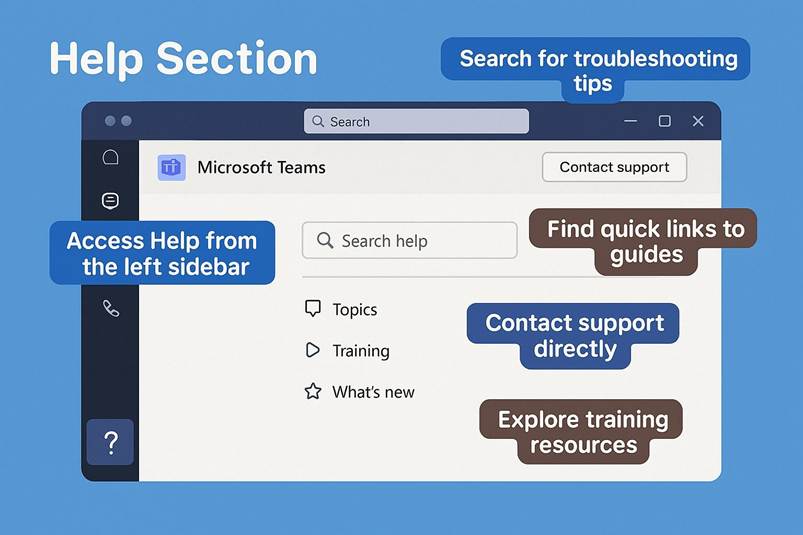
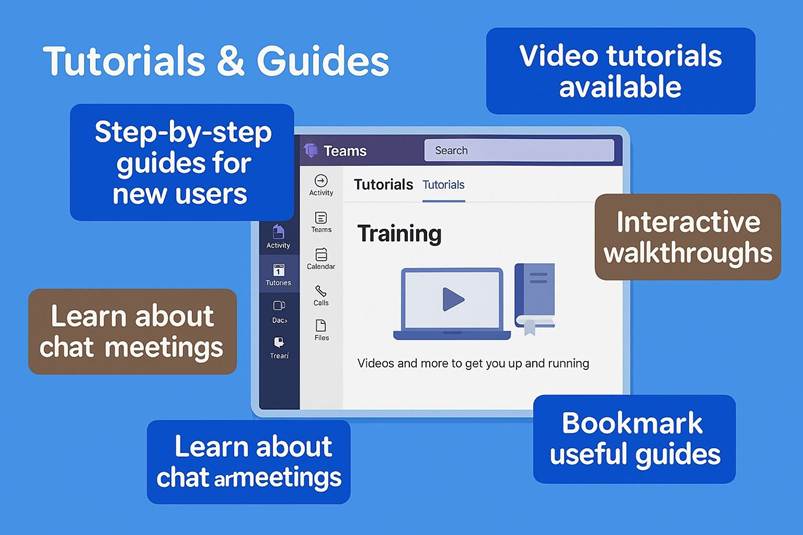
When you re new to Teams, Microsoft provides plenty of in-app support to help you learn the ropes. One important resource is the Help section, found at the bottom of the left navigation bar (look for the question mark icon labeled Help ). Clicking this opens a pane with a search box and various help topics essentially bringing Microsoft s Teams help center content right into the app. Here you can browse tutorials, FAQs, and how-to guides on all the basics of Teams. For example, you can search schedule a meeting or navigate through categories like Meetings, Chat, Teams and channels, Files, etc., to find step-by-step instructions. The Help section also often features Training and What s New tabs. The Training area includes short tutorials and videos covering common tasks (ideal for people who prefer visual learning). So if you re unsure how to do something say, share a file in a channel or customize your notifications you can likely find a quick walkthrough in the Help pane. Microsoft frequently updates this content, so it reflects the current version of Teams. This means as Teams evolves, the Help section will introduce new features to you. Using the Help resource can rapidly improve your proficiency; for instance, a new user might learn how to use meeting lobby options or how to save message drafts just by following a built-in training module. In short, the Help section is your built-in user manual, always a click away, and it s tailored to make sure even someone unfamiliar with digital collaboration tools can quickly become comfortable in Teams.
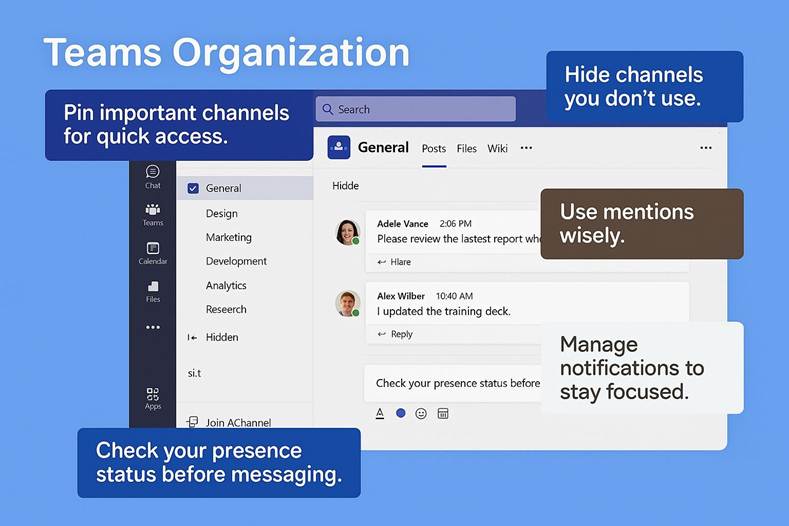
Another feature aimed at onboarding (and ongoing learning) is the Explore or Tips experience in Teams. When you first start using Teams (and occasionally as you use it over time), Teams may surface suggestions and tips in a subtle way. This might be a pop-up tooltip or a banner saying New to Teams? Try this! or an Explore Teams guided tour. For example, you might see prompts recommending that you pin important chats (so conversations with your manager or close teammates stay at the top of your Chat list), or a tip about setting your status so colleagues know when you re available. It could also highlight the ability to add apps or tabs to enhance a workspace. These tips are interactive and contextual they point out features as you encounter them. The Explore menu (often accessible via the Help section or as an initial tour) might showcase best practices like using channels for different topics, tagging coworkers with @mentions to get their attention, or checking out the Teams mobile app for on-the-go connectivity. Microsoft designed these nudges to accelerate your mastery of Teams features by introducing them at relevant moments. As a new user, don t be afraid to follow these suggestions they can significantly improve how you use the platform. For instance, one tip may show you how to organize your Teams list you could learn that you can reorder teams or hide teams you don t use often, decluttering your interface. Another example: Teams might suggest trying out the / commands in the search bar (like typing /files to quickly see recent files or /goto to jump to a specific team), which is a power-user move that even many experienced users don t know about. By exploring these recommendations, you ll discover shortcuts and features that make collaboration easier.
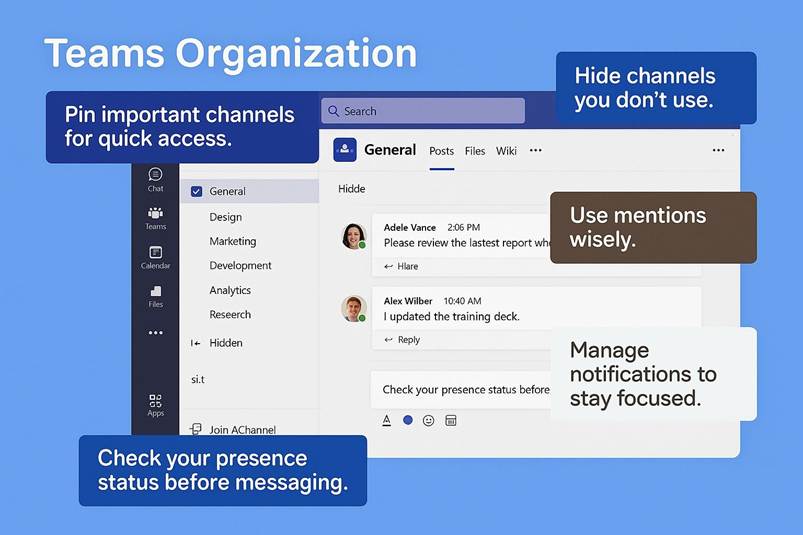
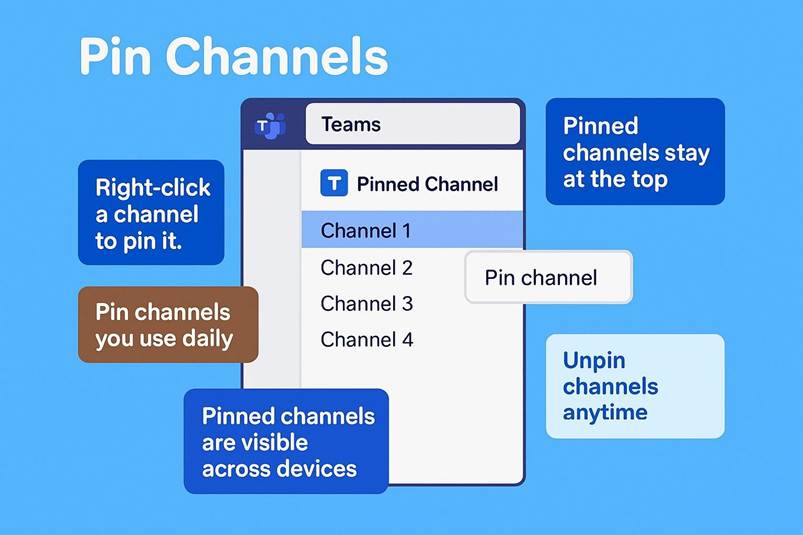
As you spend more time using Microsoft Teams, you ll start to notice something interesting: the app feels like it s learning how you work. It s not magic, but it s designed to adapt to your workflow and make things easier for you. One of the first places you ll see this is in how Teams organizes your recent activity. In the Chat section, your most recent conversations automatically rise to the top of the list. That means the people you ve been talking to most recently or anyone who has sent you a new message are always right there, easy to find. No digging through old threads, no scrolling endlessly. It s all about keeping what matters most within reach. And if you have certain chats that are super important, you can pin them. Pinning is like saying, Stay here, don t move. Those chats will always be at the top, no matter what else happens. It s perfect for quick access to your manager, your project team, or anyone you talk to every day.
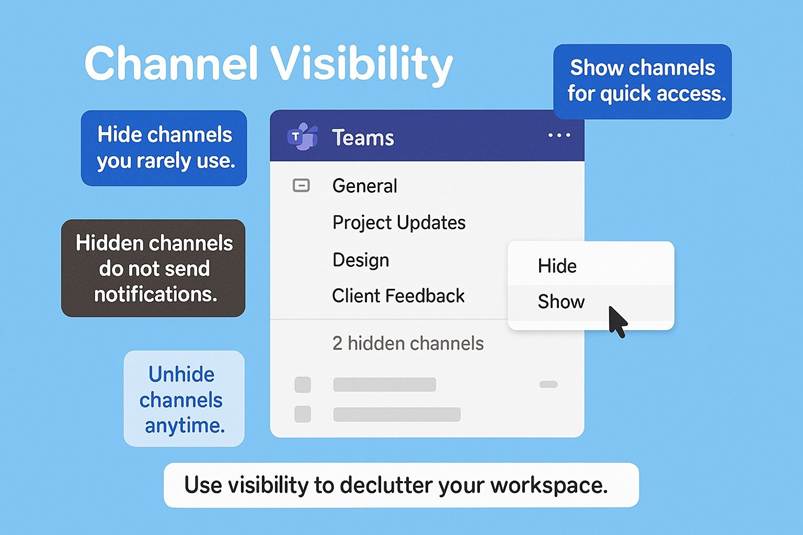
Now, let s move to the Teams section. If you re part of a lot of teams and let s be honest, many of us are it can feel like a long list. But Teams gives you control. You can favorite certain teams or channels so they stand out. When you do that, they ll appear in a pinned or favorites area, or they ll stay visible while others collapse. That way, the projects you re actively working on are always front and center. No more scrolling through a sea of names just to find the one you need. It s a small feature, but it makes a big difference when you re busy.
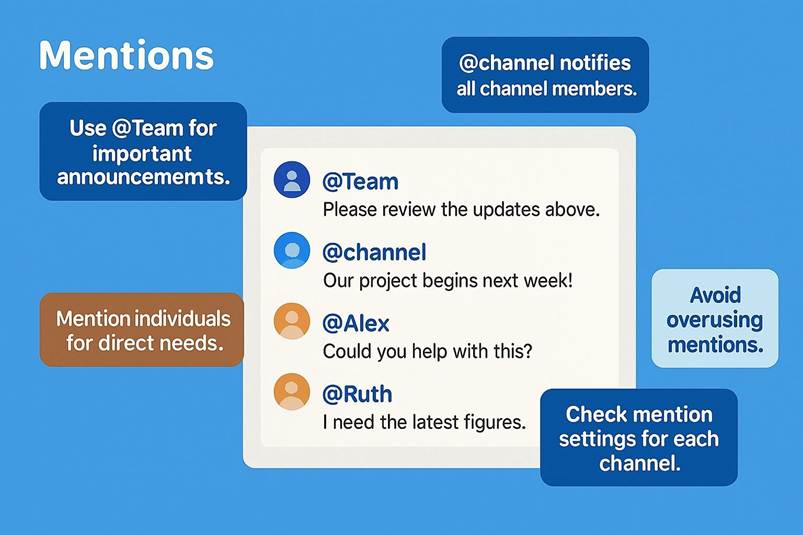
Teams also uses subtle visual cues to guide your attention. For example, if you see bold text on a channel name, that s your signal: there are unread messages waiting for you. If you see an @ symbol next to a channel, that means someone mentioned you directly. These little indicators are like breadcrumbs they help you know where to click first without feeling overwhelmed. You don t have to guess what s urgent because Teams shows you. It s all about reducing noise and highlighting what matters.
Think about how helpful this is when you re juggling multiple projects. You might have ten channels, but only two need your attention right now. Bold text and @mentions make that clear instantly. You can jump in, respond, and move on without wasting time. It s a design choice that feels simple, but it s powerful because it respects your time.
And here s the best part: all these features work together to keep you focused. The app doesn t throw everything at you at once. Instead, it organizes things so the most relevant items stand out. That means as a new user, you re not drowning in information. You can ease into Teams without feeling lost. Over time, you ll find your own rhythm pinning chats, favoriting channels, and using those visual cues to stay on top of things. It s like Teams is saying, We ve got you covered. You can concentrate on your work, knowing the app is helping you stay connected and informed.
So, the next time you open Teams, take a moment to notice these little details. They re not just nice touches they re tools designed to make your day smoother. And once you start using them, you ll wonder how you ever worked without them.
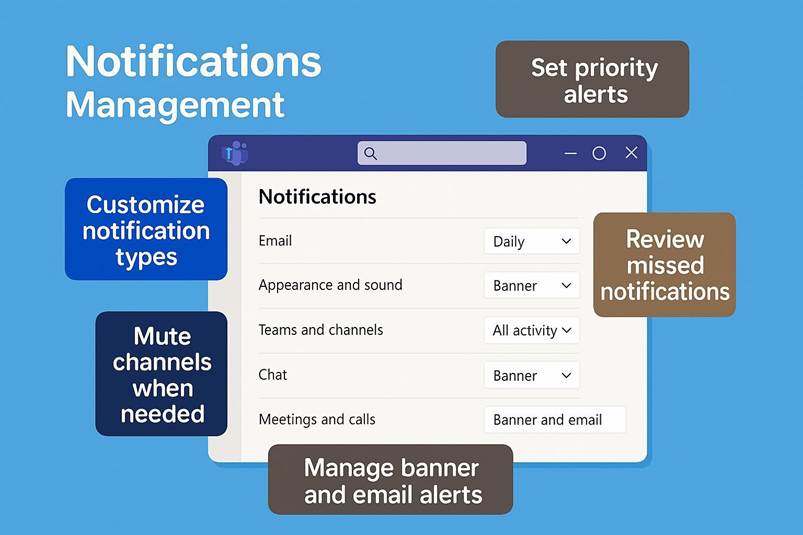
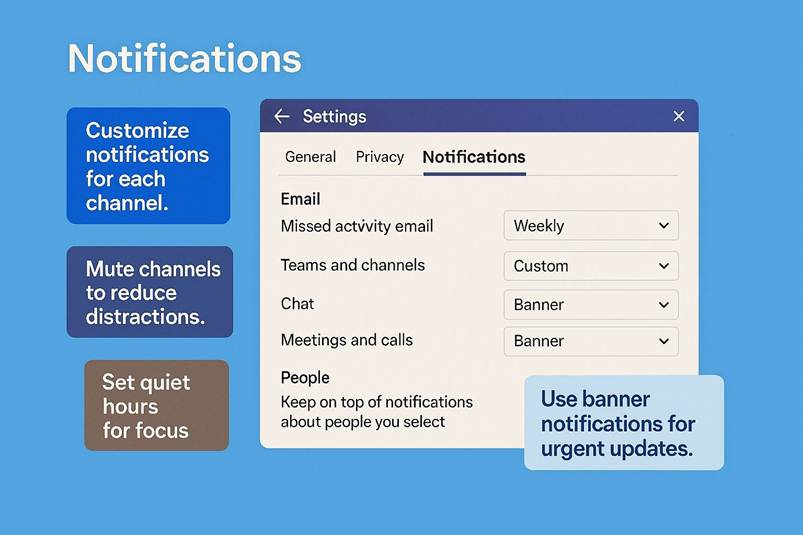
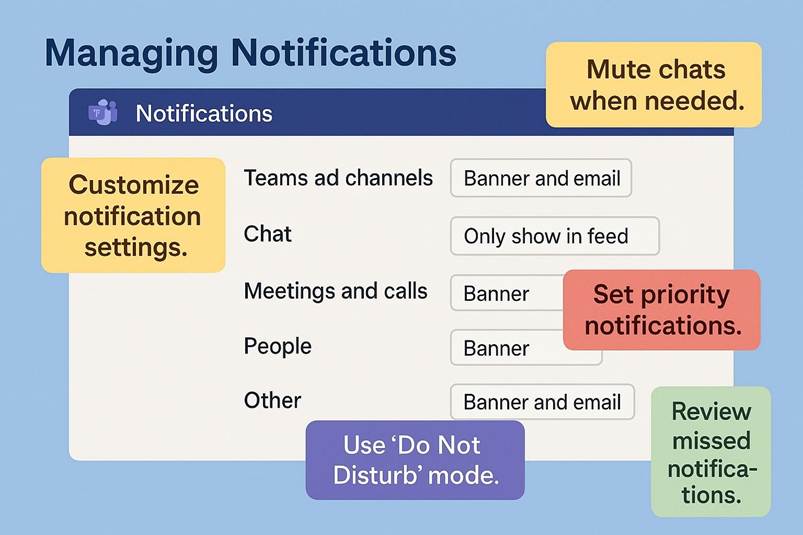
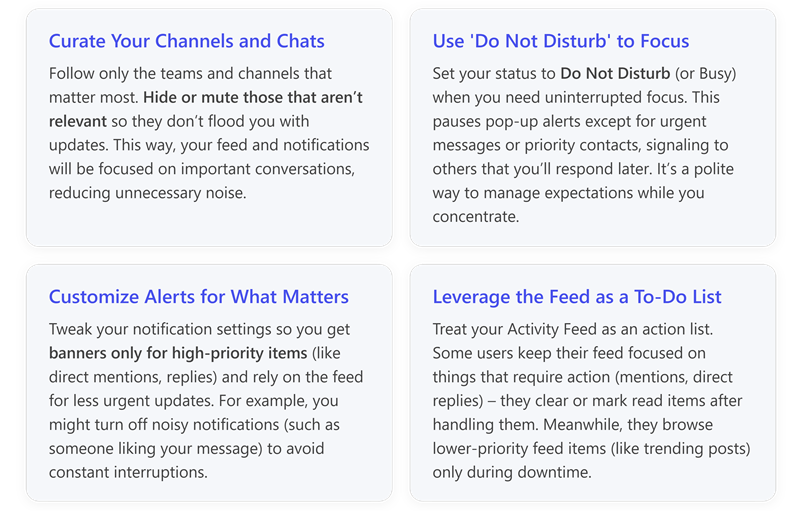
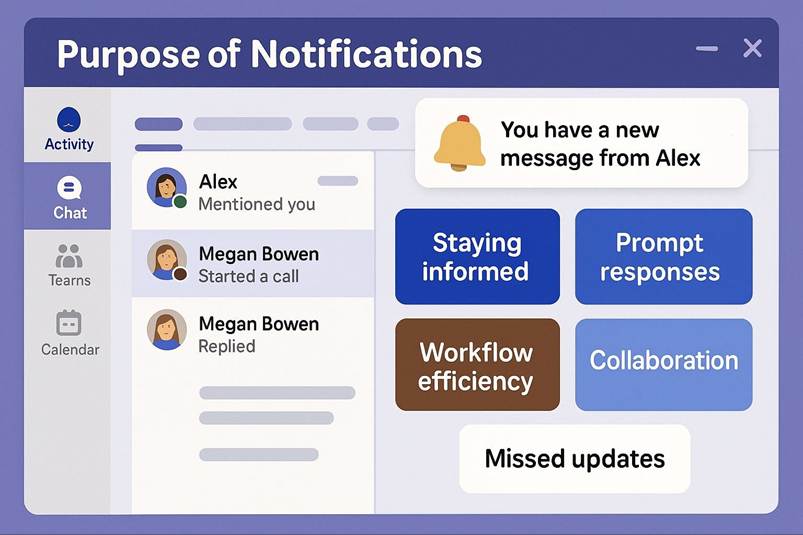
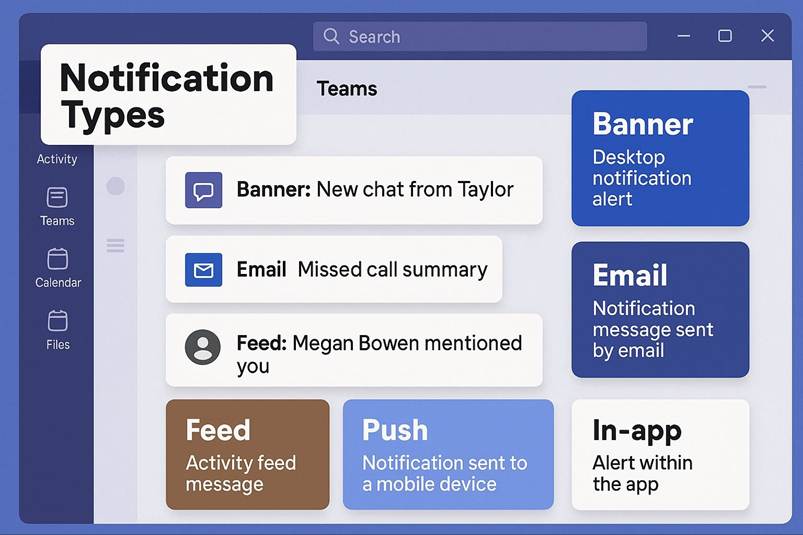
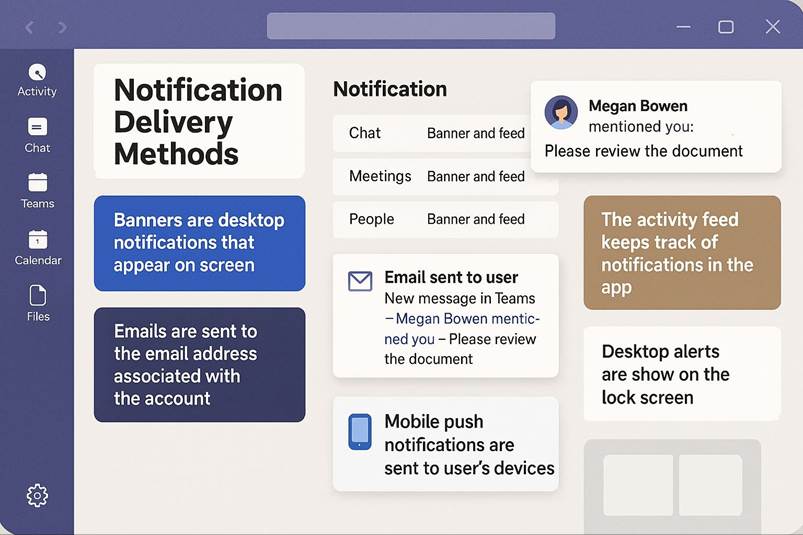
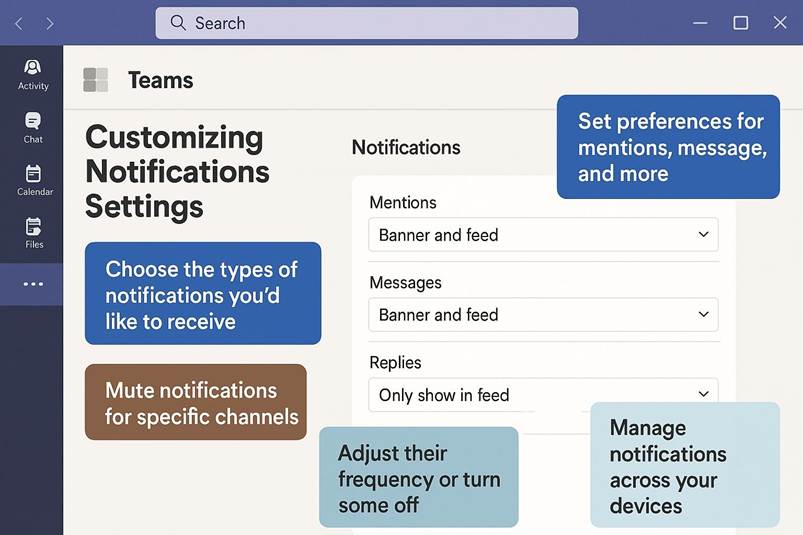
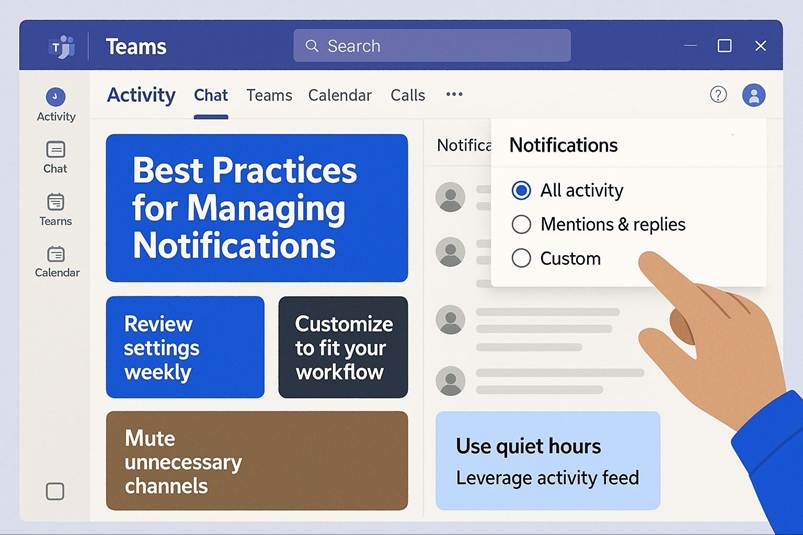
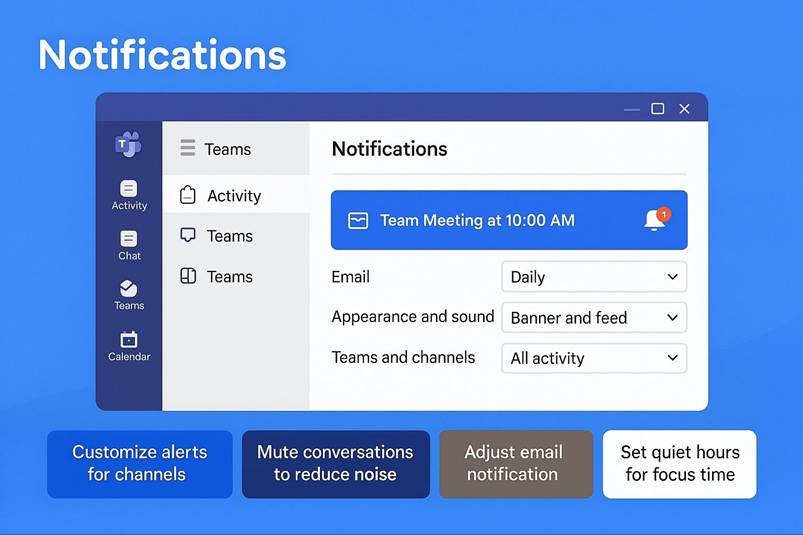
Notifications in Teams are another aspect that can be tailored to your needs. Out of the box, Teams will send you notifications for important events like direct chat messages, @mentions of you or your team, and meeting reminders. However, it won t ping you for every single new message in a busy channel by default (unless you re mentioned), which is deliberate this way, you re alerted to things that likely require your attention, but you re not bombarded by every message in every conversation. This intelligent default helps prevent notification overload. You ll get a banner pop-up and/or an email for key items, but many updates just show as an activity feed count until you check them. Of course, everyone s preference differs, so Teams lets you customize notification settings extensively. By clicking your profile > Settings > Notifications, you can choose what you get notified about, how, and where. You can enable banners for all new channel messages or turn them off even for @mentions if you need quiet time. You might decide, for example, to turn off notifications during meetings (so that incoming chats don t distract you when you re presenting there s an option for that), or to get only a silent feed update (without a pop-up) for certain less urgent channels. You can even set whether notifications appear at the top or bottom of your screen. Teams also ties into the Windows/macOS notification systems, so you can control things like Do Not Disturb at the OS level as well. A good practice for new users is to review the notification settings early on, after a day or two of usage, to tweak anything you find annoying or to make sure you aren t missing alerts. For instance, by default, if someone @mentions a team you re in, you might not get a banner (just an Activity feed item). If that team discussion is critical to you, you could change that setting to a banner so you see it immediately. On the other hand, you might be part of a very active group where you only care if you re personally mentioned, so you leave general notifications off to avoid constant pings. By fine-tuning these, Teams can intelligently keep you informed without overwhelming you. An example of how Teams balances this: if you have a meeting that you accepted on your calendar, Teams by default will mute the chat messages from that meeting until you actually join it or if you actively open the chat thread. This way, if you haven t joined yet (or chose to skip the meeting), you re not getting a flurry of notifications from meeting chat. It s a small touch, but it shows how the app considers your context to manage notifications.
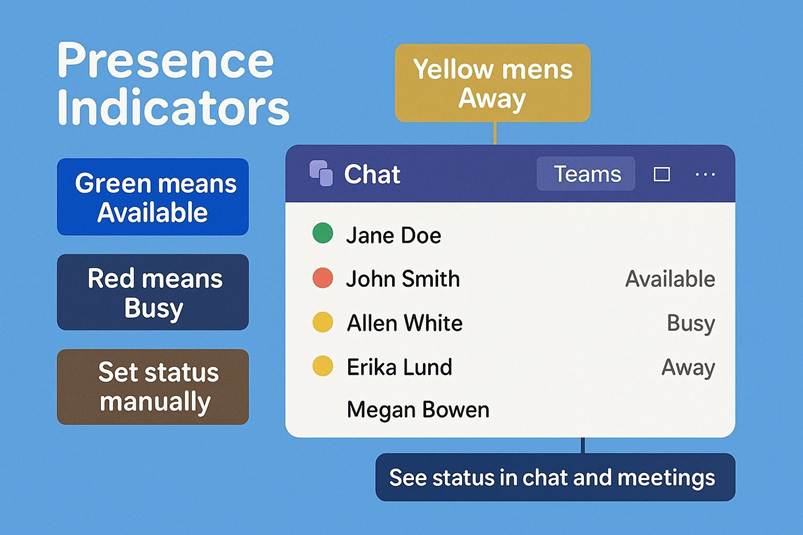
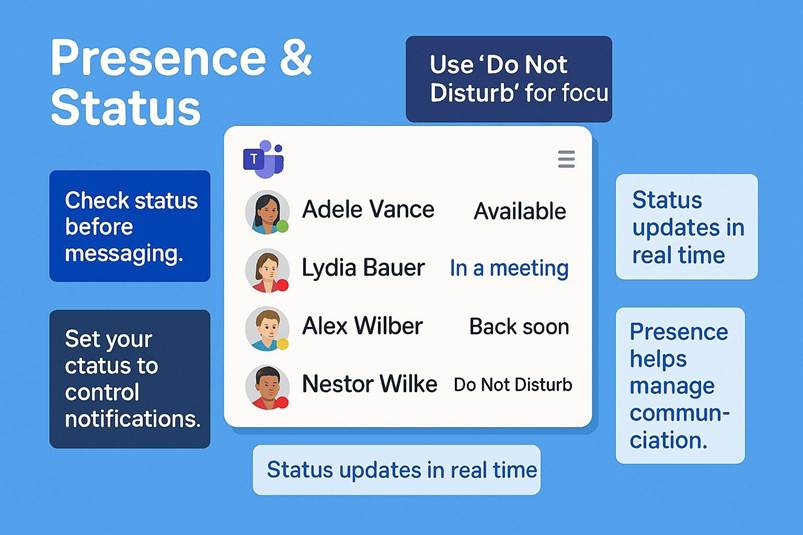
Another important aspect of getting started in Microsoft Teams is understanding presence indicators, also called your status. When you look at the top right corner of Teams, near your avatar, you ll notice a small colored dot. It might be green, red, yellow, or sometimes you ll see an icon like a bell or a clock. That little dot is more powerful than it looks it tells everyone whether you re available, busy, or away. It s a simple visual cue, but it plays a big role in how people interact with you. If your dot is green, that means you re available and ready to chat. People know they can reach out without worrying about interrupting something important. If it s red, that signals you re busy, maybe in a meeting or focusing on a task. Yellow usually means you re away or inactive for a while. These colors help set expectations without you having to say a word.
Think about how useful this is in a busy workday. You might be deep in a project and don t want constant pings. Setting your status to Do Not Disturb puts up a clear boundary. People see the red dot and know you re not ignoring them you re just focused. On the flip side, if you re free and want to collaborate, keeping your status green invites conversation. It s like a silent handshake that says, I m here if you need me. And if you step away for lunch or a quick break, Teams will automatically switch you to away after some inactivity. That yellow dot tells others you re not at your desk right now, so they can plan accordingly.
You can also customize your status. Maybe you re working remotely and want to let people know you re available for calls but not for in-person meetings. You can add a status message like Working from home today or Heads down on a report ping me if urgent. These little notes appear when someone hovers over your name, giving extra context. It s a great way to manage expectations without sending separate messages to everyone.
Presence indicators aren t just for you they help the whole team work smoothly. Imagine you need quick input from a colleague. Instead of guessing if they re free, you glance at their status. Green? Great, send a chat. Red? Maybe wait or drop a message for later. This saves time and reduces frustration. No more endless Are you available? messages. The color tells the story instantly.
And here s something else: your status updates automatically when you join a meeting. If you re in a call, Teams sets you to Busy so others know you re tied up. If you schedule focus time in your calendar, that can reflect in your status too. It s all about syncing your work life so people have the right signals. You don t have to micromanage it Teams does a lot of the work for you.
Now, let s talk about those icons you sometimes see. A bell might mean notifications are muted, and a clock usually signals you ve set yourself to Away or scheduled time off. These extra cues give even more clarity. They re small details, but they make collaboration feel smoother because everyone knows what to expect.
Presence indicators also help with planning. If you re trying to schedule a quick huddle, you can check who s green and ready. No need to send invites blindly. It s like having a real-time map of availability. And if you re managing a team, these indicators help you see who s online and engaged without interrupting their flow.
One thing to remember: status is not about policing activity it s about communication. It s a tool to make work less stressful. When people know your availability, they can respect your time and reach out when it makes sense. That s why it s good practice to keep your status accurate. If you re stepping away for an hour, set it to Away or add a quick note. It avoids confusion and keeps everyone aligned.
Over time, you ll find that these indicators become second nature. You ll glance at them without thinking, and they ll guide how you interact. They re part of the rhythm of working in Teams. And because they re so simple, they don t get in the way they just make things easier.
So next time you open Teams, take a look at that little dot. It s more than a color it s a signal that helps your team stay connected and respectful of each other s time. Use it wisely, customize it when needed, and let it work for you. It s one of those small features that makes a big difference in how smoothly your day goes.
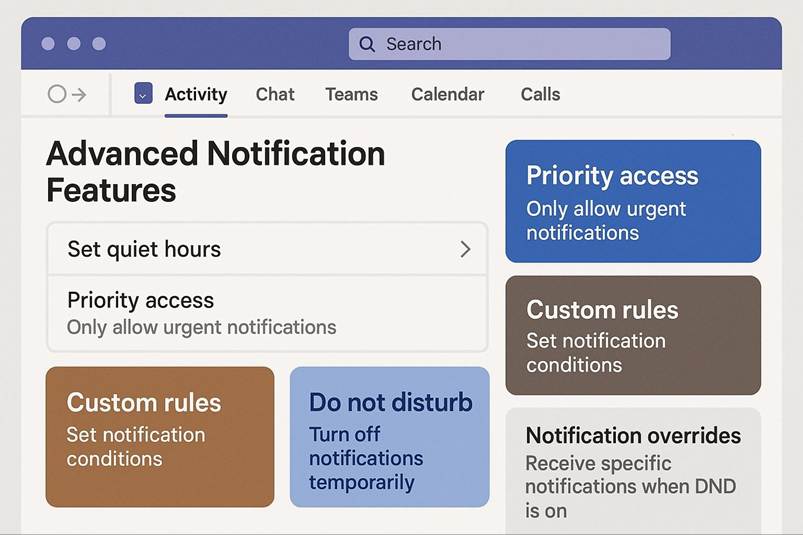
By default, Teams will automatically set your status based on your activity and Outlook calendar. For instance, when you re actively using Teams (or your computer is active), it will show Available (green). If you re idle for a while or your computer is locked, it might show Away (yellow). If you have a meeting scheduled in your calendar, during that time Teams will display In a meeting or Busy (red) automatically. You can also manually set your status: for example, you might set Do Not Disturb (which is a red circle with a line) when you need focus time this not only tells colleagues not to bother you, but it also suppresses notifications for you (except for urgent messages or contacts you designate as allowed). There are additional states like Be Right Back and Appear Offline that you can choose from the status menu if needed. Presence indicators are a subtle but very useful part of Teams collaborative environment. They help set expectations in real time: if I see my coworker is in a call (Teams will actually show In a call or In a meeting status automatically), I might avoid sending them a flurry of messages until they re free. Or if I m heads-down on a deadline, I might switch my status to Do Not Disturb so I don t get pop-ups, and teammates will see a small minus icon next to my name indicating not to interrupt. Teams even has a feature where you can set a status message for example, Out to lunch, back at 1 PM which colleagues will see if they message you or view your profile. As a new user, it s good to be aware of the presence feature; it s largely automatic, but you have control when you need it. It s considerate to check someone s status before calling them if they re on DND or appear away, a message might be better than a call. Presence info in Teams is visible to everyone in your organization by default, reinforcing transparency. Over time, you ll get a feel for how your team uses statuses (some individuals actively set theirs, others just rely on the auto-status). Importantly, presence integrates with other parts of Teams: for instance, if you try to message someone who s out of office, Teams will show you that info (if they ve set an Out of Office reply in Outlook, Teams will display it alongside their presence). Little integrations like this ensure smoother communication you won t be left wondering why someone isn t responding, because Teams will often tell you Last seen 3h ago or Out of Office next to their name.
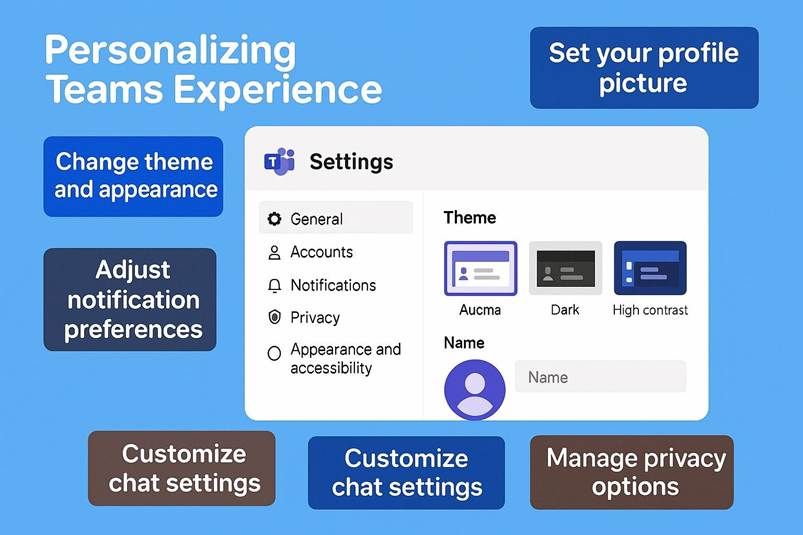
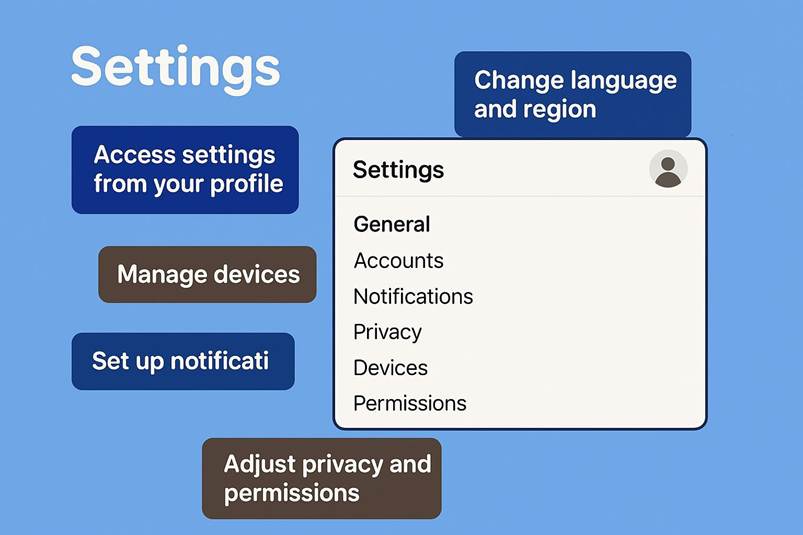
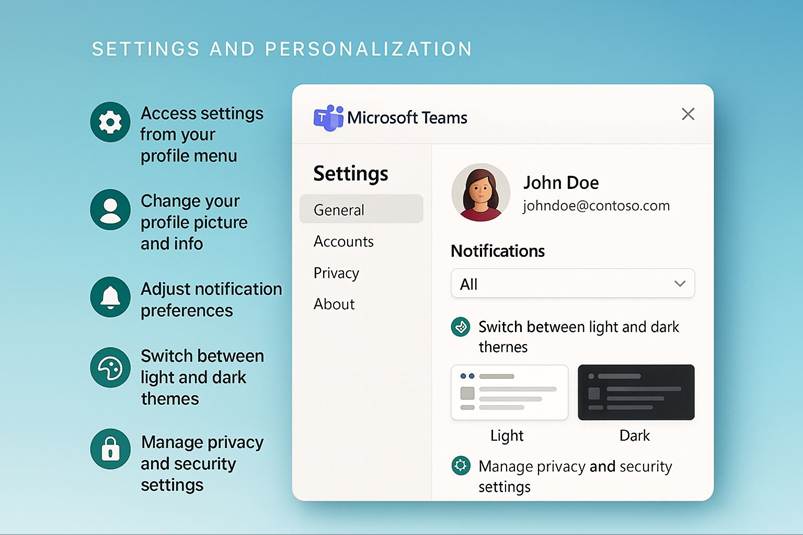
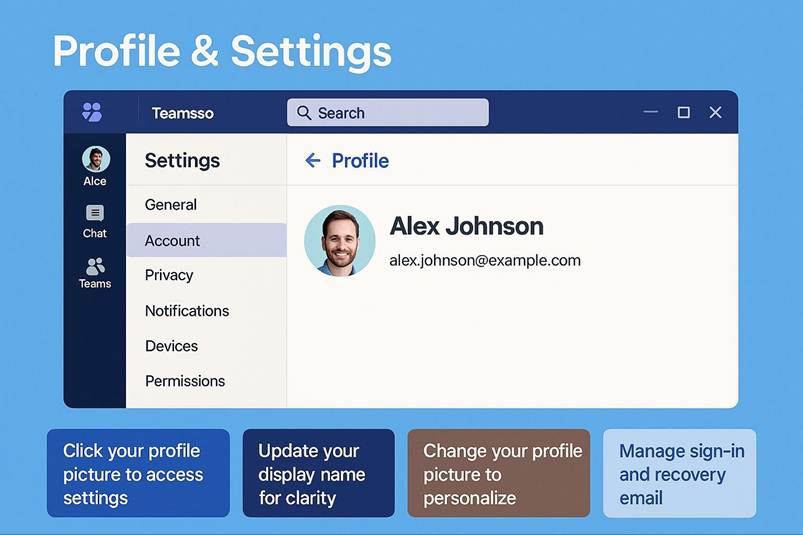
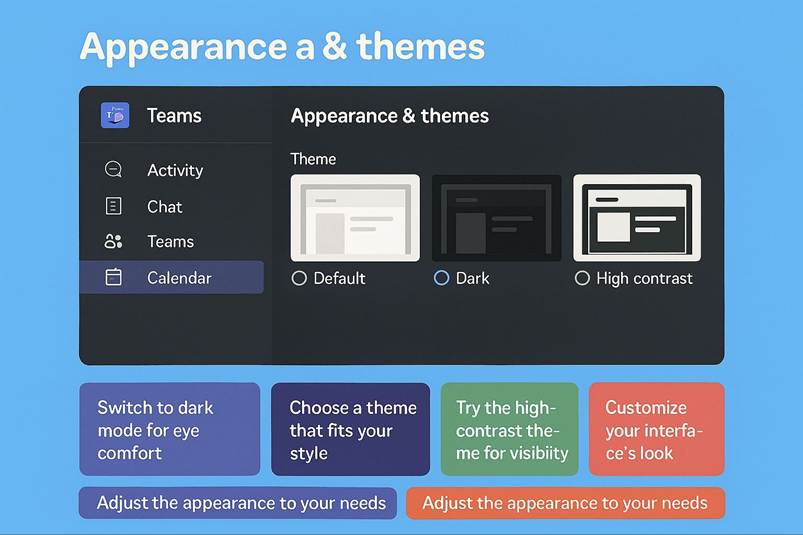
To further tailor your experience, you can adjust various settings (found under your profile menu > Settings). Here you can switch the theme of Teams (light, dark, high contrast), set language and app preferences, configure devices (like selecting your headset for calls), and more. One setting new users often like to tweak early is whether to auto-start Teams when you log into your computer by default, Teams might start up automatically (which is handy if you use it constantly; it ensures you re always connected), but some prefer to launch it manually to save resources.
All these options are available in the Settings dialog, and that s where you can really start shaping Teams to fit the way you work. It s not just about toggling a few switches it s about making the app feel like your own workspace. You can adjust notifications so you re not bombarded with alerts, choose how messages appear, and even tweak your theme if you want a different look. These settings are easy to find and even easier to change, so don t be afraid to explore. The more you personalize Teams, the more comfortable and productive you ll feel.
Another thing to keep in mind is that Teams adapts beautifully to different devices. If you switch from the desktop app to the web version or the mobile app, the core experience and all your data carry over seamlessly. That means your chats, your teams, your files they re all right there, no matter where you log in. You don t have to worry about losing context or missing updates because everything syncs automatically. This flexibility is a lifesaver when you re on the go or working from different locations.
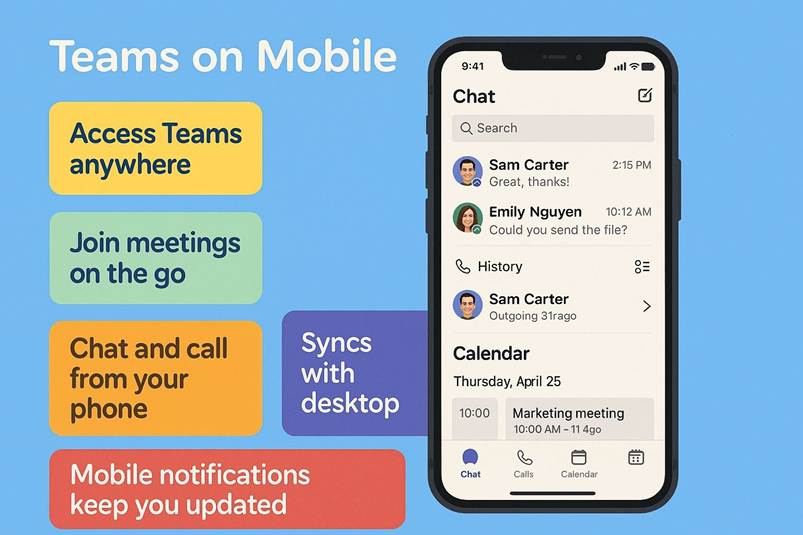
The mobile app, in particular, is a fantastic companion for new users. It s lightweight, intuitive, and gives you access to the essentials without feeling cramped. You can join meetings, reply to chats, check notifications, and even share files all from your phone. Imagine you re commuting or waiting for an appointment, and you get a mention in a channel. Instead of waiting until you re back at your desk, you can respond right away. It keeps you connected and in control, no matter where you are.
Installing the mobile app is simple, and once you do, you ll wonder how you managed without it. It s perfect for quick check-ins and staying in the loop when you re away from your computer. And because it mirrors the desktop experience, there s no learning curve. Everything feels familiar, just optimized for a smaller screen. It s like having Teams in your pocket, ready whenever you need it.
Now, if you re feeling a bit overwhelmed by all these features, don t worry. Teams is built to be approachable, even if you re not tech-savvy. The interface is clean, the options are clear, and there s plenty of help content available right inside the app. You can click the Help icon to access tutorials, tips, and FAQs. These resources are designed to guide you step by step, so you can learn at your own pace. Whether you want to master meetings, organize channels, or fine-tune notifications, the answers are just a click away.
Taking advantage of these tips and resources will help you move quickly from a beginner to a confident Teams user. You ll start with the basics sending messages, joining calls and before you know it, you ll be scheduling meetings, sharing files, and collaborating like a pro. The key is to explore and experiment. Don t be afraid to click around and see what s possible. Every feature you discover is another tool to make your workday smoother.
Understanding presence indicators is another piece of the puzzle. Knowing how to set your status and read others status helps you communicate better and avoid interruptions. Combine that with smart notification settings, and you ll have a workflow that feels effortless. You ll know when to respond, when to focus, and when to take a break all without sending a single extra message.
Fine-tuning notifications is especially important. You don t want to be distracted by every single update, but you also don t want to miss something critical. Teams gives you granular control, so you can choose what triggers an alert and what stays quiet. Maybe you want notifications for direct mentions but not for general channel chatter. Or maybe you prefer email summaries for less urgent updates. Whatever your preference, you can set it up in seconds.
The beauty of Teams is that it grows with you. At first, you ll use the basics. Then, as you get comfortable, you ll start exploring advanced features like app integrations, custom tabs, and automation. But you don t have to rush. The platform is designed to support you at every stage, whether you re just starting out or managing complex projects.
And here s the best part: everything you learn in one version of Teams applies to the others. The desktop, web, and mobile apps share the same core design, so you re never starting from scratch. That consistency makes it easy to switch devices without losing momentum. You can start a chat on your laptop, continue it on your phone, and finish it on your tablet all without skipping a beat.
So, if you re new to Teams, take a deep breath and dive in. Explore the Settings dialog, install the mobile app, check out the Help content, and play around with notifications. These small steps will make a big difference in how you experience the platform. Before long, you ll feel right at home, collaborating with confidence and enjoying the flexibility that Teams brings to your workday.
Microsoft Teams isn t just another app it s a hub for teamwork. And with these built-in aids, you ll be scheduling meetings, joining channel discussions, and sharing ideas in no time. It s all about making communication simple, organized, and accessible, no matter where you are or what device you re using. So go ahead make Teams your own and let it work for you.
2.3 Meetings, mobile access, deeper integrations, and security considerations
A big part of getting started with Microsoft Teams is learning how to join meetings and work effectively across devices. Meetings are at the heart of collaboration, and Teams makes joining them simple, whether you re on your desktop, using the web app, or on your mobile device. When you receive a meeting invite, you ll usually see a link that says Join. Clicking that link takes you straight into the meeting no complicated steps, no extra software to install. If you re on your computer, you can join through the desktop app or the browser. If you re on your phone, the mobile app gives you the same experience, just optimized for a smaller screen. This flexibility means you can stay connected wherever you are, whether you re at your desk, in a coffee shop, or on the move.
Working across devices is one of the biggest advantages of Teams. You can start a meeting on your laptop and continue it on your phone without losing context. Everything syncs automatically your chat messages, shared files, and meeting notes are always up to date. That s a huge time-saver because you don t have to worry about transferring information or catching up later. It s all there, ready when you need it.
Another important piece of the puzzle is understanding how Teams fits into the broader Microsoft 365 ecosystem. Teams isn t just a standalone app it s deeply integrated with tools like Outlook, OneDrive, SharePoint, and Planner. When you schedule a meeting in Outlook, it automatically creates a Teams link. When you share a file in Teams, it s stored in SharePoint or OneDrive, so you can access it from anywhere. This integration means you re not juggling separate systems. Everything works together to keep your workflow smooth and organized.
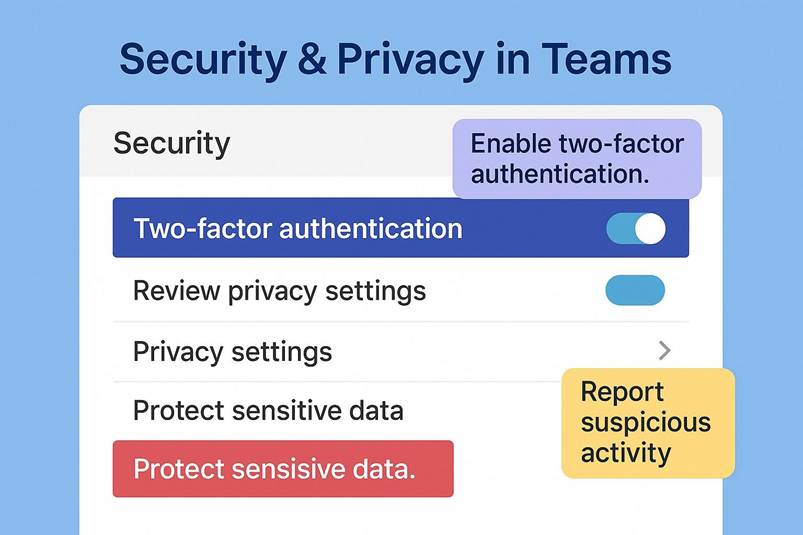
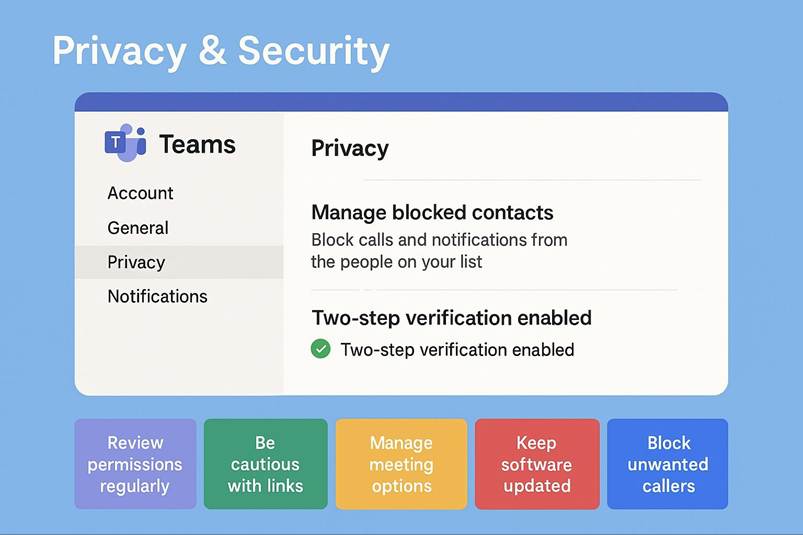
And then there s security. Your organization s security framework is built into Teams from the ground up. That means your conversations, files, and meetings are protected by enterprise-grade security. Encryption, compliance standards, and access controls are all part of the package. You don t have to think about it it s just there, keeping your data safe while you focus on your work. This is especially important if you re sharing sensitive information or working on projects that require strict confidentiality. Teams gives you the tools to collaborate without compromising security.
As you explore these features, you ll see how easy it is to move from a beginner to a confident user. Start by joining a few meetings, try switching between devices, and notice how seamless the experience feels. Then, take advantage of the integrations schedule meetings through Outlook, share files through Teams, and use OneDrive for storage. The more you use these connections, the more efficient your workflow becomes.
The key is to dive in and experiment. Teams is designed to be approachable, even if you re not tech-savvy. The interface is clean, the options are clear, and there s plenty of help content available if you need guidance. Before long, you ll be scheduling meetings, collaborating on documents, and managing projects like a pro all within a secure, integrated environment that works wherever you do.
Let s go through these aspects:
Joining and participating in meetings
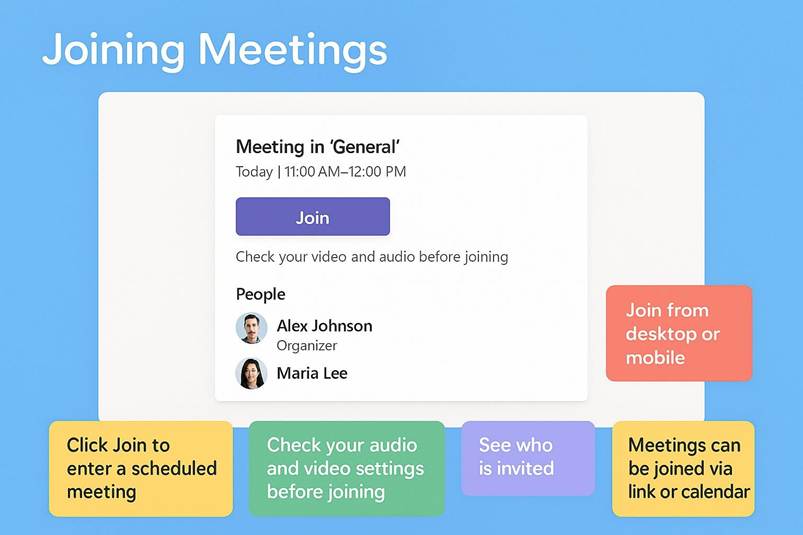
Joining and participating in meetings in Microsoft Teams is designed to be simple and intuitive, so you can focus on the conversation rather than the technology. If your organization uses Teams for meetings, you ll notice that scheduled meetings appear right in your Teams Calendar. Each one has a clear Join button, and when it s time to meet, all you need to do is click it. No complicated steps, no searching for links it s all in one place. You can also join from a meeting link, which is usually included in the invite email or chat. Clicking that link will open your Teams app automatically, or if you don t have the app installed, it will launch the web interface so you can still participate without missing a beat.
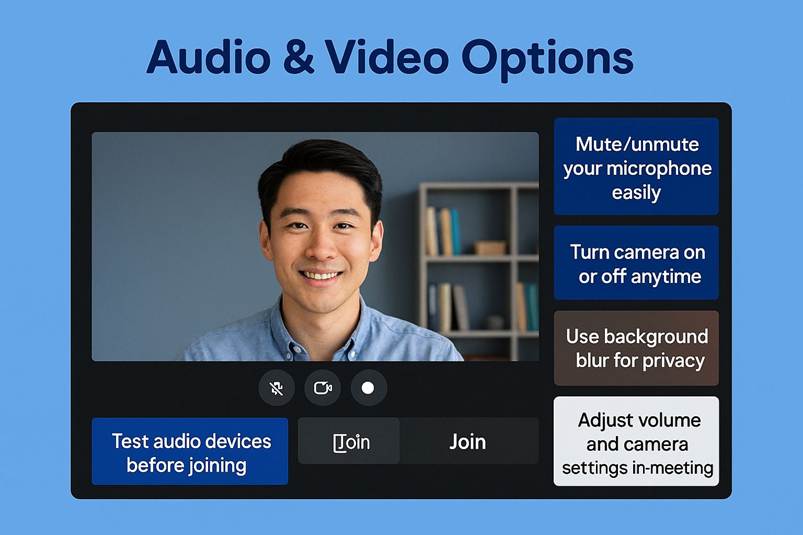
Before you enter the meeting, Teams gives you a pre-join screen. This is your chance to get set up the way you want. You can choose which camera to use, turn your video on or off, blur your background or pick a custom image, and check your microphone settings. If you need a moment of quiet before joining, you can mute your mic here too. It s a quick way to make sure everything looks and sounds right before you step into the virtual room.
Once you click Join for real, you ll be placed into the meeting. If it s an internal meeting within your organization, you ll usually join immediately and see everyone else who s already there. If the meeting includes external participants or you re not signed in, you might land in a virtual lobby first. That s just a waiting area where the organizer can admit you when they re ready. It s a simple security measure to keep meetings private and organized.
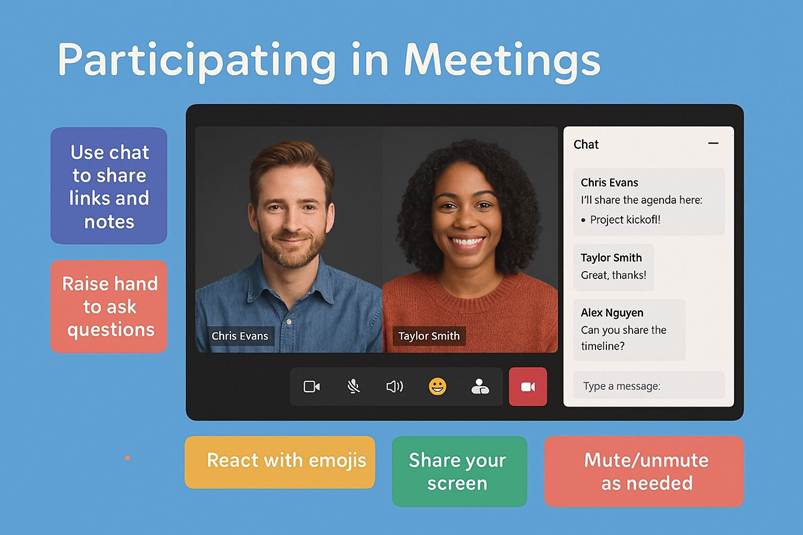
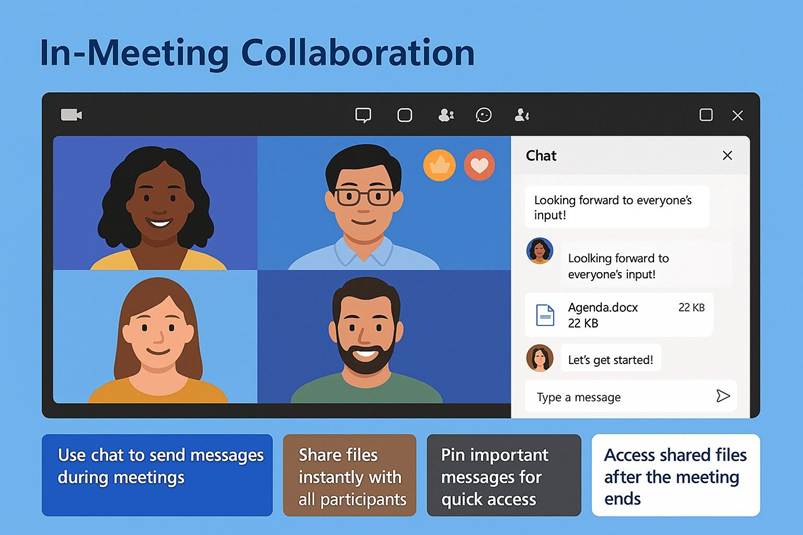
Inside the meeting, collaboration feels natural. You can turn your camera on or off anytime, mute and unmute as needed, and use the chat panel to share quick messages or links without interrupting the speaker. If someone shares their screen, you ll see it clearly, and you can even react with emojis to keep the energy positive. Need to share a file? Drop it in the chat, and everyone can access it instantly. Teams also lets you raise your hand virtually if you want to speak without cutting someone off, which is great for larger meetings.
If you re joining from a mobile device, the experience is just as smooth. The interface is optimized for smaller screens, but you still get all the essentials video, audio, chat, and reactions. This means you can join a meeting from anywhere, whether you re at your desk, in a coffee shop, or on the go. Switching between devices is seamless too. Start on your laptop, move to your phone, and Teams keeps everything in sync so you never lose context.
The goal is to make meetings feel effortless. With clear join options, flexible device support, and built-in collaboration tools, Teams takes the stress out of virtual meetings. Once you ve joined a few times, it becomes second nature. You ll find yourself scheduling, joining, and participating without even thinking about the steps. It s all about keeping you connected and making teamwork easy, no matter where you are.
Participating in a Teams meeting offers a rich toolset. You can turn your video on/off, mute and unmute yourself, and see a roster of participants. There s an in-meeting chat panel where attendees often share links or type questions (especially useful in large meetings where not everyone can speak up at once). You can also use emoji reactions (like raising a hand, giving a thumbs up, applause, etc.) to provide feedback non-verbally during the meeting for instance, hitting the hand raise button to signal you want to speak, or clapping to show appreciation for a point someone made. One of the most useful features is screen sharing: with a couple clicks, you can share your entire screen or a specific window, allowing others in the meeting to see content on your computer. This is essential for presentations, demos, or collectively looking at a document. If someone else is sharing, you can toggle your view between speaker mode and content or even use the new Together Mode or Large Gallery view if there are many participants (Teams will automatically suggest these for large meetings). Teams also provides background effects, such as background blur or custom images, so you can conceal or stylize what s behind you on camera helpful for privacy or just fun. If you enable Live Captions, Teams will show real-time subtitles of what people are saying (great for accessibility or if you re in a noisy environment). Moreover, meetings can be recorded (if allowed by your org), which saves the video and optionally generates a transcript that participants can review later perfect for those who couldn t attend live or for capturing detailed discussions. During the meeting, if you need to focus on something else for a moment, you can switch to another Teams function (like checking a chat) and the meeting will continue in a small window (picture-in-picture mode). Overall, joining a Teams meeting is as easy as clicking Join , and once you re in, the interface is pretty intuitive: controls along the top (or bottom) for camera/mic, a sidebar for chat and participants, etc. As an example, scenario: You have a daily stand-up meeting scheduled. At 9:00 AM, you get a notification and see the meeting in your calendar tab with a Join button. You click join, choose to keep your camera off because you re at a caf , and enter the meeting. You can hear and see the others (who have their cameras on). Partway through, someone asks about a document, so you click the share button and select the Word document window you have open now everyone in the meeting can see the document on their screen while you scroll through it. Meanwhile, one teammate who s in a noisy place has captions on and can read what s being said. Another teammate who had to miss the meeting can later watch the cloud recording that you saved. This seamless meeting integration within Teams has been a major reason for its broad adoption, especially in the era of widespread remote work. It allows geographically dispersed people to connect virtually with minimal friction.
Using Teams on mobile: In today s flexible work environment, you might not always be at your desk when you need to communicate. Microsoft Teams offers mobile apps for iOS and Android that bring almost all the desktop functionality to your phone or tablet. Setting up the mobile app is as simple as installing it from the App Store/Google Play and signing in with the same work or school account. Once logged in, you ll see a similar set of icons (though typically along the bottom of the screen on mobile): Activity, Chat, Teams, Calendar, etc., all optimized for a smaller touch display. This means you can continue conversations on the go, join meetings, and access files right from your phone. For instance, if you re commuting and someone messages you, your phone notification from Teams lets you read and reply instantly. If you re out of the office and an urgent meeting comes up, you can join with one tap on your phone including sharing your phone s camera or screen if needed. The mobile app also supports calling, so you might use it like a work phone, answering Teams calls or making them. Files can be viewed on mobile as well; Word, Excel, PowerPoint files open in their respective mobile apps or viewers for easy reading and even editing. A particularly useful feature of the mobile app is the ability to quickly take and share photos or videos e.g., a field worker might snap a photo of an issue and post it directly into a Teams channel. Mobile also respects your notification settings, so you can configure quiet hours (maybe you don t want work notifications after 6 PM, which you can set in the app settings). Essentially, the Teams mobile app ensures you remain connected and productive from anywhere. Many new users are delighted to find that they can step away from their desk and still not miss important messages or meetings. And it s not just about work emergencies it enables flexibility. Imagine you re walking between meetings, and you remember a file you need to send to a colleague: you can pull out your phone, find the file in Teams, and share it in a chat in under a minute. Or if you re working from home and there s a brief power or internet outage on your PC, you could dial into the ongoing Teams meeting on your phone s 4G/5G connection, so you don t miss anything. The mobile app s interface is slightly simplified (for example, fewer messages are visible at once, and some advanced meeting features like viewing a large grid of videos might be limited by screen size), but it s remarkably full featured. Microsoft has made the mobile and desktop experiences complementary you can even transfer a call from desktop to mobile or vice versa seamlessly. As a new user, installing Teams on your phone is highly recommended so you have that continuity. It s like carrying your office communication in your pocket, securely.
Integrations with Microsoft 365 and other apps: One of Teams greatest strengths is how it brings other tools into the fold. As you get comfortable with the basics, you ll soon start to benefit from the fact that Teams is part of the larger Microsoft 365 ecosystem. For example, since Teams is connected to your Outlook and Exchange, your Outlook calendar and contacts are directly available meeting invites, scheduling, and presence all tie back to that, as we ve seen. When working with files, Teams uses SharePoint and OneDrive behind the scenes, which not only means your files are stored securely in the cloud, but also that you can leverage powerful Office features like real-time coauthoring. If you open a Word document that was shared in Teams, multiple people can edit it together with changes appearing instantly for everyone, and everyone s name cursor showing this is the same coauthoring experience as in Office 365 online. No need to worry about who has the latest version it s always the one in Teams. Beyond Office files, Teams integrates with a wide array of apps and services. In any given channel, you can click the + (Add a tab) button at the top to add a tab for an app or file. This is how you might embed an Excel spreadsheet, a PowerPoint deck, a Planner board, a OneNote notebook, a PDF, or third-party app content into the channel for easy reference. For instance, your team could add a Planner tab to track tasks everyone can then see and update the task board within Teams, without needing to go to a separate Planner website. Or you could add a OneNote tab that serves as a team wiki/notebook for notes and ideas, which everyone can contribute to collaboratively. If your group uses an external tool like Trello, Asana, or Jira, chances are there s a Teams app for it that can bring updates or interactive content into a channel. For example, with the Trello app added, you could get a tab showing a Trello board, or have Teams posts that notify about Trello card changes. Teams also allows connectors that push updates from services (like RSS feeds, Twitter, or CI/CD build alerts) into a channel. Additionally, there are bots that you can interact with via chat for instance, the Polly bot can create polls in your team conversations for quick feedback. Over time, as you explore the Apps catalog (accessible via the Apps button or the menu on the sidebar), you can customize Teams to fit your workflow. Importantly, since this is an eBook about Teams, it s worth highlighting the deep integration with other Microsoft 365 apps like Forms (for surveys), Power BI (for data dashboards), Approvals (to streamline simple approvals), and even the new Microsoft Viva modules (Insights, Learning, etc.) that appear in Teams to help with employee experience. A practical real-world application: Suppose you re in an HR team using Teams. In your HR Projects channel, you might add a Forms tab for an employee satisfaction survey, and a Power BI tab to display live HR metrics. Now team members can fill out the survey or review metrics right within Teams. Meanwhile, you ve integrated a third-party app like Workday via a connector to post a message in Teams whenever a new hire s paperwork is complete, so the team gets notified without checking email. These integrations turn Teams into a one-stop workspace. As a new user, this might sound advanced and indeed, you wouldn t do all this on day one but be aware of it as you ramp up. Start with adding a simple tab, maybe pin an important OneNote or Excel file in a tab for your team to easily find. Or try adding the Polly app in a chat to vote on what time to hold a meeting. Microsoft has an ever-expanding library of third-party apps and custom workflows (via Power Automate) that supercharge Teams. Even Microsoft s Copilot AI (as of late 2025) is being integrated into Teams, which can help summarize chat threads or meetings, further enhancing how you work. The key point is: Teams is not isolated it s an extensible platform that can connect to the tools you use daily, making them accessible in one place. This reduces the need to switch contexts (no more jumping between email, chat, file storage, and task trackers they can live under the Teams umbrella). As you become more comfortable, exploring the App Store in Teams and experimenting with integrations will let you tailor your Teams experience to exactly what your team needs.
Real-world example of integration: A product development team might use Teams channels to discuss features. They add a Whiteboard tab for brainstorming sketches, a GitHub integration that posts a message whenever code is pushed to the repository, and a Planner tab to assign coding tasks. During daily stand-up calls (in Teams meetings), they use the integrated Whiteboard to draw ideas, and between meetings, any code updates automatically show up as notifications in the channel via the GitHub connector. This way, everything from chat to code to planning is in one hub.
Security and compliance features: As a new user, you don t need to configure these, but it s reassuring to know that Teams is built with enterprise-level security from the ground up. All data in Teams your messages, calls, files is encrypted in transit and at rest by default. That means when your message goes to Microsoft s cloud and to your colleague, it s protected so that it can t be intercepted. Similarly, files stored in SharePoint/OneDrive are encrypted on disk. Teams uses industry-standard protocols like TLS (for network security) and AES-256 encryption for storage, the same technologies banks use to secure data. If your organization needs even more control, Teams supports features like Customer Key (where the company manages its own encryption keys) and End-to-End Encryption (E2EE) for one-to-one calls and certain meetings, ensuring only the participants in a call can decrypt the audio/video. From a compliance perspective, because Teams is part of Microsoft 365, it inherits a broad set of compliance certifications and controls including alignment with GDPR in Europe, HIPAA in healthcare, ISO/IEC 27001, SOC, and many other standards and regulations. For example, a healthcare institution can use Teams for telehealth appointments and be HIPAA-compliant, as long as they ve configured their tenant appropriately and have the proper agreements in place. All communications in Teams can be governed by retention policies (to keep or delete data as required by law) and eDiscovery (for legal holds and retrieving information in legal cases) using Microsoft Purview compliance tools. Organizations can set up Data Loss Prevention (DLP) rules that, for instance, prevent a user from accidentally sharing a credit card number or social security number in a Teams message the message would be blocked and the user notified. Teams also allows information barriers, meaning in sensitive industries like finance, compliance admins can prevent certain groups from communicating with each other (to avoid conflicts of interest). As an end user, you might not see these things happening, but you benefit from them. You might notice, for instance, that if you try to @mention someone external who isn t allowed, Teams won t let you, or if you attempt to upload a file with confidential info, it could be blocked that s the security working for you. Access to Teams is governed by your organization s identity management (Azure AD), so if someone leaves the company, their Teams access can be revoked centrally and immediately. IT administrators have extensive control: they manage who can create teams, they might enforce that certain terms are blocked in name or chat, they can require that you use Teams in a secure way (like not allowing access from unmanaged devices or requiring a VPN for external access though Teams works over the internet so VPN is usually not needed with proper configuration). They also can see audit logs of actions in Teams for security monitoring. Despite all these protections, Microsoft has made it so that the security is largely transparent to users. You don t have to take special action to encrypt a chat it s automatic. When you share a file, the permissions are taken care of by the team s settings or the chat s participants (so only the intended people can access it). If you invite a guest (external user) to a team, your admins may have set up a policy and a warning might appear like Guests can t access such-and-such which guides what you can share. The Teams service is also continually updated with security patches (another reason to keep your app updated). Microsoft runs bug bounty programs and rigorous testing to keep Teams safe from hacking. In plain terms, Teams is a secure, managed environment, especially compared to using consumer apps or email for work collaboration. This means that as you get started, you can focus on your work without worrying that the collaboration tools themselves might leak data they are built to prevent that. For example, all Teams recordings you make are permission-controlled (only invitees get access by default), and if you share a file in a channel, only members of that team can see it, no one else. If your organization operates in a regulated industry, rest assured Teams likely meets the needed criteria; many government agencies and large corporations use Teams precisely because it meets their high bar for security and compliance.
Finally, administrative controls in Microsoft Teams are what make the whole experience smooth and secure behind the scenes. Your IT department plays a big role here, even if you don t see it day to day. They can provision Teams for everyone in the organization, manage licenses so you have access to the right features, and push enhancements when new capabilities roll out. This means you don t have to worry about setup it s all handled for you. They might even create templates so when a new project kicks off, a team with pre-made channels and tabs is ready to go. That saves time and ensures consistency across projects. You ll just join and start collaborating without having to build everything from scratch.
IT can also enable advanced security features like Safe Links, which scan URLs you share to protect against phishing attempts. They might integrate Teams with security monitoring tools so any suspicious activity is flagged immediately. All this backend work translates into a safer, smoother experience for you as a user. You don t have to think about it it s just there, keeping your data and conversations secure.
From your perspective, one thing to keep in mind is that organizations often set policies for data retention. For example, Teams messages might be deleted after a certain number of years based on company policy. This isn t random it s part of compliance and governance. You might also notice classification labels on certain teams or channels. If you see a tag like Confidential, that s a signal that extra rules apply. It could mean members can t add guests or copy content outside the team. These labels help protect sensitive information and keep everyone aligned with security standards.
If you re ever unsure about what you can share or how to handle data in Teams, the best thing to do is check with your IT department or consult your company s usage guidelines. They re there to help, and it s always better to confirm than to guess. By default, Teams is configured to keep your collaboration secure, so you can focus on your work without worrying about risks. The combination of user-friendly features and strong administrative controls is what makes Teams such a reliable platform for modern work. It s not just about chatting and meetings it s about creating a space where collaboration feels effortless and safe.
In summary, signing in and getting started with Microsoft Teams is a guided, secure, and user-centric process. With your very first login using your organizational credentials, you step into a digital workspace that is robust yet approachable. The interface, anchored by the left-hand nav bar, puts chats, teams, meetings, calls, and files a click away, so you can move fluidly between different modes of work. Onboarding aids like the Help center and tip banners are there to teach you features and best practices, ensuring you re never lost and can quickly find answers to How do I do X in Teams? . As you explore, you ll see how Teams adapts to you your frequent contacts rise to the top, your status is shared to help coordinate with colleagues, and your notifications can be tuned just right. When it comes to real-time collaboration, whether joining a quick call or a large meeting, Teams makes it one-click simple and enriches those interactions with tools (screen sharing, chat, reactions) that help everyone stay engaged and on the same page. And you re not tethered to a desk: the mobile Teams app extends your workspace to anywhere you have your phone, meaning the conversation truly never has to stop when it s important. Meanwhile, integration with other Microsoft 365 apps means your familiar tools (Word, Excel, PowerPoint, OneNote, etc.) are deeply woven into the Teams experience you can create, share, and collaborate on content without breaking your workflow. Plus, an ecosystem of third-party apps and custom integrations awaits to tailor Teams to your team s unique needs, whether that s tracking tasks, answering surveys, or surfacing data dashboards. All of this occurs within a framework of enterprise-grade security and compliance. You can collaborate confidently knowing that the information exchanged in Teams is protected by encryption and governed by your organization s policies. Every message, meeting, and file is secured and managed, which is critical for maintaining trust in a collaboration platform.
For a new user, it might feel like there s a lot to take in and indeed, Teams is a powerful tool with many facets but Microsoft has designed it so you can start with the basics (sign in, find your coworkers in Chat, join your first team meeting) and then gradually discover more advanced capabilities at your own pace. Many people begin by using Teams just for chat and meetings; then they realize they can also co-edit files or integrate apps and it opens up a whole new level of productivity. You ll find that Teams becomes the central hub of your work: that one place you check each morning for messages or updates, where you collaborate on documents during the day, and through which you attend meetings with colleagues near and far. By consolidating these activities, Teams helps reduce the friction of switching tools and keeps context unified the chat about a project, the files for that project, and the calls about that project all live together. As you continue to use Teams, you ll likely develop your own workflows and preferences (maybe you ll rely heavily on pinning chats, or you ll become the person who creates channels to organize discussions, or you ll automate some routine tasks with a Teams bot). Microsoft Teams supports all these working styles. And whenever you re in doubt or want to learn something new, remember the Help section and Microsoft s online support are full of guidance even as of late 2025, new features are documented and at your fingertips, like the recently added AI-based summaries or the latest Together Mode scenes from Ignite 2025, which continue to enhance how we collaborate. In essence, getting started with Teams is about stepping into a well-integrated environment that grows with you: from simple sign-in and chats to complex multi-team projects and organizational communications, Teams is equipped to handle it, all while keeping your data safe. Embrace the platform, and soon you ll wonder how you managed work life before everything was just a click away on Teams.
CHAPTER 3 TEAMS AND CHANNELS
In Microsoft Teams, the concepts of Teams and Channels are what make collaboration feel organized instead of chaotic. They form the backbone of how work gets done, creating a logical structure that keeps conversations and content in the right place. A Team is essentially a digital workspace for a group of people who share a common purpose. It could be a department, a project group, or even a cross-functional task force. Inside that Team, you ll find everything the members need chat threads, files, apps, and tools all dedicated to that specific goal. It s like having a virtual office where everyone knows what they re working on and where to find things.
Within each Team, you have Channels, and this is where the magic of organization really happens. Channels are sub-spaces that break down the work into smaller, focused areas. Instead of dumping every conversation into one big chat, Channels let you compartmentalize discussions by topic, task, or theme. This means you don t have to scroll through irrelevant messages to find what matters to you. Each Channel acts like a dedicated forum for a particular aspect of the team s work, so everything stays on-topic and easy to follow.
Think about a real-world example. Suppose your organization has a Team for the Marketing Department. Inside that Team, you might have Channels for Social Media Campaigns, Product Launches, and Market Research. Each of these Channels contains its own conversation threads, files, and apps relevant to that topic. If you need to discuss the next Instagram campaign, you go to the Social Media Channel. If you re planning a new product launch, you head to that Channel. No confusion, no clutter just clear spaces for focused collaboration.
This structure is more than just neat and tidy; it s practical. By organizing work this way, Microsoft Teams helps groups coordinate efficiently. Every member knows exactly where to go for each subject, and all the information related to that subject is centralized in one place. You re not hunting through old emails or juggling multiple tools to find what you need. It s all right there, in the right Channel, ready when you are.
Teams provide the who and the what the people involved and the overall purpose of the workspace. Channels provide the where and the how the specific spaces where the actual collaboration happens. This design brings clarity and order to digital teamwork. It makes navigation simple because you always know where to look. Instead of getting lost in unrelated chatter, you can zero in on the discussions and resources that matter to you.
Another great thing about Channels is that they re flexible. You can create standard Channels for open collaboration or private Channels for sensitive topics that only certain members should see. This gives you control over how information flows and who has access to it. If you re working on a confidential project, you can keep those conversations separate without leaving the Team environment.
Channels also support tabs, which let you add apps and tools directly into the workspace. For example, you can pin a Planner board for task management, a OneNote notebook for shared notes, or even third-party apps your team uses. This turns each Channel into a hub for everything related to that topic. You don t have to switch between apps or lose track of where things are stored. It s all integrated, making collaboration seamless.
And because Teams is part of the Microsoft 365 ecosystem, Channels work hand in hand with other services like SharePoint and OneDrive. When you upload a file to a Channel, it s stored securely and accessible to everyone in that space. You can co-author documents in real time, leave comments, and keep version history all without leaving Teams. This tight integration means less friction and more productivity.
The beauty of this setup is that it scales. Whether you re part of a small project team or a large department, the structure of Teams and Channels adapts to your needs. You can start with a few Channels and add more as your work evolves. You can rename them, reorder them, and even archive old ones when a project wraps up. It s all about giving you the flexibility to organize work in a way that makes sense for your team.
From a user perspective, this design makes life easier. You don t have to wonder where to post a question or share a file. You just pick the right Channel and go. It reduces noise, keeps conversations relevant, and helps everyone stay aligned. Over time, you ll find that this structure becomes second nature. You ll know instinctively where to look for updates and where to contribute.
So, when you think about Teams and Channels, think of them as the foundation of your digital workspace. They re not just containers for messages they re the framework that keeps collaboration clear and efficient. By using them wisely, you ll avoid the chaos of scattered communication and create a space where teamwork truly thrives. It s one of the simplest yet most powerful features of Microsoft Teams, and once you get the hang of it, you ll wonder how you ever worked without it.
3.1 Teams as containers, channels as subdivisions
When a new Team is created in Microsoft Teams, it becomes the central hub for everything related to that group or project. Think of it as a container that holds all the conversations, files, and tools in one organized space. For example, imagine your company launches a big initiative called Project Athena. The team sets up a dedicated Project Athena Team in Microsoft Teams, and all the project members are added to it. Instantly, everyone has a common space to communicate, share updates, and collaborate without jumping between apps or drowning in email threads.
Inside that Team, Channels help break the work down into smaller, focused areas. By default, there s a General channel, which is perfect for broad updates and announcements that everyone needs to see. But most projects need more structure, so the team can create specialized channels like Design, Engineering, Testing, and Launch Planning. Each channel acts like its own mini workspace, dedicated to a specific theme or workstream. This way, conversations stay relevant, and files don t get lost in a sea of unrelated messages.
Take the Design channel as an example. Here, designers and stakeholders can discuss prototypes, share feedback, and post UI/UX ideas. They might upload design files directly into the channel and even add a tab for the latest mock-ups so everyone can access them easily. Meanwhile, the Engineering channel becomes the go-to spot for developers. They can track technical decisions, share code snippets, troubleshoot issues, and integrate tools like GitHub or Azure DevOps as tabs for code reviews. This integration means you don t have to leave Teams to check commits or pull requests it s all right there.
The beauty of this setup is that it keeps collaboration organized and efficient. Instead of mixing design discussions with testing updates, each topic has its own home. Team members know exactly where to go for the information they need, and everything stays centralized. No more hunting through old emails or wondering where a file was shared. It s all in the right channel, ready when you need it.
Over time, this structure becomes second nature. You ll find yourself navigating to the right channel without thinking, and you ll appreciate how much easier it is to stay focused. Whether you re brainstorming ideas, reviewing code, or planning a launch, Teams gives you a clear, logical framework for working together. It s one of the simplest ways to bring order to digital collaboration, and once you experience it, you ll wonder how you ever managed without it.
The Hierarchical structure (Team > Channels) in Microsoft Teams, where you have Teams at the top and Channels underneath, is what keeps collaboration organized and stress-free. It ensures that conversations and files stay in their lane, so you re not constantly sorting through irrelevant information. Imagine you re working on a big project with multiple workstreams. If you re responsible for testing, you can jump straight into the Testing channel and immediately see all the discussions about testing, along with the files that matter test plans, bug reports, and maybe even automated test results. You don t have to wade through marketing updates or design debates to find what you need. Everything is right there, neatly grouped by topic.
The same goes for someone focused on design. They don t need to be pinged every time engineering has a technical discussion. Their attention can stay on the Design channel, where conversations about prototypes, UI feedback, and creative assets live. If they ever need to check on engineering progress, they can visit that channel when it s convenient, but they re not overwhelmed by notifications that don t apply to their work. This structure mirrors how real teams operate in the physical world. We often have sub-teams or breakout groups that focus on specific areas, and Channels provide a digital equivalent of those spaces.
This approach keeps collaboration efficient and respectful of everyone s time. It reduces noise, helps people prioritize, and makes navigation intuitive. You always know where to go for the information you need, and you can trust that what you find will be relevant. Over time, this organization becomes second nature. You ll start thinking in terms of Channels where does this conversation belong, where should this file go and that mindset keeps the whole team aligned.
By organizing work this way, Microsoft Teams creates clarity in a world where digital communication can easily become chaotic. It s not just about convenience; it s about enabling focus. When you re not distracted by unrelated chatter, you can do your best work. And when you need to collaborate across areas, Channels make it easy to jump in without losing context. It s a simple concept, but it s one of the most powerful features of Teams, and it s the reason so many organizations rely on it to keep projects moving smoothly.
Not only does this make it easier to find information, it also dramatically reduces noise and miscommunication. When conversations are scattered across random chats or files are dropped in the wrong place, things get messy fast. One industry best-practice guide even points out that without a clear channel structure, teams often suffer from messages getting buried and documents disappearing into a flood of unrelated content. Channels solve that problem by giving every discussion a proper home. Over time, team members develop an instinct for where to go for each type of query or update, and that consistency makes collaboration feel effortless.
Think about a real example. If someone has a question about budget or resource allocation, that belongs in a Project Admin channel, not cluttering the technical Engineering channel where developers are troubleshooting code. Likewise, if you need to share a requirements document, it should go in the channel dedicated to project planning, not in a random chat thread where it will be forgotten. This clarity improves efficiency because decisions and information stay documented in context. When you look back later, everything is right where it should be.
It also makes onboarding new team members so much easier. Instead of dumping them into a chaotic environment, you can point them to the relevant channels. They can navigate channel by channel to catch up on different aspects of the project without feeling lost. It s like walking into a well-organized office instead of a cluttered desk you know exactly where to start.
Organizations often structure Teams and Channels in one of two ways. Some follow functional silos, creating a Team for each department and channels for that department s activities. Others organize by project phases, with channels for each stage of the work. Both approaches work well, and many companies use a mix depending on their needs. Persistent Teams, like a department workspace, live on indefinitely with channels for ongoing activities. Temporary Teams, like those for a specific project, might be archived once the work is complete. In both cases, channel subdivisions help manage complexity and keep everyone aligned.
The result is a digital workspace that mirrors how real teams operate. We naturally break into sub-groups or focus areas, and channels provide the virtual equivalent of those breakout spaces. By using them wisely, you create an environment where communication is clear, files are easy to find, and collaboration feels organized instead of overwhelming. It s a simple concept, but it s one of the most powerful ways Microsoft Teams helps people work better together.
Another scenario that really shows the power of Teams is a cross-functional initiative like a product launch involving Marketing, Sales, and R&D. Traditionally, this kind of collaboration would mean endless email threads bouncing between these groups, with people getting copied on messages that may or may not be relevant to them. It s confusing, it s hard to track, and things inevitably get lost. With Microsoft Teams, you can create a single Team dedicated to the launch. Inside that Team, you set up channels such as Marketing Plans, Sales Training, and Product Feedback. Each group posts in the channel that matches their focus, so marketing updates don t clutter engineering discussions, and sales training materials don t get buried under design feedback.
The beauty of this setup is that everyone still has visibility. Even if a discussion doesn t directly involve you, you can peek into that channel to stay informed assuming it s not a private channel, which we ll talk about later. This fosters transparency and keeps the whole team aligned. You don t have to wonder what s happening in another department because the information is right there, organized and easy to access. It s like having windows into every part of the project without being overwhelmed by noise.
In summary, Teams provide the broad context the who and what of collaboration while Channels provide the focus the specific topics where work happens. This layered structure is fundamental to how Microsoft Teams keeps collaboration organized and scalable. Whether your Team has five people or five hundred, channels ensure that not everyone is talking in one giant room. Instead, conversations are neatly sorted, files are stored where they belong, and decisions are documented in context. That s crucial as teams and projects grow in size and complexity. Without this structure, communication becomes chaotic, and productivity suffers.
By using Teams and Channels wisely, you create a digital workspace that mirrors how real-world teams operate. People naturally break into smaller groups to tackle different aspects of a project, and channels give you the virtual equivalent of those breakout spaces. It s simple, it s logical, and it works. Once you experience this level of organization, you ll wonder how you ever managed with email chains and scattered documents. Microsoft Teams makes collaboration feel clear and connected, no matter how big or complex your project becomes.
3.2 Standard, private, and shared channels: access and use cases
Microsoft Teams offers different types of channels to meet a variety of collaboration needs and privacy requirements, and understanding these options helps you organize work effectively. Standard channels are the default type and are open to all members of the Team. Every member can see and participate in conversations within a standard channel, and any files or tabs added there are accessible to the entire team. This openness makes standard channels ideal for most day-to-day collaboration, where transparency and inclusion are important. For example, if you have a Team for a software project, channels like Requirements or Development would typically be standard because everyone on the project should be able to see those discussions. When everyone has access, it promotes shared understanding and avoids duplication of information.
Think about how much easier this makes communication. Instead of sending separate updates to different people, you post once in the channel and everyone stays informed. If someone joins the project later, they can scroll through the channel history and catch up without asking for old emails or missing context. Files shared in the channel are stored in one place, so you don t have to wonder where the latest version of a document is. Tabs can be added for quick access to tools like Planner or OneNote, turning the channel into a complete workspace for that topic.
Standard channels also encourage collaboration across roles. A developer can see what the design team is planning, and the testing team can review requirements without waiting for someone to forward details. This visibility helps prevent misunderstandings and keeps the whole team aligned. It s a simple concept, but it makes a big difference when projects get complex.
Of course, not every conversation needs to be open to everyone, and that s where other channel types come in but for most work, standard channels are the backbone of teamwork. They create a space where ideas flow freely, updates are easy to find, and decisions are documented in context. Over time, you ll find that using standard channels becomes second nature because they make collaboration feel organized and inclusive. When everyone knows where to go for information, work moves faster and with fewer surprises. That s the power of a well-structured Team in Microsoft Teams.
By contrast, private channels in Microsoft Teams are designed for those moments when you need a space for confidential or highly focused discussions that only involve a subset of the Team s members. When you create a private channel, you choose exactly who gets access, and no one else in the Team can even see that channel exists. It s completely hidden from anyone who isn t invited, and a small lock icon next to the channel name makes it clear that it s private. This is perfect for scenarios where sensitive information needs to be discussed or where a small working group needs to collaborate without creating an entirely new Team.
Imagine you re part of a large Team for your company s R&D department. Most channels are open because transparency is important, but managers might need a private space to talk about budgeting or personnel matters. That s where a private channel comes in. Another example could be a sub-team working on a confidential prototype. They can share files, exchange ideas, and make decisions without worrying about leaks, all within the same Team environment. It s convenient because you don t have to spin up a separate Team just for a handful of people.
Private channels are also useful for task forces within a broader group. For instance, if you have a Team for Project Athena that includes dozens of contributors, you might create a private channel called Project Athena Leadership for the project leads. This channel becomes the space for strategy discussions and big decisions before those updates are shared with the wider team. It keeps leadership conversations focused while still connected to the main Team context.
Microsoft s guidance suggests private channels are a great way to avoid the overhead of creating a separate Team when only a few members need that dedicated space. Anyone who isn t added to the private channel cannot see its posts, files, or tabs, which ensures that information stays limited to the intended people. This strikes a balance between the need for privacy and the convenience of staying within the larger Team structure. You get the security and focus you need without losing the benefits of being part of the overall collaboration environment.
Over time, you ll find that private channels become an essential tool for managing sensitive topics without disrupting the flow of work. They re simple to set up, easy to use, and they help keep your Teams organized and secure. Whether it s leadership planning, HR discussions, or confidential project work, private channels give you the flexibility to collaborate effectively while maintaining control over who sees what.
In addition to standard and private channels, Microsoft introduced shared channels in 2022 through a feature called Teams Connect, and this addition really changed the game for collaboration. Shared channels are designed for situations where you need to work with people outside your Team, and even outside your organization, without giving them access to everything. Instead of adding someone as a guest to the entire Team, you can invite them to just one channel. That channel then appears in their own Teams interface, under their own tenant, as if it were part of their existing Teams. This means they don t have to switch accounts or juggle multiple logins they just see the shared channel alongside their regular workspaces.
The beauty of shared channels is that they make cross-organization work simple and secure. You can collaborate with external partners without exposing all your internal channels or creating unnecessary guest accounts. For example, imagine your company s Marketing Team is working with an outside advertising agency on a new campaign. Instead of creating a separate Team or adding the agency to your entire Marketing Team, you create a shared channel called Agency Collaboration. You invite the agency members to that channel, and now you have a dedicated space to chat, meet, and share files with them. They can see everything in that channel, but they won t have access to other sensitive areas like Budget or Strategy. It s a perfect balance between openness and control.
Shared channels aren t just for external collaboration they re great for internal scenarios too. Suppose two separate Teams in your organization need to work together on a joint initiative. Instead of creating a new Team and duplicating members, you can set up a shared channel that brings a subset of people from each Team into one space. This way, you avoid clutter and keep everyone focused on the specific topic without disrupting the structure of existing Teams.
From a technical perspective, shared channels use Azure AD B2B direct connect for external users, which means the security model is robust and designed for enterprise needs. But from a user perspective, they feel just like standard channels. You can post messages, share files, schedule meetings, and add tabs for apps everything works the same. The only difference is the membership list, which can include people who aren t part of the parent Team. This makes shared channels incredibly flexible because you can tailor access to exactly who needs it.
Think about how much time this saves compared to older methods. Before shared channels, if you wanted to collaborate with an external partner, you often had to create a separate Team, manage guest accounts, and deal with permissions for every file. Now, it s as simple as creating one channel and inviting the right people. They see it in their own Teams environment, and you keep control over what they can access. It s streamlined, secure, and user-friendly.
Shared channels also help reduce duplication. Instead of creating multiple Teams for similar purposes, you can keep your main Team intact and just add shared channels for specific collaborations. This keeps your workspace organized and prevents the sprawl that can happen when too many Teams are created for short-term projects. It also means your internal conversations stay private while external partners only see what s relevant to them.
Another advantage is transparency. When you use shared channels, you maintain a clear boundary between internal and external work, but you still make collaboration easy. Everyone knows where to go for updates, and files are stored in context. Meetings scheduled in a shared channel include the right participants automatically, so you don t have to manage separate calendars or send extra invites. It s all integrated, which makes planning and communication smoother.
Over time, shared channels become a natural part of your workflow. You ll start thinking in terms of which channel type fits the situation: standard for open collaboration, private for sensitive internal topics, and shared for cross-team or cross-organization work. This flexibility is what makes Microsoft Teams so powerful. It adapts to the way you work instead of forcing you into a one-size-fits-all model.
So, whether you re partnering with an external agency, forming a task force across departments, or just trying to keep your workspace tidy, shared channels give you the tools to do it efficiently. They combine the convenience of staying within your existing Team structure with the security and control you need for selective collaboration. Once you start using them, you ll wonder how you managed without this feature. It s one of those innovations that feels simple but solves a big problem, making teamwork easier and more scalable in today s connected world.
It s worth taking a moment to really understand the differences in access control and visibility between the types of channels in Microsoft Teams because this is what keeps collaboration secure and organized. In a Team, all members can see all standard channels by default. You might choose to hide some channels from your own view if they re not relevant to you, but you still have access to them whenever you need. This openness is what makes standard channels great for transparency and shared understanding. Everyone knows where to go, and nothing is hidden unless you decide to collapse it for convenience.
Private channels work very differently. They are completely invisible to anyone who isn t invited. Even the Team owner won t see a private channel unless they ve been added to it. That s an important point because it means privacy is absolute. If a Team has 50 members and a private channel is created for just 5 of them, the other 45 members have no indication that channel exists. They won t see its name, its conversations, or its files. It s as if it doesn t exist for them. This makes private channels perfect for sensitive topics like leadership discussions, confidential planning, or even something fun like organizing a surprise event. You can keep those conversations secure without creating a separate Team.
Guests external users who have been added to the Team can also be part of private channels, but only if they are explicitly invited. If they re not added, they won t see anything. This level of control ensures that information stays limited to the right people. It s a simple but powerful way to manage privacy without losing the convenience of working within the larger Team context.
Shared channels add another layer of flexibility. They are visible only to those who have been invited, and this can include people who aren t part of the parent Team at all. In fact, shared channels were designed for cross-organization collaboration. If you invite someone from another company to a shared channel, they ll see that channel in a special Shared with me section in their own Teams interface. They don t have to switch accounts or join your entire Team they just get access to that one channel. This means you can work with external partners without exposing all your internal channels or creating guest accounts for the whole Team.
Think about how useful this is in real-world scenarios. If your marketing team is working with an outside agency, you can create a shared channel called Agency Collaboration and invite the agency members. They ll have access to that channel for chats, meetings, and file sharing, but they won t see internal channels like Budget or Strategy. It s a secure way to collaborate without losing control over sensitive information. And for internal projects, shared channels are great for bringing together subsets of members from different Teams without creating a new Team from scratch.
From a user perspective, these differences are easy to spot. Standard channels are open and visible to everyone in the Team. Private channels have a lock icon and are only visible to those invited. Shared channels look similar to standard channels but appear in a special section for external users and have custom membership lists. The functionality inside the channel chat, files, tabs feels the same, but the access rules are what make each type unique.
Understanding these distinctions helps you choose the right channel type for each situation. If you want transparency and inclusion, go with standard channels. If you need confidentiality for a small group, private channels are the answer. And if you re collaborating across organizations or between Teams, shared channels give you the flexibility to do that securely. This layered approach is what makes Microsoft Teams so powerful. It adapts to different collaboration needs without forcing you into a one-size-fits-all model.
As your projects grow and your Teams become more complex, these access controls become even more important. They keep conversations organized, protect sensitive data, and make sure everyone has the right level of visibility. Once you start using them, you ll see how much easier it is to manage work without confusion or risk. It s all about giving you control while keeping collaboration simple and intuitive.
Choosing the right channel type in Microsoft Teams really comes down to the scope of your audience and the nature of the conversation. Standard channels are your go-to for most work because they keep the team inclusive and informed. Everyone in the Team can see them, participate in discussions, and access shared files. This openness promotes transparency and helps avoid duplication of information. If you re working on something that affects the whole group, a standard channel is the best choice. It s where collaboration feels natural and where everyone stays on the same page.
Private channels, on the other hand, are for those moments when you need to restrict access to a smaller subset of people. Maybe the topic is confidential, like budget planning or personnel decisions, or maybe it s just not relevant to everyone and you want to reduce noise. When you create a private channel, you invite only the people who need to be there, and no one else in the Team can even see that channel exists. This makes it perfect for leadership discussions, sensitive projects, or focused working groups. It s a way to keep things secure without spinning up an entirely new Team.
Shared channels add another layer of flexibility. They re designed for collaboration beyond the boundaries of your Team, and even your organization. If you need to work with people from another department or an external partner, shared channels let you do that without giving them access to everything. You invite them to the shared channel, and they see it in their own Teams environment as if it were part of their workspace. This means you can chat, share files, and schedule meetings with them in one place, while keeping your internal channels private. It s a smart way to balance openness with control.
Here s a practical example to make it clear. Imagine your company s Sales Team. They might have standard channels for Quarterly Goals and Leads, where everyone in the team can contribute and stay informed. Then there s a private channel called Exec Discussion, where only sales executives talk strategy and high-level decisions. Finally, there s a shared channel called Partner Updates, where an external distributor is invited to coordinate weekly sales forecasts. This mix-and-match approach is exactly what makes Teams so powerful it adapts to how organizations actually work.
What s exciting is that Teams keeps evolving. When private channels were first introduced, they had some limitations. For example, you couldn t schedule meetings directly in a private channel, and certain apps weren t supported. But Microsoft has been expanding their capabilities steadily. As of late 2025, private channels can host channel meetings, integrate more apps, and even support improved compliance features. Microsoft also lifted previous limits, allowing up to 1000 channels per Team, which is a big deal for large organizations. These changes mean that the differences between channel types are less about functionality and more about access. In other words, you choose a channel type based on who should be included, not what you can do there.
This evolution makes planning easier. You don t have to worry about whether a private channel can handle your workflow it probably can. The real question becomes: who needs to see this conversation? If the answer is everyone, go with a standard channel. If it s just a few, choose private. And if it s people outside the Team or organization, shared channels are the way to go. Understanding these distinctions is key to structuring Teams in a way that balances openness and focus.
The layered structure of Teams standard, private, and shared channels gives you incredible flexibility. It mirrors how real teams operate, with spaces for broad collaboration, breakout rooms for focused work, and bridges for external partnerships. By using these options wisely, you create a digital workspace that feels organized, secure, and scalable. Whether your Team has five people or five hundred, channels ensure that conversations don t turn into chaos. They keep information in context, make onboarding easier, and help everyone know where to go for what they need.
As Teams continues to grow, these features will only get better. Microsoft s roadmap shows a clear commitment to making channels more powerful and more integrated with the rest of the Microsoft 365 ecosystem. That means better tools, stronger security, and even more ways to customize your collaboration experience. But at the core, the principle stays the same: choose the right channel type for the right audience. It s a simple decision that makes a big difference in how smoothly your projects run.
So next time you set up a Team, think about your structure. Start with standard channels for the main work, add private channels for sensitive topics, and create shared channels for external or cross-team collaboration. This approach keeps your workspace clean, your conversations focused, and your team connected. It s one of the easiest ways to make Microsoft Teams work for you, and once you get the hang of it, you ll wonder how you ever managed without this level of organization.
3.3 Inside a channel: posts, files and tabs
Each channel in Microsoft Teams is designed as a multi-faceted workspace for that specific topic or project. When you click on a channel, you ll typically see a few default tabs at the top: Posts and Files (and Wiki in the past, though recently Microsoft replaced the Wiki with OneNote in many cases). The Posts tab is the heart of channel communication this is where the conversations happen. A key difference from simple group chats is that channel posts are usually threaded. When someone wants to start a new discussion or announcement in a channel, they compose a New Post (sometimes just posting a message at the bottom of the Posts tab). Others can then hit Reply on that post, and their responses will nest under the original message. This threading keeps the dialogue organized by topic. If another topic comes up, someone starts a separate post, which has its own thread of replies. For example, in a Design channel, Alice might start a thread: Draft UI Mockups Ready Feedback? and attach an image. Bob and Charlie reply under that thread with their comments on the mockups. Meanwhile, in the same channel, David could separately post Schedule for Design Review Meeting a different conversation. The two threads remain distinct in the Posts tab, so feedback on mockups doesn t get intermingled with scheduling talk. This is incredibly useful in busy channels because multiple discussions can coexist without confusion. You can also format channel posts richly (with bold text, bullet points, etc.), and use features like @mentions to tag specific people, or even the channel or entire team (e.g., @Team or @channel mentions will notify those scopes if enabled).
The Files tab in a channel is one of those features in Microsoft Teams that quietly makes life so much easier. It s the central spot where all documents and files shared in that channel live. You don t have to dig through old messages or wonder who has the latest version of a document it s all right there, organized and accessible. Behind the scenes, these files are stored in SharePoint, which means they re secure, version-controlled, and integrated with the rest of Microsoft 365. For a standard channel, the files go into a folder in the Team s SharePoint site. For a private channel, they re stored in a separate SharePoint site scoped just to that channel. You don t have to worry about those details, but it s good to know that the system is built for security and structure.
From a user perspective, the experience is simple. Whenever someone shares a file in the channel whether by uploading it directly in the Files tab or attaching it to a message in the Posts tab it becomes centrally available to everyone who has access to that channel. No more emailing documents back and forth or asking, Where s the latest spec? You just click on the Files tab and know you re looking at the authoritative set of documents for that topic. This single source of truth saves time and reduces confusion, especially on projects where multiple people are editing and sharing content.
The integration with Microsoft 365 takes this even further. If you click on a Word document in the Files tab, it can open right inside Teams, or in the Word app or browser if you prefer. And here s the best part: multiple people can edit the document at the same time. Real-time co-authoring means you can work together without worrying about version conflicts. Changes are saved automatically, so you don t have to keep hitting Save or wonder if your edits made it through. It s collaboration without friction.
Think about a real example. Suppose you re in the Launch Planning channel for a big product rollout. The Files tab might contain an Excel spreadsheet for the launch checklist, a PowerPoint deck for the event presentation, and a OneNote notebook for meeting notes. Everyone in that channel can access those files, edit them, and keep everything up to date. If someone updates the checklist, the whole team sees it instantly. If the event deck needs a tweak, you can jump in and make the change without downloading and re-uploading. It s all seamless.
This setup also makes onboarding easier. When a new team member joins, they don t have to ask for files or search through old emails. They just go to the channel s Files tab and find everything they need. It s like walking into a well-organized office where every document is in the right drawer. That kind of clarity is invaluable when projects get complex.
Another advantage is that the Files tab isn t just for storage it s a gateway to powerful tools. You can add tabs for apps like Excel, Power BI, or Planner, so key documents and dashboards are always one click away. You can even sync the channel s files to your computer using OneDrive, which means you can work offline and have changes sync automatically when you re back online. This flexibility makes Teams feel like more than a chat app it s a full collaboration platform.
And because everything is backed by SharePoint, you get enterprise-grade features like version history and compliance controls. If you ever need to roll back to an earlier version of a document, you can. If your organization has retention policies or security labels, those apply automatically. You don t have to think about it it s built in. That s peace of mind for teams handling sensitive information.
Over time, you ll find that the Files tab becomes your go-to spot for project materials. Instead of cluttering your desktop with random copies or wondering which email attachment is the latest, you ll rely on Teams as your single source of truth. It s faster, cleaner, and far more reliable. And because it s integrated with the apps you already use, you don t have to change your habits you just get a better way to work.
So next time you re in a channel, click on the Files tab and take a look. You ll see how much easier it is to keep everything organized. Whether you re planning a launch, managing a campaign, or running a project, having all your files in one place and being able to edit them together in real time changes the game. It s one of those features that feels simple but solves a huge problem, making collaboration smoother and more efficient for everyone.
Beyond Posts and Files, channels can be extended with additional Tabs to integrate apps and content. By clicking the + (Add a tab) button at the top of a channel, you can pin a variety of tools that your team uses. These tabs create a convenient, one-click access to important resources within the context of the channel. Common examples include:
OneNote has become an important part of Microsoft Teams, especially now that it often appears as a Notes tab in channels. This change came after Microsoft phased out the older Wiki feature, and honestly, it s a big improvement. A OneNote tab acts like a collaborative notebook for the channel, giving everyone a shared space to capture ideas, meeting notes, or reference material without leaving Teams. It s simple, but it makes a huge difference in how organized your team can be.
Imagine you have a channel called Project Ideas. Instead of scattering brainstorm notes across chat messages or separate files, you can use the OneNote tab to collect everything in one place. Anyone in the channel can open the notebook, add their thoughts, and read what others have contributed. It s like having a digital whiteboard that s always available, but with the added benefit of structure and searchability. You can create sections for different topics, pages for specific ideas, and even embed links or images to make the notes richer.
The best part is that OneNote in Teams is fully integrated with Microsoft 365. That means changes sync automatically, and multiple people can edit at the same time. If someone adds a new idea during a meeting, everyone sees it instantly. No more emailing notes or wondering who has the latest version. It s all live and accessible from the channel.
This setup also helps with continuity. If you re planning a project over several weeks, the OneNote tab becomes a running record of your discussions and decisions. New team members can review the notebook to catch up quickly, and you can refer back to earlier notes without digging through old messages. It s organized, searchable, and always in context.
Over time, you ll find that using OneNote in Teams becomes second nature. It s perfect for brainstorming sessions, meeting summaries, or even storing reference material like guidelines and templates. Instead of juggling separate apps, you keep everything inside Teams, which saves time and keeps your workflow smooth. So next time you set up a channel, consider adding a OneNote tab. It s a small step that makes collaboration clearer, faster, and more effective.
Planner, now called Tasks by Planner, is one of those features in Microsoft Teams that turns a channel into a real project hub. You can add a Planner board as a tab in any channel to manage tasks and to-dos for that channel s scope. It s simple to set up and incredibly useful for keeping work organized. For example, imagine you re in the Testing channel of a software project. You add a Planner tab called Test Checklist, and suddenly you have a visual board where team members can track every testing task. Each task can have details like due dates, priority, and who s responsible, so nothing slips through the cracks.
The beauty of this integration is how it connects conversations to action. Let s say someone posts in the channel, Feature X has a bug, we need to fix it. Instead of just noting it and hoping someone remembers, you can create a Planner task right there: Fix bug in Feature X assigned to Alice. Now the issue is documented, assigned, and visible to the whole team. You can even link the task back to the conversation for context. This keeps work flowing smoothly because discussions in Posts translate directly into actionable items.
Planner also gives you flexibility in how you view tasks. You can organize them into buckets, filter by status, or switch to a calendar view to see deadlines at a glance. Progress tracking becomes easy because everyone can see what s done, what s in progress, and what s coming next. No more guessing who s working on what or chasing updates through email threads. It s all in one place, tied to the channel where the work happens.
Another advantage is that Planner tasks sync with Microsoft To Do, so individuals can see their assigned tasks across all projects in one personal list. This means team members don t have to jump between apps they can manage everything from Teams or their preferred task view. And because Planner is part of Microsoft 365, it benefits from the same security and compliance features as the rest of the suite.
Over time, you ll find that adding Planner tabs becomes second nature. Whether it s for testing, content creation, or event planning, having a shared task board keeps everyone aligned and accountable. It turns Teams from just a communication tool into a true collaboration platform where ideas, discussions, and execution all live together. So next time you set up a channel, think about adding a Planner tab. It s a small step that makes a big difference in keeping projects organized and moving forward.
Power BI in Microsoft Teams is one of those features that makes data-driven collaboration so much easier. If your team works with metrics, dashboards, or reports, embedding a Power BI report as a tab in a channel is a game-changer. Instead of switching between apps or sending screenshots that go out of date, you can keep live, interactive reports right where the conversation happens. For example, imagine a sales team with a channel called Monthly Reports. Adding a Power BI tab there means everyone can see real-time sales dashboards without leaving Teams. When you re discussing performance or planning next steps, you re all looking at the same up-to-date charts.
This integration eliminates confusion about which numbers are current. No more emailing spreadsheets or wondering if someone is using last week s data. The Power BI tab pulls directly from your published reports, so the visuals update automatically as the underlying data changes. That means when you re in a meeting or chatting in Posts, you can click the tab and instantly check the latest figures. It keeps discussions grounded in facts and makes decision-making faster.
Another advantage is interactivity. These aren t static images they re full Power BI reports. You can drill down into details, filter by region or product, and explore trends without leaving Teams. If someone asks, How did Q2 sales look in Europe? you can answer on the spot by adjusting the view. It s like having your analytics tool embedded in your collaboration space.
Setting it up is simple. You add a tab, choose Power BI, and select the report you want to display. Permissions follow your existing Power BI settings, so only people who have access to the report can view it. This keeps sensitive data secure while still making it easy for the right people to collaborate. And because it s all part of Microsoft 365, compliance and governance controls are built in.
Over time, you ll find that having Power BI in Teams changes the way your team works. Instead of treating data as something separate, it becomes part of the conversation. You can review dashboards during planning sessions, check KPIs before making decisions, and keep everyone aligned on goals all without juggling multiple apps. It s a small step that makes a big difference in creating a culture where insights drive action.
So next time you set up a channel for reporting or performance tracking, consider adding a Power BI tab. It turns Teams into a true hub for collaboration and analytics, helping your team stay informed and make smarter decisions together.
Websites or Third-Party Apps: When you re working in Microsoft Teams, one of the most powerful ways to bring your tools into the flow of conversation is by adding a website or third‑party app as a tab in a channel. It feels like turning the channel into a mini command center, because the exact interface you rely on whether it s a helpdesk, an analytics page, or a project board sits right beside your Posts and Files. A support team might add a tab that points directly to their ticketing system, so agents can open the queue, update cases, and check SLAs without ever leaving Teams. A development squad could add an Azure DevOps board as a tab, making sprint planning, backlog grooming, and bug tracking accessible in one click during stand‑ups. The same idea works with web dashboards: if your team checks uptime or campaign metrics daily, a tab to the live status page keeps everyone aligned on the latest numbers. Microsoft s own apps slot in naturally here too Forms for quick surveys or intake requests, Stream for training videos and meeting recordings, Whiteboard for freehand brainstorming, and Lists for structured data like inventories, issue registers, or onboarding checklists. The advantage isn t just convenience; it s context. When a conversation in Posts turns into action say, Let s capture feedback from the pilot group you can drop a Forms tab and people can submit responses immediately, then discuss results in the same place. If a product demo recording is needed, a Stream tab makes it simple for the team to watch, comment, and reference time‑stamped moments during a review. Whiteboard tabs shine during planning sessions: you sketch ideas live, save them, and revisit that same canvas in future meetings without hunting through links. Lists help keep consistent structure for recurring processes, like change requests or content calendars, and because the tab is right there, everyone knows where to add and find entries. Even simple website tabs are useful for quick access to a policy portal, design system guidelines, or a client s shared workspace, so the team isn t bouncing across bookmarks and browser windows. Over time, these tabs reduce switching costs and keep work moving, because the tools your team already uses are embedded where you talk about them. It s also easier for new members to get up to speed when they join the channel, the tabs act like a curated toolkit they can explore immediately. Permissions remain consistent with the underlying app, so sensitive data stays protected while the tab improves discoverability for those who should have access. If your workflow evolves, you can reorder, rename, or remove tabs to match the project s current priorities, keeping the channel clean and relevant. During meetings, tabs become shared references: you open the DevOps board or the Lists tracker and everyone sees the same live state while decisions are made. For everyday collaboration, a well‑chosen set of tabs turns a channel into a focused workspace where conversations lead naturally to action, and the action happens right there, with your web apps and Microsoft tools just a click away.
SharePoint pages and document libraries can play a big role in Teams when your organization relies heavily on SharePoint for content management. While the Files tab in a channel already uses SharePoint behind the scenes, sometimes you need more than just a folder view. That s where adding a SharePoint page or a specific document library as a tab comes in. It gives your team quick access to curated content without leaving Teams. For example, if your department has a SharePoint page with key policies, templates, or dashboards, you can pin that page as a tab in your main channel. Instead of sending links around or digging through bookmarks, everyone knows exactly where to find it.
This approach is especially useful for teams that manage structured content or reference materials. Imagine a project team that needs to check compliance guidelines regularly. Adding the SharePoint page with those guidelines as a tab means the information is always one click away. No switching apps, no hunting through emails just open the tab and you re there. The same goes for document libraries that hold large sets of files organized by metadata or custom views. If your team uses advanced SharePoint features like filters or document sets, pinning that library as a tab keeps those capabilities accessible inside Teams.
The integration feels seamless because Teams and SharePoint are part of the same Microsoft 365 ecosystem. Permissions stay consistent, so only people who have access in SharePoint can see the content in Teams. Updates happen in real time, so if someone adds a new document or edits a page, the tab reflects it immediately. This makes collaboration smoother because you re not duplicating content you re just surfacing it where the conversation happens.
Adding a SharePoint tab is simple. You click the + icon in the channel, choose SharePoint, and select the page or library you want. You can even rename the tab to make it clear what it contains, like Policies or Project Resources. Over time, these tabs become part of your team s workflow. Instead of juggling multiple apps, you keep everything in one place, which saves time and reduces friction.
For teams that already live in SharePoint, this is a natural extension. It turns Teams into a true hub where chat, files, tasks, and reference content all come together. Whether it s a dashboard for KPIs, a library of design assets, or a page with onboarding materials, having it pinned in Teams means fewer clicks and faster access. It s a small step that makes a big difference in keeping your workspace organized and your team focused.
The ability to customize each channel with relevant tools is what truly transforms Microsoft Teams from a simple chat app into a full-fledged collaboration hub. When you add tabs, connectors, and bots, a channel becomes a tailored workspace for the topic at hand. Everything your team needs is right there, organized and accessible without jumping between apps. Imagine a Marketing Team working on a specific campaign. They create a channel called Campaign XYZ, and inside that channel, they set up Posts for ongoing chat, Files for storing collateral and plans, a OneNote tab for creative ideas and meeting notes, a Planner tab for tracking tasks, and a Forms tab for collecting feedback from a pilot survey. Suddenly, all the discussion and resources for Campaign XYZ live in one place. A team member doesn t have to switch to Outlook for notes, then open a browser for Planner, then dig through another app for files it s unified. That s the magic of Teams: it brings conversation, content, and tools together in one seamless experience.
Microsoft likes to call Teams a hub for teamwork, and channels are where that vision really comes to life. Instead of scattering work across multiple platforms, you consolidate everything into a single, focused space. This saves time, reduces friction, and keeps everyone aligned. When you re in the channel, you know you have access to the latest files, the current task list, and the most recent ideas all without leaving the conversation. It s a workflow that feels natural because it mirrors how teams operate in real life: people gather in one room to talk, share documents, and plan next steps. Channels recreate that dynamic digitally, but with even more power because the tools are integrated and always up to date.
Tabs are the most visible way to customize a channel, but they re not the only option. Connectors and bots add another layer of functionality, and while they re less obvious, they can make a big difference. Connectors can be configured to post updates directly into the Posts feed, turning your channel into a real-time dashboard for external activity. For example, you could set up a connector so that whenever your team s Twitter account is mentioned, a post appears in the channel. That way, the social media team sees mentions instantly and can respond without leaving Teams. Or consider an Azure DevOps connector that posts a message every time a work item is completed. The development team doesn t have to check a separate board they see progress updates right in the channel where they re already collaborating.
Bots take this even further by adding interactive capabilities. A bot can answer FAQs, run quick tasks, or even trigger workflows when invoked via a message. Imagine typing a command to check the status of a project or to create a new task, and the bot handles it without you leaving the conversation. These extensions turn Teams into more than a communication tool they make it a platform for automation and intelligence, woven directly into your daily work.
The beauty of this customization is that it scales with your needs. A small team might only need a few tabs for files and notes, while a large project could have multiple tabs for dashboards, task boards, and external systems, plus connectors for social updates and bots for quick actions. You decide what matters most for your workflow, and Teams gives you the flexibility to build that environment. And because everything is part of Microsoft 365, permissions and compliance are handled automatically. You don t have to worry about security when adding these tools they follow the same governance rules as the rest of your organization.
Over time, you ll find that customizing channels becomes second nature. When you start a new initiative, you think about what tools the team will need and add them as tabs. If you re planning a campaign, you include Planner for tasks, OneNote for brainstorming, and Forms for feedback. If you re running a development sprint, you add Azure DevOps and maybe a Power BI dashboard for metrics. The goal is always the same: keep everything in one place so the team can focus on the work, not on switching between apps.
This approach also makes onboarding easier. When a new member joins, they don t have to ask where to find files or which tool to use for tasks. They open the channel and see the entire toolkit laid out in tabs. They can scroll through Posts for context, check Files for documents, and dive into Planner for current assignments. It s intuitive and efficient, which means less time getting up to speed and more time contributing.
Connectors and bots add a layer of proactivity. Instead of waiting for someone to share updates, the system brings them to you. A connector posts when a new lead comes in, a bot reminds you of an upcoming deadline, and the channel becomes a living space where information flows automatically. This reduces manual work and keeps everyone informed without extra effort.
In the end, this ability to customize channels is what makes Teams so powerful. It s not just about chatting or sharing files it s about creating a workspace that fits your team s unique needs. Whether you re running a marketing campaign, developing software, or managing operations, you can build a channel that feels like home for that work. Everything is connected, everything is accessible, and everything happens in context. That s what Microsoft means when they say Teams is a hub for teamwork. It s not a slogan it s a design principle that changes the way we collaborate.
One more built-in channel capability worth highlighting is channel meetings and calls, because this feature really ties everything together in Microsoft Teams. Within any standard or shared channel and soon private channels as updates roll out you have the option to schedule or start a meeting that is directly associated with that channel. This isn t just a regular meeting link; it s a meeting that lives in the context of the channel where the work happens. When you schedule it, the invitation becomes visible to all members of the channel, and the meeting shows up as a post in the channel s Posts tab. That means no one has to dig through their calendar or email to find the link it s right there where the conversation is.
Picture this: you re in the Testing channel and you need a quick review meeting. You click the Meet button or schedule it through the Calendar, making sure to select that channel. The result? A post appears in the channel saying something like Meeting: Test Review happening at 3 PM with a Join button. Anyone in the channel can join directly from that post. No extra invites, no confusion about who s included. And here s the best part: when the meeting ends, the chat, the recording, and any notes stay in the channel. They re not floating around in separate threads or buried in someone s inbox they re stored right where the related work is tracked.
This is incredibly useful because it connects synchronous discussions those real-time meetings back to the asynchronous space where the project lives. If someone misses the meeting, they don t have to chase down a link or ask for a summary. They just go to the channel, see the post, and click to watch the recording or read the discussion thread. It keeps teamwork transparent and documented, which is a lifesaver for distributed teams or anyone juggling multiple projects.
Channel meetings also make planning easier. Instead of creating separate meeting invites for every discussion, you can keep everything tied to the channel. This way, the context is clear: the meeting belongs to that topic, and all related resources are in one place. It s perfect for recurring check-ins, sprint reviews, or brainstorming sessions. You can even start an impromptu call right from the channel if you need to resolve something quickly. The Meet Now option lets you launch a meeting instantly, and the post appears so others can join if they re available.
Another advantage is how this feature supports inclusivity. Everyone in the channel sees the meeting post, so no one gets left out because they weren t on an email thread. It s a simple way to make sure the right people are in the loop. And because the meeting artifacts stay in the channel, new members can catch up later. They can watch past recordings, read notes, and understand decisions without asking for background. That continuity is a big deal for projects that span weeks or months.
As Microsoft continues to enhance Teams, channel meetings are becoming even more powerful. Private channels are starting to support them, which means you ll soon be able to schedule meetings for sensitive topics without leaving the channel environment. Compliance and governance features are also improving, so recordings and notes follow your organization s policies automatically. It s all about making collaboration easier while keeping security intact.
Think about how this changes your workflow. Instead of juggling separate tools for chat, files, and meetings, you have one integrated space. You discuss ideas in Posts, share documents in Files, and meet in real time all within the same channel. After the meeting, you don t lose momentum because everything stays connected. The recording is there, the notes are there, and the conversation continues without friction. It s a unified experience that feels natural and saves time.
Over time, you ll find that channel meetings become your default way to collaborate. They reduce clutter, keep context clear, and make it easy to track what happened and why. Whether you re running a quick sync or a detailed planning session, tying the meeting to the channel ensures that nothing gets lost. It s one of those features that seems small but has a huge impact on how teams work together.
So next time you need to schedule a meeting, think about doing it in the channel. It s not just convenient it s smart. It keeps everything in one place, makes collaboration transparent, and turns Teams into the true hub for teamwork that Microsoft promises. Conversations, files, tasks, and meetings all under one roof that s the future of work, and it s already here in Teams.
In summary, a channel interface in Microsoft Teams offers multiple layers of collaboration that work together to keep everything organized and accessible. You have Posts for chatting and making decisions, Files for storing and editing documents, and Tabs for bringing in other apps so you don t have to switch to outside tools. This design is intentional it s all about reducing friction and keeping the focus on the task at hand. When you re working in a channel like Budget in a Finance Team, everything you need for budgeting is right there. You can see colleagues discussions about budget issues in the Posts tab, open the Excel spreadsheet that contains the actual budget, check a Power BI chart showing spend versus forecast, and review a OneNote notebook with budgeting guidelines all in one view. No jumping between apps, no hunting for links, no wondering where the latest version of a file is. It s all consolidated in a single, coherent flow.
This approach is a powerful answer to the old way of working, where you might have an email thread for discussion, a network drive for files, a separate project management tool for tasks, and a calendar invite for meetings. That fragmented experience slows you down and creates confusion. Teams channels bring all those elements together so you can move seamlessly from conversation to content to action without breaking your rhythm. It feels natural because it mirrors how teams collaborate in real life people gather in one space to talk, share documents, and plan next steps. Channels recreate that dynamic digitally, but with even more efficiency because everything is integrated and always up to date.
Think about how this plays out in practice. You re in the Budget channel, and someone posts a question about adjusting the forecast for Q3. Right next to that conversation, you have the Excel file open in the Files tab, so you can check the numbers immediately. If you need to visualize trends, you click the Power BI tab and see the latest dashboard. If you want to confirm policy, you open the OneNote tab and review the guidelines. All of this happens without leaving the channel. That s the kind of workflow that saves time and reduces stress because you re not juggling multiple tools or losing context.
Tabs make this possible by letting you embed apps directly into the channel. Whether it s Planner for tasks, Forms for surveys, or third-party tools like Azure DevOps, you can customize the channel to fit your team s needs. This flexibility means every channel can become a tailored workspace for its topic. A marketing channel might have tabs for creative assets and campaign trackers, while a development channel might include code repositories and bug boards. The goal is always the same: keep everything in one place so the team can focus on the work, not on switching between apps.
Posts are the heartbeat of the channel. They capture conversations, decisions, and updates in a way that s easy to follow. Unlike email threads, Posts are organized by topic and visible to everyone in the channel, so no one gets left out. You can reply inline, share files, and even start a meeting right from the conversation. And when you do start a meeting, the link and chat stay in the channel, creating a record that anyone can revisit later. This connection between synchronous and asynchronous communication is what makes Teams so effective. If you miss a meeting, you can go to the channel, watch the recording, and read the discussion thread all without asking someone to forward you notes.
Files are another critical layer. Because they re backed by SharePoint, you get enterprise-grade features like version history, permissions, and compliance controls. You can co-author documents in real time, leave comments, and keep everything organized without worrying about duplicates. If you ve ever struggled with Which version is the latest? you ll appreciate how Teams solves that problem. The Files tab becomes your single source of truth for the channel s work.
This unified design doesn t just make life easier it changes the way teams collaborate. Instead of treating communication, content, and tools as separate silos, Teams brings them together in one interface. That integration creates clarity, speeds up decision-making, and makes it easier to onboard new members. When someone joins the team, they don t have to ask where to find files or which tool to use for tasks. They open the channel and see everything laid out: Posts for context, Files for documents, Tabs for tools. It s intuitive and efficient.
Over time, you ll find that this structure becomes second nature. You ll start thinking in terms of channels where does this conversation belong, where should this file go and that mindset keeps the whole team aligned. It reduces noise, prevents duplication, and ensures that information stays in context. Whether you re managing a budget, planning a campaign, or running a development sprint, channels give you a framework that supports focus and collaboration.
So when Microsoft says Teams is a hub for teamwork, this is what they mean. Channels are the core of that hub, bringing together chat, files, apps, and meetings under one roof. It s not just a slogan it s a design principle that solves real problems and makes work feel less fragmented. Once you experience this level of integration, you ll wonder how you ever managed with scattered tools and endless email threads. Teams channels aren t just convenient they re transformative, and they re the reason so many organizations rely on Teams to keep projects moving and people connected.
3.4 Centralizing communication and resources in One Place
One of the biggest advantages of using Microsoft Teams and channels is the centralization of communication and resources. In traditional workflows, information is scattered everywhere emails for discussions, network drives or SharePoint for documents, separate apps for tasks, and meeting notes tucked away in someone s personal notebook. That fragmentation slows teams down and creates confusion. People waste time asking, Where was that file? or Did I miss an email about this? because there s no single source of truth. Teams solves that problem by pulling all these elements together into one organized space. When you work in a channel, everything related to that topic lives there: conversations, files, tasks, and even meeting history. It s a hub that keeps work flowing and eliminates the constant context-switching that drains productivity.
This central hub approach doesn t just make life easier it transforms how teams collaborate. Instead of juggling multiple tools, you stay in one interface where everything is connected. If you re discussing a budget update in Posts, the spreadsheet is right in the Files tab. If you need to check progress on tasks, Planner is a tab away. If you want to review meeting notes, they re stored in the channel thread along with the recording. That integration means decisions happen faster because the information you need is always at your fingertips. No more digging through email chains or searching random folders. You scroll up or use the search bar in Teams, and the context is right there.
Another huge benefit is knowledge retention. In the old way of working, so much information gets lost in inboxes or personal files. When someone leaves the team, their emails and notes often disappear with them. With Teams, everything stays in the channel, so knowledge is preserved for the group. New team members can join and immediately access the entire history of conversations and files except for private channels they aren t part of without asking for background or repeating old questions. This flattens the learning curve and makes onboarding smoother. Instead of spending days catching up, they can review past discussions, open key documents, and understand decisions in context.
That context is critical. When you look back at a decision, you don t just see the final outcome you see the rationale behind it. You can scroll through the Posts tab or search the channel to find the discussion that led to the choice. This is far better than digging through email threads where half the people weren t copied or the attachments are outdated. In Teams, everything is tied to the topic and stored in one place. It s like having a living record of your project that anyone can reference at any time.
Centralization also reduces duplication. When files are shared in the channel, everyone uses the same version. You don t end up with five copies of the same document floating around in different inboxes. And because Teams integrates with Microsoft 365, you can co-author documents in real time. If you open a Word file from the Files tab, you and your colleagues can edit together, see changes instantly, and avoid version conflicts. Auto-save ensures nothing gets lost, and version history lets you roll back if needed. It s collaboration without the headaches.
Think about how this changes daily work. Instead of starting your day by checking email, opening a file drive, and logging into a task app, you open Teams and go to the channel for your project. You see the latest conversations, check the Files tab for documents, glance at the Planner board for tasks, and maybe review a Power BI dashboard all without leaving the channel. That s the kind of streamlined experience that saves time and keeps you focused.
It also makes meetings more effective. When you schedule a channel meeting, the link and chat stay in the channel, along with the recording and notes. If you miss the meeting, you don t have to ask someone to forward you details you just go to the channel and catch up. This connection between synchronous and asynchronous work is one of Teams biggest strengths. It ensures that real-time discussions feed back into the ongoing workflow instead of disappearing into separate silos.
Over time, this structure becomes second nature. You start thinking in terms of channels: where does this conversation belong, where should this file go? That mindset keeps the team organized and reduces noise. It also scales beautifully. Whether your team has five people or five hundred, channels provide a framework that keeps complexity under control. You can create spaces for different topics, add tabs for the tools you need, and use connectors to bring in updates from external systems. Everything stays in context, and everyone knows where to look.
So when Microsoft says Teams is a hub for teamwork, this is what they mean. Channels are the core of that hub, bringing together chat, files, apps, and meetings under one roof. It s not just a convenience it s a fundamental shift in how work gets done. Instead of scattering information across disconnected tools, you centralize it in a single, coherent flow. That clarity speeds up decisions, improves transparency, and makes collaboration feel effortless. Once you experience this level of integration, you ll wonder how you ever managed with endless email threads and scattered files. Teams channels aren t just a feature they re the foundation of modern teamwork.
Using Microsoft Teams and channels encourages teams to rely less on siloed communication methods, and that shift has a big impact on how work feels day to day. In many companies, once Teams is adopted, the volume of internal email drops dramatically. Why? Because conversations move into channel posts where they re more visible, threaded, and easier to follow. Instead of sending a dozen emails back and forth, people reply in a single thread that everyone in the channel can see. This not only makes inboxes more manageable, but it also changes the culture of communication. Information becomes more transparent because it s no longer locked inside private email chains.
Think about the old email model. If you weren t on the recipient list, you were out of the loop. Decisions could happen without your knowledge, and catching up meant asking for forwarded messages or summaries. In a Teams model, if you re part of the Team even if you weren t online when the discussion happened you can still see what was said. You scroll through the Posts tab or use search, and the context is right there. That fosters a sense of openness and shared ownership. People feel included because the information isn t hidden behind To and CC fields. It s available to everyone who s part of the workspace.
This transparency also breaks down knowledge silos. In email-driven workflows, conversations stay isolated. If marketing is discussing campaign plans in an email thread, someone in sales might never know even if the information could help them. In Teams, those conversations happen in channels, and anyone in the Team can check them. Maybe a sales rep sees a post in the Campaign XYZ channel and realizes it s relevant to their client. They can jump in, contribute, or at least stay informed. That kind of cross-pollination rarely happens with email because the barrier to entry is too high. Teams lowers that barrier and makes collaboration more organic.
Another benefit is discoverability. When work lives in channels, it s easier to find later. You don t have to remember who sent an email or dig through folders. You search the channel or scroll up, and the history is there. This is especially helpful for new team members. Instead of starting from scratch, they can review past discussions, open shared files, and understand decisions in context. It flattens the learning curve and reduces repetitive questions like Where s that document? or What did we decide last week? The answers are in the channel, not buried in someone s inbox.
Moving away from email also improves speed. When you post in a channel, responses often come faster because people see updates in real time. Notifications keep everyone aware without overwhelming them, and threaded replies keep the conversation organized. You don t end up with ten separate emails that all say Re: Budget Update. You have one thread where the discussion unfolds logically. That clarity saves time and reduces frustration.
Over time, this shift changes habits. People stop thinking, I ll send an email, and start thinking, I ll post in the channel. They know that s where the team is working, and that s where the information will stay. It s a mindset that supports collaboration because it prioritizes visibility over isolation. And it scales beautifully. Whether your team has five people or five hundred, channels provide a structure that keeps communication organized and accessible.
This doesn t mean email disappears completely there are still scenarios where it makes sense, like external communication but for internal collaboration, Teams becomes the default. It s faster, clearer, and more inclusive. It also integrates with other tools, so you re not just chatting you re sharing files, tracking tasks, and even scheduling meetings in the same space. That consolidation is what makes Teams so powerful. It s not just a messaging app; it s a hub for teamwork.
Imagine the ripple effect this has on culture. When information is open and easy to find, people feel more connected. They understand what s happening in adjacent workstreams, and they can contribute when it matters. Silos start to break down because visibility is built into the system. And when decisions are documented in context, accountability improves. You don t have to wonder why a choice was made you can scroll back and see the discussion that led to it.
So when companies say Teams reduces email, that s only part of the story. The real benefit is transparency and shared ownership. It s about creating a workspace where collaboration feels natural and where knowledge isn t locked away. Once you experience that, it s hard to go back to the old way of working. Teams channels aren t just a convenience they re a catalyst for a more open, efficient, and connected organization.
Another benefit of centralization in Microsoft Teams is consistency and version control, and this is something that really changes the way teams handle documents. When files are shared in one place the channel s Files tab and co-authored in real time, everyone works off the same version. Gone are the days of those confusing email attachments labeled final_final2.pptx or budget_latest_revised.xlsx and wondering which one is actually the latest. In Teams, the latest version is simply the one in the channel. If someone makes an update, it s saved automatically, and everyone sees it. No more downloading, editing, and re-uploading. No more version chaos. It s clean, simple, and reliable.
The Files tab also means people don t need to maintain personal stashes of attachments on their desktops or in email folders. The authoritative documents are accessible to all at any time. If you need the project plan, you go to the channel. If you need the latest design mock-up, it s there too. This shared space eliminates duplication and ensures that everyone is aligned. It s not just convenient it s a safeguard against mistakes caused by outdated information.
And this centralization doesn t stop with documents. It applies to meeting artifacts as well. When a meeting is conducted in a channel, the recording, transcript, and chat are stored right there in the channel post associated with it. Even if you miss the meeting, you can go back later, click the post, and watch the recording or read the notes. Compare that to the old scenario where meeting notes might be emailed to a few people or saved on someone s desktop. If you weren t on the email list, you were out of luck. With Teams, the channel becomes a one-stop reference for everything related to the project.
Imagine how powerful this is for long-running initiatives. A channel can hold the entire history of a project from initial brainstorming chats to final deliverables, including all the meetings in between. You don t have to piece together information from scattered sources. It s all in one place, organized and searchable. If you need to revisit why a decision was made, you scroll up or use the search bar. If you need the latest file, you open the Files tab. If you want to check what was discussed in last week s meeting, you click the recording. That continuity saves time and reduces frustration.
Real-time co-authoring is another game-changer. When you open a Word document or Excel sheet from the Files tab, you and your colleagues can edit together. You see changes as they happen, and auto-save ensures nothing gets lost. Version history is built in, so if you ever need to roll back, you can. This eliminates the old problem of conflicting edits and multiple copies floating around. It also speeds up work because you don t have to wait for someone to finish before you start. Collaboration becomes truly simultaneous.
Centralization also improves accountability. When everything is in the channel, it s clear who made updates and when. You can track changes, review comments, and understand the context behind decisions. This transparency helps teams work more confidently because there s less ambiguity. It also makes audits and compliance easier since all artifacts are stored in a governed environment backed by SharePoint.
Think about onboarding. When a new team member joins, they don t have to ask for files or hunt through old emails. They open the channel and see the entire history: conversations, documents, meeting recordings, and notes. They can catch up quickly and start contributing without wasting time. That s a huge advantage for teams that grow or rotate members frequently.
Over time, this structure becomes second nature. People stop asking, Where s that file? because they know the answer: it s in the channel. They stop worrying about version control because Teams handles it. They stop juggling multiple tools because everything they need is integrated. This consistency reduces stress and frees up mental energy for actual work.
And it scales beautifully. Whether you re managing a small project or a global initiative, channels provide a framework that keeps complexity under control. You can add tabs for apps, use connectors for updates, and keep all resources tied to the topic. The result is a workspace that feels organized and complete a true hub for teamwork.
So when Microsoft says Teams is designed to simplify collaboration, this is what they mean. Centralization isn t just a feature; it s a philosophy that changes how work gets done. By bringing conversations, files, and meetings together, Teams eliminates the fragmentation that slows teams down. It creates clarity, improves efficiency, and makes collaboration feel effortless. Once you experience this level of integration, you ll wonder how you ever managed with scattered emails, random folders, and disconnected tools. Teams channels aren t just convenient they re transformative, and they re the foundation of modern digital teamwork.
Microsoft Teams makes it incredibly easy to stay organized because everything is centralized. One of the most powerful features that often gets overlooked is its ability to search across channels. This isn t just a basic search it s a smart way to find what you need without wasting time. Imagine you re working on a project and you vaguely remember someone mentioning a key detail last month. You re not sure which channel it was in, and you definitely don t want to scroll endlessly. With Teams, you can simply type a keyword into the search bar, and it will pull results from messages and files across all the Teams and channels you have access to. That means you re not limited to one conversation or one space; you re searching your entire collaboration environment in one go.
This is a game-changer compared to email. Think about how frustrating it is when you try to find something in your inbox. If you weren t CC d or if the subject line wasn t clear, you re stuck digging through threads that feel endless. Teams eliminates that pain. You don t need to remember who said it or when exactly it was said. Just a keyword is enough to surface the conversation or the file you need. It s like having a personal assistant who knows where everything is stored and brings it to you instantly.
The beauty of this feature is that it reduces duplication. How many times have you seen people ask the same question because they couldn t find the original answer? In email, that happens all the time. Someone sends a question, gets an answer, and then a week later someone else asks the same thing because the information is buried in someone s inbox. With Teams, that cycle is broken. The information is there, searchable, and accessible to everyone who needs it. That means less confusion, fewer repeated conversations, and more time spent actually working on what matters.
It also helps with clarity. When you can find the original context of a discussion, you avoid misinterpretations. You re not relying on memory or secondhand summaries. You can go back to the exact message, see who said what, and understand the reasoning behind a decision. That s powerful for collaboration because it keeps everyone aligned. No more guessing, no more I think we agreed on this. You can confirm it in seconds.
Another great aspect is how this supports remote and hybrid work. When teams are spread across locations and time zones, conversations happen at different times. You might miss a thread because you were offline or in a meeting. Instead of asking someone to recap, you can search and catch up on your own. That independence is huge. It respects everyone s time and keeps workflows smooth.
And let s talk about files. Teams doesn t just search messages; it also searches files shared in channels. So if someone uploaded a document with the details you need, you ll find it without having to remember the file name or where it was stored. This is especially useful for large projects where documents are flying around constantly. You don t have to worry about version control chaos because you can locate the latest file quickly.
The experience feels natural because it s integrated. You re already working in Teams, chatting, sharing, collaborating. When you need something, you don t have to switch to another app or dig through folders. It s all in one place. That simplicity saves mental energy. You re not juggling tools; you re just focusing on your work.
Think about the confidence this gives you. When you know you can find anything, you re less stressed about losing track of details. You don t have to keep everything in your head or maintain endless notes. The system becomes your memory. That s liberating because it lets you concentrate on creativity and problem-solving instead of housekeeping.
It also encourages better habits. When people know that information is searchable, they re more likely to share it openly in channels instead of keeping it in private chats or emails. That transparency benefits the whole team. Knowledge becomes a shared resource, not a hidden asset. Over time, that builds a culture of collaboration where everyone feels included and informed.
Even for managers, this is a win. If you need to check the progress of a discussion or verify what was agreed upon, you don t have to interrupt your team. You can search and see the history yourself. That autonomy reduces micromanagement and fosters trust. People appreciate when leaders don t constantly ask for updates because they can self-serve the information they need.
And it s not just about work efficiency it s about reducing frustration. We ve all had those moments where we know something exists but can t find it. That feeling wastes time and drains energy. Teams takes that away. It turns the hunt into a quick, satisfying experience. You type, you find, you move on. Simple as that.
Over time, this feature becomes second nature. You stop worrying about where to store things because you know they ll be discoverable. That frees you to focus on quality instead of organization. It s like having a safety net for your digital workspace. No matter how busy things get, you can always retrieve what you need.
So next time you re in Teams and you think, I wish I could find that conversation, remember that you can. Just search. It s fast, it s reliable, and it s designed to make your life easier. That s the power of centralization combined with smart search. It s not just a feature it s a productivity booster that changes how teams work together.
Channels can even reduce the need for some meetings by enabling better asynchronous communication. For instance, instead of a status meeting, some teams use a channel to post daily updates or weekly summaries. Everyone can read at their convenience and respond with questions in thread, and it s all logged in the channel. This not only saves time but also gives a written record of status updates. Of course, Teams integrates closely with Outlook calendars too from the Calendar tab you can schedule meetings but the central idea is to cut down on context-switching. You can join a scheduled Teams meeting with one click from the Teams app itself (the invite shows up in Teams), and after the meeting, the chat or any shared files remain available in Teams.
Consider a concrete example of centralization: A monthly project review used to involve a manager emailing a PowerPoint report to a mailing list, participants giving feedback in various email replies (some reply-all, some not), and then the manager scheduling a meeting via Outlook to discuss, after which maybe the final plan document is sent out via email. Using Teams, that manager can instead post the PowerPoint in the Project Athena General channel, @mention the team for feedback, collect threaded comments so everyone sees others input, adjust the plan, then schedule a channel meeting for the review. During the meeting (conducted right in Teams), team members open the file from the Files tab to walk through it, and afterwards a recording of the meeting is automatically saved to the channel (with a link in the Posts). The final plan doesn t need emailing it s already there in Files for anyone to reference anytime, and any follow-up discussion happens in the channel thread so latecomers can catch up. This illustrates how Teams can streamline workflows that previously jumped between various modes of communication.
Channels also inherently provide context that emails or standalone tools lack. The fact that a conversation is happening in the Launch Planning channel gives it context (it s about launch planning). If the same discussion was an email thread, the context is only in the email subject (which might be ignored or unclear), and new participants added midway lose the earlier context. In a channel, context is persistent and obvious by virtue of the channel s purpose. And because channels remain over time, the institutional memory is preserved. Six months later, someone can go back to the Launch Planning channel to see how decisions were made. If Bob leaves the company, his contributions in Teams remain for others to learn from, whereas if Bob had those conversations in private emails, that knowledge might be lost.
Additionally, Teams centralization extends to enabling anytime, anywhere access. Since Teams is cloud-based and available on all devices, team members can access channel content whether they are in the office, at home, or on the road. The consistency of experience (with some variations) means even on mobile you can quickly check a channel for updates or grab a file from the Files tab during a meeting on the go. The result is that collaboration continuity is maintained that file someone shared in the channel yesterday can be pulled up on your phone in a meeting today, and you don t have to remember to bring it; it s already stored in the Team.
Finally, having a single collaboration platform like Teams supports better accountability. When communication is done in channels, it s clear who said what and what agreements were made. There s less I missed that email or I wasn t aware we decided that because decisions are recorded in channel discussions where everyone involved had visibility. Tools like @mentions and notifications help draw the right people s attention (for example, tagging @FinanceTeam in a channel post to ask a finance question will notify those folks so they see it and respond). This targeted communication ensures important messages get seen without requiring constant meetings. Meanwhile, less critical chatter can happen without disrupting others (people can mute or adjust notifications for channels if needed, see next section). But the key is, it s all there if needed, unlike information that might be trapped in someone s DM or email.
In essence, Teams channels work like a shared workspace that everyone can rely on. When you open a channel, you know it s the central spot for everything related to that project or team. That sense of trust is important because it means you don t have to wonder where to look for updates or files. Everything is right there, visible to everyone who needs it. This saves so much time because you re not digging through emails or asking around for the latest version of a document. You just go to the channel and it s there. That simplicity is powerful because it keeps everyone aligned. When the latest files and messages are always in view, you don t have to worry about working on outdated information or missing a key decision.
Channels also adapt to the way modern teams work. Some conversations happen in real time, and others happen later when people have a chance to respond. That flexibility is what makes Teams so effective for both synchronous and asynchronous workflows. If you re in a meeting and need quick input, you can post in the channel and get responses immediately. If your colleague is in a different time zone or just busy, they can reply later without breaking the flow. It s a system that respects everyone s schedule while keeping the work moving forward.
This is especially important for hybrid and remote work. You might not see someone in person, but you can leave a message in Teams and know they ll get it. During the pandemic, this became a lifeline for organizations. People were scattered across homes and cities, but Teams gave them a central hub to stay connected. Projects didn t stall because the conversation kept going in channels. Files were shared, decisions were documented, and progress continued even when offices were empty. That experience showed how critical it is to have a platform that brings everything together.
And it s not just about surviving remote work it s about thriving in the new way of working. As work evolves, Teams is evolving too. Microsoft is integrating AI tools like Viva Insights and Copilot to make the experience even smarter. Imagine coming back from a day off and instead of scrolling through hundreds of messages, you get a quick summary of what happened in the channel. That s what AI can do when it has access to centralized data. It can analyze conversations, highlight key points, and even suggest actions. But here s the catch: all of that depends on having everything in one place. Without channels, information would be scattered in private chats, emails, and random folders. AI can t work magic if the data is fragmented. Humans can t either. That s why channels are the foundation. They create the structure that makes advanced tools possible.
Think about how much harder collaboration would be without this. If every team member kept their own notes and files, you d spend half your day trying to piece things together. With channels, that problem disappears. You have a single source of truth. Everyone sees the same updates, the same documents, the same decisions. That transparency builds trust and reduces mistakes. It also makes onboarding easier. When a new person joins the team, you don t have to send them a dozen emails to catch them up. You just point them to the channel, and they can scroll through the history. They see the context, the discussions, and the files all in one place. That s a huge time saver and helps new members feel included right away.
Channels also encourage better communication habits. When people know that messages and files will be visible to the whole team, they re more likely to share openly instead of keeping things in silos. That openness leads to better collaboration because ideas flow freely. It also reduces duplication. How many times have you seen someone ask a question that was already answered in an email thread? With channels, those answers are easy to find. You don t have to repeat yourself because the information is there for everyone.
And let s not forget the role of integrations. Channels aren t just for chat and files they connect with apps and workflows. You can add tabs for tools your team uses, automate tasks, and even bring in data from other systems. That turns the channel into a true command center for your work. You re not jumping between apps; you re managing everything from one place. That efficiency adds up over time. It means fewer distractions, fewer missed steps, and more focus on what matters.
The impact on productivity is huge. When you reduce the friction of finding information and coordinating tasks, you free up mental energy for creative and strategic work. People feel less stressed because they re not constantly searching or worrying about missing something. They know the channel has their back. That confidence changes the way teams operate. It makes collaboration smoother and more enjoyable.
And as AI becomes more integrated, this will only get better. Copilot can help draft messages, summarize discussions, and even suggest next steps. Viva Insights can show patterns and help teams work smarter. But again, all of that depends on the foundation that channels provide. Without that centralization, these tools can t deliver their full value. So when you think about the future of work, channels aren t just a feature they re the backbone of the system.
In short, Microsoft Teams channels turn teamwork into a connected, streamlined experience. They keep everything and everyone in sync, whether you re in the office, at home, or halfway across the world. They make collaboration easier, faster, and smarter. And they set the stage for even more innovation as AI takes on a bigger role. That s why channels matter. They re not just a place to chat they re the engine that drives modern work forward.
3.5 - Managing your workspace: pinning, notifications, and lifecycle
As Teams and channels become the central workspace for a team, it s natural to want that space to feel organized and manageable. Nobody likes opening Teams and feeling overwhelmed by too many channels or constant notifications. That s why Microsoft Teams gives you tools to personalize and control your environment. One of the simplest but most effective features is pinning. When you pin a channel, it stays at the top of your list, so you don t have to scroll through dozens of names to find the ones you use most often. It s a small thing, but it makes a big difference when you re jumping between conversations throughout the day.
Notifications are another area where customization matters. By default, Teams tries to keep you informed, but not everyone wants the same level of alerts. Some people like to know about every message, while others prefer to check in when they have time. You can adjust notifications for each channel so you only get pinged for what s important. That way, you stay focused on your work without constant interruptions. It s about finding the balance that works for you.
Then there s lifecycle management, which sounds technical but really just means keeping your workspace clean over time. Teams and channels aren t meant to last forever. Projects end, priorities shift, and if you don t tidy up, your list can get cluttered. Microsoft Teams makes it easy to archive channels that are no longer active. Archiving keeps the content for reference but removes it from your daily view, so you can focus on what s current. And if something is truly done and dusted, you can delete it entirely. That helps prevent confusion and keeps your environment lean.
These features aren t just nice-to-have they re essential for making Teams sustainable as your main hub. When everything is organized, people feel less stressed and more in control. They know where to go for information, and they re not distracted by noise. It also helps teams work better together because everyone sees a clear structure. No one is guessing which channel to use or wondering if a project is still active. The workspace reflects reality, and that clarity saves time.
Managing and personalizing Teams is really about making it work for you. Pin what matters, mute what doesn t, and clean up when things are done. It s simple, but it transforms the experience from overwhelming to efficient. And as Teams continues to grow with new features and integrations, these habits will keep your digital workspace feeling like a place you want to be not a place you dread opening. That s the goal: a central hub that s organized, calm, and tailored to your needs, so you can focus on the work that matters most.
For end-users, one key organizational tool is the ability to pin channels. If you have certain channels that you frequent often or want quick access to, you can pin them to the top of your Teams list. Pinning a channel essentially means that channel will appear in a special Pinned section above all the Teams in your sidebar. This way, you don t have to scroll through perhaps dozens of teams and channels to find it. For example, if you re part of 10 teams but the Design channel in the Project Athena team is where you spend most of your time, you can pin Design . It will then stay visible at the top, so you can jump into it with one click whenever you open Teams. Pinned channels are marked by a little pin icon and are sorted in whatever order you set (you can drag pinned channels up or down in the pinned list to prioritize them). This feature is especially helpful in large organizations where the sheer number of teams and channels can be overwhelming. By pinning the ones that matter most, users create a custom shortcuts list that streamlines navigation. A common practice is to pin your manager s team s important channel, perhaps a Announcements channel from HR, or any project channel currently active for you. A blog on Teams usage notes that you can even hide an entire Team but keep one channel from it pinned if that s the only part you care about, which keeps your sidebar tidy. Do note, pinned channels by default show up as shown (not hidden) and you ll get notifications if someone @mentions the channel unless you adjust that. The idea behind pinning is to let each person tailor their view of Teams to surface what s relevant day-to-day, reducing the cognitive load of scanning through everything. Microsoft currently allows up to 25 pinned channels per user, which is more than enough in practice; beyond that, if you have 25 very important channels, you might need to consider if everything is really equally important.
Speaking of notifications, notification management in Teams is crucial to prevent overload. By design, Teams will send you notifications for direct chats and @mentions (and a few other key events) but not for every single message in every channel, because that could be too noisy in a busy organization. Instead, users have fine control over channel notifications. You can, on a per-channel basis, choose to be notified for all new posts in that channel, or only when you are @mentioned (or when someone replies to your conversation), or not at all. For example, if you have a channel that you must monitor carefully (say an Incidents channel for IT outages), you might turn on Notify me for all new messages for that channel, so that even if no one @mentions you, you ll get a notification banner/feed item whenever something is posted. Conversely, for a channel that is low priority for you, you might leave it at the default (which might notify only mentions) or even mute it entirely. Teams also has an Activity Feed (accessed via the bell icon) which aggregates mentions and other notifications across all teams/channels. Users can configure settings so that certain notifications show up as a banner (pop-up) and in feed, or only in feed, etc. There s also a concept of Followed threads in the new channel experience: you can choose to follow a specific conversation thread so that you get notified of replies even if you weren t mentioned. This is useful if, say, there s a discussion you care about the outcome of; you can follow it to stay updated. Overall, by customizing these preferences, each person can strike a balance between staying informed and avoiding constant pings. For instance, you might set general high-traffic channels to not notify unless mentioned (so you can check them on your own schedule) but set critical channels (like an outage war-room channel) to notify on every message during certain hours. Also, Teams introduced features like the ability to have quiet hours or quiet days in the mobile app, so you can silence notifications outside work hours.
A good practice in Teams is to use mentions thoughtfully so notifications stay meaningful instead of overwhelming. When you tag someone, it should feel like a signal, not noise. For example, use @Team only when you have something truly important that everyone needs to see, like a major update or an urgent announcement. If you use it for every little thing, people will start ignoring it, and that defeats the purpose. Similarly, if @channel is enabled, reserve it for channel-wide updates that matter to everyone in that space. For individual needs, just mention the person directly. That way, colleagues can trust that when they see a mention, it s something they really need to pay attention to.
This approach helps reduce unnecessary chatter and keeps the signal-to-noise ratio healthy. The earlier blog snippet even suggested tagging smaller groups instead of the whole team whenever possible. That s smart because not everyone needs to be pulled into every conversation. If you re discussing something that only involves a few people, mention them and leave the rest of the team out of it. It s respectful of everyone s time and attention.
Moderation features can also help. If you re managing a busy channel, enabling moderation or setting guidelines ensures that posts stay relevant and organized. It s easy for channels to become cluttered if everyone posts without thinking, so having a structure keeps things clear. People appreciate when a channel feels focused instead of chaotic.
Teams also gives you visual cues so you can quickly see where your attention is needed. Even if you ve turned off banner notifications, you re not left in the dark. If a channel has new messages you haven t read, its name will appear in bold in your channel list. That s a subtle but effective way to catch your eye without interrupting your flow. And if you ve been mentioned, you ll see an @ symbol next to the channel name. Sometimes there s even a red number showing how many unread mentions you have. These indicators make it easy to scan your list and know what needs action without opening every channel.
This system works best when everyone uses mentions responsibly. If people overuse @Team or @channel, those visual cues lose their value because everything looks urgent. But when mentions are purposeful, they become a reliable way to prioritize. You can glance at your sidebar and instantly know where to focus. That saves time and reduces stress because you re not guessing what s important.
So the next time you re about to tag the whole team, pause and ask yourself: does everyone really need this? If not, pick the right people and keep the noise down. It s a small habit, but it makes a big difference in how Teams feels day to day. When mentions are used smartly, notifications become helpful signals instead of distractions, and that s exactly what you want in a collaborative space.
Another great way to keep your Teams experience clean and focused is by using the hide or show feature for channels. If you re part of a Team with a lot of channels, it can feel overwhelming to see them all listed every time you open Teams. The truth is, you probably only need a handful of those channels on a daily basis. That s where hiding comes in. When you hide a channel, it doesn t disappear completely it just moves into a hidden channels section under that Team. This keeps your main view uncluttered while still giving you access whenever you need it. If you want to check something in a hidden channel, you can click show and bring it back into your active list. It s quick and reversible, so you re never locked out of anything.
This feature is especially useful in large Teams like an All Company Team. Imagine that Team has 20 channels, but only two are relevant to your work. Seeing all 20 every day is distracting and makes it harder to find what you need. By hiding the 18 channels you don t use and pinning the two that matter most, you create a streamlined view that feels manageable. Suddenly, your sidebar looks calm instead of chaotic. That s a big win for productivity because you spend less time scanning and more time focusing on the conversations that matter.
Combining hiding with pinning is the real secret. Pinning keeps your most important channels at the top, and hiding removes the ones you rarely touch. Together, these tools let you design your own workspace inside Teams. It s like customizing your desk you keep the essentials within reach and put the rest in drawers. The beauty is that nothing is lost. Hidden channels are still there if you need them, and you can show them again anytime. This flexibility means you can adapt as your priorities change. If a project heats up, unhide its channel. If something winds down, hide it again. It s all about keeping your view aligned with your current work.
Managing scope like this makes Teams feel less overwhelming, especially when you re part of multiple big Teams. Instead of scrolling through a long list every time, you see only what s relevant. That reduces mental clutter and helps you stay focused. It also makes navigation faster because you re not hunting for the right channel in a sea of names. You open Teams, glance at your sidebar, and everything you need is right there. Simple, clean, and efficient.
So if you haven t tried hiding channels yet, give it a shot. Pair it with pinning, and you ll wonder how you ever managed without it. These small adjustments make a huge difference in how Teams feels day to day. They turn it from a crowded space into a personalized hub that works the way you do. And that s exactly what you want a workspace that supports your flow instead of slowing you down.
From an administrative and lifecycle perspective, Teams provides tools to keep the overall environment from getting cluttered or out-of-control as time passes. One aspect is lifecycle of Teams and channels. When a project concludes or a Team is no longer active, it can be archived. Archiving a Team puts it into a read-only state: all the channels and files remain accessible to members (assuming the data retention policy allows it), but no one can post new messages or add new files unless the Team is restored. This is like sealing the Team as an audit trail or reference. For example, a completed marketing campaign Team might be archived so that six months later, people can still look up what was done, but it s not cluttering their active Teams list. Archived Teams are usually hidden from your main list (you have to explicitly view archived teams). This helps clean up the workspace without losing information. For channels, Teams doesn t have an explicit archive channel button for users (though as an admin you might remove it from view or via Graph API), but a common practice is to delete channels that are no longer needed and rely on the ability to restore them if necessary. When you delete a channel, all its chat history and files essentially get hidden (files remain in SharePoint in a folder, and can be retrieved). Importantly, Teams now allows restoring deleted channels within 21 days (for standard and shared channels; for private channels, up to 30 days). This soft delete means if you realize you removed a channel too hastily, you can bring it back with its conversations intact. While a channel is deleted (in that soft window), no other channel can be created with the same name this prevents confusion or accidental new channel with duplicate name. After the retention period, the channel is permanently deleted, freeing the name. So for lifecycle, one recommended governance step is for owners to run audits: archive channels that are no longer active , as one best practice guide suggests. This keeps teams from accumulating dozens of outdated channels that no one uses. Instead of leaving them to clutter the view or confuse members, you either delete (with possibility to restore) or hide them. Some users rename channels over time (e.g., repurpose Q1 Planning channel into Q2 Planning by renaming it) rather than create new, to recycle the space Teams supports renaming channels (except the default General channel) easily.
From the admin side, policies and governance can enforce some of these behaviors. For example, an admin can set whether members are allowed to create private channels or if that s restricted to owners. Admins can also set team-wide settings to control things like @team mentions (maybe only owners can do it, to prevent overuse), or whether users can delete messages, etc.. In large deployments, IT might put in place a team creation policy by default, any user can create a new Team, but this can lead to Team sprawl if uncontrolled (lots of redundant teams). A common governance approach is to limit who can create Teams or guide users to use naming conventions, so it s easier to find and manage things. For instance, requiring a Dept prefix in team names, or an approval workflow for creating an org-wide team. However, from a user perspective, these policies mainly operate behind the scenes. What you will notice as a user is perhaps that all Teams have a consistent naming style (because IT applied a naming policy), or that some third-party apps are not available to add (because IT blocked them for security). The goal of governance is to maintain a tidy and secure environment without stifling collaboration. Features like expiration policies can auto-archive or delete inactive teams after a set period (unless renewed), which encourages owners to clean up. If you re a team owner, you might occasionally get a prompt this Team is set to expire, renew it if you still need it as part of that lifecycle management.
To help users manage their own focus, Teams includes presence indicators and statuses, and while these aren t directly about channels, they play a big role in how and when colleagues communicate. Presence is that little colored dot next to your name green for available, red for busy, purple for Do Not Disturb and it s more than just a visual cue. It s connected to your activity and even your Outlook calendar. If you re in a meeting, Teams automatically sets you to In a meeting or busy, so people know you re tied up. That automation saves you from having to constantly update your status manually, but you can still take control when you need to. For example, if you really need to focus, you can set Do Not Disturb yourself. That tells everyone you re heads-down and not checking notifications.
Presence doesn t stop anyone from posting in channels, but it does influence expectations. If I see you re on DND, I probably won t expect an immediate reply to a question I drop in the channel. That simple awareness reduces friction because it sets the tone for communication. People aren t left wondering why you re not responding they can see you re busy. And when you set DND, Teams goes a step further by suppressing notifications except from priority contacts. That ties back to managing notification overload. You re not bombarded with alerts while you re trying to concentrate, but you still stay reachable for the most critical people.
There s also the status message feature, which is a nice touch for adding context. You can write something like Out for lunch or Working remotely today, and anyone who tries to message or @mention you will see it. It s a small thing, but it saves time and avoids confusion. Instead of wondering where you are, they know right away. These little signals make collaboration smoother because they help everyone manage expectations. If I see your status says you re away until 2 PM, I won t sit there waiting for a quick reply. I ll plan accordingly.
All of this adds up to a more respectful and efficient way of working. Teams isn t just about channels and files it s about communication that feels human. Presence indicators and status messages give us the context we need to interact thoughtfully. They prevent misunderstandings and reduce unnecessary interruptions. And when combined with smart notification settings, they help you stay focused without cutting yourself off completely. It s about balance: staying connected while protecting your time.
So next time you re deep in a task, don t hesitate to set Do Not Disturb or update your status message. It s not just for you it helps your colleagues too. They ll appreciate knowing when you re available and when you re not. These features might seem small, but they make a big difference in how Teams feels day to day. They turn communication from guesswork into something clear and predictable, and that makes channel collaboration smoother for everyone.
Big picture, the combination of personal workspace management and administrative governance is what keeps Microsoft Teams sustainable as it grows. At first, a new user might only have a couple of teams and channels, and everything feels simple. But as they join more projects and the organization s use of Teams expands, things can get messy if there s no structure. That s where these features come in. On the user side, you have tools like pinning, hiding, and customizing notifications so you can shape your own view and tune out the noise. On the admin side, there are policies, lifecycle management, and compliance settings to keep the overall environment under control. This prevents the chaos of hundreds of teams with no owners or multiple versions of the same team floating around.
The beauty of this system is that it scales without losing effectiveness. You can have thousands of people using Teams and still maintain clarity because everyone has a way to manage their own focus, and the organization has a way to keep the structure clean. It s a partnership between individual control and organizational governance. For users, this means you can focus on what matters most. Pin the channels you need every day, hide the ones you rarely touch, and set notifications so you re alerted only when something is truly important. That way, you re not drowning in chatter, but you re not missing critical updates either.
On the organizational side, archiving old teams and channels ensures that outdated content doesn t clutter the experience. Compliance settings keep everything secure and aligned with company policies. These measures make Teams not just widely adopted but genuinely productive. People often find that after a short learning curve, these features become second nature and dramatically improve their workflow. You spend less time managing information and more time doing your actual job.
Compare this to email, and the difference is striking. In Outlook, you couldn t easily say, Don t show me new messages from this project unless they mention me, nor could the company automatically archive threads when a project ended. In Teams, those scenarios are real. You can control what you see, and the system can clean up behind the scenes. The result is a digital workspace that feels organized and intentional instead of chaotic and reactive.
This level of control changes the game. It means Teams can grow with your organization without becoming overwhelming. It means you can stay focused without isolating yourself. And it means collaboration happens in a space that feels manageable and clear. That s the ultimate goal: a platform where every team member can concentrate on their work instead of wasting time hunting for information or filtering out noise. When personal tools and governance work together, Teams becomes not just a communication app but a true productivity hub that supports modern work at scale.
3.6 Use cases: education and governance considerations
Microsoft Teams isn t just used in corporate settings; it has been widely adopted in education, and the Teams and Channels paradigm is applied a bit differently there to serve as virtual classrooms. In an educational context (with Teams for Education), a teacher will create a Team for a class (e.g., Math 101 Fall 2025 ). That Team comes pre-provisioned with special features like an Assignments tab and a Grades tab, but importantly, it still uses channels to organize content by topics or groups. For example, the instructor might use the default General channel for whole-class announcements and Q&A. Then they might create channels for each unit or chapter of the curriculum Algebra Basics, Quadratic Equations, etc. Students can enter those channels to discuss topics with each other and the teacher, ask questions, or work on group projects. Each channel will contain the lecture notes or relevant files in the Files tab, and perhaps a OneNote Class Notebook section or other resources in tabs. This way, students know exactly where to go to find materials or conversations about a given topic (say, all discussion and homework help for Quadratics happens in that channel). Teachers also sometimes create private channels for group work e.g., splitting the class into project teams, each with their own channel that only those students and the teacher can access. This allows small group collaboration without forming separate Teams. A private channel in a class Team might be used if the teacher wants to give differentiated assignments to a subset of students or a place for say honors students to delve deeper, only visible to them.
Teams in education also leverages channels for scheduling meetings (class meetings) or office hours. A teacher can schedule a meeting in the General channel called Week 3 Live Lecture , and all students can join from there; the recording and chat from that lecture will then be in the channel for anyone who missed it to review. Some schools even use channels to have parents involved (though usually they use separate Parent Teams or so for communication). But the core idea is consistent: channels help keep the class Team organized by subject or activity, which is much neater than an endless chat or trying to manage through email. It also teaches students a bit about organizing information in a digital workspace, a skill increasingly relevant.
In educational use, Teams has some unique apps in channels like Class Notebook (a OneNote specialized for classes with sections for each student s private notes, a collaboration space, etc.). Channels can tie into that for instance, each channel might correspond to a section in the Class Notebook. The channel posts might be used for class discussion on a topic, while the Class Notebook tab could have the lesson content for that topic. Another feature, Assignments, isn t per channel (it s at the team level), but when a teacher creates an assignment it posts a notice in the General channel s Posts to notify students. There s also an Insights app giving analytics on student engagement in the team. So, a class Team is a great microcosm of how Teams channels can be used creatively: it s not by department or project, but by course and topic. Students have reportedly engaged well with this structure, since it provides a clear home for every part of the course online much more streamlined than juggling emails, a separate LMS, file attachments, etc., although Teams often complements existing LMS tools.
Switching to the enterprise governance perspective, an organization s IT administrators have various controls to ensure Teams and Channels are used in compliance with company policies and regulatory requirements. Administrators can set policies on who can create teams or channels to prevent sprawl. For example, a common policy is to restrict Team creation to certain roles or an IT approval process. This avoids the situation where multiple teams with overlapping purposes are created (like three different Project Athena teams by different people). Instead, an intended owner goes through a process, and then everyone uses that one team. Admins can also enforce naming conventions (so that, for instance, every team name starts with the department code or project ID) to keep things consistent and easier to search. They can even automatically add certain tags or classifications to teams for compliance e.g., marking some teams as Confidential with corresponding rules on guest access.
Guest access and external sharing in Microsoft Teams are powerful features, but they re also designed with control in mind. By default, Teams makes it possible to add guests external users who aren t part of your organization into a team so collaboration can happen beyond company walls. That s great for working with partners, vendors, or clients, but it doesn t mean it s a free-for-all. Companies can turn this feature off entirely if they want to keep Teams strictly internal. They can also apply restrictions, like allowing only certain domains. For example, maybe your organization works closely with a partner whose email addresses end in @businesspartner.com. IT can set a policy so only users from that domain can be invited as guests. That way, you re not accidentally bringing in someone who shouldn t have access.
Shared channels take this concept even further. Instead of adding guests to an entire team, you can collaborate in a single channel with people outside your organization. This is great for focused projects where you don t want to expose all your internal content. But again, it s not wide open. Admins control whether external tenants can be used in shared channels. They decide which organizations are trusted and what level of access is appropriate. These guardrails are critical because they keep sensitive information safe while still enabling flexibility for collaboration.
The beauty of these controls is that they strike a balance between openness and security. Teams understands that modern work often involves external partners, but it also knows that compliance and data protection can t be compromised. So every external interaction happens within boundaries set by IT. Even when guests are added, their activity can be monitored. Permissions can be limited so they only see what they need to see. Files can be shared with the right protections in place. It s not just about convenience it s about doing collaboration responsibly.
For users, this means you can work with outside people without worrying about breaking rules or exposing confidential data. You don t have to guess what s allowed because the system enforces the policies behind the scenes. For admins, it means they can sleep at night knowing external access is controlled and auditable. And for the organization as a whole, it means Teams can be a hub for both internal and external work without turning into a security risk.
Think about how this compares to older ways of working. In email, once you CC someone outside the company, you lose control. They can forward messages, download attachments, and you have no visibility. In Teams, external sharing is structured. It s intentional. It s governed. That s a huge improvement because it lets collaboration happen without sacrificing oversight.
So when your team decides to bring in an outside partner, you re not just opening the door you re opening it with guardrails in place. Policies define who can come in, what they can do, and how their actions are tracked. That s the kind of control modern organizations need. It keeps work flowing while keeping risks in check. And that s why guest access and shared channels aren t just features they re part of a bigger strategy to make collaboration secure, scalable, and smart.
Compliance and data protection are huge priorities in Microsoft Teams, and they re built into the platform from the ground up. Every chat and channel message in Teams is considered part of the organization s official electronic records, which means they re subject to the same governance as email or other business communications. Through Microsoft Purview Compliance formerly known as the Security & Compliance Center administrators can set retention policies for Teams content. These policies can be very specific, like retain all channel messages for five years and then delete them, or preserve everything indefinitely. This flexibility allows organizations to meet regulatory requirements without manual effort.
If there s ever a lawsuit or investigation, Teams data can be e-discovered just like email. Behind the scenes, each standard channel s messages are stored in a hidden Exchange mailbox for compliance purposes, which makes searching and applying legal holds possible. Administrators can run keyword searches across all Teams, place holds on content, and ensure nothing is deleted until the matter is resolved. This is critical for industries like finance or healthcare, where compliance isn t optional.
A recent change in late 2025 made this even smoother: private channel messages now go to group mailboxes instead of individual user mailboxes. That shift simplifies compliance management because admins can handle private channels at the group level rather than chasing individual accounts. For end users, this is invisible they just keep working as usual but for IT and compliance teams, it s a big win for efficiency and oversight.
These capabilities reassure companies that adopting Teams doesn t mean losing control. They can track, retain, and protect data while still enabling collaboration. For example, a financial institution can enforce retention on messages in a Trading channel for regulatory reasons and trigger Data Loss Prevention checks if someone tries to share sensitive files externally. Information Barriers can even block certain users from communicating if required, like separating auditors from traders to avoid conflicts of interest. These aren t theoretical features they re practical tools that organizations use every day to stay compliant.
And it s not just retention and barriers. Teams includes enterprise-grade security measures like encryption, auditing, and rights management. Every message and file is protected, and every action can be logged. This means organizations can meet strict regulatory standards without bolting on extra tools. It s all part of the platform.
For users, most of this happens behind the scenes, but it matters because it builds trust. You can collaborate freely knowing the company s compliance obligations are being met. IT can enforce policies without disrupting your workflow. Legal teams can respond quickly to discovery requests. Everyone wins because the system is designed to handle complexity without making it your problem.
In short, Teams isn t just a chat app it s a secure, compliant workspace that scales with your organization. It combines flexibility for users with control for admins, and that balance is what makes it sustainable. You get the convenience of modern collaboration without sacrificing the oversight that businesses need. That s why compliance and data protection aren t just features in Teams they re part of its foundation.
From a governance standpoint, companies have to think about structure and lifecycle at scale because Teams usage grows fast. If every project creates a new team, what happens when the project ends? Without a plan, you d end up with hundreds of inactive teams cluttering the environment. That s why many organizations set up processes to review and archive or delete teams that are no longer active. This can be done manually, but most companies use automation or admin center reports to make it easier. It s not just about cleaning up it s about keeping the workspace healthy and secure.
Another common policy is requiring each team to have at least two owners. This prevents orphaned teams if someone leaves the company. When a team has no owner, it becomes hard to manage permissions or make changes, so having a backup owner is a simple but effective safeguard. These governance rules might seem small, but they make a big difference when you re managing thousands of teams across an enterprise.
Templates are another powerful tool for structure. Instead of letting every new team start from scratch, administrators can create templates that include a standard set of channels, tabs, and even apps. For example, a project team template might always include channels like General, Planning, and Design. This ensures consistency and saves time because users don t have to reinvent the wheel. It also helps enforce best practices everyone starts with the same organized layout instead of creating random channels that confuse people.
Templates aren t just for corporate projects. They re widely used in education too. A class team template might include channels for Assignments, Resources, and Discussions, along with tabs for apps like OneNote or Grades. In enterprises, you might see templates for event planning, where channels like Logistics, Marketing, and Budget are pre-created with the right apps pinned in each. This kind of structure makes Teams feel intuitive because users know what to expect when they join a new team.
Providing this level of organization benefits everyone. Users get a clear starting point, and admins maintain control over how Teams are used. It reduces chaos and keeps collaboration efficient. When people don t have to guess where to post or which channel to use, work flows better. And when old teams are archived and new ones follow a consistent pattern, the entire environment stays clean and scalable.
Governance isn t about limiting flexibility it s about enabling it responsibly. By setting lifecycle policies, requiring multiple owners, and using templates, organizations make sure Teams can grow without becoming unmanageable. These practices turn Teams from a collection of random spaces into a structured, sustainable platform that supports collaboration at any scale. It s the difference between a messy digital workspace and one that feels organized and professional. And that s what makes Teams work for the long haul.
Security-wise, Microsoft Teams is built on the Microsoft 365 security model, which means it inherits all the enterprise-grade protections you d expect. Multi-factor authentication is a big part of that, ensuring that even if someone s password is compromised, they can t just log in without the second factor. Conditional access policies add another layer of control. For example, an organization can decide that Teams is only accessible from managed devices or from certain geographic locations. That way, even if credentials are valid, access is restricted to trusted contexts.
Data security is also baked in. All Teams data is encrypted, and files shared in channels aren t floating around in some unknown storage they re actually stored in SharePoint. That s important because it means all the SharePoint security and compliance features apply automatically. Things like sensitivity labels, retention policies, and Data Loss Prevention scanning work behind the scenes to keep information safe. If your company needs to meet standards like ISO 27001 or GDPR, using Teams falls under the Microsoft 365 compliance umbrella because the platform is certified for those frameworks.
Protection goes beyond storage. Features like Safe Links and Safe Attachments, often part of Microsoft Defender for Office 365, scan links and files in real time. If someone shares a document or a URL in a channel, the system checks it before you click, reducing the risk of phishing or malware. Most of this happens invisibly, but sometimes users see the results. For example, you might try to upload a file and get a message saying, This file is blocked by your organization s policy. That s a DLP rule kicking in because the file contained sensitive data like credit card numbers. Or if you type a message with something like a social security number, you might see a policy tip warning you to be careful. These aren t random alerts they re governance controls designed to keep communication compliant.
The beauty of this setup is that it doesn t slow you down. You can collaborate freely while the system enforces security in the background. IT teams can define policies that match regulatory requirements, and users can work without worrying about breaking rules. It s a balance between flexibility and control. You get the convenience of modern collaboration tools without sacrificing oversight or compliance.
Compare this to older systems where security often felt like a barrier. In Teams, it s integrated and seamless. Encryption, auditing, rights management they re all part of the foundation. Every message, every file, every interaction is protected. And because Teams is part of Microsoft 365, it benefits from the same security investments that protect email, SharePoint, and OneDrive. That consistency matters because it means organizations don t have to stitch together separate solutions. Everything works together under one security model.
For users, most of this is invisible, but it s reassuring to know it s there. When you see a policy tip or a blocked file, it s not an annoyance it s a safeguard. It means your organization is serious about protecting data and meeting compliance obligations. And in industries like finance, healthcare, or government, that s non-negotiable. Teams makes it possible to collaborate at scale without compromising security, and that s why it s trusted by organizations worldwide.
In short, security in Teams isn t an afterthought it s a core part of the experience. From multi-factor authentication to conditional access, from encryption to DLP, every layer is designed to keep information safe while enabling productivity. It s the kind of protection that lets companies embrace modern work with confidence, knowing their data and compliance requirements are fully covered.
From the perspective of organizational productivity, Teams and channels, when managed well, can completely change how a company operates. Many organizations report that after adopting Teams, collaboration becomes faster and more agile. Decisions that used to take days now happen in hours because the right people can jump into a channel conversation immediately instead of waiting for a meeting next week. That speed matters in today s business environment where delays can cost opportunities. With Teams, you don t have to rely on endless email threads or scheduling headaches you just start the discussion in the channel and move forward.
Cross-department communication also improves dramatically. Traditionally, silos slow things down because involving someone from another department often means going through layers of managers or sending formal requests. Teams breaks that barrier. You can invite members from different groups into a shared channel for a specific topic without giving them access to everything. This selective yet inclusive approach is powerful because it keeps the conversation focused while still pulling in the expertise you need. It s collaboration without chaos.
Think about a real example: a customer issue that requires input from product development, IT support, and customer success. In the old model, this would involve back-and-forth emails, maybe a meeting scheduled days later, and lots of waiting. In Teams, you create or use an existing channel, add the relevant people, and start working on the solution together. Everyone sees the same context, shares updates in real time, and the problem gets resolved faster. That s not just convenience it s a competitive advantage.
Channels also make it easier to keep track of decisions. Instead of scattered emails and private chats, everything is documented in one place. If someone joins the conversation late, they can scroll up and catch the history without asking for a recap. That transparency reduces misunderstandings and keeps projects moving smoothly. It also helps with accountability because you can see who said what and when.
The ripple effect of this is huge. Faster decisions mean quicker project timelines. Better communication means fewer mistakes. And the ability to involve the right people at the right time means resources are used more effectively. Teams isn t just a tool it becomes the backbone of how work gets done. It turns collaboration from something reactive into something proactive.
Over time, organizations find that this approach changes their culture. People become more comfortable sharing ideas openly because channels feel like a safe, structured space. Managers appreciate the visibility they get without micromanaging. And employees feel empowered because they can contribute without jumping through hoops. It s a win for everyone.
So when we talk about productivity, it s not just about saving time it s about creating an environment where work flows naturally. Teams and channels make that possible by combining speed, clarity, and inclusivity. They replace the friction of old communication methods with a system that s built for modern work. And that s why so many companies say adopting Teams isn t just a tech upgrade it s a transformation in how they operate.
Another aspect is the integration of company-wide communication through features like Org-wide teams or leveraging the General channel for announcements. Org-wide Teams (if the org is <= 10,000 users) automatically include everyone, which can be a replacement for mass emails. Leadership can post in an All Company team s channel for company news; employees can ask questions in town-hall style. Even if org-wide team is not used, many companies have a Team for each department and use the General channel for department-wide memos. This centralizes not just project communication, but also top-down communication in a platform where people can actually engage (with reactions or replies) if allowed, creating more dialog and engagement than a one-way email blast.
Finally, Microsoft Teams is part of a larger digital transformation. By using Teams and channels, organizations also unlock the ability to measure and analyze collaboration patterns (through the admin analytics or Viva Insights). They can see, for instance, which channels are most active, how frequently teams meet, etc., and correlate that with outcomes. Tools like Viva Insights in Teams can even provide personal analytics e.g., telling a user you spent X hours in meetings and Y hours in after-hours collaboration last week which encourages healthier work habits. From an admin perspective, the data might show that a certain project team is not communicating much in channels (maybe a red flag for a silo or disengagement), or that people work very late hours (potential burnout sign). These insights help optimize how Teams is used and by extension how people work together. None of this would be possible if work was scattered in private inboxes or phone calls. By channeling work through Teams, it becomes quantifiable and optimizable (with respect to privacy, of course personal conversation content isn t just read by admins, but metadata is available).
In conclusion, Teams and Channels provide a flexible yet governed framework that can be adapted to many scenarios from a classroom of 5th graders to a 100,000-person enterprise to improve collaboration. For end users, they offer an intuitive way to organize their work communications (no more digging for info across multiple platforms). For administrators, they offer controls to ensure this communication remains secure, compliant, and structured according to organizational needs. The result at the organizational level is often greater productivity, better knowledge sharing, and a more connected culture. When everyone knows this is our Team where we work, and these are the channels where things happen, it reduces uncertainty and friction. People spend less time managing tools and more time creating value. As the modern workplace continues to be hybrid and digital-first, having a robust tool like Teams with its Teams and Channels model has become almost a cornerstone for getting things done effectively. It encapsulates the idea that collaboration thrives when it s given structure: Teams and Channels provide that structure, but in a way that s flexible enough for any group s unique needs. And with the continual improvements Microsoft rolls out (like new channel features, better integration of apps, and AI enhancements), Teams and Channels are likely to become even more powerful and indispensable in the coming years, whether you re managing a small project, teaching a class, or running a global business.
CHAPTER 4 CHAT AND CONVERSATIONS
Chat and conversation feature in Microsoft Teams sit at the heart of everyday collaboration, mimicking the way we naturally communicate at work while enhancing it with digital conveniences. In Teams, chat is the central hub for real-time communication whether that s a quick question to a colleague or a lively group discussion with a project team. Instead of walking over to someone s desk, you can send an instant message; instead of a scattered email thread, you have a focused chat space. Teams provides a flexible, intuitive environment where individuals and groups can exchange ideas, share updates, and coordinate tasks with ease. A chat can be as informal as a short back-and-forth or as structured as a multi-day discussion that everyone can revisit later. By bringing these conversations into a unified platform, Teams chat replicates the spontaneity of office interactions (the hallway chat, the quick huddle) while leveraging all the benefits of software persistence, searchability, and integration with other tools. In a modern workplace, especially one that s hybrid or remote, Teams chat becomes the digital equivalent of the office watercooler and meeting room in one, giving people a space to connect instantly from anywhere. The result is a more connected and responsive work culture: decisions get made faster, questions get answered sooner, and people stay in sync even when they re not in the same location. From simple one-on-one dialogues to dynamic group brainstorms, the chat and conversation features of Teams underpin how users communicate and collaborate in real time.
4.1 Starting and managing chats: One-on-One, group and threads
Getting a conversation going in Teams is straightforward. You can start a one-on-one chat to talk privately with a colleague or create a group chat with multiple people to collaborate as a team. In fact, you start one-on-one and group chats the same way by clicking the New Chat icon (often a pencil or new message button) and entering the names of the people you want to chat with. For a group chat, you also have the option to give the chat a name (like Project X Planning or Budget Discussion ), which makes it easier to identify later. Once a chat has begun, it becomes a persistent conversation thread in your chat list. This means the entire message history is saved and remains available to all participants, providing continuity. You can close Teams or come back the next day, and the chat will pick up right where you left off no need to start a new conversation. For example, if you chatted with your manager last week about an upcoming presentation, that chat (and all its messages) is still there today; you can scroll up to review her feedback or continue the discussion without missing a beat. This persistent history is incredibly useful for tracking decisions and recalling information. If someone asks, Why did we decide on option A? you can quickly scan the chat history to find that earlier discussion. It s also convenient for people who were offline or out of office they can read the chat thread to catch up on what was discussed in their absence. In short, Teams chat combines the immediacy of instant messaging with the staying power of email, but in a far more organized way.
One of the strengths of Teams chat (especially as group conversations grow) is its ability to keep things organized and contextually clear. In a busy chat with several participants, multiple topics might be discussed concurrently, which could easily become confusing in a traditional linear chat. Microsoft Teams addresses this with features like threaded replies and quoting. In channel conversations (posts within Teams channels), threaded discussions have long been a core feature you start a new thread for a fresh topic, and replies stay nested under that thread. Now, Microsoft has been bringing a similar concept to group chats as well. As of 2025, Teams introduced a threaded view for group chats in public preview, allowing users to reply directly to a specific message in a chat and create a sub-thread within the conversation. For example, imagine in a project group chat someone posts, Client feedback came in, looks like we need to adjust the design. Three different replies might follow: one person asks about the details of the feedback, another starts discussing scheduling a client call, and someone else reacts about design changes. With threaded replies, each of those offshoot discussions can be contained under the original message about client feedback, rather than all replies appearing jumbled in sequence. Teams will show a summary line (like 3 replies you can click) and then display those threaded responses indented or in a side panel. This way, side conversations on specific points don t derail the flow of the main chat. Even before fully threaded group chats became available, Teams offered a Reply with quote feature in chats that allowed users to quote a particular message when responding effectively providing context by showing the original message above your reply. Many users leveraged this to maintain clarity in group chats ( Replying to [Alice s message about deadlines] ). The new fully threaded chat model takes it further by structurally grouping those replies. The benefit is clear: by keeping related messages grouped together, everyone can follow the discussion more easily and you don t get lost wondering which question someone is answering in a fast-paced chat. This is especially handy when a chat has a large number of participants or when discussions branch off into subtopics. It brings a level of order and coherence, making Team s group chats function almost like mini-forums where each topic stays in its own lane.
Whether you re using a simple unthreaded chat (the norm for one-on-one conversations) or the newer threaded style in group chats, Teams also makes it easy to manage the chat itself. Your chats are listed chronologically in the Chat tab, with recent conversations (and those with unread messages) bubbled to the top. You can pin important chats to the top of the list so they re always easy to find for instance, pinning your direct chat with your manager or a critical project group chat. If a particular chat is no longer relevant, you can hide it from the list (it s not deleted, just tucked away) to reduce clutter. And if a group chat has served its purpose, you can leave the chat, which removes it from your list and notifies others that you ve left (so they know you won t see new messages). Another useful feature is the ability to mute notifications for a chat. Let s say there s a very active group chat that you only need to check occasionally you can mute it and then you won t get pop-up notifications for every new message, though you can still see the chat and a count of unread messages whenever you want to catch up. On the flip side, for a chat that s crucial, you might keep notifications on or even use the "Notify when mentioned" setting to ensure you re alerted when someone tags you. All these controls allow users to tailor their Teams conversations to their workflow: you decide which chats demand your immediate attention and which can be on the backburner. The platform thus supports both synchronous, high-speed exchanges and asynchronous messaging equally well. To illustrate, consider a scenario: you have a one-on-one chat with a colleague in another time zone you might each leave messages for each other that you respond to when online (asynchronous, like modern instant email), and that chat remains in Teams, timestamped and awaiting your next reply. Meanwhile, in a daytime group chat about an urgent customer issue, five of you are actively typing and responding within seconds (synchronous, like a live discussion) and Teams handles this rapid flow with features like read receipts (eye icon to show a message was seen) and indicators when someone is typing, so it truly feels like a conversation. In both cases, Teams chat is adapting to how you need to communicate, and keeping those communications organized, persistent, and easily navigable.
4.2 Expressiveness and productivity in chat: emojis, files, mentions and search
When we communicate face-to-face, we rely on more than just words tone, facial expressions, and quick side interactions all help convey meaning. Microsoft Teams chat brings a rich set of expressive tools to digital conversations to bridge that gap and make chatting more engaging and effective. A simple text message can be augmented with emojis (a smile 😀, a thumbs-up 👍, etc.) to convey tone or sentiment that might not come across in plain text. Users can pick from a wide emoji library directly in the chat compose box. For those moments when a picture is worth a thousand words (or you want to inject some humor), Teams also supports GIFs and stickers: you can search a library of animated GIF images (via services like Giphy integrated in Teams) and insert them with a click. There s nothing like the perfect reaction GIF to lighten the mood in a big group chat or to celebrate a win (yes, that party parrot GIF or confetti animation do get a lot of mileage in Teams!). Stickers and memes, often with customizable text, are also available for a fun or creative touch. This expressive capability helps humanize conversations; coworkers can share a laugh or acknowledgment just as they would in person, which strengthens team camaraderie, especially in remote settings. Beyond fun, these visual cues improve clarity a simple I agree might be text, but a 👍 reaction or a smile can reinforce acknowledgment or appreciation in a way that s instantly visible. In fact, Teams allows emoji reactions directly on messages (you can hover over someone s message and react with a thumbs-up, heart, laugh, etc.), which is great for quick feedback. For example, if your boss posts Good job on the report, you might react with a 😀 or 🙏 (thank you) emoji rather than a full reply, keeping the chat less cluttered while still acknowledging the message.
File sharing in chat is another huge productivity booster. Instead of switching to email to send an attachment, you can directly attach files within a chat message. Teams supports sharing documents, images, PDFs, and more. Behind the scenes, if you share a file in a one-on-one or group chat, the file is uploaded to your OneDrive (in a Microsoft Teams Chat Files folder) and permissioned to the people in that chat automatically. But from a user perspective, it s seamless the file appears in the chat, and anyone in the conversation can click to open it. This greatly streamlines teamwork: you re discussing a document and the file is right there in the chat context, not lost in some email thread or on a separate file share. All files shared in a chat are conveniently listed under the Shared (Files) tab for that chat, so you can always find them later without scrolling through the entire message history. And here s a powerful feature: those files can be edited collaboratively in real-time. If it s an Office document (Word, Excel, PowerPoint), multiple chat participants can open it (either within Teams or in the desktop app) and co-author simultaneously, seeing each other s changes live. Teams ties into the Office 365 co-authoring functionality, meaning there is essentially one copy of the file that you re all working on. This eliminates version chaos you re not downloading Report_v3.docx from chat, marking it up, then having to send it back; instead, everyone works on Report_v3 in the cloud, and it s always up-to-date for everyone. For example, in a group chat about a sales proposal, someone can drop the proposal Word document into the chat. The team can open it and each person can contribute to their section, with their initials showing where they are editing. Meanwhile, the chat is still open next to the document (if opened in Teams) so you can discuss as you edit. By integrating file sharing and editing into chat, Teams turns conversations into working sessions you discuss, decide, and do the work in one continuous flow. This tight integration is a game-changer for productivity by saving time and keeping context: no more hunting through separate drives or email attachments; the file you need is right in the conversation where it was discussed.
Teams chat also comes with a variety of formatting and productivity tricks to help structure your messages and draw attention when needed. While a quick chat message can be as informal as you like, sometimes you re sharing more complex information instructions, a snippet of code, or a list of updates. For those cases, the chat compose box has a Format button that opens a rich text editor. You can make text bold, italic, or underlined for emphasis, create bullet or numbered lists to organize points, change text color or size for clarity, and even insert headings. For instance, if you re posting minutes from a meeting in a chat, you might bold each topic header and use a numbered list for action items. The ability to format text ensures that important details don t get lost in a blob of plain text it makes your message easier to read and understand. Additionally, Teams supports inserting code snippets in a formatted block (with monospaced font and syntax highlighting) ideal for developers sharing bits of code or configuration in chat. (Notably, Microsoft is evolving how code snippets work, but as of early 2025, you can still format code or use markdown for it.) Speaking of markdown, Teams supports a subset of Markdown for quick formatting as well (for example, typing bold will make text bold). All these formatting options help tailor your message to its content whether it s a casual Good morning! or a structured project update.
To further boost communication efficiency, Teams integrates mention and notification features deeply into chat. When you need someone s attention on a particular message, you can @mention them. In the message box, typing @ and then selecting a person s name will highlight that message for them. The mentioned person will get a notification and see their name highlighted in the message. For example, in a busy group chat with 10 people, simply posting Can someone review the figures? might not get a response, but if you type @Jane Doe Can you review the figures? Jane will get an alert specifically about that message, prompting a quicker reply. You can also mention everyone in a chat: for a team of say 20, typing @everyone in that group chat will notify all participants at once (this feature can be enabled by team owners and is great for urgent broadcasts). In channel discussions (within Teams channels), you similarly have @channel and @team to reach broader audiences. Mentions thus act like a gentle tap on the shoulder in a crowded room they cut through the noise for the people who need to hear something. Teams even provides an Activity feed where you can see all instances where you were mentioned or replies to your messages, ensuring you don t miss anything directed at you. On the flip side, if you find yourself being mentioned in too many chats, you can adjust notifications or mute as noted earlier.
So, what if you remember discussing a particular topic in chat a while back but can t recall where? This is where search in Teams chat shines. At the top of the Teams interface is a search bar that can search across all your chats and channels. Teams search is quite powerful: you can search by keyword, and it will return matching messages (and even files or people). For example, if you type budget Q3 into the search bar and hit Enter, Teams will show a list of chat messages (and channel posts) that include those terms. Clicking on a result takes you to that point in the chat. The search results are shown with a bit of surrounding context so you can recall the conversation. You can also filter search results for instance, filter by person s name (show messages from John that mention budget ). This makes it extremely convenient to retrieve information from past chats. Suppose a few weeks ago your teammate shared an image or a URL in chat that you need now; rather than scrolling back days or asking them again, you can search a keyword or use the Files tab in that chat to find it. To illustrate, if you recall that the chat with the marketing team had the launch dates, just searching launch dates and maybe that colleague s name will quickly surface the message. Additionally, Teams supports a command-like search syntax for certain quick finds for example, typing /files will show your recent files, or typing the name of a person in the search bar will immediately suggest jumping to your conversation with them. There s also a filter in the Chat tab to show only unread messages or only certain chats, which can help you manage a busy inbox of chats. All in all, these search and filtering capabilities ensure that as your usage of Teams chat grows, you can still navigate and find content easily. Nothing discussed in Teams truly disappears; it s archived and searchable (subject to retention policies), turning your chats into a knowledge repository over time. In contrast to the ephemerality of hallway talk or the siloed nature of emails, Teams chat creates a log of collective memory that, with search, becomes a resource. This means even six months later, a quick search might pull up that client address or that solution in a chat that you vaguely remembered, saving you from having to ask again or dig through old notes.
In summary, Microsoft Teams chat isn t just about exchanging text messages it s a robust communication canvas. You can express tone and emotion with visual flair, share and co-edit content to work together, direct the conversation to the right people with mentions, and retrieve information with powerful search tools. These features come together to make chatting in Teams both personal and productive. Users often find that over time, they rely less on long emails or separate collaboration apps because chat in Teams fulfills those needs in one place: it s as immediate as a text message, as informative as a meeting, and as organized as a file system all rolled into one experience. By making digital conversations richer and more efficient, Teams helps colleagues communicate as naturally as if they were in the same room, while leveraging everything great about technology to drive work forward.
4.3 Integration with meetings, notifications, mobile and security
One of the advantages of Teams being an all-in-one collaboration hub is that chat converges seamlessly with other tools and workflows. Communication in Teams isn t isolated to the Chat section; it s woven throughout the platform. For example, think about meetings: every scheduled Teams meeting automatically gets a associated meeting chat that participants can use. You might be in a meeting discussing a project, and someone posts a link or an important comment in the meeting s chat pane that chat is accessible before, during, and after the meeting for all invitees. If you need to ask one attendee a side question during the meeting, you can easily click that person s name and start a direct chat without leaving the meeting window (Teams will open the chat in a panel or separate window). This is like whispering to someone next to you in a conference room except here you can do it via text privately. Similarly, if you re co-authoring a document in Teams (say, Word for the web opened within a Teams channel tab), you can pop out a chat with your co-author right from there, or use the document s built-in conversation pane if it s a channel file. The design principle is that you shouldn t have to switch context or apps to communicate chat is available wherever collaboration is happening. Another scenario: you re reviewing a file in Teams (or even in Word desktop, if it s a cloud file with presence info) and you see that a colleague is currently editing it too; you can click their name and send a quick chat like Hey, I m looking at sheet 2, do these numbers look updated to you? a fast way to align, without sending an email or scheduling a call. This contextual integration of chat means you can initiate conversations from various touchpoints in Teams. If you re in the Calendar view and spot an upcoming meeting with an ambiguous title, you might start a chat with the organizer to ask for details. If you re browsing through a Team channel and see a post you want more info on, you could start a private chat with the author of the post to discuss it one-on-one. In essence, chat in Teams is always just a click away, no matter what part of Teams you re using, which makes shifting from solo work to collaborative discussion frictionless.
Managing notifications is an important part of any communication tool, and Teams gives you fine control to ensure you re informed but not overwhelmed. By default, Teams will send you a banner notification (pop-up) and put an item in your Activity feed when you receive a new direct chat or when someone @mentions you in a channel. But you can customize this behavior extensively. In your settings, under Notifications, you might choose to get email notifications for missed messages, or turn off banner pop-ups for certain message types if you find them too distracting. At the chat level, as discussed, you can mute specific chats entirely useful for very active chats where you prefer to check manually. You can also set specific chats to pinned and they will show a badge count if unread. Importantly, Teams is aware of your presence status if you set yourself to Do Not Disturb, it will suppress notifications so you can focus (except if someone marks a message as urgent or if you have priority contacts allowed). For example, during a crunch time, you might set DND for two hours to work uninterrupted; colleagues will see a small red circle by your name indicating you re not to be disturbed, and you won t get chat pop-ups in that period. Your status can also change automatically in a scheduled meeting, Teams sets you as In a meeting (busy) and can be configured to mute notifications during meetings to avoid interruptions. These tools mean that while Teams chat is always available, you remain in control of your attention. Many people, for instance, schedule focus time and set DND, then later catch up on chat messages. Others rely on notifications for immediate response. Teams caters to both styles. Notifications are also synced across devices if you read a message on your phone, it s marked read on your desktop, preventing duplicate alerts. And if you miss something, the Activity feed and the chat s bold highlight ensure you notice it when you next look at Teams. The goal is for chat to enhance productivity, not hinder it, and that requires the right balance of being notified for what matters while filtering out what doesn t. By tweaking settings (like turning off @channel notifications for a noisy channel, or enabling sound alerts for personal mentions), users can personalize how they stay informed. Additionally, Teams has a quiet hours setting on mobile, so you can mute all Teams notifications outside of work hours, helping maintain work-life boundaries even as chat keeps us more connected. All these features underline that chat in Teams is meant to be a servant to your workflow, not an unwanted distraction you configure it to alert you on your terms.
Another facet of Teams integration is how it extends the chat experience to mobile devices and across platform. The Teams mobile app (available on iOS and Android) offers practically the same chat functionality as the desktop app. If you re away from your computer, you can continue conversations on your phone: send and receive messages, view files, react with emojis, @mention colleagues, etc. The mobile app keeps you logged in (with notifications as configured), so important messages reach you wherever you are. For instance, if you re on the train and your team chat is discussing something urgent, you can chime in from your phone and even share a photo or file from your device if needed. The continuity is seamless the chat history is fully synced, so you see everything that was said, even messages that came in while you were offline (assuming network connectivity when you open the app). You can also start new chats or search old ones on mobile. Essentially, anything related to a one-on-one chat, self-chat, or group chat can be managed on the mobile app. This ensures that being on the move doesn t disconnect you from your team. Many workers use the mobile app to stay responsive to critical chats when away from their desk, or to quickly look up info from a chat thread while in a meeting. Even more, mobile-specific conveniences like voice-to-text can be used to dictate a quick message, and you can receive push notifications on your phone for mentions or calls. Notifications can be configured separately on mobile (for example, maybe you only want mentions to notify on mobile to reduce noise). The mobile app also has an interesting feature offline access to recent messages. If you are temporarily without internet, you can still open recent chats and read through the history that was synced, or even compose messages that will send when you re back online. Through all these, Teams ensures that chat is a device-agnostic experience: whether you re using the desktop client, the web browser, or your smartphone, it s the same conversations continuing. This ubiquity further blurs the line between synchronous and asynchronous work you can respond in real-time if needed, or catch up later, all through a single platform. And given modern security needs, the mobile app respects enterprise security (it can be managed by Intune, can require PIN or biometric to open if set by IT, etc., so even on the go, conversations are protected).
Speaking of security and privacy: Teams chat is built on enterprise-grade security and compliance standards. All chat messages in Teams are encrypted both in transit and at rest, which means your messages are protected when they re sent over the network and when they re stored on Microsoft s servers. This encryption, combined with strong authentication (Teams requires your Microsoft 365 credentials and supports multi-factor authentication), ensures that your chat content is safe from eavesdropping. For organizations, Teams provides granular control over data through Microsoft Purview compliance policies. For example, admins can set retention policies on chats perhaps your company chooses to retain all Teams messages for 1 year or 5 years or indefinitely, or conversely to delete them after a certain period and Teams will automatically enforce that. (By default, if not changed, chats are retained forever, which is why your history is always available, but companies can choose otherwise.) Features like eDiscovery allow authorized legal/compliance personnel to search across chats for audit or legal purposes, just as they would for emails. There are also Data Loss Prevention (DLP) rules that some organizations use to prevent sensitive information from being shared for instance, if someone tries to post a credit card number or social security number in a chat, a DLP policy could either warn the user or block the message, to maintain compliance with regulations. From a user standpoint, these measures are mostly transparent. You might occasionally see a policy tip in the compose box if you re about to share something restricted, but otherwise you use chat normally and the security is under the hood. Teams also has features for information barriers (preventing certain groups from chatting if policy demands, say finance and sales under some regulations) and allows guest access to chats to be controlled meaning if you have external participants in a chat, the organization can limit what they can do (for example, maybe guests can t share files). On the privacy front, Microsoft has made commitments that data in Teams belongs to the user s organization: they don t data-mine your chat content for advertising or other non-service purposes. Within an organization, regular users cannot access others chats unless they are part of them (admins with special eDiscovery rights can, but that s akin to how they could with corporate email). There s also the ability for IT to disable chat for certain groups (like students in a school scenario) or to disable certain features (like GIFs, if they deem it distracting or inappropriate yes, Teams has an option to turn off the GIF feature for an org or limit it to a certain rating). In regulated industries, features like End-to-End Encryption (E2EE) for one-on-one VoIP calls in Teams can be enabled for sensitive communications, though currently 1:1 chats themselves rely on the standard encryption model (which is still very secure). For most users, what s reassuring is that when you use Teams chat, it s as secure as an enterprise email or more so: your IT can enforce two-factor auth, conditional access (so only trusted devices can log in), and all the messages are encrypted and auditable. If someone leaves the company, their chats with you don t disappear (they remain accessible to you, and possibly to an admin archive), which is good for business continuity. From a productivity standpoint, this means users can fully embrace Teams chat for even sensitive discussions such as HR talking to an employee, or finance discussing projections knowing that the data is protected and compliant with company policies. It strikes a balance between the openness of easy communication and the rigor of corporate information security. And with new features coming (Microsoft is continuously enhancing security for instance, integration of Microsoft Defender to detect malware in files shared via chat), organizations can trust Teams as a safe space for their internal dialogues. For example, if someone did send a file with malware in a Teams chat by accident, Defender for Office can catch and neutralize it in many cases, much like it would in email.
Finally, all these integration points with meetings, devices, and security mean that Teams chat acts as a unifying thread through the workday. You might start your morning checking overnight messages on your phone, later share a file in a group chat that turns into an impromptu call, and by afternoon, copy a snippet from that chat into a document, all without leaving the Teams ecosystem. The tight coupling of chat with the rest of Teams (and Office 365) reduces the friction of hopping between apps. People often note that using Teams heavily for chat and collaboration leads to far fewer emails in their inbox. Instead of dozens of back-and-forth emails to schedule a meeting, a quick chat or the calendar integration does it. Instead of emailing a file, you post it in chat. Instead of emailing FYI updates, you drop them into a team channel or group chat. As a result, communication becomes more transparent and real-time. Team members are generally more aware of what s going on because relevant info tends to surface in shared chats or channels rather than hidden in someone s email threads. And because everything is in one place, you spend less time context-switching and more time actually getting work done. The integration with your calendar even means you see status like In a meeting or Out of office for people, so you can time your messages appropriately, and if they re offline, you can still leave a message that they will get later (with perhaps a notification on their phone if it s urgent). Through mobile integration, people have flexibility stepping away from your desk no longer means being out of the loop (unless you choose to be). Through security integration, the organization ensures that all this increased communication doesn t lead to data leaks or compliance issues. In short, Teams chat functions as the connective tissue of the modern digital workplace, tying together people, information, and tools. It s informal when you need it to be, formal when it should be, and always there as a backbone for collaboration. Microsoft Teams has elevated workplace chat from mere instant messaging to a central collaborative medium one that s lively, searchable, and deeply integrated into how work gets done.
4.4 Meeting chats, chat history management and the impact on collaboration
When you schedule or join a meeting in Teams, you ll likely notice there s a meeting chat associated with it (except for certain large webinars or Live events). This meeting chat is a conversation thread just for the meeting s participants. It opens automatically during the meeting allowing attendees to share information in parallel with the spoken conversation and persists after the meeting ends as a record of what was shared. Meeting chats are incredibly useful for collaboration: before a meeting starts, organizers or team members can drop the agenda or pre-read materials in the chat so everyone can review them. During the meeting, people often use the chat to post useful links, or quietly ask questions without interrupting the speaker (e.g., Can you clarify which dataset you used for that report? ). Polls or informal votes can be taken via chat reactions. If someone joins late, they can quickly scroll the meeting chat to see what was already posted or discussed. And after the meeting, that chat remains available in your Chat tab (titled with the meeting name) for all invitees. Participants can continue the discussion there, perhaps to clarify next steps or share a file that was promised. Crucially, even if a person couldn t attend the meeting, as long as they were invited, they typically have access to the meeting chat and can read through it later to catch up. This means key information or decisions communicated in the meeting chat are not lost on those who missed the live call. It s a bit like having meeting minutes that write themselves the conversation is captured.
To illustrate, imagine your team has a weekly status meeting. Each week s meeting chat might have various notes: what issues came up, perhaps the meeting recording link (Teams will post the recording automatically if the meeting is recorded, along with a transcript, into the chat), and maybe some follow-up tasks. If one of your team members was out sick for the meeting, they can open the meeting chat afterward and see the whole flow of conversation, including Bob: I ll finalize the report by Friday and Alice shared a file Q4_plan.xlsx so they re not missing out. They can even chime in after the fact, e.g., Thanks for covering I can help Bob with the report if needed. Over time, the meeting chat becomes a continuous thread for that series of meetings. In the case of recurring meetings, Teams reuses the same chat for all occurrences (the chat is tied to the meeting series), so you have one ongoing conversation with history from past meetings all in one place. Many teams leverage this to keep context you can scroll up in a recurring meeting s chat to see what was discussed last week or a month ago. It keeps the chat momentum in the right place as one expert put it, so planning or decisions don t fragment across multiple chats for each meeting occurrence. Even for one-off meetings, knowing that the chat is still open afterward encourages people to continue collaborating. Maybe after a client call, two team members decide to continue brainstorming in that meeting s chat. This persistent meeting chat capability is something email never provided (once the meeting was over, email would have to be used anew, etc.), and it s now an essential part of how Teams fosters ongoing collaboration.
Managing chat history itself within Teams is straightforward yet gives users some control. In any chat (regular or meeting), you can usually edit or delete messages you ve sent (unless an admin disabled this feature). So if you made a typo or posted in the wrong chat, you can click ... Edit on your message and fix it, or ... Delete to remove it. The chat will show a note that a message was deleted, but the content will no longer be visible. This ability is handy for correcting mistakes (like updating a figure you shared) or rephrasing something immediately. Do note, it s best within a short timeframe others might have already seen the original, and editing doesn t send a new notification. Teams also allows you to save messages. If there s an important message in a chat say, an address, or an instruction you can hover and click the bookmark icon (or Save this message ). All your saved messages are then accessible in one place (by typing /saved or clicking your profile > Saved). This acts like a personal bookmark system for key information in chats. For example, if your colleague posted Here s the server password for environment X: ... , you might save that message so you can quickly find it later rather than scrolling or searching each time. Another personal organization feature is marking a message as unread. If you read a chat message but want to come back to it later, you can mark it unread, which will make the chat bold again as a reminder. Many people do this to keep track of questions or tasks they need to follow up on it s akin to flagging an email. In group chats, you can also mark the whole chat as unread from a certain point, which helps if you want to remember where you left off reading. Additionally, Teams has improved features like search within a specific chat you can open a chat and press Ctrl+F (or use the Find in chat option) to locate a keyword just in that conversation, which is useful when chats get long. All these capabilities help users manage the wealth of information in chats so nothing falls through the cracks. If something is important, you have tools to highlight it for yourself (save or unread). If something is resolved or no longer needed in the thread, you might delete it to avoid confusion. Everyone in the chat can see edits or deletions (with a note, e.g., (edited) ), which keeps transparency.
The overall impact of Teams chat on productivity and digital collaboration has been profound in many organizations. By moving conversations out of email and into an interactive, persistent chat space, Teams accelerates the pace of communication. Decisions that might have taken days of back-and-forth emails can sometimes be made in a 5-minute chat exchange. Issues that previously might wait until the next meeting to get resolved can be addressed in real time via chat (or a quick call launched from chat). Moreover, chat encourages a more informal, open communication culture people tend to ask questions more freely in a chat than drafting a formal email, which means problems are solved faster and information flows more readily. It also breaks down hierarchies and silos; for example, junior employees might feel more comfortable contributing ideas in a Teams chat (where they can compose and edit their thoughts, and use GIFs or emojis to express themselves) than speaking up in a big in-person meeting. This can lead to a more inclusive environment where many voices are heard. For remote teams, chat is a lifeline it maintains the social fabric by allowing quick personal check-ins (a Good morning! or a meme can go a long way to build rapport when you re not in an office together). The integration of chat with tools like files and meetings also means that collaboration is not interrupted by tool-switching. It s common now that a team will have an ongoing chat thread that acts as the central communication channel for a project they brainstorm there, share status updates, drop files for review, and make collective decisions. That chat effectively becomes the project s heartbeat, capturing the narrative of the work. Months later, anyone can scroll or search it to understand why something was done. This is a form of institutional knowledge building that email or face-to-face only cultures struggle to achieve. Teams chat also boosts transparency: unless it s a private 1:1, most chats involve the relevant group, and everyone sees the same discussion. There s less hidden info, unlike email which can fork into side threads that not everyone sees.
From a big-picture perspective, the chat and conversation capability of Teams is a cornerstone of digital transformation in the workplace. It shifts collaboration to be more real-time, agile, and consolidated. By using chat as the hub, along with channels, Teams creates a space where work happens out loud. For example, a company might have previously relied on weekly status meetings to know what s going on now, continuous chat updates mean status is communicated in real-time, and the meeting can be repurposed for deeper discussion instead. Many organizations report increased productivity, faster response times, and even reduced meeting load after implementing Teams thoroughly; a lot of quick syncs that would have been meetings are handled via chat or a short call from chat. It s also worth noting that features like Teams Loop components (rolling out around 2025) are starting to appear, where you can have live components (polls, task lists, tables) inside chats that everyone can edit inline. These further blur the line between conversation and content creation, making chats even more interactive and outcome-oriented. With AI on the horizon (like Copilot summarizing chats or suggesting replies), the chat experience will become even smarter at helping users. But even in its current form, Teams chat has become indispensable. It s hard to imagine modern teamwork without a tool where you can instantly message a coworker, share your screen or jump on a call if text isn t enough, drop a file for them, and all of it is documented in one thread. In conclusion, the chat and conversation features of Microsoft Teams serve as the backbone of daily collaboration, enabling teams to stay connected, informed, and aligned. By combining the best elements of instant messaging, document collaboration, and social networking and anchoring them in a secure, integrated platform Teams chat helps organizations work smarter and fosters a culture where communication is continuous and collaboration knows no bounds of distance or time zone.
GUIDED EXERCISES ON THE TOPICS COVERED IN THE CHAPTER
1. Starting and managing chats
Objective: Learn how to start individual and group chats in Teams and manage conversations effectively. This includes one-on-one chats for private messaging, group chats for small-team discussions, and channel threads for team-wide topics. You will also practice organizing your chat list (pinning, hiding) and using threads properly.
Steps (Starting & Managing Chats):
1. Start a one-on-one chat: In Teams, click the New Chat icon (🖋️) or press Ctrl+N. In the To: field, type the name or email of the colleague you want to message. Select the person from the suggestions. Click the message box at the bottom, type your message (e.g., Hi, do you have a minute to talk? ), and press Enter to send. This creates a private chat visible only to you two.
2. Create a group chat: Start a new chat and add multiple people in the To: field. For example, type the names of several team members (e.g., Alice, Bob, Carol) before sending a message. Alternatively, in an existing one-on-one chat, you can add a third person by clicking the Add people icon (in the top right of the chat window) and selecting Add people . This converts it into a group chat. Everyone added will now see future messages. By default, they won t see prior messages from before they joined, unless you choose to include history (more on that in section 4).
3. Name your group chat: Click the Edit icon (pencil) at the top of the group chat (where the participant names are listed). Enter a descriptive name, like Project Phoenix Team Chat . This helps you identify the chat in your list (and it helps others see the topic of the chat). Press Enter to save the name. Now the chat name is Project Phoenix Team Chat instead of a list of names much easier to spot.
4. Use threaded conversations in channels: Navigate to a Team channel (for example, the General channel of a team). At the bottom, you ll see Start a new conversation . Click there and type a channel message e.g., Quarterly results are out, please discuss 🗣️. Press Enter (or click Send). This starts a new thread in the channel s Posts tab. Team members can hover over your message and click Reply to respond in that thread. Post a reply to your own message to demonstrate (e.g., Here are the highlights: ... ). This keeps the discussion organized in one thread rather than a flood of separate posts.
5. Reply instead of new post: If a conversation is already started in a channel, practice replying in thread. Find an existing message in the channel (maybe the one you just posted) and click Reply underneath it. Type Thanks for the update! and send. Noticing the difference: your reply is indented under the original post, forming a thread, rather than creating a new unrelated post. This structure is how Teams maintains context in channel discussions.
6. Pin important chats: In your Chat list (the left sidebar showing recent chats), find a conversation you frequently use (perhaps the one-on-one with your manager, or the project group chat you named). Hover over it in the list, click the ⋯ (More options), then choose Pin. This moves that chat to a Pinned section at the top of your chat list for easy access. Pin a couple of chats. You can drag to order your pinned chats by priority. This way, you don t have to search for these chats every time they re always at the top.
7. Mute a chat if needed: Sometimes group chats can be noisy. Open the group chat from step 2. In the chat header, click ⋯ (More options) and select Mute. This stops notifications for new messages in that chat, while still allowing you to read them later. A mute icon will appear next to the chat name. Send a test message in that chat from another account (or have a colleague send one) and observe that you do not get a notification. Muting is useful when you want to avoid distractions from less urgent chats (you ll still see an unread count, but no pop-up). You can unmute the same way.
8. Hide a chat: If a conversation is done or you want to clean up your chat list, you can hide it (especially one-on-one chats). Hover over a chat in the list, click ⋯, then Hide. It disappears from your list. Don t worry, it s not deleted it s just out of sight. To find it again, use the search bar to type the person s name or keywords from that chat; clicking the result will unhide and open the chat. This feature keeps your active chats list focused.
9. Leave a group chat: If a group chat is no longer relevant to you (say a project ended), you can leave it. Open the group chat, click the ⋯ menu in the top right, and choose Leave. Confirm when prompted. You will no longer receive messages from that chat, and it will vanish from your chat list. (Others will see that you left.) Note: You can only leave group chats (with 3+ people), not one-on-one chats (you d have to just hide those).
10. Manage chat notifications and settings: For any chat (1:1 or group), you can fine-tune alerts. In the chat, click ⋯ > Chat settings (or Notifications in some versions). Here, you might see options to turn notifications off for that chat or be notified only when you re mentioned. For channel conversations, you can similarly click ⋯ > Channel notifications on a channel and choose to get notified for all posts, mentions, or nothing. Adjust one setting to see how you can control the noise. Also be aware: your presence status (Available/Busy/Do Not Disturb) can automatically suppress notifications (e.g., Do Not Disturb will block all but urgent notifications). These controls help manage your attention.
Use Cases (Starting & Managing Chats):
🤝 One-on-One Mentoring: A manager and an employee use a one-on-one Teams chat for regular check-ins. They exchange feedback privately, and the employee can reach out with questions anytime without scheduling a meeting. The privacy of the chat ensures candid discussion, and they can always scroll up to revisit prior advice.
👥 Project Group Coordination: A project team of 5 people creates a group chat named Website Launch Team . They use it for daily coordination, quick questions, and sharing small updates. Everyone is added to the chat, so no one misses out. They even start an impromptu call from this chat when a quick live discussion is needed (no formal meeting required). This group chat complements their broader team channel by handling day-to-day chatter in a focused space just for project members.
📢 Team Announcement Thread: In the Marketing team s channel, the director posts a new conversation: Announcement: Town Hall on Friday at 3 PM and marks it as important. Team members use threaded replies to ask questions about the event. This keeps all Q&A organized under the original announcement. The director can answer each question in the same thread. A week later, anyone can still find that announcement and see the context (instead of it being buried among random chat messages).
❓ Q&A via Channel Threads: An engineer posts a question in the Engineering channel: Has anyone encountered error X in the app? 😕 . Colleagues reply in the thread with suggestions and solutions. This threaded format means the entire discussion about error X stays contained. Later, someone else with the same issue can search the channel and find this thread with the solution, benefiting from the knowledge shared.
📌 Pinned VIP Chat: An executive assistant pins the CEO s chat and the Leadership Team group chat to the top of Teams. These are high-priority conversations for the day. By pinning them, the assistant can instantly click into the CEO chat or leadership chat without scrolling the long list. This ensures fast response times for top-priority inquiries, demonstrating how organizing chats can improve efficiency.
FAQs (Starting & Managing Chats):
Q: Who can see the messages in a one-on-one or group chat?
A: Only the people in the chat have access to those messages. A one-on-one chat is private to you and the other person. A group chat is private to that group of invited individuals. Unlike channel conversations (which are visible to the whole team), private chat content is not visible to others who aren t added. However, be aware that IT administrators (with proper permissions) could retrieve chat history for compliance reasons if needed; regular coworkers cannot. In short, your chats are as confidential as an in-person private talk, with an audit trail stored securely in Microsoft 365.
Q: What s the difference between chatting in a channel vs. a private chat?
A: Channel conversations are public within the team everyone in that Team (or channel) can see and join the discussion. They re great for topics relevant to the whole group or for persistent project discussions that new team members should see later. Channel chats are organized by threads and can be searched by the whole team. Private chats (one-on-one or group) are for more focused, limited audiences like discussing something privately or working with a specific small group. They re not visible to the wider team. Use private chat for quick informal discussions or topics that don t concern all team members. Use channel conversations when transparency or broader input is beneficial.
Q: How many people can I have in a group chat?
A: Up to 250 people can be in a single Teams group chat. That s the current limit for private chat participants. However, keep in mind that if you have a very large group chat (for example >20 people), some features turn off (like read receipts, or the urgent message option) to reduce noise. Also, huge chats can become hard to follow; for really large discussions, consider using a Team channel where you can better thread and moderate. But for most cases, group chats of a dozen or so people work great.
Q: Can I add someone to a chat after it s started? What about the earlier messages?
A: Yes, you can add people to an existing chat (both group chats and meeting chats). When you do, Teams will ask how much chat history to include for them. You have options: Don t include earlier messages, or include messages from the past X days, or include All history. Choose based on what s appropriate. For example, if you re adding a new team member to a project chat, you might include all history so they can read past discussions. If it s something sensitive, you might start fresh with no history. Once added, they ll see the chat in their list and can read whatever history you allowed and, of course, all new messages going forward. (Tip: you cannot add external users to private chats unless they are invited as a Guest in your organization see below.)
Q: Can I chat with someone outside my organization in Teams?
A: Possibly this depends on what s enabled. There are two ways:
1. External (Federation) Chat: If your org s admin enabled external access, you can start a 1:1 chat with someone at another company that also uses Teams. Click New Chat and type their full email address. If external access is allowed, you ll see their name with External label and can send messages. This is like texting across companies features are a bit limited (no file sharing in external chat, unless enabled via OneDrive link). Also, external chats are just 1:1 or a few externals; you currently can t do a group chat mixing external folks from multiple orgs in one conversation (that s what Teams ** meetings or guest access are for).
2. Guest Access: For deeper collaboration, your org can invite an external person as a Guest into a Team. If you re a Team owner, you can add a guest by email they ll join your Team (after accepting) and have access to channel chats and files in that Team. Guest access allows full participation (files, group chats within that Team s channels), but they have to switch to your org in their Teams app. In summary, external chat is possible, but it may require your IT to have it enabled, and group scenarios often call for guest accounts or moving the conversation to a Teams meeting/chat.
Q: How do I remove or clean up chats that I don t need anymore?
A: You have a few options:
o Hide a chat: This removes it from your chat list (for you), as shown in the exercise. It s the non-destructive way to clear chats you don t need to see. You can always search for the chat to bring it back.
o Leave a group chat: If it s a group chat, leaving will remove it from your list and you won t get further messages. Others will see you left. You won t see any new messages (and they won t see yours).
o Delete messages: You can delete specific messages you ve sent (hover your message > > Delete). This removes that message from the chat for everyone, and replaces it with [This message was deleted] . Use this for typos or information you sent by mistake. (Others might have seen it already, and there s no guarantee someone didn t get a notification of it, so use wisely). What you can t do is delete an entire chat history for everyone. Chats are stored persistently for compliance. Even if you hide or leave, other people will retain their copy. And if you delete your own messages, others no longer see the content, but they ll know something was deleted. Essentially, manage chats by hiding or leaving to keep your view tidy; don t worry, old chats that no one talks in will naturally drop to the bottom and out of mind.
Summary: In this section, you practiced starting chats with individuals and groups, and organizing conversations. Key takeaways:
One-on-one and group chats are private and great for fast, focused communication. Group chats can be named and have up to 250 members for flexibility.
Channel threads keep team-wide discussions coherent by topic use them to avoid confusion in busy channels.
You learned to pin important chats for quick access, mute or hide chats to reduce distraction, and even leave chats that are no longer relevant. These tools help manage information overload.
Remember, chat is persistent: it s saved and searchable, providing a record of decisions and info. In the next sections, we ll build on this foundation and explore how to enhance your chat communication and integrate it with other Teams features.
2. Expressiveness and productivity in chat
Objective: Discover how to make your Teams chats more engaging and efficient. This exercise covers using emojis and GIFs for expression, sharing files directly in chat for productivity, @mentioning people to get their attention, and using search to find information in your messages. By the end, you ll be comfortable communicating with more than just text and never losing track of important info.
Steps (Emojis, Files, Mentions & Search):
1. Add emojis to messages: In any chat (pick your one-on-one from section 1, for example), click the smiley face 😀 icon under the message compose box. A panel of emojis opens. Pick an emoji that fits your message (for example, 👍 to signify approval, 🎉 for celebration, 😄 to convey happiness). It will be inserted into your message. Type some text as well, e.g. Great job on the report! 🎉 . Press Enter to send. The emoji helps convey tone in this case, celebration. Emojis can make your messages friendlier and clearer. You can also type : and the emoji name (like :smile ) and Teams will auto-suggest emojis. Practice sending a few emojis in chat to get a feel.
2. Use GIFs and stickers (for fun): Next to the emoji button, you might see a GIF button (often it s the Twitter-like icon) and a Sticker button (looks like a little square with a face or letter). Click the GIF icon. Search for a term like thumbs up or celebrate to find an animated GIF. Click a GIF to send it. It appears in the chat for others to see. Use GIFs sparingly to add humor or emotion; they can lighten the mood when appropriate. Similarly, try the Sticker icon, choose a fun sticker or meme (Teams even has an Office Drama and custom meme creator). Sending a sticker works like an image in the chat. These visual tools, while not formal, can build camaraderie when used with your team s culture in mind.
3. React to a message with an emoji: Instead of replying with text, you can react. Hover over a message (perhaps the one from your colleague) and notice the small reaction bar that appears (with emojis like 👍❤️😂💯). Click the 👍 thumbs-up to quickly acknowledge their message. The thumbs-up will appear on their message. This is great for quick feedback e.g., acknowledging you ve read something or showing appreciation without sending a whole new message. Try other reactions like 😆 or 🎉 on different messages. The person will get a notification that you reacted (e.g., John Doe liked your message ) which is a subtle way to respond.
4. Attach and share a file in chat: Click the Attach (paperclip) icon under the compose box. You ll see options like OneDrive or Upload from my computer. To try it, select OneDrive if you have a file stored there (or choose your Desktop/Documents via the file picker). For instance, attach ProjectPlan.docx . After selecting the file, it shows up in the message draft. You can type a message above the attachment like Please review this file. Then hit Send. The file is now shared in the chat. Your colleague can click it to open directly (in Teams or their browser). Behind the scenes: if it was a OneDrive file, you just granted them access automatically; if it was a local file, it s uploaded to your OneDrive in a Teams Chat Files folder and then shared. Either way, both of you have the same cloud file no separate email copy. This makes collaboration easier (you both can even co-edit it live, as learned in the previous exercise!).
5. Use @mentions in a chat: In a group chat, try drawing someone s attention by typing @ and then their name. For example, in a 3-person chat with Alice and Bob, type @Bob Could you clarify this point? in the message box. Select Bob s name from the pop-up that appears as you type. The message @Bob Could you clarify this point? will send, and Bob will get a notification that he was mentioned. In a one-on-one chat, @mention isn t necessary (they ll get all messages anyway), but in a busy group chat it helps highlight for a specific person. (Bonus: in a group chat, you can also type @everyone to notify all members at once, if the feature is enabled by your admin). Similarly, in a channel conversation, you can @mention a person, or the channel or entire team (like @Marketing Team) to alert many people. Use @mentions to ensure the right people don t miss important messages.
6. Format your message for clarity: Sometimes a simple line of text isn t enough. Click the Format (A) icon below the compose box (it s the first icon with an A and a pencil). This expands a rich text editor. Type a longer message, and use the toolbar to make headings, bold text, bullet points, or a numbered list. For example, write Update: Project Status and make it bold, then on a new line make a bullet list of 2-3 items. You can also change text color or highlight if needed. Click Send (the paper plane icon). The message will appear nicely formatted in the chat, which is useful for sharing structured info (like meeting recap, steps to do something, or important announcements) rather than a blurb of text. Formatted messages stand out and are easier to read, boosting productivity especially in channels.
7. Mark a message as important: Sometimes you need your message to stand out. In the same formatting bar (after clicking the A icon), look for an exclamation mark ! (typically Set Delivery Options ). Click it and choose Important. The compose box will show a red banner with IMPORTANT! on your message. Now type Please review by EOD or any urgent note. Send it. It appears with a red Important! label in the chat grabbing attention. This also triggers a notification for others even if they muted the chat, since you marked it important. Use this for truly high-priority items. If it s extremely urgent (like Server is down RIGHT NOW ), there s also an Urgent option under that menu, which will ping the recipient every 2 minutes for 20 minutes until they read it. Use urgent sparingly it s meant for critical emergencies. (If you try Urgent, you ll see a red bell icon message; expect your colleague s phone to buzz repeatedly!).
8. Search for a message by keyword: In the top search bar in Teams, type a keyword from a conversation, like report or something you know was mentioned. Press Enter. The results will show messages, people, and files. Click the Messages tab (filtering to chat messages containing that word). You might see results like a snippet of a chat where report was discussed. Click on one result Teams will open that chat and jump to the part of history with the keyword highlighted. This is incredibly useful to find information discussed days or weeks ago. Instead of asking someone again, you can often find the answer in your chat history. If there are too many results, use the filters: for example, in the search box you can type from: followed by a person s name to filter messages from that person, or in: followed by a chat or channel name to filter location. On the right of the search results, you can also refine by date. Practice searching a few terms. (If you have no real chat history yet, imagine you do, or move to the channel where there might be more content to search).
9. Use search within a specific chat: When you re in a particular chat or channel, you can press Ctrl+F (or click the 🔍 icon in the top right if visible) to search within that conversation. For example, go to the Project Phoenix Team Chat you created and press Ctrl+F, then type a keyword you used (like Project or review ). It will show results only from that chat thread. This narrows your search significantly when you know where the info was discussed. Click a result to jump to that message. This saves time over scrolling back through months of messages.
10. Save (bookmark) a message: If you come across an important message (say your boss sent an address or an important instruction), you can Save it to find easily later. Hover over the message, click ⋯ More options on that message, and choose Save this message (it shows a little bookmark icon). Teams will confirm with Saved and even a quick shortcut to Go to Saved . To view your saved messages, click your profile picture at top right and choose Saved, or simply type /saved in the search bar. This shows all messages you bookmarked. It s a great way to flag things like to-do messages, key information, or anything you ll need to reference. Use this feature to create your personal quick-access list of important messages (like bookmarking in a browser, but for Teams chats).
Use Cases (Expressiveness & Productivity):
🎉 Celebrating Success: After finishing a big project, the team s group chat lights up with congratulatory messages. People send 🎉 party emojis and a teammate shares a funny Job well done! GIF. This creates a moment of team bonding and celebration, replicating a bit of the fun you d have in person. The manager also reacts with a 👍 to each person s message, acknowledging their contributions with a quick click.
🙋 Getting Someone s Attention: In a busy project chat, Rosa needs input from Tim on a decision. Instead of hoping Tim reads a long backlog of messages, she types @Tim Need your feedback on the budget numbers above when you have a minute. Tim immediately gets a notification directing him to that exact message. He replies faster because the @mention cut through the noise. The team learned that judicious use of mentions prevents bottlenecks and ensures everyone knows when they re needed.
📁 Quick File Sharing: Two coworkers are chatting about a presentation. One says, I ve updated the slides. The other asks, Can you send the new version? Instead of email, the first coworker simply attaches the PowerPoint file in the Teams chat. In seconds, the second coworker clicks it and opens it in PowerPoint via Teams. They start co-editing immediately within Teams. No lengthy email downloads or worrying about version confusion. The file is right there in context, and they even use chat alongside to discuss edits as they go.
🔎 Finding Key Info: A month later, a team member remembers that someone shared a client s address in a chat, but can t remember where. Instead of asking around, she uses the search bar in Teams to search the client s name. She quickly finds the message in her 1:1 chat with the office manager that contains the address. By relying on Teams search, she saved time and avoided duplicating efforts. Teams ability to pull up old chat content means the organization s knowledge is retained and accessible, even if people forget details.
🚨 Urgent Alert: An IT support lead gets notified of a server outage at midnight. Using the Teams mobile app, they send an Urgent message in the IT Admins group chat: Server X is down need immediate assistance and mark it urgent. Each admin s phone starts pinging repetitively until someone responds. Within minutes, the on-call admin sees it and jumps on the issue. In this scenario, the urgent messaging feature helped grab attention in a critical moment, much like a 911 page, ensuring that a time-sensitive problem was addressed quickly. (They follow up in the morning with a normal message to the broader team about the incident, using an @everyone mention to summarize what happened).
FAQs (Expressiveness & Productivity in Chat):
Q: Are emojis and GIFs really okay to use at work?
A: In most workplaces, yes in moderation. Emojis can help convey tone that might be missing in text. For example, adding 🙂 can show you re not upset when giving short feedback. GIFs and stickers are often used to celebrate milestones or lighten the mood. The key is to read your organization s culture: if others use them, you likely can too. If it s a formal conversation (like with a client or upper management), you might stick to more professional tone (maybe just a 🙂 or 👍). Microsoft Teams even has a Praise feature (look for a medal icon below the chat box) to send someone a recognition card that s a more formal way to appreciate colleagues. So yes, they re generally acceptable and can make communication more human, but always use good judgment.
Q: When I share a file in a chat, where does it go? Is it secure?
A: Files shared in private chat are stored in your OneDrive (in a folder called Microsoft Teams Chat Files ) and automatically permissioned to the people in the chat. So if you upload a file from your computer, it saves to OneDrive and shares the link. If you attach from OneDrive, it just shares that file. This means everyone is working off one cloud copy (no duplicates flying around) more secure and up-to-date. Only the chat participants have access to that file link. The file transfer is encrypted and safe. Within the team, you might share files in channels which go to SharePoint; in private chats it s OneDrive but in both cases, behind the scenes it s in Microsoft 365 with encryption at rest and in transit to protect it. You can manage sharing permissions via OneDrive if needed (for instance, remove someone s access later).
Q: How do @mentions work in Teams?
A: @mentions are a way to tag someone s name to get their attention. When you @mention a coworker (or a team or channel), they receive a notification in Teams (and see a highlight in the message). In a channel, it also puts their name in bold in the message so others see who s being addressed. In private group chats, mentioning @Someone just ensures that person gets notified (useful in a noisy chat). You can even do @everyone in a group chat to notify all members (no need to type each name). Note: @team and @channel mentions in large teams might be restricted by an owner to prevent spam. Also, in a one-on-one chat, there s no point using @ because the person will get it anyway if you try, Teams just treats it as plain text. But in any group context, @ is your friend to cut through clutter. Always be mindful: use mentions for important things so that notifications retain their meaning. If you mention too liberally, people might start ignoring them.
Q: I have so many chats and messages. What are some tips to find things quickly?
A: Teams provides multiple ways to manage this:
o Search bar: Use the search bar at the top for global search. If you remember a keyword, type it and filter by Messages. You can also search by person (e.g., from:Alice budget to find messages from Alice about budget). This is powerful and searches across all your chats and channels.
o Ctrl+F in a chat/channel: This lets you search within a specific conversation. If you recall discussing a topic in the Marketing Plan chat, go into that chat and Ctrl+F for the keyword.
o Saved messages: As we practiced, save key messages. Then you have a curated list to refer back to.
o Filters in Activity: On the Activity feed, you can filter notifications by things like @mentions, replies, etc., but that s more for recent stuff. Overall, the combination of search and a bit of organization (pinning important chats, saving messages) should help you handle the volume. Unlike email, you can t create folders for chats, but the tools above are designed to surface what you need when you need it. And remember, you can scroll up in any chat for history Teams loads older messages as you scroll, so nothing is truly lost (unless your company has a retention policy that deletes old chats, which is uncommon for day-to-day users).
Q: What does marking a message as Important or Urgent do?
A: Marking as Important adds a red label and exclamation mark to your message, visually indicating its importance to recipients. It also might trigger a special notification (e.g., a banner even if the chat is muted) to ensure it s seen. It s best for something you want to highlight but isn t life-or-death. Marking as Urgent is a step further when you send an Urgent message, Teams will send repeat notifications to the recipient every 2 minutes for the next 20 minutes until it s read. This is meant for critical issues requiring immediate attention (like server down or please call me ASAP medical emergency ). Both features should be used sparingly to maintain their effectiveness. Note that admins can disable Urgent messages or set who can use them, so if you don t see the option, it might not be enabled for your org. Also, courtesy tip: if someone marks something as important, try to respond or acknowledge quickly it usually means they really need an answer.
Summary: In this section, you learned to go beyond plain text by using emojis, GIFs, and rich formatting to communicate tone and clarity. You also saw how to share files directly in chat to collaborate faster, and how to @mention colleagues to draw their attention. Teams offers robust tools like message search and saving to ensure you can retrieve information from the sea of messages a big productivity booster. The big picture: these features make chat conversations in Teams more lively and efficient, helping you express yourself clearly and find what you need, when you need it. In the next section, we ll integrate chats with meetings, devices, and security aspects, taking your Teams usage to the next level.
3. Integration with Meetings
Objective: Understand how Teams chat integrates with other aspects of your work: transitioning from chat to meetings, receiving notifications across devices, using Teams on mobile, and keeping conversations secure. This exercise will show you how chats tie into meetings (before, during, after), how to manage notifications (so you don t miss important messages but also aren t overwhelmed), how the Teams mobile app extends your collaboration on the go, and the security features protecting your chats.
Steps (Meetings, Notifications, Mobile & Security):
1. Escalate a chat to a call/meeting: Open a one-on-one or group chat. In the top right corner of the chat window, notice the Video call 🎥 and Audio call 📞 icons. Click the Video call icon in a chat with a colleague. Teams will ring the other person(s) and start a meeting session right from the chat. This is great when typing is too slow for a discussion. If they answer, you ll be in a video call; you can say hi, discuss as needed. You can also click the Screen share icon (if available) during the call to share your screen useful to show a document or presentation instantly. When done, hang up. This shows how seamlessly you can jump from messaging to a real-time conversation. No need to schedule anything it s like calling on the phone, but integrated with your chat context (the call history will appear in the chat after you hang up).
2. Schedule a meeting from Teams (calendar integration): On the left sidebar, click the Calendar icon. This is your Outlook calendar, fully integrated in Teams. Click New Meeting (top right) or choose a time slot and double-click it. Fill in the meeting title, date/time, and add attendees (you can invite individuals or type a channel name to make it a channel meeting). Notice that you don t have to go to Outlook scheduling here will send Outlook invites to everyone automatically. Save/send the meeting. The meeting now appears on your Teams calendar (and in Outlook for all invitees). If you switch to Outlook, you ll see the event there too. This shows integration: Teams and Outlook share the same calendar and invitation system. Scheduling a meeting via Teams is just another way to create a standard Outlook meeting, but it will be a Teams online meeting by default (with a Join Teams meeting link included).
3. Join a meeting and use meeting chat: If you have a meeting on your calendar (like the one you scheduled), click Join from Teams Calendar at the meeting time. In the meeting window, click the Chat icon in the toolbar. This opens the meeting chat panel. Type Hello everyone, I m here! and send. Other participants will see your message. Meeting chat is great for sharing info (like I ve put the document link here ) or for side conversations during a call (like posting questions without interrupting the speaker). It s also automatically shared with invitees even those who join from mobile or later can see it (with some timing caveats, see section 4). Use meeting chat to engage with attendees e.g., ask a question, or drop an important file (via the attach icon) during the meeting. All of this is stored as part of the meeting discussion.
4. Experience notifications on different devices: Let s simulate notifications. Have Teams open on your computer. Also, install and sign in to Teams on your mobile phone (if you haven t, do that now download Microsoft Teams from the iOS App Store or Google Play Store, sign in with your work account). With both devices signed in, have a colleague send you a chat message or mention you. You ll likely get a banner notification on your PC (if you re active there). Check your phone: you might see a notification as well, or perhaps not immediately. By default, Teams desktop will show notifications when you re active, and Teams mobile may delay notifications so you re not pinged twice. If you don t interact on desktop, after a few minutes the message might alert on your phone. This demonstrates that Teams tries to notify you in the most appropriate place. You can tweak this: on mobile Teams, in Settings > Notifications, there s an option Block notifications when active on desktop typically on by default to prevent double notifications. If you want, test toggling it: turn it off, then have someone message you again; you ll see both PC and phone ding. Decide which style you prefer and set accordingly. The idea is that Teams knows you use multiple devices and smartly manages notifications, so you stay informed but not spammed.
5. Customize notification settings: In Teams (desktop), click your Profile picture > Settings > Notifications. Here you can configure what events you get notified about and how. For example, under Chats, it might say Banner and feed for @mentions or replies. You could turn off sounds, or enable email notifications for missed messages (Teams can email you if you re offline for a while and have unread mentions). Look at Teams and channels section: you might set @mentions of your name to banner (popup) and all new posts just to show in feed. Adjust one setting, like turning off the sound or changing missed activity emails to daily instead of every hour. These settings let you balance prompt awareness with not being overwhelmed. For instance, some people turn off banner notifications for every message in busy channels, relying on @mentions only. Others leave banners on but turn off the email digests. Find what works for you. (You can always come back and tweak as you become more comfortable.) Remember to set Quiet hours on mobile if you don t want any pings during nights or weekends (Teams mobile > Notifications > Quiet time). This integration with your personal time is important for well-being you can have Teams auto-mute notifications after hours and even sync it with Outlook s do-not-disturb timing.
6. Try Teams on your mobile device: Open the Teams app on your phone (if you set it up in step 4). Browse through some chats. You ll see all the conversations synced from desktop. Send a message from your phone in a chat e.g., This is me testing from my phone 📱. Within seconds, that message should also appear on the desktop app s chat. This demonstrates that Teams data is cloud-based and in real-time sync. Anything you do on one device reflects on all. Try other features on mobile: maybe take a photo using the attach (camera) button in a chat and send it a handy use case when you re on a worksite or in a meeting room and want to share a picture. You can also join a meeting from mobile, which is useful if you re away from your computer (just tap the meeting in calendar and join; you ll get audio and video through the phone). Mobile Teams lets you keep collaborating no matter where you are, with essentially the same chat and meeting functionality.
7. Set a status message or Out of Office: Teams can integrate with your Outlook calendar and status. To see this, if you have an upcoming meeting in Outlook marked as Out of Office , Teams will automatically show you as Away during that time, and even display Out of Office if someone tries to message you. You can also set it manually: Click your profile and choose Set status message. Type something like On PTO, back Monday and tick Show when people message me and maybe set it for a day duration. Now if someone sends you a chat, above the compose box they ll see your note (just like an email OOO auto-reply, but in Teams). This feature syncs with your Outlook s Automatic Replies if you set those it s all connected. Clear or let it expire when done. This integration ensures people know if you re not available and why, no matter which tool they use to reach you.
8. Observe security features in chat: Teams has security running in the background. Let s simulate a scenario: try sending a known malicious file or a flaggable info. (We won t actually do harm just to observe.) For example, create a text file named virus.exe (don t actually use a real virus!). Try to attach this virus.exe file in a chat. Teams will block certain file types like .exe by default for safety. When you send, you should see a message that it s blocked for safety and the other person won t get it. Similarly, if someone sends a suspicious link (like a known phishing test site), Teams might warn, This link is potentially unsafe . You likely can t easily produce that in a test, but be aware it exists. Another security aspect: if your organization has Data Loss Prevention (DLP) policies, certain sensitive info (like credit card numbers or social security numbers) might be blocked or trigger a warning in chat. For instance, if you type a 16-digit number that looks like a credit card, you might see a policy tip (e.g., This message contains sensitive info that is not allowed ). These policies vary by company. The key learning is that Teams chats are guarded by Microsoft 365 security it s not Wild West IM. Content is scanned and protected similarly to emails.
9. Experience encryption and compliance (conceptual): While you can t see encryption, know that Teams secures chat data heavily. All messages are encrypted in transit (so if someone intercepted the network traffic, it s gibberish) and encrypted at rest in Microsoft data centers. Only authorized users (you, the chat participants, or a compliance officer with proper roles) can read them. For compliance, everything in chat can be archived and audited if needed. This means from a user perspective, you don t have to worry about manual security it s built-in. However, also remember it s a work tool: you shouldn t expect absolute personal privacy. Companies can apply eDiscovery to chats for legal reasons (similar to email). So handle sensitive info according to your org s policies e.g., don t share customer data in a random Team if not allowed, use designated secure Teams. The integration of Teams with the Microsoft 365 compliance framework (retention, DLP, legal hold) is seamless and automatic for you as a user.
10. Log in/out and device handoff: Notice that because Teams uses the same identity as the rest of Office 365, your login is unified. If you re signed into Teams on desktop, it knows your credentials from when you logged into Windows or Office. On mobile, you signed in once with multi-factor authentication possibly. If you ever lose your device, you can remotely sign out or IT can wipe company data helping secure mobile access. Try signing out on the mobile app: tap your profile > Settings > Sign out. The next time you open it, you d need to authenticate again. Meanwhile, your desktop stays logged in. This shows you can be logged in on multiple devices at once (which is typical), and you have control to sign out as needed. Handoff: you can start a meeting on desktop, then also join it on mobile (to share something from your phone s camera, for example). Teams will even detect and ask if you want to transfer the meeting to your phone if you open Teams mobile during a call. This multi-device fluidity is a convenience feature all underpinned by the integration of your Microsoft account and Teams cloud service.
Use Cases (Integration & Mobility):
📞 Instant Troubleshooting Call: A software developer is chatting with a colleague about a bug. The back-and-forth typing is slow, so they click the video call button. In seconds, they re talking face-to-face, and even share screens to look at code together. They resolve the bug in 5 minutes over a call, then the call summary (duration) stays in the chat for record. This shows how being able to escalate chat to a call in one click can save time and improve understanding, versus an email thread or trying to schedule a meeting later.
📲 On-the-go Collaboration: A sales manager is out in the field with only a smartphone. An urgent question comes up on the Team s chat regarding a client proposal. The manager gets a notification on the phone, opens Teams mobile, and sees the chat. Using the phone, they read the document attached earlier in the chat (thanks to OneDrive integration, it opens in mobile Word) and then reply with an answer. They even use the phone s dictation to quickly speech-to-text their longer response. The team in the office sees the manager s reply in real time. Later, the manager joins the afternoon check-in meeting from the phone while driving (audio only). Teams mobile ensures that even away from the desk, teamwork doesn t pause.
🌙 Work-Life Balance with Quiet Time: An employee has Teams on a personal phone to stay connected. But after 6 PM, work needs to quiet down. They set Quiet Hours from 6:00 PM to 8:00 AM daily. Now, if colleagues message in the evening, the employee s phone doesn t buzz. The messages will be there in Teams next morning, but their personal time is undisturbed. Over the weekend, they have Quiet Days turned on. This integration with their schedule helps prevent burnout by setting boundaries. (Meanwhile, if something truly urgent happened, someone could mark it Urgent or call, but that s rare.) The employee also notices that when they set an Out of Office reply in Outlook, Teams automatically displays that status informing coworkers of unavailability without each person having to message.
✉️ Bridging Email and Teams: A project manager receives an important customer email in Outlook. Instead of forwarding it by email to the team, she uses the Share to Teams feature from Outlook. She selects the project s Teams channel, writes a brief note, and hits send. The email contents appear as a post in the Team channel, where the team can discuss it immediately. Conversely, later that week, a decision was made in a Teams channel conversation that needs to be sent to a client. The manager clicks on her message in Teams and chooses Share to Outlook, turning it into an email to the client. These integration capabilities mean she can fluidly move conversations between email and Teams. The result: less duplication of work and ensuring information flows to wherever people are paying attention be it email for externals or Teams for internals.
🛡️ Safe Communication: A financial officer attempts to share a file named Q4_financials.exe with a colleague, not realizing it s an executable. Teams immediately blocks it, showing a notice that such files aren t allowed. In another case, a user pastes a strange link they got via email into a Teams chat Teams analyses it and flags it as potentially phishing, warning the user before they even press Enter. In yet another scenario, an HR representative tries to send an employee s social security number to a manager via Teams; the company s DLP policy flags the message and prevents it from being sent, alerting the HR rep that it contained sensitive info. These situations demonstrate how Teams integration with Microsoft 365 security prevents many accidents. The users are guided to safer behaviors (e.g., use a secure method to share sensitive data). Despite these blocks, the overall collaboration continues smoothly with safer alternatives (e.g., sharing via a secure link instead of an .exe, or using an encrypted document for sensitive info). The company data stays secure even though people are collaborating freely.
FAQs (Meetings, Notifications, Mobile, Security):
Q: If I start a call from a chat, does it schedule a meeting or record it anywhere?
A: No, ad-hoc calls are not scheduled on the calendar they re instant. When you hit the video or audio call button in a chat, it just rings the others in that chat immediately. It doesn t send out invites or block time on the calendar. After the call, within the chat you ll see a summary entry (e.g., Call started at 2:00 PM, lasted 15 min ). It s listed in the chat timeline so you remember you had that call, but there s no recording or transcript unless you manually started recording during the call. For quick discussions, this is perfect. If you need it on the calendar or need to invite others, use the Schedule meeting option instead.
Q: Will I get Teams notifications on my phone and my computer? It seems like sometimes I only get them on one.
A: Teams is smart about notifications. By default, if you re active on your computer, Teams will show banners on your computer and not spam your phone for the same message. If you go idle on the computer (for example, you lock it or haven t touched Teams for a few minutes), then new messages will ping your phone. This way you don t get double notifications for everything. You can tweak this: in Teams mobile settings, there s an option Block notifications when active on desktop if you turn that off, you ll get notifications on both devices all the time. Some people do that if they want to ensure they never miss anything; others leave it on to reduce noise. Also, if you have Teams on multiple devices (say, a work laptop and home PC), generally the one you re active on gets the notifications. All devices will still sync the message itself (you ll see the message unread), but they try not to all ring at once. It s part of Teams design to balance attention.
Q: Is Teams chat secure? Can outsiders eavesdrop on our conversations?
A: Teams chat is very secure. It uses enterprise-grade security: messages are encrypted end-to-end in transit over the network and also encrypted at rest in Microsoft s data centers. Only the participants (and authorized company personnel for compliance) can read them. Microsoft does not data-mine your chats. Additionally, features like Safe Links and antivirus scanning protect you from malicious content. Think of it this way: sending a Teams message is far more secure than, say, an SMS text. It s all within a protected ecosystem. That said, your organization may have access to logs for auditing (just like work email) for example, legal eDiscovery could retrieve chat history. But a random person on the internet cannot snoop on your Teams chats. Also, if you chat with an external user via federation, those messages are still encrypted. The biggest risk is probably someone looking over your shoulder or gaining access to one of your devices so still practice normal security (lock your PC, use approved devices, etc.). But you can trust Teams under-the-hood security for protecting data in transit and storage.
Q: I m overwhelmed with Teams pings. What can I do to not be distracted while still not missing important messages?
A: This is a common challenge, and Teams gives you tools to manage it:
o Custom notifications: As shown, go into Teams > Settings > Notifications. Tailor which events trigger a banner or email. For instance, you might turn off banner notifications for channel messages that aren t mentions. Then you only get notified if someone @mentions you or replies to you. Regular chatter you can check on your own schedule (it ll still be bold in Teams but won t pop up).
o Quiet hours/Do Not Disturb: Use Do Not Disturb status when you need focus time it silences all but urgent/messages from priority contacts. Or set Quiet Time on mobile to avoid after-hours pings. You can also schedule focus time via Outlook/Teams integrations (for instance with Viva Insights) that will set Teams to DND automatically.
o Channel moderation: Consider leaving or muting channels/chats that aren t relevant. If you re added to a large team but you don t need to follow daily chatter, adjust that channel s notification settings (e.g., mentions only, or off).
o Activity feed filters: Instead of reacting to each toast notification, periodically check your Teams Activity feed (the bell icon). It collects all your missed mentions, replies, etc. You can filter it for @mentions to ensure you address those first.
o Status message: Some people set a status message like @Team: I m heads-down on a deadline, please call for urgent issues. This tells colleagues that you might be slower to respond to chat for a bit.
Ultimately it s about finding a balance. Teams gives fine-grained control. Many users by default get notifications for everything and that can overwhelm, so don t be afraid to tune it. Example: one might turn off all banners except @mentions and set email for missed messages hourly so they only get real-time interrupts for things directed at them. Another might keep banners on for chats but mute a particularly talkative group. The flexibility is there. Take advantage of it so Teams remains a help, not a hindrance.
Q: What if I lose my phone or it s not secure? Is our Teams data at risk?
A: If your phone is logged into Teams, some data is cached on it (to allow offline access to recent messages). However, all that data is encrypted by the app. If someone gets your phone, they d still need to get past your phone s lock and potentially your account credentials (especially if your org enables mobile application management that forces a PIN for Teams). If you do lose your device, inform your IT many companies have the ability to remotely wipe company data from a lost device (via Intune or similar) to remove Teams and other corporate apps. As a user, you can log into Teams from a browser and go to Settings > Devices (or ask IT) and sign out of all sessions. Next time the Teams app on that phone tries to sync, it will be logged out. Furthermore, every Teams login requires multi-factor authentication if your org has it, which prevents someone from using your account elsewhere. So, while having Teams on your phone is convenient, it s designed with security in mind. Just follow basic precautions: have a strong phone passcode/biometric lock, don t jailbreak or install untrusted apps that could compromise the device, and report if lost. The integration of Teams with the overall Microsoft 365 security means mobile access doesn t mean vulnerable access it s controlled and can be revoked by admins or yourself as needed.
Summary: In this section, you saw how Teams chat isn t an isolated feature but part of a larger collaboration ecosystem:
You can fluidly move from chat to meetings starting spontaneous calls or scheduling full meetings with calendar integration. Meeting chats allow persistent conversation before, during, and after meetings, blurring the line between synchronous and asynchronous collaboration.
Teams notification system works across devices and can be customized. It ensures you get important alerts without drowning in noise. And with Quiet Hours, Do Not Disturb, and status messages, you maintain control over your attention and availability.
The mobile Teams app extends your workspace to anywhere, staying synced with your desktop. This means your collaboration doesn t stop when you leave the office you can respond to messages, join meetings, and access files on the go. It s all the same data, just a different form factor.
Microsoft Teams is built on the security and compliance backbone of Microsoft 365. Your chats are encrypted and safeguarded by policies (like blocking unsafe links or files). For you, this mostly operates transparently you enjoy the convenience of chat with the confidence that it meets enterprise security standards. Just as IT secures email, they secure Teams, and integration means things like Exchange s compliance or Azure AD s authentication cover Teams as well.
Overall, Teams brings together messaging, meetings, calling, and apps into one hub we touched on how chat ties into these. The integration with Outlook (for meetings and status), with OneDrive (for file sharing), with your calendar and phone, and with security tools demonstrates that using Teams isn t adding another silo it s enhancing the workflow you already have in Office 365. As you become comfortable with these integrations, you ll find you can get more done with less context-switching. Next, we will focus on how meeting chats and chat history can be leveraged for even better collaboration outcomes, linking everything we ve learned so far.
4. Collaboration impact
Objective: Learn how to utilize meeting chats effectively and manage chat history to benefit teamwork. In this exercise, you ll explore how chat works in the context of meetings (before, during, and after a meeting), how to share or limit chat history when adding people to conversations, and how persistent chat history can improve collaboration (and what limitations to be aware of). The goal is to understand the lasting impact that keeping conversations in Teams can have on team alignment and knowledge sharing.
Steps (Meeting Chats & Chat History):
1. Use meeting chat before a meeting: Schedule a test meeting (as in section 3, step 2) with a colleague or simply create one just with yourself for this test. Open the meeting details in Teams (on your calendar, click the meeting then Chat with participants ). This opens the meeting s chat thread ahead of time. Type a message like Agenda: 1) Project updates, 2) Budget review. Please add topics here 👍. and send it. Your colleague (an invitee) will get a notification of a new message in the meeting chat even though the meeting hasn t started. This is how meeting chat facilitates prep work. They could reply Got it, thanks or add their own agenda items. You ve now used the meeting chat to set context so everyone joins the meeting on the same page.
2. Participate in meeting chat during the meeting: Now join the meeting (you can join on your computer and have your colleague join from theirs, or just use two accounts). While in the meeting, open the Chat panel. You ll see the agenda message from before. Have each participant send a message, like Alice: Here s the document link or Bob: Can we discuss timeline? (question) . Notice that all in the meeting can see the chat in real time. If a participant is in fullscreen presenting, they might not see the chat unless they open it, so sometimes the meeting organizer will say I ll put the details in the chat for everyone this persists for later. You can also send quick reactions (thumbs up, etc.) in the meeting chat to acknowledge points without interrupting the speaker. If someone joins late, they can scroll up in the meeting chat and see what was already shared (assuming they were invited originally; more on that below). Use meeting chat to complement the spoken conversation e.g., post an important link, or note 5 minutes left as a gentle time reminder, etc.
3. Post after the meeting and find the chat: End the meeting. Now, in Teams, go to the Chat tab (left sidebar). You ll see a chat entry with the meeting s title (and a small calendar icon) in your recent chats. That s the persistent meeting chat. Click it to open. All messages from before/during the meeting are there. Add a new message, e.g., Great meeting here are the minutes (you might paste a summary or attached a follow-up file). Even though the meeting is over, attendees will see a notification for this new message in the meeting chat. This is how you continue collaboration: you don t need to schedule a follow-up meeting for minor clarifications; participants can just chat in this thread asynchronously. It s also a place to drop things like meeting recording links or notes after the fact. Now everyone involved has a record in one place.
4. Understand meeting chat access: If you invited someone originally to the meeting, they have full access to the meeting chat (even if they didn t attend). If someone wasn t invited but you brought them in last-minute (e.g., forwarded invite or they joined as guest), they might only see chat from the point they joined onwards. Let s test a bit: Invite a third person to the meeting chat after it s done. In the meeting chat, click View and add participants (icon of people in top right) > Add people. Add a colleague who was not in the meeting. Teams will prompt how much chat history to share: Do not include chat history vs Include all. Choose, say, Include all chat history this time. The person is added to the chat (you ll see an announcement in the chat You added John Doe to the chat and shared all history ). Now that person can scroll up and see everything as if they were there. If instead you had chosen Do not include history, they d only see messages going forward, and a note that Chat history wasn t shared. This feature is powerful: you can loop in someone new to a discussion thread and decide whether they need the context or not. Practice removing someone as well: In the same participant pane, there s an option to Remove a user from the chat (for group chats). Remove that person. They will no longer get new messages, and the chat disappears from their list (though they keep the history that was shared up to removal).
5. Add someone to a regular group chat with limited history: Similarly, try this with a normal (non-meeting) group chat. Go to the Project Phoenix Team Chat or any group chat you have. Add a new member via Add people. When prompted, experiment with sharing just a few days of history or none. If you choose None, the new member will effectively see a blank chat starting with a system message Chat history wasn t shared. If you choose a number of days, they ll see that many days worth. This allows you to maintain privacy of past messages if needed. For example, if someone new joins the project, you might choose to include history so they can read the backlog. If you re adding someone temporarily just to discuss a new issue, you might not include the irrelevant past conversations. This step shows you how to consciously manage what newcomers see.
6. Search chat history for information: Let s leverage persistent history. Recall something discussed weeks ago in the Project Phoenix Team Chat or any chat. Use the search methods from section 2: perhaps go to that chat and Ctrl+F for a keyword, or globally search. Find an old message (maybe an earlier decision or a shared link). By retrieving it, you avoid asking a redundant question. For instance, search the meeting chat for budget to recall what was said about budget during the meeting. This capability to easily reference past knowledge is a major collaborative advantage of Teams over, say, hallway talks. Show this by copying that old message link or quoting it. You can copy a message link via > Copy link on a message, then paste it in a new message. It will unfurl a mini-preview of that message. This way, you can bring historical context forward: As mentioned earlier , we decided on a Q1 timeline. (The link would jump to the original message in Teams). Practice citing a past message in chat.
7. Export or email a chat (optional): Teams doesn t have a one-click export chat for end users, but you can share portions. For example, use the Share to Outlook feature on a message thread: In a chat, hover near the top of a conversation, click > Share to Outlook. This lets you send an email with that chat content. Another way: select and copy text from Teams and paste into a document if you need to save it. Just know that chat is not meant to be formally exported by users (admins can via compliance tools). If you need to preserve something, use the save message feature, or copy key info to OneNote or an email. This step is more fyi: your chats are mostly living in Teams, but you can manually save snippets if needed for records or sending to someone not on Teams.
8. Pin or wiki important info in channel (for persistent reference): In a channel, sometimes people use chat but later need to extract decisions or FAQs. Use a Wiki/OneNote tab or the channel s Pinned posts for that. For instance, after a long channel thread discussion, a consensus decision was reached. You might copy that outcome and put it in the channel s Wiki tab, or pin the message (in channel, hover message > > Pin). That way the key point can be found easily. In this step, go to a team channel, pick a significant message of yours, and Pin it (if you have permission). A Pinned panel will show it. This ensures later on, team members can see pinned highlights rather than searching the entire history. (In group chats, you can also pin messages within the chat for all members to see at top). The skill here is curating history for future use which is part of managing chat content s impact.
9. Discuss as a team how to use chat vs other tools: Take a moment (perhaps outside this exercise) to consider how your team will use chat, channels, and meeting chats. For example, you might agree that all project decisions should be documented in the channel wiki even if discussed in chat, or that urgent issues go to a Teams call rather than lengthy chat debate. Having guidelines ensures chat history becomes an asset, not a clutter. While this isn t a clickable step, it s an actionable recommendation: define what types of communication belong where. Some teams dedicate a channel for Q&A so that knowledge is easily searchable by all; others use group chats for ephemeral things and channels for official updates. Making those decisions consciously improves collaboration.
10. Reflect on collaboration impact: Finally, look back at a chat or meeting conversation and imagine doing it without Teams. For instance, the meeting chat that captured questions and links without it, those might be lost or someone would email them later. Or the project group chat that has weeks of discussion without persistent chat, a new member wouldn t know past context without reading a bunch of emails or documents. By having everything in a shared chat space, information becomes a shared resource, not trapped in individuals inboxes. This transparency and continuity is a cultural shift. The impact is that teams can onboard members faster, recall decisions with less ambiguity, and reduce repeated questions. Consider one thing you ll do going forward to leverage this: e.g., use meeting chat for notes so everyone has them instantly, or search chats first before asking a question that might have been answered. This conscious use of the tools maximizes their collaborative benefit.
Use Cases (Meeting Chat & History for Collaboration):
📝 Documenting Decisions in Meeting Chat: During a project meeting, the team decides on three action items. The project manager types them into the meeting chat for the record ( Action 1: ..., Action 2: ..., Action 3: ... ). After the meeting, those who were in the call (and even those who missed it) can open the meeting chat and clearly see the agreed-upon actions. A week later, nobody s questioning what was decided? because it s right there in the chat history. They even used the chat thread to do a quick check-in on those actions, effectively turning the meeting chat into a mini project log.
🙋♀️ Catching Up Missed Meetings: An employee was sick and missed an important meeting. Because the meeting had a chat with key points and shared files, she opens Teams and reads through the meeting chat thread. She finds the link to the recording and the notes posted. She can see the discussion that happened (as participants often typed questions in chat that were answered). This way, she gets up to speed without having to ask someone else to recap or scheduling a separate meeting. She might even ask a follow-up question in that same meeting chat, which pings the meeting participants, and someone answers her. The persistent meeting chat made the meeting more inclusive, even for someone who was absent.
💡 Continued Collaboration after Meeting: In a brainstorming meeting, not all ideas got resolved. Instead of scheduling another meeting, participants kept the conversation going in the meeting s chat over the next few days. I had another thought about our campaign one person writes the next morning. Others chime in with replies in the chat. By the end of the week, they reach a conclusion in the chat and tag the boss with @ to show the final plan. This asynchronous follow-up, all contained in the meeting context, saved time and allowed thoughtful input. It shows how meeting chat + persistence can extend collaboration beyond the meeting s end, capturing those on second thought moments.
👥 Onboarding Latecomer to Project: A new team member joins a project halfway through. Instead of hand-holding through months of background, the project lead simply adds the newcomer to the existing project group chat and chooses to include all history. The newcomer spends a couple of hours reading the past chat seeing discussions, decisions, and even files that were shared (all accessible via the chat file links). It s like reading the story of the project in a chat narrative. By the next day, the new person has context and even answers some of their own questions because they saw it was debated two months ago in the chat. The team saved time by not repeating all that info, and the new person felt up-to-speed faster.
🔍 Chat History as Knowledge Base: Six months after a complex product launch, a similar project starts. The team remembers facing certain challenges last time, but details are fuzzy. One member searches the old project s Teams channel and finds the exact conversation where a solution was decided. They reference that in the new project s planning doc. Also, because they kept key files and decisions in Teams, they reuse a lot of that material. In contrast, a different team that didn t document their chats or centralized their info struggles to recall what they learned. This scenario highlights how a well-maintained chat history (with important things pinned or summarized) can serve as institutional memory, improving future work and avoiding reinventing wheels.
FAQs (Meeting Chats & History Management):
Q: Who can see the meeting chat? Do I have access to meeting chats for meetings I didn t attend?
A: For a standard (non-channel) meeting:
o If you were invited to the meeting (listed as attendee, even if you didn t show up), you have permanent access to that meeting s chat, both during and after the meeting. You can open the chat and see messages from the start (and even contribute before/after).
o If you join a meeting as a guest or via a forwarded link (not originally invited), Teams gives you temporary access you can see chat while in the meeting, but once the meeting ends, you typically can t see the chat anymore, and you can t see messages from before you joined. Essentially, you were there only for the live portion.
o If you weren t invited and never joined, you cannot see that meeting s chat at all (it won t appear in your Teams). For channel meetings (meetings scheduled in a Team channel), the chat is actually the channel conversation, so anyone in the channel can see it, even if they didn t attend the meeting; it lives openly in the Posts tab. In summary: invited folks = have chat access always; uninvited = no access; external joiners = only during meeting unless added manually later.
Q: If someone joins a meeting late, can they see the earlier messages in the meeting chat?
A: Generally, yes, if they were on the original invite. When they join, the chat is available and they can scroll up to see what was posted earlier (like agenda or links shared). If someone wasn t invited and is pulled in late (like you forward them the Join link 10 minutes into the meeting), they join as a guest and will not see the messages sent before they joined. They ll see chat from that point onward (Teams treats them with temporary access). After the meeting, if they re not invited or not manually added, they lose access altogether. So for late joiners who are invited people no worries, they can catch up in chat; for ad-hoc external joiners, you might need to recap verbally or add them to the chat properly. Also note: if you remove someone from a meeting (like a lobby scenario or they leave), they lose access going forward.
Q: How can I add someone to a meeting chat after the meeting, and what will they see?
A: You can add someone from your org to a meeting chat after it s over (or even during it) by using the Add people function in the chat participants list. You ll be prompted how much history to include:
o Don t include history: They join as if the conversation is new; they cannot see old messages, just a note Chat history wasn t shared.
o Include X days: They can see messages from the past X days.
o Include all: They see the entire chat history from the beginning. Choose accordingly. Once added, they become a participant of that chat thread and have permanent access going forward. Important: You cannot add external people (outside your org) to an existing meeting chat after the fact. If you try, Teams will prompt to start a new group chat including them, for security reasons. So post-meeting chat additions are only for colleagues. This is useful if someone missed the meeting and you want them looped into the discussion. Add them with all history so they see what was discussed and can continue the thread.
Q: How long does Teams keep chat history? Does it ever delete old messages?
A: By default, Teams retains chat history indefinitely there is no automatic deletion. You can scroll back to the first message you had with someone, even if it was years ago. However, your organization might implement a retention policy that limits this. For example, a bank might have a policy to delete chats after 1 year for compliance. If so, those messages would no longer be accessible after that time (for users; they might still be archived in a compliance vault). But if no such policy is in place (common for most orgs), nothing gets deleted. All your chats and channel messages are stored and searchable. You and others can manually delete specific messages (your own) or entire threads (admins), but Teams won t auto-purge standard chat content on its own. So basically, chat is like an ever-growing log of conversations. This is great for institutional memory, but if there s sensitive data, admins have tools to clean it after a time. As a user, assume what you write in Teams is part of a permanent record (just like email) unless told otherwise by IT.
Q: Can I get a transcript of a Teams chat or print it out?
A: Teams doesn t have a one-click export chat feature for end users, as it s meant to live within the app. However, there are workarounds:
o You can select text (click and drag) in a desktop Teams chat, copy and paste it into Word or OneNote. This works best for a chunk of messages that are currently loaded on screen. For very long chats, you d have to scroll and copy in parts.
o The Share to Outlook feature lets you send an email with a specific message or thread snippet. It won t grab an entire chat, but it can capture a conversation around a point in time.
o IT administrators can export chat data (for legal reasons) but as an end user you d typically not do that routinely.
o If you just want to save something important, consider summarizing or storing it (e.g., copy key points to a OneNote or Planner task). Microsoft is continually improving Teams; as of now, treat it more like an ongoing stream rather than something you print out. If you must preserve a discussion, manual copy-paste is the way, or take screenshots of key parts. Also, remember files shared are already stored in OneDrive/SharePoint, so those are saved separately. The chat around them is usually only needed in context and remains available in Teams itself.
Summary: In this final section, you learned how persistent chat history and meeting chats can be leveraged for long-term collaboration benefits:
Meeting chats create a written record of what happens in meetings, which can be accessed by invitees anytime. This helps in keeping everyone aligned, including those absent. The chat before a meeting can set context; during the meeting it can capture questions and resources; after the meeting it becomes a space for follow-up. Teams differentiates access depending on invite status to keep things secure (e.g., externals can t see chat history).
You saw how to manage chat history when adding people. This is a unique capability: being able to include or exclude past context for someone new. It means you can maintain privacy when needed or share history for onboarding. Contrast this with email where forwarding someone a chain gives them everything by default. Teams gives you a choice.
Persistent chats mean that the knowledge and decisions remain searchable. Instead of relying on memory or digging through notebooks, you can pull up the conversation. Over time, this builds a knowledge base. We illustrated cases where that prevents rehashing old issues and helps new team members get up to speed. Essentially, Teams becomes the collective memory of the team.
There are some limitations: by default, only internal users can be added to existing chats; to bring an external party in, you typically start a new conversation space (or invite them as guest from the start). And while chats are not automatically deleted, the data is controlled by company policy, which might impose limits. As a user, you treat the history as indefinitely there unless told otherwise, and you have ways to surface or pin the important bits.
The impact on collaboration is significant. Conversations in Teams become assets, not ephemeral. Decisions are documented in-line, reducing confusion. Team members have transparency (if they have access) to what was discussed. This fosters trust and accountability people can refer back to as we agreed on Teams chat on Jan 5th . It also cuts down on redundant communication fewer What was that link again? or Can you resend the info? since folks can self-serve via search or scroll. Overall, it makes the team more efficient and newcomer-friendly.
Conclusions
By completing this exercise, you ve gained hands-on experience in all these aspects of Teams:
You can start chats and keep them organized.
You know how to spice up chats with emojis, share files, mention colleagues, and find past messages.
You can integrate chats with meetings and manage your notifications and devices, all while understanding the security underpinning.
You appreciate how keeping a history in Teams can change the way your team collaborates for the better, making knowledge readily available and discussions more inclusive over time.
CHAPTER 5 MEETINGS AND VIDEO CALLS
Microsoft Teams has become a cornerstone for real-time communication in modern workplaces, enabling seamless meetings and video calls that connect people across offices, cities, and even continents. This chapter explores the rich features of Teams meetings from scheduling and joining, to screen sharing and collaboration tools, to recording and accessibility, and beyond. Each section delves into key capabilities and provides practical examples, helping you understand how to leverage Teams for effective virtual collaboration. The tone is informative and professional, suitable for an eBook audience.
Meetings and video calls in Microsoft Teams are essential for real-time communication and collaboration in both co-located and distributed teams. They allow people to connect synchronously meaning in real time regardless of physical distance. Whether your colleagues are down the hall or halfway around the world, Teams meetings provide a virtual space to discuss ideas, make decisions, and work together as if everyone were in the same room. This capability has become crucial as organizations increasingly adopt remote and hybrid work models. For example, a project team spread across different time zones can hop on a Teams video call each morning for a stand-up meeting, ensuring everyone is aligned on daily goals without the need for travel or complicated logistics. By facilitating these interactions, Teams helps maintain productivity and team cohesion when face-to-face meetings aren t feasible.
One of the core benefits of Teams meetings is their ability to foster personal connection through video. Seeing colleagues faces and expressions helps build trust and understanding, which can be challenging with just emails or phone calls. A quick video call can resolve issues faster than a long email thread because participants can ask questions and clarify points on the spot. Furthermore, the widespread adoption of Teams (with over 320 million active users globally as of 2024) shows how integral it has become for organizations. From daily check-ins and client presentations to large all-hands seminars, Teams meeting functionality is used in millions of virtual interactions each day. In fact, Microsoft Teams supports more than 8 million organizations in the U.S. alone, underscoring its role as a standard tool for business communication. With such a broad user base, the platform has evolved features to meet diverse needs ensuring that whether the meeting is a casual chat or a formal board meeting, the experience is intuitive, inclusive, and effective.
The importance of video calls within Teams also ties to cost and time savings for organizations. Instead of flying a team out for an in-person meeting, companies can accomplish the same objectives via a video conference. This not only reduces travel expenses but also allows teams to meet more frequently. For instance, a sales manager in London can host weekly video calls with regional sales reps across Europe and Asia, maintaining regular contact and quickly addressing issues without waiting for quarterly in-person meetings. Additionally, the flexibility offered by virtual meetings means work can continue uninterrupted during events like extreme weather, travel disruptions, or public health situations. Employees can join meetings from home if needed, ensuring business continuity. Overall, Microsoft Teams meetings and video calls have become a lifeline for real-time collaboration, replicating many benefits of in-person interaction while adding the convenience and scale of digital communication. As we explore in the following sections, Teams provides a comprehensive set of features to make these virtual meetings as productive and engaging as possible.
5.1 Scheduling meetings with the integrated calendar and Outlook
Scheduling a meeting in Microsoft Teams is straightforward, thanks to the integrated calendar that syncs with Outlook. This integration means you can use either Teams or Outlook to set up your meetings, and they ll appear in both places automatically. For example, if you prefer Outlook s interface, you can create a new event and simply click the Teams Meeting button to add Teams conferencing details; once you send the invite, it will show up in your Teams calendar as well. Conversely, scheduling directly in Teams is just as easy: you navigate to the Calendar tab in Teams, choose New Meeting, and fill in the details (title, date, time, and participants). Because Teams is linked to your Office 365 account, it knows your availability and can even suggest times when all invitees are free, similar to Outlook s scheduling assistant.
When scheduling a meeting, you can invite anyone by entering their email address colleagues inside your organization will auto-complete from the directory, but you can also add external guests by email (we ll discuss guest access more later). The invite allows you to set a meeting title and, optionally, a location. In most cases the location will simply be Microsoft Teams Meeting because it s a virtual meeting by default, but you might include a physical location for hybrid meetings where some people will join in a conference room. You also have a space to write a meeting agenda or description. For instance, if you re organizing a project kickoff call, you might outline the key discussion points in the invite so everyone comes prepared.
Once you schedule the meeting and send the invitation, Teams handles the rest of the logistics. The meeting appears on your calendar and on all participants calendars automatically. If they re using Outlook, they ll get an invite there which they can accept or mark tentative; that response syncs back to Teams. Teams will also send a notification to participants, and if the meeting is some time in the future, it will send reminders as the time approaches (for example, a 15-minute reminder before start). This integration ensures everyone is aware of the upcoming session and has it on their schedule.
An example of how smooth this process is: imagine you re a project manager scheduling a weekly status meeting with your team. In Teams, you open the calendar, click on a slot next week at 10 AM, name it Weekly Project Sync, add your team members, and hit Send. In seconds, each team member sees a new appointment on their Outlook and Teams calendar. They might receive a notification on their phone from their Outlook app that you scheduled a meeting. If you included an agenda (say, 1. Progress updates, 2. Discuss risks, 3. Next steps ), everyone can see that in the meeting details and come prepared with their thoughts. This tight coupling of Teams with the familiar Outlook calendar system means scheduling doesn t introduce another tool to learn it feels like a natural extension of how people already arrange meetings.
Teams also supports scheduling recurring meetings, which is very useful for regular check-ins or ongoing sessions. When setting up the meeting (whether in Teams or Outlook), you can set it to repeat daily, weekly, monthly, or on a custom schedule (for example, every first Monday of the month). A recurring meeting appears as a series on the calendar with a single meeting link that stays the same for each occurrence. This is ideal for things like a weekly team meeting or a monthly client update call. The benefit is that participants have a consistent schedule and do not need a new invite every time; they can even join future occurrences using the same calendar entry. Each instance of a recurring meeting in Teams retains the meeting chat, shared files, and notes, providing continuity. For example, if you have a weekly sales call, the chat from last week (with any posted files or decisions) is still there in the meeting thread when you join this week s call so you can quickly scroll up to recall what was discussed previously. This continuity helps maintain context over time.
Finally, because the Teams calendar is part of your Exchange/Outlook calendar, it stays synchronized across your devices. You can schedule a meeting on your desktop, and later view or modify it from your phone s Outlook or Teams app. And if you re away from your computer, you could even ask a colleague or an executive assistant with access to your calendar to schedule a Teams meeting on your behalf (delegated scheduling). It will all tie back to the same integrated system. In summary, scheduling meetings via Teams is designed to be seamless and familiar, leveraging Outlook s powerful scheduling capabilities but adding the convenience of instant Teams connectivity. With just a few clicks, you ensure everyone has the invite, the link to join, and the information they need for a successful meeting.
5.2 Joining Meetings: One-Click access and user experience
Joining a Microsoft Teams meeting is designed to be as simple as possible, often achievable with a single click or tap. Once a meeting is scheduled and, on your calendar, you typically see a Join button in Teams (on the Calendar entry and in the reminder notification). At the scheduled time (or a few minutes before), you can just click Join from within Teams, and you ll be taken into the meeting lobby or directly into the meeting. If you re using Outlook, the calendar invite contains a link that says Click here to join the meeting. Clicking that link will launch Teams (or open Teams in your web browser) and connect you. The one-click join experience significantly reduces friction, making it easy to transition from whatever you were doing into the meeting. For example, let s say you have a meeting reminder pop up on your screen you can literally click the Join button in the reminder and be in the meeting instantly, without needing to dial a phone number or enter an access code (a big improvement over traditional conference calls).
When you join, Teams will usually present a pre-join screen where you can configure your settings before actually entering the meeting. Here you can choose whether to join with your camera on or off, and whether your microphone is muted. You can also select audio options like which speakers or microphone to use (especially if you have a headset or external mic) and which camera if you have more than one. This pre-join stage lets you make sure everything is working: for instance, you might quickly check if your background looks okay or if you want to blur it (there s a background blur option right on this screen), and make sure your headset is connected. Once ready, you hit Join now on that screen to fully enter the meeting.
For participants, the experience of joining can vary slightly depending on the device or context, but Teams tries to keep it intuitive across the board. On desktop (Windows or Mac Teams app), the process is as described open calendar event, click Join. On mobile, if you have the Teams app installed on your phone or tablet, tapping the join link or the meeting in your app s calendar will also bring you in. On the mobile join screen, you ll have similar toggles for video and audio. If you don t have the app, you can join via a mobile web browser or get prompted to download the app for a better experience. Notably, you do not need to have a Teams account to join a Teams meeting if you re invited as a guest you can join as an external guest via the web; in that case Teams will ask your name and let you in through the browser. This is great for client or vendor meetings where the external party might not use Teams themselves; they can still join by clicking the link and choosing the Continue on this browser option, with no complicated signup required.
Example scenario: You re working remotely and have a client meeting scheduled at 2:00 PM. At 1:55, a Teams notification pops up: Meeting starting in 5 minutes: Client Update Call Join now. You click it, which opens Teams to the meeting s pre-join screen. You see your webcam feed in a preview and decide to turn off your camera for now because you re eating lunch (you can always turn it on later). You also see that your microphone is currently unmuted by default, so you mute it to avoid any accidental noise when joining. Satisfied, you press Join now. Because you re the organizer or an internal participant, you go straight into the meeting and see the message Joining . Within moments, you re in, and you can greet the others who are already there. Meanwhile, your client (an external guest) clicked the invite link in their email at 1:58 PM. They don t use Teams regularly, so it opens in their web browser. They type their name Alex (ABC Corp) and join. You as the organizer get a notification in the meeting that Alex is waiting in the lobby (since by default external people might wait in a virtual lobby). You click Admit, and now Alex is in the call with you. All this happened smoothly neither of you had to fiddle with codes or installations beyond a click or two.
During the meeting, participants who join see the meeting interface which is consistent: on desktop, a toolbar with controls (mute/unmute, camera on/off, screen share, chat, etc.) is typically at the top or bottom. On mobile, a smaller set of controls appears when you tap the screen. If someone is late to the meeting, they can still join by clicking the same join button the meeting is live at that point. Teams will handle new joiners by connecting them and, if the organizer has set up a lobby for some users, the latecomer might briefly wait until admitted. Teams also often posts a little notification in the meeting chat like Megan has joined the meeting to inform others when someone joins or leaves.
The user experience when joining is optimized to make the technology fade into the background so people can focus on the discussion. For instance, if you re on a network with limited bandwidth or high latency, Teams might adjust the joining process by initially turning off incoming video to ensure you connect without issues (you can then turn video on as needed). If you attempt to join from two devices (say your laptop and your phone, perhaps you started on one and switched), Teams even detects multiple join attempts for the same user and offers to add the second device as a companion (useful if, for example, you join on your phone to use it as a second camera). But these are advanced use cases; in general, joining a Teams meeting is as easy as clicking a link, and the consistency of that process be it from calendar, email, or chat means users of all tech skill levels can do it without training. This ease of joining encourages adoption: nobody hesitates to attend a meeting because it s technically difficult, so meetings start on time and with the right participants.
5.3 Audio and video options: customizing your meeting presence
Microsoft Teams gives you flexible audio and video options during meetings, so you can choose how you appear and sound to others based on your situation. When you join a meeting, you decide whether to enable your video camera or not. Running a video call has clear benefits: seeing your colleagues faces creates a more personal and engaging experience, allowing participants to read facial expressions and body language which can improve communication. For example, in a brainstorming meeting, seeing someone nod or smile can give immediate feedback that they agree with an idea. Video can help remote team members feel more connected and reduce misunderstanding a thumbs-up gesture or a confused look can speak volumes, which might be missed over voice only. Teams supports high-quality video conferencing where multiple participants can be on camera at once (the grid view can show many attendees, typically up to 49 on screen in the Large Gallery view). This makes it possible to have virtual around the table discussions.
However, Teams recognizes that users may have different circumstances. If you re in a bandwidth-constrained environment or you re not in a place where you feel comfortable turning on your camera (maybe working from a busy caf or your home is messy in the background), you can join with audio only or turn off your video at any time. Audio-only participation is fully supported you will still hear others and can speak, just like a traditional phone conference. In fact, Teams meetings often have a mix of participants some with video on, some with video off depending on personal preference or technical constraints. What s important is that no one is excluded: even without video, you can be an active part of the discussion. Teams also provides an option for those who cannot use the internet audio for some reason (like if your internet connection is very poor but you have a phone line): a meeting organizer can enable a dial-in number for the meeting. With that, you could call a phone number and enter a PIN to join the meeting s audio via telephone. This PSTN integration (phone dial-in) is an additional feature that some organizations use for accessibility, though most typical scenarios use the computer or mobile app audio.
To enhance the video experience when you do choose to turn on your camera, Teams offers features like background blur and virtual backgrounds. Background blur uses AI to softly blur everything behind you while keeping you in focus, so you remain the center of attention and your surroundings are not visible. This is great for privacy or just to reduce distractions (for instance, if you re working from home and your family members are moving around in the background, blur will obscure them). Alternatively, you can select a custom background image perhaps your company logo, a neat office image, or just something fun which Teams will place behind you instead of your real environment. These features encourage more people to turn on video, since they can do so without sharing their personal space or environment if they don t want to.
On the audio side, Teams uses noise suppression algorithms to help filter out background noise. So if you re joining a meeting from a noisy place (like an airport or a cafe), Teams will try to minimize the typing sounds, fan noise, or hum around you so that your voice comes through clearly. Users can also manually set the noise suppression level (e.g., High suppression can cut out noises like barking dogs or rustling papers very effectively). It s a subtle technical feature, but it greatly improves the meeting for everyone else who s listening.
Device flexibility is another aspect of audio/video options. Teams allows you to switch devices or adjust settings on the fly. Suppose you start a call using your laptop s built-in microphone and speakers, but then you realize the sound is echoing. You can plug in a headset and then in Teams, click the device settings to switch audio to that headset without leaving the meeting. Similarly, you might decide mid-meeting to turn on your camera to show something; just click the camera icon and your video feed will start broadcasting to everyone. If you have multiple cameras (say, your laptop s camera and an external USB webcam), you can choose which one Teams uses. This could be useful if you want to show a different angle or a physical object via a secondary camera.
Teams also has features for video layouts that the user can control. For example, there is Together Mode where Teams uses AI to segment people s video feeds and place them in a shared virtual auditorium or meeting room background, making it look like everyone is sitting together. It s mostly an aesthetic option, but some people find it fun and more engaging for large group meetings, as it emphasizes faces and body language in a unified scene. Or you can pin certain people s videos (so they stay visible) or spotlight someone (if you are the presenter or organizer, you can spotlight to force everyone to see a particular person s video typically used when someone is speaking or presenting so that all attendees focus on that person).
From a benefits and considerations standpoint: using video undeniably adds richness to communication, but it does use more bandwidth. Teams is generally efficient, but if someone s internet is very slow, they might experience choppiness with video, in which case staying off camera can help improve their audio quality. Teams will adapt by lowering video resolution if needed, but turning off video guarantees minimal bandwidth use. Also, being on video can be tiring over long periods (this has been coined Zoom fatigue in general for video calls), so participants often balance video use with breaks e.g., in an hours-long workshop, maybe having video on during introductions and key discussions, but off during listening portions or breaks. Teams meetings allow people to easily toggle video/audio as needed to stay comfortable.
In summary, Microsoft Teams gives you control over how you present yourself in a meeting. Whether you go full video for maximum engagement or audio-only for simplicity (or to save bandwidth), the platform supports you without judgment. Many meetings start with video for a quick face-to-face feel, then some may turn cameras off to focus on a screen share or if someone s connection is lagging. What s important is that everyone can hear and be heard clearly, and Teams invests heavily in audio quality. Using a good quality headset or built-in echo cancellation, Teams ensures that multi-person discussions don t devolve into chaotic overlaps. The combination of flexible video, solid audio, and enhancements like backgrounds and noise suppression means participants can adapt to their environment in real time. The result: meetings where technology fades away and people can focus on communicating effectively, in whatever mode works best at that moment.
5.4 Screen sharing capabilities and use cases
One of the standout features of Microsoft Teams meetings is screen sharing, which is incredibly valuable for presentations, demonstrations, and any scenario where you want others to view content on your screen. With a click of a button during the meeting, a presenter can share their entire desktop or a specific window/application with all participants. This means if you have a PowerPoint slide deck, an Excel spreadsheet, a Word document, or even a web browser or specialized software open, you can broadcast that to everyone in the call. Instead of just talking about a document or trying to explain something verbally, you can visually walk everyone through it in real time.
Teams offers a few different sharing options when you click the Share tray icon: you ll see thumbnails of all your open windows and an option for your whole screen. If you select your whole screen (sometimes called sharing your Desktop ), anything you pull up on your computer will be visible to others. If you alt-tab to another program, they will see that too. This is useful if you need to switch between multiple things say, show a slide deck then demo a software and then show a webpage because you don t have to stop sharing one thing to start sharing another; your entire screen is continuously shared. The downside is you have to be mindful not to show notifications or other content you didn t intend (like an incoming email preview), hence sometimes presenters prefer sharing a specific window to keep things focused and private. When you share a specific window (like just PowerPoint), the attendees will only see that application. If you switch to a different program, they won t see it until you explicitly share that one.
A special case of screen sharing in Teams is PowerPoint Live. If you choose a PowerPoint file (either from your recent files or by uploading one), Teams can go into a mode where the slides are shared in a more optimized way. Attendees can even navigate the slides privately (depending on settings) without affecting what the presenter is showing, which can be helpful if someone wants to briefly look back at something. But even without using that, just sharing your PowerPoint window while you put it in slideshow mode is the classic way to present slides to the team.
The use cases for screen sharing are broad:
Presentations: e.g., a manager shares a slide deck during a project update meeting so everyone can follow along with the talking points and visuals.
Demonstrations: e.g., a software developer shares their screen to demo a new feature in the application the team is building, or a marketer shares a draft website design to get feedback.
Document review: e.g., a team collaborates on a Word document; one person shares it on screen as they scroll and everyone discusses changes (even if multiple people have it open, focusing on one shared view keeps everyone literally on the same page).
Training: e.g., an IT trainer shares their desktop to show how to use a particular system or to walk through a process step-by-step.
Troubleshooting: if an employee is having an issue, they can share their screen with a support technician to show the problem live, making it easier to diagnose.
Whiteboard or creative discussions: sometimes instead of using the integrated Whiteboard, someone might share OneNote or another drawing program and sketch ideas. (Though nowadays Teams has a built-in Whiteboard app which might be even better more on that later.)
Screen sharing fosters alignment and understanding because everyone is literally seeing the same content at the same time. It reduces the confusion that can happen if, say, people are looking at different versions of a document. For example, if the marketing team lead says let s look at the campaign budget spreadsheet, and shares it, all participants see the exact numbers being discussed. They can follow the cursor as the presenter highlights a particular cell with the Q3 budget. Without screen sharing, one person might be looking at an outdated attachment or might not find the section quickly, leading to delays. With screen sharing, the presenter guides the visuals.
Microsoft Teams also allows some interaction during screen sharing. Attendees can request control of the presenter s screen (with permission). So if the presenter wants to let someone else scroll or type, they can approve the request and essentially the other person can remotely control the shared application. This can be useful in collaborative editing or guiding someone through a process (like, Here, let me take control to show you the fix ). There are also annotation tools in some cases for instance, if you re using the Whiteboard or a shared PowerPoint, participants might be able to ink or point. But if it s a basic screen share of an app, generally only the sharer controls it unless they give control to someone else.
Another neat aspect is that screen sharing is not limited to desktop participants on mobile devices or tablets can also view shared screens (and even share their own screen if needed). So if someone joins the meeting from their iPad while on the go, they can still see the charts or code being shared. Teams optimizes the viewing depending on screen size; they can pinch-zoom on mobile if needed to see small details.
Teams also has a feature called content share spotlight in a way whenever someone starts sharing, by default Teams will focus that in the meeting. Participants don t have to manually pin it (though they can if they tinkered with their view). Essentially, the shared content becomes the main thing on everyone s screen, with the speaker s video perhaps in a small corner or sidebar. This helps keep attention on the content. If multiple people need to share in turn, Teams makes the transition easy: as soon as the first person stops sharing, another can click Share and take over; the content area will smoothly switch to the new presenter s material.
Consider a typical use case scenario: During a weekly team call, the first agenda item is a sales report. The sales lead shares their Excel spreadsheet showing the latest sales figures. Everyone on the call now sees a crisp view of the Excel file with charts and numbers. As the lead talks through the figures, they move their cursor to highlight the spike in sales last month, and everyone can see exactly what portion of the chart they re referring to. Questions come up and the lead scrolls down to show more data fields, filtering the table to answer on the fly all visible to the group. Next on the agenda is a product demo. The product manager then shares their screen, which replaces the sales Excel on everyone s view with the application demo. The product manager narrates while clicking through the app interface. A developer on the call asks to take control for a second to demonstrate a different configuration; the product manager clicks Approve request for control, and now the developer can click and interact with the app on the presenter s screen, showing an alternate flow, while everyone watches. After that, the sharing is handed back (the original presenter can retake control), and they finish the demo. Finally, another team member wants to discuss a document. Instead of sharing their whole desktop, they choose to share just the Word window where the document is open. Everyone sees the document appear, and as this person scrolls or types edits, it updates in real time for viewers.
Throughout all this, screen sharing ensures everyone is on the same page. There s no need for Can you open the file I sent? Okay, go to page 3 scroll down no, maybe a bit further which can be awkward and time-consuming in audio-only calls. Instead, it s direct: Let me share my screen problem solved.
From a technical standpoint, Teams optimizes the content quality, so text and images in a screen share are usually quite clear. Participants can also choose to view the shared screen in full screen mode on their side if they want a closer look. If someone has multiple monitors, they might keep the gallery of videos on one screen and the shared content full-screen on another.
In summary, screen sharing in Teams transforms a meeting from a simple conversation into a collaborative working session. It s hard to imagine an effective planning or review meeting without this feature because visual context is often key to understanding. Whether you're walking through a PowerPoint presentation for a client, reviewing code with a development team, or filling out a project plan together, the ability to share what s on your screen is indispensable. Microsoft Teams makes it easy and fluid, so meetings can transition between discussion and presentation mode as needed, keeping everyone engaged and informed.
5.5 In-Meeting collaboration: chat, reactions and file sharing
Microsoft Teams meetings are not just about voice and video they also include a rich set of in-meeting collaboration tools that allow participants to interact without interrupting the speaker. Key among these are the meeting Chat, live reactions (including the raise hand feature), and the ability to share files or other content during the meeting. These tools make meetings more dynamic and inclusive, ensuring that everyone can contribute in the way they feel most comfortable.
Meeting Chat: Every Teams meeting has an associated chat thread that attendees can use. This chat functions much like a group instant-messaging channel that runs in parallel with the live meeting. Participants can open the chat panel and type messages to everyone. For example, someone might post Here s the link to the report I mentioned with a URL, or I agree with what said. People often use the chat to ask questions, especially in large meetings or presentations where they don t want to interrupt the speaker. It s common in all-hands meetings or webinars for attendees to type questions in chat, which the presenter or a moderator can address later in a Q&A segment. The chat is also great for sharing quick information like an address, a phone number, code snippet, or a correction ( Slide 5 numbers are updated now ). Because it s textual, it doesn t break the flow of the meeting audio the presenter can continue talking while side conversations or clarifications happen in chat.
Another advantage is persistence: the chat history is preserved even after the meeting ends. Anyone who was invited to the meeting can open it later (via their Teams calendar or chat list) and see the conversation, including any links or files shared. So if your colleague posted an important link during the meeting, you don t have to scramble to bookmark it right then; you can retrieve it afterwards from the meeting chat. In recurring meetings, the chat persists across occurrences (as mentioned earlier), allowing an ongoing record of discussion. Even if someone couldn t attend the live meeting, if they were invited they can still see what was shared in chat, which is great for catching up.
Example use of chat: During a team meeting discussing a product launch, the marketing lead is presenting slides. Meanwhile, the product manager types in the chat, FYI, last quarter s launch video is here: [link] , providing extra context. Another team member who is too shy to jump in verbally asks in chat, Can we get clarification on the timeline? The presenter sees the question pop up in the chat (if they re not actively watching, someone can call it out or they might address all questions at end). At the end, the presenter scrolls through chat and answers those questions. The chat acted as a scratchpad for thoughts and questions in real time.
Reactions and Raise Hand: Teams meetings include a set of emoji reactions (👍 (thumbs up), ❤️ (heart), 😂 (laugh), 😮 (surprised), 👏 (clap), etc.) that participants can use during the meeting. When you click one, for instance a thumbs-up, it will briefly display that emoji over your video feed or name (so others see a small thumbs-up icon from you) and float it on the screen for all to see. This is a quick, non-verbal way to give feedback or show engagement. If someone makes a good point, others might throw a few 👍 thumbs-ups. In a large meeting, if the audience likes what they hear, you might suddenly see a flurry of 👏 clapping emojis. This replaces some in-person meeting feedback like nodding heads or brief applause, giving the speaker a sense that people are following and reacting. It s also useful for fun or morale for example, celebrating a win by everyone sending 🎉 party popper emojis.
The Raise Hand feature is particularly useful in organized discussions. Clicking the raise hand icon flags that you have something to say. In the participant list, an indicator shows whose hand is raised, and the order in which hands were raised (to help moderators take questions in sequence). This feature is great for classrooms, webinars, or big team meetings where interrupting isn t easy; it introduces order. For example, in a company town hall, attendees are asked to raise their hand if they want to speak up. The host can then call on people by name, I see Jane has her hand up. Go ahead, Jane, and unmute them, rather than everyone trying to talk at once. It s also helpful in meetings where participants are kept muted; raise hand is a polite way to indicate you d like to contribute. Once you re done speaking, you can click it again to lower your hand (and the moderator can also lower hands if someone forgets).
File Sharing: Teams allows participants to share files directly through the meeting. In the chat, there s an option to attach a file (from your computer or OneDrive). If you upload a file in meeting chat, that file gets shared with all participants, and they can click it to open on their own device. For example, during a design review meeting, the designer might drop a PDF of the latest design comps into the chat so everyone can have their own copy to zoom into. Or if a contract is being discussed, the legal counsel could upload the Word document in chat for everyone to download and review later. These files remain available after the meeting in the chat history. In channel meetings (meetings that are tied to a Teams channel), any shared files are stored in that channel s file repository automatically. In private meetings, the files go into a temporary SharePoint or OneDrive location that is accessible to the invitees. Either way, Teams handles permissions so that attendees can access what was shared.
Additionally, participants can leverage collaborative tools like the Whiteboard or OneNote during the meeting. For instance, the organizer or any presenter can launch a Microsoft Whiteboard session within the meeting this is an infinite digital canvas where people can draw or write simultaneously. It s great for brainstorming or diagramming ideas. If Whiteboard is used, everyone can draw or type on it in real time, and the final board can be saved for later. Similarly, meeting notes can be taken in OneNote (often via a Meeting Notes tab in the meeting), so multiple people can jot down notes in a shared notebook section live. These aren t exactly in the chat, but they are additional collaboration avenues within the meeting context.
Subtle but useful features: If someone posts a link in the meeting chat, other participants can click it without leaving the meeting it may open in a web browser or if it s a link to a document, it might open in Teams viewer. So information sharing is fluid. The chat also supports rich content: you can paste images, or even use stickers and GIFs (depending on what s enabled in your organization) to add some personality. Emojis and GIFs can lighten the mood (used judiciously in professional settings), similar to how you might react in a team chat.
During a meeting, if it s being recorded or transcribed (see the next sections on those), the chat will also show notifications like Recording has started or Live transcription is on, so everyone is informed. Also, if someone joins late, they can see the chat messages that were posted earlier (unless the meeting was set to not allow chat for joiners, but by default they ll see it), which helps them catch up on anything shared.
One more collaboration aspect is Live reactions overlay in some newer Teams versions: when many people react at once (say lots of 👍), you see them pop up over the meeting content/video collectively, which gives a sense of an engaged audience, like hearing a round of applause in a physical room.
Practical example combining these tools: Imagine a training session meeting. The trainer is talking through slides (screen sharing) and asks a question to the audience, Has anyone here used this feature before? Instead of unmuting and risking talking over each other, a few attendees use the 👍 thumbs-up reaction to indicate yes. The trainer sees a few thumbs-ups float up and says, Great, I see some of you have. If the trainer asks for someone to share an experience, an attendee might raise their hand. The trainer notices and invites them to speak the participant unmutes and shares their perspective. Meanwhile, other attendees have questions but hold them they type the questions into the chat so as not to forget them. The trainer later looks and addresses each question. One question was complex, so the trainer attaches a PDF guide in the chat for reference. Everyone in the meeting now can download that PDF directly. Another participant is unsure about a term the trainer used, so they privately message a colleague or just note it down; or they might put a message in chat like, What does X mean? perhaps expecting either the trainer or another participant to answer via chat. The trainer could reply in chat or speak the answer and also type a short definition for clarity. All of this makes the session richer and more interactive than if it were just a one-way lecture.
Lastly, after the meeting, the benefits of these collaboration tools persist. The chat log becomes a resource: if someone forgot the answer to a question, they can look it up; if a link was shared, it s still there. If tasks were discussed, someone might have used chat to list action items, which can then be copied into a task management system. This record can be more reliable than memory or hastily scribbled personal notes.
In conclusion, Teams meetings go beyond voice communication by providing a multi-channel experience: voice for discussion, video for visual cues, screen share for content, chat for textual exchange, and reactions for quick feedback. This multi-modal design means participants can engage on several levels. Shy individuals might prefer typing their input. Quick affirmations or emotions can be conveyed through an emoji rather than breaking the conversation. And important information can be shared in a form that persists (text or file) instead of being lost after spoken aloud. All these layers work together to make meetings more efficient and inclusive, allowing real-time collaboration in ways a traditional conference call could never achieve.
5.6 Recording meetings: saving and sharing meeting content
Sometimes, it s not enough to have a live meeting you also need a record of what was discussed or the ability for people to replay the meeting later. Microsoft Teams addresses this through its meeting recording feature. With just a click, you can record a meeting s audio, video, and shared content, creating a complete archive of the session. This is particularly useful for training sessions, important project meetings, webinars, or any meeting where you might want to review what was said (or share the meeting with people who couldn't attend).
Starting a recording: In a Teams meeting, an organizer or someone with recording permissions (usually the organizer, but admins can set who is allowed) can start recording by clicking on the More actions ( ) menu and choosing Start Recording. When this is done, all participants are notified a message appears (and often a verbal announcement Recording has started is played by Teams) so everyone knows the meeting is being recorded. This transparency is important for privacy and legal reasons, and it gives anyone who might not wish to be recorded a chance to drop or mute themselves. Once recording, Teams captures everything: the audio from all speakers, the video feeds (including the active speaker or gallery view), and any screen sharing content. If someone is presenting slides or showing their screen, the recording will include that. It also captures the timing so if you play it back, you see the meeting unfold as it did live, including transitions between speakers or content.
Where recordings are saved: In earlier days, Teams saved recordings to Microsoft Stream (a video service in Microsoft 365). However, nowadays (since late 2020 and beyond), recordings are typically saved to OneDrive or SharePoint depending on the meeting type. For a standard private meeting, the recording is usually saved in the OneDrive of the person who hit record (in a special Recordings folder) and automatically shared with the meeting participants. For a channel meeting, the recording is saved in the SharePoint site of that team (under the document library in a Recordings folder for the channel). This might sound technical, but the key point for the end user is: after the meeting, the recording is readily accessible. Teams will post a link to the recording in the meeting chat once you stop recording or once the meeting ends, and that link can be clicked to playback the video.
Because it s stored in OneDrive/SharePoint, sharing it is like sharing any other file you can forward the link to others (if they weren t originally invited you might have to adjust permissions to let them view it). Only people who were invitees or explicitly given access can see it, ensuring privacy. The advantage of this cloud storage approach is that people can stream the recording directly from the link without downloading a huge file, and the owner can easily manage or move it.
Use cases for recording:
Team member absent: If someone on your team couldn t attend the meeting due to time zone or conflict, you can record the session so they can watch it later and not miss out on what was discussed.
Training and onboarding: Record training sessions so new hires or others can re-watch them. The recording can serve as on-demand training material.
Webinars and presentations: If you host a webinar via Teams, you ll likely record it to share it with attendees or a wider audience afterward. It becomes content that can be reused.
Detailed meetings or interviews: If you're conducting an interview or a requirements gathering meeting, recording ensures you capture every detail. You can focus on the conversation without frantic note-taking, knowing you can review the recording to pick up any details you missed.
Accountability and reference: For critical project meetings where decisions are made, having a recording means there s an exact record of what was agreed. If there's later any dispute or confusion, one can refer to the recording (or at least the transcript, if available) for clarification.
Once recorded, playback features are quite user-friendly. If transcription was enabled during the meeting (we'll cover transcription next, but in essence Teams can also produce a text transcript), that transcript can be shown alongside the video, and you can click on a line of transcript to jump to that point in the video. Even without that, the recording player lets you adjust playback speed (someone might watch a meeting at 1.5x to save time) and skip around via a timeline. Viewers can also easily pause or rewind if they need to listen to a particular part again.
Recordings can be downloaded as MP4 files if you need to archive them outside Teams or edit them. For example, marketing might take the MP4 of a webinar, do some light editing (trimming dead air at start, adding captions or overlays) and then publish it on a website or internal portal.
It s worth noting that permissions and policies around recording can be set by admins. Some sensitive meetings might disable recording if company policy forbids it for confidentiality. Conversely, some organizations auto-record certain meetings (like any meeting with more than X attendees, or all Teams calls by default) for compliance. But for most users, as long as you have permission, you decide on the fly if you want to record.
A nice integration is that once the meeting is recorded, all invitees typically get access to it automatically. If you open the meeting details in your Teams calendar after it s over, you ll often see the recording link there as part of the meeting "recap". Some versions of Teams even show an automatic meeting summary with the recording and (if available) the transcription, attendance report, etc., all in one place making it easy to recap what happened.
Storage considerations: Because video files can be large, some worry about storage space. But since companies have large cloud storage quotas and retention policies, this is generally managed by IT. Old recordings might be auto-deleted after a certain period based on policy (for instance, auto-delete after 6 months unless saved elsewhere). This keeps storage under control. As a user, if a recording is important long-term, you might download it or ensure it s in a SharePoint that won t be purged.
Example scenario: You host a quarterly roadmap review meeting with lots of discussions and decisions about product features. Knowing that not all stakeholders could attend and that the details are complex, you hit Record at the start. A banner announces recording is on. The meeting proceeds (you might even turn on live captions for accessibility and those get recorded too). After 1.5 hours, you conclude and stop the recording. Later that day, you see in the meeting chat Meeting recording is available. You click it to verify; it opens the video for you in Microsoft Stream/OneDrive player. You then post in your team s channel, I ve uploaded the roadmap review recording. Please watch if you missed the meeting, especially the design discussion at around 45 minutes in. People can click and watch directly. One colleague who missed it thanks you and at 45:00, listens to the design discussion, getting the info needed. Another colleague was in the meeting but wants to double-check what was decided about a certain feature; they scrub through the recording to find that segment and confirm the decision without having to ask anyone. This exemplifies how recording captures knowledge that would otherwise be ephemeral.
Privacy and consent: As an informative aside, participants joining a meeting that is already being recorded will often see a notice This meeting is being recorded. They might have to click OK to acknowledge. And if recording is started while they are in, they will see that notification as well. So Teams handles consent in a built-in way. If someone truly doesn t want to be recorded (maybe they can t for legal reasons or comfort), they might disconnect or the organizer might decide not to record to respect that. In general, though, in professional contexts, recording meetings for valid reasons is common and acceptable, especially with notice.
In conclusion, meeting recording in Teams is a powerful feature to ensure that the content of meetings doesn t vanish once the call ends. It creates a tangible asset (the recording file) that can be reviewed, shared, and stored. It s like having a scribe that captures everything verbatim far beyond what meeting minutes could. By making it so easy to record and access recordings, Teams encourages a culture where knowledge sharing is enhanced. People who miss meetings don t miss out entirely; they can catch up asynchronously. Teams even allows multiple recordings at the same time in different meetings, so an organization can capture plenty of concurrent sessions (handy for virtual conferences or parallel training sessions). Of course, with this capability comes the need to use it wisely and ethically (don t record people without their knowledge, etc.), but the toolset supports that with clear indicators. For someone writing an eBook or documenting processes, recorded meetings can also serve as source material for instance, you might go back to a recorded brainstorming session to pick out the best ideas that were mentioned. All told, recording brings a new level of continuity to virtual collaboration, bridging live communication with on-demand knowledge.
5.7 Accessibility features: live captions and transcription
Microsoft Teams is designed with accessibility in mind, ensuring that meetings are inclusive for all participants. Two key features that support this are live captions and meeting transcriptions. These tools help people who are deaf or hard of hearing, those with different levels of language proficiency, or anyone who could benefit from reading what s being said (for example, joining a meeting from a noisy environment where it s hard to hear).
Live Captions (Subtitles): During any Teams meeting, participants have the option to turn on live captions. When enabled, Teams will display real-time subtitles at the bottom of the meeting window, transcribing the spoken dialogue into text as the meeting progresses. It also attempts to identify the speaker, prefixing each caption with the name of who is talking (e.g., Alice: Let s review the Q2 report... ). This feature is powered by Microsoft's AI speech recognition. The captions update almost immediately as people talk, with only a one or two-second delay. In practice, it s like watching a TV show with closed captioning turned on you hear the voices and simultaneously see text of what s being said.
The benefit of live captions is enormous for accessibility. If someone has hearing loss, they can still follow the conversation by reading. For those who are not native speakers of the language being spoken, captions can reinforce understanding by showing the words (maybe a word was unfamiliar, but seeing it spelled out helps recognition or later translation). Also, anyone in a situation where audio quality is subpar can rely on captions as a safety net. For example, if your laptop s speakers are quiet or there s construction noise outside, captions ensure you don t miss content. Captions can be toggled individually meaning one participant can turn them on for themselves without forcing everyone to see them. They re client-side, so you choose to see captions on your screen; others can choose independently.
Teams has improved caption accuracy greatly, but it s not 100% perfect accents, technical jargon, or very fast speech can sometimes produce errors. However, in most cases it s pretty accurate and definitely better than nothing. The text is usually about 95% correct or more, which is usually enough to get the gist even if a word or two might be wrong. It also labels who is speaking, which is key in multiparty calls (so you know it was John who made that comment, not Jane).
Transcription: Live transcription is a related feature where Teams not only shows captions but also compiles a full transcript of the meeting in real-time. When enabled by the organizer, a transcript panel can be shown that lists out each speaker s name and what they said, line by line, like a running chat of spoken words. This transcript is typically saved after the meeting, similar to how recordings are saved. So you can download or view the transcript file (often a VTT or Word document) and it contains the entire conversation with timestamps and speakers. Transcription is often used in conjunction with or as an alternative to recording. Some organizations require transcripts for compliance (so they have a textual log of what was discussed).
One cool aspect: if both recording and transcription are enabled, the transcript can be available immediately after the meeting, even before the full recording is ready to watch. You can search within the transcript for keywords, which is incredibly useful. Let s say you remember that someone mentioned budget allocation in the meeting, but not sure when you can search the transcript for budget and find it, saving you from re-listening to an hour-long recording.
Usage scenario for captions/transcripts: Consider an international project team meeting. Some members are fluent in English, others are second-language English speakers. The organizer turns on live captions so that everyone can benefit. One member, whose audio sometimes crackles, is especially appreciative because reading complements the patchy audio. Another member, who is still improving their English, finds that seeing the words helps them follow along without constantly asking Could you repeat that? . After the meeting, a transcript is available a team member who couldn t attend skims the transcript (or uses it to find the part of the recording they need to watch). Also, a hard-of-hearing member who relies on captions can also review the transcript to ensure they didn t miss any nuance.
Live translated captions: (This might be beyond our main scope, but worth a mention). Teams (with certain advanced features or Teams Premium add-on) can even offer live translated captions e.g., someone speaks English but you see captions in Spanish. This is an emerging feature aimed at breaking language barriers. It means each user could choose their preferred caption language. For example, a French speaker could get real-time French subtitles even though the meeting is in English. This feature, however, might require additional licensing and is not default for standard Teams. But it indicates the trajectory truly inclusive meetings where language differences are mitigated by technology.
Other accessibility features in meetings: Besides captions, Teams supports things like keyboard shortcuts and screen reader compatibility for blind users, high contrast mode for those with low vision, etc. But focusing on meetings specifically: captions and transcripts are the main ones. Another feature is pinning or spotlighting sign language interpreters Microsoft added an accessibility feature where if there s a sign language interpreter in the meeting, individuals can pin that video as larger or as a stable view so that the interpreter is always visible for those who need it. This is more of a manual/social arrangement (having an interpreter present), but the software supports making that easier to view.
Accuracy and privacy of transcription: The transcript, once saved, is typically only available to the meeting participants by default (like recordings). It s stored securely. Some sensitive contexts might avoid transcription if they worry about having a written log but often it s quite beneficial.
Another nice aspect of transcript during the meeting: if someone joins late, they can scroll up in the transcript pane to see what was said earlier (like catch up instantly). Or if they didn t hear something clearly, they can quickly glance at the transcript. This is analogous to how meeting chat could be used to catch up, but it s the actual spoken content.
Live captions on recordings: If you watch a Teams meeting recording after the fact, you can often turn on captions during playback as well, since the transcript is usually available. So even in recording playback, you can have subtitles.
Use case anecdote: A user in a noisy household keeps their volume low to not disturb sleeping kids. They rely on captions to follow the conversation. They later review the transcript to make sure they didn t miss an action item assigned to them. Meanwhile, a colleague in the same meeting is not super fluent in the spoken language, but the combination of hearing and reading helps them comprehend ~100%. They also copy parts of the transcript (say a specific instruction) to translate it or to include it in their notes.
Limitations: Captions won t identify people not in the roster (like if someone speaks in a conference room not logged in, it might just label Speaker 1 etc.) and heavy accents or overlapping speech can confuse it. Also, if two people talk at the same time, captions might jumble or miss one of them. But generally, in an orderly conversation it does fine.
How to turn on: Any participant can click the menu and select Turn on live captions (it s personal, doesn t force others). For transcription, the organizer or presenter has to start it (via > Start transcription ). Once started, everyone can see it. That s a difference: captions are private, transcription is usually a meeting-wide feature.
To summarize, live captions and transcripts significantly enhance accessibility and post-meeting utility of Teams meetings. They ensure that what was said is captured not just in audio but in text, reducing miscommunication. They help include participants who might otherwise struggle (due to hearing impairments or language barriers), thus making meetings more inclusive. In an eBook audience context, it's important for readers to realize that enabling these features can dramatically improve communication effectiveness. Companies with compliance requirements also appreciate transcripts for record-keeping.
By leveraging these features, a Teams meeting becomes not just a fleeting conversation but something that can be read, searched, and referenced it s part of treating conversation content as knowledge content. For someone writing notes or minutes, having a transcript is a godsend: you can use it to ensure your minutes are accurate or even directly share the transcript as meeting minutes (some teams do that for full transparency).
And even if not needed for accessibility reasons, many users find turning on captions simply helps them focus and absorb information better akin to how people watch videos with subtitles for clarity. Thus, these features benefit almost everyone in one way or another, underlining Microsoft s commitment to inclusive design.
5.8 Advanced features: breakout rooms and meeting controls
As Teams has evolved, it has added advanced meeting features to cater to more complex meeting scenarios. Two categories of such features are Breakout Rooms and enhanced Meeting Controls for organizers and presenters. These help in managing large meetings, fostering focused discussions, and maintaining order.
a) Breakout Rooms
Breakout Rooms in Teams allow meeting organizers to split the meeting into smaller sessions, similar to splitting into smaller groups in a workshop or classroom. This feature is useful when you want subsets of participants to discuss or work on something independently before coming back to the main meeting. For example, in a training session with 30 people, the trainer might create 5 breakout rooms with 6 people each to do a group exercise for 15 minutes, then have everyone return to share what they discussed.
How Breakout Rooms work: Only the meeting organizer (or a designated co-organizer/presenter given breakout management privileges) can create and manage breakout rooms. During the meeting, they click the Breakout Rooms button on the Teams toolbar. They can choose the number of rooms to create (Teams supports up to 50 breakout rooms per meeting) and how to assign participants to rooms:
Automatically: Teams will randomly distribute participants evenly into the number of rooms.
Manually: The organizer can assign specific people to specific rooms.
Let them choose (a newer feature): The organizer can allow participants to pick which room to join themselves (this is useful in scenarios like choose a topic room you re interested in ).
Once rooms are created and people assigned, the organizer opens the rooms. Each breakout room is essentially a separate Teams meeting with full capabilities (participants can talk, turn on video, use chat, share screen, etc., but confined to that small group). While rooms are open, the main meeting is on hold (or people have left it to go to their rooms). The organizer can hop between rooms to observe or assist, just like a teacher might walk between different groups of students. Organizers can also broadcast a message to all rooms e.g., You have 2 minutes left, please wrap up. When time is up (or earlier if desired), the organizer can close the breakout rooms. At that point, all the participants in those rooms get a notice that the breakout is ending and they ll be returned to the main meeting, and within seconds everyone is back together.
Breakout rooms are incredibly helpful for:
Education/Workshops: Students can do group assignments in breakouts.
Brainstorming sessions: Teams can ideate in parallel on different aspects of a problem, then present back.
Large meetings: Even in company meetings, sometimes splitting by department for a portion can make discussions more relevant, then reconvene.
Team building activities or icebreakers: small chat groups then back to main.
When in a breakout, each room has its own chat and any files shared there are saved (in that context), and those persist for the room participants even after closure (the breakout room chat remains accessible in their chat list). This is useful because if group 1 took notes in their breakout chat, those notes can be referenced later.
Organizers have some control options: they can set a timer for rooms (they auto-close after X minutes), they can allow/disallow participants to return to the main meeting on their own during break (usually you keep them in the room until closed), and they can re-open rooms if needed.
From an attendee perspective, going into a breakout is seamless you click Join room when prompted, and Teams switches you into that mini-meeting. When it closes, you re brought back.
An example scenario: In a project retrospective meeting with 20 people, the facilitator says, We ll break into smaller groups of 5 to discuss what went well and what could be improved on this project. They create 4 breakout rooms and automatically assign people. Each group has 10 minutes to list their thoughts. The facilitator opens the rooms; everyone is whisked into their group call. In Room 1, four engineers and one product manager discuss freely, perhaps more comfortably than in the big group. They maybe type their notes in the breakout chat. Meanwhile, the facilitator sends a broadcast chat, 2 minutes left, please choose a spokesperson. After 10 minutes, the facilitator closes the rooms. All participants rejoin the main meeting. Now each room s spokesperson shares highlights. This method yields more input from everyone than a single large discussion would have.
Breakout rooms essentially enhance engagement by giving people a chance to speak up in smaller forums. Especially in meetings with more than 10-15 people, not everyone gets to talk normally. In a breakout of 4-5 people, everyone can contribute. It s great for interactive workshops and keeping people from feeling like passive listeners in a huge call.
b) Meeting Controls for Organizers/Presenters
As meetings grow larger or more formal, controlling the environment becomes important. Teams provides a variety of meeting controls:
Lobby control: The organizer can decide who goes straight into the meeting and who waits in the lobby (a virtual waiting area) until admitted. By default, external guests might wait in the lobby. But you can set it to Only me (the organizer) so everyone waits and is admitted one by one (good for high-security meetings), or People in my organization bypass lobby while others wait, etc. This prevents unwanted or uninvited people from disrupting since you have to admit them.
Mute controls: Organizers and presenters can mute any participant. In large meetings or classrooms, you often get background noise from someone who isn t aware they re unmuted. The organizer can mute that person. There s also a Mute all button to silence everyone at once (except presenters). By default in a normal meeting, participants can unmute themselves after being muted. However, in lecture-style meetings, an organizer might want to keep everyone muted until Q&A.
Disable mics/cameras for attendees: More advanced than just muting, an organizer can prevent attendees from unmuting or sharing video at all. This is a setting in Meeting Options ( Allow attendees to unmute: Yes/No and Allow camera for attendees: Yes/No ). If set to No, all attendees join muted and cannot unmute themselves unless a presenter allows them. Their cameras also can be blocked. This is useful in events where you strictly want no interruptions or distractions e.g., an all-hands where only certain speakers will talk, or in a classroom to keep students from hijacking video. During the meeting, the organizer/presenter can toggle these on when it s time for interaction or call on specific people and allow them to unmute.
Presenter roles: By default, every internal invitee may be a presenter (meaning they can share screen, mute others, etc.). But in larger meetings, the organizer can limit who is a presenter. In Meeting Options, you can set Who can present? to only yourself or specific people. Others become attendees who cannot share their screen or mute others, etc. This prevents chaos where anyone might start presenting or messing with controls inadvertently. For instance, in a webinar, you only allow the scheduled speakers to be presenters; everyone else is an attendee.
Content sharing lock: In a multi-presenter meeting, sometimes two people might try to share at once. Presenters typically coordinate, but Teams also prevents multiple simultaneous sharing. Only one at a time. As organizer you could stop someone s share if needed.
Remove participant: Organizers can remove people from the meeting (kicking them out). If an uninvited person did get in or someone is being disruptive, you can expel them. They could potentially try to rejoin (unless you lock the meeting after starting note: Teams has recently added a feature to lock the meeting so no new participants can join if that s needed).
End meeting for all: When the meeting is over, instead of just leaving and letting others linger, an organizer can choose End meeting which disconnects everyone at once. This is helpful for classrooms or official meetings where you don t want folks continuing unofficially on the call. It ensures the meeting truly adjourns.
Meeting notes and attendance: While not exactly control, organizers can view an attendance report (who joined, at what time, when they left) typically after the meeting helpful for teachers taking attendance or tracking engagement in a large meeting.
One control tying in with raise hand: when people do raise their hands, the organizer or presenter can lower their hand after addressing them. Also, if many hands are raised, the interface shows them in the order raised. The organizer can say "Alright, I see hands from Alice, Bob, and Charlie let's go in that order." This avoids chaos.
Security: Some of these controls (like lobby and muting) also provide security and quality assurance. For example, by keeping external people in the lobby, you verify their identity or intention before letting them in, preventing possible meeting bombing incidents. Requiring login to join (an option in meeting policies) can further ensure only authenticated users attend.
Practical organizer experience: Let s say you re hosting a webinar with 100 attendees. You set attendees can t unmute to avoid interruptions. The lobby is enabled for external folks (maybe requiring them to sign in or you manually admit known guests). At the start time, you admit everyone from the lobby en masse. During the webinar, all attendee mics are muted by default. Someone accidentally tries to click unmute to ask a question but finds they can t they instead use raise hand. You (as moderator) see the raised hand and at the appropriate time either verbally invite them and toggle the control to allow that user to unmute, or you might promote them to presenter temporarily so they can speak. Meanwhile, an attendee s dog is barking in the background thankfully they were muted and can t take themselves off mute, so no disruption occurs. If this were a normal open call, you d hear barking until muted. After the Q&A, you end the meeting for all, so even if a few attendees stepped away from their computers, the session closes out cleanly.
In a smaller meeting scenario, say a team call of 10, you might not use these heavy controls. But maybe you use the lobby if a guest is joining from outside, just to ensure only expected people come in. Or if discussing something confidential, you lock the meeting after everyone expected has arrived, so nobody else can join even if they got forwarded an invite.
Teams also recently introduced the concept of co-organizer you can assign someone else to have organizer-like capabilities in case the main organizer isn t present or needs help managing. This person can control breakouts, admit people, etc., just like the main organizer.
Meetings vs Webinars vs Live Events: For thoroughness: Teams has Webinar mode and Live Event which are more structured for large audiences. Webinars are basically meetings with registration and with attendee/presenter distinctions. Live Events are one-to-many broadcasts where attendees cannot speak (only watch a stream). But within the scope of normal Teams meetings, these controls and breakout features allow it to scale up to pretty large interactive sessions (up to 300 in standard meetings, even more in view-only modes).
So, meeting controls ensure that as a meeting host, you aren t powerless if things go awry. You can proactively set the rules (who can do what) and reactively respond (mute someone, remove someone) to keep the meeting running smoothly. This is akin to a chairperson in an in-person meeting who might say let s all hold questions or please one at a time or ask someone to leave if they re being disruptive. Teams provides the technical means to enforce those norms in a virtual setting.
In summary, advanced features like breakout rooms and robust organizer controls elevate Teams from a basic meeting tool to a platform capable of handling interactive workshops, large-scale webinars, and everything in between. Breakout rooms enable flexible meeting formats that drive engagement and productivity by leveraging small-group dynamics. Meeting controls empower hosts to create a structured, secure environment, ensuring that meetings with many people don t devolve into chaos and that the focus remains on the content of the meeting, not on managing unruly participants or technical glitches. These features are particularly valuable as organizations conduct more critical activities online from training sessions to board meetings where control and participant management are essential.
5.9 External guests, recurring meetings, and integration with Microsoft 365
Microsoft Teams is not only for internal company meetings it also makes it easy to collaborate with people outside your organization. In addition, it integrates deeply with the rest of the Microsoft 365 suite, and supports mobile access and enterprise security, rounding out the meeting experience. Let s explore a collection of these additional features and benefits, including external guest access, recurring meetings, integration with other tools (like OneNote, Planner, Whiteboard), mobile access, security, and an overall wrap-up of how these features benefit users.
a) External guest access
Teams allows you to invite external guests to your meetings with minimal friction. To include someone outside your organization (for example, a client, a vendor, or a partner), you simply add their email address to the meeting invite. They will receive an email invitation just like any other attendee, with a link to join the Teams meeting. An external user doesn t need a Teams account to join the meeting. When they click the join link, they have options: join via the web browser or download the Teams app (if they want, but it s not mandatory for guests). They might be asked to enter their name, and then they ll be put into the meeting. By default, if they re not authenticated, they ll sit in the lobby until admitted (this is a security measure see previous section on meeting controls). Once admitted, they join as a guest participant.
As a guest, they may not have all the capabilities that internal users have (for example, organization-specific meeting chat might be limited or they might show up with Guest label), but for the most part, they can fully participate: they can turn on video, speak, see shared screens, use chat (if allowed by organizer), etc. This ease of guest access means you can use Teams for calls with clients or external partners just as easily as internal meetings, eliminating the need for separate conferencing solutions.
For instance, if you re an architect coordinating with a freelance engineer, you can schedule a Teams meeting with them. They get the link and join from their browser, perhaps identifying themselves by name. You see them join (with a Guest tag under their name in the participant list). You can then talk, share screens, etc., as normal. If they attempt to join a bit early, they might see a message Someone will let you in soon (the lobby), and you as organizer will see John Doe (External) is waiting in the lobby and you click Admit. That s it.
Teams also supports scheduling meetings with external contacts through Outlook. If you use Outlook to set up a meeting and include external emails, the Teams link in the invite will work for them as described. They might be prompted for a one-time verification code if your meeting policy requires verifying who they are (some orgs can enforce that guests must prove they own the email that was invited by entering a code emailed to them). This adds a layer of security but still keeps things smooth (no account needed, just verify via email code).
Guest join via mobile: If an external guest is on a phone, they can tap the link which either opens Teams mobile app (if they installed it) or goes to browser (though on mobile, browser might prompt to get the app for best experience). Alternatively, the invite could include a phone dial-in number if the organizer s account supports Audio Conferencing, allowing a truly phone-only guest to call in.
Allowing external guests extends collaboration beyond your organization s walls with no extra setup on the user s part (the tenant admin has to have guest join enabled, which most do by default with appropriate safeguards). This fosters better client relationships and cross-company projects. For example, a weekly call with a supplier can be done on Teams you don t need to send a separate Zoom or Webex link. It s all unified on one platform.
b) Recurring meetings
We touched on recurring meetings earlier, but to reiterate: Teams (via Outlook integration) fully supports setting up recurring meetings. When you create a meeting, you can choose recurrence (daily, weekly on a certain day, monthly, etc.). A single Teams meeting series is then generated. In your calendar, you ll see the meeting entry repeating in the pattern you chose (like Project Sync every Thursday at 3 PM ). This has several advantages:
The Teams meeting link remains the same for all occurrences, so people can bookmark it.
Chat persists across the series. So if after one meeting someone posts a follow-up in the chat, it will be there for the next meeting too, providing continuity.
You can share files or notes in that persistent meeting chat or related SharePoint site (if it s a channel meeting), and they remain accessible in subsequent meetings.
Attendance and participation become easier to manage it s on everyone s calendar for the foreseeable future, reducing scheduling overhead.
For example, your team s daily stand-up could be a recurring meeting at 9:00 AM every weekday. All team members have it on the calendar. They know to just click join each morning. The meeting chat might have yesterday s notes or someone might drop a relevant link early in the morning before the meeting starts, which others see when they join. If one instance is canceled (holiday, etc.), you cancel just that occurrence without disrupting the series going forward.
Recurring meetings ensure important conversations happen regularly without needing to constantly set them up. They help establish a rhythm (e.g., a bi-weekly one-on-one with your manager, a monthly department review, etc.). Teams handles them gracefully. Each occurrence is like a chapter in an ongoing story all the content (chat, files, recording transcripts, etc.) from prior sessions is at your fingertips.
c) Integration with Microsoft 365 tools
One of the big strengths of Teams is how it ties into the larger Microsoft 365 (formerly Office 365) ecosystem:
Meeting Notes (OneNote): You can take meeting notes directly within Teams. There s a feature called Meeting Notes which actually creates a OneNote page (or used to use the Wiki, now moving to OneNote/Loop). This allows participants to collaboratively edit notes during the meeting. Those notes are then accessible after the meeting for everyone. For example, in a project meeting, someone can open Meeting Notes and type the discussion points and action items as you talk. Everyone else can see and even contribute to those notes in real time (like a shared document). After the meeting, the notes are in a Notebook that is attached to either the meeting series or the Team channel. Because it s OneNote under the hood, you get rich formatting and can organize notes for multiple meetings in a section. This integrates better than an external note-taking because it s all in context.
Tasks (Planner/To Do): Off the back of meetings, often tasks are generated ( Alice will do X, Bob will do Y by next week ). Teams doesn t automatically turn them into tasks, but integration helps: You might use Microsoft Planner or To Do (via the Tasks app in Teams) to track these. If you use OneNote for meeting notes, as shown in Microsoft s example, you can create Outlook tasks from OneNote items. For instance, you type an action item and tag it with an Outlook Task flag in OneNote; this can sync to your To Do list or Planner board with a reminder, and even assign to someone. Essentially, you can generate actual tasks in your task management system straight from meeting context, which is a huge time-saver. That way, after the meeting everyone has their follow-ups automatically tracked.
Outlook Integration for Follow-ups: After a meeting, you might want to send a summary email to stakeholders. Teams doesn t auto-email meeting notes (unless you choose to manually copy them to an email), but the integration is that since everything s in Microsoft 365, it s easy to grab pieces: copy-paste the key points from Meeting Notes or transcript and send via Outlook. Also, meeting invites themselves are an Outlook item, so if later you want to forward the meeting info or chat to someone, you can do that simply.
Files (SharePoint/OneDrive): If during a meeting people share files, those files are stored in SharePoint or OneDrive. In a channel meeting, it s the Team s SharePoint site under that channel. In a private meeting, if someone uploads via meeting chat, it goes to their OneDrive and is permissions-granted to the others. The integration means you don t have to worry about manually emailing documents to participants just post it in Teams and it s handled, and later anyone can open Teams meeting chat or the Files tab to get that document. Over time, you accumulate a mini repository of all files ever shared in that meeting series, all logically kept together.
Whiteboard: Microsoft Whiteboard is integrated into Teams meetings as a collaborative canvas. It s part of the M365 suite and any Whiteboard used in a meeting is saved and can be revisited later (via the Whiteboard app or link). So if your team sketches out ideas on a Whiteboard during a product brainstorming meeting, that board is accessible after the meeting for refinement or as reference. It s much better than the old physical world where a whiteboard of ideas might be erased after the meeting here it's persistent.
Third-party app integration: Teams also allows adding third-party apps to meetings. For example, polling apps like Polly or Forms can be used in-meeting to gather feedback or do quizzes, which is useful especially in webinars or training (like a quick poll Was this session helpful? ). Q&A apps can manage audience questions in large meetings. These are all integrated such that they appear within the Teams meeting interface. For instance, a Poll might pop up on participants screens to answer, and results can be shown live.
Dynamics 365 and other systems: For sales folks, Teams meetings can integrate with Dynamics 365 Sales; you could log meeting info to a CRM record, or surface customer data during a call. This might be beyond general user scope, but it s another integration point showing how meetings tie into workflows.
All these integrations reduce the need to switch context. You re not juggling separate apps for video, notes, tasks, etc. Teams brings them together. It streamlines workflow: you schedule in Outlook, meet in Teams, take notes in OneNote (within Teams), assign tasks to Planner, follow up via Outlook or Teams chat all connected. This means fewer things slip through cracks. For example, you don t need to remember to email the recording link after a meeting; it s already in the meeting chat which everyone has access to, perhaps just @mention the team in Teams to say Recording is available above. If someone couldn t attend, you can simply @mention them in the meeting chat and say Here s the recap, watch the recording or see notes they ll get notified and everything s right there.
d) Mobile Access
One of the huge benefits of Teams is mobility. The Teams mobile app (available for iOS and Android) lets you join meetings from virtually anywhere. If you re traveling or away from your computer, you can still participate in a video call using your phone or tablet. The mobile app includes key meeting features:
You can join with video and/or audio, just like on desktop. The camera on your phone becomes your meeting video feed. Many people take calls from their phone s front camera and it works effectively.
You can see shared screens or presentations on your mobile screen. You might have to pinch-zoom or scroll if it s something like a detailed spreadsheet to see clearly, but it s workable.
You can also share from mobile: e.g., share your phone s screen. This is handy if you want to show a mobile app demo or a photo from your device.
In-meeting chat and reactions are available on mobile too (with a tap you can open the chat window, or tap an emoji for reactions).
Background blur is supported on many up-to-date smartphones, so you can blur your background or use a virtual background even on mobile, helping with privacy if you re in a public or messy place.
If you re on mobile data, Teams can adjust quality to not consume too much bandwidth (there s even a low data mode if needed).
The mobile app also allows you to quickly dial in other participants or call phone numbers if you have the proper license (like add someone via phone to the meeting).
A neat mobile-specific feature: you can move between devices. Suppose you are in a meeting on your laptop but you need to step away. You can join the same meeting from your phone (it will ask if you want to transfer or join in addition). If you transfer, it seamlessly switches to your phone and leaves on your PC. If you join in addition, you could have both (some use case: maybe you want to use your phone camera to show something while still seeing everyone on your laptop).
Another scenario: you re commuting but want to listen in you can join from phone audio only, like a call. If you enter your car, you might connect it via Bluetooth and do the meeting through car speakers.
The mobile app ensures you don t miss meetings when away from desk. It sends you push notifications for meeting start if you have it installed, so you can just tap to join.
In today s flexible work culture, being able to join a meeting from anywhere is vital. For example, if you have a quick daily check-in at a time you happen to be away from your desk, you can pull out your phone, join with audio, and still contribute ( I m on the road, but here s my update ). Or if an urgent issue comes up after hours, colleagues can quickly spin up a Teams meeting and everyone joins from home on their phones.
Mobile support also extends to tablets like iPads, which can show a larger gallery of video feeds, etc., closer to desktop experience. Microsoft has continually improved mobile meeting parity.
e) Security and Privacy
All these capabilities come with enterprise-grade security and compliance backing. Teams meetings are encrypted in transit by default, meaning the data streams (audio, video, screen sharing) are protected from eavesdropping while traveling between your device and Microsoft s servers (it uses protocols like TLS and SRTP for encryption). Data at rest (like recordings, transcripts, chat) is also encrypted and stored in secure cloud storage under your organization s control. This ensures that sensitive discussions remain confidential.
Additionally, Teams offers meeting-level security controls:
Meeting lobby & authentication: As described, you can require people to be authenticated or admitted from a lobby, ensuring no anonymous or uninvited users get in.
E2EE for calls: For highly sensitive 1:1 calls, Teams introduced optional end-to-end encryption. For meetings with multiple people, the default encryption (service encryption) is usually sufficient in balancing security and functionality.
Compliance: Meetings can be subjected to compliance policies like retention (auto-delete recordings after X days), legal hold (preserve data for legal purposes if needed), eDiscovery (search through transcripts and chats if required for legal cases) so enterprises can meet regulations (like GDPR, etc.). If your industry requires call recording for compliance (like finance), Teams can fulfill that and secure those records.
Organizational policies: Admins can set who can present, whether external sharing is allowed, etc. aligning with company policies. For example, an org might disable anonymous join entirely, forcing guests to sign into a Microsoft account to join (thus identifying themselves).
Privacy: Teams as part of Microsoft 365 commits to not using the content of your meetings for advertising or other improper purposes. The data belongs to the organization. This is important for companies that worry about the privacy of their sensitive info on third-party platforms.
Role-based access: Only people on the invite or in the Team (for channel meetings) have by default access to meeting artifacts (like chat, files, recordings). If a recording is made, as noted, by default it s only accessible to those invitees. If someone outside needs it, they must be granted access explicitly, preventing free-for-all distribution.
Meeting options for security: As we discussed, you can lock down who can do what preventing random screen shares or disruptive behavior by restricting roles.
All these security features mean you can confidently discuss even confidential projects over Teams, as long as you ve configured things appropriately. For example, a board meeting via Teams can be locked down: only the board members admitted, recording disabled if not appropriate, etc. Data from that meeting (like any attachments or notes) is safe within the company s-controlled environment.
Microsoft regularly audits and certifies Teams against industry security standards (SOC, ISO27001, etc.), and offers end-user features like Data Loss Prevention (which can warn or block if someone tries to share sensitive info in chat) or Information Barriers (to prevent certain groups from communicating if regulations demand that, like Chinese walls in finance). These go beyond basic usage, but it shows that for overall security posture, Teams has robust options.
f) Overall Benefits and Conclusion
Bringing it all together, Microsoft Teams meetings and video calls offer a comprehensive, user-friendly, and secure solution for virtual collaboration. We covered a lot: scheduling ease, one-click joining, audio/video flexibility, screen sharing, collaboration tools, recording and transcripts, breakout sessions, control features, external access, integration with other tools, mobile usage, and security. Each of these components adds to the effectiveness of Teams as a meeting platform:
Efficiency: Less time is wasted fiddling with tech or scheduling; you join quickly, share content easily, and have everything (notes, files, actions) in one place.
Engagement: Features like video, screen share, reactions, and breakout rooms keep participants engaged and active, which leads to more productive and lively meetings.
Inclusivity: Accessibility features (captions, transcript) and the ability for everyone to contribute via chat or other means ensure that all voices can be heard and people with disabilities or language needs are supported.
Collaboration: Teams turns a meeting from just a talk into a working session you co-create notes, use whiteboards, assign tasks effectively doing work in real-time rather than just talking about work.
Continuity: The integration with 365 means the output of meetings (files, notes, tasks) is seamlessly integrated into your daily workflow. Meetings no longer exist in isolation; they feed directly into your project plans, documentation, and follow-ups.
Flexibility: Attend from anywhere on any device. Especially in a world of remote and hybrid work, this means work gets done whether people are in the office, at home, or on the move. It also enables flexible schedules and working arrangements (someone can step out but still dial in).
Reach: Connect with people outside your company just as easily as inside. This breaks down silos and extends collaboration to customers and partners.
Security and Trust: Teams provides a safe environment for even the most sensitive discussions, which gives organizations confidence to fully embrace it for serious business (from HR interviews to R&D discussions to sales negotiations).
In the era of hybrid work, organizations are increasingly reliant on virtual meetings to keep their workforce connected and productive. Microsoft Teams delivers on this need by packing a wide array of meeting features into one platform that ties into the rest of the productivity suite. Whether it's a quick 1:1 video chat or a 500-person company meeting, Teams scales to the need. As a user, you don t have to constantly switch tools for different scenarios; you learn Teams once and use it for nearly all your collaboration needs.
Practical outcome: Suppose a company switched to Teams for all meetings. They schedule everything through Outlook/Teams, they run meetings and capture outcomes in Teams, and they use recordings and transcripts to spread knowledge. They invite clients to meetings via Teams rather than using a separate solution. They integrate whiteboard brainstorming directly into meetings and save results. Over time, they notice fewer meetings are needed because more is accomplished within each meeting (thanks to features like screen share and real-time editing, decisions are made faster). People who couldn t join no longer derail progress because they catch up via recording. New employees ramp up quicker because they have a trove of past meeting recordings and notes to learn from. And IT enjoys the security and manageability of having all this under the umbrella of Microsoft 365 governance.
In conclusion, "Meetings and video calls" in Microsoft Teams are a linchpin of modern collaboration, enabling teams to connect face-to-face (virtually), share information, brainstorm, and make decisions with ease. Teams strikes a balance between powerful functionality and simplicity of use. By integrating scheduling, video conferencing, content sharing, collaboration, and follow-up tools, it eliminates many of the pain points of traditional meetings. The result is an environment where distance is no longer a barrier colleagues can work together effectively whether they are on different floors or different continents. In an eBook about Teams, this chapter highlights how these features collectively empower users to communicate and collaborate in real time, reflecting a new way of working that is digital, flexible, and inclusive. As organizations continue to embrace remote and hybrid work, the ability to host seamless and productive virtual meetings has never been more critical and Microsoft Teams provides a solution that truly delivers on that promise, bringing people together in a virtual space where great work can happen.
g) Summary of Key Teams Meeting Features
Feature
Description & Benefits
Scheduling
Schedule meetings from Teams or Outlook with a few clicks. Invitations sync across calendars, simplifying coordination. Supports one-time or recurring schedules, ensuring regular meetings are organized in advance.
Joining
One-click join from calendar, chat, or email link. No complicated dial-ins needed just click "Join" to enter the meeting. External attendees can join via web without an account, lowering barriers for guests.
Audio/Video Options
Choose to join with video, audio, or both. Video adds personal connection (seeing facial expressions and body language), while audio-only mode is available for privacy or low bandwidth. Background blur and custom backgrounds hide distractions. Mute/unmute controls and device settings let you manage how you communicate.
Screen Sharing
Present your entire screen or a specific app to all participants. Ideal for demonstrating software, walking through documents, or showing slides. Keeps everyone literally on the same page. Participants can even request control to collaborate directly.
In-Meeting Collaboration
Use the integrated chat to share links, ask questions, or make comments without interrupting the speaker. Send live reactions (👍👏 etc.) or raise your hand to speak, enhancing interactivity Share files instantly through the meeting for everyone to access. A Whiteboard is available for brainstorming in real time.
Recording
Record meetings (audio, video, screen sharing) with one click. The recording is saved to the cloud (OneDrive/SharePoint) for easy playback. Great for absent colleagues or for reviewing later. Automatic notifications and permissions make sharing the recording simple.
Live Captions & Transcription
Turn on live captions to see subtitles of what's being said in real time, aiding those with hearing difficulties or in noisy environments. Post-meeting, access the transcript to read or search the discussion. These features improve accessibility and allow quick reference to meeting content.
Breakout Rooms
Split a large meeting into smaller groups (up to 50 rooms) for focused discussions or activities. Organizers control rooms and can send announcements. This boosts engagement in workshops, trainings, or team brainstorms by encouraging participation in intimate groups.
Meeting Controls
Organizers can manage participants: mute individuals or all, disable attendee mics/cameras to prevent disruptions, control who can present, and use the lobby to vet external entrants. They can also end the meeting for everyone at once. These controls ensure orderly, secure meetings, especially with large audiences.
Guest Access
Invite external users by email they can join as guests via the Teams app or browser. No Microsoft account required in many cases, though lobby and verification options can be used for security. Enables collaboration with clients, vendors, and partners as easily as internal meetings.
Recurring Meetings
Set up repeating meetings (daily, weekly, etc.) so that Teams creates a series with consistent info. All instances share the same chat and files, providing continuity. Ideal for standing team meetings and ongoing project syncs.
Integration with M365
Leverage OneNote for meeting notes (collaborative note-taking during the meeting), and Planner/To Do for turning action items into tasks,. Meeting scheduling and invites rely on Outlook and Exchange. Files shared are stored in OneDrive/SharePoint for easy reference. Plus, Teams meetings can incorporate apps like Forms (polls) or third-party tools, extending functionality. Everything works together in the Microsoft 365 ecosystem, minimizing context-switching.
Mobile Support
Fully participate in meetings via the Teams mobile app. Join video calls, view content, chat, and even share your phone screen. Great for remote or traveling team members you can effectively attend a meeting from anywhere (with an internet or cellular connection). This ensures you don t miss critical discussions if you re away from your desk.
Security
Meetings are encrypted in transit and at rest, and organizers have controls to protect meeting access (lobby, meeting passwords or authenticated join) Recordings and content are stored securely in cloud with governed access. Teams meets enterprise security and compliance standards, so confidential meetings can be held with confidence.
Each of these features contributes to making Teams a robust platform for modern meetings. By understanding and utilizing them, users can significantly enhance their meeting productivity and collaboration, resulting in more effective communication and better outcomes for their projects and organizations.
GUIDED EXERCISES ON THE TOPICS COVERED IN THE CHAPTER
1. Scheduling meetings with the integrated calendar and Outlook
Objective: Learn how to schedule Microsoft Teams meetings using Teams built-in calendar and Outlook, ensuring meetings appear on both platforms for all participants.
Steps to Schedule a Meeting:
1. Open the Calendar in Teams: In Microsoft Teams, click on the Calendar icon on the left sidebar. You ll see your schedule (synced with your Outlook calendar).
2. Create a New Meeting: Click New Meeting (or New Event) in the top right corner of the Teams calendar view. This opens a scheduling form.
3. Enter Meeting Details: Give the meeting a descriptive Title (e.g., Project Kickoff ). Add Required attendees by typing names or emails (Teams will auto-suggest colleagues; you can also enter external email addresses for guests). Set the Date, Start and End times, and (optional) add a Location if some attendees will join in person.
4. Set Recurrence (if needed): If this meeting should repeat, click the Does not repeat drop-down and choose a recurrence pattern (Daily, Weekly, Monthly, or Custom for schedules like biweekly). For example, for a weekly team sync, select Weekly and pick the day of week. This ensures one consistent invite/link for all occurrences.
5. Add an Agenda or Notes: Use the Description field to include an agenda or any pre-reading for the meeting. This helps attendees come prepared.
6. Teams Meeting Link: Ensure Teams Meeting is toggled on. In Teams, this is automatic a meeting link/Join button will be added to the invite. (If scheduling in Outlook, click Teams Meeting in the toolbar to insert the Teams link.)
7. Invite External Participants: To invite people outside your organization, type their full email address in the attendee field. Teams will mark them as Guest and send them the invite by email. They ll receive the meeting details and link, just like internal users.
8. Review and Send: Double-check the details. Click Send to schedule the meeting. Invitees will get a Teams calendar invite (and an Outlook invite if they use Outlook). The meeting now appears on your Teams and Outlook calendars (and on invitees calendars) automatically.
9. Verify in Outlook: Open your Outlook Calendar. You should see the meeting scheduled; it will show a Teams icon indicating it s an online Teams meeting. (Likewise, meetings scheduled in Outlook with a Teams link will show up in your Teams calendar.)
10. Adjust if Necessary: To make changes, open the event from Teams or Outlook, edit details (time, attendees, etc.), then Send Update. Changes sync across Teams and Outlook for everyone.
Real-World Use Cases:
Setting up a weekly team meeting that automatically appears on everyone s calendar and uses the same Teams link each time (using the recurring meeting feature for consistency).
Scheduling a client call via Outlook and adding a Teams Meeting link with one click the client receives an email invite with the join link, date, and time.
Planning a project kickoff in a Teams Channel (by selecting a Channel in the Teams meeting form) so that the meeting is visible to the whole team in Teams and the chat is stored in that channel.
Creating a quick ad-hoc meeting from a Teams chat with a colleague (using the Schedule meeting option in the chat) to discuss an urgent issue this automatically sends them an invite and adds the event to both your calendars.
Organizing a department town hall and inviting the entire department using a distribution list in the Teams scheduling form making sure everyone (including external partners, if any) gets the details and join link.
FAQs:
Q: If I schedule a meeting in Teams, do I need to send a separate invite through Outlook?
A: No Teams and Outlook are integrated. When you schedule in Teams, it automatically sends an invite email to attendees and shows up on their Outlook calendars (assuming they use the same work account). Similarly, creating a Teams meeting in Outlook populates your Teams calendar. You don t have to do it twice.
Q: Can I invite people outside my company (external guests) to a Teams meeting?
A: Yes. Just add their email to the invitation. They ll receive an email with the Teams meeting link. External guests can join via the web without needing a full Teams account (they may join as anonymous users by entering their name). TIP: It s good to inform external invitees to check their spam folder if they don t see the invite, and that they might be placed in a lobby until admitted (depending on meeting settings).
Q: How do I make a meeting recurring (e.g., daily stand-up or monthly meeting)?
A: When scheduling the meeting (in Teams or Outlook), use the Recurrence option (the drop-down that might say "Does not repeat" by default). Choose the repetition pattern (Daily/Weekly/Monthly or set a custom schedule) and an end date if applicable. This generates a series of meetings with one join link. All instances will appear on the calendar. You can later edit the series or individual occurrences as needed.
Q: My colleague scheduled a meeting, but I don t see the Join link in the invite what went wrong?
A: Possibly the meeting wasn t set as a Teams meeting. If scheduling via Outlook, one must click the Teams Meeting button to add the online meeting details. In Teams, this happens automatically. Ask the organizer to resend the invite making sure the Teams link is included. Also, ensure you re logged into the correct account in Teams/Outlook if you re using multiple accounts, the invite might be in a different calendar.
Q: Can I change meeting details or add more people after sending the invite?
A: Yes. Open the meeting from your calendar (in Teams or Outlook), edit any details (time, attendees, etc.), then click Send Update. Attendees will get an update notification. For recurring meetings, you can choose to update just one occurrence or the entire series.
Summary: In this section, you learned how to efficiently schedule Teams meetings that appear on everyone s calendar. By using Teams integrated calendar or the Outlook plugin, you can ensure all invitees (including external guests) receive the necessary details and join link. Key takeaways include setting up recurring meetings to save time and understanding that Teams and Outlook work together seamlessly for meeting scheduling.
2. Joining Meetings
Objective: Understand how to join a Teams meeting easily with a single click (or tap), and familiarize yourself with the pre-join and in-meeting experience from a participant s perspective.
Steps to Join a Teams Meeting:
1. Locate the Meeting Invite: Go to your calendar in Teams (or Outlook). When it s time for the meeting, you ll see a Join button on the event in the Teams calendar. In Outlook, open the calendar event and click the Teams Meeting link (usually labeled Join Microsoft Teams Meeting ). If someone sent you a meeting link via email or chat, simply click that link.
2. Join via Teams Calendar: In Teams, click the Calendar icon, find the meeting, and click Join next to it. This is the one-click join no need to dial any codes; Teams will take you right to the meeting.
3. Join from Outlook Reminder: If you have Outlook open, at meeting time a reminder might pop up. Click Join Online from the reminder, which opens Teams and joins the meeting. (Outlook and Teams coordinate this for you.)
4. Joining on the Web (for non-Teams users): If you re an external guest or don t have Teams installed, clicking the invite link opens your web browser. You can select Continue on this browser. Enter your name and click Join now. You ll enter the meeting as a guest. (Tip: using Chrome or Edge works best for Teams meetings on the web.)
5. Pre-join Settings: Upon clicking join, you ll see a pre-join screen. Here you can toggle your camera on/off and mute/unmute your microphone before entering. Select your audio device (e.g., headset, built-in speakers) and camera if not already correct. This ensures you join with the right settings (for example, you might want to mute initially to avoid noise).
6. Adjust Background and Audio (optional): On this pre-join screen, you may also have options to apply background blur or a background image (click the Background filters or Video effects button) and to enable Noise suppression in device settings if you re in a noisy place. These steps help customize your presence, but you can also change them later in the meeting.
7. Click Join Now : After configuring settings, hit the Join Now button. Teams will connect you to the meeting. If you re early, you may be alone until others join. If the meeting has a lobby enabled (common for external guests), you ll see a message like Please wait, the meeting organizer will let you in soon. Just hang tight the organizer will admit you shortly.
8. In-Meeting Experience: Once in, you ll see other participants (or their names/initials), and if someone is sharing their screen or presenting, that content will display. You don t need to do anything else to connect you re in the meeting with full access. The meeting controls (toolbar) will appear on your screen (possibly at top or bottom) with buttons for camera, microphone, screen sharing, chat, etc.
9. One-click Join on Mobile: If you re using a smartphone or tablet with the Teams app, you can join from the mobile Teams calendar or the notification. Tap the meeting in the Teams app calendar and tap Join. On mobile, Teams will handle the rest it s similarly straightforward. (If you don t have the app, the invite link will open in your mobile browser or prompt you to download the app.)
10. During the Meeting User Experience: You can see who s in the meeting by clicking the Participants button, use the Chat button to open the meeting chat, and adjust settings via (More actions). The experience is designed to be intuitive speak freely once your mic is unmuted, and use the interface to engage (we ll cover specific interactions like chat and reactions in a later section).
Real-World Use Cases:
An employee working from home sees a calendar alert at 10:00 AM and clicks Join in Teams to instantly hop on the daily stand-up call no dial-in numbers or passcodes needed, just one click and they re in the meeting.
A client without Teams installed receives an email invite. At meeting time, they click the Join link, join via their web browser, and enter the virtual lobby. The host admits them, and they appear in the meeting seamlessly, having needed only to type their name to join.
A team member on the go uses their mobile phone. The Teams app sends a push notification Meeting starting: Marketing Sync Join now. They tap the notification and join the meeting with one tap, using their phone s LTE connection and headphones to participate while away from their desk.
A conference room is set up with a Teams Rooms device at the scheduled time, a Join button on the conference device appears (one-touch join for meeting room systems). Attendees in the room press it, and the room s camera and speaker connect into the Teams meeting without needing to enter any meeting ID.
A user has overlapping meetings. They finish the first call, then quickly join the next meeting by clicking Join from the calendar tab as soon as the previous call ends. The quick transition highlights how easy it is to drop in and out of scheduled sessions without fuss.
FAQs:
Q: Do I need a Teams account to join a meeting?
A: No. Anyone with the meeting link can join a Teams meeting. If you re not signed into Teams, you ll join as a guest just enter your name in the browser when prompted. You won t need to create an account. Guests might wait in the lobby until admitted, depending on the meeting settings, but the joining process is still just clicking the link and following the prompts.
Q: What if the Join button isn t appearing in my Teams calendar?
A: Make sure the meeting invite was sent to your correct account. If you have multiple calendars, the Teams app shows the calendar for the account you re logged in with. If an invite was sent to a different email, you might need to add that account to Teams or join via the link in the email. Also, ensure you re running the latest Teams app. As a workaround, you can always join via the email s join link if the calendar integration isn t showing the meeting.
Q: I clicked the link, but I m stuck waiting what is the lobby?
A: The lobby is a virtual waiting room. Many meetings have a lobby for external or unsigned-in users as a security measure. The organizer (or designated presenters) get a notification you re waiting and will admit you shortly. Just wait once they click Admit, you ll join the meeting. If you think you ve been left in the lobby too long, you might message the organizer via email or chat to let them know you re waiting.
Q: Can I join a meeting by phone (dial-in)?
A: If the organizer s plan supports it, the Teams invite will include a phone number and conference ID. You can dial that number from any phone and enter the ID to join audio only. This is useful if you have no internet or the Teams app isn t working. Note: Dial-in attendees count as participants but obviously won t see shared screens. (This phone audio option is part of Teams Audio Conferencing feature if it s not in the invite, it means the organizer s setup doesn t have dial-in enabled for that meeting.)
Q: What should I do if I have trouble joining (e.g., link isn t working)?
A: If clicking Join doesn t work, try these: (1) Copy-paste the full meeting link URL into a web browser. (2) Make sure you re signed out of any other Teams accounts that might be causing a conflict. (3) Use the Teams desktop app instead of web (or vice versa). (4) If all else fails, restart Teams or your computer. As a backup, you can ask the organizer for the Meeting ID and Passcode (Teams now provides an ID/passcode in some invites), which you can enter via Teams: go to Calendar > Join with an ID. These steps usually resolve join issues.
Summary: Joining a Teams meeting is designed to be simple: a single click (on desktop) or tap (on mobile) gets you into the meeting. We learned that you can join from the Teams app or via the invite link on web, with a handy pre-join screen to set your camera/mic. The one-click join approach removes the friction of traditional conference calls no dial-ins or codes making the user experience straightforward and fast. Whether you re an internal employee or an external guest, Teams provides a smooth path to connect you to your meeting.
3. Audio and video options
Objective: Ensure you present yourself clearly and professionally in meetings by using Teams audio and video settings. You ll learn to control your microphone and camera, choose backgrounds, and optimize how you sound and appear to others.
Steps to Customize Audio/Video Settings:
1. Select Your Audio Device: Before or right after joining a meeting, choose the correct microphone and speakers. On the pre-join screen or during the meeting, click Device settings (in the More actions menu). In Devices, pick your Speaker and Microphone from the drop-downs. For example, select your USB headset instead of laptop speakers, if you have one. This ensures others hear you clearly and you hear them.
2. Mute/Unmute as Needed: Use the microphone icon on the meeting toolbar to mute yourself when you re not speaking and unmute to talk. When muted, the icon will have a slash through it and others cannot hear you. It s good practice to join large meetings on mute to avoid background noise, then unmute (click the icon) when you need to speak. You can also press Ctrl+Shift+M (Windows) or ⌘+Shift+M (Mac) as a shortcut to toggle mute.
3. Turn Your Camera On/Off: Click the camera icon on the toolbar to turn your video on or off. Before turning it on, make sure your webcam is pointed correctly. You can preview your video: click the small arrow next to the camera icon (if available) to see a preview or to switch cameras if you have more than one. Video helps personalize meetings, but if you have bandwidth issues or need privacy, it s fine to stay off just remember to communicate via voice or chat.
4. Adjust Video Background: To maintain privacy or reduce distractions behind you, use Background effects. Before joining, or during the meeting, click More actions ( ) > Apply background effects (may be listed as Video effects). Choose Blur to softly blur everything behind you, or select an image (like a professional office backdrop or your company logo) as your virtual background. You can even Add new image to upload your own background. Once chosen, click Apply. This feature keeps the focus on you instead of your surroundings. (Note: Very movement-intensive backgrounds might sometimes glitch, but generally it works well.)
5. Use Portrait Mode (if available): Newer Teams versions have Portrait blur and other modes that frame you nicely. In background effects, you might see options like Portrait mode which cuts out a clear silhouette of you. Experiment with these if available, to see which looks best.
6. Lighting and Video Filters: Ensure you re well-lit from the front (avoid bright windows behind you). Teams now can auto-adjust brightness/contrast this often happens automatically. In Video settings (under Device settings > Video settings), you might toggle features like Adjust brightness. Turn it on if you re in a dark environment so Teams can subtly boost your visibility.
7. Enable Noise Suppression: To prevent background noises (keyboard clicks, traffic, pets) from disrupting the call, Teams offers Noise Suppression. It s usually auto/on by default. To check, go to Device settings > under Noise suppression, set it to Auto or High for noisy environments. This AI feature filters out non-speech noises e.g., your typing or a dog barking gets minimized so others might not hear it clearly.
8. Use a Quality Microphone and Position it Well: If possible, use a dedicated headset or earbuds with a mic for clearer audio. If using your laptop s mic, speak toward it. In Teams device settings, watch the mic volume meter you want it moving when you talk. You can adjust input volume or move closer to the mic if people say you re too quiet.
9. During the Meeting On-the-fly Changes: You can change settings mid-meeting. If you need to swap cameras or adjust audio, click > Device settings anytime. For example, if your headset battery dies, switch to another device without leaving the meeting. Similarly, you can turn your video on or off with the camera button anytime depending on the situation.
10. Presenting Yourself: Lastly, remember non-technical aspects of presence speak clearly into the mic, and if on video, look at the camera occasionally for eye contact. Teams will automatically focus your video feed for others. If bandwidth is an issue (if voices are choppy), you can Turn off incoming video (under More actions) to save bandwidth for audio your colleagues videos will hide, but you might hear them better.
Real-World Use Cases:
You re in a busy open office you mute yourself except when speaking to cut out background chatter. You also set Noise suppression to High, so the clacking of keyboards and office sounds around you are filtered out and colleagues only hear your voice clearly.
Working from home, you turn on your camera with a blurred background to appear professional even if your room isn t tidy. The background blur keeps your privacy intact while still letting teammates see your face.
Before a big client presentation, you use a custom background with your company s branding. This adds a level of polish, displaying the company logo behind you during the call. Meanwhile, you ensure a well-lit environment so your video is clear.
In a large meeting, you stay off-camera to conserve bandwidth and because dozens of video tiles could be distracting. Instead, you rely on audio and the chat. If you need to show something visually later, you can always enable your camera or share your screen at that moment.
You notice your colleague s fan is creating a whirring noise on their end you remind them (and everyone) about Teams noise suppression. They enable it, and the distracting hum disappears from the call audio.
FAQs:
Q: How do I change my background or blur it during a meeting?
A: Click on More actions ( ) in the meeting controls, then choose Background effects (sometimes labeled Video effects). A sidebar opens with options: Blur will blur your background (you can pick Standard or a stronger Portrait blur). You ll also see a gallery of images click one to preview it. If you like, click Apply. You can do this before clicking "Join now" as well. To remove any effect, select None in the same menu.
Q: People say they hear echo or background noise from my side how can I fix that?
A: Echo usually happens if speakers and mic are too loud or too close. Use a headset if possible to eliminate echo (because the mic won t pick up speaker output). Also, ensure only one device s audio is active; if you joined the same meeting on phone and laptop, leave one to avoid echo. For background noise, enable Noise suppression in Teams settings. Teams noise suppression (set to Auto/High) will filter out most ambient noise like typing, doors, etc., so your voice comes through more clearly.
Q: Can I test my audio and video before an important meeting?
A: Yes. Teams offers a Make a test call feature. Click your profile picture in Teams > Settings > Devices > hit Make a test call. This lets you record a short message and play it back to verify your microphone and speaker are working well. It s a great way to ensure your setup is good (and your camera framing) before a high-stakes call. Also, on the pre-join screen, you ll see your video preview use that to adjust camera angle and lighting.
Q: How do I switch to a different microphone, speaker, or camera in the middle of a meeting?
A: Click (More actions) > Device settings during the call. There you can change the Speaker, Microphone, or Camera to any other device connected to your computer. For instance, if you unplug your USB headset to switch to your laptop s speaker, just select the new device. Teams will seamlessly transfer the audio to it. If your camera isn t working, you can also try re-selecting it or toggling it off and on.
Q: My video quality is poor any tips?
A: Video quality depends on your webcam and connection. Ensure you have a decent webcam and plenty of light on you. If your internet bandwidth is low, video may downgrade; consider turning off incoming video from others to save bandwidth for sending your video. If you have to, turn off your video to stabilize the call. Also, close other apps using the internet. Teams is optimized for good audio first (so your voice stays clear) at the expense of video if needed. You might also check if your PC is under heavy load closing other programs can help Teams run smoother for video.
Summary: In this section, you discovered how to control your microphone and camera to put your best foot forward. Key points include muting when you re not speaking, utilizing background blur or custom images to maintain privacy, and taking advantage of noise suppression for clearer audio. By mastering these audio/video options, you ensure that your meeting presence is professional colleagues can see and hear you clearly, and distractions on your end are minimized.
4. Screen sharing
Objective: Learn how to share your screen or specific content in a Teams meeting. You ll see how to present slides, demonstrate software, or collaborate on a whiteboard, and understand when to use the different sharing options.
Steps to Share Your Screen or Content:
1. Locate the Share Button: In the meeting controls (usually centered or upper-right on the toolbar), click the Share icon (it looks like an upward arrow or a box with an arrow). A sharing menu/panel will open, showing your sharing options.
2. Choose What to Share Screen vs. Window: Decide if you want to share your entire screen or just a particular window. In the share panel: select Screen (Desktop) to share your entire monitor, or choose one of the open application Windows listed (e.g., PowerPoint Q3 Update.pptx ) to share only that program.
o Use Screen if you ll be switching between multiple apps e.g., demonstrating a process that involves a browser and an Excel file.
o Use Window if you want to show just one application and nothing else (more privacy and focus).
3. Present a PowerPoint File (PowerPoint Live): If you want to share a PowerPoint deck, you have a special option: under the share menu, you might see PowerPoint Live and a list of recent PPT files. Choose your file this lets you present slides within Teams, and attendees can optionally navigate the deck on their own (if you allow). It s smoother than sharing your screen and gives you presenter tools (notes, thumbnails) while attendees see just the slide.
4. Include Computer Sound (if needed): If you will play a video or audio clip during your share, toggle on Include computer sound before selecting what to share. In the share panel, there s a small switch for including system audio. Turning this on means participants will hear the audio from your computer (e.g., a video s sound). Use this for sharing videos, audio clips, or anything where others need to hear your PC s sound. If you re just showing slides or a document, keep it off.
5. Begin Sharing: Once you select the screen or window (and toggle sound if applicable), your sharing starts. A red border might outline the content you re sharing (on Windows) or an indicator bar appears, confirming You re presenting. Now the meeting view for participants switches to show what you re sharing.
6. Presenter Toolbar Controls: When sharing your Screen, if you hover near the top-center of your screen, a presenter toolbar might drop down. This toolbar (visible only to you, the sharer) has controls:
o Stop sharing (the square icon) to end your share.
o Give control to allow someone else to control your mouse/keyboard (useful for support scenarios).
o Pointer/Annotation (if enabled) to annotate on the screen Teams now has an Annotate feature letting you draw on a shared screen with others.
o If you re using PowerPoint Live, separate controls let you move through slides and see notes, and attendees can navigate slides if you allow.
7. Talk Through Your Content: As you share, continue narrating and interacting. Participants might ask you to scroll or might say in chat if something isn t visible. Remember, if you share a Window and then switch to a different program, they won t see the new program they only see that chosen window. (They might see a pause symbol if you minimize that window). So, if you need to show something else, you ll have to stop and share that other window or share your whole desktop.
8. Use Whiteboard or Other Apps (optional): In the Share menu, you also have options like Microsoft Whiteboard. Selecting Whiteboard starts a collaborative digital canvas that everyone can draw on. This can be great for brainstorming when you want everyone to sketch or post sticky notes. Similarly, if enabled, you might see options to share a specific file or use other apps (like Forms for a quick poll) these are part of Teams rich content sharing. Choose the modality that fits your use case (e.g., share screen for software demo, PowerPoint mode for slides, Whiteboard for brainstorming).
9. Give or Take Control (Advanced): If you want someone else in the meeting to temporarily take control of your shared screen (perhaps to demonstrate something on your machine or help you), click Give control on the toolbar and select their name. Now they can move your mouse/cursor and type. You ll have a Take back control button to reclaim it. Use this carefully only with people you trust because effectively they re operating on your computer. It s all visible, though, and you can stop it anytime.
10. Stop Sharing: When done, click the Stop Sharing button it s usually a small square icon on the sharing toolbar or in the meeting controls. Once you stop, participants will return to the regular meeting view (like seeing each other s video feeds). Make sure you truly stopped (Teams will usually hide the red outline and say you re no longer presenting). If you need to share something else, you can click Share again and select new content.
Real-World Use Cases:
A salesperson shares a PowerPoint presentation during a client call. Using PowerPoint Live, the presentation is clear and attendees can even backtrack a slide if they missed a point. The salesperson sees their speaking notes privately while presenting a polished delivery without saying next slide out loud.
A software developer shares their desktop to walk the team through a new application feature. They show an IDE (code editor), then a web browser to demonstrate the feature in action. By sharing the whole screen, everyone sees everything the dev does in sequence. The developer enables Include computer sound to play a notification tone as part of the demo so others can hear it.
During a planning meeting, the organizer opens a Whiteboard. Team members collaboratively sketch diagrams and jot ideas. Everyone in the meeting can open the Whiteboard and add text or drawings in real time, emulating a physical whiteboard brainstorm.
In a training session, the presenter shares a specific app window (Excel). Participants see only the Excel spreadsheet, which keeps focus. The presenter doesn t worry about accidental incoming chat notifications or emails popping up, since only the Excel window is being shared a more controlled presentation.
A tech support scenario: An employee is having trouble with a system, so they share their screen with IT. The IT technician requests control, and with permission, remotely drives the employee s computer (through Teams) to troubleshoot. This saves time no need for the employee to describe every step, the technician can directly navigate and fix the issue while the employee watches.
FAQs:
Q: Participants say they can t hear the video I m playing how do I fix this?
A: You likely forgot to share system audio. Stop sharing, then click Share again and toggle Include computer sound on, THEN select your screen or window. If you already were sharing, some versions of Teams let you click a small audio icon in the toolbar to enable system audio without restarting the share. Also, ensure your computer s volume is up. Once enabled, if you play the video again, everyone should hear its audio through Teams.
Q: I want to share a video clip should I share the window or use some other way?
A: For a video clip (say in a media player or YouTube in browser), it s best to share that specific Window and enable Include computer sound. This way, the focus is on the video content. If it s a professional video with slides, another option is to embed the video in a PowerPoint and use PowerPoint Live, but that s more involved. Often, simplest is: share your screen/window with system audio on. Also, notify attendees: I m going to play a video let me know if you don t hear anything, to quickly catch issues.
Q: Can multiple people share screens at the same time in Teams?
A: Not simultaneously visible. Only one person s share can be active at once in a meeting; when the next person shares, it replaces the previous share for everyone. However, Teams makes it easy to pass presenter role: anyone can click Share and take over presenting (though it s polite to announce I ll share my screen now so others stop if they were sharing). In large meetings, only presenters (not attendees) can initiate sharing if the organizer has set roles strictly. You cannot have a split-screen of two different people s shares natively in Teams at the same time.
Q: I clicked Give control to someone, but how do I stop them from controlling my screen?
A: You can reclaim control by clicking Cancel control or Take back control from the toolbar. This will immediately stop the other person s ability to move your mouse or type. Also, if you stop sharing entirely, that of course ends the control session too. Always remember to take back control when done. Teams will also automatically revoke control when you stop sharing or if either of you leave the meeting.
Q: Where do files go if I share a file (like via the PowerPoint Live or Whiteboard)?
A: If you use PowerPoint Live and choose a file from your OneDrive or Teams, it s not uploading new data it s using that file. If you upload a new PowerPoint through the meeting s share interface, Teams temporarily shares it with attendees (in the background it might upload to the meeting chat). Meeting Whiteboards are stored in the Whiteboard cloud service (accessible via the Whiteboard app or whiteboard.microsoft.com for participants afterwards). So, rest assured, shared content is accessible e.g., after the meeting, the PowerPoint you shared might be listed in the meeting chat for people to open on their own. Files you explicitly share in chat (not via screen share, but by attachment) go into OneDrive/SharePoint related to the meeting.
Summary: Teams offers robust screen sharing capabilities, letting you show exactly what you want. We covered how to share your entire desktop or just a specific app window, and highlighted the PowerPoint Live feature for better slide presentations. You learned to include system audio when sharing videos so everyone hears them. With tools like giving control and Whiteboard, screen sharing in Teams goes beyond passive watching it can be interactive and collaborative. Mastering these options means you can present information in the most effective way, whether it s a formal presentation, a demo, or a brainstorming session.
5. In-Meeting Collaboration
Objective: Make your meetings more engaging and interactive by using the in-meeting chat for discussion and Q&A, sending live reactions (emoji) for instant feedback, and sharing files on the fly. These features foster collaboration without interrupting the speaker.
Steps for In-Meeting Collaboration:
1. Open Meeting Chat: Once in a Teams meeting, click the Chat icon (a speech bubble) in the meeting controls. This opens the meeting chat panel on the right side (or in a separate window, depending on your layout). Here you and others can type messages during the meeting.
2. Send a Message: Click into the text box that says Type a new message . You can type comments or questions. Press Enter to send. Everyone in the meeting will see your message appear in the chat. This is great for asking questions without interrupting the speaker, or sharing info like I ve put the link in the chat.
3. Use @Mentions (if needed): In a crowded meeting, you can mention someone specifically by typing @Name (e.g., @John Doe, can you clarify?). That person gets highlighted and maybe a notification. But use mentions sparingly in meetings often, everyone is reading the chat anyway.
4. Share a File in Chat: To share a document or image with meeting participants, click the Attach (paperclip) icon below the chat compose box. You have two options: Upload from my computer or OneDrive. Choose your file. For example, select a PDF from your computer and click Open. It will upload and you can then press Send (the paper airplane icon). In the chat, the file appears for everyone. Participants can click it to view or download. (The file is actually stored in your OneDrive Microsoft Teams Chat Files for the meeting, and shared to them automatically.)
5. Post Links or Resources: You can paste URLs into the chat Teams will often unfurl web links (e.g., show a preview of a YouTube video or a webpage). This is handy for sharing reference material in real time. The chat keeps a history of these links for later.
6. Use Live Reactions (Emojis): Teams has a reactions button (smiley face icon) in the meeting toolbar. Click 👍 ❤️ 👏 😂 or 😮 to send a reaction. Your chosen emoji will briefly float on the screen and your video tile (or profile pic) will show that emoji for a few seconds. For example, if you hit the 👍 (Like), others will see a thumbs-up appear by your name. Use these to show agreement, appreciation, or humor non-verbally.
7. Raise Your Hand: In that same reactions menu, there s a ✋ Raise hand option. Click it if you want to signal that you d like to speak or ask a question without interrupting. A hand icon appears next to your name for everyone, and your video tile might be tagged or move to alert the presenter. The meeting organizer or presenter can then invite you to speak in turn. Click the hand icon again to lower it after you ve spoken.
8. View Participants Reactions: When multiple people use reactions, you ll see their emojis bubble up from bottom of the meeting or over their video. This gives immediate feedback to speakers (e.g., people clapping 👏 after a point, or lots of ❤️ when something is well-received). It makes virtual meetings more lively and interactive, almost like hearing oohs and applause in a physical room but silent and non-disruptive.
9. Moderate and Multi-task: As a presenter, keep an eye on the chat and raised hands. You might say I see a question in the chat to address it. As an attendee, chat is a great place to drop questions during a presentation. Presenters can answer them later if not immediately. Meeting organizers can also disable chat or mute participants if things get unruly, but in most cases chat/reactions are positive tools.
10. After Meeting Continuity: Remember that the meeting chat persists even after the meeting ends (for internal attendees). You can open Teams Chat later and find the meeting chat to review what was shared including files and links. External guests (who joined via link anonymously) will not retain access to the chat once the meeting is over due to limitations on guest access. So if an external person needs a file from the chat, be sure to explicitly send it to them or note that they should save it during the meeting.
Real-World Use Cases:
During a large All-Hands meeting, attendees use the live reactions 🎉👏 liberally clapping when milestones are announced, using 👍 to show support for good news. The CEO can feel the audience engagement through these floating emojis, even though everyone except presenters is muted.
In a training session, participants post questions in the chat as the instructor goes through material. At natural pauses, the instructor checks the chat and addresses those questions. This way, no one forgets their question and the flow isn t interrupted by people coming off mute constantly.
A project meeting involves reviewing a document. The document link is dropped in chat for everyone to open. One team member spots a typo and uses the chat to politely point it out without derailing the presenter. Another team member quickly shares an Excel file via chat that has data relevant to the discussion, so everyone can download and view it immediately.
A shy team member wants to agree with what s being said but doesn t want to jump in verbally they click the 👍 reaction. The speaker sees a few thumbs-up reactions and knows the audience is in agreement. Later, that team member has a question, so they use Raise hand ✋. The facilitator sees the raised hand icon and says, I see has a hand raised go ahead. This structured way encourages participation from everyone, including those who might hesitate to cut in.
In a brainstorming call, someone shares a design mockup on screen, and others drop their feedback in chat ( I love the color scheme or Can we try a different font on title? ). Meanwhile, participants also use 😃😂 emojis to react to a light-hearted comment, adding some fun to the session. All these chat comments are saved, so the design lead can later scroll through and compile the feedback from the chat.
FAQs:
Q: Can all meeting participants see the chat, including those who join late or via phone?
A: Anyone who joins via the Teams app (desktop or mobile), whether on time or late, will see the meeting chat history (they might need to scroll up to see earlier messages). If you join late, you can read what was posted before you joined it s persistent within that meeting. However, someone who dials in by phone (PSTN audio) obviously can t see the chat. Also, anonymous guests who join via browser only have chat access while in the meeting; once they leave, they lose access to it (and if they rejoin, they won t see the old messages). It s good practice if an important link or file is in chat and you have phone-only participants or external guests, to verbally mention it or send it to them separately.
Q: Are the chat messages saved or accessible after the meeting?
A: Yes for internal users. The meeting chat is accessible in your Teams Chat section, typically labeled with the meeting name and time. All messages, links, and files remain there. You and your colleagues can refer back to it anytime. External guest (anonymous) participants cannot see the chat after leaving, so consider sending a summary or any files via email to them after. Also, if the meeting is within a Channel, the chat is actually a post in that channel and is saved there.
Q: How do I disable chat or reactions if I need to?
A: A meeting organizer can disable the meeting chat (before the meeting, in Meeting Options, set Allow meeting chat to Off or In-Meeting only). During the meeting, there isn t a toggle to turn off chat in real-time; it s either allowed or not from the start. Reactions can be disabled by policy or by the organizer via meeting options as well (there s an Allow reactions setting). By default, these are on, as they make meetings more interactive. For very formal meetings (like a webinar or lecture), an organizer might turn chat off to avoid distractions.
Q: I shared a file in the meeting chat; who can access it later and who owns it?
A: When you share a file in chat, Teams actually uploads it to the OneDrive of the person who shared (or SharePoint if it s a channel meeting). Specifically, in one-on-one or meeting chats, it goes to the sharer s OneDrive in a folder called Microsoft Teams Chat Files , with permissions granted to the others in the meeting. All meeting invitees (or all participants at that moment) get permission to the file automatically. They can click it in the chat to open it during or after the meeting. You, as the sharer, remain the file owner. This means you can also find it in your OneDrive later. If you remove it from your OneDrive or revoke permissions, others might lose access. (In channel meetings, the file goes into the channel s Files in SharePoint, owned by the team).
Q: Do live reactions do anything besides float an emoji?
A: They are mainly visual feedback. When you send one, everyone sees the animation. For raised hand, it does affect the participant list ordering usually raised hands are brought to the top of the participant list for moderators to notice. Also, if multiple people raise hands, Teams orders them by who raised first. There isn t an audio noise for emojis or hands (except the organizer might get a ping notification for first raised hand). They don t get recorded in transcript or anything; they re ephemeral. Reactions are just a quick way to communicate sentiment (👍 agreement, ❤️ love, 😄 laugh, 👏 applause, 😲 surprise) and to manage turn-taking (✋ raise hand) in a meeting.
Summary: In this section, we explored the collaboration tools that make Teams meetings more than just a video call. You learned to use the meeting chat to share insights and files in real time without interrupting speakers. We also saw how live reactions (like 👍 or 👏) and the raise hand feature let participants give feedback or request to speak in a non-disruptive way. Together, these features encourage participation from everyone, keep meetings flowing, and preserve a record of shared information. By engaging through chat and reactions, you help make the meeting more interactive and inclusive.
6. Recording Meetings
Objective: Learn how to record a Teams meeting so you can replay or share it later, and know how to access and distribute the recording (and transcript) after the meeting. This is essential for capturing important discussions, training sessions, or webinars for those who couldn t attend.
Steps to Record a Meeting:
1. Start Recording: As a meeting organizer or presenter, you can initiate a recording. In the meeting, click on More actions ( ) in the toolbar and select Start recording. (It might also say Start recording and transcription in newer versions you can start both simultaneously.) All participants will get a notification/banner that Recording has started so everyone is aware.
2. (Optional) Start Live Transcription: Alongside recording, you can choose Start transcription from the same menu. This will generate live subtitles and, importantly, produce a transcript file of the meeting. The transcription is optional but useful for accessibility and later reference. Participants are notified of this as well. (In some tenants, starting a recording will automatically start transcription if enabled, because having a transcript is often desired with a recording.)
3. Conduct the Meeting (Recording in Progress): Continue your meeting. Everything being said (and shown, if video or screen share) from the moment you started recording will be captured. If someone joined late, the recording still captures what they say after they join. Note that if you started transcription, you might see the live text rolling on a side panel that s normal and only visible to those who choose to view it.
4. Pause or Stop if Needed: You can temporarily Pause recording (in the same menu) if there s a break or off-record discussion, then Resume. Or you can choose Stop recording when you re done capturing. Recording will also automatically stop when the meeting ends or everyone hangs up. Only one recording is stored per meeting if it was stopped and restarted, it will create separate recording files (the first segment and then the second segment). Usually, you ll just do one continuous recording.
5. End the Recording: When the meeting is over (or you ve captured what you need), stop the recording via More actions > Stop recording. Confirm if prompted. The recording is now being finalized. It can take a few minutes (or longer for very long meetings) to process and save the video file.
6. Recording Notification and Storage: After stopping, Teams will notify that The recording is saved to OneDrive/SharePoint and a link to the recording will appear in the meeting chat. For a non-channel meeting, the recording file (an .MP4 video) is saved in the OneDrive of the person who started the recording, in a folder called Recordings . If it was a channel meeting, it s saved in that channel s SharePoint site (under Files > Recordings). Teams posts a chat message with the recording link for all participants to access.
7. Access the Recording: You (and all invitees) can click the recording link in chat to play it right inside Teams. The video opens in a player. You can also find it by going to your OneDrive (for organizer/presenter who recorded) under My Files > Recordings there you ll see the file named after the meeting. Participants who have permission can also find it via the meeting chat s Shared tab or their email (some get an email from SharePoint/OneDrive with a link).
8. Share the Recording with Others: By default, everyone invited to the meeting (even if they didn t attend) can view the recording. If you need to share it with others not on the invite (e.g., a coworker who wasn t there or made a last-minute invite), you can click Share in the OneDrive interface or copy the link from the meeting chat and forward it. The permissions on the recording are initially set to the meeting invitees. To allow external people or widen access, you as the file owner may need to modify the sharing link settings in OneDrive/SharePoint (e.g., Anyone with the link can view or explicitly add people).
9. Download or Stream: Viewers can either play the video directly (streaming from cloud) or click Download to save a local copy (if you allow that). For instance, the organizer might download the MP4 to upload to a training library or edit highlights. Also, if transcription was run, when you play the video in Teams, you can toggle on captions or see the interactive transcript, which is super handy to navigate to specific parts of the meeting.
10. Manage the Recording: The recorder (owner) can rename the file in OneDrive for clarity, or adjust expiration. By default, many orgs have recordings auto-expire after 60 or 90 days. As owner, you might receive an email about it expiring. You can extend or disable expiration in the file details. If the meeting is sensitive, you can also adjust who can view or set password-protection via OneDrive sharing settings.
Real-World Use Cases:
A team meeting is recorded so that a member in a different time zone who couldn t attend can watch it the next day. The organizer hits Start recording at the beginning; after the meeting, they send the recording link (which appeared in chat) to the absent member. The member watches the MP4 recording in Stream/OneDrive at 1.5x speed to quickly catch up.
During a training webinar with 100 attendees, the host records the session. Later, they upload the MP4 to the company s learning portal. Also, since they had transcription on, they pull the transcript text and edit it into a rough FAQ document saving time on creating meeting minutes because the transcript captured who said what.
A client call is recorded (with their permission) for compliance reasons. After the call, the PM references the recording to double-check the client s requirements. The transcript feature makes it easy they search the text for the word deadline to find that part of the discussion quickly.
In a project post-mortem meeting, not everyone could attend. The meeting owner records it. By default, all invitees can watch the recording later, so the owner doesn t need to individually send it it s in the meeting chat for any team member to access. One member who missed it simply opens Teams chat and plays the video that evening.
An external webinar with guests is recorded. Since guests won t have chat access afterwards, the organizer downloads the recording and then shares it via an external-sharing link (or uploads to a public site) to distribute it to the attendees outside the organization. They also manually share the transcript text as a PDF for accessibility.
FAQs:
Q: Who can start or stop a meeting recording?
A: Generally, only the meeting organizer or someone from the same org with a Presenter role can start/stop the recording. Attendees (guests or external folks, or internal people designated as attendees in the meeting) typically cannot start recording. If you re an attendee and try, you might not even see the option. So, ensure you have the right role. Organizers can promote someone to presenter if needed to allow them to control recording. Also note, if one presenter starts recording, any presenter can stop it. There s usually only one recording file regardless of who hit Start.
Q: Where exactly is the recording stored, and who can access it?
A: The recording is stored in the cloud:
For standard meetings (not in a channel): it s in the OneDrive of the person who started the recording, in a folder named Recordings. The file is automatically shared with all meeting invitees as view-only (and with the recorder as owner).
For channel meetings (scheduled within a Teams channel), it goes to that channel s SharePoint site (under that Team), in the Recordings folder. All Team members can usually access it.
People invited to the meeting can access the video via the link in chat or their calendar event. If they forward that link to others not in the meeting, those others will not be able to play it unless the owner changes permissions. External attendees (guests) who are on the invite should get access to the recording link as well; however, anonymous joiners (not logged in) might not be able to automatically access it the owner may need to generate a share link for them.Q: How long are recordings kept? Do they expire or get deleted automatically?
A: Microsoft introduced an auto-expiration policy for recordings saved to OneDrive/SharePoint. By default, many tenant setups have recordings expire after e.g. 90 days. This means 90 days after the recording, it will be moved to the recycle bin (i.e., soft deleted). However, owners can adjust or disable this per file. If you select the recording file in OneDrive and view details, you might see an expiration date which you can change or remove. If your org disabled auto-expire, then recordings remain until someone deletes them. Always verify your company s retention policies. And remember you can always download the MP4 for permanent archival outside the system if needed.
Q: Does recording capture the chat, reactions, or transcript?
A: The recording video captures audio, video, and anything shared on screen. It does not embed the text chat or participant list or reactions into the video itself. Those remain separate. When you play a recording in Teams, you can see the chat history and even the transcript (if one was made) alongside it, but if you download the MP4 and watch it in say VLC player, you will only see/hear the meeting content (no chat). If you enabled transcription, the transcript file is saved separately (accessible in the meeting chat as a .vtt or via the Teams transcript viewer). Captions are not burned into the video, but the transcript can be used to generate captions on playback in the Teams player. Reactions/hand raises are not recorded (except you might hear people acknowledging them verbally).
Q: I forgot to stop the recording at the end of the meeting. What now?
A: If everyone left the meeting, Teams should automatically stop the recording after a few minutes. The recording will likely end a minute or two after the last person left capturing silence or an empty meeting space. You can trim the recording if needed after (using Microsoft Stream or by downloading and editing). If the meeting is ongoing and you as the organizer left without stopping, someone else in the meeting (presenter) could stop it. If not, it will stop when the meeting call fully ends. It s always good to check the meeting chat after if you see the recording thumbnail there, it means it successfully saved and stopped. If you see it still says Recording in the meeting long after it s done, you might join back and stop it.
Summary: We covered how to record a Teams meeting and what happens to that recording. By using the Start recording function, you can capture important sessions so others can view them later. The recordings are automatically saved to the cloud and accessible via a link in the meeting chat to all invitees. We also noted the integration with OneDrive/SharePoint for storage and sharing. In practice, recording meetings ensures that no one misses critical information you can review decisions, catch up absentees, or even use transcripts to quickly search the content of a long discussion. Just remember to inform participants when you re recording, and manage the sharing of the video afterward as needed for your audience.
7. Accessibility features
Objective: Understand how to enable and use Teams accessibility features Live Captions (real-time subtitles of spoken words) and Live Transcription (a full text record of the meeting) to make meetings more inclusive for participants who are deaf or hard-of-hearing, non-native language speakers, or anyone who could benefit from reading what is being said.
Steps to Use Live Captions and Transcription:
1. Turn On Live Captions (During Meeting): In the meeting, click More actions ( ) in the toolbar. Select Language and speech (if shown) then Turn on live captions. (In some versions, it might just say Turn on live captions directly in the menu.) Instantly, Teams will start displaying subtitles at the bottom of the meeting window for everything that s spoken. You ll see text appear, labeled with the speaker s name, a few seconds after they talk. Only you see your captions each person can toggle their own.
2. Choose Caption Language: By default, captions are in the language that s spoken (Teams tries to auto-detect). If people start speaking a different language than the UI language, Teams may prompt to change caption language. To manually set it, click Caption settings (usually an icon near the captions) > Change spoken language. Choose the language being spoken by the participants. This ensures the captioning AI uses the correct language model (e.g., if people are speaking Spanish, setting that will yield accurate Spanish captions).
3. Customize Caption Appearance (Optional): Teams allows you to adjust how captions look for you. Click Caption settings > Caption styles. You can often make the caption text larger or change the background color for better readability. For instance, increase font size or choose a high-contrast style if needed. This helps if the default text is too small or not visible against the video/content.
4. Live Transcription (During Meeting): To get a running transcript that everyone can view (if permitted), the organizer or a presenter should click More actions ( ) > Start transcription. This might be in the same menu as recording. Starting transcription will display a side panel for those who choose to view it, where each line of the conversation (with speaker names and timestamps) appears in real time. All participants see a notice that transcription has started. Unlike captions (which each user controls privately), transcription is a meeting-wide feature that once started, anyone can access.
5. Follow Along or Hide the Transcript: When transcription is on, participants can click the Transcript pane (usually a button will appear or under More actions > Show transcript) to read the conversation scrolling live. If it s distracting or not needed, you can also Hide transcript (via the same menu) this doesn t stop the transcription, it just closes your view of it. The transcript continues capturing in the background.
6. Identify Speakers in Captions/Transcript: Teams will label captions and transcript lines with the speaker s name (if they re in your org; guests might show as Guest or just their name if identified). This attribution is useful in transcripts to know who said what. If someone wants anonymity in captions (perhaps they don t want their name shown), they can enable Hide my identity in captions and transcripts in their Teams settings then others would see them as Speaker 1 etc. But by default, names show, making it easier to follow the dialogue.
7. Stop Transcription: The organizer/presenter can stop the transcription similarly by More actions > Stop transcription. This does not delete what was captured; it just stops further recording of text. Typically you would stop it at meeting end (it also stops automatically when meeting ends). Captions, on the other hand, stop for you when you turn them off or leave the meeting (they re not saved).
8. Access the Saved Transcript: After the meeting, if transcription was used, the full transcript is available. In Teams, go to the chat for that meeting. You ll find a .vtt file or a link to open the transcript there, or a tab in the meeting details labeled Transcript. You can scroll through or search it. Also, when playing back a meeting recording in Teams, you can toggle captions on and even search the transcript for keywords. The transcript is super handy for quickly finding parts of the conversation without watching the whole video.
9. Live Translated Captions (Teams Premium): If your organization uses Teams Premium and has enabled live translated captions, users can turn on caption translation. For example, if the meeting is in English but you prefer captions in French, you could toggle Translate to French in the caption settings. Then you d see French subtitles for English speech in real time. (This requires Teams Premium licensing not standard, but good to know it exists.)
10. Considerations and Etiquette: Captions and transcripts are extremely useful, but ensure people know if a transcript is being captured, especially external folks, for transparency. Also note, captions are client-side if you re the only one who needs them, just turning on your captions is enough (others won t see them). Transcription, however, is visible to all and saved in the meeting record. It s polite to mention I m going to start a live transcript for those who need it. Also, these features work best when speakers use clear audio; heavy accents or poor mics might reduce accuracy (though they continuously improve).
Real-World Use Cases:
In a global team meeting with diverse accents, one member who is not a native English speaker turns on Live Captions to help follow the discussion. Reading along helps them understand words that they might not catch orally. They set the caption language to English and can keep up even if someone speaks quickly or with slang.
A deaf team member relies on Live Transcription. The organizer always starts transcription at the beginning so that this team member (and others) can read everything in real time. This inclusion means they can participate fully; they might even respond via voice or chat since they can hear others by reading.
During a large lecture-style meeting, the presenter enables both recording and transcription. After the session, they share the recording and also provide the transcript to everyone. Those who missed it skim the transcript to find key parts (using keyword search) and jump to that timestamp in the recording for more context. This is far quicker than listening to an hour-long recording.
In a bilingual meeting, speakers alternate between English and Spanish. Attendees turn on captions and Teams detects the switch, prompting to change caption language. Alternatively, a bilingual user with Teams Premium uses Translated Captions to always see Spanish subtitles even when the speaker is English, bridging the language gap.
A project brainstorming meeting is transcribed. Later, when writing the project plan, the team can refer back to the transcript to pull out the decisions and who agreed to what tasks effectively acting as meeting minutes. They don t have to rely on memory or scribbled notes; the transcript is the source of truth for what was said.
FAQs:
Q: Are live captions seen by everyone in the meeting?
A: No. Live captions are personal when you turn them on, you see subtitles for the dialogue, but others don t see anything on their screen (unless they also turned it on for themselves). It s like turning on closed captions on your TV it doesn t put text on the TV for everyone in the room, just on yours. The exception is if you re in a conference room with one screen; then everyone in that room sees the captions on that shared screen. But remote participants won t see your captions. Captions are not recorded or saved. It s purely a client-side aid.
Q: Does turning on live transcription also enable captions for everyone?
A: Not exactly. Transcription is the long-form text that can be viewed in the side panel or downloaded later. It doesn t put subtitles on the video feed that s what captions do. However, if transcription is on, any participant can choose to show captions for themselves and Teams will actually use the transcript data to render those captions (this sometimes improves accuracy and consistency). But transcription mainly lives as a panel and post-meeting text file, whereas captions are the on-screen subtitles. They work together but are separate features. You can have transcription without forcing captions on everyone s screen. Participants still have to turn on captions individually if they want that visual overlay.
Q: If we recorded the meeting, do we automatically get a transcript?
A: Only if you enabled transcription. Recording alone doesn t produce a written transcript or captions afterwards. If you want a transcript with your recording, you must start the live transcription during the meeting. Teams will then attach that transcript to the meeting record. If you forgot, you might use Microsoft Stream (if your org still uses it) to try to generate captions from the recording, or a third-party tool. But by default, recording = video file, transcription = text (only if turned on). There is a new feature where sometimes after a meeting, Teams might show an Intelligent recap including transcript snippets, but that s based on having transcription on. So, for guaranteed transcripts, always click Start transcription.
Q: How accurate are the captions and transcripts? Could there be errors?
A: They re generally quite accurate, especially for clear speakers in supported languages, thanks to Microsoft s AI. However, errors do happen mishearing a word, especially proper names, technical jargon, or acronyms. Example: Azure might come out as asher, or a name like Xuan might be mistranscribed. Captions try to punctuate correctly but may not always. It might drop filler words ( um , ah ) which is often good. For important meetings, don t rely on auto-transcription 100% you may need to clean up a transcript for official records. That said, the quality is high for common languages; you ll catch the gist even if a couple words are off. The system is continuously learning and even can adapt to meeting context (it might learn names that are in the invite or mentioned).
Q: Are these features available on mobile or for guests?
A: Yes, both captions and transcripts can be used by participants on the Teams mobile app (iOS/Android). The interface is slightly different: you might swipe up for options, but you ll find a Turn on captions option and see subtitles overlay on mobile. For transcription, mobile users can view it too, usually by tapping a menu then Show transcript . Guests (external users who joined with a Microsoft account or as a guest in the org) can also use captions for themselves. Anonymous (not signed-in) users as of now cannot start transcription, but they can see it if it s started and possibly turn on captions (I believe yes, if they join via the app or Edge/Chrome browser, they can see captions). It might label them as Guest in the transcript. In summary, mobile and guests are supported for viewing; only organizers/presenters from the host org can initiate the transcription feature.
Summary: This section showed how Teams can make meetings more accessible and easier to follow by using Live Captions (real-time on-screen subtitles) and Live Transcription (a running log of the meeting s dialogue). Captions help individuals by letting them read what s being said, without affecting other participants experience. Transcription, when activated, provides a shared benefit: a post-meeting script of what was discussed, linked to the recording. These tools are invaluable for inclusivity ensuring everyone, regardless of hearing ability or language proficiency, can engage with the meeting content. By learning to use them, you contribute to a more understanding and efficient meeting environment.
8. Advanced features
Objective: Gain proficiency in some of Teams advanced meeting management tools specifically Breakout Rooms (splitting participants into smaller groups for discussions) and Meeting Controls/Options (settings like muting attendees, controlling who can present, enabling a lobby, etc.). These features are crucial for running large or interactive meetings effectively.
Steps for Using Breakout Rooms:
1. Create Breakout Rooms: Only the meeting organizer (or a presenter the organizer designates as a rooms manager) can create breakout rooms. During the meeting, look at the top toolbar and find the Rooms icon (it looks like two small boxes). Click it. A panel appears to set up breakout rooms. Choose the number of rooms you want (Teams supports up to 50). For example, select 4 rooms if you want to split 16 people into 4 groups.
2. Assign Participants (Automatic or Manual): Teams will ask how you want to assign people.
o Automatically: Teams will randomly distribute attendees into the rooms evenly. This is easiest if you don t care who goes where e.g., for small group icebreakers.
o Manually: You choose who goes to which room. This is useful if you want to group by department or mix skill sets intentionally. Select Manual, then you ll see a list of participants and can assign each to a room. You can drag and drop names into rooms or use the checkboxes and Assign to Room button.
(Note: By default, Automatically move people to rooms is on, meaning when you open the rooms, participants will jump into them without clicking anything. You can toggle this off if you want them to manually join.)
3. Name Rooms (Optional): By default, rooms are named Room 1, Room 2, etc. You can click the next to a room and Rename it (e.g., Design Team or Group A ) to make it clear. This can help participants know their purpose or group identity.
4. Open Breakout Rooms: When you re ready to split, click Start rooms or Open all rooms. If auto-move is on, everyone gets whisked into their breakout. Their Teams interface switches as if they joined a new meeting (they ll see Joining Room X ). If auto-move was off, they get a prompt to join their breakout room, which they should click. As organizer, you ll see status change to Open for each room and who s in it.
5. Joining and Managing Rooms: As organizer, you stay in the main meeting by default (which is now empty if everyone else moved). You can join any breakout room to observe or assist. In the Breakout panel, click next to a room and choose Join Room. You ll hop into that smaller meeting. You can leave that room (return to main) by clicking Leave then Return to main meeting . You can hop between rooms as needed. Participants in rooms can t hop between rooms on their own unless you allow room switching.
6. Broadcast Announcements: To communicate to all breakout rooms at once (say, 2 minutes left! or Please return to main session ), use the Announce feature. In the breakout control panel, there s Send announcement (a megaphone icon). Type your message and send. Participants in all rooms will see a banner message. For example, 📢 The breakout will end in 5 minutes, wrap up your discussions. . This is very useful for keeping everyone on time.
7. Close Breakout Rooms: When breakout time is over, click Close rooms (usually a button that appears when rooms are open). This will send a 10-second warning to participants and then automatically bring everyone back to the main meeting together. You ll see room statuses change to Closed and participants rejoin the main. Everyone is now back in the main meeting as before.
o If people don t come back (maybe they stayed in a room), you can manually click Close for that specific room or ask them to return. But typically closing all rooms does it.
8. Recreate or Adjust Rooms: If you need another breakout session later, you can reopen rooms (they remember the previous assignments by default). Or you can Recreate rooms fresh (note: this will wipe out previous assignment and make new empty rooms). You can also move people around between sessions (e.g., put different folks together next time). Plan how you want to use breakouts you can use the same groups multiple times in one meeting or reshuffle as needed using the controls.
9. Other Meeting Controls (Roles, Mute, Lobby): Separately from breakouts, as an organizer you have Meeting Options that you can set before or during the meeting. Before the meeting, you might open the invite -> Meeting Options and set: who can bypass lobby, who can present, allow chat, allow mic/camera for attendees, etc. During the meeting, you can click > Settings > Meeting Options to change these. For example, in a big meeting, you might set Who can present to Only me to prevent others from screen sharing or unmuting (they become attendees). Or in a public event, you might turn the Lobby on for external so you manually admit guests. These settings help maintain order.
o Use Mute all in the Participants panel to quickly silence everyone if needed (e.g., you hear noise) note attendees can unmute themselves unless you disable their ability to.
o Pin or Spotlight: As organizer/presenter, you can spotlight someone s video for everyone (useful in a panel e.g., spotlight the main speaker). Participants can also pin videos for their own view.
o Prevent Unmute: In very large lectures, you can set Mute all and also toggle a setting so attendees cannot unmute unless allowed. Then if someone raises hand, you can permit them to unmute. This prevents chaotic interruptions.
Meeting controls also include things we discussed earlier (recording, etc.). The key is knowing where to find these options either in the Participants panel or the menu under Meeting Options and Device settings.
10. Leverage Co-Organizers/Managers: Teams now allows adding co-organizers (in Meeting Options pre-meeting) and assigning specific presenters as Breakout room managers. If you have a co-organizer, they can also create and manage breakouts. If you appoint certain presenters as room managers, they can open/close rooms and jump between them too. Use this if you need help facilitating a large session. It spreads out the duties so one person isn t doing everything.
Real-World Use Cases:
A training workshop with 20 people is broken into 4 breakout rooms for a small-group exercise. The organizer pre-created 4 rooms named Team 1 to Team 4 and auto-assigned participants. After 15 minutes of discussion in breakouts, the organizer broadcasts, 1 minute left, please choose a spokesperson . Then closes rooms everyone returns to the main meeting, and each group s spokesperson shares a summary.
A company all-hands with 300 attendees has strict meeting controls: only the leadership presenters can unmute and share content. All others are in listen-only mode (attendees). This was set by choosing Only presenters can unmute in Meeting Options. Attendees use raise hand if they want to speak, and a moderator promotes them to presenter temporarily or allows unmute. This prevents disorder and background noise in a huge call.
A project status meeting invites an external client. The organizer enabled a lobby for external people, so when the client joined a bit early, they waited in lobby until the organizer admitted them. This gave the internal team a chance to coordinate before letting the client in.
In a community event on Teams, there are multiple breakout sessions based on topics. The organizer uses breakout rooms and allows participants to choose their own room (a newer feature) instead of assigning. People see a list of rooms (Topic A, Topic B, etc.) and join the one they re interested in. This self-selection fosters engagement. The organizer can hop between rooms to moderate.
A moderator uses meeting controls to spotlight the sign language interpreter s video for a deaf attendee in the main meeting, ensuring that interpreter s feed is always visible to everyone (or specifically pinned for the deaf user s view). This is an advanced use of presenter controls to ensure accessibility.
FAQs:
Q: Can I pre-create breakout rooms before the meeting starts?
A: Yes, if you schedule a meeting, you (organizer) can join a bit early and set up breakout rooms in advance. Teams has also introduced a feature for some users where you can do breakout room setup from the Outlook invite (there will be a Breakout Rooms tab in the meeting details to configure rooms and assignments ahead of time). This is handy if you want to assign specific people to groups beforehand. Note that participants have to be invited to the meeting to pre-assign them. If you have a lobby, assignments won t apply to someone who is not yet admitted when breakouts start. Pre-creation is possible and saves time during the meeting.
Q: What happens if someone joins a meeting after I ve already opened breakout rooms?
A: If breakouts are open and a new person joins the main meeting, they ll stay in the main meeting (alone, essentially) because rooms are in progress. You can manually assign them to a room and then Open that room again (or if rooms are open, there s an option to send someone to their room). It might be simpler to close and reopen breakouts to include them. Alternatively, you could just ask them to wait until the breakouts end and catch up separately. Ideally, try to have all participants present when starting breakouts.
Q: Are chat and files shared in breakout rooms saved?
A: Each breakout room has its own meeting chat and files area, separate from the main meeting. Participants in that room can use chat, and it s persistent for them (much like a regular meeting chat). The organizer (not in the room) will not see what s in those chats unless they join the room or afterward open that room s chat. After closing rooms, participants can still access their room chat in Teams (under Chat labeled with the room name), and so can the organizer (the organizer will have a chat for each breakout room they created). Files shared in a breakout chat go to the organizer s OneDrive (because they technically own the breakout meeting as well). So yes, those materials are saved, but siloed per room. When back in the main session, you might want to have them reshare any crucial file or notes to the main chat if needed for all.
Q: How is Who can present different from Who can unmute or meeting roles?
A: Who can present in Meeting Options is essentially setting the default roles: Presenters have almost all privileges (share screen, create recordings, manage breakout rooms, admit from lobby, etc.), whereas Attendees have restricted rights (can t share screen, can t admit others, etc.). By setting Only me or specific people as presenters, you re making everyone else an attendee. This is good to prevent random screen sharing or someone ending the meeting accidentally. Separate from that, there are specific controls like mute. Attendees can normally unmute themselves, but you can choose to prevent attendees from unmuting (this is a setting in large meetings or via the participant pane, Don t allow attendees to unmute ). If you do that, then attendees are truly listen-only until a presenter gives them permission. So Who can present is about roles/permissions broadly, and meeting mute options are about controlling audio flow in the moment. They work in tandem to help you moderate effectively.
Q: Can I have multiple organizers for a meeting to manage things?
A: There is one true Organizer (the one who scheduled it), but you can add Co-organizer (a role in Meeting Options, you can pick up to 10 people from same org) who then can do almost everything the organizer can, except a few things like changing meeting options again or deleting the meeting. Co-organizers can manage breakout rooms, admit people, and so on. Also, any presenter can manage many settings too. In practice, if you need help, make someone a presenter or co-organizer, and they can share the load (like starting/stopping recording, monitoring chat, creating breakouts). The concept of organizer is still singular for now in Teams, but giving out presenter role is often sufficient for managing the meeting live. Just plan roles ahead: e.g., one person moderates Q&A (maybe as presenter), another runs the slides, etc.
Summary: We explored advanced controls that empower you to manage meetings like a pro. Breakout rooms let you split a large meeting into smaller group discussions and then bring everyone back together smoothly. This is fantastic for workshops, classrooms, or brainstorming sessions. Meanwhile, meeting controls (like muting attendees, using the lobby, restricting presenting rights) give you fine-grained control to maintain order and focus, especially in big meetings. By mastering these features, you can run interactive sessions (via breakouts) and formal large events (using strict controls) with equal ease. They turn Teams into not just a meeting platform, but a managed event space.
9. External guests
Objective: Cover a few miscellaneous but important capabilities: inviting External Guests to Teams meetings and understanding their experience, setting up Recurring Meetings to save time and ensure consistency, and highlighting how Teams meetings integrate with the Microsoft ecosystem (Outlook, OneDrive/SharePoint, other Microsoft 365 apps).
Handling External Guests in Teams Meetings:
1. Inviting External Guests: To invite someone outside your organization (a guest ), simply add their email address to the meeting invitation (like any attendee). Teams will mark them as external. When they receive the invite, it will contain the Teams meeting link. They don t need a Teams account they can join by clicking the link. Upon joining, they ll have the option to use the web browser (or download Teams app) and enter their name. They ll appear in the meeting as a guest (often with (Guest) after their name or as an anonymous name they entered).
2. Lobby and Admission: By default, external guests (especially anonymous ones) might be placed in the lobby until admitted, depending on your org s settings. The organizer or a presenter will see X is waiting in the lobby and must click Admit to let them in. This is a security measure. You can change the lobby setting under Meeting Options (e.g., Everyone bypasses lobby to let guests straight in, if appropriate, or Invited users bypass; others wait etc.). Make sure to promptly admit known external attendees so they re not stuck waiting.
3. Guest Capabilities and Limitations: Once admitted, external guests can largely participate like internal attendees they can turn on video, mute/unmute, share their screen (if made presenters), and use meeting chat. However, guests have some limitations: they cannot access meeting chat or files before or after the meeting (only during) due to not being part of the org. If a guest opens the chat panel after the meeting ends, it will be empty or inaccessible. So, if important information or files were shared in chat, consider sending those to guests separately by email. Also, guests can t start recordings or do certain admin actions. But for the most part, in the live meeting, they can collaborate normally e.g., an external consultant can share their PowerPoint via screen share if you give them presenter role.
4. Identifying External Folks: Teams labels external people clearly. In the participant list, you might see an icon or text indicating they are outside your org. This is good for the organizer to know who might not have access to internal info. Treat anything shared as if external eyes are on it (which they are). If the guest was invited as a Guest via Azure AD (that is, they ve been added to your Teams as a guest member), they might show with (Guest) after their name. If they joined anonymously, they ll show the name they typed and maybe Guest label. Always verify verbally if needed ( Hi, we see two guests, could you each introduce yourselves? ) to avoid confusion.
5. Etiquette and Troubleshooting for Guests: External users might not be as familiar with Teams. Encourage them to join 5 minutes early to sort out any mic/camera prompts. If they have trouble, advise them to use the latest Chrome or Edge browser (which works without downloading anything) that tends to be simplest. If audio issues, they can alternatively dial in by phone if your meeting provides a dial-in number. When an external guest is present, be mindful of acronyms or internal jargon you may need to explain for them. Also, know that after the meeting, they lose chat access, so follow up with any shared links or notes to them via email.
Setting Up Recurring Meetings:
6. Recurring Meeting Basics: When scheduling a meeting in Teams or Outlook, use the Recurrence drop-down to make it repeat. For example, choose Weekly on Mondays or set a custom schedule (like every first Tuesday of the month). This creates a meeting series with one meeting link that is valid for all occurrences. Attendees get one invite that populates all the dates on their calendar. This is perfect for regular team calls, classes, project syncs, etc. It saves you from creating a new meeting each time and keeps the context (chat, files) continuous across the series.
7. Series vs. Occurrence Edits: If you need to change details for all future instances (like change the time or add an attendee to the whole series), edit the series (in Outlook, Edit Series ; in Teams, update via the calendar entry for the series). If you need to change just one particular meeting (e.g., cancel one week or change the date of one occurrence), edit that occurrence. Teams/Outlook will ask if you want to edit series or occurrence when you open a recurring meeting. Knowing the difference is key: editing the series might wipe out any custom changes on individual dates. So use with care.
8. Meeting Chat and Files in a Recurring Meeting: One powerful aspect: a recurring meeting shares the same chat thread for all occurrences. This means if in week 1 someone posts a file in the meeting chat, people can see it in week 2 s meeting chat as well (it s one continuous chat). This is great for continuity you can refer back to last meeting s notes or keep an ongoing agenda document in the chat. It also means if a new person is invited halfway through the series, when they join an instance, they will see the historical chat from past meetings of that series (unless those were before they were invited actually, invited folks see prior chat, but if they truly weren t on the invite previously, they might only see from when they were added onward). So recurring meetings create a persistent space for conversation and content. Leverage that by posting follow-up in the chat between meetings too.
9. Integration with Outlook and Calendar: Teams meetings are tightly integrated with Outlook. Creating a recurring meeting in Teams will reflect in your Outlook calendar with the correct pattern and vice versa. So you can use whichever scheduling tool you prefer. Also, if you cancel one occurrence or the whole series, attendees get cancellation notices. The integration ensures your calendar is the single source of truth. Additionally, if you use other calendars (like on mobile), they ll show these events as well since they are just normal calendar entries with an online meeting link.
10. Changing the Series Link: Generally, all occurrences use the same Teams meeting link/ID. If you ever need to change that (for instance, if an external link was compromised or you want a fresh start to exclude some previous attendees), you d have to create a new series or update the existing one by toggling it to a Teams meeting off and on (not straightforward). Typically, keep the same link throughout to avoid confusion. If security is a concern (e.g., someone unwanted got the link), use the lobby/admit controls rather than changing the link, or explicitly remove them from the invite (if they re internal, then they won t get into the meeting if not invited and lobby is set to invited only ).
Integration with Microsoft Ecosystem:
11. Outlook Integration: As mentioned, Teams meetings integrate with Outlook Calendar. Also, you can schedule Teams meetings from Outlook directly: when creating an event in Outlook, just click Teams Meeting and it adds the join info. This way, people who live in Outlook can schedule without switching to Teams. The join link and dial-in (if any) are inserted into the invite automatically. Accepting a Teams meeting invite in Outlook will show the Teams icon and link in the calendar item. Essentially, Teams and Outlook share the same meeting info, ensuring no double booking (since it s one calendar).
12. OneDrive/SharePoint Integration: Any files shared in meeting chats (including breakout chats) are stored in OneDrive or SharePoint as discussed. Meeting recordings go to OneDrive/SharePoint. This means your organization s compliance and sharing policies apply. It also means you can easily share those files outside the meeting too because they re in your OneDrive. For example, if you share a file in chat and later want to attach it in an email, you ll find it in your OneDrive Teams Chat Files and can share the link. The integration ensures files aren t locked away in some transient space they re in the same cloud storage you use for other work, just appropriately permissioned for meeting participants.
13. Planner and To-Do (Tasks) Integration: If your org uses the Tasks app (Planner/To-Do), there s an emerging integration called Tasks from Teams Meetings where action items identified can be captured. Also, you might integrate OneNote for meeting notes. For instance, in a meeting s OneNote notes (via Meeting Details in Outlook), you can have a shared OneNote page for meeting minutes. That OneNote is stored in OneDrive or SharePoint and linked for all. These integrations mean a meeting can seamlessly connect to other Microsoft 365 tools you use.
14. Whiteboard Integration: Microsoft Whiteboard is integrated into Teams meetings (just click Share > Whiteboard). The Whiteboard created is stored in your Whiteboard app cloud. Later, you can open the Whiteboard app to see boards from past meetings. This is another example: brainstorm done in a meeting persists and can be revisited, since it s all Microsoft service tying together.
15. Third-Party and More: Beyond Microsoft s own apps, Teams integrates with third-party services too (like Polly for polls, Slido for Q&A, etc.) which you can add to meetings. But focusing on Microsoft integration: think of Teams meetings as a hub that brings together Outlook (scheduling), OneDrive/SharePoint (files, recording), Whiteboard, and other M365 services. Everything lives in the Microsoft cloud, making it secure and easily accessible. For example, after a meeting, you might go to the Team s SharePoint site to find a file someone mentioned it s likely uploaded there if done via a channel. If the meeting was channel-based, all meeting artifacts (recording, chat, attendance report) live in that channel s context. Integration means less context-switching: you schedule in Outlook, meet in Teams, notes in OneNote, tasks in Planner but they all connect.
Real-World Use Cases:
A project team sets up a recurring weekly meeting in Teams. They use the same invite each week, and over time the meeting chat becomes a log of shared documents and decisions that new team members can review to get up to speed. Because it s recurring, no one ever has to hunt for last week s meeting link it s always on their calendar at the right time.
A manager invites an external partner to a Teams call. The partner waits in the lobby until admitted. During the call, the partner can share their screen and talk freely. The manager notices the partner doesn t see a file that was shared in chat earlier, so the manager emails it afterward knowing that external attendees lose meeting chat access after the call. The integration ensures that file was uploaded to SharePoint, so the manager can quickly grab it from there to email.
An employee schedules all her client calls via Outlook because she lives in email she clicks New Event in Outlook, adds the client s email, hits Teams Meeting button, and sends it. The client gets a normal Outlook invite with the join link. On meeting day, the employee opens Teams and joins the meeting, while the client uses the link from their Google Calendar (since the .ics invite works for them too). The scheduling integration made this possible without the employee needing to separately use Teams for scheduling.
A training series uses OneNote for meeting notes. Each recurring meeting has a link to a shared OneNote notebook page (via Meeting Details in invite). As the instructor records notes, they re saved in OneNote (which is in SharePoint). Attendees can open the OneNote later directly; it s integrated through their Office 365 accounts. No need to email meeting minutes; they live with the meeting and are accessible through Teams (via the OneNote app or link).
After a meeting where a Whiteboard was used for a brainstorming game, the organizer opens the Whiteboard app the next day to clean up the board. Because Whiteboard is integrated, the board from the meeting is right there in her recent boards, labeled with the meeting name and date. She tidies it up and exports a PDF to share with the team all thanks to integration, nothing was lost or confined within the meeting.
FAQs:
Q: If I invite someone outside my company, do they need a Teams license or Microsoft account?
A: No, not to join as a guest. They can join anonymously via browser. They ll be prompted for a name and that s it. If they have a Microsoft 365 account (their own org or personal), they might choose to log in, but it s not required for standard joining. They don t consume any of your licenses. If you plan to make them a persistent guest (like part of a Team with ongoing access), then you d add them as a Guest in Azure AD still no extra license in most cases (you can have many guest accounts free). For just meetings, no license needed on their side or yours. Dial-in by phone might require that you have a dial-in license, but for joining via internet, no costs.
Q: What s the difference between a Teams meeting vs. an Outlook meeting with a Teams link?
A: Functionally, nothing they are the same. Outlook is just a way to schedule it. A Teams Meeting is any meeting that has a Teams join link. Whether you created it in Teams or Outlook or even via Microsoft Graph API, once it s on the calendar with that link, it s a Teams meeting. So use the tool you find easiest to schedule some prefer Outlook because of its advanced scheduling and familiarity, others prefer Teams because they re already chatting with participants. In either case, the meeting appears in both your Teams and Outlook calendars since they are synced. So, there s no separate entity; it s one meeting item.
Q: Our recurring meeting series is continuing into next year, should we schedule a new one or extend the existing?
A: If you know the cadence will continue, you can simply open the series (edit series) and extend the end date. That way, you keep the same meeting chat and link. This is convenient as all history carries forward. However, be mindful: very long-running series can accumulate a lot of chat content, which might get unwieldy. Also, sometimes people s roles change check the invite list periodically to remove folks who are no longer involved (they will still have access to past chat unless you remove them from the series and then manually remove access to files if needed). If the group of invitees or structure changes significantly, it might be cleaner to create a fresh recurring meeting. But from a technical standpoint, you can extend indefinitely. Just communicate to attendees if you do create a new series so they know to switch to the new invite.
Q: How does Teams integrate with other Microsoft 365 apps during a meeting?
A: We talked about some: OneNote for notes, Whiteboard, etc. Additionally, you can integrate Forms (for polls) by adding the Forms app or using built-in Poll in the chat that uses Microsoft Forms behind the scenes. The attendance report of a meeting is delivered via CSV which you open in Excel. If you use PowerPoint Live to present, that s integrating PowerPoint into Teams. All these are examples of Microsoft s ecosystem working together. Post-meeting, you might take the transcript (Word document essentially) and store it in SharePoint or use it in Word for editing again ecosystem. Even scheduling integrates with Exchange (Outlook). So basically Teams is not isolated; it relies on Exchange for calendars, SharePoint/OneDrive for files, Stream/OneDrive for recordings, etc., thus everything adheres to Microsoft 365 governance and can be accessed with appropriate permissions outside of Teams too.
Q: Can I integrate third-party tools in Teams meetings (like Slack or Google)?
A: Directly in a meeting, you re mostly using Teams features. You can t, say, directly pipe a Zoom call into Teams or anything. But you can use third-party apps from the Teams App Store in meetings there are polling apps, Q&A apps, etc., which might be from third parties. Teams is quite extensible, but in terms of integration with non-Microsoft services, that would usually be done by using those services separately. For instance, if you maintain a Google Calendar, you d need to add the Teams meeting link to a Google Calendar event manually (the invitee can do that from the .ics). If your org uses Slack, there s no built-in Slack integration to Teams meetings, but you could manually notify Slack of a meeting etc. Microsoft s approach is to cover all main use cases within its ecosystem. However, they do allow API access and connectors, so it s possible to have flows that send meeting info to other services.
Summary: In this final section, we addressed how to work with external guests smoothly (inviting by email, using lobby, and understanding their limitations in chat access). We learned the convenience of recurring meetings to keep a persistent meeting space and how it syncs with your calendar and saves chats/files across occurrences. Finally, we saw that Teams meetings are not an island; they integrate deeply with Microsoft 365 from scheduling with Outlook, to storing files and recordings in OneDrive/SharePoint, to using OneNote, Whiteboard, and other apps during the meeting. This integration means your meeting workflows can connect to your broader work system, making everything from following up on action items to sharing meeting outputs easier and in one ecosystem. Teams truly is a central hub that ties together various collaboration tools for a seamless experience.
Conclusion
Through this comprehensive training module, you ve gained a 360 understanding of Microsoft Teams meetings. Let s recap the key takeaways from each section:
Scheduling Meetings: You can schedule meetings directly in Teams or via Outlook, invite colleagues or external guests by email, and even set up recurring meetings with a consistent link to streamline regular calls. Always double-check details like attendees and recurrence to make sure everyone has the info.
Joining Meetings: Teams makes joining easy one click from your calendar or invite gets you in. Use the pre-join screen to ensure your mic and camera are set as you want. External participants might sit in a lobby until admitted, so organize your meetings accordingly. Remember that join links work on web or the Teams app, so attendees have flexibility.
Audio/Video Customization: Control your mute button and camera to avoid mishaps (like accidental background noise or video). Use background blur or custom images to present professionally, and take advantage of noise suppression for a clearer audio experience. These tools help you minimize distractions and put your best foot forward in every meeting.
Screen Sharing: Teams allows you to share your entire screen or just specific windows, and even power up a focused PowerPoint presentation mode. When sharing, don t forget to include system audio if you re showing a video. Use the built-in presenter toolbar for advanced controls (like giving remote control or using the laser pointer). Effective screen sharing ensures everyone literally stays on the same page.
In-Meeting Collaboration: Leverage the meeting chat to share links, ask questions, and post files in real time. Use live reactions (👍 🎉) and raise hand ✋ to communicate feedback and manage turn-taking without interrupting. This fosters a more engaging and organized discussion. Plus, the content in chat (like shared files) remains available afterwards for internal attendees, doubling as a reference log.
Recording and After-Meeting Content: If you need a record, don t hesitate to record the meeting (with everyone s awareness). The recording will be saved securely and accessible to participants. Paired with transcription, it becomes a powerful resource you can replay or read through what happened. In today s busy world, recordings and transcripts help those who missed the meeting or need to revisit details later.
Accessibility Features: Teams live captions and transcripts ensure everyone can follow along. This is not just about accessibility for those with hearing impairments, but it also aids understanding in multi-language meetings or noisy environments. Using these features demonstrates an inclusive approach and can improve comprehension for all.
Advanced Meeting Controls: For large or structured meetings, use breakout rooms to split into focused discussions and then reconvene. And don t shy away from using meeting options to set who can do what (mute all, designate presenters vs. attendees, use the lobby for outsiders, etc.). These controls are your tools to run smooth meetings like a conductor with an orchestra.
External and Integration: Teams is built to work across organizational boundaries you can collaborate with clients or partners over Teams just as easily as with colleagues, and its tight integration with the rest of Microsoft 365 means your meetings tie into your email, calendar, file storage, and apps naturally. It s one ecosystem working in unison, saving you time and reducing friction.
By mastering these aspects, you re well-equipped to run effective, efficient, and inclusive Teams meetings. You ll spend less time troubleshooting and more time collaborating, which is the ultimate goal.
CHAPTER 6 SHARING FILES AND COLLABORATION
Sharing files and collaborating on them in Microsoft Teams isn t an add-on it s a fundamental part of how the platform is built to transform teamwork. The moment you upload a document, presentation, spreadsheet, or any file into a Teams chat or channel, it becomes a shared resource that the right people can access, edit, and discuss in real time. This seamless integration of content with conversation means teams can co-create and iterate on work together without ever leaving the Teams environment. Instead of emailing attachments back and forth or keeping separate copies, everyone works on the single latest version of the file stored in Teams. The result is a more fluid, efficient, and transparent collaboration process: ideas flow faster, decisions get recorded in context, and all team members whether in the office or remote stay on the same page. By making file-sharing a core feature, Microsoft Teams essentially provides a one-stop workspace where a team s discussions and the actual work product (the files) reside side by side. This tight coupling has become crucial in modern work life (with hundreds of millions of people using Teams) in fact, many organizations now share files via Teams more often than through email. In the sections below, we ll explore how file sharing and co-authoring in Teams works end-to-end: from uploading files and co-editing in real time, to organizing content, securing it, integrating with other apps, and even collaborating with people outside your organization.
6.1 Uploading and sharing files: from device or cloud into teams
Sharing a file in Microsoft Teams is as straightforward as sending a chat message. Whether you re in a private one-on-one chat, a group chat, or a channel conversation, you can attach a file directly into the thread. Teams gives you a few convenient options for the source of the file: you can upload from your computer (local device storage) or share directly from cloud storage like OneDrive or SharePoint. For example, imagine you re chatting with a colleague about a proposal and you want their input on a draft document. Instead of opening email, you simply click the paperclip (Attach) icon under the Teams message box, choose Upload from my computer (or select the file from your OneDrive if you ve already saved it there), and hit send. Within seconds, the document is embedded in the chat. It appears as a thumbnail or link in the conversation, and your colleague gets instant access to it. The same goes for channels: if you re in a project channel and drag-and-drop a PDF or select a file to share, it posts into the channel s discussion for everyone in that team to see. There s no need to switch to a separate file-sharing service or worry about permissions Teams handles all that behind the scenes. Crucially, all members of the chat or channel automatically have the appropriate permissions to view and edit the file as soon as it s shared. This immediate availability of the content to the relevant people means work can begin right away. For instance, in a team channel for a marketing project, when someone uploads the latest design assets, every team member can open those files from the channel without requesting access or looking for where it was stored. Everything is kept within the Teams workspace, which eliminates the need for long email threads with attachments or links to external drives, thereby streamlining the workflow. All the content and discussion lives in one place.
When you share a file in Teams, the platform takes care of storing it in the right backend location and surfacing it in the UI. Under the covers, Teams uses SharePoint and OneDrive for Business to store files (more on that in the next section). In practical terms, this means a file shared in a channel is uploaded to that team s SharePoint document library (in the folder corresponding to the channel). Team members will see it appear in the channel s Files tab immediately. A file shared in a private chat (or group chat) is uploaded to the OneDrive of the person who shared it (in a special Microsoft Teams Chat Files folder) and automatically permissioned to the people in that chat. The experience, however, is seamless: in either case, the file shows up in Teams where the conversation is happening. For example, if you attach a PowerPoint in a chat with three colleagues, Teams will put that file in your OneDrive and share it with those three people in one step. In the chat window, your colleagues see the file and can click to open it as easily as if it were a direct attachment. They likely won t even think about whether it s stored in OneDrive or SharePoint Teams abstracts that detail away but they ll have confidence that if it s visible in the chat or channel, they have access.
Another advantage of sharing files within Teams is the reduction of duplicate content and confusion. Since you re not emailing files around or posting them in multiple places, you avoid situations where different versions of a document float around. Everything stays attached to that single shared instance in Teams. For instance, rather than three people each saving a local copy of a Word doc attachment and making separate edits, everyone makes their edits on the one file in Teams. This not only prevents version chaos, but also means later on you won t have to ask, Where is the final version of that doc? it s centrally located in the team s workspace. Moreover, by keeping file sharing within Teams, all the contextual info who shared it, what was said about it, when it was shared remains visible around the file. If a new team member joins a channel, they can scroll up and see not only the file that was shared last week, but also the conversation when it was introduced (maybe Here s the Q3 marketing plan draft ) which provides valuable context. This beats dropping a file on a network drive with no commentary. And for personal organization, Teams provides convenient hubs to find your content: each chat has a Shared tab and each channel has a Files tab that list all files shared in that conversation. You don t have to scroll through hundreds of messages to find a file; you can just click the Files/Shared tab and visually browse or search within it. In short, uploading and sharing files through Teams makes the process immediate and centralized. The friction of how do I get this file to my colleagues? disappears you simply share it in Teams where you re already talking, and it s there, ready for everyone who needs it. The focus can remain on collaborating, not on fiddling with technology or permissions.
6.2 Real-Time Co-Authoring: working together on documents instantly
One of the most game-changing capabilities that Teams unlocks is real-time co-authoring of documents. This means that multiple people can open and edit the same file at the same time, with each person s changes appearing live for everyone else. Microsoft Teams achieves this by integrating the Office 365 online co-editing functionality right into the Teams interface. If a file is in a format like Word, Excel, PowerPoint, or OneNote, you and your colleagues can click on it in Teams and choose to Edit (either directly in Teams or in the Office web app or desktop app all of which support co-authoring). There s no locking or check out required; everyone with access can collaborate concurrently. For example, suppose your team is preparing a project proposal in Word. Three team members open the document from the Teams channel. As one person starts writing the introduction, another might be editing the budget table, while a third corrects some wording in the summary. Each person can see indicators or colored cursors showing where the others are editing, and you might even see their typing in real time, character by character. It s a bit like Google Docs-style collaboration and indeed Office has offered this via OneDrive/SharePoint for years but Teams makes it effortless to launch because the file is already shared with the group in context. There s no need to send around a link saying click here to collaborate ; the team already knows to just open the file in Teams.
The benefits of real-time co-editing are huge. The most immediate is speed and efficiency: the team can produce a final document in a fraction of the time it would take if everyone had to work sequentially or merge separate contributions. If someone has a suggestion, instead of emailing you a marked-up copy or waiting for you to finish, they can just hop in and implement it or leave a comment right at the relevant spot. This naturally leads to higher quality results too, because the document gets the team s collective attention all at once, ironing out issues in one go. Another benefit is eliminating version confusion. With co-authoring in Teams, there is only one version of the file the one in SharePoint/OneDrive that everyone is editing. The nightmare of v3_final_final.pptx simply goes away. Teams ensures that everyone is literally on the same page (or slide or spreadsheet) rather than accidentally working on outdated copies. This is especially powerful when deadlines are tight: think of a scenario where a report is due end of day in the past, one person might have had to gather input and copy-paste it into a master document. Now, each contributor can work in parallel and you can watch the report take shape in real time. It s not uncommon in Teams to hear someone say, I ll jump into the doc now and add that section, and within seconds you see their cursor and text appearing as you watch. It feels almost magical the first time you experience it in a work setting.
Microsoft Teams provides a few visual cues to facilitate co-authoring. If others are editing a file, Teams will often show a little icon (e.g. profile pictures or initials) near the top of the document or in the sharing bar, indicating who else is currently in it. In Word, Excel, or PowerPoint online (which open inside Teams), you might see colored flags where someone is working. Everyone s changes are saved automatically every few seconds (thanks to Office Online auto-save and the cloud backend), so you don t have to worry about overwriting each other. In fact, Office will merge concurrent edits in real time if two people somehow type in the exact same spot (rare in practice), the app will highlight the conflict and usually allow a quick resolution. More commonly, people edit different parts of the document and all the changes flow in seamlessly. If you re using the desktop Office apps, they also support co-authoring for cloud files you might see small notifications like Author A is editing paragraph 2 or a flag that "Author B made changes" that then show up in your copy within seconds. It s all designed to assure you that yes, we can all work together without tripping over one another. Microsoft has thoroughly refined this experience so that it s smooth: there s no document locked by another user issue as long as the file is in the cloud storage.
An example of how transformative this can be: consider a team creating a PowerPoint deck for a big presentation. Instead of one person consolidating slides from everyone, the group might split up sections of the deck. At 3 PM they all join a Teams call to finalize the deck. Alice takes slides 1-5, Bob works on slides 6-10, and Carol polishes the conclusion slides 11-15 all at once in the same PowerPoint online. Alice can see Bob and Carol listed as co-editors at the top. Bob notices Carol updated a chart on slide 14 because a tiny pop-up says Carol updated this slide . When they re done, they have a complete deck without having had to email pieces around or sit idle waiting for others to finish. They can even use Teams integrated call and chat to talk while editing ( Bob, check slide 7 s formatting? Bob fixes it Looks good now ). This live editing experience becomes almost addictive because it keeps everyone engaged and dramatically cuts down on turnaround time for deliverables. It s worth noting that co-authoring in Teams isn t limited to Office files: other file types like text/Markdown or code files can be collaboratively edited via integrated apps (though typically Office files are where simultaneous editing shines). And even when colleagues aren t editing at the exact same moment, having a single shared file means one person can make an update at 10 AM and another sees it and adds more at 11 AM with no extra steps effectively an asynchronous collaboration that s still centered on one version.
All told, real-time co-authoring in Teams allows teams to brainstorm, create, and refine content together in a truly unified way. It takes the old model of collaboration (which often meant segments of solo work punctuated by meetings or email exchanges to integrate those segments) and replaces it with a continuous collaborative thread. By seeing each other s work in real time, team members stay aligned and can course-correct immediately if something is off-track. The feature also tends to foster a sense of joint ownership: if everyone helped write the doc simultaneously, everyone feels investment in the outcome. And remember all the while this co-editing is happening, Teams is keeping the conversation channel open. You can have a chat aside the document (or even comments within the document) to discuss changes. This combination of live editing and live discussion is incredibly powerful for producing better work faster. Microsoft s design philosophy here is clear: put the content and the people in one continuous loop of collaboration. With Teams co-authoring, the days of emailing versions around are over, and a new era of instant, collaborative content creation is the norm.
6.3 Organizing and Managing Files
Every file shared in Teams doesn t float around in isolation it s neatly organized under the hood by the platform s integration with SharePoint Online (for team channels) and OneDrive for Business (for private chats). This means that as your team works with dozens or hundreds of files over the course of a project, Teams provides structure and management tools to keep everything organized and accessible. In each Teams channel, there is a Files tab at the top, which serves as that channel s document library. Here, you ll find a list of all files that have been shared in that channel s conversations, and you can also upload new files directly or even create new Office documents right from Teams. Behind the scenes, this Files tab is essentially a view into a SharePoint folder: when a Team is created, a SharePoint site (with a document library) is provisioned for it, and each channel in the Team (except private channels, which get their own site) corresponds to a folder in that library. For example, if your team is called Marketing Team and it has a channel named Campaign A , then in SharePoint there s a folder Campaign A within the Marketing Team s document library. All files shared in the Campaign A channel are stored there. Team members can, if needed, open the library in SharePoint (via the Open in SharePoint button) to do things like setting metadata, viewing in explorer, or other advanced file operations but for most day-to-day purposes, working from the Teams interface is enough.
Within the Files tab of a channel, you can create a basic folder structure, just like in any file system, to organize content by subtopic or file type as needed. You can sort or filter the file list, or switch to a tile view for previews. Because it s actually SharePoint, you also get features like document version history and check-in/check-out (if enabled) and the ability to edit file permissions at a granular level. For instance, if you right-click (or use the ... menu) on a file in the Files tab and select Open in SharePoint, you could then view the Version History of that file, seeing all the prior versions, who made changes, and when. This is incredibly useful if you need to revert to an earlier draft or just track the evolution of a document. Version history provides an audit trail and a safety net if someone accidentally deletes a section of a document and closes it, you can still go back to the previous version in SharePoint and restore it. Teams surfaces a simplified version of this: even within Teams, if you open a file (especially Office files), you might see an option to view version history. Because SharePoint is managing these files, every edit is captured as a new version (with major/minor versions if configured). Compare this to emailing files around: recovering an old version would be near-impossible unless someone saved it locally. In Teams, it s a few clicks to see the change log and roll back if needed. This gives teams the confidence to iterate boldly, knowing nothing is truly lost you can always see prior iterations.
Permissions and access control for files in Teams are also handled via SharePoint/OneDrive, which means they re robust and enterprise ready. By default, in a standard channel, every team member has access to the files (typically as editors). That s usually what you want in a collaborative space everyone in the project or department can see and work on the files relevant to that team. However, you can manage access if needed. For example, maybe there s a particular file in a channel that should be read-only for most members you could adjust its SharePoint permissions (or use the Manage access option in Teams/SharePoint) to restrict editing to certain people. In practice, teams often use private channels if they need a subset of people to have a more restricted file space on a recurring basis. A private channel in Teams has its own separate SharePoint site and only the members of that private channel can access its files. This is great for handling confidential documents (e.g., leadership discussions, or HR matters) within Teams you create a private channel and share files there, and you know other team members (not in that channel) can t get to those files. Another layer of organization is that all these SharePoint and OneDrive locations are tied to your organizational account, meaning IT admins have oversight and can help manage data lifecycles. For instance, if a team site gets cluttered or a project concludes, files can be archived or moved. Owners of the Team can also perform some cleanup you might delete old files or create archive folders. Because the files reside in SharePoint, retention policies or labels (set by IT for compliance) will apply just as they do for other SharePoint content. If your company policy says preserve all files for 5 years or delete files in certain sites after project end , those policies can automatically apply in the background.
The Files experience in chats is slightly different but follows similar principles: in a chat s Shared tab, you see files that were shared in that chat. Those files live in someone s OneDrive (specifically, the OneDrive of the person who shared each file originally). Teams handles the permission on that by sharing the file with the other chat participants at the time it s uploaded. So, effectively, that file behaves like a shared OneDrive file among those people, but Teams lists it for convenience. One implication is that if the original uploader leaves the organization and their OneDrive is removed, those chat files could become inaccessible a nuance that organizations have to manage (for example, by transferring ownership of OneDrive files during offboarding). In contrast, files in channels (SharePoint) remain with the team site and are not tied to one user s account, so they persist as long as the team/site exists. This is one reason why for long-term projects, using channels (instead of purely private chats) for file sharing is recommended: the files live in a more centrally managed repository, with better structural organization (folders, metadata) and permanence. In fact, many companies encourage users to post files in channels rather than chats if the content is project-related, precisely so it stays with the project and benefits from SharePoint s richer management features.
Speaking of which, SharePoint s full power is at your disposal if you need it. Need to tag files with custom metadata (like project phase or document type)? You can do that by adding columns in the SharePoint library view. Need to set up an Approval workflow for a file? Because the files are in SharePoint, you could employ Power Automate or SharePoint workflows and even expose that in Teams via Approvals app integration. But even without diving into advanced features, the integration yields everyday benefits: files are searchable (using the Teams search bar will surface files that match your query, and because they re indexed in SharePoint you can search text inside documents too), and files are linked to conversations (each file knows which channel or chat it was shared in, making it easier to find via context). The Files tab in each channel can also be augmented with cloud storage integrations for example, you might connect a Dropbox or Google Drive account if collaboration spans platforms, and those will show up in the Files tab as well (though most organizations stick to Microsoft storage for Teams to keep things seamless). Additionally, you can sync a Teams files library to your computer using OneDrive sync (since a Team s SharePoint library can be synced like any SharePoint doc library), allowing you to manage files in Windows Explorer or Finder and have changes sync to Teams.
To illustrate the power of this organization, consider a team working on a product launch. They have a Team in Teams with channels like Planning , Design , Marketing , Sales Enablement . In each channel s Files tab, they maintain relevant documents: the Planning channel has schedules and Excel trackers; the Design channel has images, mockups, and Photoshop files; the Marketing channel stores the press release drafts (Word docs) and campaign plans; Sales Enablement has training PowerPoints and FAQs. Each channel thus acts as a dedicated folder for that aspect of the project, and everyone knows where to find things. Six months later, even after the flurry of launch activity, any team member (or a successor who joins later) can go into the Team and navigate to the Design channel s Files tab to find the final design assets or open the version history on the press release Word doc to see how it evolved. If this were done via email or disparate shares, a lot of that clarity would be lost. Teams, by leveraging SharePoint, not only keeps files organized in a logical way but also maintains the history and integrity of those files over time. This strong backbone of file management ensures that collaboration isn t chaotic instead, it s built on a platform of structured, secure, and governable content storage. In summary, Microsoft Teams gives you the best of both worlds when it comes to file collaboration: the free-form, user-friendly sharing experience in chat or channel, and the solid enterprise content management capabilities on the back end to keep everything in order.
6.4 Security and compliance: keeping shared files safe and controlled
When teams collaborate on files in Microsoft Teams, it s done within a highly secure framework that safeguards data and complies with organizational policies. Since Teams file sharing is built on OneDrive and SharePoint, it inherits all the security measures of Microsoft 365. This starts with encryption: files are encrypted at rest in Microsoft s data centers and in transit over the network. In fact, each file stored in SharePoint is broken into pieces and each piece is encrypted with unique keys (a process using AES-256 encryption), and those keys are themselves stored securely. Essentially, if someone were to ever get access to the raw storage, they would only see encrypted blobs, as the mechanism to decrypt and reassemble them is protected separately. Additionally, all traffic between your device and Teams/SharePoint is encrypted via HTTPS/TLS. So if you re editing a document from a caf Wi-Fi or downloading a file on your phone, that data stream is encrypted to prevent eavesdropping. These enterprise-grade encryption practices mean that storing a file in Teams is as secure as (actually, more secure than) storing it on a corporate file server in many cases, because Microsoft s cloud has multiple layers of defense (physical, network, and application-level security). Teams also leverages Azure Active Directory for authentication, so access to files is protected by your organization s identity controls. This can include multi-factor authentication (so a stolen password alone can t grant access) and conditional access policies (ensuring, for example, that only compliant devices or certain locations can download files). All these measures ensure that when your team is sharing sensitive documents whether it s financial reports, design specs, or student data in a class the content is locked down against unauthorized access.
The platform also provides fine-grained access control. Because files in channels are in SharePoint, an admin or site owner can specify permissions at the library, folder, or file level. By default, membership in the Team (or private channel) governs who can access the files, which is straightforward. But say you have a specific file in a general channel that only a sub-team should edit, you could alter its permissions such that others are view-only or blocked. Moreover, external sharing is tightly managed. If you invite external guests to a Team, those guests will only see the channels (and thus files) that you permit, and their access is logged and can be revoked. Teams has the capability to allow or disallow anonymous link sharing of files as well. Administrators can configure whether users are allowed to create shareable links that anyone (even outside the org) can open, or whether external sharing must be to specific people or perhaps disabled entirely for particularly sensitive teams. For example, an organization might allow general collaboration teams to share files externally with partners, but for a highly confidential project team, they might restrict external sharing. If someone tries to share a file with an outside email that isn t allowed, they ll be prevented and informed by the system. These controls help ensure that information doesn t leak to places it shouldn t. They are important in industries with strict regulations (legal, finance, healthcare) where, for instance, patient data or financial reports have to stay internal.
Another key aspect of security and compliance is auditability and retention. Microsoft Teams logs activities such as file views, edits, downloads, and sharing events in the Microsoft Purview (formerly Office 365) audit log. This means administrators or compliance officers can search and see, for instance, who accessed Budget.xlsx and when, or who shared it with whom. These audit logs are crucial for forensic analysis in case of a security incident or simply for monitoring usage patterns. IT could even set up alerts for example, if someone downloads a large number of files in a short period, which could indicate a potential data theft, an alert can notify security personnel. On the compliance side, Teams files can be included in data retention policies. If your organization uses Microsoft Purview retention policies to, say, retain all SharePoint documents for 7 years, the files in Teams channels (which live in SharePoint) will abide by that. This means even if a user deletes a file from a channel, a preserved copy can be retained for compliance purposes. Conversely, if your policy is to delete certain data after X years, that can be automated too. For chats, since those files are in OneDrive, retention policies for OneDrive apply. Additionally, Legal Hold can be placed on a user or Team, which ensures that even if they delete or edit content, the original is retained for eDiscovery. So if there s a litigation or an investigation, all relevant files shared via Teams can be discovered and exported through the eDiscovery tools, just like emails or other documents.
Teams also supports Information Protection features of M365, such as sensitivity labels and Data Loss Prevention (DLP). Sensitivity labels can be applied to teams or individual documents to enforce certain protections for example, a label could trigger that any file with that label is encrypted and cannot be shared externally. If a labeled document is uploaded in Teams, those protections persist. DLP policies can scan content of files in SharePoint/OneDrive (hence in Teams) for sensitive info like credit card numbers or social security numbers and take action (like blocking sharing or alerting an admin). This automated content inspection ensures that even if someone inadvertently tries to share something they shouldn t (say, a file with a list of employee SSNs) via Teams, the system can catch it and prevent a breach. These are advanced governance tools that larger organizations use to strike a balance between collaboration and control.
From the user s perspective, a lot of this security is transparent. You ll notice it mainly if you try to do something outside the allowed boundaries for instance, if you attempt to share a file with an external person and it s not permitted, Teams will tell you it s blocked. Or if your session is idle, you might need to sign back in due to a conditional access rule. Otherwise, you continue collaborating without constantly worrying about security it s handled in the background. That said, Teams does make it clear who can see a file. By clicking the on a file and choosing Manage Access (or looking at the file s info panel), you can see the list of people who have access and their roles. This transparency can be useful if, for example, you want to quickly verify that an external guest you added to the project has access to the necessary folder.
External collaboration deserves a closer look here as well. Teams enables you to work with people outside your organization in a controlled way. You can add external users as guests in a Team (they ll go through your guest approval process and need an M365 account of some sort). Once added, they can share and co-author files just like internal members, but they are limited to the teams/channels you invited them to. Every time they access or edit a file, it s auditable. You can even require that external guests use multi-factor authentication when logging in, if your policy demands it. Alternatively, for one-off file sharing, you can generate a secure sharing link (with optional password or expiration) to send to an external collaborator if allowed by policy. Teams thus can replace less secure methods like sending attachments over email to outside contacts. For example, an engineering firm working with an external contractor can have that contractor as a guest in the Team they upload design files to the channel, and the contractor can edit them right there instead of juggling emails. And when that contractor s engagement ends, an admin can remove their guest account, automatically cutting off their access to all files in that Team. Compare that to the traditional way where the contractor might still have a bunch of emails with attachments much harder to take back access.
Finally, let s talk about how Microsoft Teams addresses security at the infrastructure level for files. We already touched on encryption. Additionally, Microsoft s data centers have strict physical security but more relevant is logical isolation: your company s files in SharePoint are logically separate from any other company s data, even though it s in the cloud. Microsoft s internal processes mean that admins or technicians at Microsoft cannot arbitrarily read customer files; access is highly controlled and granted only for specific support cases with customer permission. Features like Customer Key (where you hold your own encryption keys for SharePoint/OneDrive) are available for organizations with the most stringent requirements. Moreover, if your organization needs to comply with standards like ISO 27001, HIPAA, GDPR, etc., storing files in Teams (via SharePoint/OneDrive) is backed by Microsoft s compliance with those standards Microsoft publishes detailed compliance reports and undergoes audits so that using their cloud can help you meet your requirements. For example, within Teams you can mark a Team as private or highly confidential using sensitivity labels, which might enforce things like watermarking documents or requiring encryption.
In summary, while Teams makes file sharing extremely easy for users, it is doing so in a controlled and secure manner that enterprise IT can trust. All content is protected by strong encryption (both at rest and during transit), stored in a way that respects tenant boundaries and exclusivity. Access is governed by the robust identity and permissions system of Microsoft 365, allowing fine control over who sees what. Everything is logged, so there s accountability you can trace who did what with a document. Governance features ensure that the collaborative freedom Teams provides doesn t turn into a free-for-all with sensitive data. For regulated industries or any org concerned about data security (which should be all orgs), Teams provides the levers to enforce compliance (from retention to DLP to legal hold) within the collaboration process. This is a big reason many businesses have embraced Teams over shadow IT solutions: it gives users a great collaboration experience and gives IT the oversight needed to protect the company. In practical terms, a finance team can collaboratively work on budget sheets in Teams with confidence that only the finance group and select execs can access them, that each edit is tracked, and that the data is safe from leaks. A healthcare team can share patient treatment plans in a secure Team knowing that data is encrypted and meets HIPAA requirements. And a teacher can distribute files to a class knowing that only those students (and maybe their parents, if allowed) can see them. Thus, Teams manages to foster open collaboration in a closed, secure environment, which is a cornerstone of modern digital teamwork.
6.5 Contextual collaboration: comments, mentions and integrations
Collaboration in Teams isn t just about multiple people editing a file; it s also about the rich context and communication that happens around that file. Microsoft Teams weaves together content and conversation tightly, which is a big leap from the old model of files living in one place and discussions about them happening somewhere else. In Teams, you can have discussions linked directly to documents. There are a couple of ways this happens. First, you can simply use chat or channel messages to talk about a file. When you share a file in a channel, you might write a message with it like @DesignTeam Please review this draft that post will contain the file and your comment, and colleagues can reply beneath it, effectively creating a thread centered on that file. Anyone reading later sees the file and the entire conversation about it together. Second, within the Office apps themselves (Word, Excel, PowerPoint) you have commenting features. If you open a Word doc in Teams and highlight some text and add a Comment (perhaps even @mention a colleague in the comment), that comment is embedded in the document and the mentioned colleague gets notified (in Teams and via email) that they were tagged in a comment. They can open the doc and see that comment in context, reply to it, or resolve it. This is the traditional Office commenting system, now enhanced by @mentions that tie into Teams notification system. It s a powerful way to have an asynchronous discussion within the document. For example, in an Excel budget, you might leave a comment, @John Doe, can you double-check these figures? John will get a Teams notification and email about the comment; he can click and jump right to that cell in the spreadsheet to reply. These comments stay with the document, so anyone else opening it can see the Q&A and clarifications, providing a built-in review history.
In addition, Teams itself provides a feature for channel files called file conversations. When viewing a file (like a Word document or PowerPoint) directly in Teams, there s often a Conversation button or panel. If you open that, you ll see the chat thread from the channel about that file, or you can start a new one. This creates a link between the document and a channel message. It effectively posts your comment in the channel with a reference to the file. From the document view, it feels like you re chatting about the doc; from the channel view, it looks like a regular message thread with the file attached. Either way, it keeps the commentary attached to the content. As an example, consider a PDF brochure draft in a channel: a few team members open it in Teams and use the conversation pane to discuss it ( This design looks great maybe increase the font on page 2? ). Those remarks simultaneously appear as a chat thread under that PDF in the channel, so team members who didn t have it open can still follow the discussion and chime in. This contextual conversation ensures that when someone later opens that PDF and checks the conversation pane, they see all the feedback that was given, neatly collected.
Teams also supercharges collaboration with @mentions and notifications in and around files. We touched on @mentioning someone in a document comment. You can also @mention people in a Teams message where a file is shared for instance, @Alice here s the spec sheet, please add your notes. Alice will get alerted, and that tag plus the file link in the message draws her attention straight to what s needed. If a team or channel is @mentioned (e.g., @MarketingTeam), everyone sees that and knows an important file or update might need review. Meanwhile, users can control notifications so that they aren t overwhelmed for example, one might mute a busy channel except when @mentions occur, which is a common strategy to focus attention. That way, when someone tags @Team in reference to a file that needs review, everyone actually sees it.
Beyond Office documents, Teams supports a plethora of third-party app integrations that can be used for collaboration within the Teams interface. This means you can bring other content types into the collaborative hub of Teams. Some popular examples include: PDF integration with Adobe Acrobat, where you can open PDFs in Teams and even annotate or comment on them using Adobe s tools (provided the Adobe app is installed in Teams) useful for things like reviewing design PDFs or marked-up contracts. Lucidchart or Miro for diagrams and whiteboards: a team can brainstorm using a digital whiteboard integrated as a tab in the channel, sketching out ideas together in real time, just as they do with documents. Trello or Planner for task management: you might have a Trello board embedded as a tab so that while discussing tasks in the channel conversation, you can update the Kanban board without leaving Teams. In fact, the integration with Microsoft s own Planner (Tasks in Teams) allows a channel to have a tasks tab where team tasks are tracked everyone can see task status alongside relevant files. Power BI for data reporting: you can pin a Power BI dashboard as a tab in a channel and team members can collaboratively monitor metrics and even discuss them in the channel thread. Forms or Polly for quick polls: during a meeting or in a chat, you could drop a poll (e.g., vote on which logo design to choose) and get immediate feedback. All these third-party or Microsoft service integrations mean you re not constantly switching apps; Teams becomes a single unified workspace. For example, a planning meeting might involve discussing details in chat, co-editing an Excel schedule, referring to a OneNote tab with meeting notes, and updating tasks in a Planner tab all inside the Teams app. That context switching is minimal, which keeps everyone focused. As of 2025, the Teams app store boasts nearly 2,000 apps, including industry-specific tools and popular services like Asana, GitHub, Adobe Creative Cloud, ServiceNow, and many more. So whatever tools your team uses, there s a good chance they can integrate into Teams either as a tab, a messaging extension, or a connector that posts updates. For instance, the Adobe Creative Cloud app for Teams lets design teams share assets and get notifications on updates to creative files right within Teams. A developer could set up a connector so that each time code is pushed to GitHub, a message appears in the channel. The net effect is Teams becomes a hub for collaboration not just on Office files, but on almost any kind of content or tool your team needs. It breaks down the silos between different apps collaboration can happen in one continuous flow.
Let s also discuss mobile access, since collaboration isn t confined to the desktop. The Microsoft Teams mobile app (available on iOS and Android) ensures that you can keep collaborating on files even when you re away from your computer. With the mobile app, you can browse team files, open them (Office files open in mobile versions of Word, Excel, etc., or within the Teams app itself in a viewer), and even edit documents on your phone or tablet. This is great for those moments when you re, say, commuting or traveling and need to review a document or make a quick tweak. If someone pings you about a file ( Can you give approval on this doc? ) and you re out of office, you can open it on your phone, read it, maybe add a comment or perform a quick edit, and respond all within minutes. Similarly, you can take a photo or scan a document with your mobile device and upload it straight to a Teams chat or channel. For example, a field technician could take a photo of equipment and share it in a Teams channel for an immediate collaborative trouble-shooting, or a sales person could scan a signed contract with their phone and upload the PDF to Teams for the back office to process. The mobile app supports these scenarios with ease. It also sends notifications when things happen e.g., if you re tagged in a comment or a file is shared with you, you can get a mobile notification just like a text message, so you re alerted to important updates in real time. And because Teams mobile supports offline access for recently viewed files, you can even read files when you have no internet (say, on an airplane), and any changes or comments you make will sync up when you reconnect. In essence, the mobile app means collaboration can continue seamlessly regardless of location, making Teams a truly anytime, anywhere solution.
One more aspect of contextual collaboration is how tightly Teams ties into the rest of Microsoft 365. For instance, if you re working on a file in Teams and realize you need to have a live discussion, you can start a meeting or call right from Teams and keep the file open during the call for everyone to see. Conversely, during a scheduled Teams meeting, participants often use the meeting s chat to share files on the fly those files become available in that meeting s chat thread so everyone can access them, and later on, anyone who missed the meeting can still see and open the files that were discussed via the persistent meeting chat. It s all connected. Teams also logs when a file is edited in the channel Activity feed you might see Alice edited Budget.xlsx which is nice awareness so others know something changed. This ambient awareness and ease of jumping between discussion, content creation, and task tracking exemplifies how Teams fosters a holistic collaboration environment. Contrast this with the old way: you d be in a conference call (separate app), referring to a document (email attachment), taking notes in another program, and messaging someone on the side via SMS. Teams consolidates all that: you could be in a Teams video meeting with the document open on screen and the conversation happening in chat alongside it, and you can even assign a follow-up task then and there with an integrated app.
The notion of contextual collaboration extends to how files and conversations maintain context over time. If someone new joins your team, they don t just get access to a pile of files; they also can read the channel history to see the discussions about those files, understand decisions made, etc. This onboarding is much smoother context isn t lost in someone s inbox, it s retained in Teams. Microsoft often uses the term inner loop to describe how Teams connects people who work closely together sharing files in this inner loop means the content and context stay intertwined.
All these features comments, mentions, integrated apps, mobile access greatly enhance productivity. Teams reduces the friction of switching tools and the latency of communications. People can contribute in the way that suits them best: some may jump in and edit a file directly, others might prefer to comment in the thread, others might just react with a quick thumbs-up emoji to approve something. It all happens in one place. The integration with third-party apps means Teams becomes extensible; you re not limited to Microsoft-only files. For example, a design team might use the Adobe XD app in Teams to share and comment on prototypes, or an architecture firm might integrate AutoCAD viewer. By late 2025, nearly every major work app has some form of Teams integration, reflecting the fact that Teams has become a central work hub for many.
To give a real-world scenario of contextual collaboration: Imagine a weekly staff meeting in Teams for a marketing team. In the meeting chat beforehand, the manager posts the agenda (as a Word doc or just a message). During the meeting, the team opens the campaign status report (Excel in the Files tab) and updates it live together everyone sees the numbers update. One person creates a quick Microsoft Forms poll to vote on a campaign tagline, which they launch in the meeting and attendees vote within the Teams meeting window, with results shown immediately and saved. After the meeting, the manager @mentions a designer in the meeting chat, saying Please review the attached draft brochure and provide feedback by EOD the brochure file was already shared in the meeting or channel, so the designer clicks it, reads, and uses the integrated Adobe app to highlight sections and comment. The designer s feedback comments ping the manager. Later, the manager sees those and addresses them, marking them resolved. Meanwhile, the task to finalize the brochure is recorded in the Planner tab. All of this happens without sending a single email or leaving Teams, and anyone who needs to catch up can find the relevant info (agenda, files, decisions, next steps) all in the Team s channel and meeting record. That s the kind of 360-degree collaboration Teams enables.
6.6 External collaboration, structured workflows, and use cases
Microsoft Teams collaboration capabilities aren t confined within an organization s four walls; they extend to external partners, clients, and guests, which is increasingly important in today s interconnected work environment. With the appropriate permissions, you can invite external users to join a Team or specific channel as guests. Once added, a guest can almost seamlessly collaborate as if they were an internal team member they can access shared files, participate in chats, and co-author documents (subject to whatever limitations your IT has set). For example, a company working with an outside advertising agency could create a Team or channel for that joint project and add the agency members as guests. All campaign assets images, copy drafts, budgets can be stored in that Team s files, and both internal staff and agency folks can edit and comment in real time. Everyone sees the same content and the same conversation. The advantage here is huge: no more endless email exchanges with attachments that get out of sync; the mixed team works in one shared workspace while still maintaining security and control. The company can see all the activity, and if the partnership ends, simply remove the guest accounts to revoke access to the content immediately. Teams uses Azure AD B2B for guest users, which keeps their access isolated to exactly what they re invited to. And external participants are labeled as such (with Guest next to their name in Teams), so everyone is aware and can be mindful of what they share.
Teams has also introduced shared channels (via Teams Connect) which allow external collaboration in a more granular way instead of adding someone as a guest to your whole Team, you can invite them just to one channel, and that channel can appear in their own Teams tenant. For instance, rather than having to jockey between two different Teams org accounts, an external lawyer from Firm X could have a channel from Client Y s Team directly in their Teams view, where they collaborate with Client Y s team members. From a file collaboration perspective, this shared channel approach means files in that channel s SharePoint are securely accessible to both sides, without opening up anything else. This is advanced, but it underscores how far Teams has gone to facilitate cross-org collaboration while keeping guardrails.
Now coupling file collaboration with structured workflows: Teams is not just about ad-hoc sharing; it provides a framework to embed file collaboration into broader project workflows. Because you can add various tabs and apps in a Team, you can create a mini command center for a project. Let s dissect a plausible workflow for, say, a product launch (as hinted earlier): The Project Team has a channel for the launch. In that channel, they have important files like the launch plan (Word), task tracker (Excel or Planner board), and press release drafts (Word). They ve added Planner as a tab, so tasks (like Media list finalization or Design social images ) are tracked with owners and due dates. Those tasks can have attachments (which could be files in the Files tab or links). As team members update a document (e.g., they finish the press release and mark it final), they can also mark the corresponding Planner task as complete. Meanwhile, they use channel Posts to discuss issues and ping each other e.g., @Ella please update the pricing section in the launch FAQ doc, and Ella goes to Files tab, opens the FAQ doc, edits it, and replies done. They might have a OneNote tab for meeting notes or a Whiteboard tab for brainstorming launch event ideas. Additionally, they schedule a weekly meeting (Calendar) whose chat is linked in the channel and any files shared in meeting chat (like minutes or slides) also become part of the channel s file repository. By having files, conversations, and tasks all in one Team, the workflow is centralized. Nothing falls through the cracks because, for instance, if someone updates a file and forgets to tell others, the others will see the update either in the channel activity or when they next open the file (and version history shows it too). Teams essentially acts as the glue holding all the pieces of the workflow together documents, discussions, and action items.
Such structured collaboration is further enhanced by Teams ability to integrate Power Platform apps. For example, a team could build a simple Power Automate flow that whenever a file is marked with a certain label or moved to a Ready for Review folder, it automatically posts a message in the channel to notify stakeholders. Or a Power BI report could be used to track project KPIs and placed right alongside the project documents. These kind of workflow automations and dashboards ensure that working on files isn t done in a vacuum it s connected to the larger process and outcomes. In our product launch example, a Power BI dashboard might pull data on tasks completed, content pieces created, or even live metrics after launch (like social media mentions), giving the team real-time feedback within Teams.
Shifting context to educational settings, Microsoft Teams has a special flavor called Teams for Education which is widely used in schools and universities. Here, file sharing and collaboration play a big role in classrooms. A teacher can share course materials (PowerPoints, PDFs, etc.) in the Class Team s Files tab (often organized by unit or week). Students can access these anytime, even on their mobile devices. For assignments, a teacher might distribute a document (for example, a lab template in Word). Teams will actually create individual student copies of that document behind the scenes (stored in the teacher s SharePoint under Assignments) and when students turn in their work, the teacher can open each one directly in Teams, review it, perhaps annotate it using Word s commenting or OneNote, and provide feedback. This is all done in the Assignments feature in Teams which ties into SharePoint eliminating the older hassle of collecting Word docs via email or paper. For group projects, students can be put into their own small Team or private channel where they can collaborate on files just like in a corporate scenario: e.g., a group of 3 students working on a science project can all edit a PowerPoint together in real time, chat in their channel about it, and even meet over Teams to discuss and the teacher can peek in or advise if given access. Many educators have noted that this kind of collaboration in Teams (especially during remote learning periods) has kept students engaged and made it easier to manage group work, because the teacher can see contributions (using version history or simply seeing who s working on a doc) and ensure accountability. Also, because every Class Team has a OneNote Class Notebook, students might collaboratively take notes in the OneNote (which is another type of file, essentially) and the teacher can see all of that. In short, Teams in education centralizes the learning materials and the collaborative activities: assignments, feedback, group work, and resource sharing all happen in one place. A student might be writing an essay in Word within Teams while simultaneously having a chat with their peer about it ( Can you review my introduction paragraph? ) a very real parallel to how workplace collaboration functions, thus also building those skills.
The overall impact of Teams on productivity and digital collaboration is significant. By centralizing files and conversations, Teams breaks down silos. People no longer have to use one app for chatting, another for sharing docs, another for tasks it s unified. This fosters transparency; for instance, new team members can quickly get up to speed by reading channel history and accessing existing files, rather than tapping someone on the shoulder to forward them key emails. It also encourages a more collaborative culture: when you see colleagues actively co-creating and discussing in Teams, it invites everyone to participate. Teams has been cited in many companies as a factor in reducing internal email volume by a large percentage, precisely because the quick questions and file shares move to Teams channels/chats where they re easier to manage and not buried in individual inboxes. Moreover, with features like co-authoring, teams produce outputs faster and with fewer iterations. The phrase Let s Teams this has even become common, meaning let s handle this task or discussion in Teams (as opposed to, say, setting up a formal meeting or sending an email). The efficiency gains are palpable: A report by Forrester research (for example) might cite hours saved per week per employee due to easier file access and reduced context switching. And as noted earlier, some orgs have seen Teams become the dominant way to share files, surpassing email, which speaks to a shift in how people collaborate daily.
This transformation extends to remote and hybrid work. During the COVID-19 pandemic, for instance, organizations that had Teams in place were able to pivot to remote work more smoothly because employees already had a virtual space to meet, chat, and work on documents together. The ability to co-edit a document while on a video call from different locations was no longer a novelty but a routine practice keeping productivity up even when everyone was apart. Going forward, as hybrid work becomes the norm, Teams model of persistent, cloud-based collaboration will be a backbone of how distributed teams function. Even when colleagues are in the office together, many still use Teams to collaborate on files because it s often easier than huddling around one screen or trading USB sticks each person can be on their own device, editing and viewing, while perhaps also being in a conference room together or on a call.
Microsoft continues to evolve Teams with new features that will further blend collaboration modes. The introduction of Microsoft Loop components (fluid components that can be edited in real-time across Teams chats and other apps) is one example of pushing contextual collaboration even further, allowing parts of files or data to be embedded and live-updated in chat messages. So one might imagine a future where instead of sharing an entire Excel file, you share just a table as a Loop component in a chat, and multiple people fill it out collaboratively right within the chat message later that table can be found as part of a document. This kind of innovation is on the horizon and builds on the strong collaborative foundation Teams has set.
In conclusion, Microsoft Teams provides a comprehensive, secure, and user-friendly environment for file sharing and collaboration that has redefined how modern teams work together. By bringing files and conversations into one unified hub, it breaks the historical barrier between doing work and talking about work those become one continuous activity. You can brainstorm, create, refine, and decide all in one place. The integration with OneDrive and SharePoint means all the heavy-duty content management and security is handled, so teams can trust that their documents are safe and organized while they focus on the content. Teams supports everything from quick one-on-one file shares ( Can you look at this for me? ) to complex multi-team projects with extensive documentation, to classroom collaborations with teachers and students. And it does so on any device, reflecting the flexibility needed in today s work and study environments. By centralizing content and context, Teams helps eliminate information silos and reduces reliance on old communication methods (like endless email chains). It fosters a culture where collaboration is the default people work out loud, together. The overall impact is improved transparency, faster turnaround times, and often higher quality results because more stakeholders can contribute effectively. In a world where digital transformation is a goal for many organizations, Microsoft Teams has become a key enabler of that transformation, particularly in how it reshapes collaboration. Sharing and working on files is no longer a tedious process of attachment ping-pong; it s an integrated, real-time experience that keeps pace with the speed of thought. Teams has shown that when you unite people, information, and tools in a single platform, you create a synergy that truly drives productivity and innovation. The platform s continuous improvements, from better integration of third-party apps to AI-powered features on the horizon, suggest that file collaboration in Teams will only become more intuitive and powerful, solidifying its role as a cornerstone of modern teamwork.
GUIDED EXERCISES ON THE TOPICS COVERED IN THE CHAPTER
1. Uploading and sharing files
Objective: Learn how to upload files from your computer or OneDrive/SharePoint (cloud storage) into Teams and share them in chats and channels. This ensures everyone has access to the latest documents without emailing attachments.
Steps (Uploading & Sharing Files in Teams):
1. Go to a chat or channel where you want to share a file. In a channel, click on the appropriate team and channel name. In a one-on-one or group chat, open the chat thread.
2. Click the Attach icon (📎) under the message compose box. This opens options for attaching files.
3. Choose a source:
o From your device: to upload a file from your computer.
o OneDrive/SharePoint: to share a cloud file (Teams will list your OneDrive and team sites).
o Browse Teams and Channels: to attach a file that s already in a Teams channel library.
4. Select the file you want to share. For example, pick a Word document from your PC or a PDF from your OneDrive.
5. (Optional) Add a message: You can type a message describing the file. You can also @mention a colleague or the channel to draw attention to the file (e.g., @ProjectTeam please review this document ).
6. Send the message (hit the paper plane Send icon or press Enter). The file will appear in the chat/channel conversation, and everyone in that chat or channel can access it.
7. Verify file upload: In a channel, click the Files tab at the top. You will see the file listed there, since Teams stores channel files in a SharePoint folder automatically. In a chat, the file is stored in your OneDrive (in Microsoft Teams Chat Files ) and shared with the chat participants.
8. Open and view the file: Click the file thumbnail in Teams to open it. It will open inside Teams or in the associated Office app. Colleagues can click it to view or edit (if they have permission).
9. Share from the Files tab: Alternatively, in a channel s Files tab, you can upload files directly by clicking Upload > Files or Folder, then selecting files from your device. This is useful for adding multiple files or whole folders.
10. Share a link instead of uploading (cloud files): If the file is already on OneDrive/SharePoint, you can share a link. Use Attach > OneDrive and select the file. Teams will insert a link with proper permissions. This avoids duplicate copies and lets everyone work on the same cloud file.
Use Cases (Uploading & Sharing Files):
📊 Project Proposal: A project manager uploads a Word proposal from their PC into the Team s channel so everyone can review the latest draft instead of emailing it around.
🤝 Client Presentation: A sales rep shares a PowerPoint from OneDrive in a Teams chat with a client for quick feedback, rather than sending a large attachment.
📸 Design Review: A designer pastes an image file (PNG/JPG) into a channel conversation from their device to showcase a new graphic to the team.
🗄️ Team Document Repository: Team members bulk-upload existing documents into the Files tab of a new Team (using Upload > Folder) to establish a single place for team files.
🔗 Cross-Team Reference: Instead of uploading a new copy, an engineer uses Browse Teams and Channels to share a file from another channel s library, ensuring everyone links to the same document.
FAQs (Uploading & Sharing Files):
Q: Where are files stored when I share them in Teams?
A: Files shared in a channel are stored in that team s SharePoint site (within a document library folder for the channel). Files shared in a private chat are uploaded to the sender s OneDrive (in Microsoft Teams Chat Files ) and automatically shared with the chat participants. This means everyone sees the file in Teams, and it s securely stored in Microsoft 365 cloud storage.
Q: Can I share a file from OneDrive or SharePoint without downloading it?
A: Yes. When you click the attach (📎) icon, choose OneDrive or Attach cloud file. This lets you select files from your OneDrive or SharePoint sites. Teams will share a link to that cloud file. Others will get access based on the link s permissions (you can usually choose edit or view access). No need to download it s seamless.
Q: What is the file size limit for uploads in Teams?
A: Teams leverages SharePoint/OneDrive storage. As of now, the upload limit is 250 GB per file in OneDrive and SharePoint (which applies to Teams as well). This is usually plenty for regular documents, videos, or large datasets. Keep in mind extremely large files might take time to upload or sync.
Q: Can people without Teams access the files I share?
A: If you share within a Team or chat, only the members of that Team or chat have access by default. To share with someone else (e.g., external or someone not in the channel/chat), you have a few options: you can add them as a guest to the team (see Topic 6) or use the file s Share options to generate a link for specific people. When generating a link, you can allow external access if your admin permits. So yes, non-Team members can access if you explicitly share the file with them via link or guest access.
Q: Do my colleagues need Office installed to view or edit the shared files?
A: No, they can click the file in Teams and it will open using Office for the Web right inside Teams (or in a web browser). They can view and edit in real-time using Word, Excel, PowerPoint online. If they have the desktop Office apps, they can also choose to open in the desktop app. All changes will sync to the cloud copy. So nobody needs to worry about having the file on their machine it s accessible through Teams with Office Online.
Summary: In this section, you learned how to upload files from your device or attach files from cloud storage into Teams channels and chats. The key takeaway is that Teams centralizes your files a file shared in Teams is stored in Microsoft s cloud (OneDrive/SharePoint), making it accessible to your team with proper permissions. You can attach files in messages or add them via the Files tab, and everyone sees the latest version instead of juggling email attachments. This sets the foundation for collaboration in the upcoming sections.
2. Real-Time Co-Authoring
Objective: Practice co-authoring documents in Teams, i.e. multiple people editing the same file at the same time. You ll see how Teams (with Office 365) allows real-time collaboration on Word, Excel, PowerPoint, and other files, so that everyone s changes appear immediately no more file locking or waiting turns to edit.
Steps (Real-Time Co-Authoring in Teams):
1. Upload or locate a shared document: Use a file from Topic 1 (e.g. the Word document you uploaded) or upload a new example file (Word, Excel, or PowerPoint) into a channel s Files tab or chat. Ensure the file is in Teams so others have access.
2. Open the file in Teams: Click the file name. By default, it opens in the Teams interface (which uses Office Online). For example, open a Word document; it will appear in an embedded Word Online view within Teams. At the top, click Edit > Edit in Teams to start editing the document inside Teams. (If you prefer, you could choose Open in Desktop App or Open in Browser, which also support co-authoring, but for this exercise, use Teams directly.)
3. Observe others joining: Have a teammate (or multiple colleagues) also open the same document (in the same way). You will get an indication when others are viewing or editing the file. For example, you might see their profile icon or initials at the top of the document or a notification like Jane Doe is editing this document .
4. Edit the document together: Start typing in the document. Ask your colleague to type somewhere else in the document at the same time. You will both see each other s changes in real time, almost instantly, with colored cursors or highlights showing where the other person is working. This is true co-authoring no need to wait or refresh. Changes made by any person are merged automatically as you work.
5. Use @mentions in comments (optional): To enhance collaboration, try adding a comment in the document (in Word, click Review > New Comment). In the comment, type @ and your colleague s name. This tags them with a mention inside the doc. They will get a notification and can respond in the comment thread within the document. This is great for asking specific questions or suggestions in context (e.g., @John Doe, please verify this figure ).
6. No save button needed: Notice that as you and others edit, AutoSave is on. Every change is saved to the cloud immediately. You don t have to manually save; the document s status will show Saved or syncing. This ensures everyone is literally on the same page.
7. Try with different file types: If possible, repeat the co-authoring with an Excel spreadsheet or PowerPoint in Teams. For Excel, both of you can update different cells simultaneously (e.g., you enter numbers while your colleague enters formulas; you ll see each other s cell selections). In PowerPoint, try having one person edit Slide 1 while another edits Slide 2. Office 365 apps all support multi-user editing in real time.
8. Open in desktop (optional): As an experiment, one of you can click Open in Desktop App from Teams while co-authoring. For example, open the Word document in your full Word desktop application (you might need Office 365 version). AutoSave will be on in desktop Word as well, and you will still see others changes live. This demonstrates that co-authoring works across the web, Teams, and desktop apps as long as the file is stored in OneDrive/SharePoint.
9. Discuss changes using Teams chat: While the document is open, you can also click the Conversation icon (a speech bubble) in the top right corner of the Teams file view. This opens a chat pane anchored to the file. Here you could chat This section looks great! or discuss edits. The conversation will also appear in the channel s Posts, linked to the file. This is another way to collaborate in context (different from document comments).
10. Close and review version history: After collaborating for a bit, close the document. In the Files tab, use the (More options) next to the file > Version History (you might need to choose Open in SharePoint then version history). You ll see that SharePoint has recorded versions as you edited. You can view or restore earlier versions if needed. This shows that even though everyone edited live, the platform kept historical versions (a safety net for mistakes).
Use Cases (Real-Time Co-Authoring):
📝 Team Meeting Notes: During a meeting, everyone types into the same OneNote page or Word document agenda. Ideas and notes are captured simultaneously by multiple people, so no detail is missed.
📊 Budget Spreadsheet: The finance team collaborates in an Excel workbook. While one person updates revenue figures, another enters expenses, and a third reviews formulas all at once. They finish the budget in a fraction of the time, and everyone sees the full picture update in real time.
🖼️ Marketing Presentation: Several marketing team members co-create a PowerPoint deck. The designer adds images on slide 5 while a writer polishes bullet points on slide 4. They can immediately see and adjust to each other s contributions, creating a cohesive deck without sending files back and forth.
🗃️ Policy Document Review: HR uploads a draft policy (Word doc) to Teams and shares with the committee. Committee members simultaneously add comments and edits throughout the document. The HR lead sees feedback appear instantly and can respond or adjust text on the fly.
🎓 Training Material Development: A group of trainers jointly develop a training manual. One writes content, another inserts relevant diagrams, and a third proofreads all in one document at the same time. Collaboration is in real-time, so discussion and editing happen fluidly together.
FAQs (Real-Time Co-Authoring):
Q: How do I know co-authoring is working?
A: You ll see indicators of other editors for example, colored flags or initials where they are typing, and their name in the top bar of the document window. Also, any changes they make will just appear on your screen live (you might notice a small presence icon or a notification of Editing ). If you see those, you are co-authoring successfully.
Q: Do we risk creating conflicting copies of the file?
A: When co-authoring via Teams (OneDrive/SharePoint), everyone is editing the single cloud copy, so you won t get multiple diverging copies. Microsoft 365 will merge changes in real time. In the rare case someone goes offline or two changes truly conflict, the document will highlight the conflict for resolution. You also have version history to recover any issues. So conflicts are minimal compared to emailing files around.
Q: What if someone without Office 365 tries to edit?
A: Co-authoring works best when all editors use Word/Excel/PowerPoint online (through Teams or browser) or recent Office 365 apps. If someone downloads the file and edits offline, their changes won t appear in real-time. They d have to upload a new version, which is not co-authoring. Encourage team members to edit within Teams or via the cloud for true simultaneous collaboration. Guests (external users) with Office web access can also co-author if given access to the file.
Q: Can we track who made which changes?
A: Yes. While in co-authoring mode you see live edits but not the author tag on each edit, you can use Version History to see snapshots of the file at different points in time and who saved changes. Additionally, in Word you can turn on Track Changes if you want to mark up edits by user (though in real-time co-authoring, track changes can be used, but everyone would need to turn it on). Comments and @mentions in the document will also show who wrote them. These features help attribute contributions if needed.
Q: Is co-authoring secure? Can others outside our team access the document while we re editing?
A: Co-authoring doesn t change the file s security. Only people who have access to the file (the team members or specific people it s shared with) can open and edit it. It s as secure as any file in SharePoint/OneDrive. The content is encrypted and stays within your tenant s cloud. If you need to bring in another editor, you d have to share the file with them explicitly. You might see a prompt to share if you @mention someone in a comment who doesn t already have access.
Summary: In this section, we saw how Teams enables a live collaborative editing experience. Multiple team members can work on the same document at once, with changes merging automatically in real-time a big improvement over serial editing or emailing files. Key points: AutoSave and cloud storage make this possible, everyone always sees the latest version, and Office 365 handles concurrent edits smoothly. Co-authoring in Teams helps teams create and refine content faster and ensures there is a single source of truth for each document.
3. Organizing and managing files
Objective: Learn best practices for keeping files organized in Teams, including how to structure folders, manage files in channels, and use features like sorting, filtering, and version history. By the end, you ll be able to maintain an orderly file system in Teams so that everyone can easily find what they need.
Steps (Organizing & Managing Files):
1. Understand Team file structure: Recognize that each Team in Microsoft Teams has a SharePoint site behind it, and each channel corresponds to a folder in that site s document library. For example, if your Team is Marketing and it has a channel Designs, all files shared in the Designs channel go into the "Designs" folder on SharePoint. Keeping this in mind helps you plan your organization (e.g., use channels to naturally segregate files by project or topic).
2. Use the Files tab in each channel: Click on Files at the top of a channel. Here you can see all files for that channel. Create a sample subfolder by clicking New > Folder. Name it logically (e.g., 2024 Project Docs or Presentations ). This helps categorize files. Within that folder, you can create more folders if needed (but avoid deep nesting, keep it intuitive).
3. Upload files into folders: Drag-and-drop a file from your computer into a specific folder in the Files tab, or use Upload > Files while inside the folder. Verify the file appears in the correct folder. By structuring folders, the Files tab stays organized rather than a long flat list. Example: put all images in an Images folder, spreadsheets in a Data folder, etc., as makes sense.
4. Rename and organize files: If a file name is unclear, use > Rename on the file to give it a clearer, consistent name (e.g., ProjectPlan_Draft.docx instead of Copy of Copy of plan.docx ). Rename folders similarly. Consistent naming conventions (including dates or versions in filenames) make files easier to identify.
5. Pin important files: In a channel s Files tab, find a key document, click > Pin to top. This will pin that file to the top of the Files list for quick access. You can pin multiple files (they ll show as a separate section Pinned ). This is useful for frequently used docs like a team roster or an ongoing project plan.
6. Use additional tabs for key content: If a file is extremely important (like an Excel dashboard or OneNote notebook), consider adding it as a Tab in the channel. Click the + (plus) at top of the channel, choose the app (e.g., Document Library, or directly Excel, OneNote, etc.), and select the file or library. This way, the file is one click away in its own tab great for things like project plans or calendars that you want visible.
7. Leverage SharePoint for advanced management: In the Files tab, click Open in SharePoint. The SharePoint site will open in your browser, showing the same files. Here you can do advanced things like add metadata/columns, view in grid, or bulk move/copy files. For instance, create a custom column like Document Type or Status to tag files (metadata) for filtering. Changes you make in SharePoint reflect back in Teams (since it's the same storage).
8. Move or copy files: If you need to move a file to a different channel or team, use > Move or Copy in the Files tab. Teams/SharePoint will let you pick a destination within your SharePoint structure (or even another Team s site if you have permission). This is better than downloading and re-uploading because it preserves version history and links.
9. Check version history and recover files: For any file, you can access Version history. In Teams, find the file, click > Open in SharePoint > Version History. You will see all previous versions and who modified them. You can restore a prior version if needed. Also, if someone deletes a file, you can go to SharePoint s Recycle Bin (in site) to restore it. Regularly remind team members that files can be recovered, which adds confidence to organizing (you won t lose data by cleaning up).
10. Regularly tidy up: Schedule periodic clean-ups. For example, at project end, archive files: maybe move them to a dedicated Archive folder or even a separate SharePoint archive site. Delete truly obsolete files (knowing they stay in Recycle Bin for ~90 days by default). This prevents clutter over time. Encourage team members to keep the file space tidy organization is an ongoing team effort, not one-time.
Use Cases (Organizing & Managing Files):
🏷️ Project Folders: A project team creates a clear folder structure within their channel: Designs, Budgets, Reports. Team members know exactly where to put new files and where to find existing ones, saving time when searching for information.
📌 Pinned Reference Docs: An HR team pins the Employee Handbook.pdf and HR Policies.xlsx to the top of their General channel s Files tab. New team members can easily find these key documents without digging through folders.
🔄 Version Control: A legal team uses version history heavily. When a contract goes through revisions, they rely on SharePoint s versioning to see earlier drafts and compare changes. If a mistake is made in the latest version, they restore a prior version, avoiding confusion from multiple files like final_final2.docx .
📂 Department Archive: A marketing department moves last year s campaign files into an Archive folder at year-end. The content is still accessible but separated from current campaigns. This keeps the current Files tab focused and uncluttered, while older files are a click away if needed.
🔍 Search and Tags: A research team tags files with metadata for easy filtering. For example, they add a Year column in SharePoint, tagging documents by year. Need something from 2023? They filter or search by the Year tag in the library. This, combined with Teams search bar (which can find files by name or content), means no file is truly lost even in a large library.
FAQs (Organizing & Managing Files):
Q: Should I create many channels to organize files, or use folders in one channel?
A: Use channels primarily to separate high-level topics or workstreams each channel inherently separates files into its own folder. Within a channel, use a moderate folder structure if needed. Don t create dozens of channels just for file management; balance it. For example, a Project Alpha channel could have folders for different document types. If two sets of files really have different audiences or security needs, that might justify separate channels or even a private channel.
Q: How do I find a file if I don t remember where it s stored
A: Teams provides a powerful Search. At the top of Teams, in the search bar, type keywords from the file name or even content. You can filter results by Files. Also, within a channel s Files tab, you can sort by name, date, or use the filter icon to filter by keyword, modified by, etc. If you ve used consistent names or metadata, those make searching easier. Finally, because Teams files are in SharePoint, you can go to the SharePoint site and use its search for more advanced filtering.
Q: Can I set permissions so only certain people see certain files in a Team?
A: By default, all members of a Team can access all files in standard channels. For selective access, you have a couple options: use a Private channel (which has its own separate files storage accessible only to that channel s members), or adjust file/folder permissions in SharePoint. However, manual permission tweaks in SharePoint can get confusing for a Team, so the simpler method is to use private channels or create a separate Team for sensitive files. In short, to limit access, segregate the files into spaces that have the right membership (private channel or different team).
Q: How does OneDrive fit into file management versus Teams?
A: Think of OneDrive as your personal or draft storage files you re working on by yourself or not yet ready to share. Teams (SharePoint) is team storage files meant to be shared and collaborated on by the group. You might start a document in OneDrive, and when it s ready for team review, upload or move it to Teams so it s under the team s Files. OneDrive is also what backs file sharing in private chats. So, use OneDrive for personal work and Teams/SharePoint for group work. They both leverage similar interface and co-authoring, but location matters for who can access.
Q: What if two people edit the file structure at the same time (e.g., both creating folders)?
A: The underlying SharePoint will handle it, but it can get a bit confusing momentarily. For example, if two members create a folder named Q1 at the same time, you might end up with Q1 and Q1 (1) automatically. It s best to agree on structure in advance to avoid duplication. If accidental duplicates happen, you can rename or merge contents after. Generally, file edits (content) merge automatically, but structural changes (like moving files or renaming) the last action will persist, and others will see it after a refresh. Communicate with your team when doing major re-organizing (perhaps do it in off hours or let folks know I m reorganizing the Files tab today ).
Summary: In this section, you learned how to organize files in Teams for easy navigation and management. Key practices include using channels and folders to categorize files, applying consistent naming conventions, and utilizing features like pinned files and version history. Remember that Teams files are powered by SharePoint, so you have a robust backend for things like metadata, permissions, and recovery. A well-organized file system in Teams means less time searching and more time getting work done, and it ensures everyone on the team knows where to put and find the information they need.
4. Security and Compliance
Objective: Understand how Microsoft Teams keeps files secure and how you can control access. This covers file permissions, guest access limitations, data protection features, and compliance measures (like retention and DLP) that ensure files shared via Teams remain safe and meet organizational policies.
Steps (Maintaining Security & Compliance for Files):
1. Recognize built-in security: Know that Teams (and its files in SharePoint/OneDrive) automatically provides enterprise-grade security. Data is encrypted in transit and at rest in Microsoft s cloud, and access is secured via your company s authentication (e.g., Microsoft Entra ID / AD, which can enforce two-factor authentication and single sign-on). This means files in Teams are safer than emailing documents around, as they stay in a controlled environment.
2. Check Team membership: Only members of a Team (or specific channel) can access files in it. As a Team Owner, go to the team name > ... > Manage team > Members to review who has access. Remove anyone who shouldn t have ongoing access to the files. This simple step ensures that only the right internal people can even see the files.
3. Use private channels for sensitive files: If you have files that should be restricted to a subset of team members (e.g., management-only documents), create a Private Channel within the Team for that purpose. For example, a Leadership Docs 🔐 private channel for managers. Only invited members of that private channel will see its files tab. This leverages Teams security model (it creates a separate SharePoint site behind the scenes for that channel with limited access). Use this instead of trying to password-protect files, which is less integrated.
4. Adjust file permissions (if necessary): By default, all channel members can edit files in that channel. If you need to make a particular file read-only for most members, you can do so via SharePoint. Click Open in SharePoint from the Files tab, find the file, and use Manage Access to change permissions. For instance, you can break inheritance and give certain people view-only access. However, this adds complexity a simpler method in many cases is to PDF a final document or put it in a read-only library if you don t want edits. Still, know that granular permission control is possible when needed.
5. Apply sensitivity labels (if available): Your organization might use Sensitivity Labels (from Microsoft Purview) for classifying documents (e.g., Public, Confidential, Highly Confidential). If so, apply a label to a file directly from within Office (in the toolbar) or via right-click in SharePoint. For example, label a document as Confidential . This can encrypt the file or add watermarks depending on policy. Sensitivity labels travel with the file to enforce protection even if it s downloaded. This step is more advanced, but it s crucial in highly regulated environments.
6. Share files with external users securely: If you need to share a file with someone outside the organization, use controlled methods:
o Guest access in Teams: (See Topic 6 for adding guests). A guest will authenticate to access the Team s files, which is secure.
o Sharing link with specific people: In the file s Share settings, choose to create a link that only grants access to the specific external user s email (requiring them to verify identity). Optionally set the link to view-only and/or add a password or expiration date for extra control.
Always avoid using Anyone with the link (anonymous) unless the content is truly public, and your admin allows it. By restricting to specific people and requiring sign-in, you keep external sharing tight.7. Use the Approvals app for sign-offs: If a file requires formal approval (e.g., by legal or management), use the Approvals integration in Teams (covered in Topic 6) instead of sending the file over email. The Approvals workflow keeps a record of who approved and when, providing a compliant audit trail within Teams. This ensures decisions on files are tracked in one place.
8. Be mindful of data policies (DLP): Your organization may have Data Loss Prevention rules. For example, if you try to share a file containing sensitive info (like customer SSNs) externally, Teams/SharePoint might block it or warn you. As a user, if you see such a policy tip, comply with it it s there to prevent accidental leaks. For the exercise, you might not trigger one, but simply know that if a message or file is flagged, it s the system helping keep data safe.
9. Compliance: retention and eDiscovery: All files in Teams are subject to your company s retention policies. You, as a user, mostly just keep working normally but be aware that if your companymust retain files for X years, deleting a file in Teams won t immediately destroy it; it might be preserved in a hidden archive per policy. Likewise, anything you share could later be searched by compliance officers via eDiscovery. The takeaway: Collaborate freely, but follow company guidelines on what content is appropriate to share in Teams. (For example, don t store personal patient data in an open Team if not allowed use designated secure Teams or libraries for that).
10. Educate and confirm: After organizing your files, double-check who has access to sensitive folders and files. Perhaps create a README file in the channel that outlines any special instructions ( This folder contains confidential data view-only for interns, etc.). Communication with your team about security is key. Also, keep an eye on Teams audit logs if you have access (or ask IT) to see file access activities for unusual behavior, though this is typically an admin task.
Use Cases (Security & Compliance):
🛡️ Restricted Project Docs: A product development team creates a private channel for Project X Secret Designs. Only core team members are in it. All design files are stored there, ensuring that even others in the broader Team can t access them. This keeps sensitive IP secure while still enabling collaboration among those cleared.
👀 View-Only Sharing: The Finance department needs to share Q4 financial results with executives without risk of edits. They upload an Excel file to Teams and use SharePoint s Manage Access to give the execs view-only permissions. The execs can open the file in Teams to see results but cannot accidentally modify anything.
🔏 Labeled Documents: The Legal team marks certain files with a Highly Confidential sensitivity label. One labeled contract file is encrypted only the legal team and the specific external partner can open it (even if someone forwarded it, it remains protected). This way, even within Teams, if someone tries to access it without permission, they cannot open the content.
📝 Retention of Records: An HR Team uses Teams to collaborate on policy documents. Company policy says these documents must be retained for 5 years. Even if someone deletes or edits a file heavily, the compliance setup ensures the original versions are retained in the background (and can be retrieved by compliance officers). The team doesn t have to manually do anything, but they trust that Teams is meeting record-keeping rules.
🔒 External Secure Collaboration: A project team adds a vendor as a guest to their Team instead of emailing files. The vendor authenticates with a Microsoft account to access the Team. They can only see the one Team s content, and when the project ends, the team owner removes the guest account immediately cutting off access. This is more secure than sending a pile of files and trying to track what the vendor does with them.
FAQs (Security & Compliance):
Q: Are files in Teams encrypted?
A: Yes. Teams encrypts data at rest and in transit. Files stored in SharePoint (for Teams channels) and OneDrive (for chat) are encrypted using Microsoft s encryption protocols. In transit between your device and the cloud, TLS/SSL encryption is used. This means if someone intercepted the data, they couldn t read it. Security is enterprise-grade, same as the rest of Microsoft 365.
Q: Who can see the files I share in Teams?
A: By default, only your team members (for channel files) or chat participants (for chat files) can see them. No one else in the organization can randomly browse your Team files unless they ve been added to that Team. Even IT admins who have access to the SharePoint might be able to see them behind the scenes, but generally there s no exposure beyond the intended group. If you share a file via a link, only people with that link and permission can access it. So, your content is as private or public as your Team s membership and your sharing actions.
Q: What if I accidentally share a file to the wrong channel or person?
A: If that happens, remove the file or revoke access quickly. For example, delete the message that contains the file (the file itself will still be in the Files tab or OneDrive, so next remove it from there or adjust permissions). If it was a link, use the file s Manage Access settings to stop sharing or delete the link. Teams also allows editing your message if you just mentioned something sensitive. And since everything is permission-based, if it s a Team channel, at least it was only visible to that Team. Consider posting an apology or clarification if needed. In essence, actions can be undone: you can yank back access since the file lives in cloud, not copies on everyone s computer.
Q: How does Teams help with compliance (like GDPR, audits)?
A: Teams is built on Microsoft 365 compliance capabilities. Retention policies can auto-govern data lifetime, audit logs record file activities, eDiscovery allows authorized staff to search through files and chats for legal or compliance inquiries, and Data Loss Prevention can prevent or flag sharing of sensitive info. For a user, this mostly is transparent (you might just see a policy tip if you re doing something not allowed). If your industry requires audit trails, rest assured every file access/edit can be logged. As an end user, follow your training on what content to put in Teams, and the system and admins handle the heavy compliance lifting behind the scenes.
Q: Can I password-protect files in Teams or require extra authentication?
A: You cannot add individual file passwords in Teams (like you might with a PDF or Zip file), but you don t need to because access is already restricted to authenticated users. If you share with external folks via a link, you have options to set an expiration date or a password on the sharing link for security. For internal files, relying on Teams built-in permissions is usually sufficient. If you have something extremely sensitive, consider storing it in a highly secure Team or using sensitivity labels for encryption. Also, your admin can enforce things like requiring MFA (multi-factor auth) whenever someone accesses Teams from a new device, adding an extra gate for all content.
Summary: This section covered how Teams secures your files by default and ways you can further control file access. The main points: Microsoft Teams inherits M365 security (encryption, strong authentication), and you have tools like Team membership, private channels, and SharePoint permissions to ensure only the right people see or edit files. Compliance features running in the background (retention, DLP, eDiscovery) help meet organizational policies without user intervention. As you collaborate, always be mindful of who you re sharing with, and leverage Teams features (instead of risky workarounds) to keep your files safe and compliant.
5. Contextual Collaboration
Objective: Discover how to collaborate in context using Microsoft Teams meaning you keep conversations, comments, and tasks linked to the work itself. You will practice using @mentions in Teams, adding comments to Office documents, and integrating other tools (like Planner or OneNote) so that communication and content stay connected in one place.
Steps (Using Comments, @Mentions, and Integrations):
1. Use @mentions in Teams messages: In a channel post or chat message, type @ and someone s name (or a team/channel). For example, in a channel conversation about a document, you might write @Alice please see section 2 of the document your input is needed. Send the message. Alice will get a notification drawing her directly to that message. This ensures the right people are alerted in context, rather than hoping they see a general message.
2. Thread your conversations: In a Teams channel, instead of starting a new post each time, reply in threads when discussing a particular topic or file. Click Reply under the original message (for example, the post where a file was shared) and continue the conversation there. This keeps all the discussion about that file or topic together. It s easier to follow and find later, supporting context.
3. Make comments within a document: Open a Word or Excel file in Teams (from the Files tab, as done earlier). Select some text (in Word) or a cell (Excel) and add a Comment (look for the comment icon or right-click > New Comment). In the comment, type feedback like Can we clarify this? 😊 . Use an @mention in the comment to tag a colleague, e.g., @Bob what do you think about this point? . Post the comment. Bob will get notified (by email and in Teams) that he was mentioned in a document comment, and he can reply to it in the document. This is contextual because the discussion lives attached to the content it s about, not lost in chat.
4. View and reply to comments: Still in the document, maybe switch to Review mode or just look at the existing comments (often shown as speech bubble icons). Reply to a comment your colleague wrote. You ll see a conversation thread right there in the margin of the document. This running commentary is saved with the document (and visible to anyone who opens it), providing context for changes.
5. Integrate OneNote or Wiki for notes: Add a OneNote notebook as a tab in your channel (Click + tab > OneNote). Create sections/pages for things like meeting notes or brainstorming. During a meeting or discussion, team members can jointly edit the OneNote. Everyone can @mention within OneNote (if using the web app integration) or just jot thoughts. Having this in Teams means your notes are directly accessible and tied to the channel s subject. (Note: The older Wiki feature is being phased out in favor of OneNote).
6. Add a Planner (Tasks) tab for action items: In the channel, click + and add Tasks by Planner (it might just be called Tasks). Create a new Plan for your team or channel. In this Planner tab, add a few tasks e.g., Review draft document assigned to Alice, due tomorrow; Approve design assets assigned to Bob. Now when you have channel discussions, you can easily switch to the Planner tab to log tasks that arise from the discussion. This integration keeps tasks within the context of the project channel, instead of in a separate app. Team members can discuss tasks in comments on the task itself as well.
7. Link to messages or files for context: If you want to reference a specific message in another conversation, you can copy a link to it. For instance, click the ... on a message > Copy link. You can paste that link elsewhere in Teams (it will show a preview of the message). This is a way to bring context from one channel to another. Similarly, you can copy a link to a file (*... > Copy link on a file in the Files tab) and paste it in a conversation with an explanation, rather than uploading a separate copy. This way, conversations stay connected to the same single source of content.
8. Try a third-party integration (optional): For example, add a simple app like Polls/Forms or Wikipedia as a connector. In a channel, click ... > Connectors or + for tabs to see options. For a quick example, use Forms to create a poll in a channel asking Did you understand the guidelines? [Yes/No] . This poll s question and results live in the channel conversation, giving immediate feedback contextually. There are many integrations (like GitHub, Trello, etc.) which, when connected, will post updates into your channel (e.g., New GitHub issue #123 created ) so your team conversation includes those external context updates.
9. Utilize meeting notes and recording in context: If you have a meeting in Teams related to this channel, use the Meeting Notes (OneNote or the new Meeting Notes feature) and consider recording the meeting. Teams will post the meeting recording and transcript right in the channel afterward. That means the discussion (video + notes) stays attached to the channel conversation. Team members who missed it can find the recording in context. You re basically enriching the channel with every relevant artifact.
10. Stay within Teams, reduce context-switching: Finally, observe that through these steps you didn t have to leave Teams to discuss or plan. Comments in documents, tasks in Planner, notes in OneNote, mentions to colleagues all of it happened within the Teams hub. This is the goal of contextual collaboration: to avoid scattered communication (like separate emails or disparate tools) and instead have everything linked together in one place. As a result, anyone new to the project can come to the channel and see the full context files, conversations, decisions, tasks in one convenient hub.
Use Cases (Contextual Collaboration):
💡 Document Review within Context: A team is editing a policy document. Instead of sending emails, they use Word s comment @mentions to ask each other questions and propose changes. All discussion about the document happens in the document itself (and maybe a Teams thread when needed), so if someone opens the document later, they see the decision trail in comments rather than hunting through old emails.
🔔 Quick Issue Resolution: A customer issue is discussed in a Teams channel. The support engineer @mentions the product lead right in the message describing the issue. The product lead gets an alert, jumps into the channel, and sees all the context in one place (conversation + any attached error logs). They reply in thread, resolving the issue quickly without a separate meeting.
📅 Meeting Follow-up Tasks: After a project meeting, the project manager adds a Planner tab and creates tasks for each follow-up item, assigning them to team members. In the meeting s chat (which is in Teams), she @mentions those members: @John, I ve assigned you a task to gather requirements (see Planner tab). John gets the ping, clicks Planner tab, and updates the task. The discussion and the work item remain linked in the channel.
📣 Integrated Announcements: A social media team uses a third-party Twitter integration in Teams. Whenever their company is mentioned on Twitter, a message is posted in their Social Listening channel. The team can respond or plan right there for instance, they see a tweet complaining about a product, and directly in that thread the PR person @mentions engineering to give a heads up, and maybe creates a Planner task Respond to user feedback if needed. All steps happen in one cohesive flow.
🗃️ Central Project Hub: A cross-functional project Team has channels for different sub-topics. In each channel, they have relevant tabs (OneNote for notes, Planner for tasks, Power BI for live metrics). Team members use channel conversations to discuss items and use @channel to flag important updates. All content conversations, data, tasks, documents is accessible in one hub. Team members hardly ever need to send an email; everything is naturally organized by channel and referenced in context.
FAQs (Contextual Collaboration):
Q: What s the benefit of @mentioning someone versus just typing their name?
A: An @mention sends a notification to the person (and highlights the message for them). If you just type Alice, please do X, Alice may never see it if she s not actively looking. By @mentioning @Alice, you ensure she is alerted in her Activity feed (and possibly via email if she s away). It s a polite way to tap someone on the shoulder in a busy digital workplace. Also, in busy channels, you can @mention the channel or team (e.g., @Marketing Team) to notify everyone or a subset. This guarantees important messages are noticed.
Q: Are comments in Office documents visible to everyone?
A: Yes, if a person has access to the document, they can see all the comments inside it. Comments (and the @mentions within them) are part of the document, not private. So use them for collaborative feedback. If you tag someone who doesn t have access, Office will prompt you to grant access when posting the comment (so the mention reaches them). Comments are a great way to keep feedback with the content. Once resolved, you can mark a comment thread Resolved to collapse it, but it can be reopened if needed.
Q: What kind of apps can I integrate into Teams for better context?
A: Microsoft Teams supports a wide range of integrations. For productivity, common ones are Planner/Tasks (for task management), OneNote (for note-taking), Forms (for polls), SharePoint pages or libraries, Power BI (to display dashboards in a tab), and Power Automate (to automate workflows). Third-party popular integrations include Trello, Asana, GitHub, Jira, Polly (polls), etc.. Essentially, many tools can be brought into Teams so your team can see updates or interact with those tools without leaving Teams. This reduces context-switching. For example, with GitHub integration, a notification in Teams can tell you a code PR was merged; you can then discuss it right there.
Q: How do I know someone saw my message or comment?
A: Teams will show a tiny eye icon (👁️) on chat messages when seen, but in channels it doesn t show read receipts. However, if you @mention someone and they react or reply, that s a good sign. For document comments, if they reply, you know they saw it. If your mention goes unanswered, you might follow up directly in chat. There's also the Activity tab in Teams where you can filter to @mentions of you, and similarly others likely do the same, so generally @mentions are hard to miss. For more assurance, you could send a 1-1 chat saying, Hey, I left a comment in the doc, let me know what you think! as a backup.
Q: Will adding all these tabs and integrations clutter my Teams?
A: Tabs and connectors are meant to organize information, not clutter. Use them judiciously: pin only the apps that your team actually uses frequently. For instance, one channel might need a Planner tab and a OneNote tab; another might need a Power BI tab. You can always remove a tab or connector if it s not providing value. And remember, tabs live at the top and connectors post messages these can actually reduce clutter by preventing the need to paste info from other apps manually. When done well, a channel becomes a one-stop shop for that topic s conversations and content, which is quite efficient.
Summary: In this section, we explored how to keep collaboration contextual intertwining our conversations, documents, and tools instead of working in silos. By using @mentions, you direct team members attention exactly where it s needed in Teams conversations. By commenting within documents (with @mentions), feedback sticks with the content. Integrating apps like Planner for tasks or OneNote for shared notes means your team s plans and notes live side-by-side with your chats and files. The result is a more streamlined workflow: less time jumping between email, chat, and other apps, and more time collaborating effectively in one place. Contextual collaboration in Teams ensures that all relevant discussions and resources on a topic are connected, making teamwork more transparent and efficient.
6. External collaboration
Objective: Learn how to collaborate with people outside your organization in Teams and how to use structured workflows (like approvals and automated processes) to streamline teamwork. This section ties everything together in real-world scenarios, showing how file sharing, co-authoring, and context come into play when working with external partners and when following a defined business process.
Steps (External Collaboration & Structured Workflows):
1. Add an external guest to a Team: Suppose you need to work with an outside consultant on a project. As a Team Owner, go to your Team s settings and Add member by entering the consultant s email address. Designate them as a Guest. (This requires that your organization has guest access enabled, which it typically does.) The guest will receive an email invitation to join your Team. Once they accept and log in, they ll appear in your Team s member list with Guest label.
2. Welcome and orient the guest: In the Team s General channel, post a message like Welcome @GuestName! 👋 We ve shared some files here to get you started. Maybe pin an important orientation file or use the channel s wiki/OneNote to provide context for the guest. This ensures the external collaborator immediately sees relevant content instead of hunting through emails for attachments.
3. Share files with the external collaborator: Because the guest is now a member of the Team, any file you put in the Team s channels is accessible to them (unless using private channels they re not part of). For example, upload a project plan document in the project channel and @mention the guest: Here is the project plan draft, @GuestName. Feel free to make edits. The guest can co-author in real time just like internal members, since they have access through their guest account. You maintain security because they only see that Team s content, nothing else in your org.
4. Use a shared channel (alternative to guest): (If available in your tenant) Try using a Shared Channel, which allows external people without switching accounts. Create a shared channel, invite an external user directly by email. This is a newer way to collaborate externally they see the channel in their own Teams. The steps for using it are similar from a collaboration standpoint: share files, chat, etc., just the external user experience is more seamless (no tenant hopping).
5. Communicate with externals in chat or meetings: You can start a one-on-one or group chat with an external user (who is not a guest in any team) if external access is allowed. For example, open Teams Chat, start a new chat to an external email (it might show as External contact). Keep in mind, pure external chats have limitations historically, file sharing was not allowed unless enabled via OneDrive policies. If direct chat file share is disabled, you might get a message that file sharing isn t available with that person. In that case, add them as guest to a Team or just email the file. For meetings: you can invite any external email to a Teams meeting. In the meeting chat, you can share files those files will go to a temporary SharePoint site that external attendees can access during the meeting. So, you have options to get files to external folks even outside Teams channels, but using a guest or shared channel in a Team is often best for ongoing collaboration.
6. Set up an Approval workflow (structured process): Now for structured workflows: Let s say when the draft document is ready, you need your manager (or the client) to approve it. Use the Approvals app in Teams. In the channel or chat, click ... (More apps) and find Approvals (or use the dedicated Approvals hub in Teams). Create a new Approval request: give it a title Approve Project Plan v1 , assign it to the manager/client, attach the project plan file, and include a note. Send it off. Teams will notify the approver(s) and they can Approve or Reject with comments. You ll get the result tracked in Teams. This replaces an informal Please approve via email thread with a clear, logged workflow.
7. Automate a routine task with Power Automate: Let s try automating something simple. For instance, use a pre-made Flow (Power Automate): Post a message to Teams when a new file is uploaded . In Teams, go to Power Automate (it might be under apps). Find a template like When a file is added to SharePoint, post to Teams. Configure it by selecting your Team/site and channel folder to watch. Save the flow. Now test by uploading a new file to that channel. Within seconds, an automated message should appear in the channel (likely from the Power Automate bot) saying something like A new file XYZ.docx was added to the Project Docs folder. This structured notification ensures everyone is aware of new content without manual pings.
8. Use Planner for structured task workflow: Continuing from step 6, open the Planner/Tasks tab you added (or add one if not yet). Create a set of tasks that represent a workflow. For example: Draft document > Internal Review > Client Review > Final Approval as tasks in a bucket called Document Workflow . Assign people and due dates to each. This is a basic workflow pipeline. As each step completes, check it off and perhaps comment on the task Completed on ... . The Planner board gives a quick visual of where each piece of work stands, which is more structured than ad-hoc chat updates.
9. Combine external + workflow: Now combine external collaboration with structured workflow: The guest (external collaborator) can also be assigned tasks in Planner (guests can interact with Planner in the Team) and can be part of approvals (you can assign an approval to a guest, they will receive and can respond). For example, after internal approval, start an approval request to the external client for sign-off on the document. The client (as a guest) gets a Teams notification and can click Approve. This is a legally friendly way to record sign-offs with external parties, all within your Teams environment.
10. Conclude and archive the project: Once the project is done, you might want to remove external access. If you added a guest to the Team, as an owner you can remove that guest from the Team (Manage team > Members > remove). This instantly revokes their access to all files in that Team. You might also want to archive the Team (if you re an owner with permissions) which makes the Team read-only for record-keeping. If you used a structured approach (Planner tasks, approvals), ensure all tasks are completed and documented, and export any final reports needed (Planner can export to Excel, etc.). The structured workflow means you should have a clear paper trail of what was done when, which is great for lessons learned or audits.
Use Cases (External Collaboration & Workflows):
🤝 Partner Project Team: Your company and a partner company form a joint team for a product launch. You create a Team in MS Teams, add the partner members as guests. Everyone shares files, co-edits documents, and uses a Planner tab to assign responsibilities. An approval workflow is set so that any press release draft requires approval from both organizations leads (submitted via Approvals in the shared Team). This joint approach eliminates endless back-and-forth emails between companies.
📑 Contract Approval Process: Your procurement department works with vendors via Teams. For each vendor contract, they use an Approval workflow: the draft contract (stored in Teams) is sent through a structured approval chain internal legal, finance, then the vendor (as guest) for final approval. Each stage is tracked in the Approvals app, providing an audit trail of who approved when. Meanwhile, all discussion about terms happens in a private channel with the vendor, keeping everything in one place.
🚀 Product Launch Checklist: A product team including an external marketing agency uses Planner in Teams to manage a launch checklist (tasks like Finalize artwork (Agency) , Approve artwork (Product Manager) , Website update (IT) , etc.). They assign tasks to internal folks and guest users (agency staff). As tasks are completed, they attach deliverables to the tasks or comment. The Team s channels are used for discussion and file sharing, but Planner provides the structured workflow to ensure nothing falls through the cracks.
🤖 Automated Reporting: An operations team uses Power Automate flows in their Team to streamline work with an external supplier. For example, whenever the supplier uploads a status Excel file to a shared Teams folder, an automated Teams message posts and an email is sent to stakeholders. Another flow might collect form responses (from Microsoft Forms sent to the supplier) and populate a SharePoint list which the Team tracks. These automations reduce manual effort and ensure all parties stay informed in real time.
📈 Cross-Company Data Review: Two companies collaborate on analyzing some research data. They set up a shared channel (so external users don t need to be added to the whole team). In that channel, they share Power BI reports and Excel data. They also set up a weekly Teams meeting for status - notes are kept in a OneNote in the channel. External analysts can directly chat in the channel, eliminating long email threads. A structured schedule (perhaps managed via Planner tasks for each week s analysis deliverable) keeps the collaboration on track.
FAQs (External Collaboration & Workflows):
Q: What s the difference between adding a Guest versus just sharing a file link externally?
A: Adding a Guest gives the person ongoing access to the Team (or specific shared channel) and all its files and conversations. They become almost like a team member (with some limitations) and can actively participate. Sharing a file link externally is one-off the external person gets access to that file, but not the surrounding context (they can t see the channel chat in Teams, for example). Use Guests for deep collaboration and use file links when you only need to send one or two documents externally without continuous involvement. Note: Guests require the user to have a Microsoft account and sign in, which is more secure. File links can sometimes be set to not require sign-in (if allowed), which is easier but less secure and not as collaborative.
Q: Can I collaborate with an external user who also uses Teams at their company?
A: Yes. You have two main methods: Guest access or Shared channels. Guest access: you invite them as guest in your Team (or they invite you to theirs). They will have to switch to your tenant in their Teams app to participate (or use browser). Shared channels: if both organizations allow it and have Azure AD B2B direct connect set up, you can invite them to a shared channel and it will appear in their Teams without switching. Both ways let you share files and chat. Additionally, you can simply do external chats or meetings (no Team context). But for true collaboration with files, tasks, and all, guest or shared channel is the way to go. It might be worthwhile to agree on one platform (either you use your Team or join theirs) to avoid fragmenting the work.
Q: Are there any limitations for guest users in Teams?
A: Guests can do most things members can, but there are some limitations: They can t create new teams, and their permissions in a Team are controlled by the guest access settings your admin set (e.g., maybe guests can t delete files or something, depending on policy). They also don t have access to your company s OneDrive or other Teams only what you explicitly share. In Planner, guests can be assigned tasks but might not be able to create new plans. Generally though, for collaborating in a specific Team, guests can upload/edit files, partake in chats, and use tabs. They appear with a (Guest) label. It s a good practice to test with a demo guest account to be aware of any restrictions so you can guide your external colleagues.
Q: How does the Approvals app store data? Is it secure/legal for sign-offs?
A: The Approvals app in Teams is built on Power Automate and it stores the approval records in Microsoft Dataverse (a secure database) and/or in the Exchange mailbox of the persons involved. Each approval request and outcome is logged. It s quite secure only those involved can see the specifics unless an admin retrieves records. For legal sign-offs, while it may not replace a digital signature in all cases, it does provide a timestamped record of an approval decision, which in many cases is sufficient for internal sign-offs. If needed, you can export or screenshot the approval details. But yes, it s meant to streamline business processes and provide that audit trail. One should check their regulatory requirements, but for most internal processes, Teams approvals are a valid way to capture consent/approval.
Q: What if an external user doesn t want to make a Microsoft account to join as guest?
A: Some external collaborators might hesitate to go through the guest account setup. If that happens, you can fall back to sharing files via links (with anyone with link can edit if your policy allows, or specific people links which will make them verify via a code email). And you could communicate via email or an external chat. But you lose the integrated experience. It s worth explaining to them that guest access is for security and a better collab experience. If they truly can t, another trick: many organizations now use Teams, so perhaps your external partner already has Teams if their tenant and yours have enabled federation, you could use a Shared channel, or schedule meetings and use those as working sessions. As a last resort, consider creating a temporary account for them in your org (with a license) if that s permitted but that s usually unnecessary. Usually, guest access only needs them to use a free MS account (even a Gmail can be used to create one), which is a one-time setup.
Summary: In this final section, you learned how to extend your Teams collaboration beyond your organization s walls and how to implement structured workflows for efficiency. External collaboration in Teams is enabled through guest accounts or shared channels, allowing outside partners to work almost as seamlessly as internal team members with access to shared files, chats, and co-authoring. This keeps all collaboration in one trusted hub instead of scattering through email. Additionally, structured workflows like approvals and Planner tasks introduce process and accountability into teamwork. By using the Approvals app, you can formalize decisions and sign-offs within Teams. By using Planner and Power Automate, you bring task management and automation to your collaboration, reducing manual follow-ups and notifications. Overall, combining these capabilities means you can handle complex, cross-company projects in Teams from inception to approval while maintaining security and clarity. The use cases demonstrated that Teams is not just for internal chat, but a platform for end-to-end collaboration and workflow management, all in one place.
Conclusion
In this exercise, we covered a lot of ground: from basic file sharing to advanced multi-company workflows. Here s a quick recap of what you learned:
Uploading & Sharing Files: You can easily attach files from your device or OneDrive into Teams chats and channels, ensuring everyone works off the same cloud version. No more hunting through email attachments or worrying about outdated copies.
Real-Time Co-Authoring: Teams, backed by Office 365, enables multiple people to edit documents at once with auto-saving and live updates, which fosters simultaneous collaboration and faster completion of team deliverables.
Organizing Files: A well-structured Teams file system (using channels, folders, naming conventions, and SharePoint features) keeps information accessible and orderly. You saw how to pin important files and leverage version history for good file management hygiene.
Security & Compliance: Teams provides strong security (encryption, access control) out-of-the-box, and you learned how to further control file access (private channels, permissions) and appreciate built-in compliance like retention and DLP that protect your data. You can confidently collaborate knowing sensitive files are in a safe environment.
Contextual Collaboration: By using comments in files and @mentions in Teams, plus integrating tools like Planner and OneNote, you keep discussions and tasks tied to the content. This reduces miscommunication and context-switching, as everything lives in Teams contextually rather than scattered across emails and apps.
External Collaboration & Workflows: Teams isn t limited to your internal team you can bring in guests securely for projects. And with workflow tools like Approvals and Power Automate, you introduce efficiency and traceability into your collaboration, automating routine notices and capturing approvals right in Teams.
CHAPTER 7 USING TABS AND APPS
Microsoft Teams is more than just a chat and meeting tool tabs and apps transform it into a dynamic, customizable digital workspace. These features let users bring the tools, files, and services they rely on into Teams, so everything is accessible in one place. Tabs provide quick, convenient access to important content (like files, notebooks, or dashboards) right at the top of channels and chats, while apps extend Teams functionality with integrations ranging from project management to education. Together, tabs and apps help teams tailor their Teams environment to their specific goals, streamline their workflows, and boost productivity without constantly switching between different applications. This chapter details how tabs and apps work, provides practical examples (Planner, OneNote, Power BI, Trello, Asana, etc.), and explores how they enhance collaboration and customization in various contexts all while remaining secure and compliant with organizational policies.
7.1 Tabs: quick access to important tools and files
When you open a team channel or chat in Teams, you ll notice a row of tabs along the top. These tabs act like bookmarks or shortcuts for content that the team needs frequently. By default, new standard channels come with a Posts tab (for conversations) and a Files tab (for shared documents). As of mid-2023, channels also include a Notes tab powered by OneNote (replacing the older Wiki tab) to provide built-in notetaking for the team. These default tabs cannot be removed (they re foundational to how Teams works), but the real power of tabs lies in their customizability you can add additional tabs for a wide variety of apps and content.
Adding a new tab in Teams is straightforward. In any channel (or group chat or meeting chat), click the + (Add a tab) button to open the app gallery. You ll see a catalog of apps and tools that can be added as tabs. Choose the app or service you want to integrate, and follow the prompts for example, you might need to log in or specify which content to display. In many cases, you can also create new content during this step (for instance, creating a new Planner plan or OneNote notebook directly). Once you hit Save/Add, a new tab appears at the top of the channel for all members to use. Teams will often prompt you to Post to the channel about this tab, which, if left checked, automatically posts a notification in the Posts tab to let everyone know a new tab was added (and what it s for). This visibility helps team members discover the new resource.
Tabs can host many types of content:
Office files: You can turn an existing file into a tab (Word, Excel, PowerPoint, PDF, etc.) so that it s always one click away. For example, a marketing team might pin a PowerPoint strategy deck as a tab for quick reference. Microsoft 365 files (Word, Excel, PowerPoint) are editable by team members right within the tab, enabling real-time co-authoring of documents. This means the team can update a document together during a meeting or review session without leaving Teams.
SharePoint pages or Lists: If your team uses a SharePoint site (perhaps for an intranet page or a list/library of information), you can add that page as a tab. This is useful for things like project wiki pages, procedure manuals, or a SharePoint List tracking, say, IT support tickets or onboarding tasks.
Web content: The Website tab allows adding an external web URL as a tab. For instance, if your sales team uses a specific SaaS dashboard or your company has an internal web app, you can make it a tab. (Note: As of 2024, the Website tab opens the page in a browser for security reasons, rather than fully embedding it, but it s still accessible via Teams for convenience.)
Custom apps: Organizations can develop custom tabs (using the Teams developer platform) for internal tools. For example, a company might have a custom CRM tab or a morale survey tab built just for their Teams environment.
A key benefit of tabs is that they bring the context to the conversation. Team members don t have to switch to another application to find information the relevant tool or document is right there in Teams. Moreover, tabs have a built-in feature: you can have a conversation about the tab. Selecting the tab and clicking the small Show tab conversation icon (usually in the top right) opens a chat pane linked to that tab. This is incredibly useful for example, while viewing a OneNote tab, the team can discuss the notes in a side panel; or while looking at a Power BI dashboard tab, colleagues can chat about the data trends they see. These discussions also appear back in the main channel Posts feed, maintaining a record for anyone who wasn t present at the time.
Finally, tabs are flexible. They can be renamed (by right-clicking the tab name), rearranged, or removed when they are no longer needed. If a project ends or a resource is outdated, the tab can be removed to keep the workspace tidy (though default tabs like Posts/Files/Notes cannot be deleted). In one-on-one or group chats, any participant can remove an added tab, whereas in channels, removal might be restricted to owners depending on team settings. This ensures that critical tabs aren t taken down arbitrarily, if an admin has set controls.
7.2 Integrating Apps via Tabs: examples and use cases
Perhaps the most powerful aspect of Teams tabs is the ability to embed fully functional apps into your teamwork hub. Microsoft Teams supports an extensive ecosystem of apps (over 2,000 as of 2025) ranging from Microsoft s own tools to popular third-party services. By adding these apps as tabs, you bring their functionality into Teams. Let s explore a few key examples of how tabs (and the underlying apps) can enhance collaboration:
Task Management with Planner (Tasks by Planner and To Do): Microsoft Planner is a task management tool that provides Kanban-style boards with cards for tasks. Inside Teams, you can add a Planner tab to a channel to create a shared plan for the team. For example, a project team might use a Planner tab called Project XYZ Tasks to organize work. Team members can create tasks, assign them to owners, set due dates, add checklists and attachments, and move tasks through buckets or stages (e.g., To Do, In Progress, Done). By embedding Planner in Teams, the team can manage and monitor tasks without leaving Teams during a chat, someone might update a task status, or the team can review the Planner board together during a meeting screen-share. Everyone always sees the latest status in real time. This integration keeps the whole team aligned on deliverables and deadlines, reducing the need for separate project management software. Additionally, Teams and Planner integration means that any comments or status updates on tasks can trigger notifications in Teams, and tasks assigned to you can show up in your Teams Tasks app (which consolidates Planner and personal To Do). Use case: Project planning, sprint tracking for Agile teams, or even simple to-do lists for small teams.
Note-Taking and Knowledge-Sharing with OneNote: OneNote is a digital notebook that supports rich text, images, ink, and real-time multi-user editing. In Teams, OneNote shines as a collaborative notebook. Adding a OneNote tab to a channel can either create a new shared notebook section or bring in an existing notebook. For example, a Team Notebook tab might contain sections for meeting minutes, brainstorming ideas, or important reference info. Everyone in the channel can open the OneNote tab and contribute simultaneously; OneNote s real-time co-authoring means you see each other s updates instantly. All the content is automatically saved in the team s SharePoint (so it s backed by M365 security and accessible elsewhere if needed). OneNote as a tab is hugely beneficial for things like meeting notes: during a Teams meeting, a channel s OneNote tab can be opened to jot down notes and action items collaboratively. Likewise, in a classroom scenario (Teams for Education), the OneNote tab might be a Class Notebook where teachers and students collaborate on lessons. The OneNote tab replaces the older Wiki tab with a far richer feature set you can format content freely, embed files or even live charts, and use OneNote s search to find anything across all channel notes quickly. Use case: Meeting minutes, shared project journals, brainstorming whiteboards, class lecture notes.
Data and Dashboards with Power BI: Microsoft Power BI is a powerful business intelligence tool for creating interactive dashboards and reports. Teams allows you to embed Power BI reports as tabs. Suppose a sales team has a Power BI dashboard showing real-time sales figures and forecasts; by adding it as a Power BI tab in their Teams channel, every member can view and interact with the data from within Teams. The report is live and interactive users can filter data or drill down into charts right in the tab. Crucially, having data visible in Teams means the team can discuss insights in context. Instead of emailing screenshots of a chart, the team might check the Sales Metrics tab during their weekly call and use the Teams conversation to ask questions like Why are numbers down in Region X this month? The data and the discussion reside together, accelerating decision-making. It fosters a data-driven culture because the information is easily accessible team members are more likely to glance at the dashboard regularly if it s one click inside Teams rather than a separate app. Use case: Sales KPIs, project progress dashboards, customer feedback results, any scenario where a team benefits from shared data visuals.
Project Boards with Trello (third-party example): Trello is a popular Kanban board tool (now part of Atlassian) used widely for project tracking. Teams can integrate Trello by adding it as a tab, which will display a Trello board inside Teams. For instance, a marketing team collaborating with an external agency might already use Trello to coordinate tasks. By adding the Trello board as a tab, everyone can see and update the cards from Teams. They could move a Blog Post card from Draft to Review column, or add comments to a card, all within the Teams interface. Changes are reflected on the Trello side in real-time, and vice versa. Trello also provides notifications in Teams (via its bot or connector) when cards are updated. This keeps the team informed of progress without requiring each person to constantly check their email or Trello separately. Use case: Agile sprint boards, cross-company projects where Trello is the common tool, task tracking for teams that prefer Trello s simplicity.
Shared Knowledge with Evernote (third-party example): If a team or individual is a heavy Evernote user treating Evernote as an external brain for notes and research the Evernote for Teams integration can be very useful. By adding an Evernote tab, users can bring an Evernote notebook or a specific note directly into a channel. A product development team, for example, might keep an Evernote note with market research and ideas. In Teams, they can pin that note as a tab so that as they chat and plan, they can easily reference and update the note. Evernote integration allows viewing and even editing notes right inside Teams, and any changes sync to Evernote s cloud. This eliminates the need to switch apps or send around notes separately everyone always sees the latest version in Teams. It essentially combines conversation + documentation in one place. As one Evernote product manager described, Teams becomes the hub where you can tap into your knowledge base and share it with everyone, easily. Use case: Collective research, persistent FAQs or decision logs pinned in a channel, personal notes shared with a team for transparency.
These examples barely scratch the surface. Other popular tab integrations include Microsoft Forms (to create polls or surveys and display results), SharePoint Lists (for structured data like issue trackers or inventories displayed in grid form), Whiteboard (collaborative drawing canvas), and dozens of others. In education, a teacher might add Flipgrid (Flip) as a tab to have students record video responses, or Kahoot! to run live quizzes directly in class via Teams. Development teams could add a GitHub or Azure DevOps tab to see issue lists or pipelines. The guiding principle is: if your team uses a tool frequently, check if Teams can bring it in as a tab this keeps everything centralized and accessible.
To summarize some of the commonly used apps in Teams and their purposes, see the table below.
App (Publisher)
Primary Function
Ideal Use Case in Teams
Microsoft Planner
Task and project management with Kanban boards, task lists, due dates, and assignment.
Managing team tasks and project timelines within Teams (e.g. tracking a marketing campaign s to-dos or an engineering sprint backlog). Keeps everyone s tasks visible and updated in real time inside the channel.
Microsoft OneNote
Shared digital notebook for note-taking, documentation, and collaboration.
Maintaining meeting minutes, project notes, or class notes that everyone can contribute to. Great for brainstorming, creating a knowledge base, or replacing the old Wiki with richer notes.
Microsoft Power BI
Data analytics and interactive dashboards/reports.
Surfacing business intelligence reports (sales metrics, project dashboards, etc.) where the team can discuss data insights directly in Teams. Promotes data-driven decisions without leaving the conversation.
Trello (Atlassian)
Kanban-style project boards for tasks and workflows.
Agile project tracking or cross-organization projects, especially if the team or external partners already use Trello. The board can be updated and viewed within Teams, consolidating collaboration.
Asana
Work management platform (tasks, timelines, project tracking).
Coordinating complex projects across departments. Teams can view Asana project boards or lists as a tab to check status or add tasks, ensuring project updates happen in the main collaboration hub.
Zendesk
Customer support ticketing system.
Customer support or IT helpdesk teams can view, create, and update support tickets from a Teams tab or bot. This integration brings real-time ticket updates into Teams, so support agents respond faster without switching tools.
Evernote
Note-taking and information repository.
Teams that use Evernote for research or knowledge management can pin notebooks/notes as tabs. Ideal for sharing research findings, logging decisions, or keeping a persistent FAQ or second brain accessible to the whole team.
Smartsheet
Collaborative spreadsheets and project planning.
Operations or project teams who use Smartsheet for things like project schedules, budgets, or task trackers can embed those sheets as tabs. This way, team members check and update spreadsheet data in Teams, ensuring everyone sees the latest plan.
Table: Examples of popular Microsoft and third-party apps integrated into Teams, with their uses. Many more apps are available in the Teams App Store, each enabling different scenarios from design tools (e.g., Adobe Creative Cloud) to learning management (e.g., Canvas) allowing Teams to fit a wide range of workflows.
7.3 Beyond Tabs: bots, messaging extensions and notifications
Not all apps in Teams manifest as channel tabs. Some operate through bots, messaging extensions, or dedicated side-panel apps. These also play a significant role in extending Teams functionality and are worth understanding in the context of using tabs and apps.
Personal and Sidebar Apps: Many apps can be accessed in Teams left navigation rail (the sidebar) or in the Apps section, rather than (or in addition to) adding as a channel tab. For example, Tasks by Planner/To Do can be opened from the left pane to show you all your tasks across Teams, Power BI can be pinned to the sidebar to browse and search all reports you have access to, or Approvals (a built-in app) is available for managing approval requests. These apps provide a broader or cross-team view. If you install an app for personal use, you might click the menu on the left bar, find the app (e.g., OneNote, or Viva Learning, or Trello personal app), and open it. The content there isn t tied to a specific team/channel but to your account or across teams. This is useful for tools that aggregate information (like seeing all tasks assigned to you, or a personal notebook, or dashboards spanning multiple projects).
Bots in Teams: Bots are apps that appear as chat participants. You can have one-on-one chats or channel conversations with a bot to query information or trigger actions. Microsoft Teams includes some bots itself (like the @Teams help bot or @Weather bot). Many third-party services also provide bots. For example:
Scheduling bots: A bot like Meeting Scheduler or Microsoft s own Cortana can be used to set up meetings via conversation (e.g., ask the bot to find a meeting time for a group).
Q&A or support bots: An HR bot might be available to answer common questions ( What are our holiday policies? ) by pulling answers from a knowledge base. Or an IT support bot could walk users through troubleshooting steps. These bots use natural language processing so you can type a question and get a relevant answer or link.
Integration bots: Many integrations (like Trello, Asana, or GitHub) come with bots that can post notifications or be queried. For instance, the Trello bot can post updates in a channel when someone moves a card or create new cards via a chat command. A GitHub bot might allow developers to type @GitHub issue create in a chat to create an issue in a repository, or it might automatically post a message when a pull request is merged.
Polling bots: Apps like Polly or Forms can appear as bots where you message them to create a poll, and then they output the poll into the channel for everyone to vote.
Bots essentially provide a conversational interface to apps. Users interact with them by @ mentioning the bot name or through direct chat. For example, with a Zendesk bot installed, a support agent could type to the bot @Zendesk create ticket Order123 issue to log a new support ticket, and the bot might respond with the ticket ID and status. Or the bot could proactively message a channel: New ticket #4567 from John Doe: Unable to access account so the team can respond. These capabilities turn Teams into a central notification and action center.
Connectors and Notifications: In addition to bots, Teams historically offered connectors which push external content into Teams channels. While Connectors are being phased out in favor of newer mechanisms, the concept remains: apps can send notifications into Teams. Many app integrations allow you to subscribe to certain updates. For example:
The GitHub app can be configured so that whenever code is pushed to a repository or a pull request is opened, a notification card is posted into a channel.
The Jira Cloud app can notify Teams when an issue is updated or when a sprint is starting/ending.
RSS connector can post news from any RSS feed into a channel.
Power BI can send a Teams alert if a metric in a dashboard reaches a threshold (via Power BI s subscriptions or Power Automate integration).
These notifications appear as chat messages in the channel, often with rich formatting (cards, buttons, etc.). They keep the team informed in real time about relevant events without each person checking separate systems. For instance, a software team might dedicate a channel to Deployments and have Azure DevOps or GitHub actions post success/failure notifications there; or a sales team might have a notification each time a new lead comes in from a website form, allowing quick follow-up. Because the notifications come into the team s conversation flow, it reduces the need for manual status emails or constant app-hopping.
A good example mentioned earlier is using Power BI: rather than each person remembering to check a dashboard daily, you could have an alert or scheduled card that posts key metrics every morning to the channel (e.g., Daily Sales: $X, up Y% from yesterday ). This way the data finds the team, and any discussion can happen right below that post. Another example is the Microsoft Planner integration: when tasks are assigned or due, Teams can notify the relevant people or even the whole channel if configured, ensuring accountability.
Messaging Extensions: These are another type of app integration where users can act on messages or quickly fetch content from an app to insert into a chat. For example, a messaging extension for Wikipedia might let you search Wikipedia and insert an excerpt/link without leaving Teams. Or a YouTube extension could let you quickly search and share a video in the chat. A more work-oriented example: a DevOps messaging extension might allow you to create a work item from a message (useful if someone says this is a bug, you click the message -> use the extension to log a bug in Azure DevOps, and a card with the new bug ID gets inserted as a reply). These extensions typically appear as icons below the message compose box. They streamline bringing outside content into the conversation or sending information out to other systems, all from within Teams.
In summary, apps in Teams can work in many ways: as tabs (pages/panels within channels or chats), as bots (interactive chat agents), as message extensions (inserting or acting on content in chats), or as connectors/notifications (one-way updates into Teams). Often, a single Teams app will include some combination of these capabilities. For instance, the Asana app for Teams may provide a tab to see tasks, a messaging extension to quickly mention a task, and a bot to post updates or receive commands. Understanding these different surfaces helps users get the most out of app integrations you ll know whether to go to a tab vs. call a bot, etc., depending on what you need to do.
7.4 Security, compliance and best practices for Tabs and Apps
With great power (to customize Teams) comes the need for governance. Organizations rightly care about security, compliance, and manageability when users start connecting all sorts of apps to Teams. Microsoft has built-in controls to ensure that tabs and apps can be used safely:
App Permissions and Administration: Teams admins can govern which apps are available to users. By default, users may have access to all apps in the Teams app store, but admins can block or allow specific apps on an organization-wide level. For example, if a certain third-party app doesn t meet company security standards, the admin can prevent it from being added to Teams. Conversely, admins can pre-approve apps that are deemed safe and even pre-install apps for users (via policies) to ensure everyone in the organization has, say, the Salesforce app ready to go in Teams. The Teams Admin Center provides an interface to view all apps in the tenant s app catalog, including which are Microsoft provided, third-party, or custom developed. Admins can see details about each app s publisher and compliance attestation there.
Certified Apps and Consent: Microsoft runs an App Certification program. Many popular third-party apps are Microsoft 365 Certified, meaning they have been through security and compliance checks (for example, verifying they properly handle data, are transparent about data storage, meet certain industry standards like SOC 2, etc.). In the Admin Center, apps that are certified or publisher attested are highlighted, and each app s detail page has a Security & Compliance info tab detailing things like what data the app accesses and its certification status. This helps organizations decide if an app is trustworthy. When a user tries to add an app that requires certain permissions (like the ability to access Teams messages or user profiles), the app might require admin consent depending on the org s settings. Administrators can globally require that users request approval for any app that needs broader permissions. This approval workflow ensures no one inadvertently connects an app that could pose a risk.
Data Privacy and Access: Tabs and apps in Teams often require access to data either within Teams or from external services. It s important to know that Teams respects the same permissions of the underlying data. For instance, if you add a SharePoint document library or a OneNote notebook as a tab, the only people who can see the content are those who already have permission to it (being members of the team or given access). If an external app is added (like Asana or Trello), users will typically have to authenticate with their credentials for that service, meaning Teams is not bypassing any security it s the same access they have on the web. Teams also provides OAuth authentication flows, so the actual credentials aren t stored in Teams; instead a token is used with appropriate scopes.
Moreover, no app can access Teams data unless explicitly granted. Apps are governed by what s called Graph API permissions for example, an app might ask for permission to read channel messages or user profile info. Admins review and approve these. Microsoft also allows tenant-wide settings like disabling all third-party apps or blocking custom (unpublished) apps to tighten control. Many organizations choose to only allow a set of vetted apps from the store.
Compliance: All content within Teams (messages, files, tabs data) can fall under the organization s compliance policies things like data retention, eDiscovery, auditing. When you use Microsoft 365 apps (Planner, OneNote, etc.), all that data is stored in Microsoft 365 and thus captured by compliance tools (e.g., a compliance officer could search for content in OneNote or Planner via Content Search). For third-party tabs, it s a bit different: the data primarily resides in the third-party service (e.g., Trello data stays in Trello s cloud). However, any Teams messages or notifications from those apps are stored in Teams (for example, a bot posting Ticket X updated is a message in Teams and thus journaled like any other message). Administrators can apply information protection policies to Teams chats and channel messages, so if an app s notification contains sensitive info, it would be covered. It s still wise to ensure third-party apps you use comply with your industry s rules (for instance, some organizations might disallow apps that store data in non-compliant clouds if dealing with health or financial data).
Security Features: Microsoft Teams itself is built on a strong security foundation (encryption of data in transit and at rest, etc.), and that extends to apps:
Tabs are essentially web pages running inside Teams. Teams enforces that these pages load over HTTPS and within a sandboxed environment. If an app page tries to do something insecure, Teams will usually block it.
Microsoft also added features like domain whitelisting for tabs (an app s manifest must declare what content it can show in a tab, to prevent an app from unexpectedly pulling data from an unapproved server).
Many organizations use Conditional Access policies via Azure AD that can restrict how and when users can access third-party apps through Teams (e.g., requiring MFA or preventing access from unmanaged devices).
From a user s perspective, the security is mostly behind-the-scenes. But it s reassuring that, for example, admins can centrally deploy or remove an app if a vulnerability is discovered, or adjust permissions.
Best Practices for Using Tabs and Apps:
1. Choose Relevant Tabs: It s easy to go overboard and add a dozen tabs to every channel. Instead, add tabs that truly provide value and will be used frequently by the team. If something becomes irrelevant, remove it to avoid clutter. A good practice is to introduce a new tab in a channel meeting or via a post ( We ve added a OneNote tab to capture our product ideas please check it out ) so that everyone knows it s there and how to use it.
2. Name Tabs Clearly: You can rename a tab (other than Posts/Files/Notes). Give it a name that makes its purpose obvious. Instead of leaving it as Website tab, rename to the actual site name (e.g., Company Wiki ). Instead of Planner , maybe Marketing Plan or Sprint Tasks so users know which plan it is.
3. Leverage Conversations and @Mentions: When using tabs, remember to use the Post to channel about this tab feature on creation, and encourage discussion around tab content. For instance, if you re looking at the Power BI tab and notice an issue, use the conversation to @mention a colleague: @John Doe the sales in Europe look low, can you check? John gets notified and can reply after looking, all in context.
4. Regularly Review App Integrations: For team owners/admins periodically review which third-party apps are integrated and whether they are still needed. Remove or replace ones that aren t providing value. Also keep apps updated (most cloud apps update automatically, but if you built a custom app, ensure it s maintained).
5. Training and Support: Educate team members, especially if they are new to Teams, about how to use the added tabs and apps. Not everyone will immediately realize Planner means click the tab to see tasks. A short demo or a Teams message like FYI, we have a new Trello tab you can drag cards there to update status, and it s the same board as on trello.com helps drive adoption. Microsoft provides user-friendly support articles that can be shared (like Use a OneNote notebook in Teams instructions).
6. Be Mindful of Notifications: While notifications from apps can be helpful, too many can overwhelm a channel. Configure app notifications to post only what s necessary. For example, you might subscribe a channel to only high-priority Zendesk tickets, not every single ticket. Many apps allow fine-tuning which events trigger a message. Encourage individuals to configure personal notifications (like each user can choose if Planner emails or Teams-notifies them when a task is assigned).
7.5 Use cases recap. Project management, education and remote work
Across different contexts, tabs and apps play slightly different roles, but all toward making Teams a central hub:
PROJECT MANAGEMENT: In Project Management, Microsoft Teams serves as a centralized hub where all project information converges, creating a unified environment for planning, execution, and review. A well-structured project team begins by organizing channels that represent distinct phases or workstreams, ensuring clarity and alignment across the lifecycle. Each channel becomes a dedicated space for focused collaboration, and within these channels, tabs play a critical role in embedding essential tools directly into the workflow. For example, a Planner tab provides a comprehensive view of tasks, deadlines, and priorities, enabling team members to track progress and manage workloads efficiently. Alongside this, a OneNote tab serves as a repository for meeting notes, brainstorming sessions, and documentation, ensuring that knowledge is captured and accessible at all times.
To support data-driven decision-making, a Power BI tab can be integrated to display project metrics, dashboards, and performance indicators in real time. This empowers stakeholders to monitor key trends and make informed adjustments without leaving the Teams environment. Risk management is equally important, and an Excel-based Risk Log tab offers visibility into potential challenges, mitigation strategies, and contingency plans. For development-focused projects, incorporating a third-party tool like Jira as a tab ensures seamless tracking of issues, sprints, and backlogs, bridging the gap between planning and execution.
The true strength of this configuration lies in its ability to consolidate all project artifacts within a single platform. Team members can start their day in Teams, accessing a snapshot of everything new tasks, recent file edits, dashboard alerts before diving into detailed work. This eliminates the inefficiencies of context switching, where time is lost navigating between disparate tools and platforms. By keeping communication tied to work artifacts, discussions remain relevant, actionable, and anchored to the project s objectives.
During project retrospectives or audits, the value of this integrated approach becomes even more evident. Having conversations and documents side by side allows teams to review decisions, analyze outcomes, and identify lessons learned with full transparency. This proximity of dialogue and documentation fosters accountability and accelerates continuous improvement.
Beyond operational efficiency, embedding these tools into Teams creates a single source of truth for the entire project. Stakeholders gain confidence knowing that updates, reports, and communications are centralized and synchronized. This structure supports real-time collaboration, enabling distributed teams to work cohesively regardless of location. Features such as persistent chat, file sharing, and integrated apps transform Teams into more than a communication tool it becomes a comprehensive project management ecosystem.
The benefits extend to strategic alignment as well. By visualizing tasks in Planner, analyzing KPIs in Power BI, and documenting insights in OneNote, leaders can maintain a holistic view of progress and resource allocation. This visibility reduces risks, improves forecasting, and ensures that projects remain on track to meet objectives. Moreover, the integration of third-party solutions like Jira demonstrates the platform s flexibility, accommodating specialized workflows without sacrificing cohesion.
In practice, this approach enhances team productivity, strengthens collaboration, and accelerates decision-making. It empowers project managers to orchestrate complex initiatives with confidence, while team members experience a streamlined environment that minimizes friction and maximizes focus. Ultimately, Microsoft Teams transforms project management from a fragmented process into a cohesive, data-driven, and collaborative experience, redefining how modern organizations deliver value.
EDUCATION: In Microsoft Teams for Education, the concept of tabs and apps plays a transformative role in shaping a virtual classroom that mirrors the dynamics of a physical learning space. Teachers begin by leveraging the Assignments app, which appears as a dedicated tab for managing homework, distributing tasks, and collecting submissions seamlessly. This built-in feature ensures that students have a clear and organized view of their academic responsibilities without navigating multiple platforms. To enhance collaboration, educators often add a OneNote Class Notebook tab, creating a shared digital space for lesson notes, brainstorming, and interactive exercises. This integration fosters a sense of community and encourages active participation among learners. For multimedia engagement, embedding a Flip tab introduces video discussions, enabling students to express ideas visually and verbally, which is particularly valuable in remote learning contexts. Similarly, incorporating a Kahoot! tab brings live quizzes into the classroom experience, transforming assessments into interactive and enjoyable activities that boost motivation and comprehension.
Beyond these core tools, the Grades tab, linked to the Assignments app, provides educators with a streamlined method to monitor student progress, track performance trends, and deliver timely feedback. This transparency empowers students to take ownership of their learning journey while allowing teachers to identify areas requiring additional support. The ecosystem expands further with third-party educational apps such as Quizlet, which offers flashcards for memorization and review, and Pear Deck, designed for interactive presentations that promote engagement during synchronous sessions. These integrations eliminate the need for juggling multiple URLs or standalone applications; instead, students simply navigate to their class team and click the relevant tab for the day s materials or activities. This simplicity reduces cognitive load and ensures that learning remains the central focus.
In addition to tabs and apps, bots introduce an intelligent layer of automation within Teams. A tutoring bot can provide personalized guidance, answering subject-specific questions and offering hints for complex problems. Meanwhile, a FAQ bot addresses routine queries such as When is the assignment due? , saving time for both students and teachers. These conversational agents create an environment where support is immediate and accessible, reinforcing the sense of a connected classroom community.
In a remote learning scenario, these integrations collectively simulate the experience of a traditional classroom, where essential resources textbooks, whiteboards, and assignments are consolidated within a single digital hub. By embedding diverse tools directly into Teams, educators craft a seamless workflow that promotes engagement, collaboration, and assessment without fragmentation. Students benefit from a structured environment that minimizes distractions and enhances focus, while teachers gain flexibility to incorporate multimedia content, interactive exercises, and real-time feedback into their pedagogy. This holistic approach transforms Microsoft Teams into a comprehensive digital learning hub, bridging geographical gaps and ensuring continuity in education.
Ultimately, the integration of tabs, apps, and bots within Microsoft Teams for Education represents more than a technological convenience it is a strategic framework for delivering accessible, organized, and interactive learning experiences. By centralizing resources and fostering communication, Teams empowers educators to innovate and adapt, while students thrive in an environment designed for clarity, collaboration, and success. The classroom, once confined to physical walls, now extends into a limitless digital space, redefining what it means to teach and learn in the modern era.
REMOTE/HYBRID WORK: In the era of Remote and Hybrid Work, Microsoft Teams emerges as a virtual office space, bridging the gap between distributed teams and centralized collaboration. For organizations operating across geographies, the ability to customize Teams into a digital workspace is invaluable. It becomes the equivalent of walking into a physical office where all the tools you need files, reports, workflow trackers are neatly arranged on your desk. This transformation ensures that employees, regardless of location, have immediate access to resources that drive productivity and engagement.
Consider a remote customer service team: their dedicated channel might feature a Zendesk tab to monitor ticket queues, ensuring that support requests are prioritized and resolved promptly. Complementing this, a bot can be configured to send alerts for urgent tickets, reducing response times and enhancing customer satisfaction. To maintain visibility into performance, a Power BI tab can display live customer satisfaction metrics, enabling managers to make data-driven decisions in real time. This integration of tools within Teams eliminates the need for constant platform switching, streamlining workflows and keeping communication tied to actionable insights.
Meanwhile, a hybrid software development team can leverage Teams to integrate their CI/CD pipeline status, providing instant updates on build progress and deployment readiness. A Standup Meetings OneNote tab offers a centralized space for daily updates, decisions, and blockers, ensuring alignment across remote and in-office participants. Pinning the product roadmap document within the channel guarantees that strategic priorities remain visible and accessible to all team members. These configurations transform Teams into a command center, where planning, execution, and monitoring coexist seamlessly.
The organizational structure within Teams further enhances efficiency. By grouping tabs into channels, which act like departments or projects, remote workers can compartmentalize tasks and locate resources effortlessly. For instance, entering the Marketing channel reveals marketing calendars, campaign timelines, and social media dashboards, while the Engineering channel provides access to build status, backlog items, and technical documentation. This logical arrangement reduces cognitive load, enabling employees to focus on outcomes rather than navigation.
Onboarding new remote team members becomes significantly easier in this environment. Instead of sifting through scattered emails or disconnected tools, newcomers can explore channel tabs to understand the team s workflows, tools, and deliverables. This self-service approach accelerates integration, minimizes confusion, and fosters confidence from day one. By centralizing knowledge and resources, Teams creates a transparent ecosystem where collaboration thrives.
Beyond operational benefits, this model supports cultural cohesion in distributed settings. Persistent chat threads, integrated apps, and shared documents replicate the informal interactions and structured processes of a physical office. Employees feel connected, even when miles apart, because their virtual workspace mirrors the familiarity of an organized desk. This sense of belonging is critical for engagement and retention in remote and hybrid environments.
The advantages extend to leadership and governance. Managers gain real-time visibility into KPIs, project milestones, and team activity without relying on fragmented reports. Decision-making becomes proactive, informed by dashboards and analytics embedded directly within Teams. Compliance and audit processes also benefit, as conversations and documents remain side by side, creating a verifiable trail of actions and outcomes.
Ultimately, Microsoft Teams transforms remote and hybrid work from a logistical challenge into a strategic advantage. By consolidating tools, automating notifications, and structuring collaboration spaces, it delivers a single source of truth for distributed organizations. Employees experience reduced friction, enhanced clarity, and improved productivity, while leaders maintain control and insight. In this paradigm, Teams is not merely a communication platform it is the digital backbone of modern work, enabling organizations to operate with agility, resilience, and cohesion across any distance.
In all these contexts, the common thread is improved productivity and collaboration: Teams becomes a one-stop shop where communication happens alongside the actual work content. Instead of the fragmentation of alt-tabbing through a dozen applications and losing context, everything is assembled within a familiar interface. Team members spend less time managing tools and more time using them to get work done. And because it s in a shared space, transparency increases everyone on the team knows where to find information and can contribute.
To conclude, using tabs and apps in Microsoft Teams elevates it from a messaging app to a full collaboration hub. Tabs put critical information and tools at users fingertips, and apps (whether Microsoft 365 or third-party) extend what s possible in a chat or channel. With a few clicks, Teams can house your task board, your notebook, your analytics, and more, all while keeping the conversation context. This leads to more streamlined workflows (no constant switching between different platforms), better alignment (as everyone is literally on the same page/screen), and the flexibility to support countless scenarios be it managing a project, running a classroom, or coordinating a distributed workforce. By taking advantage of tabs and apps, organizations can tailor Teams to their way of working, making it an indispensable platform for modern teamwork. And with proper governance and thoughtful setup, these integrations can be done securely and efficiently, unlocking the full potential of Microsoft Teams as the center of workplace collaboration.
GUIDED EXERCISES ON THE TOPICS COVERED IN THE CHAPTER
1. Learn to use Tabs in Teams channels and chats
Objective: Learn to use Tabs in Teams channels and chats to pin important files and apps for quick, easy access. By the end, you ll be able to add tabs for frequently used documents or applications so your team can find information without leaving Teams.
Steps to Use Tabs for Quick Access:
1. Navigate to the Channel or Chat: Go to the Teams channel or chat where you want to add a tab. Tabs can be added in any team channel, group chat, or one-on-one chat. For example, open the Project Alpha Design channel in your Teams project.
2. Click Add a Tab (+): At the top of the channel (next to existing tabs like Posts and Files), click the + (plus) sign labeled Add a tab. This opens the tab gallery.
3. Choose the Type of Tab/App: In the tab gallery, you ll see many app options (like Word, Excel, OneNote, Planner, PDF, Website, etc.). Select the app that corresponds to what you want to pin. For example, to pin an Excel file, choose the Excel app; to pin a PDF, choose PDF (Adobe Cloud integration or PDF viewer). If it s an app like Planner or Power BI, click that app icon. You can also search by name (e.g., type Planner or OneNote in the search box to find it quickly).
4. Select or Upload the File (for file tabs): If you chose a file-based tab (Word, Excel, PowerPoint, PDF, etc.), Teams will show a list of files of that type already shared in this channel or chat. Click the file you want to make a tab and then click Save. Tip: If the file isn t uploaded yet, first go to the Files tab and upload it. You can also use the option Make this a tab from a file s ... menu in the Files tab to create a tab in one step. This turns that file into a one-click tab at the top.
5. Configure App Content (for app tabs): If you selected an app like Planner, Forms, or Power BI, you may be prompted to set up what content to display. For example, after selecting Planner, choose Create a new plan (or pick an existing plan) and click Save. For Power BI, sign in if requested and select a report or dashboard to embed. For a Website tab, enter the URL of the site and a name for the tab. Follow the prompts specific to that app usually it s just a few clicks.
6. Name the Tab: By default, the tab name will be the app or file name. You can usually edit the name at this stage (for instance, you might shorten Q3 Budget.xlsx to Q3 Budget as the tab label). Keep it short and clear for the team. If adding a website, give it a descriptive name (e.g., Sales Dashboard ).
7. Notify the Team (optional): When adding a tab in a channel, you ll see an option Post to the channel about this tab. If checked, Teams will automatically make a post in the channel s Posts tab to tell everyone a new tab was added. This is useful to draw attention. Leave it checked to announce the tab, or uncheck if you prefer not to notify. In chats, no automatic post is made, but everyone in the chat will see the new tab appear.
8. Use the Tab Content: Once created, click the new tab to make sure it loaded correctly. Team members can now interact with it. For example, if it s a Word or Excel tab, everyone can co-author the document right within Teams; if it s a Planner tab, they can add or update tasks; if it s a Power BI tab, they can view and slice the report without leaving Teams. Tabs essentially embed the app s functionality inside Teams, so your team doesn t need to switch to a browser or separate app for that content.
9. Have Conversations in the Tab: Notice a small chat icon in the top-right of the tab (or a sidebar if the window is wide) that says Show tab conversation. This opens the discussion pane linked to the tab. You and your colleagues can discuss the tab content right there those messages will also appear in the channel s Posts (threaded under an announcement of the tab). This is handy for context-specific discussion, like commenting I ve updated slide 5 in this Presentation tab and others replying.
10. Removing or Renaming Tabs: If a tab is no longer needed, you can remove it. Right-click (or click the little arrow on) the tab name and choose Remove (you might need to be a team owner unless the owner allowed all members to modify tabs). Removing a tab does not delete the underlying file or content, it just removes the shortcut. You can also rename a tab via the same menu ( Rename ) if you need to update the label. Remember that default tabs Posts and Files cannot be removed or renamed.
Real-World Use Cases:
A project team pins their project plan Excel spreadsheet as a tab. Instead of hunting through the Files list each time, team members click the Project Plan tab to view or edit the latest project timeline. This ensures everyone always refers to the same up-to-date document, improving consistency.
The Marketing team adds a PowerPoint tab for the current marketing slide deck. They collaborate on it in real-time via Teams. During meetings, they open that tab and present directly from Teams. All feedback is discussed in the tab conversation, which is saved alongside the deck for later reference.
The Sales department uses a Power BI tab to display the live sales dashboard. Reps can quickly check sales figures without logging into the Power BI service separately. The tab auto-updates with the latest data. Team members might @mention the sales manager in the tab conversation if they have questions on a specific chart.
The HR team maintains a HR Policies PDF as a pinned tab in their team. Whenever someone needs to check a policy (vacation policy, expense policy, etc.), they click the tab and read the PDF in Teams. This drastically reduces repeated questions, since the information is one click away. HR also enabled the option to post to the channel about the tab, so there s a permanent post where employees sometimes ask for clarifications (which HR answers in thread).
A cross-functional chat (group chat) for a task force uses tabs to organize resources: they have a OneNote tab for meeting notes and an Planner (Tasks) tab for action items. Even though it s not a formal team, the group chat s tabs keep their notes and to-dos accessible to all in one place, improving accountability.
FAQs:
Q: Who can add or remove tabs in Teams?
A: By default, any team member can add tabs in a channel, and anyone in a group chat can add tabs there. Team owners have the option to restrict tab additions/removals to only owners. If you try to add/remove a tab but don t see the option, your organization or team owner might have limited that permission. In one-on-one chats, either person can add/remove tabs. Keep in mind that some tabs (like Posts and Files) are fixed and can t be removed.
Q: If I add a file as a tab, does it duplicate the file?
A: No, it s not a duplicate. The tab is essentially a shortcut to the file stored in SharePoint/OneDrive (for channels and chats respectively). For example, if you add Budget.xlsx as a tab, that tab is displaying the same file from the Files folder. Any edits in the tab are edits to the file itself. If someone opens the file from the Files tab or SharePoint, they ll see the changes you made in the tab (and vice versa). Think of tabs like bookmarks or pinned items for quick access, not copies of content.
Q: Can guests or external users see tabs in a team?
A: Yes, guests in a team can see tabs in the channels they have access to, but their ability to interact depends on the content. They can view and edit files via tabs if they have permission (guests usually do for team files). For app tabs: many Microsoft 365 apps (Planner, PowerPoint, etc.) will work for guests as long as they re part of the team. However, third-party app tabs might not allow guest access unless the app developer enabled it. If a guest clicks a tab and it asks them to sign in or says they don t have access, it s likely due to that app s limitations or the guest not having an account in that service. In short, guests see the tab interface (the tab name and icon), but they might need additional permissions (or be blocked) to view the tab content.
Q: Are tabs available on Teams Mobile?
A: Yes, tabs are accessible on Teams mobile (iOS/Android). Across the top of the channel or chat screen, you can swipe through the tabs. Most content displays well. For instance, you can read and edit a Word document tab on your phone, or view a Planner board. Some intensive dashboards (like Power BI) or third-party web apps might be harder to navigate on a small screen, and certain tabs that require desktop-specific capabilities (or admin consent) might not function on mobile. But in general, Microsoft has made standard tabs (Office docs, OneNote, etc.) mobile-friendly. Always ensure you have the latest Teams app for the best experience.
Q: What are some best practices for using tabs without clutter?
A: It s easy to get excited and add many tabs; however, a long row of tabs can become confusing. Best practices:
o Keep it Relevant: Add tabs that the whole team will find useful regularly (e.g., key reference docs, important dashboards). Avoid pinning something only one person cares about.
o Name Clearly: Give tabs clear, short names (you can rename from the default if needed) so people know what they are. For example, Team Tasks is clearer than just Planner .
o Don t Duplicate: If a file is already pinned, there s no need to also pin it in another channel unless that other audience needs it. Use one source of truth.
o Review Periodically: Every so often, check if a tab is still being used. If not, remove it to simplify the interface (you can always access the content from Files or the original app anyway).
o Order Tabs by Importance: You can drag tabs left or right to reorder them. Perhaps keep the most-used ones (e.g., Tasks, Key Doc) near the left for visibility. This way, tabs remain a boon and not a mess.
Summary: Tabs in Teams act as bookmarks or pinned pages that put your team s most important content at everyone s fingertips. In this section, you practiced adding different types of tabs from Office documents to third-party app pages. You saw how tabs can eliminate the need to constantly switch between apps (e.g., no more opening a browser to check a report; it s right there in Teams). By effectively using tabs, teams save time and stay coordinated. Remember to curate your tabs thoughtfully and ensure everyone in the team knows what s been added a well-used tab can become a one-stop hub for your project or team s needs.
2. Integrating Apps via Tabs
Objective: Learn to extend Teams by adding third-party or additional Microsoft apps as tabs, enabling rich integration (e.g., project management tools, dashboards, document libraries from SharePoint, etc.). This exercise will show how to connect external services through tabs, illustrating with examples like Trello and SharePoint, so your team can work with those apps directly in Teams.
Steps to Integrate an App as a Tab:
1. Open the Tab Gallery (Apps): Just like adding file tabs, click Add a tab (+) in the channel or chat. In the apps list, find the app you want to integrate. You can scroll or use the Search box. For example, let s integrate a popular project management tool, Trello. Type Trello in the search bar. (If you don t see the app, it might need to be enabled by your admin or you might need to add it from the Teams Apps store first.)
2. Add the Third-Party App Tab: Click the Trello icon. A consent screen might appear asking to connect your Trello account. This is because third-party apps often need you to sign in to link Teams to your data. Click Accept/OK to proceed. Then, you ll see a Trello configuration dialog within Teams. This typically asks you to log in to Trello (enter your Trello credentials) and authorize Microsoft Teams to access your boards. Follow the on-screen sign-in steps once signed in, Teams and Trello are connected for you.
3. Select Content to Display: After authorization, choose what Trello board to display in the tab. For instance, if your project s Trello board is named Website Launch , select that board from the drop-down list in the config dialog. You might also get options like which team or workspace in Trello to use. Pick the relevant one. Then click Save (or Add Tab). Teams will create the Trello tab in your channel.
4. Verify and Use the Integrated Tab: The Trello board should now load within Teams. You can see your lists and cards right there. Try interacting: Add a new card, move a card, or edit a card s title it should work and update Trello in real time. The integration essentially embeds Trello s interface in the Teams tab. Now your team can manage the project without leaving Teams at all. They ll also get any Trello notifications in the tab. For example, if someone moves a card, the board updates for everyone viewing the tab, and Trello s notifications still go to their Trello accounts (Teams might not surface Trello alerts unless you also add a connector or bot, as we ll see later). Use case tip: This is great for multi-tool teams; one team member can update a task via Teams, another sees it updated in Trello web, keeping everyone aligned.
5. Add a SharePoint Document Library Tab (another example): Let s integrate a SharePoint library as a tab useful if your team has files in a specific SharePoint site (outside of the default team Files). Click Add a tab (+) again, search for Document Library or find the SharePoint icon. Select Document Library. You ll be prompted to choose a SharePoint site (it may list sites related to the team or allow a URL). Enter the URL of the SharePoint site or choose it from the list, then select the document library in that site that you want to pin (e.g., a library containing SOP documents). Click Next and then Save. Now, that SharePoint library is accessible as a tab team members can browse and open those files right from Teams. This is powerful for surfacing content that lives in a SharePoint team site or a company intranet, directly into Teams.
6. Integrate a Power BI Report: (If your organization uses Power BI) Try adding a Power BI tab to display a report or dashboard. Click Add a tab, choose Power BI (you may need to log in to Power BI service). Teams will show your available reports. Pick the sales or project report you want and click Save. The live report with interactive charts will now be in Teams. Colleagues can apply filters or slicers in the tab and see data updates, just like working on Power BI web. This integration means your team can discuss data and collaborate while looking at the same visuals in one place. Note: Permissions to view the report still apply; if someone doesn t have access in Power BI, they won t see it in Teams either (you d need to grant them access via Power BI).
7. Consider Other App Integrations: The process for other apps is similar: find the app in the tab gallery, add it, sign in if needed, choose specific content to show. For example, adding Asana or Jira Cloud tab will likely ask you to connect your account and then let you pick a project to display. Apps like YouTube can be added via the Website tab (just paste the YouTube playlist link). The Teams app store has hundreds of apps that can be integrated from productivity tools like Miro (whiteboard) to CRM systems like Salesforce. Each integration might have a slightly different config, but Teams guides you through it.
8. Ensure Team Members Access: After adding an app tab, ensure your team knows how to use it. They might need to log in themselves. For example, each team member will likely have to sign into Trello within Teams the first time, using their own Trello credentials, to interact with the board. In integrated tabs, a banner might appear like You are not logged in Sign in to use this app. Encourage everyone to do so, or if someone doesn t have an account (say not all team members use that tool), consider if viewing is enough or if you should invite them to that external tool for full functionality.
9. Mix and Match Microsoft and Third-Party: You can have both built-in Microsoft tool tabs and third-party tool tabs in the same channel. For instance, a project channel might have a Planner tab (for internal task tracking) and a Trello tab (because an external partner uses Trello), plus maybe a Web tab pointing to an external project wiki. Teams becomes a single window into all these systems. This reduces the need to constantly switch between different apps or remember multiple links. Always double-check that the integrated info is updating as expected (e.g., after a meeting, confirm the OneNote tab has the notes saved, etc.).
10. Tab Conversations & Notifications: Use the tab conversation feature for integrated apps as well, to keep commentary in context. For example, if using a Power BI tab, you can click Show tab conversation and ask, Does everyone understand the spike on this chart? the question will tie to the report. Also, be aware of notifications: adding a tab doesn t automatically notify the team (unless you checked the box). If you want to call attention to a new app integration, you can manually post in Posts tab like @Team I ve added a Trello tab so we can all access the Kanban board here in Teams. This ensures people notice the new addition and start using it.
Real-World Use Cases:
The Product Development team works with a design tool, Figma. They add a Figma tab to their Teams channel. Designers and developers can now see the latest mockups and even leave comments via Teams. During meetings, they open the Figma tab and collaboratively review designs. This integration saved them from constantly emailing links around. (Before adding the tab, they had to remind everyone to check Figma; now it s one click in Teams.)
A Sales team integrates Salesforce into Teams. They pinned key Salesforce dashboards and account info using the Salesforce tab app. When preparing for client calls, sales reps quickly click the Client Pipeline tab in Teams to get the latest CRM data. They no longer need to log into the CRM separately for quick look-ups. One rep mentioned it saved her several minutes per call, and she can answer questions faster with everything in one place.
The Project Management Office uses both Planner and Trello depending on the project. In their PMO Teams hub, they have channels for each big project. On one project run by an external vendor, they added a Trello tab (since the vendor uses Trello to track issues) everyone sees the Trello board updates inside Teams. For another internal project, they use a Planner tab for tasks. This way, irrespective of tool differences, the team members just go to the respective channel in Teams to see the project s status.
The IT helpdesk team integrated a third-party ticketing system (for example, Zendesk or ServiceNow) via a web Tab or dedicated Teams app. Now the helpdesk agents can view incoming tickets in a tab, and even push updates. They also use a connector (next section) to post new ticket alerts to the channel. This integration means an agent handling a case can discuss it with the team in Teams and update the ticket status all in one workflow. It reduced the app-switching and improved response times.
The Operations team has a SharePoint site with lots of SOP documents. They added a SharePoint Document Library tab pointing to that library. Now, when someone asks How do I process an invoice again? , they just click the SOP Library tab and find the Invoice Processing Guide.docx rather than searching the intranet. The tab keeps everyone oriented toward using the official documentation, ensuring consistency and compliance. Operations also added a Website tab to an external logistics tracking site they use daily, so it s available directly in Teams.
FAQs:
Q: I added a third-party app tab (like Trello or Asana) but some team members see a message Please sign in or Content is unavailable. What should we do?
A: Each user typically needs to authorize the app for their own account. When you added the tab, you signed in to connect your account (for Trello, Asana, etc.). Your colleagues must sign in with their accounts to see and interact with the content. They should click the tab, then follow the sign-in prompt (it might appear as a button on the tab). Once they log in and allow permissions, the tab will display content for them. If a member doesn t have an account for that service, you may need to invite them on the external platform s side (e.g., add them to the Trello board or provide a read-only link), or they won t see much. For purely viewing information, some apps allow a read-only public link (in which case you could use a Website tab with that link). But for full functionality, having individual accounts and permissions aligned is necessary.
Q: What if the app I want isn t listed in Teams?
A: First, ensure you spelled it right in search. If it s truly not there, it might not have a Teams integration (yet), or your admin has not allowed it. Microsoft Teams has thousands of apps available, so many popular services are covered. If an app isn t available, you have a few options:
o Use the Website tab: If the app has a web interface, try using a Website tab as a workaround by plugging the URL. This works for viewing, though interactions might not be optimized for Teams.
o Check with IT Admin: It s possible the app exists but is blocked by policy. For example, your company might disable certain third-party apps for security. You can request the admin to enable or approve the app if it s important.
o Look for alternatives: Sometimes another app can fulfill a similar need that is allowed. For instance, if a specific tool isn t available, maybe a Power Automate flow or connector could bring in the data you need.
o Lastly, if it s a custom in-house tool, consider developing a custom Teams app for it (which is more advanced, of course).
Q: Does adding an app as a tab give that app access to my Teams data?
A: Generally, no it s the other way around: you are giving Teams access (via your credentials) to the app s data to display it. For example, when you add a Trello tab, you allow Teams to pull info from Trello and show it; Trello isn t reading your Teams messages or anything. However, some integrations are two-way. Be mindful of the permissions requested during installation. Teams will often say This app can send you notifications and access information you share with it. For standard tabs, the app mostly runs within Teams, and any data you input goes to that service (just as if you were using it normally). Always review the app s privacy and security info. Microsoft vets apps in the store, but for compliance, you should still use trusted services. Bottom line: Tabs embed external content in Teams; they don t typically expose your Teams content to that external service unless explicitly stated.
Q: We added a Power BI tab, but one of my teammates sees permission denied when viewing it. What s wrong?
A: Seeing content in a tab still respects the source app s permissions. In this case, the teammate likely isn t granted access to that Power BI report. As a Power BI author/admin, you d need to share the report with that person or (recommended) put the report in a workspace that the whole team has access to. Teams tabs don t override security settings of the integrated app. This applies broadly: a SharePoint library tab will only show files to users who have at least read access to that library; a third-party app will only show data a user is allowed to see in that app. To resolve it, sync your membership ensure everyone in the Teams channel is also added on the external platform (or given access to the data in question). Once permissions are aligned, the tab becomes useful for all.
Q: How many app tabs can I add? Is there a limit?
A: Teams doesn t have a very low limit on number of tabs you could add dozens theoretically. However, practicality and performance should be considered. With too many tabs, the interface gets crowded and some tabs might not load until clicked (Teams might lazy-load them to manage performance). There might be a soft limit (e.g., in practice having more than, say, 20 tabs is unusual and could be cumbersome). Also, each channel s purpose should guide the tabs you usually won t need that many. Microsoft hasn t published a specific maximum number of tabs per channel that s easily hit by users. The real limit is what makes sense for usability. Organize information so that the most crucial apps are tabs. If you find you need 30 tabs, maybe that channel s scope is too broad consider splitting into multiple channels or Teams. In summary, add what s needed and avoid tab overload. There is no strict small number limit from a technology standpoint (the exact number would be quite high if there is one), but for clarity, keep it reasonable.
Summary: Integrating apps as tabs turns Teams into a central workspace where all your tools come together. We walked through adding third-party services like Trello, as well as additional Microsoft services like SharePoint libraries and Power BI, into Teams. With these integrations, your team can avoid constantly switching contexts for instance, managing Trello projects and viewing SharePoint files right alongside chat discussions. This section s key lesson is how flexible Teams is: virtually any web-based app or service can be brought in. Always ensure everyone has the proper access and understands the integration. When done right, Teams becomes a single pane of glass for your work, boosting efficiency and collaboration.
3. Beyond Tabs
Objective: Expand your knowledge of Teams integration beyond tabs. In this section, you ll learn about Bots (automated chat assistants), Messaging Extensions (quick actions from the message box), and Connectors/Notifications (apps pushing info into Teams). By the end, you ll be able to add a bot to a team, use a messaging extension to create a poll, and set up a connector to receive automatic updates in a channel.
Steps to Use Bots, Messaging Extensions, and Connectors:
1. Find and Add a Bot to a Team: In Teams, click on the Apps icon (in the left sidebar) and search for a bot by name or category. For example, search for FAQ Plus (an internal Q&A bot), or a fun one like Weather . As an illustration, let s add a simple Weather bot to a team channel. Search Weather bot , select it from the results. Click the Add (or Add to a team) button. If prompted, choose which team and channel to install it into (e.g., add it to the General channel of Team X). The bot will be added and might introduce itself in that channel with a message (e.g., Hi, I m Weather Bot! Ask me about the weather by typing ).
2. Use the Bot in a Channel: Now that the Weather bot is in your team, you can interact with it. In the channel, type @Weather (or whatever the bot s name is called) followed by your query, like @Weather Seattle. The @ mention summons the bot (you should see its name auto-fill). Press Enter. The bot will reply, e.g., Current weather in Seattle: 55 F and raining 🌧️ . Everyone in the channel can see this interaction. Bots can do a variety of things: answer questions, create tasks, book rooms, etc., depending on their design. Microsoft has suggested uses like checking team morale, managing workflows, or answering common questions. For a more private interaction, you can also chat one-on-one with most bots (just start a new chat with the bot s name). For example, you could chat privately with an Expense Approval bot to submit a request.
3. Add a Bot to a Chat (Optional): You can also add bots to group chats. For instance, in a group chat, using the Add members function, you might be able to add certain bots as if they were a user in the chat. Not all bots support group chats, but many do. If you add one, it will then respond in that context. Example: add an FAQ bot to a New Employees group chat now newbies can ask the bot questions directly in the chat, and everyone sees the Q&A. In general, adding to a team channel versus a one-on-one chat depends on whether you want the info shared broadly or not.
4. Use a Messaging Extension Polls: Messaging extensions appear below the compose box as icons (or under the ⋯ menu). Let s create a quick poll using the Forms messaging extension (often labeled Polls ). In a channel or chat, click the ⋯ (more options) under the message box, find Polls (it has a little bar graph icon). A form pops up to create a poll. For example, question: When should we have the team meeting? , options: Monday , Tuesday , Wednesday . You can choose whether results are anonymous and whether to share results automatically. Click Next and then Send. The poll will be inserted into the chat as a nicely formatted card, and everyone can click an option to vote. Results update live on the message. This is done without leaving Teams or requiring an external app the extension handled it seamlessly. Messaging extensions enable these quick interactive elements. Another common one is Praise: an extension to send praise badges. You d click ⋯ > Praise, select a badge (e.g., Awesome Job ), write a note and send the recipient gets a nice card in chat with the praise.
5. Try a Search-Based Messaging Extension: Some extensions let you search an external system and share results. For example, there s a YouTube messaging extension (if enabled) where you click it, type a search term for a video, and it ll show results which you can then click to share into the chat with a preview. Similarly, a Giphy extension allows searching for GIFs from within Teams and inserting them (often used for fun). Another example: a company CRM extension might let a salesperson search for a customer name in-chat and insert the customer s info card into the conversation. To use these, click the extension icon, type the query, and choose the item to share Teams will post it in the conversation as a card or link preview. This saves time compared to going to the other app, copying data, and pasting it.
6. Install a Connector for Channel Notifications: Connectors are set up per channel. Let s say the team wants a daily news update in their channel. We can use the RSS connector for that. Go to the desired channel (e.g., Industry News channel). Click the ⋯ next to the channel name (in the channel list) and choose Connectors. A list of connector options appears (News, RSS, Trello, etc.). Find RSS and click Configure. It will ask for an RSS feed URL and a name for the feed and possibly how often to check. For example, enter the feed URL of a tech news site, name it Tech Headlines , set it to post at 8am daily. Click Save. Now the RSS connector is active. Each day, it will post a card in that channel with the latest headlines (or whenever there s new content). The message will show up from a RSS app and include the news title and link. Everyone in the team can see these updates and click the links to read more.
7. Use Connectors for Other Services: There are many connectors available. For instance, a Jira connector can post in Teams when a new issue is created or an issue is resolved. A GitHub connector can notify the channel of new commits or PRs. Setting them up is similar: go to Connectors, find the service, authenticate if needed, choose what updates to send. After configuration, the channel will get automated messages whenever the specified event occurs effectively subscribing the team to that service s notifications. This keeps the team informed of external events within Teams. Instead of emails or separate notifications, you see it in your channel conversation flow.
8. Interact with Connector Messages and Bot Messages: Many connector posts or bot messages come as rich cards (a styled message with buttons or links). You can often interact. For example, a Trello connector might post Card X was moved to Done with a button View Card . Clicking it might open Trello. Or an Approvals bot might post Approval requested by John Approve/Reject with buttons to click right in Teams. Get familiar with these cards they often allow you to take quick actions without leaving the chat. This is part of Teams goal: actionable messages. Not all connectors have actionable buttons, but many Microsoft ones (Planner, Approvals, Azure DevOps) do.
9. Personal Apps and Bots: Note that some bots or extensions can also be used in the personal context (one-on-one with you). For instance, the Who bot (if available) can be used by starting a chat with Who . You ask it questions like Who is Jane s manager? and it returns answers drawing from your organization s directory. Another example: Insights or Viva bots that give you personal productivity stats or remind you to take breaks. These aren t used in a team channel, but rather in your own chat space. To try these, go to Chat > New chat > type the bot s name (or find it in Apps and click Open). This training focuses on team collaboration usage, but it s good to know you have these personal productivity bots as well.
10. Combine Features e.g., Bot with Tabs or Messaging Extension: Some apps come with multiple capabilities. For example, Planner has a tab and also a messaging extension (to create a task from a message) and even a bot that can notify you of assignments. In practice: you might get a message @Team please resolve issue #123 . Using the tasks messaging extension, you could create a Planner task card from that message and allocate it the extension pulls up a form to fill details and posts the task. Or the Approvals app in Teams provides a messaging extension to request an approval and a tab to track all requests. Recognize that tabs, bots, connectors, and messaging extensions are all parts of the Teams app model they can work together. For instance, after setting up the Trello tab, you could also add the Trello connector to get notifications of card changes, and use a Trello messaging extension (if available) to create cards from chat. This combination makes Teams a powerful unified interface for that tool.
Real-World Use Cases:
Q&A Bot for IT Support: The IT department adds an FAQ bot to their Tech Support channel. Employees can ask in the channel @ITBot how do I reset my password? and the bot answers with the relevant KB article. If the bot doesn t know, a human can jump in. Over time, this bot reduces repetitive questions. It essentially becomes the first line of support available 24/7. New hires love that they can get instant answers in Teams without hunting through manuals.
Instant Polls in Meetings: During their weekly all-hands meeting (held in Teams), the company uses the Forms polls extension to quickly gauge feedback. For example, the presenter asks Should we implement summer hours? and launches a Yes/No poll in the meeting chat. Within seconds, everyone votes, and the results are displayed live. This keeps meetings interactive. In a remote work setting, it s a great way to simulate raising hands or getting consensus. The messaging extension made it effortless to poll hundreds of people.
DevOps Automation: A development team uses Azure DevOps for tracking work. They set up a connector in their channel so that whenever a work item is assigned or a build fails, a message is posted in Teams. Developers have also added the Azure DevOps messaging extension, allowing them to search for a work item by ID and insert its details into a conversation ( Here is bug #12345 that I mentioned ). This way, discussions are linked with real data someone might ask, Is this bug fixed? and another dev will use the extension to pull up the bug card showing its status. It saves time and keeps context.
Sales Team Notifications: The sales team integrated a CRM connector (Salesforce). Each time a new deal is closed in Salesforce, the connector posts a celebratory message in Teams with the deal info ( $50k deal won Congrats Alice! ). The team bot Sales Assistant also privately messages the manager daily with a summary of sales stats (this is set up through Power Automate feeding data to the bot). The notifications in the public channel keep everyone motivated (and aware of what deals are coming in), fostering a competitive and congratulatory culture.
Cultural and Fun Bots: A remote company uses an Icebreaker bot (from Microsoft Garage) that randomly pairs two people each week and prompts them in a chat to meet virtually for coffee. This bot posts in a Teams channel tagging the two chosen people with a friendly message. It helps employees across departments get to know each other, combatting silo mentality. They also use the Praise messaging extension frequently at the end of projects, team members send Praise with badges like Leadership or Team Player to recognize colleagues. Those appear in the channel for all to see, boosting morale. These tools have become part of the company s remote culture, making interactions more human and engaging.
FAQs:
Q: Are bots listening to our conversations all the time?
A: No, bots are not eavesdropping on your private conversations. A bot only hears or acts on messages directed to it (like when you @mention it or chat with it directly), or in some cases, specific keywords if it s designed that way. Bots operate within the scope they re added:
o If added to a channel, they see messages in that channel that specifically mention them (and sometimes all messages if the developer set it up that broadly, but that s less common for modern bots).
o If one-on-one, they only see what you send them. They don t have blanket access to all your Teams chats. Microsoft s platform requires that bots declare if they need to read messages in a channel. Most bots are interactive on demand they respond when spoken to. Connectors and messaging extensions similarly operate on defined triggers (like a new item in an external system or a user invoking the extension). Always review what permissions an app/bot asks for when adding it. But rest assured, your standard conversations aren t being monitored by random bots by default. Admins also control which bots are allowed, adding another layer of trust.
Q: Some team members are not seeing connector posts or bot messages. What could be wrong?
A: By default, if they are in the channel, they should see all the posts. Possible issues:
o Notification settings: Maybe the channel is muted or they turned off notifications, so they might miss it in the flow. The post is still there, they just weren t alerted.
o Channel not favorited: If it s a non-general channel and they haven t pinned or viewed it, they might not notice new messages. Encourage them to check the channel or set it to show in their list.
o Not a member of the team/channel: Obviously, if they aren t in that team or channel, they won t see the connector posts there. Make sure everyone relevant is included.
o Connector config issue: If a connector was set up to post to a channel and it s not happening for anyone, there might be an authentication issue (e.g., the credentials used to set it up expired). In that case, an error message usually gets posted or shown to owners. Reconfigure the connector in the channel s Connector settings. For bots, if someone can t invoke it, ensure they re using the correct name/command. Within a channel, everyone should see the bot s responses to anyone s queries (just like any message). If they don t, it might be a UI glitch a refresh or checking Teams on another device can help. There s rarely a scenario where a message is visible to some and not others in a channel (Teams is pretty uniform), so it often comes down to notifications or being in the right scope.
Q: We re getting too many notifications from a connector (e.g., dozens of issue updates a day). How do we manage that?
A: Connector posts can indeed become noisy. Here are a few strategies:
o Edit the connector settings: Many connectors let you filter what they send. For example, you might adjust a Jira connector to only post high-priority issues, not every change. Or an RSS connector could be set to digest mode rather than every article. Go to channel ⋯ > Connectors > Configured (find your connector) > Edit, and see if options are available.
o Channel moderation: Consider dedicating a separate channel for heavy notifications (e.g., a System Alerts channel) so they don t overwhelm a general chat. Interested members can monitor that channel specifically.
o Mute the channel notifications: Team members can mute that channel if they don t need to see every update in real-time; they can check it on their own schedule.
o Remove or replace the connector: If it s not useful, you can remove it (channel ⋯ > Connectors > Configured > Remove). Or switch to a summary approach for instance, use Power Automate to post a single summary message per day instead of each event (this requires some setup but is possible). Overall, tune it so that the team is informed but not overwhelmed. It might take a bit of tweaking the settings to get the balance right. Remember, good integration is about useful information, not just noise.
Q: Can I build my own bot or connector for my team?
A: Yes, if you re tech-savvy or have developer resources, Teams is a platform that supports custom bots, messaging extensions, and connectors. Microsoft offers the Bot Framework and Teams Toolkit for building bots, and webhooks/APIs for building connectors. For example, an internal developer could create a bot that interfaces with your company s internal database to answer queries ( @InventoryBot how many widgets in stock? ). Or you could make a connector that posts a message whenever your internal system logs a certain event. However, this requires programming. Non-developers can sometimes use Power Virtual Agents (a no-code bot builder) to create simpler Q&A bots, and Power Automate to create custom connectors/flows that send messages to Teams. So, yes, it s possible it just depends on the complexity and who can build it. Many orgs do create custom Teams apps to tailor the experience. If that s of interest, engage your IT or dev team. Microsoft s documentation and the Teams App Studio app can help get started. For the scope of this training, using existing apps should cover most needs, but it s good to know you can extend further.
Q: What s the difference between a Bot and a Messaging Extension again?
A: It can be a bit confusing since they both integrate apps into chat. The key difference: Bots are like chat participants you talk to. You invoke them by @mentioning or in their own chat, and they reply with messages. Messaging Extensions are more like tools you use while composing a message; they don t appear as a user, but rather create message content for you to insert.
o Example: If you want to ask a bot @Translator bot, translate hello to French, that s a bot interaction (the bot responds bonjour ).
o If you want to quickly translate a message you re sending, you might use a messaging extension (if one existed for translation) to convert your text and then it puts the translated text into the message box for you to send. Another way: bots push or respond with content in conversation, whereas messaging extensions pull content from somewhere and allow you to share it. Connectors, on the other hand, push notifications on a schedule or trigger without human prompt (the message comes in proactively). So in summary, bots = conversational agents, extensions = compose-time helpers, connectors = automated notifications.
Summary: In this section, you discovered that Teams is not just about static content; it s interactive and proactive. Bots can automate and assist via chat from answering IT queries to reminding your team about deadlines. Messaging extensions let you bring outside information or actions into your messages, supercharging how you share things (like instant polls, GIFs, or data from other systems). Connectors funnel external updates into Teams, so your team can stay informed of events (bug trackers, social media mentions, etc.) without constantly checking other apps. By combining these, Teams can truly become your central hub for work: you ask questions, get answers, automate notifications all within the flow of your conversations. As always, judicious use is key (too many notifications or bots can overwhelm). But used well, these tools save time and ensure everyone is on the same page. You ve now practiced how to add a bot, use an extension, and configure a connector empowering you to tailor Teams to your team s workflow.
4. Security and compliance
Objective: Understand how to use Teams apps and tabs in a secure, compliant manner and learn best practices to govern their usage. This section covers organizational policies, user responsibilities, and practical tips to ensure that adding tabs or apps doesn t compromise data or cause chaos. Our goal is to keep Teams workspaces both useful and safe.
Steps to Safely Manage Teams Apps and Tabs:
1. Use Approved Apps: Always start by using apps from the official Teams App Store (the Apps gallery in Teams). Microsoft verifies these apps for basic security and compliance. Avoid sideloading random apps or using unverified third-party tools unless your IT department consents. Many organizations curate a list of allowed apps. If your company has an approved apps list, stick to it. For example, if you need a project management tool and your company approves Planner and Trello but not some unknown app, choose one of the approved ones. This minimizes security risks as those apps have been vetted. The Teams App Store contains thousands of apps chances are, a credible app exists for your use case.
2. Review App Details and Permissions: Before adding any new app (bot, connector, or tab), click on the app s description in the App Store. Read what it does and check Permissions it requires. Teams will often list what the app can access. For instance, a bot might say This app can see your profile information and can send messages as you. A connector might require ability to post messages in a channel. Ensure you re comfortable with these. Also note the publisher is it Microsoft, or a well-known company, or Joe s Dev Shop ? Prefer reputable publishers for critical use. If an app s permissions seem too broad (e.g., wanting to read all messages in all channels), that s a red flag unless it s absolutely necessary. When in doubt, consult IT or err on the side of caution.
3. Minimize Excess Tabs/Apps: Apply the principle less is more. Each added app or tab is another piece of surface area to manage. Don t add every nifty app you see focus on those that address a concrete need. Every app you integrate should have a clear purpose and owner. For example, don t add five different task management tabs just to try them out and then leave them; pick one that suits the team and remove others. A cluttered Teams with too many unused tabs can confuse members and might harbor outdated info. Do periodic clean-ups. Think of it like housekeeping: archive or delete what isn t actively helping your team.
4. Be Mindful of Data Sharing: When you integrate an app, consider what data is flowing where. Tabs often display data from other systems which is fine, but make sure that s data your team is allowed to see in the context of Teams. Example: if you add a tab to an external customer database, are you showing personal customer info to people who shouldn t see it? Also, connectors will post information into Teams ensure that info isn t confidential beyond the channel s audience. If your channel has external guest users, be extra cautious: they will see connector posts and bot interactions. Perhaps avoid connectors that share internal-only data in channels that guests can access. Always match the sensitivity of data with the audience and the app s security.
5. Understand Retention and Compliance Implications: Teams chats and channel messages are archived and auditable per company retention policies. However, content inside a tab (like a third-party app s interface) might not be captured in Teams archives. For instance, if you display a Trello board, Teams isn t saving a copy of that board in its audit logs it s just showing it live. If your company needs to retain records (for legal reasons) of all project discussions, ensure that either the critical info is also documented in Teams messages or use integrated solutions that do archive. Similarly, if people make decisions via a bot interaction, consider recording the outcome in a post or file. The rule of thumb: anything not natively a Teams message might not be in the compliance archive. Work with your compliance officer if needed sometimes there are eDiscovery solutions that cover third-party data, but that s outside Teams. For everyday users, just be aware that, for example, deleting a message won t delete an external app s data and vice versa.
6. Team Owner Controls: If you re a Team owner, you have some governance tools at your disposal. Under Manage Team > Settings, you can disable members ability to add apps/tabs if needed. In very sensitive teams, you might do this so only owners can add integrations (preventing someone from accidentally adding a risky app). As an owner, regularly check the Apps list in Manage Team. It shows all apps installed in that team. Remove any that look suspicious or are no longer used. Also educate your team members on proper use of apps sometimes just a reminder like Please don t add any apps to this team without checking with me in a sensitive project can help.
7. Watch for Warnings: Teams will sometimes warn you if an app is risky or not frequently used in your org. Pay attention to those. Additionally, if an app requires Admin approval, it means your org s IT has flagged it for review. In such cases, you can request approval through the interface and provide a justification. IT will review factors like the app s security, compliance certifications (many apps in the store have info like GDPR compliance, etc.), and then approve or reject. Don t try to circumvent this the approval process is there to protect company data. For example, an app that wants to export messages could pose a compliance risk, so IT might want to evaluate it.
8. Prefer Microsoft 365 Apps for Sensitive Data: Where possible, use Microsoft s own tools (Planner, Forms, OneNote, etc.) for sensitive information, since they abide by the same compliance and security as Teams itself. For instance, if you need to collect employee info, a Forms tab is likely more secure internally than a third-party survey tool. This isn t to say third-party apps are insecure, but keeping data within the Microsoft 365 ecosystem ensures it s covered by your tenant s security measures (encryption at rest, DLP policies, retention, etc.) and admin oversight. For example, a OneNote tab with meeting minutes will store data in SharePoint (which is secured), whereas a Google Docs tab might store data outside your tenant s control. Evaluate the trade-offs.
9. Stay Updated on App Changes: Apps can update or change their functionality. Connector feeds might start failing if an API changes, bots might be upgraded by their creators to new versions. It s good to periodically check the App Store page for any app you rely on to see if there are update notes. Also, if an app integration stops working suddenly, you may need to re-authenticate it (perhaps your password changed or the app had an update). For example, a connector posting from Twitter might require you to re-login if you changed your Twitter password. Being aware of this will help you troubleshoot quickly just reconfigure the connector or bot as needed. Microsoft also sometimes deprecates older integration methods (like certain connectors) in favor of new ones, so stay attuned to any admin communications about Teams apps.
10. Educate and Communicate: Ensure your team knows the purpose and proper use of each tab or app you add. Sometimes a security issue arises simply from misuse or misunderstanding. For instance, if you add a tab with an Excel file, clarify whether it s read-only or to be edited. If you integrate a third-party app, brief the team on any handling instructions (e.g., We ve added Zoom for meetings remember that recordings won t be in Teams unless manually uploaded ). Encourage questions. If someone isn t sure Is it okay to add XYZ app? , they should ask maybe in a Team owners meeting or to IT. Fostering a little awareness goes a long way. The Teams environment is collaborative, so everyone has a part in keeping it clean and secure. If you see an unknown app added to a team, politely inquire Hey, I noticed this connector posting who added it and do we need it? That can prompt a healthy review.
Real-World Use Cases:
Finance Team Governance: The Finance department s Team contains sensitive financial data. The Team owner (CFO s assistant) has turned off member app additions to prevent any unauthorized integrations. They only use a few tabs: one Excel for budgets, one Power BI for finance stats all Microsoft tools. When a finance member wanted to use a new budgeting app via Teams, IT reviewed it and decided against it due to data residency concerns. Instead, they suggested using existing approved tools. The finance team, while finding this restrictive, understands it s to protect confidential figures from leaking. They comply by using approved solutions, and IT in turn ensures those are robust for their needs.
HR and Compliance: HR created a Q&A bot for employees (with Power Virtual Agents) but was concerned about storing chat logs (which might contain personal info). They worked with compliance to ensure the bot doesn t store any personal data outside Teams, and that all Q&A is also documented in an FAQ document. They also added a disclaimer when the bot is asked something sensitive (like benefits for medical leave ) to remind the user to contact HR directly for personal cases. This way, HR leveraged a helpful tool but remained compliant with privacy rules. They documented how the bot works and got approval from the legal team before rolling it out.
Team Clean-Up Day: A large R&D Team had been using Teams for two years and had accumulated a mess of old tabs and connectors. Management declared a Teams Clean-up Day. They reviewed each channel s tabs: archived several outdated Wiki tabs (from before they switched to OneNote), removed a connector that piped in RSS news nobody read, and kept only the tools still in use. They also found two connectors that were erroring out (posting failure messages) because the authentication expired they either fixed or removed those. After this clean-up, the Team s workspace was leaner and the active tools ran without issue. The team members noticed better performance and less confusion, and vowed to periodically do this maintenance.
Guest Access Restrictions: A project team that included an external partner was using Trello via a tab. However, they realized the external partner (as a guest in Teams) could not see the Trello tab content until they were invited to the Trello board. They quickly rectified by adding that partner to the Trello board with appropriate permissions. They also reviewed what other tabs were in the team: they had a SharePoint library tab with internal documents that the guest should not access. Immediately, they removed that tab or moved it to a channel where the guest was not present. This scenario taught them to always consider guest accounts they now have a practice of segregating channels for externals and checking tab content accordingly.
Monitoring and Auditing: The IT security team periodically runs an audit of Teams usage. Using admin tools, they can see which Teams have which third-party apps installed. They spotted that one department had installed a third-party cloud storage app not approved by corporate policy. IT reached out to that team s owner explaining the app posed a compliance risk (data wasn t encrypted to company standards). Together, they found an alternative solution (using OneDrive and a secure sharing link). The team removed the unapproved app. This example highlights that IT is watching for unusual app usage, and their intervention helped avoid a potential data leak. After the incident, the company circulated a reminder of the approved apps list and set up Teams to require explicit admin approval for any new app going forward, tightening control.
FAQs:
Q: My company blocks a lot of apps. How can I get an app I find useful approved?
A: Typically, there s a process to request app approval. You might need to fill out a form or ask your manager to justify the need. In Teams, if you try to add an app and it says Requires admin approval, you can often click a button to send a request. Provide clear business justification: explain how the app will improve productivity or solve a problem that current tools don t. IT/security will evaluate risks vs benefits. It helps to research the app s security measures beforehand if you can tell IT, This app is SOC 2 compliant and encrypts data at rest (for example), it shows you ve done homework. Be patient, as the review may take time. If approved, they ll enable the app for you (maybe for everyone, or just your team). If denied, they should give a reason perhaps data location, or an existing tool does the same thing. In some cases, they might suggest an alternative that s already approved. Building a business case and involving your management usually helps move the needle with IT.
Q: Can our Teams content be compromised by adding a third-party app?
A: If you stick to known, reputable apps, the risk is low, but it s not zero. When you add a third-party app, you are granting it certain permissions. A malicious or poorly secured app could theoretically misuse those (e.g., an app that can read chat messages might leak them). That s why Microsoft curates the app store and why companies often restrict apps. Additionally, even good apps could have vulnerabilities. However, Microsoft isolates apps in Teams to some extent (they run in the cloud, not on your local machine). The biggest risk is usually data exposure e.g., you display sensitive data in a tab and that external service gets hacked or an unauthorized person sees it. Another risk is phishing an attacker could make a fake app that some user installs, which then posts malicious links. But again, the store review process is meant to catch that. To date, there haven t been widespread incidents of Teams apps causing breaches, but caution is warranted. Only use apps you trust and your org approves. Also, keep your Teams and Office 365 credentials secure (enable MFA), because a compromised account could also be used to add malicious apps. In summary, adding an app is like giving a tool access do so only with trusted tools.
Q: Are conversations with bots or cards from connectors saved? I m worried sensitive info might appear there.
A: Conversations with bots in Teams channels or chats are indeed saved like regular messages (because they are messages). For example, if a bot posts Quarterly revenue is $1M in a channel, that message is now part of your Teams chat history and would be captured in compliance archives and eDiscovery. Same with a connector s message it s treated as a message in the channel. If it s sensitive, ensure the channel is private or appropriately access-limited. One-on-one chat with a bot is also stored (accessible to compliance officers, etc., but not to other users). However, the bot s internal logs (on its service side) are outside Teams those you have no control over. Many bots might not store chat logs themselves, but it depends. If the bot is provided by your company (like an internal HR bot), ask the owner how logs are handled. If external, check their privacy terms. For connectors, they usually don t store anything in Teams beyond the posted message. For messaging extension actions, only the resulting message is stored. Always assume anything a bot or connector puts into Teams is permanent record (unless your retention policy deletes it after X days). So if you wouldn t want something in a normal Teams message, you probably don t want a bot posting it either. Work with your compliance team on specific cases e.g., some financial companies might disable certain connectors to prevent sensitive data being posted without proper review.
Q: How do I remove an app from a team if we no longer want it?
A: To remove an app (which includes any associated bots, tabs, etc.), you need to be a team owner or the one who added it. Go to the Team name, click Manage team > Apps. You ll see a list of all apps installed in that team. Click the Trash bin icon or Remove next to the app you want to remove. Confirm if prompted. Removing an app will typically remove any connectors or bots it introduced to the team as well. It will not automatically remove tabs that were created those remain but might stop functioning. So it s good to also tidy up by removing any tabs that were using that app (they might show an error until you do). For connectors, you can also go to Connectors > Configured, and remove the configuration there. For bots, if it s team-scoped, removing the app removes the bot from the team. For one-on-one bots, you can simply stop using it or hide the chat; you can t uninstall a one-on-one bot like a program, but you can remove it from your chat list. Keep in mind, removing an app doesn t delete any data that app had in its own system. For example, if you remove a Trello app, your Trello board and data remain in Trello; they re just not accessible via Teams. Removing simply cuts the integration link.
Q: What happens if an app we rely on is suddenly no longer available or supported?
A: Occasionally, apps might be removed from the Teams store (perhaps the vendor discontinued it or it didn t meet updated policies). If that happens, existing installations usually continue to work in the short term, but new installations can t be made. Over time, it may stop functioning if the backend is shut down. It s good to have a contingency plan for critical integrations. Keep an eye on announcements from key app providers. For instance, if your team heavily uses a third-party project management tab and the company is acquired or ends support, consider exporting the data or transitioning to a different tool well before the cut-off. Microsoft also sometimes replaces features: e.g., the built-in Wiki tab was deprecated in favor of OneNote in such cases, Microsoft provided tools to export Wiki content to OneNote. So the best practice is: regularly review your tools. For any third-party service, maintain a relationship with the vendor or subscribe to their updates so you won t be caught off guard. If an app stops working unexpectedly, check if there s an outage (vendor status page) or an update needed. As a user, if you notice something, you can raise it to IT who might have more info or contact with the vendor. And in extreme cases, remember you still have the underlying data e.g., if a connector goes away, you can still check the info on the original platform until a new integration is found.
Summary: Keeping Teams integrations secure and effective is a shared responsibility. We learned to favor officially vetted apps and to always review what an app can do before adding it. We also discussed aligning tab content with the right audience and permissions a critical compliance step. Best practices include regular clean-up of unused tabs/apps, sticking to the principle of least privilege (only give apps the access they truly need), and staying within your organization s guidelines. Remember, Teams is part of a larger ecosystem: what you do in Teams with apps can have implications for data governance. By following the steps and practices outlined, you ensure that your Teams remains a productive space without becoming a Wild West of unapproved tools or a leaking faucet of data. In short, be thoughtful about every integration: the goal is to enhance teamwork safely, keeping both your IT department and your team members happy.
5. Project Management, Education and Remote Work
Objective: Bring it all together by exploring how Teams tabs, apps, bots, and connectors can be applied in three common scenarios: Project Management, Employee Training/Education, and Remote Work. This section will outline, step-by-step, how a team might set up their Teams environment in each scenario for maximum effectiveness, followed by real-world examples and FAQs specific to these contexts.
Steps to Implement for Each Scenario:
1. [Project Management Scenario] Create a Team and Structure: Suppose you re kicking off a new project (e.g., launching a product). First, create a Team (if one doesn t exist) for the project with the core team members. Within that Team, set up relevant channels e.g., General , Planning , Development , Design , etc., or whatever fits your project phases or workstreams. Having channels by sub-topic keeps conversations organized (planning discussions vs. technical dev chatter). If the project involves external partners, you might have a channel just for internal talk and another for external collaboration (remember, guests see only the channels they have access to).
2. [Project Management] Add Key Tabs in the Main Channel: In the main project channel (say General or Planning ), add essential tabs:
o Planner or Tasks: Click + and add a Planner tab (now called Tasks by Planner and To Do ). Create a new plan called Project Tasks . Now you have a Kanban board for the project inside Teams. List out high-level tasks or phases as cards. Team members can update their progress here, and everyone sees it.
o Project OneNote (or Wiki): Add a OneNote tab for meeting notes and project documentation. OneNote is great for free-form notes, pasted emails, etc. Create sections like Meeting Notes , Ideas , Requirements . During meetings, people can open that tab and co-edit notes in real time. This replaces a separate Word doc or the old Wiki (which in newer Teams is replaced by OneNote).
o Key Files: If there are crucial reference files (like a project charter, timeline Excel, or requirements document), add them as tabs. For an Excel timeline, add an Excel tab pointing to the timeline file. For a PowerPoint roadmap, add a PowerPoint tab. This way, these files are a click away. You might title the tabs Timeline or Roadmap rather than just Excel to make it clear.
o Dashboard/Reports: If your project tracks metrics (budget, progress, KPIs), integrate a Power BI report tab or even a Excel Chart tab. For example, link a Power BI Project Health dashboard so at any time stakeholders can check status. If no fancy dashboard exists, even a manually updated Excel graph pinned as a tab works.
3. [Project Management] Integrate Developer/Tool Flows: If it s a software project, use connectors and tabs to integrate dev tools:
o Add a GitHub or Azure DevOps connector: go to channel (e.g., Development ) connectors, set up GitHub to post when code is pushed or when pull requests are created. This keeps the devs updated inside Teams whenever there s repository activity (no need to check emails or GitHub site constantly).
o Add a Jira or Azure Boards tab if you track issues in an external system. Many dev teams manage bugs in Jira by adding it as a tab, testers and devs can see the issue list and update statuses without context-switching.
o Use a Build/Release bot: for instance, Azure DevOps has a bot that can notify you of build results. Configure it so when nightly builds succeed or fail, the bot announces it in Teams with details. The team can even ask the bot @buildBot how s the latest build? This automation ensures everyone from PMs to QA is aware of development progress and blockers in real time, within Teams.
4. [Project Management] Conduct Meetings and Use Extensions: When the project team has stand-ups or reviews, use Teams Meeting features alongside these integrations:
o In meetings, pull up the Planner tab to quickly go through task status. You can screen-share the Teams window itself showing the Planner tab so everyone is literally on the same page.
o Use the Forms poll extension to gather quick input (e.g., vote on a feature priority).
o Use the Praise extension at meeting s end to recognize a member who did great work that week, reinforcing positive team culture. After meetings, post summaries in the channel (perhaps link the OneNote notes or record a short Teams message). This keeps project info transparent. Over the course of the project, your Teams channels become a rich archive of decisions, actions, and artifacts, all searchable and secure.
5. [Education Scenario] Set Up a Training Channel/Team: For employee training or an educational course, you might create a dedicated Team for the program (e.g., Sales Onboarding 2025 or Data Science 101 Class ). Invite all participants (students) and relevant trainers. Alternatively, if it s within an existing Team (say an L&D Team ), create a channel for the specific course. Make sure everyone who needs to join (including external instructors, if any) is added as a Team member or guest.
6. [Education] Add Learning Content Tabs: Populate the training Team with resources:
o OneNote/Class Notebook: If using a OneNote Class Notebook (common in EDU), integrate that. Otherwise, a normal OneNote tab can serve as a course notebook with sections for syllabus, lecture notes, exercises, etc. In corporate settings, you might simply have a Training Notes OneNote tab for attendees to jot down learnings or for the trainer to share notes.
o Files/Reading Materials: Upload PDFs or docs of training materials to the Files tab. Then pin critical ones as tabs for easy access, like Course Schedule or HR Policies.pdf . Trainees can click those tabs to read without having to download files.
o Videos (Stream/YouTube): If there are video modules, use either the Stream tab (for videos uploaded to Microsoft Stream) or the Website tab to embed a YouTube playlist or company video portal. For example, add a tab named Module 1 Video linking to the YouTube video of that lecture employees can watch it right inside Teams. If using Stream (which is internal), you can create a group or channel in Stream for the training videos and link that.
o Quiz or Survey: Add a Forms tab if you have quizzes or feedback surveys. Microsoft Forms can display a form in a tab where users submit answers. For instance, a final quiz or a satisfaction survey can be filled out in Teams and you (the trainer) get the results in Forms. This keeps the entire learning loop within Teams.
7. [Education] Use a Q&A Bot or FAQ Connector: Trainees will have questions. Deploy an FAQ bot in the Team that can answer common queries 24/7. If one exists (for example, some organizations have a FAQ bot about company policies), add it to the training team. Trainees can ask @HRBot what is the expense policy for travel? and get an instant answer. If a formal bot isn t available, you can simulate one via a connector: use the Wiki or SharePoint FAQ connector that posts daily FAQ tips. Or just encourage use of the ** built-in Who bot** Who bot can t answer arbitrary FAQs but can handle org questions like Who is John s manager . Another trick: create a channel Questions and use it for Q&A; pin a message with guidelines (trainers will answer within 24h, etc.). This isn t an app, but a process that ensures questions aren t lost.
Additionally, consider a Praise/Recognition bot or extension here: if it s a course with achievements, the trainer can send Praise badges to top quiz scorers or most improved, fostering a fun, motivating environment.
8. [Education] Track Progress and Engage: Use Teams features to keep participants engaged:
o Post regular announcements in the General channel (tag everyone with @team or @General if urgent) about new content or upcoming live sessions.
o Use the Polly or Forms extension in the chat to ask Did you find Module 2 useful? (Yes/No) gauge understanding quickly.
o Encourage use of the chat for homework help maybe set up a Volunteer Mentor bot (if one exists) or just office hours via Teams meetings for live Q&A.
o If it s a long-running program, use a connector to post a Tip of the Day from a training blog or RSS feed, keeping the content fresh daily. By bringing these elements into Teams, learners spend less time searching email or intranet for materials; everything is in one hub. The result: a more cohesive training experience.
9. [Remote Work Scenario] Create a Digital HQ: For a fully remote team, think of your Teams space as your virtual office. Ensure you have channels not just for projects, but also for social interaction. For instance, create a channel called Watercooler or Off-Topic . Add fun connectors or bots here:
o Install the Icebreaker bot (by Microsoft Garage) which pairs team members randomly each week and prompts them to meet. This helps remote colleagues get to know each other as they d bump into someone in an office.
o Add a Weather or Time Zone tab (maybe a simple website showing all team members local times) to build empathy for dispersed schedules.
o Use a Praise leaderboard connector some apps like Karma or Mattermost (as mentioned in the Matter app example) can gamify recognition. For example, a connector could post monthly Top 3 Kudos earners to celebrate contributors, which is great for morale.
o Encourage usage of emojis and reactions in chats to keep communication lively no additional app needed, just cultural encouragement.
For work coordination:
o Use Tasks by Planner (in the Team) or the Tasks app (personal) to manage personal to-dos and team tasks. In a remote setting, clarity on who s doing what is crucial. A Planner tab as discussed can serve as the source of truth for task assignments.
o Set up a Channel Calendar tab for shared meetings or deadlines if your team doesn t have Outlook group set up. The Channel Calendar app (built by MS) can show all events relevant to that channel.
o If your team uses an agile board or other collab tool (like Miro for whiteboarding), integrate it as a tab, so brainstorming can happen spontaneously jump into the Whiteboard tab and sketch something out with me even if you re miles apart. In sum, mix work and culture integrations to create a sense of presence. The remote team s Teams should not only be where work is tracked, but where team spirit lives.
10. [Remote Work] Utilize Meetings and Status Features with Apps: Remote teams live on Teams meetings and chat. Leverage app integrations here too:
o Before a daily stand-up meeting, the Scrum Master uses a Forms poll extension to ask each member their confidence level for the day ( 🟢 On track, 🟡 At risk, 🔴 Need help ). Results can be quickly shared to focus the discussion.
o During virtual workshops, the team uses the Mural or Freehand by InVision integration (as a tab or meeting extension) to collaboratively sketch and vote on ideas.
o For maintaining personal well-being, some remote teams add the Viva Insights app which offers a personal wellbeing tab, mindfulness breaks, etc. It s private to the user, but encouraging its use (maybe via a connector that posts Reminder: take a focus break! ) helps reduce burnout.
o They also agree on using Teams status messages to indicate what they re doing ( Away for lunch or Deep work ping if urgent ). Not an app per se, but a best practice that apps like Insights can even schedule (focus time).
o At week s end, the team might have an automated Praise friday: a connector or bot triggers asking Who helped you most this week? Give them a Praise! . Team members then use the Praise extension to appreciate colleagues, which ends the week on a high note.
By combining these tools and practices, the remote team creates an environment where distance matters less. All information flows through Teams from daily tasks to social banter creating a digital culture. They don t feel like isolated individuals; Teams (with its integrations) becomes their virtual office space that they log into each morning to see their team and tools in one place.
Real-World Use Cases:
Project Launch Example: A company s product development team used Teams to manage a major product launch. They set up channels for sub-teams: Marketing, Engineering, QA. In the Marketing channel, they added a Planner tab for the launch campaign tasks and a SharePoint library tab for marketing assets. In Engineering, they embedded a GitHub tab showing the issue tracker and used a webhook connector to post commit messages to the channel. Every morning, a Power BI connector posted an updated bug count chart in the QA channel. This tight integration meant during daily syncs, each sub-team could quickly report status by glancing at Teams tabs. The launch was a success, and afterwards they archived the Team (which now served as a record of the project). The team attributed much of their smooth coordination to having everything in Teams: We had fewer status meetings because the info was visible in real-time.
Onboarding New Employees: An HR team runs a New Hire Orientation program entirely via Teams. They created a Team for each cohort of new hires. In it, they have a channel Start Here with a welcome post and a OneNote tab with FAQs. They use a bot (built with Power Virtual Agents) that new hires can ask questions like How do I set up email on phone? and get immediate answers, which reduced repetitive emails to HR. They scheduled daily live Q&A meetings in the Team s calendar, and if someone missed it, they watched the recording via the Stream tab. HR also added a Forms tab for the end-of-week feedback survey. New hires reported high satisfaction because they felt supported It was like having a personal assistant in Teams helping me onboard. Meanwhile, HR could easily track common questions from the bot logs and update the FAQ resources continuously.
Global Remote Team Operations: A software company has a fully remote engineering team spread across US, Europe, and Asia. They use a single Teams workspace as their virtual office. They created a channel called Daily Standup where a simple bot posts It s stand-up time, please report your status each day at 9am local for each time zone group members then thread their status updates under that, which managers in other time zones read later. They have a Fun channel with an RSS connector pulling in tech comic strips daily at noon to give everyone a smile. They integrated a third-party app Donut (via webhook) that randomly suggests two people for a 15-minute coffee chat each week, bridging gaps between continents. For work, all their GitLab code notifications go into a Dev Alerts channel, and they pinned a shared OneNote tab called How we work containing team norms and tips for async collaboration. When they onboard a new remote hire, that OneNote and the various integrated habits get them into the flow quickly. Despite never meeting in person, the team functions cohesively: one member said, Teams feels like our team s home base I see the fun stuff and the work stuff side by side, so I never feel disconnected.
Hybrid Project & Training Use: A consulting firm ran a client project which also involved training the client s staff. They created a Team that included consulting project channels and a training channel for client staff. In project channels, they had usual tabs (Planner, documents, etc.). In the training channel, they actually embedded a SCORM player app (via a website tab to their Learning Management System) so the client staff could take e-learning modules without leaving Teams. They also used the Praise extension to congratulate client employees when they completed modules, posting those in the channel which boosted engagement. This mix of project execution and capability building in one hub impressed the client they could see progress on deliverables and simultaneously participate in upskilling, all in Teams. It showcased how versatile Teams can be: a platform for doing work and learning new skills concurrently.
Post-pandemic Remote Culture Building: After shifting to remote work, a company noticed employees felt less connected. Their HR and IT collaborated to introduce some Teams app solutions: They set up a company-wide Team with a Community channel open to all. Here they installed the Yammer Communities app as a tab to bridge their corporate Yammer (social network) into Teams, so people could discuss hobbies and post photos (like pets, cooking, etc.) without leaving the Teams client. They also ran weekly contests using a Forms poll (e.g., best home office setup). Using the Praise feature became part of their recognition program managers would publicly praise an employee in the Community channel for big achievements, and that message was then amplified in company newsletters. For serious matters, they integrated the Workplace Insights (Viva) app so leaders could see sentiment and work patterns to address burnout. Over time, these efforts improved morale. An internal survey found a 25% increase in employees feeling connected to colleagues compared to before much of it credited to how Teams was configured as not just a work tool, but a social and supportive environment.
FAQs:
Q: In a project team, should we create a new Team in Teams for every project, or use channels under an existing Team?
A: It depends on scope and audience. If a project involves mostly the same people as an existing team (say your department) and has a short lifespan, a channel might suffice. But if it s a large project with a dedicated group from multiple departments or with external stakeholders, creating a separate Team can make management easier (especially for access control and focused collaboration). Separate Teams offer more isolation: you can have specific apps/tabs just for that context without cluttering your main Team. They also get their own SharePoint site (files repository), which might be good for long-term archival of project documents distinct from departmental docs. However, too many Teams can also be hard to track. A best practice some follow: for internal small projects, use channels; for big cross-functional projects or client projects, create a Team. Fortunately, Teams now supports Teams Templates your org might have a Project Template so when you create a Team you get some pre-made channels and tabs (Planner, etc.) ready to go. This can standardize use. And remember, you can archive a Team when the project ends. Archived Teams become read-only but still accessible for reference. So consider impact, participants, and duration. One more consideration: if you need to include external guests for a project, a separate Team often is preferable to adding them into your broader Team where they might see unrelated info.
Q: How can we encourage team members to actually use these integrated tools? (e.g., update tasks in Planner, use the bots, etc.)
A: Adoption can be a challenge. Here are some tips:
o Lead by Example: Team leaders and project managers should use the tools visibly. If the PM consistently updates Planner and references it in meetings ( According to our Planner tab, 5 tasks are overdue ), others will follow.
o Make It Part of Workflow: Bake the tool usage into routines. For instance, do stand-up meetings from the Planner tab rather than a slideshow. Or have the bot post a prompt that people respond to if it s just optional, folks may ignore, but if update your task status in Planner by EOD Friday is an expectation, they ll do it. Use @mentions in channel to gently nudge ( @John please update the budget doc tab with your section ).
o Training and Clarity: Ensure everyone knows how to use the tool and why. A quick demo of how to add a card in Trello or how to query the FAQ bot can demystify it. Explain the benefit ( This saves us time and keeps info organized, which means less last-minute fire drills ).
o Keep Tools Minimal: Paradoxically, if you integrate too many things, people might feel overwhelmed and use none. Pick the key ones and do them well. It s better to have 2 tools everyone uses than 5 that are neglected.
o Recognition/Fun: Encourage usage by making it rewarding. Thanks @Alice for updating all your tasks in the Planner that helps me a lot 🎉. Or gamify: Whoever closes the most Jira tickets via Teams this month gets bragging rights in our channel banner.
o Feedback Loop: Ask the team what s working or not. Maybe the connector is spamming too much and they ve muted the channel adjust frequency. Or they find the bot replies unhelpful improve the content. Showing that you respond to feedback will increase buy-in. Over time, if the tools truly save effort, people naturally adopt them. They ll see Oh, this tab is easier than hunting that info down elsewhere. Getting to that point sometimes takes a few enforcement nudges and a culture of using Teams as the hub.
Q: Are there limitations on using these features with external users in the team (guests)?
A: Yes, some. External guests can access many core features (files, posts, basic tabs). But some integrations won t work for them:
o Bots/Connectors: Guests (in Teams) cannot directly install bots or connectors. They can see messages from bots or connectors in channels they have access to, and they can interact in a limited way (e.g., vote in a Forms poll) since that s just clicking a button. But if they try to @mention a bot, it might not respond because it doesn t recognize them as an authenticated user in the tenant. Some bots simply might ignore guests.
o Tabs: Guests can see tabs and use them if the underlying app/service is something they have permission to. For example, a guest can view a SharePoint doc library tab if they have access to that SharePoint (which they do as part of the Team membership). But a tab for an internal Power BI report guests likely won t have permission to the report, hence can t see it. Or a OneNote tab you d need to explicitly give the guest access to the notebook (OneNote in the team s SharePoint might be accessible to guests if they are members, but some content might not be). Also, if the tab is a third-party app that relies on the user being in the organization (like a company-built app), the guest might not be able to authenticate.
o Messaging extensions: Guests can t use your tenant s messaging extensions. Those are available to tenant members. A guest won t see the same list of extensions (or any, usually) at the bottom of compose. In chats with them, this might limit interaction. For instance, you can t expect a guest to send a Praise badge that extension isn t available to them.
o Compliance: Everything guests do is still captured in your tenant s compliance logs (their messages, etc.), and your policies (like no Giphy perhaps) apply to them as well within the Team. But they may not see some policy warnings as the UI might not be identical. So in practice: plan as if guests can consume most info but not initiate advanced actions. Assign someone internal as the facilitator for integrated features. For example, if you have a guest in a training session Team, an internal person might need to trigger the bot or create polls. As for data, ensure no sensitive internal info is inadvertently exposed via a tab to guests (like don t put your internal sales dashboard tab in a team that has outside consultants). Possibly segment external-collab Teams separate from all-internal ones for that reason. Microsoft is improving cross-organization capabilities, but as of now, yes, guests have a more restricted experience.
Q: What if team members prefer other tools (e.g., they love Trello s native interface or email) and bypass the Teams setup?
A: This is common especially if a team has established habits. The key is to create added value in Teams that they can t get elsewhere easily:
o Consolidation Benefit: Remind them that using it through Teams means one less login and everything in context. E.g., Sure, you can update Trello on its website, but in Teams we can discuss a Trello card in the channel alongside it. Show how the integration enhances collaboration (like linking conversations with tasks).
o Transition Slowly: You don t have to cut them off from their beloved tool interfaces. They can still use Trello directly if they want. But encourage them to try the Teams tab occasionally, and certainly to participate via Teams discussions. Over time as they stay more in Teams for chat, they might naturally use what s there.
o Policy/mandate (if necessary): In some cases, management might enforce Project updates must be in Teams, not via email or disable alternative routes. That can work, but can also breed resentment if not backed by clear rationale and support. Better is a guideline like We will consider info not shared in the Team as invisible. For example, if someone emails an update to another person instead of posting in Teams, act like it didn t happen until it s in Teams culturally reinforcing that Teams is the source of truth.
o Integrate the preferred tool: If they insist on using a certain tool not integrated yet, see if it can be integrated! For instance, if someone prefers using OneDrive instead of the Files tab, well the Files tab is basically a SharePoint/OneDrive view, so highlight that. If they like email, show them how sending an email to a Teams channel works (Channels have email addresses), so their email can land in Teams that might satisfy their urge while keeping data in Teams.
o Regular Check-ins: In team retrospectives, discuss the tooling. Maybe they find the tab slow or the bot annoying. Optimize those perhaps the third-party app s integration isn t great, so maybe use a different approach or a Microsoft equivalent. Ultimately, people adopt what clearly makes life easier. If some integrated piece in Teams isn t well adopted, find out why maybe it s redundant or not as good as a standalone version. You might adjust the plan (no shame in dropping an unused tool). But if it is critical, training and demonstrating the benefits is the go-to strategy.
Summary: Through these scenarios, we see Teams in action as a flexible hub: a project war room, a virtual classroom, and a remote team s office. The core takeaway is adaptation you can mix and match tabs, bots, and connectors to fit your team s specific needs, whether that s tracking tasks and bugs for a project, delivering an interactive training program, or cultivating a connected remote culture. Key learnings include:
Setting up a logical structure (Teams/channels) and adding relevant integrations (Planner, OneNote, third-party tools) makes project management more transparent and efficient.
Teams can enhance learning by centralizing resources and using forms of engagement (bots for FAQs, quizzes, etc.), making training more accessible and fun.
For remote work, beyond just work tracking, Teams becomes a social space using praise, icebreakers, and casual channels alongside work tools keeps the team bonded and aligned. In all cases, success depends on thoughtful configuration and team buy-in. By applying the best practices (security, minimal necessary tools, user training) we discussed, you can tailor Teams to any scenario. When Teams is set up well for a given use case, it fades into the background and what shines is collaboration people working together seamlessly, which is the ultimate goal.
CHAPTER 8 NOTIFICATIONS AND ACTIVITY FEED
Microsoft Teams thrives on constant communication from chats and channel discussions to meetings and file collaborations and it can be challenging to keep track of everything. Notifications and the Activity Feed are designed to tackle this challenge by ensuring that users stay informed about relevant events without being overwhelmed. In essence, these features act as the gatekeepers of information flow in Teams, helping you catch important updates and respond in a timely manner. The activity feed serves as a central hub aggregating all your notifications it consolidates mentions, replies, and other alerts from across Teams into one convenient stream. This means you don t have to dig through dozens of channels or chats to find what s new; the feed presents a real-time snapshot of everything that needs your attention. Notifications, on the other hand, are immediate alerts pop-ups, banners, or other signals that draw your focus to specific events as they happen. Together, the activity feed and notifications form a coordinated system that keeps you organized and responsive in a busy Teams environment.
8.1 Purpose and Importance of Notifications and the Activity Feed
One of the key reasons these tools are so important is that they ensure nothing important slips through the cracks. For example, if a colleague mentions you directly in a busy channel or assigns you a task, Teams will trigger a notification (often with a banner on your screen or a push alert on your device) so you don t miss it. At the same time, that event will be logged in your activity feed for later review. This dual mechanism allows you to react quickly to urgent matters and also have a running record of all significant activities. In fast-paced projects or distributed teams, this is crucial it means critical messages, like an @mention from your manager or an update on a project issue, will surface prominently. The activity feed also promotes efficiency by letting you catch up at a glance. For instance, at the start of your day, you can open Teams and see a chronological list of new events (mentioning you, replies to discussions you re in, upcoming meeting notes, etc.) right under the Activity (bell) icon on the left sidebar. This gives you a quick briefing of what happened while you were offline or busy, ensuring you can prioritize your responses appropriately.
Moreover, notifications and the feed contribute to a more organized workflow. By funneling updates through a controlled channel, Teams helps you focus on what matters and filter out background noise. Without notifications, a user would have to manually check every team or channel, which is impractical and increases the risk of missing time-sensitive information. And without the consolidated feed, important updates might get lost in the shuffle of conversations. Therefore, Microsoft Teams integrates these features tightly into the user experience the very interface emphasizes the Activity Feed (often the first section in the app) to signal its importance. Users who leverage the feed effectively can manage their time better: instead of reacting to every single message in real time (which can be distracting), they can rely on the feed to summarize updates and then decide when and how to respond. In essence, the notifications/feed system is about staying informed and in control it empowers users to be responsive to teammates without feeling chained to every chat in real time.
From a responsiveness standpoint, timely notifications can be business-critical. Imagine a scenario of an IT support team triaging incidents: a new high-priority issue is reported in a Teams channel. A mention of the on-call technician triggers an instant banner notification on that person s screen, prompting them to jump in immediately. Meanwhile, the broader team can see the incident update in their activity feeds, keeping everyone aware of the situation without each receiving an intrusive alert. This balance immediate alerts for those directly involved, and feed updates for broader awareness illustrates how Teams notifications help the right people react quickly while still keeping the larger group informed. In summary, notifications and the activity feed play a crucial role in workplace productivity on Teams: they reduce information overload by smartly surfacing important items, help maintain organization by centralizing updates, and ensure that no critical communication is missed in the daily flurry of collaboration.
8.2 How the activity feed works
The Activity Feed in Teams is essentially your personal news ticker for all noteworthy events within your scope of work. It is represented by a bell icon in the Teams navigation bar (usually on the left side), and it s often the first thing you see when you open Teams. A red number badge on this icon indicates new unseen activities, signaling that there are updates to review. When you click the Activity icon, Teams displays a chronological list of recent activity items relevant to you. Each item in the feed provides a summary of an event who did what, and in what context and you can click an item to jump directly to the full conversation or content. For example, a feed item might say Alex mentioned you in Project X Please review the document by EOD. Clicking that item would take you straight to that message in the Project X channel conversation, allowing you to respond or see more context immediately. This direct linking is a huge time-saver: the feed not only tells you what happened, but also lets you navigate to the happening, so you can take action without hunting through Teams manually.
What kind of events show up in the activity feed? A wide variety of actions are captured. Fundamentally, anything that might warrant your attention will generate a feed entry. Common examples include:
@Mentions: If someone mentions you directly (@YourName) in a message, that s flagged in the feed. Similarly, mentions of groups or channels you belong to (e.g. @TeamName or @ChannelName) appear as well. These feed entries let you know someone is trying to get your attention specifically.
Replies to your posts: When you start a conversation or ask a question, any replies to that thread will be listed in your feed. This ensures you are aware of responses or follow-up questions in discussions you initiated.
Reactions to your messages: If a colleague likes 👍 or reacts to something you wrote, you ll see a brief note in the feed (e.g. Jordan liked your comment... ). While reactions are lightweight acknowledgments, seeing them in the feed can be useful (you ll know your message was received or appreciated without necessarily getting a full reply).
New conversations in channels you follow: When someone starts a new conversation in a channel that you ve shown interest in (or have notifications enabled for), it can appear in your feed. By default, unread channel messages will reflect in the feed if you have that channel s notifications on or if you re actively following it. This gives you visibility into ongoing discussions in your teams, even if you haven t been mentioned by name.
Missed calls or voicemails: If you use Teams for calls, any missed call alert or new voicemail will be listed in the feed as well. This centralizes your communications not just text messages, but call attempts are tracked so you can return calls or listen to voicemails from within Teams.
Meetings and schedule changes: The feed includes information about meetings, such as invites or updates. For instance, if you re invited to a meeting, you might see Meeting: Project Sync at 3 PM You were added in your feed. If a meeting is rescheduled or someone updates the details, that update might generate a feed entry too. Also, when a meeting you re part of is starting, Teams can place a reminder in your feed (and often a banner) saying Your meeting is starting now to prompt you to join.
Membership changes and system messages: Events like being added to a new team, or being promoted to an owner of a team, show up in the feed. Likewise, if a post is marked as important or if something is trending (a post receiving a lot of engagement), Teams might surface those as Trending or Suggested activities in your feed. These give you situational awareness beyond just direct communications for example, trending posts hint at discussions that many colleagues are reacting to, which you might want to read when you have time.
Each feed entry typically shows an icon or symbol indicating the type of activity (for example, at-symbol for mentions, arrow for replies, heart or thumbs-up icon for reactions, a bell for general notifications, a calendar icon for meeting notices, etc.). It then shows a brief text usually who did the action and in which context (which chat or channel). A timestamp is included so you know when it happened. This concise presentation lets you scan your feed quickly: you might ignore a few liked your post entries and zero in on an @mention or a direct reply that needs an answer.
Importantly, the activity feed is personalized to you. You won t see every single thing happening in Teams only those events relevant to your work or that involve you. This relevance is determined by factors like your membership in teams/channels, notification settings, and actions directed at you. For instance, if you re part of a project team but have a certain channel s notifications turned off (because it s not immediately relevant), new messages in that channel won t clutter your feed. Conversely, if you set a channel or conversation to follow it closely, you ll deliberately get those updates in your feed. This customization ensures the feed is useful, not overwhelming it s meant to highlight what you should know, which may be a subset of all activity in the organization.
The feed is also dynamic and real-time. As soon as an event occurs (like someone @mentions you), it will appear in your feed within seconds, marked as unread. Unread feed items are usually highlighted or bold until you click them, helping you visually distinguish new updates from ones you ve already looked at. You can manually mark feed items as read or unread too, which is a simple but powerful way to manage your workflow. For example, after you ve read a notification, it will automatically un-bold itself (marked as read). But if you need to follow up later, you can right-click it and mark it unread again, so it stays highlighted as a reminder. Many people use this capability to turn the feed into a to-do list: they go through feed items, handle the ones they can immediately (those get marked read and effectively cleared out), and mark the ones that need later action as unread to keep them visible. This way, at any given time, their feed s unread entries correspond to tasks or messages that still need attention.
To help manage a busy feed, Teams provides filter and search tools. At the top of the feed, there s a filter icon or a field (often labeled More filters or showing a funnel icon) where you can filter the feed by certain criteria. For instance, you can filter to show only @Mentions, which instantly narrows the list to just the posts where someone mentioned you useful if you want to catch up on all inquiries addressed to you. Another common filter is Unread, which shows only the items you haven t opened yet. You can also search within the feed by keywords or names: typing in a project name could show you all recent feed items related to that topic, or entering a colleague s name might show where they recently interacted with you. These filters are especially handy if you were away for a while (say, returning from vacation or simply after a long meeting) and have a large backlog of notifications you can quickly sift through categories like Mentions or Replies first, to tackle the most direct communications before browsing other updates.
Overall, the activity feed is designed as a one-stop dashboard for situational awareness. By regularly checking your feed, you can stay on top of developments across all your teams and projects without constantly context-switching into each one. It complements direct chat and channel views by giving you a personalized digest of activity. Users often develop a rhythm with it: for example, glancing at the feed every so often to see if there are any new @mentions (much like checking an inbox), or using it first thing in the morning to review anything that occurred after hours. By understanding how to read and filter the feed, and using features like marking unread as a follow-up flag, you can substantially improve how you manage information in Teams. It keeps you engaged with what matters and saves time by cutting through the clutter of a busy collaboration platform.
8.3 Notification types and delivery methods
While the activity feed provides a passive overview of everything happening, Notifications in Teams are the more active component of the system they grab your attention when something important occurs. Notifications in Teams can be delivered through several channels: as a banner (toast) notification on your screen, as a popup on your mobile device, as an entry in your activity feed (often accompanied by one of the other methods), or even as an email alert in certain cases. The purpose of a notification is to alert you in real-time (or near real-time) about an event that likely requires your awareness or action. Not every feed item triggers an immediate notification pop-up and that s intentional. Teams tries to strike a balance so that you re notified of high-priority events without being spammed about every minor update. Generally, anything directed at you or your involvement will fire a notification; more ambient updates might just show in the feed.
Banner notifications (on desktop) are those little pop-up windows that appear usually at the bottom-right of your screen on Windows (or top-right on Mac) when someone sends you a message or when you get an alert. They include a short description for example, Megan Bowen: (Message preview ) if Megan sent you a chat. These banners grab your attention by overlaying on your screen briefly and often come with a sound. On Windows, if you don t click them, they fade and the notification goes to the Action Center; on Mac, they go to the Notification Center. You can often interact with banners for instance, reply to a message directly from the notification or answer a call from the pop-up. Banner notifications are great for prompting immediate action or awareness; however, if you re deep in focus, constant banners can be distracting. That s why Teams allows a lot of control over which banners you get (we ll cover customization in the next section). By default, important events like direct chats and mentions trigger banners, whereas less urgent ones (like someone reacting to your post) might not.
On mobile devices, notifications usually appear as push notifications similar to text message alerts when you re not actively using the Teams app. They ll slide onto your phone s screen or show up in your notification drawer, ensuring you see new messages, calls, or mentions on the go. Mobile notifications can be tailored as well, to avoid duplication (for example, typically Teams will not send a push to your phone if you re actively working on the desktop app, to avoid double-notifying you). If you are away from your computer, the mobile app will take over and notify you of incoming messages or calls so you remain reachable. These mobile alerts are crucial for urgent communications, like if a teammate pings you while you re offsite or if you get a meeting reminder 10 minutes before start while you re grabbing a coffee.
Email notifications come into play for missed activity or for users who aren t in Teams frequently. Teams can send automated summary emails (often called missed activity emails ) that compile the notifications you didn t see in Teams itself. For instance, if someone mentioned you and you didn t open Teams for a while, you might get an email saying You have 3 missed notifications in Microsoft Teams with details. These are optional and configurable as well. Many people who spend most of their day in Teams turn these off (since they ll see things in the app), but if you re not always running Teams, the email serves as a safety net so important messages reach you one way or another. Notably, if you have email notifications on, Teams typically only sends an email for something if you didn t already see it via the app. So if you got a banner and clicked it, the system knows you re aware, and it won t duplicate that in email. This logic helps prevent overload by avoiding redundant alerts.
What differentiates a notification from a feed entry? In short, all notifications will generate a feed entry, but not all feed entries generate a pop-up notification. The feed is comprehensive it logs everything (based on your settings) whether or not it was urgent. Notifications are selective they re the proactive alerts about things considered important. For example, say a coworker posts a general message in a channel you follow: by default that might show in your feed (so you see it later), but it won t flash a banner on your screen right away. But if that coworker @mentions you in that message ( @YourName, please take a look ) now it s directed at you, and Teams will likely trigger a banner notification immediately, as well as put it in your feed with an @ icon. Similarly, if someone starts an ad-hoc meeting and invites you, you may get a notification prompt to join. Notifications are about immediacy grabbing your attention for direct interactions whereas the feed is about comprehensiveness and context.
To illustrate, let s walk through a few common notification scenarios in Teams and how they reach you:
Private Chat Message: When someone sends you a one-on-one chat (or a message in a small group chat), you will receive a banner notification on desktop (and a push on phone if you re away) by default, as well as an entry in your feed. This is a direct message to you, akin to receiving a text so Teams alerts you straight away. The banner usually includes a preview of the message content (unless you ve disabled previews for privacy). If you have the chat open already, Teams might suppress the banner (assuming you ll see it in real time in the chat window), but it will still note it in the feed if unread.
@Mention in a Channel: If you are @mentioned in a channel conversation (e.g., @Jane Doe we need your input here ), you ll get a notification. By default this is a banner plus a feed entry, because an @mention is meant to pull you in specifically. Even if you haven t been actively watching that channel, the mention ensures you know someone needs you there. The feed item will show the mention with a @ symbol, and typically you ll also see a red @ symbol next to that channel s name in the Teams UI indicating there s a mention for you. If you re away, your mobile will alert you too.
Team/Channel Mentions: If someone uses @Team or @Channel (mentioning everyone in a team or everyone following a channel), Team members will usually get a notification depending on their settings. Many organizations use team/channel mentions sparingly because they notify a large group. By default, channel mentions might send a banner or at least show up in feed for members who haven t turned it off. Team mentions can be controlled by team owners or at the user level; if allowed, it would notify everyone in that team. These show in the feed with the symbol for team/channel mention, and can come as banners. Users can opt out if such mentions are too noisy.
Replies and Reactions: A reply to something you wrote will generate a notification, usually as a banner if it s relatively recent. For example, you asked a question in a channel, and an hour later someone replies you ll likely see a banner John replied to your post and clicking it goes to that thread. This also goes in your feed (with a curved arrow icon indicating a reply). On the other hand, if someone just reacts with a 👍 to your post, Teams might by default put that in your feed but not raise a banner, since it s less urgent (a reaction is often just acknowledgement). You can change this behavior, but Microsoft s default logic is that a simple like shouldn t yank you out of what you re doing the way a direct message or mention would.
Calls and Meetings: An incoming Teams call triggers a ringing notification window (which is effectively a type of notification) that s obviously immediate by design. If you miss a call, you might get a banner saying Missed call from X and it will log in your feed. Meeting invites typically come through Outlook/email first, but if someone @mentions you in a meeting chat or if a meeting is starting, Teams will use notifications (e.g., a banner Meeting is starting: Project Sync Join now ). Meeting-related notifications can include banners for when someone posts in the meeting chat (especially before you join or if you declined the meeting, so you still know something was discussed). All these also land as feed items e.g., you ll see a calendar icon in the feed if you missed or skipped a meeting that had activity.
Below is a summary table of common notification types in Teams, how they re delivered, and what you can customize for each. This provides an overview of what you can expect by default and the flexibility you have to adjust them:
Notification Type
How it s Delivered
Customization Options
Personal chat message (1:1 or group chat)
Appears in your Activity feed and triggers a desktop banner (toast) notification by default. If you re away, it sends a mobile push alert. Also adds a red number badge on the Chat icon.
You can mute the chat to stop all notifications (no banner, no sound) the messages will still go to the feed but marked as read. Or in settings, you can set chat messages to Only show in feed (disabling the banner). You cannot turn these off entirely (direct messages will always show up somehow), but you can disable sound or banners.
Direct @mention of you (in any channel or chat)
Triggers an instant banner/popup on desktop and an alert in the feed with the @ symbol. Mobile push if not active. Ensures you see messages addressed to you specifically.
In global notifications settings, you can choose how @mentions notify you (Banner+Feed, Feed only, or Off). By default it s banner+feed because these are high priority. While technically you could turn off @mention banners, it s recommended to keep them on. You can also control whether @mentions play a sound.
Team or channel @mention (mentions to all members)
Shows in your feed (with a team/channel icon) for everyone in that group, and typically a banner for those who haven t muted the channel. By default, channel mentions are on, so you ll get notified if someone uses @channel in a channel you re following.
You can toggle off notifications for @team or @channel mentions in your settings if they become too noisy. For example, in Teams notification settings under Teams and channels, you might set channel mentions to Off or just feed. Owners can disable @team mentions at the team level as well.
New channel message (post in a channel, not directed at you)
By default, no banner it will only show as a number on the team/channel if unread. It may appear in your feed only if you ve turned on channel notifications for all new posts. Otherwise, you discover it by visiting the channel (channel name will be bold if there are unread posts).
For each channel, you can choose to be notified for all new posts (and replies) or only when you re mentioned. By enabling notifications, you can get Banner and feed or Only show in feed for every message in that channel. If a channel is very important, turn on all post notifications; if not, leave them off to reduce clutter.
Replies to your message/thread
Typically generates a feed entry (with a reply icon) and a banner if the reply is in a channel thread you started or a chat you re in. You automatically follow threads you participate in, so you ll be notified of replies. No banner for threads you ve left or muted.
If a thread is no longer relevant, you can unfollow it to stop further reply notifications (the conversation will still be in your feed if you peek, but you won t get alerts for new replies). In notification settings, replies to your messages can be set to banner+feed or feed only. You cannot completely disable reply notifications for your own posts (since presumably you d want to know), except by manually unfollowing specific threads.
Reaction to your message (Like, etc.)
Shows in the feed (e.g., 👍 on your comment ) by default so you re aware, but no banner sound by default (Teams treats reactions as low-priority updates). You might still see a small icon in the channel or chat indicating someone reacted.
You can configure reaction notifications in settings: for example, turn them Off completely if you don t even want them in your feed, or conversely turn banners on if reactions are important in your workflow. Most users keep these to feed-only.
Missed call or voicemail
Logs an entry in your feed ( Missed call from ). May briefly show a banner if you just missed it, and your Calls tab will indicate a missed call. Voicemail drops a message in the Calls/Voicemail section and can send an email with transcription depending on setup.
There s no dedicated setting to turn off missed call notifications calls are considered critical. However, if you set Do Not Disturb, Teams will suppress call alerts (or allow only priority contacts) to avoid interrupting you. You ll still see missed calls in the feed after. Voicemail notifications can be adjusted via Outlook/Exchange settings (since they may send emails).
Meeting invite or update
Appears in feed with a calendar icon and brief info ( Meeting: [title] at [time] or Updated meeting: ). Usually, no Teams banner for invites (since Outlook handles the invitation), but if someone @mentions you in the meeting chat or if the meeting is starting soon, you get a banner reminder.
You can t disable meeting invite entries in the feed those are informational. However, you can control Meeting notifications in Teams settings: for instance, turn off the meeting start notification banner if you don t want the Meeting now pop-up. Also, meeting chat messages can be muted until you join.
App or bot notification (from a Teams app, connector, or bot)
Delivered into your feed with the app s icon (e.g., the app name shows as the sender). Often comes with a banner like a normal message, including on mobile. For example, a Planner bot might notify you of a task due date with a banner and feed item.
Apps can be managed under Settings > Notifications > Apps. The first time an app sends a notification, it may prompt you to adjust permissions. You can typically turn off or quiet notifications from a particular app or bot (either via the app s settings or in Teams notification settings under the Apps category). If an app is too noisy, you can disable its notifications or even uninstall the app.
Note: The above are general behaviors; exact defaults can change as Microsoft updates Teams. Also, your organization s admin might adjust some settings (for example, disabling @team mentions or configuring global defaults). But no matter the type, every notification can be tailored to some extent you have control over whether it shows a banner, just goes to the feed, plays a sound, or also sends an email. This flexibility is key to making Teams work for your personal workflow and ensuring that notifications remain helpful, not annoying.
8.4 Customizing notification settings
Microsoft Teams recognizes that notification preferences are highly personal what s urgent for one person might be clutter for another. That s why Teams provides extensive customization options for notifications at multiple levels. You can fine-tune how (and if) you re alerted for different event types, set quiet periods, and designate exceptions for important contacts. Mastering these settings helps you create an equilibrium where you re responsive when you need to be, and undisturbed when you don t want to be.
At the broadest level, you have your global notification settings in Teams. These are accessed by clicking your profile picture (or the ... menu) in the top-right, choosing Settings, and then navigating to the Notifications (or Notifications and activity ) section. Here, Microsoft has organized notifications into categories for easier management: typically General, Chats, Teams and channels, Meetings, People (Presence), and Other (including email). Each category covers related types of notifications. For example, under Chats and Channels, you ll find settings for messages, mentions, reactions, etc., whereas under Meetings you ll see toggles for meeting reminders and meeting chat notifications. This layout lets you approach customization systematically: you can adjust everything in one place.
Per-type customization: Within each category, you will see specific notification types listed with drop-down menus or toggles. For instance, under Chat, you might see @mentions , Replies to messages , Likes and reactions , each with options like Banner and feed , Only show in feed , or Off . This is where you decide, type by type, how you want to be notified. Let s say you find reaction notifications unnecessary you can set Likes and reactions to Off, meaning you won t even get those in your feed anymore. Or, you might prefer not to get banner pop-ups for messages in a busy group chat unless you re mentioned; you could configure Chats to Only show in feed, so you ll still see new chat messages in the feed but you won t get the desktop toast each time. Another example: for Mentions, you might leave it as Banner and feed for personal mentions (so you never miss those), but perhaps turn channel mentions to Off if people overuse @channel in a large team thereby preventing constant pop-ups. This level of granularity ensures you can filter signal from noise according to your role and tolerance.
Channel-specific settings: Teams also allows notification customization at the channel level, which is incredibly useful. You might have some teams or channels that are high priority and others that you only need to check occasionally. By right-clicking a channel name (or using the ... More options next to it) and selecting Channel notifications, you can override the global defaults for that particular channel. For example, maybe by default you don t get notified of all new posts (for sanity), but for the Announcements channel in a project, you want to know every time someone posts anything. In that channel s notification settings, you could select All new posts Banner and feed. Conversely, perhaps there s a chatty channel that you want to mute you can turn that channel s notifications Off entirely. Channel settings typically let you choose: all new messages, only @mentions, include or exclude replies, and the delivery method (banner/feed). This per-channel control means you can be very responsive in critical channels while staying quietly subscribed to less critical ones. As a best practice, it s wise to tune each important channel when you join a new team ask yourself, do I need to see everything here immediately, or can I just check it manually? and set notifications accordingly.
Muting and hiding chats: In addition to channel settings, for direct chats or group chats, you have the option to Mute or Hide them. Muting a chat will stop notifications from that conversation completely (no banners, no feed updates), until you unmute it. This is useful for side conversations that you don t need updates from for a while (e.g., a completed project s group chat that still has occasional chatter). You might mute the chat but not leave it, so you can peek in later. Hiding a chat simply removes it from your recent chat list; it doesn t affect notifications per se (if the chat becomes active again, it will reappear and you ll be notified unless muted). But hide is a way to declutter your interface. You can also leave a group chat if it s no longer relevant, which stops all notifications because you re not part of it anymore. When dealing with information overload, judicious use of mute/hide is recommended: for example, if you re in a large group chat that s blowing up with messages that don t concern you, mute it for a while you can always catch up later if needed without constant pings.
Quiet hours and quiet days: One powerful customization, especially for work-life balance, is configuring Quiet Time on your mobile device. In Teams mobile app settings, you can set Quiet Hours (e.g., mute notifications every day after 7 PM) and Quiet Days (e.g., no notifications on Saturdays and Sundays). During these periods, Teams will not send push notifications to your phone, effectively giving you off hours from work alerts. This is extremely useful to avoid getting pinged during personal or non-working time. For instance, you might set quiet hours to 8:00 PM 7:00 AM daily and quiet days for the weekend. If someone messages you at 9:00 PM on Friday, you simply won t get a mobile alert; you ll see it when you open Teams next, or maybe in a summary email if enabled. On desktop, Teams doesn t have a built-in scheduled quiet hours feature, but it respects your Do Not Disturb mode or Focus Assist on Windows and macOS. That means if you turn on Do Not Disturb on your computer, Teams will usually suppress notifications (some critical alerts like calls might still come through unless you use DND in Teams specifically). The mobile quiet time can be synchronized across devices as well in fact, there s an option to sync it with Outlook s do-not-disturb (so your work calendar status might automatically trigger quiet time). Quiet hours/days are great for preventing burnout: you can disconnect from work knowing that Teams won t intrude, and when you re back, you can catch up via the feed. Others won t specifically know you ve set quiet time (it doesn t broadcast anything), though you might combine it with setting your status as Away or a status message if you want colleagues to know you re offline.
Priority access and DND exceptions: On the flip side of quiet time, Teams offers a feature called Priority Access in conjunction with the Do Not Disturb status. If you set your status to Do Not Disturb, by default Teams will block all notifications so you can focus. However, there may be a few people whose messages you never want to miss say, your manager or a key team member. Priority Access allows specific contacts to bypass Do Not Disturb and still notify you. You can add those contacts to your priority list in Teams Privacy settings (Manage priority access). For example, if you re in DND mode, and your boss sends you a message, you ll still get a notification from Teams while other chats remain muted. This feature is effectively a notification override for crucial communications. It s especially helpful in scenarios like being heads-down in focus time or presenting in a meeting but still needing to be reachable by, say, the VP or an on-call escalation. When you turn on DND, Teams even reminds you that you ll only get notifications from urgent messages and priority contacts . To use this, you decide who your priority contacts are (add them to the list), and from then on, you have the confidence that setting Do Not Disturb won t block those individuals. In contrast, everyone not on that list will have their messages quietly delivered (no pop-ups) until you come out of DND.
Additionally, there s the concept of urgent messages: any user can mark a chat message as Urgent (with two exclamation points in Teams). Urgent messages are special because they will notify the recipient repeatedly every 2 minutes for 20 minutes until read. These are intended for truly time-sensitive needs. Even if you have DND on, an urgent message will break through (that s the point of marking it urgent). However, typically you d only do this in emergencies or if you know the person is DND but you need to alert them (like Server is down, need you now! ). Teams balances this by making the sender actively choose Mark as urgent it s not automatic. So, between priority contacts and urgent messages, there are controlled ways to override quiet modes when absolutely necessary, ensuring critical info can still reach you. As a user, you can t stop urgent messages from pinging you (aside from going offline entirely), so it s good that they re rare; and you curate your priority contacts list to just a few people.
Turning off specific notifications: Many users also tweak settings to reduce needless alerts. For example, you can turn off the sound that plays with notifications (or choose a softer sound) if you get a lot of them and find the chime distracting. You can disable the little message preview that shows in banners if you re concerned about privacy (so it will just say New message instead of showing content this can be important if you share your screen often or are in public). Organizations using Intune or other device management can even force the previews off for security. You can also set whether notifications pop up during meetings/presentations: for instance, you might toggle Show notifications during meetings off, so that when you re presenting your screen or in a call, you don t have banners appearing at the worst times. These fine details ensure you can present professionally without interruptions and maintain confidentiality.
Best practice in customization is to regularly review your notification settings. As your projects and role change, you might need to adjust. Perhaps initially you wanted every message from a specific channel, but now that the project is mature, you only need mentions it s worth updating the channel notification setting. Microsoft Teams even has a recommended default setup (which they adjust over time) aimed at not overwhelming new users. They tend to default to notifying for direct mentions and direct messages, but not for every single thing. From there, each user should calibrate. Many experienced users follow a principle: enable notifications for things that directly concern you, and disable or filter out things that are just noise. For example, a common tweak is turning off banners for reactions and setting less important channels to mute . Another is adjusting email frequency some set Missed activity emails to Daily or Off because they check Teams often enough. If you are someone who lives in email more, you might do the opposite and keep email alerts on for peace of mind. The key is that you are in control with a few minutes in the Notifications settings, you can dramatically change how Teams interacts with you throughout the day. A well-customized notification setup makes Teams a helpful assistant that highlights your priorities, rather than an obnoxious messenger that distracts you constantly.
8.5 Advanced features and best practices
Beyond the basics of getting notified and adjusting settings, Microsoft Teams offers several advanced features in the realm of notifications and the activity feed that can further enhance your productivity. These include tools for filtering and finding specific activities, integrating notifications from external apps, using the feed for follow-ups, and ensuring security and consistency across devices. Additionally, it s valuable to consider some best practices from power users to truly master the notification system.
Activity Feed filters and search: As touched on earlier, the feed has filtering capabilities that are extremely handy when things get busy. In the Activity feed view, clicking Filter (the funnel icon) lets you choose predefined filters like Unread, Mentions, Reactions, Followed, etc., or you can type keywords to search within your feed. Recently, Microsoft has even streamlined the interface to make the Mentions filter more prominent, since that s one of the most commonly used (some other minor filters were consolidated). Knowing how to quickly slice through your feed is a pro tip. For example, if you come back from a day off, you could filter by Unread first to see all new items, then maybe filter by @ Mentions to ensure you replied to anyone who called on you directly. If you remember seeing something about budget Q3 but can t recall where, you can type that in the search box while in Activity and it will return the feed items (and messages) that match. This is quicker than manually scrolling through lots of messages. Essentially, the feed doubles as a searchable log of your recent important communications. Using the search at the top of Teams (Ctrl+F or the search bar) is also powerful it can search chats, channels, and the feed all at once. But if you know you re looking for a notification (like Where was that comment where I was mentioned about the budget? ), doing it from the Activity feed focus can be more targeted.
Another advanced trick: You can mark an entire feed as read in one go if you want to clear it. Next to Activity, the menu includes Mark all as read. This is useful if, for instance, you skimmed your feed on another device or you decide none of the remaining unread items require action. However, use it carefully you don t want to accidently mark things read and then forget to respond. Some users will mark all read at the end of the day as a way to reset, but others prefer to leave things unread until resolved. Find what workflow works for you in managing tasks.
Pinning and saving content: While not strictly a notification feature, it s related: Teams allows you to pin important channels or chats (which keeps them at the top of your list for visibility) and to save messages (mark them for later, accessible via a Saved filter). For example, if there s an announcement message in a channel that you want to revisit often, you can save it (click the bookmark icon on the message). Later, you click your profile icon and choose Saved to see all those messages. This acts like a custom filter or to-do list outside of the feed. Similarly, pinning a chat means even if there s no new notification, that chat stays at the top, which is great for key contacts or ongoing projects. These features complement notifications: a good strategy is to use notifications to catch everything initially, then use pinning/saving to keep important things readily accessible. One might pin a Team Leads channel because it s critical, and save a few messages like Quarterly Goals so they can quickly pull them up without search. This reduces the need to rely on memory or scrolling the info you deem important is always at hand.
Integration with other apps and bots: Microsoft Teams isn t just about messages from people; many organizations integrate third-party apps or bots that also send notifications. For example, you might have a Planner or Tasks app that creates a Teams notification when a task is assigned to you or due soon. Or a Salesforce connector might post an alert in a channel when a big deal closes. Even the built-in Shifts app can notify you of schedule changes. These app-driven notifications appear in the activity feed just like any other, often with a special icon identifying the app. They can also banner-notify you if configured. The benefit is that Teams becomes a central command center: you don t need to monitor a dozen separate tools their important alerts come to your Teams feed. Some common use cases: a project management bot reminding you of a deadline tomorrow, an approval workflow sending you a message to approve/reject a request, a GitHub connector posting that new code was pushed, or a polling app telling you results are in. As an advanced user, you can even build custom integrations (via Power Automate or adaptive cards) that send yourself notifications for instance, a daily summary bot message in your feed with your schedule for the day.
However, with great power comes great responsibility: if every app blasts you, the feed can get noisy. Thankfully, as mentioned in the customization section, you can manage app notifications. Typically, after adding an app or bot, you should check if it has settings. Many Teams apps allow you to subscribe/unsubscribe to certain notifications or adjust frequency. For example, a news connector might let you set keywords so you only get relevant news alerts. If an app doesn t provide fine control, you can still mute the channel where it posts (if it s channel-based) or adjust in Teams notification settings under the Apps category (it appears after you have any app activity). If a given app is too chatty and not crucial, you might decide to remove it from Teams entirely. On the flip side, think of the possibilities when used well: Teams activity feed can become a one-stop shop for all your work notifications not just chats and meetings, but also your tasks, reminders, and external system alerts can funnel in. For example, a developer could receive Azure DevOps build failure alerts in Teams; a salesperson could get a notification when a VIP customer files a support ticket. This can increase your responsiveness across the board, since you have a single place to monitor.
Mobile notification optimization: Using Teams on mobile effectively is another advanced aspect. By default, Teams will send notifications to your phone when you re inactive on desktop (for some time) so that you don t miss messages. But you can tweak this. In Teams mobile app settings, there is often an option like Notify me on mobile either Always or When inactive on desktop after a certain period. Many users leave it to the latter so that if they step away from their desk for 5 minutes, the phone will pick up and notify them. If you prefer not to get any mobile alerts when you re at your computer, you can extend that time. Also, on mobile you can choose which types of notifications to receive e.g., maybe you only want to be disturbed by phone notifications for chat messages marked urgent or calls, but not for every channel message. Tailor the mobile experience so that it complements your desktop. For instance, if you have quiet hours set at night, you might also set mobile Teams to not mirror all the day s less important notifications to your phone at night only maybe if someone calls or marks urgent. The mobile app also supports notifying via different sounds and vibration; if you re a heavy mobile user, you might learn the notification sound differences (though currently Teams uses a pretty standard sound). The idea is, maintain consistency across devices: if you read a message on mobile, it s marked read in feed on desktop, etc., which Teams does automatically through sync. Using features like Set device to Do Not Disturb when on desktop can prevent double notifications. Microsoft is continuously improving how notifications hand off between devices so you don t get dinged twice. As an advanced tip: if you use an Apple Watch or Android wearable, Teams can also push notifications there, which some find useful for quick glances (though you can t reply in-depth from a watch easily, it s good for triage). Just be mindful to manage these or you ll be buzzed on every gadget you own!
Quiet Hours / Focus assist integration: If you use Windows Focus Assist or macOS Do Not Disturb, note that Teams can integrate with those. For example, Windows may automatically suppress Teams notifications when you re duplicating your screen (assuming you re giving a presentation) this prevents an embarrassing situation where a personal chat pops up while you re presenting slides. Focus Assist (the Windows feature that blocks notifications during certain conditions like gaming or presenting) can be tuned to include Teams notifications. On Mac, as we saw, you might need to explicitly allow Teams to break through Do Not Disturb if desired by default it won t. Advanced users who rely on OS-level focus modes should verify how Teams ties in, to ensure they re not missing something critical or, conversely, that Teams is truly quiet when it should be. For instance, if you always turn on Focus mode for 2 hours of deep work, you might set Teams to not notify at all (or only allow, say, priority contacts). Teams priority contacts was essentially their in-app answer to this need, but it complements the OS features.
Security and compliance considerations: On the enterprise side, it s good to know that all your notification content in Teams is handled securely. Teams is built on Microsoft 365 s cloud, so it benefits from encryption in transit and at rest for all messages and notifications. If a message is confidential, it remains protected even as a notification (though be careful with notification previews if you have them on, a sensitive message could briefly flash on your unlocked screen). Admins can enforce policies like disabling message previews on corporate devices or requiring a PIN to open the mobile app, to protect information in notifications. Furthermore, the activity feed and notification logs are subject to the same compliance and retention policies as regular messages. This means if your company has retention such as delete Teams messages after 1 year or eDiscovery enabled, the content of notifications (which are essentially duplicating message content) is not creating a loophole it s all governed by the central data management. From a privacy perspective, only you can see your activity feed and notifications; your manager or IT cannot monitor your feed (they could see messages through auditing if needed, but not your personal feed view). So you can trust that the feed is your personal space.
One thing to be aware of: notifications might sometimes contain sensitive info (like the content of a message in the banner). Be mindful when sharing your screen or when in public spaces in those cases, consider using Teams Do Not disturb or Focus mode to avoid pop-ups, or turn off message preview. Microsoft even provides an option for admins to disable message preview on all Toast notifications for managed devices, which some industries enable (so notifications would just say New message in Teams rather than show who/what). If you re handling very sensitive conversations, you might manually choose to set yourself to DND or quit Teams temporarily to ensure nothing is accidentally displayed.
Using the feed as a compliance tool: Interestingly, the feed itself can serve as a light audit trail of your recent interactions for example, if there was a question Did you get added to that secure team? you could scroll and find the feed entry You were added to Project Secure . Or Have you seen the client s reply? you might filter by that client s name in Activity to confirm. In a way, it s a quick log of activity that can help recall what happened when.
Educational and specialized scenarios: In educational use of Teams (classrooms), notifications and feeds play a slightly different but analogous role. Teachers might post announcements or assignments in a class Team; students will get notifications for those (especially if @mentioned or if it s in the General channel everyone follows). Students are encouraged to check their activity feed for things like feedback on assignments or new grades posted via an integrated app. Best practice for classes is similar: customize notifications so that, say, a student gets mobile alerts for direct messages from a teacher (important) but perhaps not for every message in a busy student chat group. Teachers might set quiet hours to avoid student messages in the middle of the night, etc. A noteworthy feature in Teams for Education is that assignments app sends notifications too e.g., Your assignment has been graded which shows in the feed. This ensures students don t miss those important updates in the sea of chat. So regardless of context corporate, academic, or other the principle remains: tune the system to amplify the important signals (like teacher feedback or boss s mention) and dampen the rest.
Staying current with Teams improvements: Microsoft frequently updates Teams, adding new ways to manage notifications. For instance, features like Followed threads were introduced to let people manually follow specific message threads they care about (making sure they get notified even if they didn t start or weren t mentioned). It s good to keep an eye on release notes or the Office 365 message center for improvements like these. One recent change was the ability to have a separate notification style on Windows (Teams built-in notifications vs. using Windows native notifications the latter lets notifications respect Focus Assist, etc.). Another is the upcoming unification of Teams across devices which might bring more synchronized settings. Power users often share tips on the Microsoft Tech Community forums about creative ways to use notifications for example, using status message with //notify mention (a trick to force notify everyone in a channel, which was used before @channel was widely allowed). Following such discussions can give you an edge in using the tools effectively.
In terms of best practices, let s summarize a few key ones: Regularly audit your notifications settings (maybe set a reminder monthly to review if anything is irritating you that you can tweak). Use status (Busy/DND) proactively when you need to focus, and leverage priority contacts so that you re not totally unreachable. Train your team as well if everyone knows how to use @mentions judiciously, the whole notification system works better (for instance, agree that @channel will be used only for truly all-hands-high-priority messages, so people respect those alerts). Use quiet time features to protect personal time; encourage a culture where it s okay not to respond to non-urgent messages after hours. And finally, let the feed work for you as a workflow tool: some make a habit of clearing their feed at day s end so they start fresh tomorrow; others use it as a task list as mentioned. Find your style.
In conclusion, Microsoft Teams notifications and activity feed features are rich and highly configurable. When first introduced to Teams, users might feel bombarded but by understanding the layers of control available, you can mold the experience to fit your needs. The outcome is that you become both more responsive and less stressed: you ll respond faster to the things that matter (because Teams will make sure you know about them immediately), and you ll feel less anxiety about missing something unimportant (because those notifications can be tuned down or off). It s all about focus surfacing critical information at the right time, and hiding the rest until you re ready. By taking advantage of filtering, quiet hours, priority contacts, and app integrations, you transform the activity feed into a personalized command center. Whether you re managing a complex project with multiple workstreams, teaching a class of hundreds, or simply juggling day-to-day team communications, mastering notifications in Teams means you stay in control. You decide what demands your attention and when. This leads to a more productive, organized, and yes, calmer way of working exactly what this chapter set out to achieve with the power of Microsoft Teams notifications and activity feed system.
GUIDED EXERCISES ON THE TOPICS COVERED IN THE CHAPTER
1. Messages, mentions, or updates
Objective: Understand why Microsoft Teams notifications and the Activity feed are crucial for staying informed. You ll learn how they function as your digital radar, ensuring you never miss important messages, mentions, or updates. By the end, you ll appreciate how notifications and the feed help manage information overload and facilitate timely responses in a busy teamwork environment.
Steps (Exploring Notifications & Activity Feed):
1. Open the Activity feed: In Teams, click the Activity (bell 🔔) icon at the top-left corner. This opens your Activity feed, which is essentially a timeline of important alerts. If there s a red number badge on the bell, that number indicates how many new notifications you have waiting.
2. Review feed entries: Look at the list of notifications in your feed. Each entry has an icon and a description. For example, you might see an @ symbol indicating someone mentioned you, a reply arrow indicating someone replied to your post, or a team icon showing an @team mention. These icons hint at what each notification is about (mention, reply, like, etc.). Unread notifications appear bold.
3. Click a notification: Select one of the feed items (for instance, John Doe mentioned you in Project Updates ). Teams will jump to the exact message in the chat or channel where it occurred. You can now see the context and respond if needed. Notice that after clicking, that feed item is no longer bold it s marked as read. The feed provides a convenient shortcut to each important event.
4. Simulate a missed notification: Ask a colleague (or use a second test account) to send you a Teams message or @mention you in a channel while you re not actively looking at Teams. Don t click it immediately. You might see a desktop banner pop-up if you re at your computer, but let s say you step away for a few minutes. When you return, click the Activity feed you ll find a new entry for that message waiting for you, even if the banner disappeared. This shows how the feed holds onto notifications until you review them, acting as a safety net.
5. Observe multi-device behavior: If you have Teams on your phone, make sure it s logged in. Now minimize/lock your desktop. Have someone ping you again. Because you went idle on desktop, you should get a push notification on mobile (if your mobile Teams is set to notify when you re inactive on desktop). This demonstrates that Teams tries to reach you via the appropriate device it will only buzz your phone if you re away from your PC, so you re alerted wherever you are.
6. Note the email fallback: If you stay offline or don t respond for an extended period, Teams will send a missed activity email to Outlook by default. These come after a set time (often 1 hour of inactivity) and list the notifications you haven t seen. It s another layer of assurance that even if Teams was closed, you ll get an email like You have 5 missed notifications with details. You can check your email to see if such a summary arrived (if not, that s okay it might mean you caught everything in time!).
7. Filter the feed: Back in Teams, at the top of the Activity feed, click Filter (the funnel icon). Try filtering by Unread to see only new notifications. If you have many entries, this isolates the ones you haven t addressed yet helpful for catching up quickly. You can also type a keyword (like a project name or person) in the filter search box to find related notifications. For example, type a coworker s name to see all recent activities involving them.
8. Understand the scope: Realize that without notifications, you d have to manually check each team and channel for updates an impossible task in a large organization. Notifications (and the feed) centralize important info so you don t miss anything critical. They highlight @mentions, replies, etc., while ignoring noise. This way, a mention of you buried in a busy channel still gets your attention via the feed, which is far more efficient than scanning hundreds of messages.
9. Differentiate urgency: Teams notifications also convey priority. For instance, if someone marks a message as Urgent, you (the recipient) will be notified repeatedly (every 2 minutes for 20 minutes) until you read it. If something is marked Important, it s flagged with a red exclamation but doesn t spam multiple times. In your feed, urgent messages may stand out with special icons or wording. (Don t worry about sending one now; just know the feature exists for true emergencies.)
10. Mark all as read: After you ve reviewed the notifications, click the ... (More options) at the top of the feed and select Mark all as read. This will clear the red icon on the Activity bell and un-bold all items, indicating you re caught up. It s like clearing your inbox. Use this when you ve addressed everything. If something still needs attention, you might leave it unread as a reminder (you can also right-click a notification and mark it Unread to keep it highlighted).
Use Cases (Why Notifications & Feed Are Important):
🔔 Never Miss a Mention: Maria is a marketing manager who s often in meetings. During one meeting, her boss @mentions her in a Teams channel with an urgent question. Even though Maria isn t checking Teams at that moment, the mention generates a notification. When she gets back to her desk, she sees a red badge and an Activity feed entry about the mention. This ensures she quickly notices the request and can respond promptly, instead of missing it until much later.
📨 Replacing Email Chains: The HR team announces a new policy by @mentioning the entire company team. Instead of clogging everyone s inbox with an email, they use a Teams announcement. Thanks to notifications, all employees get an alert in Teams (and later an email summary if they were offline). It reaches everyone in real-time via Teams, and those who are out-of-office catch it in their email or the feed when they return.
⏰ Timely Task Assignment: A project manager assigns tasks using Planner integrated in Teams. Whenever a task is assigned to someone, that person receives a Teams notification in their Activity feed with the task details. For example, John receives Task: Update Project Plan assigned to you right in Teams. He doesn t need to constantly check Planner or email the notification tells him he has a new task, ensuring accountability and prompt action.
📱 On-the-Go Alerts: Alec is often away from his computer, visiting clients. He sets his Teams mobile app to notify him Always, even when he s active on desktop. While he s with a client, a teammate tags him in a message. His phone buzzes with a Teams notification, so he doesn t miss the message. This mobility means Alec stays responsive to his team despite being out of the office.
🔎 After-Meeting Catch-up: During a two-hour meeting, Priya couldn t check Teams. When the meeting ends, she opens Teams and goes straight to her Activity feed. There, she sees that she was mentioned twice and someone replied to a thread she started. Instead of sifting through each team channel, Priya relies on the feed to catch up on those important items in seconds. She addresses the mentions immediately. (She also got a missed activity email in Outlook summarizing these, as she was away for a while, but since she checked Teams first, she didn t even need the email.)
FAQs (Notifications & Activity Feed Basics):
Q: Why are Teams notifications important? Can t I just manually check everything or rely on email?
A: Teams notifications ensure you re immediately aware of things that need your attention, without you having to constantly patrol all your channels. Manually checking dozens of channels would be inefficient and you d likely miss things. Notifications (and the Activity feed) bring the important stuff to you. For example, by default, you ll get alerts for direct mentions, direct messages, and replies to your posts. Email can be slower; Teams notifications are instant and integrated where the conversation is happening. The Activity feed centralizes these alerts across all your teams so you don t overlook them. Think of notifications as your personalized news ticker for work if it lights up, there s something you should see.
Q: What kinds of events trigger a Teams notification?
A: Common triggers include: someone @mentions you in a message (in chat or channel), someone @mentions a team or channel you re a member of, a direct chat/message to you, replies to a conversation you started or participated in, and reactions like likes on your messages. You ll also get notified if you re added to a Team, if you re assigned a task (via Planner), or if you have meeting invites/updates. Essentially, any time there s activity directed at you or your content, Teams will notify you. Purely informational messages in channels (where you re not mentioned) might not alert you unless you follow that channel (more on customizing that later).
Q: How do notifications work if I m offline or away?
A: Teams has a few mechanisms: (1) If you re offline or the app is closed, Teams will send you an email summary after a set time with any missed notifications. That way, your Outlook becomes a backup for catching up. (2) If you have the mobile app, you can configure it to receive notifications when you re inactive on desktop. For instance, after 5 minutes of inactivity, your phone can start getting them. So if you step out, your phone ensures you still get urgent alerts. (3) All notifications will be waiting in the Activity feed when you come back online, so you can review what happened. In short, Teams does a good job of covering multiple channels in-app, email, mobile to get your attention as needed.
Q: Do I get a notification for every single message in Teams?
A: No, that would be overwhelming in active teams. By default, you get notifications for key messages: personal chats, @mentions, replies, and important things like that. For standard channel messages where you re not directly mentioned, Teams might just bold the channel name but not send an alert. However, you can change notifications to be more aggressive if a channel is very important (or dial them down if it s not). The system is tuned to alert you for things likely relevant to you. Everything still appears in Teams if you go looking, but notifications pick out highlights.
Q: Can tailoring my notifications really improve productivity?
A: Absolutely! The goal is to be notified about the right things. If you leave everything on default, you might get too many pings, or conversely, miss something if you turned everything off. The trick is to customize (as we ll do later) so that you re alerted for high-priority items and not bothered by trivial stuff. When done right, notifications help you focus on important work. For example, one Microsoft best practice is to only use banners for urgent items (mentions, direct chats, meeting start) and let likes or minor updates only show in the feed. That way, you re not distracted by every thumbs-up, but you will see, say, your manager s mention right away. In this exercise, you ll see how to adjust settings to find your personal balance and make notifications a productivity booster rather than a nuisance.
Summary: In this first part, you learned that Teams notifications and the Activity feed act as your personal assistant for information management. Instead of manually hunting through countless messages, you rely on notifications to bring the important stuff to you whether it s an @mention, reply, or task assignment. The Activity feed collects these alerts, making sure nothing slips through the cracks. We demonstrated how notifications appear in real time (as banners or mobile alerts) and stay recorded in the feed for when you re ready. The key takeaway is that notifications are invaluable for timely communication: they help you respond faster, prioritize better, and reduce the chance of missing critical updates. As we proceed, keep in mind how this system can be tuned to best fit your working style.
2. How the activity feed works
Objective: Dive deeper into the Teams Activity feed. In this exercise, you ll learn how to navigate and interpret the Activity feed like a pro understanding what each symbol means, how to filter and search your feed, and how to use it to efficiently catch up on your notifications. By mastering the feed, you turn it into a control center for managing your day s communications.
Steps (Using the Activity Feed Effectively):
1. Locate the feed and note unread vs read: Click the Activity tab (bell icon) if you re not already there. The feed shows items in reverse chronological order (newest at top). Unread notifications are bold, while ones you ve already opened are not. For instance, if earlier you clicked a mention, it s now plain text; a new like on your post that you haven t seen yet will be bold. Recognizing this helps you quickly spot what you haven t dealt with.
2. Interpret feed icons: Each feed entry has an icon indicating the type of activity. Here are common ones and their meanings:
o @ (at symbol): Someone mentioned you directly (e.g., @YourName, can you review this? ).
o Ω (teams icon) or group icon: A team or channel mention for a team you re part of (so @TeamName or @Channel was used).
o ↩️ (arrow pointing left or looping): A reply to a message or thread you started.
o 👍 (thumbs-up): Someone liked or reacted to your message.
o 👥 (person icon with + or similar): You were added to a team or made a team owner.
o 📈 (flame or trending icon): A post is trending in your org, or 💡 suggested post Teams occasionally highlights popular discussions.
o 📅 (calendar icon): A meeting invitation or update (e.g., meeting scheduled, or time changed).
These symbols give you a quick visual cue so you know what action the notification is about, even before reading the text.3. Verify examples: Look at your feed and identify one notification of each type you might have. If you have a recent @mention, you ll see the @ icon and perhaps the message excerpt. If someone reacted to something you said, you might see a thumbs-up icon with X liked your post. By mentally mapping these, you can scan your feed faster. For instance, you can mentally skip over all the thumbs-up ones if those are less urgent, and focus on the @mentions first. (They re all in one list, but your brain recognizes the icons.)
4. Filter your feed: At the top of the feed, click More filters (funnel icon). In the dropdown, you might see preset filters like Unread, Mentions, Replies, etc., depending on Teams version. Select Unread to see only the notifications you haven t opened yet. This declutters the view. Next, try typing a keyword in the search field (for example, type budget if you recall seeing something about budget). Teams will filter to any notification in the feed containing that word. This is super handy if your feed is long and you need to find a specific earlier item it s essentially a search within your notifications.
5. Mark a notification unread (for follow-up): Let s say you opened a notification but then realized you need to come back to it later. You can mark it as unread to remind yourself. Find that item in the feed, click the ... (More options) on that item (if available) and select Mark as unread. It will turn bold again. (If you don t see that on a feed item, another method is to go to the actual message in chat/channel and mark that as unread which will also make the feed show it bold again.) Many people use the feed as a to-do list: they leave certain notifications unread as a signal I still need to handle this. For example, if someone asked you a question and you need to get back with an answer later, keep that notification unread until you ve answered.
6. Use Mark all as read judiciously: Try clicking ... at the top of the feed and choose Mark all as read. Instantly, all bold entries should turn normal, and the red notification count on the bell resets to zero. This feature is great when you ve reviewed everything, but use it with caution don t click it when you still have items you haven t actually looked at (or you might forget them). It s essentially declaring notification inbox zero. If you accidentally mark everything read, don t panic; the messages are still there in Teams (you just might have to manually check those chats/channels since the bold highlight is gone).
7. See link between feed and teams/chats: Notice that when you have an unread notification for a channel message, that channel name is bold in the Teams list, possibly with an @ symbol if it was an @mention. The feed and your Teams/chats list are synchronized. For example, if the feed says 5 new notifications and one is an @mention in #ProjectX channel, you ll also see #ProjectX channel bold and maybe a red @ next to it. When you click the feed item to view that message, it will also mark that channel as read (unbold it) because you ve now seen the content. Teams gives multiple visual cues for unread content (feed, bold text, red icons) they all update once you read the item.
8. Scroll through history: Scroll down your Activity feed. You might notice it goes back in time through yesterday, last week, etc. The feed retains a history of notifications (up to some limit). This is great if you need to recall older alerts. Perhaps two weeks ago your boss mentioned a policy in a channel instead of searching the whole chat, you could scroll or search in feed for that mention if it s still listed. Think of feed as a log of notable events. It s much easier to find something in this log than in the firehose of all messages. Use it to review what happened each day.
9. Check My Activity (optional): In classic Teams, there was a toggle to view Your Activity (things you did, like posts you made). In new Teams, this might have moved or be absent. If available, you could click a drop-down near Feed and select My Activity to see all your own recent posts. If you don t see it, you can mimic this by searching your name in the search bar. This isn t a notification per se, but it s a quick way to see if and how people have responded to things you posted. It s another aspect of how the feed area can be used to track engagement.
10. Use feed for triage: Now that you know how it works, practice a daily routine: for example, in the morning, open Teams and go straight to Activity feed. Scan down the list from overnight look at icons and senders to judge what to tackle first. Maybe you see 10 items: two @mentions from your manager (priority), one from a team @mention (important announcement), several likes (not urgent), a couple replies in threads you re in (worth checking). You could filter by Mentions to focus on those first. Respond as needed by clicking each. Mark any that you can t address yet as unread so you don t forget. Then Mark all as read to clear out anything you ve handled. This habit turns the feed into a powerful dashboard for managing your work notifications, ensuring you handle critical communications promptly and save less important ones for later.
Use Cases (Using Activity Feed in Practice):
🏷️ Tag Follow-Up: Nina is part of a large discussion in a channel but only really needs to engage when she s mentioned. She relies on her Activity feed to catch @mentions of her name. Instead of reading every message, she scans her feed for the @ icon and her name. This way, Nina can effectively participate in many groups without drowning in messages the feed acts as her filter.
📊 Project Onboarding: Owen just got added to a new Team called Q4 Budget . He immediately sees in his feed a notification You were added to the team Q4 Budget . Thanks to that, he clicks it and goes to check out the team s channels. Without the feed, he might not even realize he was added (especially if the team owner didn t message him directly). The feed alert prompts his onboarding to the new project space.
💬 Reply Tracking: Latisha posted a question in a channel last week. Today, she notices a feed item with a reply arrow icon saying Re: Budget Question John replied to your post . Instead of hunting through the channel, she clicks the feed entry and jumps straight to John s reply, saving time. She then replies back. Later, a few more people reply to the same thread each time, Latisha gets another feed notification. It enables her to keep track of that specific conversation over several days without missing any responses.
🔕 Muted Chat, Vital Mentions: Alex is in a noisy 50-person group chat that discusses various topics. He s muted that chat (so he doesn t get pinged for every message). However, if someone needs Alex specifically and @mentions him in that chat, it generates a notification which appears in his Activity feed. This way, Alex can ignore the day-to-day chatter but still gets alerted if @Alex we need your input comes up. The feed ensures he doesn t accidentally ignore a direct question in a muted conversation.
🤝 Team Announcements: The IT department uses @team mentions for major announcements (like @Team All, the server maintenance is complete ). Each IT staffer sees a team icon notification in their feed when that happens. One staff member, who was out at the time, returns and sees the team mention notification in the feed and knows the maintenance update without having to read the entire chat history. The feed captured that high-level update for him.
FAQs (Activity Feed Usage):
Q: The Activity feed shows various icons what do each of them mean exactly?
A: Icons in the feed tell you the type of notification at a glance. The @ symbol means you were mentioned by name in a message. A team icon or megaphone icon indicates a team or channel-wide mention (so a message addressed to everyone in a team/channel). A curved arrow (↩️) means someone replied to a conversation or message of yours. A thumbs-up (or other emoji face) icon means someone reacted to your message (liked, heart, etc.). A calendar or bell icon can indicate meeting-related notifications (meeting starting, or you were invited). Understanding these lets you prioritize: e.g., you might treat @ mentions or replies as more urgent than a like.Q: Why doesn t every message appear in my Activity feed?
A: The feed is selective by design. It s not a firehose of all messages, but rather a highlight reel of messages relevant to you. You will see messages that mention you, replies to your posts, and announcements in teams you re in. Regular channel messages (where you re not mentioned) won t show up, otherwise your feed would be spammed every time anyone said anything. Think of it this way: if you re not directly involved in a message, Teams assumes you can catch up on it later at your leisure (by visiting that channel) rather than notifying you. You can change some of this via notifications settings (for example, you could choose to be notified for every new message in a channel, then those would appear in feed). But by default, the feed smartly surfaces the things that likely need your attention.
Q: Can I search within my Activity feed?
A: Yes. At the top of the feed, there s a Filter/Search field. You can type keywords to filter your feed items. This search will look at the content of the notifications (names, message text). For example, if you recall seeing a notification about Q4 report, type Q4 the feed will narrow down to any items containing that. Additionally, you can filter by type for instance, clicking @ Mentions filter (if available) would show only @mention notifications, or Unread shows only the ones you haven t read yet. These tools help manage a busy feed. It s similar to searching your email inbox you can find a specific notification without scrolling through everything.
Q: If I click or read a notification, does it disappear from the feed?
A: It doesn t immediately disappear; it just becomes read (non-bold). The feed will keep a history of notifications for a while. You can scroll down to see older ones. However, over time older items will fall off (Teams doesn t keep them forever to infinity for performance reasons, but it s quite a large history). If you want to remove an item from showing as new, you mark it read but it will still be listed in case you need to refer back. The only actions that remove things are leaving the team/chat that generated it or time. You can manually Mark as unread to make something bold again (essentially pinning it for yourself) or use Mark all as read to acknowledge everything. In summary: reading a notif doesn t delete it, it just changes its status in the feed.
Q: Will the feed show calls or other activity too, or just messages?
A: The feed can show other activity as well. Missed calls or voicemails in Teams calls, for instance, often show up in the feed (with a phone icon). Also, if an app posts something (like Planner assigning you a task or the Approvals app sending you a request), those appear in your feed as notifications. Basically, any activity directed at you in Teams be it message, call, app, meeting can land in the feed. The feed is the one-stop shop for all such alerts. If you find you re not seeing certain things (like maybe you missed a call but it s not in feed), check the Activity > Filter and make sure you re not filtering out call notifications. But generally, yes, the feed consolidates various types of notifications (not just chat messages). It s your central hub to catch up on everything happening around you in Teams.
Summary: The Activity feed is your mission control for Teams notifications. In this section, you learned how to read the feed s signals the icons and bold text that differentiate @mentions, replies, likes, etc. and how to filter and search your feed to zero in on what you need. Instead of manually sorting through chaos, the feed does it for you, listing only relevant events. We saw how clicking a feed item takes you right to the conversation, marking it as read both in the feed and the channel. Key practices include using the feed to triage (maybe treating it like a to-do list by marking items unread until handled) and periodically clearing it once you re caught up. The takeaway is that a well-managed feed helps you stay organized: by glancing at it, you know exactly what needs your attention across all of Teams. It s a powerful ally for staying responsive and informed in a busy work environment.
3. Notification types and delivery methods
Objective: Learn about the different ways Teams delivers notifications to you and what types of notifications exist. In this section, you ll explore how notifications can appear as desktop banners, in the Activity feed, as email messages, or mobile push notifications. We ll also discuss which kinds of events trigger which notification method. By understanding these, you can better grasp how and where you ll be alerted, and why sometimes you get multiple notifications for the same event.
Steps (Experiencing Different Notification Methods):
1. Desktop banner notification: Have a colleague send you a test chat message or mention you in a channel while you have Teams open on your computer. When the message comes in, look for a toast popup in the corner of your screen that s a banner notification. On Windows, it appears at bottom-right; on Mac, top-right. It typically shows the sender s name, profile pic, and a preview of the message. This banner is an immediate, in-your-face alert. If you click it, it will bring Teams to the foreground and open the chat. If you ignore it, it will fade after a few seconds (and on Windows, it goes to the Action Center; on Mac, to Notification Center for later).
2. Activity feed vs banner: Now, check your Activity feed for the same message. You should see an entry for that chat/mention. So one event generated two notifications surfaces: a desktop banner and a feed item. Teams does this for important things like direct chats and mentions by default banner to grab your attention, feed to log it. If you were actively in Teams looking at that chat, you might notice you still get a feed entry but possibly suppressed banner (Teams is smart: if you re already looking at the conversation, it might not flash a banner).
3. No banner for some events: Have your colleague post a message in a channel without mentioning you or the team. If you haven t customized that channel s notifications, you will likely not get a banner or feed notification at all for this. The channel name might turn bold in your Teams list, indicating new messages, but no alert was pushed to you. This illustrates that by default @ mentions = notify, general message = quiet if not following. It prevents overload. If you want, you can simulate following a channel by using ... > Channel notifications and setting that channel to All activity for a moment then when your colleague posts, you would get a notification for every message. (Remember to set it back to default or off afterward to avoid too many pings.)
4. Email notification (missed activity): Let s trigger a missed activity email. Close or quit Teams (or sign out) temporarily and have someone @mention you or send a couple messages. Wait about 5-10 minutes without opening Teams. Check your Outlook email. You should receive an email from Microsoft Teams with a subject like Missed activity or You have unread messages in Teams. Open it, and you ll see a rundown: for example, John Doe mentioned you: Please review the document along with maybe the first line of the message and a timestamp. This is an email summary of notifications you missed while offline. Teams, by default, sends these periodically (the default frequency is often every hour when there are missed items). If you don t see it, it might not have sent yet or your org disabled email notifications, but typically it should arrive within an hour.
5. Mobile push notification: Log in to Teams on your smartphone (if you have it). In the mobile Teams app, go to your Notifications settings and ensure you re set to receive notifications either Always or at least When inactive on desktop . Now, with Teams still running on desktop, lock your computer or step away (after 3 minutes of inactivity, Teams deems you inactive ). Have someone ping you again. You should hear/see a notification on your phone perhaps a banner or alert on the lock screen, depending on your phone OS. This is a mobile push notification from Teams. It will show the message preview and you can tap it to open Teams mobile. Note: If your desktop became active right after, sometimes the mobile notification might not trigger. The key is, Teams tries to notify only where you re most likely to see it: if you re active on desktop, it doesn t double-notify your phone by default. Conversely, if you re away from computer, it ll route to mobile.
6. Device switching in action: To experience this, do the reverse: while actively using Teams on your computer, have someone message you and see that your phone might not buzz. Now close or minimize Teams (simulate being away) and have them message again now your phone should alert. This flexibility is controlled by the setting Send notifications: Always/When inactive on mobile. It prevents nuisance dual alerts. If you set it to Always, you d get both every time.
7. Meeting start notification: Schedule a test meeting in Teams for a minute or two in the future (or have a teammate invite you to a test meeting). When the time comes, Teams will generate a meeting notification usually a banner that says Meeting about to start: with a Join button, and possibly a highlight in your feed as well. If you re in Teams, you ll also see a purple bar in the Calendar icon area. This is a timed notification to help you not miss meetings. If you click Join from the banner, it takes you into the meeting.
8. Notification badge (unread count): Look at your Windows taskbar icon for Teams or your phone s app icon. When you have unread notifications or messages, Teams shows a red badge with a number on its app icon. For example, it might say 3 on the Teams icon if you have three unread activities. This badge updates in real-time. It s another passive delivery mechanism even if you miss the banner, you might notice the badge. On Windows, the Teams icon might also flash briefly for a new chat. On mobile, the app icon on your home screen will have a badge count. These don t have sound or toast; they re more subtle, but useful as a visual cue that something s waiting.
9. Announcements and tags: Have someone use an @Team or @Channel mention in a team you belong to. Observe what happens: you should get a notification for it similar to if you were mentioned by name. It might show the team s name or channel in the notification. For instance, a banner might say Marketing Team: @Team All please submit reports. In your feed, it ll show with a team icon. Team/channel mentions notify everyone in that group (depending on their settings). This is a way to broadcast. You as a recipient experience it much like a personal mention.
10. App or connector notifications: If your team uses other Microsoft 365 apps integrated with Teams, be aware they produce notifications too. For example, if a Planner plan is added to a channel and someone assigns you a task, you ll get a Teams notification of that task assignment. Or if you use Power Automate to send an alert to Teams (like an automated message when a form is submitted), that can come as a message in a channel or chat. In these cases, you might see a bot name or app name as the sender in the notification. The important part is: Teams centralizes even these automated or app-driven notifications. You can usually find them in your feed, and if it s configured to banner, you ll see that too. So notification types aren t just user messages they can include system messages, bot messages, file alerts, etc. You don t need to simulate this if not set up, but check your feed for any entries like Planner or Power BI or Flow bot to see if you ve gotten such notifications in the past.
Use Cases (Notification Delivery in Action):
🖥️ Desktop Pop-up for Urgent Chat: Sarah works in customer support. When a high-priority customer issue comes in via Teams chat, she immediately gets a banner on her Windows desktop with the message details. This catches her eye even if she s working in another application. She clicks the banner and jumps straight into the chat to address the issue. The feed also logs it, but the instant popup is what enabled her quick reaction.
📧 Email Backup for Offline Period: Raj finishes work and shuts down his PC without checking Teams. That evening, a teammate @mentions him. Raj doesn t see it at the time. However, the next morning he finds an email from Teams in his Outlook summarizing that mention and other activity overnight. Because of that email, he knows to open Teams first thing and respond. If he hadn t received the email, he might have missed that query until he opened Teams on his own.
📱 Mobile Alert when Out of Office: Luis is often away from his desk visiting the factory floor. He set Teams to notify on mobile whenever he s not active on desktop. While on the shop floor, his phone buzzes with a Teams notification a colleague mentioned him in a daily report. He can quickly glance at it on his phone and even reply with a quick message. This way, being away from his computer doesn t mean he s out of the loop; Teams intelligently shifts to mobile to keep him informed.
🕑 Avoiding After-hours Pings: Elizabeth turns off work notifications outside 9-5 (using quiet hours). One evening, a non-urgent discussion unfolds in Teams. She doesn t get mobile banners or sounds due to her settings, but the next day the Teams icon on her phone shows a badge with a number. She opens Teams and checks the feed everything is there waiting. Additionally, she had a missed activity email summarizing the mentions. So nothing was lost, yet she wasn t disturbed during family time.
👥 Team-Wide Alert on All Devices: The IT admin sends a critical @Team message: VPN is down, we are working on it. Every team member gets a notification. Those at their desks see a desktop banner plus feed item; those away get it on mobile; anyone offline will find an email later. The important part is, such a broad announcement uses all channels within minutes, everyone either saw a popup or will see the feed/email. This ensures critical information dissemination. For trivial news, the admin wouldn t use @Team (and thus wouldn t trigger so many notifications), highlighting that the type of mention influences how widely and loudly the alert goes out.
FAQs (Notification Types & Delivery):
Q: What s the difference between a banner notification and an Activity feed notification?
A: A banner is the pop-up toast that appears on your screen (desktop or a push notification on mobile) informing you of a new message or event. It s designed to grab your attention immediately. The Activity feed notification is the entry that goes into your Activity feed inside Teams. Think of banners as real-time alerts and feed as a notification inbox. For important items (e.g., a direct mention), Teams will do both: show you a banner and log it in the feed. It s possible to receive only a feed notification (for example, if you turned off banners for a certain type of message, or if you re in Do Not Disturb mode banners suppressed but feed still updates). Banners are ephemeral (they disappear after a few seconds unless clicked), whereas feed items persist until you read/dismiss them.
Q: Why do I sometimes get notifications on my phone and other times not?
A: Teams is smart about notifying you on the best device. By default, it will only send notifications to your phone if you are inactive on your computer for a few minutes. This prevents double notifications (one on PC, one on phone at the same time). So if you re actively working on your PC, you ll get notified there and your phone stays quiet. If you lock your PC or go idle, then your mobile will start getting them. You can change this behavior: in Teams mobile app settings, under Notifications, you can set it to Always notify on mobile (which means you d get both desktop and mobile alerts simultaneously). Or you can turn mobile notifications off entirely. But the default When inactive on desktop fits most people s workflow it ensures you don t miss things when away from PC, but also don t get spammed on two devices at once.
Q: What are missed activity emails? Can I adjust those?
A: Missed activity emails are summary messages sent to your email (Outlook) with a list of Teams notifications you haven t seen yet. They typically come after a certain time of inactivity (like 1 hour, but you can set it to 10 min, 8 hours, daily, or off). You might see subject lines like Here s what you missed in Teams . Inside, it itemizes things like X mentioned you in Y and provides a snippet. You can click from that email to jump into Teams (if you re back online). This is meant as a safety net in case you don t have Teams open. You can adjust how often these emails come: In Teams, go to Settings > Notifications and look for Missed activity emails . You can choose As soon as possible, or various time intervals, or turn them Off if you find them redundant. Many people who stay in Teams all day turn them off, whereas people who rely on email might keep them on.
Q: If someone uses @channel or @team, do I get the same notification as a direct @mention?
A: Generally, yes if you re a member of that channel/team, an @channel or @team mention will trigger a notification for you much like if you were mentioned individually. The difference is the icon might be slightly different (it could show the team icon in your feed instead of @ symbol by itself). But it will appear in your Activity feed and likely a banner if you haven t muted that type. Note: if you have turned off channel notifications or the team mention feature is disabled by your admin, your mileage may vary. But by default, group mentions are intended to alert everyone in the group. They are powerful (can notify dozens/hundreds of people), so they should be used sparingly. You can individually mute a channel or adjust settings if you personally don t want @channel banners, but still they would show in feed unless you completely muted the channel.
Q: I only want notifications in Teams (feed), not these pop-ups. Can I turn off banners but still get feed notifications?
A: Yes. Teams allows you to configure for each notification category whether it shows a banner, and whether it goes into feed. In the notification settings, you ll often see options like Banner and feed , Only show in feed , or Off . If you select Only show in feed for, say, messages or channel posts, then you will still get the notification in your Activity feed but you will not get a desktop banner. This is great if you find the pop-ups disruptive but you still want to be notified. You d need to remember to check the feed regularly in that case, since nothing will flash on-screen. By default, most things are Banner + feed. You have to manually switch to feed-only for the ones you want less intrusively. Common strategy: set likes or reactions to feed only (no banner), maybe set @team mentions to feed only if they re too noisy, etc. You can do this customization in Settings > Notifications, which we ll cover next.
Summary: In this section, you discovered that Teams notifications come in multiple forms and channels, including desktop banners, Activity feed entries, email alerts, and mobile push notifications. We walked through how an event (like someone messaging you) can trigger a banner on your screen for instant notice and a log in your feed for later. We also saw that not everything generates a banner by default (to prevent overload); for instance, general channel messages might just make the channel name bold. You experienced how Teams deftly routes notifications to your active device e.g., sending to phone when you re away from your PC. Additionally, we covered broad mention notifications (team/channel mentions) and integration notifications (like Planner tasks) that also flow through Teams. The key takeaway is that Teams notifications are versatile: they meet you where you are, and there s an underlying system (the feed and optionally email) ensuring you can catch up even if you missed the live alert. Now that you know the types and delivery methods, we ll move on to how you can customize these to suit your preferences.
4. Customizing notification settings
Objective: Learn how to tailor Microsoft Teams notifications to match your personal work style. In this part, you ll adjust various notification settings from global defaults to per-channel and per-chat controls. The goal is to reduce unwanted noise (notifications that distract you unnecessarily) while making sure you never miss what s truly important. By the end, you ll have fine-tuned your Teams notification settings for chats, channels, meetings, sounds, email frequency, and more.
Steps (Tweaking Teams Notification Settings):
1. Open notification settings: In Teams, click your profile picture (or the three dots menu) in the top-right corner. Then select Settings > Notifications and activity. This opens the main Notifications settings panel. Here you ll see categories like General, Chats and channels, Meetings, People/Priority, etc. We will explore these one by one.
2. General notification settings: In the Notifications settings, find the General or top section. This often includes options for email frequency and appearance of notifications. For example: adjust Missed activity emails click the dropdown and choose a frequency or Off (if you don t want emails). If you prefer not to get any email from Teams because you re always on Teams, set that to Off. Next, look for appearance options: like Show message preview (to include text in banners) you can turn that off if you prefer privacy (then banners will just say New message without content). There s also a sound toggle: you might see Play sound for notifications turn this Off if you find the ding annoying, or keep it On if you like an audible alert. You can even assign different notification sounds for different events if the interface allows (on Windows, that might tie into Windows notification sounds). Customize these basics to your liking (for example, choose to mute all sounds when in focus mode, etc.).
3. Chat notification settings: Still in Notifications settings, look for Chats (or Chats and channels ) section. This controls how you get notified for Chat messages (the direct messages or group chats, not channel posts). Options might include: Chat notifications you can set to Banner and feed, Only feed, or Off. By default it s banner+feed for direct chats. If you feel you get too many chat pop-ups, you could choose feed only (then you won t see the banner for new chat messages, but you ll still see the chat bold and feed update). There s also usually a separate toggle for @mentions in chat (so you can maybe allow banner for @mentions even if general chat messages are off). For now, consider leaving direct chat on (since those are usually important), but know you can mute them entirely if, say, you re getting spammed by a group chat and you d rather check it manually. (Alternatively, you can mute individual chats as we ll do later.)
4. Channel notification settings (global): In the Notifications settings, find Channels or combined Chats and channels settings. You ll see things like All new posts and Replies to conversations you started. By default, you often get notified for Mentions and replies but not for all new channel posts. If you are missing messages in a particular channel, you might consider setting global channel notifications to more active. Conversely, if you hate being notified for channel stuff at all, you could turn channel notifications to off (meaning you ll rely on manually checking channels or only get @mentions). For instance, set Channel mentions to Banner, but New posts to Off if you only care when someone @mentions the channel. If unsure, keep defaults and we ll do per-channel next. Save any changes you make.
5. Customize a specific channel: Let s do a per-channel setting. Go to a team channel that s important to you (e.g., Project Alpha Updates ). Click the (More options) next to the channel name > Channel notifications. Here, you can override global settings for this channel. For example, select All activity (which means every new message in this channel will alert you with banner/feed). Or select Off for all posts if this channel is low-priority for you. There might be checkboxes like Include all replies or Channel mentions depending on Teams version. As an exercise, pick one channel to set to All activity (you can switch it back later). Pick another channel (maybe a trivial one) and set it to Off. Now you ve told Teams: For channel A, notify me on everything; for channel B, don t notify me at all. This granularity ensures you see critical project updates but aren t bombarded by, say, the #Random chat channel.
6. Mute or pin specific chats: Not all notifications are controlled in the global settings. You also have per-chat controls. Go to your Chat list in Teams. Identify a chat that is very active but not urgent (maybe a large group chat). Click ... on that chat > choose Mute. This will stop notifications (banner/feed) from that chat, while still allowing messages to come in silently. The chat will show a muted bell icon. Muting is great for temporary reprieve or if you only want to check that chat on your own schedule. You can reverse it by unmuting later. On the flip side, if a chat is super important, you might Pin it so it stays on top of your list (doesn t affect notifications directly, but keeps it visible). Muting a chat ensures you won t get banners from it use it for chats that blow up your notifications unnecessarily.
7. Adjust meeting notifications: Back in Settings > Notifications, find Meetings or Calendar section. Here you can tweak meeting-related alerts. For example: Meeting reminders (toggle on/off for Meeting start notification ), Meeting chat notifications you can choose if you get notified about chat messages in meetings you re invited to. The default is often Mute until I join for meetings you haven t joined yet (so people chatting in a meeting you re invited to won t ping you unless you actually join or send something). You could change that to Send me notifications for meeting chat if you want to see all chat messages even if you didn t join. Also, if you hate that little meeting startup banner, you could turn off Meet now start notifications. Adjust these as per your preference. For instance, if you find meeting chats distract you when you didn t attend, keep them muted; if you want to stay in the loop, set them to show.
8. Presence (status) notifications: In Settings, locate People or Presence notifications. Teams allows you to get notified when certain people become available. Click Manage notifications under Presence. Type a coworker s name (maybe your manager or someone you often try to catch online) and add them. Now, Teams will pop an alert when that person s status changes to Available. For example, John is available notification might appear. This is useful if you re waiting to talk to someone who is frequently busy/offline Teams will let you know when they come online so you can reach out. Try adding and later removing a contact to see how it works. Keep the list small for key people; otherwise it can get noisy if you add 20 contacts.
9. Set Quiet Hours (mobile): While not in the desktop app settings, it s a part of customization: grab your phone, open Teams, tap your profile icon > Notifications > Quiet hours (or During quiet time ). Here, set a daily Quiet hours schedule, e.g., 7 PM to 8 AM, and maybe mark weekends as Quiet days. This means during those times, Teams will not send push notifications to your phone. It helps enforce downtime. (On desktop, you can similarly rely on Focus Assist or just quitting the app). For training, you can set a short window like a quiet hour that includes the current time to see it take effect (you might notice the app says notifications are muted now). Just remember to adjust back. This is crucial for well-being you customize not just what notifies you, but when.
10. Do Not Disturb & priority contacts: Another advanced setting: In Teams, set your status to Do Not Disturb (click profile pic > status > Do Not Disturb). When DND is on, by default Teams will suppress all notifications (you won t get banners or sounds, though feed will still log things quietly). Now, to allow exceptions, go to Settings > Privacy (this is outside Notifications section, under general Teams settings). Here, there s Manage priority access. Add a person (e.g., your boss). When you re in Do Not Disturb, only messages from priority contacts will break through with notifications. This way you can work uninterrupted except for very crucial people. Try it: set DND, have a non-priority colleague message you (you shouldn t see a banner), then have your priority contact message you (it will notify you). This is the ultimate customization for concentration times. Clear DND afterward to resume normal notifications. You ve now configured Teams so that in high-focus mode, only truly important notifications reach you.
Use Cases (Customizing Notifications):
🔕 Heads-down Work: Lin, a developer, often needs uninterrupted coding time. She sets her Teams status to Do Not Disturb while coding and has given her project manager priority access. This way, all notifications are silenced (no pop-ups from chats or channels) except if her PM messages that will still notify her. Lin also turned off notification sound globally to maintain silence. As a result, she can concentrate for two hours straight, knowing that if something truly urgent from her PM arises, she ll still be alerted, but gossip in the Team won t bother her.
📵 Work-Life Balance: Jamal works with colleagues in different time zones who sometimes message at odd hours. He uses Quiet Hours on mobile (7pm-7am) to stop evening pings. Additionally, he turned off email notifications from Teams, because he checks Teams enough during work and doesn t want email redundancy. He s also disabled banners for a particularly chatty channel by setting it to Off for notifications. These customizations mean after-hours he isn t buzzed, and during hours he only gets alerted about important channels and chats. His stress levels have gone down since tuning these settings.
🗂️ Channel-by-Channel Tuning: The marketing team has many channels, but Priyanka only needs to actively monitor a few. She sets #Campaign Updates channel to All activity (so every post, even without mention, gives her a banner) because she must review everything there. She sets #Team Social channel to Off no notifications at all she ll check it when she want to unwind. Others she leaves on default (mentions and replies only). Now her feed and banners are mostly filled with campaign updates and mentions, not cluttered with every meme from the social channel. This focused approach means she responds promptly in important channels and isn t distracted by the rest.
📨 No Email, Please: Alex spends his whole day in Teams and finds the missed activity emails redundant. He turned off the email summaries in Teams settings. He also told his team that if something is important, just @mention him or use urgent if critical, because he might not see generic posts. At the same time, his colleague Chris is often in Outlook more than Teams, so Chris set missed activity emails to As soon as possible. This difference is fine each customized to what works. Alex now only gets in-app notifications and his Outlook stays cleaner.
👥 Staying Notified of Key People: A recruiter, Emma, works with a hiring manager who is frequently busy. She added that manager to her Presence notifications list. When the manager comes online (Available), Emma gets a Teams notification. This prompts her to quickly reach out about pending candidates. Emma also pinned and un-muted their 1:1 chat so that those messages always notify her. Conversely, she muted a large Recruiters chat that has constant chatter. By customizing in this way, she never misses a notification from the manager, but she can catch up on the recruiters banter later. It s a tailored approach that fits her priorities.
FAQs (Customizing Notifications):
Q: How do I stop notifications from a specific channel that I find noisy?
A: You have a couple options. Easiest: go to that channel, click ... > Channel notifications, then set it to Off. This means you won t get alerted for new posts in that channel at all (no banners, no feed entries), unless someone @mentions you specifically. The channel name will still bold if there are unread messages, but you ll get no active alerts. Another approach: you can hide the channel (right-click and Hide). Hidden channels by default won t notify you of new posts (again, except direct @mentions) and they disappear from your list, which reduces temptation to check. If the channel is extremely spammy and not relevant, you could also ask the team owner to restrict @mentions or use tags more targeted. But user-level, toggling off that channel s notifications is the quick fix to silence it.
Q: Can I get notified when a certain colleague becomes available or goes offline?
A: Yes. In Teams Settings > Notifications > Presence, there s a feature where you can add people to get status change alerts. Click Manage notifications (or it might be under Privacy settings on some versions), then add the person s name. Teams will then send you a notification like John Doe is now available when John s status turns green. This is useful if you re waiting to catch someone who is busy. Keep in mind, if that person has set their status manually or if they frequently jump on/off, you could get a few notifications so use it for key cases. And you ll only see available/offline, not what they re doing exactly (it s not invasive, just replicating the old Skype notify when available feature).
Q: I don t want any pop-up banners while I m in a meeting or presenting. How can I ensure that?
A: Teams automatically sets your status to Busy or Do Not Disturb when you re presenting your screen (in most cases), which suppresses notifications. Also, there s a specific setting: Settings > Notifications > Show notifications during meetings and calls you can turn that Off. With that off, whenever you re in a Teams call or meeting, Teams will temporarily not show banners. The notifications will still go to your feed quietly. Another tip: manually set Do Not Disturb before you present (that way absolutely nothing pops up) and then clear it after. With DND on, only priority contacts or urgent messages will notify you. So for zero interruptions, use DND. For automatic behavior, rely on the built-in Busy status and the notification suppression setting mentioned.
Q: Can I change the notification sound or have different sounds for different alerts?
A: Yes, in Settings > Notifications > Sound (or in Windows, it might tie into sound settings). Teams allows some customization: you can toggle sound on/off for all notifications. And on Windows desktop, Teams uses the Windows notification sound by default, but in the Teams client now you can choose custom sounds for call, chat, etc. For example, you might pick a distinct chime for messages from priority contacts (if using a specific workflow). On mobile, notification sounds can be changed via the OS settings for Teams app. It s not extremely granular (you can t pick a totally different sound for channel vs chat within Teams client as of now, beyond priority/urgent differentiation), but you can certainly pick something other than the default if you want, or silence it altogether for peace and quiet. This is useful if the default ding blends in with other apps you can choose a sharper tone so you notice, or turn it off if you don t want audible alerts.
Q: I muted a chat, but I m still seeing a red number badge. Is that expected?
A: Muting a chat stops notifications (no banners and Teams won t mark it as an activity for feed purposes), but it does not hide the fact that new messages arrived. The chat will still become bold in your chat list when new messages come, and the Teams icon badge count may still increment with those unread messages. The difference is Teams didn t actively alert you; it just shows them as unread. If you truly want to not even see a badge, you d have to mark those messages as read (by checking the chat) or, if it s a group chat you can leave it (extreme measure). The badge count on desktop taskbar or mobile app includes all unread across Teams. Muting just stops the proactive alert. So yes, it s normal that the red badge count goes up if a muted chat has unread messages. Muting isn t the same as ignoring unread count; it just keeps it low-key. Some workaround: you can hide the chat after muting out of sight, out of mind (it will pop back up if someone @ mentions you directly though). Overall, don t worry mute is working if you re not getting banners; the badge is just showing unread items exist, which is how Teams works.
Summary: In this section, you took control of your Teams notifications through customization. You adjusted global settings like email frequency and notification sounds, ensuring the basics fit your preferences. You learned how to fine-tune channel notifications on a per-channel basis choosing where you want to see every message versus where to see none. You also tackled chat-specific settings by muting noisy chats and pinning important ones. We covered meeting-related notifications (so you re not bombarded by meeting chat when you haven t joined, etc.) and even how to get notified about colleague availability through presence settings. Importantly, you discovered features to protect your focus and personal time: Quiet hours on mobile and Do Not Disturb with priority contacts on desktop. By the end of these steps, your Teams is likely configured to alert you on your terms meaning you ll get fewer trivial pop-ups but will reliably be informed of the communications that matter most to you. Remember, notification tuning is personal; you might revisit settings occasionally to adjust as your projects and role evolve. The key is you now know where to go and what options you have to make Teams work for you, not the other way around.
5. Advanced features
Objective: Take your notification management to the next level with advanced Teams features and learn best practices that experienced users (and Microsoft itself) recommend. This includes using special message flags (like Important/Urgent), setting up your system for deep focus or off-hours, and fostering team norms for effective notifications. By the end, you ll not only use Teams notifications wisely yourself, but also help shape a team culture where notifications enhance collaboration rather than hinder it.
Steps (Advanced Notification Techniques & Etiquette):
1. Use message importance flags: In any chat, click the ! (Exclamation) icon below the compose box. Try marking a message as Important and send it. The message will be highlighted in red in the chat, and recipients will see a red exclamation mark on it. They get a notification as usual, but it s visually flagged as important. Now try Urgent: click ! and choose Urgent (if enabled by your org) and send. Urgent messages trigger notifications every 2 minutes for 20 minutes for the recipient. You might not want to actually spam someone in practice; perhaps test with a colleague s permission or just note it. Urgent is for true emergencies (it will override DND for the recipient and keep annoying them until they read it). The advanced bit here is knowing these exist: Important signals high priority in-app; Urgent escalates the delivery method significantly. Use them sparingly, but they re there when needed.
2. Follow specific threads (new Teams feature): If your Teams has the shared or threaded channels experience (Microsoft introduced threaded channel conversations), make use of Follow thread. In a channel conversation, click > Follow thread. This means even if you re not mentioned, you ll get notified of new replies in that particular thread. This is great for important sub-discussions. Conversely, if a thread you participated in is blowing up but you re no longer interested, use > Turn off notifications for that thread to unfollow. This advanced control lets you subscribe/unsubscribe to particular conversations within a channel (much like one can with forum threads). It keeps your notifications laser-focused on the discussions you care about.
3. Leverage integrations (Planner/Tasks notifications): If you use Planner or the Tasks app in Teams, ensure you enable Teams notifications for it (by having the plan as a tab and notifications on). For instance, when someone assigns you a Planner task, you ll get a Teams activity notification rather than or in addition to an email. This centralizes your to-dos. As an exercise, add the Planner app (now called Tasks by Planner and To Do ) to Teams and create a test task assigned to you. Notice you get notified in Teams about it. The best practice is to consolidate work notifications into Teams when possible, so you re not checking multiple places. Similarly, other apps like Azure DevOps, or Outlook (for emails) can integrate e.g., you can get a notification in Teams if someone posts in a Yammer community or if a form is submitted (via Power Automate). These advanced integrations might require setup, but think about what info you want to flow into Teams as notifications to streamline your workflow.
4. Set up an Approval workflow notification: In Teams, click Apps and find Approvals (if not already there). With Approvals, you can send someone an approval request (they ll get a Teams notification, not just an email). Create a sample approval: e.g., Request PTO approval to a colleague. When you send it, the approver (colleague) will get a Teams notification card in their Activity feed about this request, rather than it being buried in email. This shows how using Teams built-in processes can replace traditional email workflows. Advanced usage: incorporate approvals, tasks, and mentions instead of lengthy email chains one benefit is all those generate feed items that are easier to track and harder to lose than emails.
5. Adopt Do Not Disturb routine with priority: We practiced turning on DND and setting priority contacts earlier. Now, implement it as a regular habit: for example, you can use the Focus time booking (via Viva Insights if available, or just manually) to schedule a daily 1-hour deep work block. During that time, set Teams to Do Not Disturb. You might even use the Duration feature when setting status (set DND for 1 hour). Ensure you have priority contacts set (boss, direct reports, etc.). Now you ve automated quiet time after the hour, Teams will return you to Available status. This advanced trick ensures you have uninterrupted time every day, a best practice in productivity. Encourage your team to respect DND maybe you all block focus hours. The feed will have what you missed, and truly urgent things can still reach you (via urgent messages or priority contacts).
6. Trim your team/channel list: Over time, many people accumulate membership in Teams and channels that they no longer need. A best practice is to leave or hide what you don t need. Go through your Teams list if there s a team project that ended last year, consider leaving that Team (so you won t get any notifications or see it). If you can t leave (maybe it s an org-wide team), at least hide its channels. This reduces notification potential. You did some of this with hiding channels. As an advanced clean-up, remove yourself from unneeded group chats as well, and mute ones that you can t leave but aren t actively following. By curating your membership and visibility, you inherently reduce unwanted notifications. It s like decluttering your workspace only keep what s relevant in view.
7. Establish team notification norms: Have a quick discussion with your team about notification etiquette. For example, decide that @team mentions will be used only for urgent, all-hands matters (so when people see @team, they know it s important). Alternatively, use Tags in Teams to mention subsets of people instead of blasting everyone. Another norm: encourage marking messages as Important (one exclamation) if they need attention that day, but reserve Urgent (two exclamations) for true emergencies. As a team, also decide on quiet hours if appropriate (e.g., We won t expect replies after 7pm; feel free to mute ). These practices aren t a tool setting per se, but following them ensures everyone s notifications are meaningful. It prevents over-notifying and causing people to start ignoring alerts.
8. Utilize the feed as a to-do list: Turn your Activity feed into an action center by leveraging the mark as unread trick and pinning important items in your mind. For instance, every morning, check feed any notification that represents a task, mark it unread or even use the Save message feature (click bookmark icon on a message). Then, later, you can filter feed to Unread or view Saved messages (via your profile menu) those are essentially your pending to-dos. Once done, mark them read or unsave. This advanced habit can boost productivity: notifications aren t just alerts, they become a checklist of stuff to handle. Try it out for a few tasks: got an @mention asking for info? Leave it unread until you provide it. It s a clever way to ensure follow-through.
9. Monitor notification effectiveness: Over the next few days of using your customized settings, pay attention: Are you still getting interrupted too often? If so, maybe you missed a setting go back and tweak (perhaps turn more things to feed-only). Did you miss something important? If yes, that s a sign you dialed notifications too low adjust by turning that channel or chat back on for banners. It s an iterative process. A best practice is to fine-tune as needed. Also, use the Test notifications feature (some versions of Teams have a send test button in settings) to ensure banners/sounds are working. Advanced users periodically review their Notifications settings especially after Teams updates (in case new options are available). Keep optimizing so that the signal-to-noise ratio of your notifications stays high.
10. Stay informed on new features: Microsoft sometimes adds new notification features for example, the ability to have different notification sounds or to get Followed channel digest. Make it a habit to glance at Teams release notes or the What s New pop-up after updates. An advanced user leverages new tools like the Teams and channels feed filter (a combined feed for channel activity in new Teams), or Viva Insights to schedule focus time that silences notifications. By staying current, you can continually refine your practices. For instance, if they introduce an AI that auto-prioritizes your feed, you d want to use it. So the last step is really: keep learning and adapting. You ve mastered the current capabilities, but be ready to exploit new ones to maintain a healthy, productive notification flow.
Use Cases (Advanced & Best Practices):
⏱️ Focus Blocks with DND: Daniel schedules a daily focus hour on his calendar. When that time comes, he sets Teams to Do Not Disturb (and he s configured it to auto-turn off after an hour). During this hour, he gets no banner pop-ups, though messages still accumulate quietly in his feed. Co-workers see he s in DND status and avoid tagging him unless urgent. Because he s communicated this practice team-wide, everyone understands and respects it. After the hour, Daniel clears DND and catches up his feed shows what he missed. This disciplined routine, combined with priority contacts for truly urgent issues, significantly improves his deep work productivity each day.
🙅♂️ Minimalist Team Membership: Over the years, Rina had joined 50 Teams in the org. She realized many were dormant or irrelevant to her now. She went on a spring cleaning: left 10 project teams that were long over, and hid all channels in several large departmental teams except the ones she actively needs. Immediately, her notification noise dropped she no longer even sees channels lighting up that she doesn t need. Her feed became more focused on current projects. Plus, the teams she left can no longer @ mention her, which is fine by her. This practice of regularly pruning Team memberships keeps her notification universe lean and relevant.
🚨 Proper Use of Urgency: In the customer support Team, they established a rule: use Urgent messages only for site outages or crises. One day, the website went down. The lead sends an Urgent chat to the DevOnCall group chat: Site is DOWN need immediate help! Everyone in that chat (who have Teams on their phones) gets repeated alerts and a loud notification every 2 minutes until they check it. Even those who were asleep hear the phone go off. The team jumps into action and fixes the site in 15 minutes. They don t resent the spam they know it s only used when absolutely necessary. This judicious use of Urgent ensured the right people got online ASAP, likely preventing extended downtime. In day-to-day, they stick to normal or Important messages to avoid crying wolf.
🌐 Team Agreement on @mentions: A product team of 20 people decided on a notifications etiquette: Routine questions will just ping individuals; @channel will be used for issues affecting that whole channel s topic; @team (which notifies all 20) will be reserved for deadlines or emergency notices. They also agreed that after hours, @team would never be used unless it s truly critical. Because of this norm, when someone does see an @team notification, they treat it with high priority (they know it s not used for trivial matters). It also reduced the previous overuse where people were tagging the whole team for things only a couple people needed to see. As a result, team members trust their notifications more fewer false alarms. And when they need to focus, they know setting DND will filter out all but an Urgent message (which is exceedingly rare).
🎯 Productive Feed Management: Keiko uses her Activity feed not just as an alert list, but as a personal action tracker. Every morning, she filters to Unread and plans her tasks around those notifications. If a notification represents something done (e.g., X replied thanks no action needed), she marks it read and moves on. If it requires action, she leaves it unread or manually marks it unread to keep it highlighted. She might also use the Save message feature to flag a specific message. By end of day, the goal is her feed has no bold items meaning she addressed all pressing issues. If something must wait until tomorrow, she intentionally leaves it bold, so it greets her in the morning. This advanced practice turns the feed into a to-do list, leveraging the notification system as a productivity tool beyond simple alerting.
FAQs (Advanced Use & Best Practices):
Q: What are Quiet Hours in Teams and how are they different from Do Not Disturb?
A: Quiet Hours are a mobile app setting that predefines a daily schedule during which your Teams mobile notifications are silenced. For example, you set quiet hours from 8 PM to 7 AM during that time, no push notifications will hit your phone (you won t be disturbed while off work). Do Not Disturb is a status you manually set in Teams (desktop or mobile) that silences notifications immediately until you turn it off (or until a set duration elapses). DND also shows others you re unavailable (they ll see a little red circle by your name). Quiet hours don t show as a status; they just affect notifications on that device. Think of quiet hours as an automatic nightly quiet time rule, whereas DND is an on-demand short-term focus mode. Many people use both: quiet hours for after work, and DND for an hour of deep focus during work.
Q: When should I mark a message as Urgent versus just Important?
A: Important (single exclamation) is good for drawing attention to a message without changing how it notifies it still only notifies once, but is visually marked in red and likely shows up as important in the feed. Use Important for messages you want the person to notice promptly, but that don t require immediate action this very minute. Urgent (double exclamation) should be reserved for critical, time-sensitive issues where a response is needed ASAP (minutes count). Urgent will ping the recipient repeatedly and even bypass DND status, which can be intrusive. So for example, Server down! All hands on deck that could be Urgent. Reminder: please submit your report today that might be Important (to highlight urgency, but not life-or-death). Overusing Urgent can annoy colleagues and lead them to disable priority notifications, so best practice is use it only when absolutely necessary (if everything s urgent, nothing is urgent).
Q: My team members set Do Not Disturb often. How can I reach them if something is urgent during that time?
A: If someone is in DND, by default they won t get notifications. However, if you send an Urgent message, it will break through DND with notifications (the system will override and notify them). Also, if they have you as a priority contact, your messages will bypass their DND as well. Another approach: you can still @mention them or message they won t see a banner, but if they glance at Teams they ll see it. If the matter is truly urgent and they re not responding on Teams, you might need to use another channel (phone call, etc.). But within Teams, Urgent is the tool to use. That s why it exists. Additionally, some organizations have a convention: if someone is DND but you have a real emergency, they allow one to ping via a different route or maybe set a policy that managers can override DND. Ultimately it comes down to respecting DND but knowing that Urgent is your break glass option. Do coordinate with your team maybe they can mark certain hours as focus time where only specific people (like you, if you re their lead) are set as priority contacts. That way you can reach them even in DND without needing Urgent.
Q: Any tips to avoid notification overload for a large team/org?
A: Yes, set some norms and use features smartly: Encourage use of channels and targeted tags instead of @all. For instance, create a tag for Managers in a team so you can mention just those folks rather than the whole team. Use announcements in channels for info that doesn t require a notification (people can check at their leisure). Also, have people use threads in channels to contain discussions this way notifications (especially in the new threaded view) are more manageable, since you can follow or ignore specific threads. Another tip: periodically check your notification settings after big changes. If your company adds 100 new users to a team, maybe revise whether you want all-channel notifications. For org-wide teams, consider turning off team-wide @mentions (admins can do that) so that not everyone can ping 5000 people. On an individual level, make liberal use of the personalization we discussed: hide channels, mute chats, leave groups that aren t relevant anymore. And as a cultural point: Don t reply-all with Thanks or thumbs-up in a way that notifies everyone use the reaction (👍) feature instead of a new message, so that it doesn t trigger new notifications for all (a reaction typically won t send a banner). Little practices like that go a long way in reducing noise.
Q: Teams keeps adding new features how can I keep up and ensure my notification setup is still optimal?
A: A good habit is to check the What s New dialog in Teams after updates (it often highlights new features). Also, Microsoft Tech Community blogs or the Teams roadmap can give heads-up on upcoming changes. Specifically for notifications, occasionally visit the Notifications settings Microsoft might introduce new toggles. For example, a Followed threads section got added with the new channel experience. If one day you see a new option like Show notifications for reactions (hypothetically), you can decide then if you want it on or off. Another idea: do a quarterly or monthly review: Am I annoyed by any notifications? Did I miss any? and adjust. Teams is evolving, and your projects change too, so the perfect setup from six months ago might need a tweak today. Staying engaged with the community or release notes helps. But don t worry the core concepts you learned (banners vs feed, customizing per channel, DND, etc.) remain consistent. New features usually give more control, not less. So you might discover an even better way to manage things (e.g., maybe an AI important messages filter in future). When you do, embrace it! The key is: be intentional with notifications. With the knowledge you have now, you won t be at the mercy of the defaults; you can adapt and continually optimize your Teams notification experience.
Summary: In this final section, you explored advanced features and smart practices to truly master Teams notifications. You learned how to use the Important and Urgent flags on messages appropriately, and how to leverage new capabilities like Followed threads to fine-tune what conversation updates you get notified about. We discussed integrating other tools (Planner, Approvals) so that Teams becomes your central hub for notifications across M365. You also implemented strategies for focus time (DND) and after-hours disconnection (Quiet hours) to maintain a healthy balance. On the best practices side, key takeaways include: curate your Teams list (leave/hide irrelevant ones) to reduce noise; establish team norms for mentions and urgent alerts to ensure notifications are meaningful; and use the Activity feed as more than an inbox potentially as a to-do list by marking things unread or saving messages. By applying these advanced techniques, you elevate your control over Teams: you can focus better, respond faster to urgent issues, and minimize distraction. Remember that effective notification management is as much a team effort (through culture and norms) as it is a personal settings configuration. With the knowledge and skills from this exercise, you re well-equipped to not just manage, but master your notifications in Microsoft Teams, ensuring they serve you and your team s productivity in the best way possible.
CHAPTER 9 SETTINGS AND PERSONALIZATION
In modern workspaces, Microsoft Teams settings and personalization options are designed to give you control over your digital environment tailoring it to your preferences and working style. This customization is more than just cosmetic; it can enhance your comfort, boost usability, and ultimately improve efficiency by letting you focus on what matters most. By fine-tuning how Teams looks, sounds, and behaves, you ensure the platform works for you, not the other way around. For example, a developer working late nights might switch on the dark theme to reduce eye strain, while a project manager juggling many channels could adjust notifications to only alert for urgent mentions, thereby minimizing distractions. The benefit is a workspace that feels intuitive and personal, where every alert, color, and setting is aligned with your preferences and needs. In short, when you personalize Teams, you re crafting a more productive environment one where you can navigate quickly, stay comfortable during long hours of use, and keep your focus on your tasks instead of on the tool itself.
Beyond comfort, personalization helps tackle the challenges of constant communication. In a busy organization, Teams can be buzzing with messages, meetings, and updates. If left at default, you might get overwhelmed with notifications or struggle to find information in crowded channels. Customized settings act as filters and organizers: you decide which events warrant a pop-up notification, how your teams and chats are arranged, and even how and when colleagues can reach you. This level of control means you can reduce notification fatigue by silencing trivial pings while making sure important alerts break through. It also means structuring Teams to mirror your priorities pinning critical chats or frequently-used channels for easy access, and hiding or muting the rest. The result is a more streamlined workflow. For instance, a customer support agent could pin the team channels for top clients at the top of the list and set less critical ones to hidden; this way, every time they glance at Teams, the most pertinent conversations are front and center. Without taking advantage of settings and personalization, users often find themselves reacting to Teams rather than proactively using it. But with a few thoughtful tweaks, you can transform Teams into a personal command center that alerts you on your terms and presents information in an order that makes sense to you.
Furthermore, personalization fosters better communication with your colleagues. When you update your profile with a photo and relevant details, for example, you make it easier for teammates to recognize and connect with you. Setting an informative status (like Busy writing a report, back at 3 PM ) lets others know when and how to approach you, which in turn reduces miscommunication. Even visual personal touches, like a custom video call background, can make interactions more engaging or maintain privacy. All these subtle adjustments humanize the digital experience and can improve team dynamics: coworkers see a bit of your personality or context, and you feel more at home in the app. In summary, the purpose of Teams personalization features is empowerment you get to mold the platform to best suit your work habits, team culture, and personal needs. The benefit is not just a prettier interface, but a more efficient and focused workday. This overview will dive into the many settings you can tweak from your profile and notifications to themes and privacy controls with detailed instructions and best practices for each. By the end, you ll see how a few changes in settings can significantly enhance your productivity and make your Teams experience truly your own.
9.1 Accessing settings and updating your profile
Getting to the settings in Teams is straightforward. On the desktop or web app, click your profile picture (avatar) in the top-right corner of the Teams window; a drop-down menu will appear, and from there you select Settings . (On mobile, you d tap the menu icon or your profile icon in the top corner and find Settings in the menu.) This Settings menu is the gateway to all personalization options it opens a panel with categories like General, Privacy, Notifications, Devices, etc., listed on the left side for desktop. One of the first areas you might personalize is your user profile. By clicking on your profile photo (or initials) and choosing Edit profile (or a similar option depending on your version of Teams), you can usually update things like your profile picture and display name. For instance, you can upload a professional headshot or any image you d like to use as your avatar; this helps colleagues put a face to your name and recognize you in chats and meetings. A clear profile picture is especially helpful in larger organizations or cross-team collaborations, as it personalizes your presence and makes communications a bit friendlier.
Along with your photo, you can often add or edit personal details such as your job title, department, location, or phone number. These details (when visible) appear on your contact card in Teams, helping others understand your role and how to reach you. For example, if you include your title ( Marketing Coordinator ) and department, coworkers immediately know what perspective you might bring to a conversation. In turn, this can foster clearer communication someone looking for a marketing contact might find you via search and be confident they ve got the right person. Updating these fields can usually be done through your profile pane: after clicking your picture, choose the option like Edit Profile or Manage Account which brings up fields to change your display name or other info. Note: In many workplace accounts, some profile fields (like your official title or email) are managed by your organization s directory and cannot be changed directly by the user. In those cases, if something is incorrect (say your title changed but Teams still shows the old one), you might need to contact your IT or HR department to update the central directory; Teams will then reflect that change after a while. However, uploading or changing your profile picture is almost always in your control simply select your picture > Upload new image > Save, and Teams will update it (it might take a short time to propagate across all devices and chats).
Personalizing your profile not only helps others but also allows you to express yourself within professional bounds. If your organization s policy allows, you might add a bit of personality some people use an avatar or a team logo as their picture, for example, to represent themselves. Make sure whatever you choose is workplace-appropriate and recognizable. Additionally, ensure your display name is formatted how you prefer (maybe you go by Mike instead of Michael ), again if your company directory policy permits editing that. Many users also update their contact information visible in Teams like adding a mobile phone number if they want colleagues to have that info handy. All these profile tweaks are done through the Account/Profile settings, usually found right at the top of the Settings menu or via the profile dropdown. After making changes, they often take effect immediately or after clicking Save . Once set, your personalized profile helps set the tone for your interactions on Teams: it can make you more approachable and identifiable. For new hires, for example, having a filled-out profile with a picture and role can accelerate introductions and integration into the team.
Finally, note that your status message (while not in the Settings menu per se) is another piece of personal info you can set from your profile menu. If you click your name or picture in Teams, you ll see an option like Set status message . This is where you can write a short line that others will see when they message or @mention you. For instance, On leave until Oct 5 or Available by phone, offline in Teams are useful messages to set expectations. Status messages are a part of personalization because they let you convey context about your availability or work mode in your own words. They complement the official availability status (like Busy or Away) by adding detail. We ll discuss status settings more later, but keep in mind as you update your profile that a custom status message is another way to personalize how you appear in Teams. It s a good practice to use it when you want to share information like alternate contact methods or schedule with your colleagues.
9.2 Notification settings: staying informed without overload
One of the most critical aspects of personalizing Teams is configuring your notifications. By default, Teams tries to notify you of important events (like someone mentioning you or a direct chat message), but it might also alert you to things that you personally find non-urgent (such as every new message in a busy channel). Learning how to fine-tune notification settings will let you strike the right balance between being responsive and staying focused. You can access notification settings via Settings > Notifications in the Teams menu. Here, you ll find a comprehensive list of notification types: @mentions, direct messages, reactions, thread replies, missed calls, and more, each with options to choose how you re alerted. Generally, for each category you can select an alert style: for example, Banner and Feed (which pops up a desktop banner and also logs it in your Activity feed), Only show in feed (no pop-up, just quietly put it in the feed for you to check later), or Off (no notification at all for that event). By customizing these, you decide what deserves your immediate attention versus what can wait until you manually look at Teams.
A common strategy is to turn off or minimize notifications for low-priority noise while keeping robust alerts for direct communications. For instance, you might configure @mentions of you to always show a banner (so you never miss when someone asks for you specifically), but set general channel messages to Only show in feed or even Off, especially for channels that are very active but not always relevant to you. Similarly, you could let reactions (Likes) go to feed only (or off) since a thumbs-up on your message likely doesn t need instant interruption. On the other hand, you d want chat messages (one-on-one or group chats) to notify you with a banner or at least a sound, because those are often person-to-person dialogues where timely response is expected. In the Notifications settings, you can tweak each of these: e.g., Chat messages: Banner and feed , Likes and reactions: Feed only , Mentions: Banner and feed , Replies to my messages: Banner and feed , etc. Teams also allows setting custom notifications per channel: if you go to a channel s options (the ... ), you can find Channel notifications and override global defaults. This way, for a very important channel, you might choose to get notified of all new posts; conversely, for a less relevant channel, you might mute it entirely. Tailoring at this granular level means the alerts you do get are typically the ones you truly care about, making you more responsive to key events and blissfully unaware of chatter that you don t need to follow in real-time.
Quiet hours and quiet days are another powerful feature in managing notifications, particularly to maintain work-life balance. In Teams mobile app (on iOS/Android), you can set up scheduled times when notifications are muted for example, you might define daily quiet hours from 7:00 PM to 7:00 AM, and perhaps mark weekends as quiet days. During those periods, Teams will not send push notifications to your phone. This is extremely useful to prevent after-hours pings from disturbing your personal time. If an urgent issue arises, colleagues can still reach you through other means or wait until you re back; meanwhile you won t see a barrage of work messages on your screen at night. To configure quiet time, open Teams on your phone, tap your profile icon > Notifications > and you ll see Quiet time or During quiet hours settings where you can specify hours (e.g. 7 PM to 7 AM) and days (e.g. Saturday and Sunday) to block notifications. Once set, the mobile app essentially goes into a silent mode on that schedule. (On desktop, Teams doesn t have built-in quiet hours, but you can achieve a similar effect by setting your status to Do Not Disturb or using your operating system s focus assist features to suppress notifications outside work hours.) A best practice is to take advantage of quiet hours to draw a firm line between work and personal life many professionals do this to avoid burnout, knowing that Teams will catch them up on what happened via the Activity feed when they return.
Within the notification settings, you might also notice options for email notifications and missed activity digests. If you re in Teams all day, you can disable email summaries (since you ll see things in Teams itself). But if you often miss messages because you re not always running Teams, turning on a periodic email (e.g. a daily missed activity email) can be a safety net so you get alerted via Outlook about anything you didn t see in Teams. This can be configured under Notifications (usually at the bottom, Email notifications: ). By default, Teams might send an email if you re away for a certain amount of time and have unread mentions. You can adjust or turn that off according to your needs.
Balancing responsiveness with focus often means you will iterate on your notification settings. Don t be afraid to adjust them over time. For example, if you find you re still getting too distracted, consider further reductions maybe turn off banners for everything except direct chats and @mentions, requiring you to check the feed for the rest at designated times (like the way one checks email a few times a day rather than instant). On the flip side, if you missed an important update, you might tighten settings e.g., enable banners for a project channel during a critical week so you see every message immediately. Also remember the Activity Feed itself can be filtered: even if you don t get a banner, all activity (depending on your settings) accumulates there. So you might choose a quiet configuration (minimal pop-ups) but make it a habit to review your feed regularly with filters like @Mentions or Unread to ensure you catch up. This method lets you concentrate on work and then periodically pulse-check Teams for anything needing your attention.
Finally, a note on the Do Not Disturb (DND) status: This status, which you can set from your profile menu or by clicking your status icon, is a quick way to silence all but the most critical notifications. When you set yourself to DND, Teams will suppress notifications so you won t get pop-ups or sounds, even if your notification settings were otherwise on. (Those messages will still appear in your feed.) However, Teams has a feature called Priority access you can designate certain colleagues as priority contacts who are allowed to break through your DND with their messages. By default, also, if someone marks a message to you as urgent, it can bypass DND. Use DND when you need uninterrupted focus (for instance, while presenting, or during deep work time), and leverage priority contacts so that, say, your manager or direct reports can still reach you in truly urgent cases. DND and scheduled quiet hours are complementary: DND you toggle as needed for short-term focus, while quiet hours enforce long-term boundaries. Together with fine-tuned notifications, these tools ensure that you stay informed of the things you deem important, on your own terms.
9.3 Appearance and theme customization
Microsoft Teams provides several ways to adjust its appearance so you can create a visually comfortable workspace. One of the most popular options is switching between Light and Dark theme. The default Light theme has a white background with dark text familiar to most users. Dark theme inverts this: a dark grey/black background with light text. Many people prefer the Dark theme for a couple of reasons: it can be easier on the eyes, especially in low-light environments or if you re staring at the screen for hours, and some simply find it aesthetically pleasing. To change the theme, go to Settings > General > Theme (on desktop) and select Light, Dark, or High Contrast. On the mobile app, you can find a similar option in the Appearance section of settings. When you switch to dark mode, the change is applied immediately throughout the Teams interface backgrounds turn dark, and text/icons adapt. If you often work at night or in dim rooms, Dark mode can reduce glare and help prevent eye strain; conversely, in bright offices or if you print screen captures often, Light mode might be preferable. It s easy to toggle, so you might even use Dark during evening work and Light in the daytime. The High Contrast theme is another option aimed primarily at accessibility. When enabled, it uses very distinct colors (e.g., black and bright yellow or white) to make interface elements stand out as clearly as possible. This can be helpful not just for users with visual impairments, but for anyone who needs sharper distinctions on screen though note it does make the interface quite stark. The High Contrast theme is also in the Theme settings dropdown.
Beyond themes, Teams appearance settings let you tweak other visual aspects: for example, you can change chat density (the spacing of messages). Under Settings > General, there is an option for Chat density with choices like Comfy (more space, with avatars displayed) or Compact (less space between messages, fitting more on screen, and possibly hiding avatars). Choosing Compact can be useful if you want to see a lot of conversation at once without scrolling power users or those on small laptop screens may prefer it. If you like a more open, visually separated look, Comfy might suit you better. This is a personal preference try each to see which feels better for reading through chats.
For users with specific visual needs, Teams supports various accessibility features that affect appearance. Aside from the high contrast theme, it also respects your system s font scaling or make text bigger settings. While Teams itself doesn t allow choosing a custom font or text size directly (the default font and size are fixed to ensure consistency), you can zoom in within Teams or adjust your OS settings to effectively enlarge text. On Windows or Mac desktop app, you can usually press Ctrl + + (plus) or Ctrl + mouse scroll up to zoom and enlarge the UI, and Ctrl + - to zoom out, or reset with Ctrl + 0. This can make chat text larger if you find it too small. Additionally, enabling your computer s screen magnifier or text scaling in accessibility options will reflect in Teams (for example, increasing system font size will make Teams chat text larger system-wide). Teams also offers a screen reader compatibility mode: if you use a screen reader (like Narrator, JAWS, or NVDA), Teams will provide appropriate labels and hints for navigation. There s a setting in Settings > Accessibility (or it might auto-detect) that ensures the best experience with screen readers, such as enabling tab stops on every message and revealing alternative text for images. If you rely on a keyboard, knowing Teams keyboard shortcuts is key to efficient navigation and as of mid-2025, Teams even introduced the ability to customize these shortcuts to your liking. By pressing Ctrl + . (Ctrl and period) in Teams, you can open the shortcuts menu to see all available shortcuts for things like jumping to the search bar, opening chats, toggling bold text, etc. With the new customization feature, you can remap certain actions to different keys if the default ones are hard to remember or conflict with other apps. For instance, if you prefer Alt+N to start a new chat instead of the default Ctrl+N, you could reassign it. This ability further personalizes your Teams, letting you operate it in a way that feels most intuitive to you. Not everyone will tinker with keyboard settings, but for power users or those with specific ergonomic needs, it s a welcome addition that can speed up workflow and reduce strain.
One more aspect of appearance is how content is displayed in Teams channels. If you are a member of many teams and channels, each team is a collapsible section in the sidebar. By default, Teams might auto-show some channels and hide others (especially if there s no recent activity). You can manually show or hide channels to tailor what appears in your left navigation. For example, within a Team, pin (show) the channels you actively use, and hide channels that are irrelevant to you (like a project you re not involved in). This isn t a visual theme per se, but it customizes your view. A hidden channel won t clutter your list, although you ll still see a notification if someone @mentions the whole team there (unless notifications for that are off). For each channel, click the next to its name and choose Hide or Show. Similarly, for chats, you can pin important chats to a Pinned section at the top of the chat list, and unpin when they re no longer top priority. By arranging what s visible, you create a cleaner interface for yourself, focusing on what you want to see upfront.
Lastly, let s talk about custom backgrounds in Teams meetings, as this is a fun and practical personalization that affects the appearance of your video feed. When you re in a video call, you can blur or replace your real background. This is done during a meeting (or before joining one) by clicking the Background effects option (the exact icon looks like a person with a background). Teams offers a collection of pre-loaded background images (like office scenes, grey backgrounds, or abstract designs) and the ability to upload your own image to use as a background. Using a custom background can add a personal touch or professionalism to your calls. For example, you might use your company s logo on a branded background for external meetings, or use an image of a tidy office or bookshelf to present a professional appearance even if your actual surroundings are not ideal. Some people use creative or themed backgrounds for team socials or to express personality (like a favorite vacation spot photo), but always consider the tone of your meeting in formal settings, stick to neutral or branded images. Background effects also enhance privacy and minimize distractions by hiding whatever is behind you, which is great for remote workers dialing in from home environments. To set a background, once in the meeting, click the (More actions) menu > Apply background effects, then choose blur (which just softens your real background) or pick an image. If you want to add a new image, there s an Add new button to upload one from your device. The change is visible to you and others in real time once applied. This setting doesn t persist between meetings by itself, but Teams usually remembers the last background you used and offers it next time. Custom backgrounds do not affect how you see others videos, only how you appear. It s a simple way to personalize your meeting presence and perhaps make virtual meetings more comfortable or fun. Combined with other appearance settings like theme and layout, background customization rounds out the ways you can make Teams feel more you.
9.4 Privacy and security settings
While personalization makes Teams more convenient, it s also important to configure privacy settings to maintain control over your information and interactions. In the Teams Settings > Privacy section, you ll find a few key options. One widely used setting here is the toggle for Read receipts. By default, read receipts are turned on meaning, in one-on-one or group chats (up to a certain size), people can see if you have read their message (a small eye icon or your profile icon appears next to the message when you ve seen it). If you prefer more privacy for instance, you want the freedom to read a message without the sender knowing immediately, or you simply don t like the feeling of being watched you can turn off read receipts. With read receipts off, others won t get the seen indicator for your reads (and conversely, you won t see if they read yours either). Teams gives you control here: in Settings > Privacy, you ll see Read Receipts with an on/off toggle. Slide it off to disable this feature. Keep in mind, this is an all-or-nothing setting (not per chat). Also, if your organization s admin has enforced read receipts on or off, you might not be able to change it yourself. But in most cases, it s optional. Many users appreciate read receipts for confirmations it can reduce follow-up pings like Did you see my message? but if it causes you stress or you often prefer to read later and reply when ready, turning it off is a valid choice.
Another privacy feature in Teams is the ability to block contacts particularly, to block people from outside your organization. If someone from another company (or a Teams personal account user) is messaging you unwelcome, you can block them so they can t call or chat with you on Teams. Currently, blocking is mainly available for external communications because within an organization, colleagues typically cannot be fully blocked (that s usually managed via company policies). To block someone, you d go to a chat with that person, click on the ... (More options) by their name, and choose Block. If you blocked anyone and want to review or unblock them later, go to Settings > Privacy > Manage blocked contacts (this opens a list of who you ve blocked). This is useful to maintain boundaries for example, if you are part of a public Team or a large federation where unknown people might contact you, you have the power to stop specific individuals from reaching you. It s similar to blocking a number on your phone. When blocked, they won t be notified that you blocked them, they will just see you as unavailable or their messages won t go through. You can always unblock if needed. Additionally, under Privacy, you might find Contact access settings if your organization allows external people to find you. Some enterprise setups let you decide if users from other organizations (via Teams federation) or Skype users can contact you if enabled, you could toggle those on or off according to your comfort. For example, if you don t want to be reachable by Teams users in other companies, you d disable that (again, if your admin hasn t fixed it one way or the other).
Privacy settings also include controlling your presence status visibility to some extent. By default, anyone in your organization can see if you re Available, Busy, or Away in Teams. You cannot individually hide your presence from specific people (aside from setting Appear offline which hides it from everyone but still, your immediate team might realize you re actually just appearing offline). However, by using status appropriately (like setting Do Not Disturb), you indirectly control how and when people can reach you as discussed earlier. There isn t a granular privacy setting like only my manager can see if I m online presence is org-wide or not at all. However, if your organization links Teams with Outlook, when you set an Out of Office reply in Outlook, Teams can automatically show Out of Office and even your OOO message when someone tries to message you. That s something to leverage: if you re on vacation, definitely set an out-of-office message and check the option to send replies to instant messages; this way, colleagues who DM you see a note that you re away until X date, which might stop them from expecting an immediate response.
Under Settings > Privacy, another feature you ll see is Manage priority access (this is tied to DND status we mentioned). It s somewhat a privacy/notifications hybrid feature: by clicking Manage priority access, you can add people who are allowed to interrupt you when you ve set Do Not Disturb. This is where you d add, say, your boss or direct team members. It s a good idea to set this up proactively it ensures that if you ever turn on DND (maybe during focus time or presenting), you won t miss critical messages from those key contacts. From a privacy perspective, giving someone priority access is like saying I trust this person to reach me anytime. You can remove people from priority list too if needed. Outside of the user-facing settings, be aware that all communication in Teams is encrypted and stored according to your organization s policies. As an end user, you don t have to configure this, but it means that using Teams is secure others outside won t eavesdrop on your calls or chats. The admins in your company also have controls on external sharing and guest access: for instance, an admin might restrict if guests (people from outside invited into a team) can see your profile info or status. So if something isn t configurable by you, it might be set at a higher level.
One more personal control in privacy/security is deciding who can add you to teams or meetings, though this is mostly managed by how Teams invites work (anyone can invite, but you can always decline or leave). If you find yourself added to too many teams, you can simply leave ones that are not relevant that is a way of self-managing your participation. As far as meeting security, when you schedule a meeting, you have meeting options (like lobby settings and who can present), but those are not under general settings, they re set per meeting. Still, it s relevant to mention: as a user, you can personalize your meeting experience by adjusting options to ensure privacy (for example, use the lobby for external attendees, mute participants on entry, etc., which are good practices for secure meetings).
Finally, think of privacy in terms of data visibility on your end: If you share your screen in a Teams meeting, that bypasses many privacy settings in that participants can see whatever you have on screen. So personalization extends to preparation like using Focus assist on Windows (which automatically suppresses notifications when screen sharing so that chat pop-ups don t appear to everyone) make sure to enable that or set Teams to not display banners when you re presenting. In Teams, there s an option Show message preview for notifications; turning that off might be wise if you often share screen then any banner you do get will just say New message without content, preserving confidentiality if it does slip through.
In summary, the privacy and security settings in Teams let you control who can reach you and what information you share or see. By turning off read receipts, you gain a bit more privacy in reading messages. By blocking or limiting external contact, you reduce unwanted interruptions. And by leveraging built-in encryption and admin settings (which you can t see but benefit from), you can trust that customizing Teams to your liking doesn t come at the cost of security your data remains protected as per enterprise-grade standards. Always review the Privacy section in Settings when you start using Teams, to ensure features like read receipts and contacts are set to your comfort level. It s a small step that can make a big difference in how safe and respected you feel in your daily communication.
9.5 Language, regional and accessibility options
Teams is used worldwide, and it caters to a global user base by providing language and regional settings that you can adjust. If English is not your preferred language or if you re more comfortable with another language for the interface, you can change Teams display language. Go to Settings > General (or Settings > Language) in the desktop app, under the General category, there s a section for Language & Region. Here you can select the App language from a dropdown list of many languages. When you change the language and confirm (Teams may prompt a restart of the app), all the menus, buttons, and messages within the Teams UI will appear in that language. This is particularly useful if you work in a multilingual environment or if Teams originally installed in a default language that you re not fluent in. Keep in mind, switching the app s language will also typically adjust the date and time format to the norms of that language s locale (for instance, switching to English (UK) might change date format to DD/MM/YYYY and time to 24-hour clock). Teams, by default, follows your operating system s language and regional format settings. But by turning off the Follow OS settings toggle, you can customize these manually in Teams. For example, you might prefer your app to be in French, but with an English (US) date format you could set app language to French, but override the date format to MM/DD/YYYY. This level of granularity ensures that the way dates, times, and numbers appear in Teams makes sense to you and prevents confusion (vital if, say, you collaborate across US/Europe where 07/04/2025 means April 7th to some and 4th of July to others!).
Time zone is generally taken from your device s clock. If you travel or move, adjusting your computer s time zone will reflect in Teams meetings and calendar (meeting times are shown in your local time). If you find that meeting invites are showing at odd times, double-check your system s time zone. There isn t a separate manual time zone setting in Teams it relies on the system, except in the calendar app settings of Outlook. But one place you can specify region in Teams is that Language & Region section: you can set the regional format independent of language (e.g., you want English language but German regional format for dates). If you do that, it might also handle things like decimal separators, calendar format etc. For most, leaving it to follow OS is easiest. If you work in an organization with global teams, encourage everyone to set their Teams language/region correctly it helps ensure that when someone sees a date in a message or on a file, it s not ambiguous. Also, Teams has a built-in translate messages feature (right-click a message in another language and choose Translate); this works no matter your UI language, but having your language set properly means Teams will know what language to translate into by default.
For keyboard shortcuts and input, Teams automatically uses your system s keyboard layout. If you speak multiple languages, you might switch keyboards Teams will adapt to whichever you re using at the moment. As mentioned previously, customizing keyboard shortcuts (once generally available) will allow you to set combinations that might be more familiar in your cultural context (perhaps on some keyboards certain key combos are easier). This is an advanced feature, but one example is if the default Ctrl+/ for search doesn t suit your keyboard layout, you could change it.
Now, regarding accessibility features: Teams has thought about users with disabilities and offers several helpful options. In the Settings > Accessibility (or sometimes this is just part of General in older versions), you can enable things like Captions in meetings by default (if you want live captions whenever possible during calls). Teams can generate live captions/subtitles for spoken words in meetings turning that on can aid those with hearing difficulties or if you want to read along. There s also an option to enable keyboard navigation aids, like showing an outline on the focused element (which helps when you re tabbing through the interface). High Contrast theme we covered, which is also an accessibility feature for low-vision users. Another example: Teams supports screen reader announcements; if you use a screen reader, you might check a box for Turn on narrator announcements for new messages so it will read incoming chat messages automatically aloud. For users who are color-blind, aside from High Contrast, Teams largely monochromatic interface and use of icons plus text is generally accessible, but there isn t a specific color-blind mode besides ensuring good contrast.
Additionally, if you prefer larger text or a zoomed interface, you can control that via Windows Ease of Access or Mac s Accessibility settings. As detailed in the appearance section, raising system text size or scaling will make Teams text bigger since Teams tries to follow OS settings when the Follow OS is on. One caution: if you make things much bigger, text might wrap oddly or you might see less content at once (trade-offs to consider). On Windows, enabling High DPI support or 125% scaling is quite common on high-res monitors and Teams handles it well.
For those needing it, voice control can be used with Teams through the operating system (e.g., Windows Speech Recognition or Dragon Naturally Speaking). Teams doesn t have built-in voice commands, but it responds to standard system voice navigation because all its controls are labeled. So if you use voice dictation, you can dictate messages in Teams chat input box just as in any text field.
One more handy setting: speech to text and text to speech in chats while not a direct Teams setting, if you have Windows 11, pressing Win+H opens a dictation toolbar that works in Teams too, letting you speak messages instead of typing. Conversely, you can select text and use Narrator (Win+Ctrl+Enter) to read it out. These utilize OS features but integrate seamlessly, demonstrating that Teams can adapt to various usage styles.
In terms of catering to diverse user needs, Teams allows a great deal of flexibility. For example, a user in Japan can set the interface to Japanese, ensure date format is Year/Month/Day, enable the dark theme for personal preference, use a screen reader to navigate channels, and perhaps customize a few shortcuts to better suit an input method editor (IME) usage all of these tweaks together make Teams efficient and comfortable for that individual, whereas someone in the US might stick to default English, light theme, and standard mouse navigation. Both get a product that feels right for them. The key is knowing these options exist and taking a moment to configure them.
9.6 Organizing your workspace: pinned Items, favorites and status
Personalization in Teams isn t only about global settings it s also about how you arrange your workspace on a day-to-day basis. Teams gives you tools to organize chats, channels, and other items so that your most important conversations and content are always easily accessible. One such tool is pinning. You can pin chats and pin channels that you frequently use. For example, if you have an ongoing direct chat with your manager and you never want to lose track of it among other chats, you can hover over that chat, click the ... and choose Pin. This will move that chat into a Pinned section at the top of your Chat list. It will stay there even as new messages come in from other people, acting like a bookmark for quick access. You can pin multiple chats they ll form a list of pinned conversations that you can reorder by dragging up or down. Similarly, for Teams and channels: within a Team, you might have a key channel (say Project Alpha General ) you can pin that channel so it appears under a Pinned heading above all Teams in the left sidebar. That way, even if you have 50 teams with dozens of channels, your critical channel is always visible at top. Pinning channels is especially helpful if you are in some teams just as an observer but one or two channels require constant attention. Note that pinning a channel in the sidebar is slightly different from showing a channel inside its Team pinning pulls it out for visibility at all times.
Another organizational feature is marking stuff as favorite though in the current Teams interface, favorite terminology is mostly replaced by pinning or showing. In older versions, you could favorite a channel to keep it visible. Now, you show the channel (which essentially is the same idea). Regardless of terminology, the concept is: identify the chats and channels most relevant to you and surface them. Conversely, hide or mute less relevant ones. For chats, if a group chat is no longer active or important, you can right-click and Hide it it disappears from your chat list until someone messages there again. This keeps your chat pane from becoming cluttered with dozens of one-time or idle conversations. For channels, you can hide entire teams or specific channels. For instance, if you were temporarily involved in a project but now it s done, you might hide that project s team you won t see its channels unless you scroll to the Hidden section. You are still a member (so you can unhide or search for messages in it), but it stays out of sight and out of mind. Reordering Teams is also possible: in the Teams list, you can drag and drop team names to arrange them in an order that makes sense (maybe by priority or frequency of use). You might put your department s team at the top, followed by your project teams, and then maybe some social or less-critical teams at the bottom. This custom order is only for you (each user can have their own ordering). Similarly, within a team s channels, you can reorder channels (if you re an owner you can do it for everyone; as a member you can reorder the channels in your view if your admin enabled the new UI that allows that, or else channels are alphabetical). The new sections feature in Teams (if available in your version) even lets you group chats and channels into collapsible sections with your own labels for example, you could create a section called Urgent and put a few chats there, another called Follow up later for threads you need to read when free. This is a more advanced organizing feature that some power users love to use to mimic an email folder system inside Teams.
Now let s discuss status settings, which is another form of personalization it s how you present your current availability and context to others. By default, Teams will set your presence status automatically: Available (green) when you re active, Away (yellow) if you re idle or your computer is locked, Busy (red) if you have a meeting in your calendar, etc. But you can manually override this at any time. Clicking your profile picture yields a status menu with options like Available, Busy, Do Not Disturb, Be Right Back, Appear Away, and Appear Offline. Selecting one will keep you in that status until you change it or until a certain time (Teams often resets to Available at the start of a new day, or you can choose duration). Manually setting status is useful: for example, if you are focusing on a deadline, you might set yourself to Busy or Do Not Disturb to let others know not to expect an immediate reply. If you re stepping out for lunch, you might set Be Right Back. Appear offline is special it makes you look signed out even if you are online, which some use if they want to check something in Teams quietly without others seeing them online. Use it sparingly, as colleagues might be confused if they see you as offline but you respond to messages (it can happen if you open and send despite being offline ).
Alongside these status indicators, you have the custom status message (as mentioned earlier). This is a short text blurb you can set to accompany your presence. For instance, while your status dot might be red Busy, your status message could say In training session until 4pm will respond afterwards. This combination gives the full picture to someone who might ping you. A best practice is to set a status message if you re not readily available for an extended period, especially if not everyone has access to your calendar. It simply manages expectations: coworkers will likely read that and either not disturb you or at least know why you re not responding. To set one, click your profile > Set status message, type the message and optionally set it to clear after a certain time (you can choose 1 hour, 4 hours, Today, This week, or Never clear until you remove it). Many people also use this to share information like Working remotely from Paris [time zone GMT+1] so colleagues abroad know their time zone difference. This is a personal way to communicate availability beyond the one-word presence states. It s wise to keep the status message updated clear it or change it when it s no longer true, so it doesn t mislead (no one wants to see BRB getting coffee on your profile when you set that two days ago!).
Another aspect of status personalization is the Out of Office (OOO) reply integration. If you set an Out of Office message in Outlook or Teams, it can function as a status message and auto-reply in Teams as well. In Teams settings under General or under the profile menu, there s an Set status message that ties into OOO. If you schedule an out of office (with a timeframe and message), Teams will display your status as Out of Office automatically during that period, and show your OOO message to those who message you. This is great for vacations: it s a set-it-and-forget-it that ensures everyone gets the note that you re away and whom to contact instead.
We should also mention pinning apps and customizing the sidebar as part of workspace organization. On the left rail of Teams, you have default icons (Activity, Chat, Teams, Calendar, etc.) and you can add more apps here (like Planner, OneNote, or third-party apps your org uses). Click the three dots on the left bar this opens the app launcher where you see other apps. If there s one you use frequently, right-click it and choose Pin. It will then appear as an icon on the left permanently, so you can open it with one click next time. For example, if you heavily use the Tasks app (Planner) or Power BI, pinning it saves time. You can also reorder the pinned apps by dragging their icons up or down on the bar (you might put Chat at top, then Teams, then Calendar, etc., in your preferred order). This way, the navigation in Teams reflects the tools you use most. If something is irrelevant (say your company doesn t use the Calls feature in Teams), you can right-click that and unpin it (if allowed) to declutter.
All these organizational tweaks pinned chats, pinned channels, pinned apps, and custom ordering contribute to a Teams setup where your high-priority items are surfaced and everything is arranged logically for you. Instead of the default alphabetical or chronological jumble, you impose structure: maybe grouping by project, by urgency, or by frequency of use. This reduces cognitive load, because every time you glance at Teams, you re greeted with a familiar layout where important things are exactly where you expect. In a sense, you re personalizing not just settings, but the very information architecture of your Teams workspace. New features like Sections (allowing grouping of chats/channels with headings) further this by letting you label groups (imagine Clients section with all client chats, Internal with team chats, etc.). If you have access to that, it s worth organizing to the extent that suits you some people prefer minimal sections and just rely on pinning, others create many sections for ultimate organization. The goal is to avoid a scenario where important messages or tasks get lost in a sea of bold channel names and notification counts. By proactively organizing, you ensure critical messages stand out and your workflow in Teams is efficient.
9.7 Cross-Device experience, education use and conclusion
One great thing about Microsoft Teams is that your personalization tends to synchronize across devices. When you adjust many of these settings on one device (say, your laptop), they carry over to Teams on your other devices (like your phone or a home computer) as long as you re signed in with the same account. For example, if you change your profile picture or status message, it updates everywhere almost instantly. If you pin certain chats or channels on desktop, you ll find those pins in place on mobile too. Notification preferences are tied to your account as well, so setting banners off for reactions on desktop also means you won t get them on the mobile app s activity feed (though mobile may still have its own way of alerting if not configured). One exception is the concept of Quiet Hours those are configured per device (mobile device specifically) and won t automatically apply to desktop since desktop doesn t have that setting. However, Teams mobile now has an option to sync quiet times with Outlook s working hours and across your mobile devices. That means if you set quiet hours on your phone and toggle Set on Teams and Outlook to on, any other mobile device you use with Teams will also observe those hours, and it takes into account your Outlook calendar work hours to suggest quiet times. But aside from quiet hours and theme (which you might choose differently on mobile vs desktop depending on OS light/dark mode settings), most customizations are uniform. That creates a consistent experience: you don t have to redo your settings on every device. If you mark a message as read or pin a chat on one, it shows as such on the other. Microsoft has designed Teams such that whether you re on Windows, Mac, the web, or a phone, your account s core settings and organization (pins, hidden chats, etc.) roam with you. This is very convenient imagine having to set dark mode separately on every device every time! Instead, you toggle it once and it s remembered.
On a related note, the New Teams (a major update in 2023 2024) enhanced performance and also how settings roam. If you switch New Teams on and off, your settings carry over in general. But minor differences might exist: for instance, the new Teams client might handle something like window sizing differently, but that s not a user preference, just an app state. For the most part, you can expect the way you personalized Teams to follow you no matter where you log in. Even if you get a brand new computer, when you login to Teams, after a short sync you ll see your chosen theme, your pinned items, etc., appear as they were.
Now, consider educational settings Microsoft Teams for Education offers the same core interface with additional features for classes and assignments. Teachers and students can also benefit from personalization. A teacher, for example, might customize a Class Team by setting a unique image or icon for the class (so it s easily identifiable among multiple classes) this is done by managing team settings and changing the team picture. Teachers can also manage student permissions in that team (like who can post in the General channel, etc.), which is a form of tailoring the environment to fit a classroom s needs (ensuring focus or preventing misuse). Notification settings for a teacher are crucial: a teacher may want to be notified whenever a student turns in an assignment late or whenever a question is posted in a class Q&A channel. They can adjust channel notifications to ensure they see student communications promptly. Conversely, they may mute notifications from less critical staff channels during teaching hours. Students also should personalize their Teams. For instance, a student can organize their teams list so that their classes are ordered by the class schedule, or pin the Assignments app on the sidebar for quick access to all their homework deadlines. They might set a quiet time in the evening to not get notifications from classmates after a certain hour, to focus on studies or rest. Personal status is less used in K-12 context (since students might not set themselves to Busy, etc., although they could if working on something). However, profile pictures are commonly used schools often encourage students to have either their photo or an appropriate avatar to represent them, which helps teachers put a face to a name in large online classes.
Another scenario: in a university, a student from abroad might set Teams in their native language or a language they re more comfortable with, while the content in channels (posts, assignments) might be in another language they can use the Translate message feature to help understand discussions. This is a great example of how personalization (language setting) plus built-in tools (message translation) can bridge communication gaps in an educational context.
From a security and compliance perspective, none of the personal settings you change compromise the organization s security all data (messages, files, your profile info, even things like your activity feed content) is protected by Microsoft s enterprise-grade security. Data is encrypted both in transit and at rest, so even if you have sensitive info in a Teams chat, your switching to dark theme or pinning that chat doesn t make it any less secure. Admins in your company can also set certain defaults or limits for example, an admin could disable the ability for users to change their profile picture or edit their name, to enforce a professional environment. Or they might disable the use of GIFs or certain apps to maintain decorum or data security. These are broad policies, but mention them to acknowledge that while you have a lot of personal control in Teams, it operates within a managed framework especially in company or school settings. Administrators can also control how external access works (so if you find you can t message someone at a partner company, it might not be you it could be an admin setting). The nice thing is that all the personal tweaks we ve discussed are user-level and usually don t require admin approval, meaning you can go ahead and make Teams comfortable for you without needing IT help for each change.
As the table above shows, Microsoft Teams offers a multitude of personalization settings spanning profile, look-and-feel, notifications, and more. By exploring these categories (and the simple menus where they reside), you can tailor your Teams environment top-to-bottom. In practice, you don t need to change everything at once. A good approach is to start with a few tweaks that address any pain points you have. For example, if you re overwhelmed by notifications, focus on adjusting those first (and perhaps setting up quiet hours). If the bright interface bothers you, switch to dark theme. If colleagues can t reach you when needed, consider tweaking your status routine or notifications for priority people. Then, as you become more comfortable, dip into other settings.
In conclusion, settings and personalization in Microsoft Teams empower you to shape your digital workspace to your liking. This creates a more comfortable and efficient environment one that adapts to your workflow instead of forcing you to adapt to it. Whether you re a student organizing classes in Teams, a teacher managing a virtual classroom, a remote employee optimizing for different time zones, or an office worker trying to minimize distractions, Teams personalization options have something for you. By leveraging these features from visual themes and quiet hours to custom status messages and pinned chats you can reduce friction in your day-to-day collaboration. The result is you'll spend less time fiddling with the tool or getting sidetracked by it, and more time engaging with your team and doing your core work. Microsoft Teams is a robust platform out-of-the-box, but it truly shines when each user fine-tunes it to suit their needs. Take a few minutes to explore the Settings menu and try out changes; the payoff is a Teams experience that feels intuitive, personal, and conducive to your productivity. Once configured, you ll find that working in Teams becomes smoother important messages pop up when they should, unimportant ones stay unobtrusive, your eyes are less tired at the end of the day, and your colleagues see the information about you that you want them to see. In a world where our digital workspace is as important as our physical desk, it s worth making Teams as comfy and efficient as possible. With the personalization capabilities at your fingertips, you can do exactly that, ensuring that Microsoft Teams works for you, not the other way around.
GUIDED EXERCISES ON THE TOPICS COVERED IN THE CHAPTER
1. Accessing settings and updating your profile
Objective: Learn how to access the Microsoft Teams settings menu and update your profile information (like your profile picture and status). By the end, you will be able to navigate to Settings and personalize your account s basic details, helping colleagues recognize you and understand your availability.
Steps to Access Settings and Update Profile:
1. Open Teams and Sign In: Launch the Microsoft Teams desktop app (or Teams on the web) and make sure you re signed in with your work account. You should see your Teams workspace with a sidebar on the left (Activity, Chat, Teams, etc.) and your profile icon at the top right.
2. Click Your Profile Picture: On the top right corner of Teams, you ll see a circle with either your photo or initials. Click this profile picture/icon. This opens a dropdown menu with your account info and various options.
3. Select Manage Account or Settings : In the dropdown, click Manage account or Settings (the wording might vary; some versions show Manage account which then presents a Settings menu). On desktop, you might directly see Settings (with a gear icon) in this menu. This opens the Teams Settings window, where you can adjust many preferences in different categories (General, Privacy, Notifications, etc.).
4. Update Profile Picture: In the Settings or account management interface, find your profile image. If you clicked Manage account, you should see a larger version of your picture with an Edit or Change picture option. Click that. In the dialog that appears, click Upload (sometimes just an icon of a camera) to choose a new photo from your computer. Select your picture file and confirm. Teams will preview it; click Save. Your profile photo will update (it might take a few minutes to sync everywhere). If you ever want to remove your picture entirely, there s usually a Remove option here as well.
5. Edit Other Profile Info (if available): Some organizations allow editing additional info like your display name, title, or contact details through Office 365 s profile page. In Teams, the Manage account section might have a link like Edit profile on Azure AD or Go to My Office profile. If you need to change your display name or other details and the option isn t directly in Teams, click that link which opens a browser page where you can modify details (if permitted by your org). Not all users can change these often your IT or HR sets your name/title. But it s good to know where to find it.
6. Set Your Status Availability: Back in Teams, click your profile icon again. Below your name, you ll see a status like 🔵 Available, 🟡 Busy, 🟣 Do not disturb, etc. Click that status to change it. For example, select Busy if you want to show a red dot (you re occupied), or Do not disturb if you don t want notifications (this shows a red circle with a line). Teams will auto-update your status based on your calendar and activity (Away when idle, In a meeting if your Outlook shows one, etc.), but you can set it manually here. If you manually set a status, it ll stay until you change it or until a certain time if you choose duration. Use this to let colleagues know if you re free or focusing.
7. Create a Status Message: While setting status, you can also add a status message. In the profile menu, click Set status message. In the textbox, type a short note like Working from home today or On lunch break, back at 1 PM. Tick the box to show it when people message you, so they see it. Set a clear duration (for example, clear the message after 1 hour, 4 hours, today, or never). Then hit Done. Now anyone who @mentions you or views your profile will see that message. This helps communicate context without you having to individually tell everyone.
8. Explore Other Settings Tabs: While in the Settings window (from step 3), familiarize yourself with the categories on the left (or top). For example, under General you may see theme settings, under Devices you can test your camera/microphone, etc. We ll dive into some of these in later sections. For now, just know how to get here. Click around if you like, but you can also close Settings for now.
9. Check Profile on Mobile (Optional): If you have Teams on your phone, you can also update your profile picture or status there. Tap your profile icon in the top left of the mobile app, tap your name, then Edit Image or Update photo to change your picture. Status can be changed by tapping your name then status. It s similar on mobile, but changes sync across devices (e.g., set status on desktop, it shows on mobile too).
10. Sign Out (if needed): Knowing how to sign out is part of profile management. Maybe you re on a shared computer or just need to refresh your login. Click your profile icon and choose Sign out at the bottom. Note: this logs you out of Teams; you ll need to log in again to use it. On mobile, you d tap profile > Settings > Sign out. Normally, you stay signed in, but it s good to know the option (e.g., if someone else needs to use Teams on your device).
Real-World Use Cases:
A new employee onboarding on Teams updates their profile picture on day one. This helps team members put a face to the name during remote collaboration. They also set a status message, New hire learning the ropes! 😊, for their first week so colleagues know to offer help or extra context as needed.
An employee who often goes by a nickname (e.g., Bob instead of Robert ) updates their display name via the Office 365 profile link. Now Teams shows Bob Smith, which is how coworkers know them. This avoids confusion in chats and meetings.
A project manager frequently has focus time. Every morning, they use the status message: In deep work please IM, will respond by EOD. It auto-clears at day s end. This way, when colleagues ping them, they immediately see the note and know Bob isn t ignoring them, just heads-down, and will reply later. It sets expectations without a direct conversation.
A remote worker switches between home and office. On office days, they set their status to green Available with no message. On home days, they add a status message WFH available on Teams/chat, not at desk phone. Co-workers now automatically know how best to reach them (since their desk phone would go unanswered at home).
A team leader instructs everyone to ensure their profile is up to date: clear photos and correct info. During a cross-department project, having pictures for all members (and maybe pronouns or location info in the profile if supported) helps build rapport. Team members can click on a profile to see information like department, which fosters quicker introductions and understanding of roles.
FAQs:
Q: How do I change my profile picture, and who can see it?
A: You change it by clicking your picture > Manage account > clicking the picture to upload a new one (as in the steps above). Once changed, everyone in your organization will see the new picture in Teams (and across other Microsoft 365 apps like Outlook). External people (guests or federated chat users) will also see it in chats/meetings with you. It might take a little while to propagate. If you don t set one, your initials on a colored circle are shown. Note: Some companies disable picture changes; if you don t see an option to upload, IT might have locked it, in which case you d need to ask your admin to update it or use your Office 365 profile page if allowed.
Q: I tried to change my display name in Teams, but it won t let me. How can I update my name or title?
A: Teams pulls your name, title, etc., from your organization s directory. Users generally cannot change their display name directly in Teams. If your name is incorrect (e.g., misspelled or you ve legally changed it) or you prefer a different form of your name, you usually have to request IT or update it in the central profile (like Delve or Azure Active Directory). Some orgs allow editing certain fields via the Office 365 My Account portal. To try, click your profile > Manage account > General or Personal info, and see if there s an edit option. If not, contact your IT admin or HR; they manage authoritative info. Teams will reflect any changes made in the directory (may take some hours after change).
Q: What does my status (Available/Busy/etc.) do? Will people still message me if I set Do Not Disturb?
A: Your presence status (the colored dot) is a visual indicator for others. Available (green) means you re online and free, Busy (red) often means you re in a call/meeting or manually set busy, Do Not Disturb (red with minus) means you ve blocked notifications, Be Right Back or Away (yellow clock) indicates you re away. While people can still message or call you regardless of status, your status informs their expectation. If you set Do Not Disturb, you won t get toast notifications for messages/calls (to help you focus). Others will see is on Do Not Disturb if they try to @mention you, which alerts them you might not respond immediately. Importantly, you can set Priority Access contacts in settings so that even on Do Not Disturb, those people s messages/calls DO notify you (for example, you might allow your boss or direct reports to bypass DND). But generally, DND means please don t disturb colleagues might still send something, but they often won t expect an instant reply.
Q: Does Teams show if I m offline or not working? What if I want to appear offline?
**A:**Teams has an Appear offline status (blue/white circle icon), which you can set manually from the same status menu. It makes you look signed out (to others you have a gray dot). You ll still receive messages silently. Use it if you need to be on Teams without alerting folks. Otherwise, if you re simply not signed in or you close the app, after a few minutes you ll auto-show as Offline or Away. Also, Away (yellow clock) shows after about 5 minutes of inactivity (no mouse/keyboard or mobile app in background). Note: If Teams is running on your phone, moving might keep you active (status could remain Available). To explicitly show offline, choose Appear offline. Keep in mind, if someone messages you while you appear offline, you can see it and choose when to respond they won t know you re actually there.
Q: How can I update personal details like phone number or location in Teams?
A: Teams itself doesn t have a profile bio section to edit beyond name, photo, and out-of-office/status message. Your phone number and office location (if shown in Teams) are pulled from the directory. If you re an employee, ask IT to update your contact info in the company s directory system; then it will reflect in Teams when someone views your card. You can edit your contact numbers for Teams calling in some cases: e.g., under Settings > Calls, you can set a secondary phone to forward calls or voicemail. But that doesn t change the number listed on your profile. For a custom status like Working remotely from London, it s best to use the status message. Another thing: if you set an Out of Office in Outlook, that message displays in Teams too (in your status and when people message you). So you could manage that via Outlook/Exchange settings and it will sync.
Summary: In this section, you learned how to access the Teams Settings menu and update key profile details. You now know how to change your profile picture (so your colleagues see your smiling face instead of initials), and how to set your presence status (Available/Busy/DND) and a custom status message to communicate your availability. These personal touches humanize your Teams presence and set expectations for communication. Mastering the profile and status controls ensures that you present yourself professionally and let your team know how best to connect with you at any given time.
2. Notification Settings
Objective: Configure Teams notification settings so you get important alerts without being overwhelmed. In this exercise, you ll customize how and when Teams notifies you of messages, mentions, meetings, etc. The goal is to stay responsive to the right things (e.g., your boss pinging you) while reducing noise (e.g., endless channel chatter that s not relevant to you).
Steps to Manage Notification Settings:
1. Access Notifications Settings: Click your profile picture > Settings > Notifications (on newer Teams, this might be Notifications & activity). This opens the notification settings panel. Here you ll see sections for things like Chats, Meetings, People, Other depending on the Teams version. We ll adjust several key areas.
2. Understand Banner vs. Feed: Teams notifications can show as a banner (a pop-up toast on your screen) and/or just in the Activity Feed (the bell icon feed in Teams). In settings, typically you choose between Banner and feed , Only show in feed , or Off for each type of notification. Banner means you get a desktop notification (with sound if enabled) plus it will be in your Activity list; Feed only means no pop-up, you ll have to look at the Activity center to see it; Off means you won t be notified at all for that event. Decide how you want to be alerted for chats, meetings, etc.
3. Configure Message Notifications: In the Notifications settings, find Chat (it might be under Chats and channels ). Usually you can set notifications for @mentions, replies, and likes in chats. For example, set @mentions to Banner and feed (so when someone mentions you directly, you see it immediately). For likes and reactions, you might choose Only feed or even Off, since a coworker liking your message isn t urgent. Similarly, for messages in chats, decide if you want a banner for every new message or just rely on the flashing icon. By default, one-on-one chat messages show a banner. If you find that distracting during focus time, you could switch it to only show in feed (you ll still see the 🔴 (red) icon on Teams and the message count, but no popup).
4. Configure Team/Channel Notifications: Scroll to Channels in the notification settings. By default, @mentions of you or channels you follow will alert you. If you are in very active Teams channels, consider setting those to only show in feed . For instance, under Channel mentions, you could select Banner and feed so if someone @mentions the whole team/channel you see it, but under All new posts maybe keep it Off or feed-only unless you want to know every single message. Tip: You can also set notifications per channel by right-clicking a channel name > Channel notifications > custom for your most important channels (say your project s critical channel), you might turn on All activity (so every message gives you a banner). For less important ones, choose Mentions & replies or even mute entirely. Here in settings, you re setting defaults for all channels; you can override per channel as needed.
5. Adjust Meeting Notifications: In the Notifications settings, find the Meetings section. You can toggle Meeting started notifications. For example, Teams can alert you when a meeting is starting (helpful if you tend to forget), or you might turn that off if your Outlook already reminds you and you don t need double notifications. Also, decide on meeting chat notifications: often by default, if you joined a meeting, its chat messages won t alert you with banners (to avoid spam during the call). If you want to get notified of meeting chat even when you haven t opened it, you can adjust Meeting chat notifications to Banner for meetings you accepted, or leave it at Mute until I join (the default). Think about whether you want to see chat pings from meetings you haven t joined yet (maybe not).
6. Customize People & Other Notifications: Teams has some special notifications: e.g., People section where you can designate certain people and get alerted about their status changes. For instance, you can add your manager as a favorite contact and turn on Notify me when they appear offline/online (this is optional; not everyone uses it). Under Other, there might be things like Voicemail, Missed calls, etc., which often default to banner. Check those if you rely on Teams for calls, you might keep them on banner. There s also missed activity emails setting: Teams can send you email if you missed notifications (you can set it to daily, every 8 hours, or turn off). If you stay on top of Teams, you can safely turn missed activity emails off or set to a long interval, so your Outlook isn t flooded.
7. Sound Settings: In the same Notifications area (or sometimes under General), look for Notification sounds. You can often toggle sound on/off for incoming messages. If you find the ping disruptive, turn it off (you ll still get the visual banner). Conversely, if you need sound to not miss something, make sure it s on. Teams might allow choosing different sounds for chats vs calls; explore the Sound subsection if present and test play the tones. Set it up so that truly urgent things (like a call or @mention) have sound, whereas trivial ones do not.
8. Try Out Quiet Hours on Mobile (Optional): If you use Teams on your phone, it has a Quiet Time feature. On mobile Teams app, tap your profile > Notifications > Quiet time (or on some apps, During quiet hours setting). Here you can set daily quiet hours (e.g., mute Teams notifications every night from 8 PM to 7 AM) and also quiet days (like mute all day on weekends). This is super useful to disconnect outside work hours while allowing notifications during work. Configure as per your work-life needs. This won t affect desktop, just your phone s push notifications.
9. Use Do Not Disturb and Priority Access: Another way to control overload is using status. If you really need focus time, set your status to Do Not Disturb (as learned earlier). By default, that blocks all pop-up banners. But you can allow certain people to always bypass DND. To set that, go to Settings > Privacy > Manage priority access (while in DND mode or anytime). Add the names of colleagues (e.g., your boss or direct reports) who you don t want to miss even if you re on DND. Now, when you re in Do Not Disturb, only those folks chat messages will still trigger notifications (and perhaps a banner labeled priority message ). This way you won t be bothered by everyone, just the VIPs you chose.
10. Experiment and Refine: After adjusting, monitor how it feels for a day or two. If you re still getting pinged too much, come back and tweak some settings lower. If you re missing things, maybe increase alerts. Teams also lets you mute individual chats or channels: If one group chat is super noisy on a day you need to focus, open the chat, click the > Mute then it won t notify until you unmute. Conversely, pinning and filtering (we ll cover organizing in section 6) can help manage attention. The key is: Teams gives granular control. Use it to craft an experience where important messages reach you in time, and less critical chatter stays out of your way until you choose to check it.
Real-World Use Cases:
An executive assistant handles many Teams conversations but needs to concentrate when preparing reports. They configure their settings so only @mentions or DMs from their boss show banners; all other messages just go to the feed. They also set Quiet Hours from 7pm-7am on mobile, so work doesn t buzz their phone at night. This way, they don t miss urgent tasks from leadership, but they re not distracted by every team chat.
A developer in a large engineering team was overwhelmed by notifications from a busy project channel. They turned off Banner for that channel s new posts and set it to show only in feed, checking it periodically. They also enabled Personal @mentions: Banner (so if someone tags them specifically, they do get alerted). Now they focus on coding, glancing at the feed in between tasks instead of getting pop-ups every other minute. Productivity improved, and they still respond to mentions promptly.
A sales manager is often on the road with just a mobile. They rely on notifications to not miss customer chats. They configure Teams mobile with banner and sound on for chats from their sales team and for mentions. But on desktop in the office, they turn off some mobile duplicates using the Block notifications when active on desktop feature. This way, when at her laptop, the phone stays quiet (no double-dings), but once she steps away, the phone starts alerting so she stays responsive.
A HR officer monitors multiple Team channels for employee inquiries. They use Activity Feed filtering (the funnel icon in Activity) when they want to see only @mentions or only certain teams. Also, they set a daily digest email for missed activities (once a day) just as a backup. This ensures if they happened to close Teams for a meeting, they ll get a summary email useful as a safety net. Over time, they found the right balance and even educated new employees with a How to configure your Teams notifications guide to encourage healthy practices.
A remote teacher using Teams for classes sets notifications to Banner for direct chats from students (so she sees questions promptly) but mutes general channel posts during class time to not get distracted. She also uses Do Not Disturb while presenting a lesson in Teams (so no pop-ups embarrassingly show up while screen-sharing). However, she gave priority access to the school principal; if they message during Do Not Disturb, it will still notify her, as that could be urgent (e.g., an announcement). This way, her lessons aren t interrupted by noise, but she s reachable for critical needs.
FAQs:
Q: What s the difference between Banner and feed vs Only show in feed in Teams notification settings?
A: Banner and feed means you get a pop-up notification toast on your screen and the item is logged in your Activity feed (the list under the bell icon). Only show in feed means no pop-up; you ll just see it later in Activity. The Activity feed is like a notification center within Teams it collects things like mentions, reactions, etc. Choosing feed-only is useful for things you want to know about, but not interrupt you. For example, you might set likes to feed-only: you can review them later, but a banner for each would be disruptive. The feed is always accessible (click the bell icon), and items are bold until you read them. So feed-only keeps your desktop calmer while ensuring nothing is missed you just have to remember to check the feed periodically.
Q: I m getting too many email notifications from Teams. How do I stop those?
A: Those are the Missed activity emails. Teams can send summary emails if you re inactive on Teams for a while and have unread notifications. To change it, go to Settings > Notifications and find Missed activity emails. You can turn it Off, or set the frequency (e.g., As soon as possible , Once every 10 mins , hourly, daily). If you actively use Teams on desktop/mobile, you might turn it off entirely because you ll see things in Teams itself. Many people find the emails redundant. Also, if you schedule Quiet Hours, Teams might consider you inactive and email you another reason to tweak or disable those emails. Note: changing this doesn t affect meeting invites or other Outlook emails, just the auto You have missed messages in Teams ones.Q: Can I get notifications only from specific channels or chats and mute everything else?
A: Yes, with some setup. One approach is to turn off most global notifications (set message notifications to off or feed only) and then pin and monitor a few key chats/channels. But a more direct way: mute individual chats/channels that you don t want alerts from. For a chat, right-click it in your chat list and hit Mute. For a channel, you can hide it or adjust channel notification settings to Off. Conversely, for the important channels, go into channel notifications (click ... ) and select All activity (so you do get banners for every message). You can also use Priority Contacts (in Privacy settings) to let certain people break through Do Not Disturb. Combining these, you could for example mute all group chats except one with your team, and set that one team chat to still notify. While there isn t a one-click notify only for X and mute all others, by customizing each high-importance conversation to notify and others to silent, you achieve the effect. Keep an eye on your Activity feed for anything you didn t explicitly allow banners for.
Q: I use Teams on desktop and mobile. How do I avoid double notifications?
A: It s smart to prevent being pinged twice. On your mobile Teams app, under Notifications, turn on Block notifications when active on desktop (Android wording) or Always send notifications = off (iOS). This setting means if you re actively using Teams on your computer, your phone won t buzz for the same message. Many users enable this to stop duplicate alerts. Additionally, consider setting quiet hours on mobile during your work day if you primarily use your PC then (and reverse, quiet hours at night on PC could just be closing the app). Teams tries to detect your active device, but if it s still notifying on both, double-check the mobile app setting it s separate from desktop. Also note, calls will ring on all devices regardless, by design (so you don t miss a call). But for messages, the above should reduce redundancy.
Q: Even after tweaking, I still feel bombarded by Teams notifications. Any tips to manage alert fatigue?
A: It can take a bit of tuning. Here s a strategy: Start from zero and add back. Temporarily set most notification types to Off. Then enable only absolutely crucial ones: e.g., direct mentions (to Banner), chat messages from your boss (you can use mute/pin or priority contacts to isolate these), meeting reminders, etc. See how quiet that is and slowly enable more until you find a balance. Also utilize status (set Do Not Disturb during focus blocks you can even schedule Focus Time via Outlook/Viva which can set Teams to DND automatically). Use the Activity Feed like a to-do list; maybe schedule 5 minutes every hour to glance at it instead of reacting in real time. Another trick: on Windows, in Focus Assist settings, you can make it so notifications don t display during certain hours or when duplicating screen. If you re still overwhelmed, maybe your Teams has too many @mentions; talk to your team about notification etiquette (e.g., don t @wholeTeam unless necessary). Effective notification management is as much team culture as personal settings. You ve got the tools to control your side now it s about disciplined use.
Summary: In this section, you configured Teams notifications to suit your workflow. You learned how to choose between Banner vs. Feed alerts, turn off or silence less important notifications, and set up special cases like quiet hours on mobile and priority contacts for Do Not Disturb. These adjustments ensure that you re promptly alerted for important messages (like direct mentions or calls) without your screen and mind getting cluttered by every minor update. Remember, the Activity Feed will always collect events, so you won t miss anything even if banners are off you re just deciding what interrupts you immediately. By staying in control of notifications, you can focus better on work while still being responsive where it counts, striking that critical balance in a busy Teams environment.
3. Appearance and theme customization
Objective: Personalize the look and feel of Microsoft Teams to make it comfortable for your eyes and preferences. In this exercise, you ll switch Teams between light/dark themes, try the high contrast mode (for accessibility), and adjust the interface density (spacing). A customized appearance can reduce eye strain and make long hours in Teams more pleasant.
Steps to Customize Teams Appearance:
1. Open General Settings: Click on your profile picture > Settings > General. The General tab is where many UI preferences reside. At the top, you should see Theme options. This is where you can switch between Default (light), Dark, or High Contrast themes.
2. Select a Theme Light or Dark: Under Theme, click Dark if you want to enable dark mode (dark background with light text). Teams will instantly apply it the interface turns dark gray/black. If you re already in dark mode and want to go back, choose Default (Light) which is the standard white background theme. Toggle between them to see what feels better. Many people prefer dark theme for less eye strain especially in low-light environments, whereas light theme may be better in bright offices or if you print screenshots, etc. No need to restart; it changes on the fly.
3. Try High Contrast (Accessibility): Also listed under Theme is High Contrast. Click that to apply a very bold, high-contrast color scheme (black background, bright saturated text and outlines). This mode is designed for users with visual impairments or anyone who needs strong contrast to distinguish interface elements. It s not the prettiest, but it s functional. Notice how text and icons become very distinct. To turn it off, just pick Dark or Light again. (On some versions, after selecting high contrast, Teams might prompt or take a moment to load it.) Use this if you have low vision or temporary eye fatigue it meets accessibility needs by making UI elements stand out.
4. Apply System Default (if available): Depending on your Teams version, you might see an option Use system theme / System default . This means Teams will follow your operating system s theme (e.g., if your Windows is in dark mode at night via schedule, Teams will auto-switch too). If you prefer a seamless experience with Windows/Mac dark mode settings, choose this. If not present, you can manually switch as in steps 2-3.
5. Adjust Chat Density (Spacing): Still in Settings > General, look for Chat density or something like Appearance > Density. Microsoft introduced Comfy vs. Compact chat spacing settings. Comfy (default) has more white space between messages, chat bubbles, etc., making it airy and easy to read. Compact mode reduces the padding, fitting more text on screen good if you have a smaller display or want to see more of the conversation without scrolling. Select Compact and you ll see the chat layout tighten up (text starts to look more like an email or Skype window). Try scrolling in a busy chat to see the difference. If you prefer more breathing room, switch back to Comfy. This setting is personal; it doesn t affect what others see.
6. Zoom / Text Size (if needed): Teams doesn t have a specific font size slider, but you can zoom in/out the whole interface. On Windows, press Ctrl + = (equals) to zoom in, Ctrl + - to zoom out, or Ctrl+0 to reset. On Mac, it s Command + +/-. This will scale the interface (much like a browser zoom), making text and images larger or smaller. You can also find this under Settings > General > Accessibility in some versions, or via the three-dot ... menu next to your profile picture under Zoom. If you struggle reading text, zoom in a notch; it makes everything a bit bigger. The setting persists for your session. Note: very high zoom might cut off some UI elements, so use moderately.
7. Test the New Look in Chat and Teams: Close the settings window. Navigate around Teams (go to a chat or Teams channel) to experience your new theme and density. For example, open a chat and see how your chosen theme looks in conversation. If dark mode, notice that chat messages have a dark background too (but image or text content is preserved). Check that text is legible. If something looks odd (maybe an app tab with a white background is glaring in dark mode), you can tweak settings. Generally, all Microsoft apps support these modes well.
8. Customize Background in Meetings (if curious): While not part of the main app theme, another appearance aspect is meeting backgrounds. If you re in a Teams meeting (with video), you can blur or change your background. Join a test call or meeting, click ... > Apply background effects, and try Blur or select an image. This doesn t change the app s UI, but it changes how you appear to others. It s useful to know as part of personalizing your presence. E.g., use a simple office background if your real background is distracting. (We mention this here as a bonus customization tip; it s often covered in meetings training.)
9. Teams Interface Language (optional preview): Another appearance element is the language of the Teams UI. If you want Teams menus in another language, you can change it under Settings > Language & Region. Choose a language, click Save/Restart (Teams will reload in that language). For example, if your OS is in French but Teams was showing English, you could switch Teams to French. It affects buttons, messages like Your message was sent , etc. We ll talk more about language in the next section, but note that language can affect date formats and overall UI text which ties into appearance for multi-lingual users.
10. Confirm and Enjoy: Once you ve set theme, density, and possibly zoom, use Teams normally for a while. See if your eyes feel better with dark mode, or if compact chat lets you read more history at a glance. You can always come back to Settings > General to adjust. Perhaps you use dark mode at night and light mode in daytime; it s easy to toggle. These settings are per user and carry across your devices if you use the same account (except zoom might be device-specific). Now your Teams not only functions the way you like, it looks the way you like too.
Real-World Use Cases:
An analyst working late shifts to Dark theme in the evening to reduce blue light and glare. During the day in a bright office, they use Light theme for better contrast on a sunlit screen. This manual switch becomes routine and helps their eyes adjust dark mode kind of signals winding down time.
A designer with mild color vision issues enables High Contrast mode whenever reviewing detailed dashboard tabs in Teams. The stark color difference helps them spot UI elements and read text that they otherwise might miss in regular theme. After they re done with that task, they revert to the normal dark theme for a more aesthetically pleasing view. Knowing they can toggle high contrast on demand means accessibility is there when they need it, without staying on all the time.
A laptop user with a smaller screen opts for Compact chat density. This way, they can see many more messages in a single view without scrolling as much. In long group chats, they can scroll through the history quickly because messages are packed tightly. It reminds them of an email client view. Their colleague on a large monitor chooses Comfy for more whitespace. Both are happy with the readability on their respective screens.
A project manager in a global team changes Teams App Language to Spanish (their native language) so that the UI Chats , Teams , menus appear in Spanish. This makes navigation more intuitive for them. However, they keep communication in English because the team operates in English. The bilingual interface helps them feel comfortable using the app itself, showing how appearance settings extend to localization.
An employee with visual strain issues uses the Zoom feature to scale up Teams by 10%. They found the default font just a tad small on their high-resolution display. By zooming in (Ctrl+), everything got slightly larger those few pixels made a difference in comfort over a long day. They pair this with Windows Night Light (a blue light filter) and dark theme in Teams, creating a very eye-friendly setup for working at night. As a result, they notice they get less headaches from reading on-screen.
FAQs:
Q: How do I turn on Dark Mode in Teams?
A: Go to Settings > General > Theme and select Dark. The interface will switch to a dark background with light text. On mobile, you can also set dark mode: tap your profile pic > Settings > Appearance > Dark. If you don t see the theme options, make sure you re in the Settings (not the system settings, but Teams own settings). It doesn t require restart (except on some older versions it might prompt you). To revert, choose Default (Light) theme. Dark mode is popular for reducing eye strain in low light and saving a bit of battery on OLED screens.
Q: What is High Contrast mode for, and should I use it?
A: High Contrast mode is an accessibility feature offering extremely distinct colors and outlines for example, bright yellow text on black background, or white text on black with thick borders separating sections. It s primarily for users with visual impairments (e.g., low vision or color blindness) to help them navigate Teams more easily. You can use it if you find the regular themes hard to read. Most people don t use it daily if they are comfortable with standard themes, because it s very stark. But it can be useful temporarily, say, if you re in bright sunlight and need high contrast on your screen, or if you just want to see UI elements clearly. Turn it on via Settings > General > High Contrast. If you try it and it s not to your liking, simply switch back to Dark or Light. It s there if you need that extra visual clarity.
Q: Is there a way to change the font size in Teams? The text is too small/big for me.
A: Teams doesn t have a direct font size option, but you have two main workarounds: (1) Zoom the interface (as described in step 6). On Windows, Ctrl+Plus (Ctrl+=) zooms in, making all text/icons larger. That s usually the easiest fix. (2) Change your display scaling in your operating system; Teams will follow suit because it s a desktop app. For example, increase text size in Windows Display Settings or use macOS Display Zoom. Additionally, in chat, you can use Immersive Reader (click ... on a message > Immersive Reader) to see text in a very large, adjustable format, but that s more for reading one message at a time. So short answer: use zoom or OS settings to effectively change font/UI size. Also, Compact mode squeezes more text in (so it effectively shows smaller text in more dense format), whereas Comfy with zoom might give a larger appearance. Play with those combinations.
Q: Does changing my theme to Dark affect how others see my messages or files?
A: No, your theme only affects your own view. Others have their own theme settings. For example, if you send a message, someone on Light theme sees a white background, you on Dark see a dark background, but the content is the same. Similarly, if you apply a background image in meetings, others see that change in your video feed, but that s separate from app theme. Things like emojis, text color (for example in code snippets or Planner tabs) are designed to adapt (they ll appear appropriately in dark vs light automatically). So feel free to choose the appearance you like; it won t confuse anyone else or alter shared content. One minor note: when screen sharing your Teams window (like demonstrating something), the share shows your theme (because it s literally your screen). But normally you don t share the Teams interface itself, you share documents or windows, so it s not an issue.
Q: I switched to dark theme, but some of our app tabs (like Wiki or website) still have white backgrounds. Can I change that?
A: Teams can t force third-party content to dark mode. If you open a website in a Teams tab, it will appear as that site is designed (often white background). Same for older Wiki tabs or some app integrations they might not have dark mode support. You can t individually theme those from Teams. What you can do: if using the new Microsoft Edge browser, there s an option to force dark mode on websites, but inside Teams that trick isn t available. So, you may occasionally see a bright screen if an app doesn t support dark theme. Many Microsoft apps (OneNote, etc.) will follow suit and appear dark in Teams if your system or that app is set to dark. But if not, it s expected to see a white page inside a dark frame. As a workaround for comfort, you could open such content in a separate window (there s often a pop out or open in browser option) and use your browser s reader mode or extensions to darken it. However, within Teams itself, theme chiefly affects the UI, not the content of tabs. Hopefully more integrated apps roll out dark mode options too.
Summary: In this section, you customized Teams appearance to your liking. You now know how to switch between Light, Dark, and High Contrast themes, and you ve adjusted the chat density (spacing) to suit how much content you want to see on the screen at once. We also touched on zooming and noticing that these visual settings are purely client-side (personal preference). By tailoring the theme, you can reduce eye strain e.g., dark mode for late-night work or compact mode to minimize scrolling. These changes make no difference to what your coworkers see, but they can make a big difference in your comfort and efficiency. Remember that accessibility options like high contrast are available if needed, ensuring Teams can be used by everyone. A comfortable interface means you can focus more on collaboration and content, and less on squinting or stressing your eyes, improving your overall Teams experience.
4. Privacy and security settings
Objective: Understand and adjust key privacy-related settings in Teams to control what information you share and how others can interact with you. This exercise covers features like read receipts, blocking users, and managing Do Not Disturb priority. While much of Teams security is handled at the organization level, as a user you have a few settings to protect your privacy and peace.
Steps to Configure Privacy Settings:
1. Open Privacy Settings: Click your profile picture > Settings > Privacy. In this section, Teams provides options related to read receipts, presence sharing, and contacts. We will go through the important ones.
2. Toggle Read Receipts: You ll see Read receipts with an on/off switch. By default, it s likely on, meaning when you read someone s chat message, they get a Seen indicator (a small eye icon or checkmark) and vice versa. If you want more privacy e.g., you don t want others to know you ve read their message until you choose to respond you can toggle this Off. With it off, others will just see their message was delivered, not that you opened it. Note that this works both ways: if you turn it off, you also won t see read indicators for messages you send. In group chats, read receipts only work if everyone has them on, and only up to 20 people. Decide what you prefer: transparency (on) or privacy (off). In many work environments, leaving it on is fine and can reassure senders that you saw their message. But if you feel pressured by them, you have the choice to disable it. Flip the switch and close settings to save.
3. Manage Do Not Disturb Priority Access: Still in Privacy settings, look for Manage priority access (or it might just list Priority access with an edit icon). This feature allows certain people to bypass your Do Not Disturb status. Click Manage priority access a field will appear to add people. If you frequently use DND (which blocks all notifications), consider adding your key contacts here (your manager, direct reports, or close collaborators). Type a name, select the person. You can add multiple. Once set, if you re in DND, and those folks message or call you, you ll still get notified (often with a note from priority contact ). This ensures you don t miss critical communications while still silencing others. To remove someone from priority, come back here, click the X by their name. If you never use DND or want total silence even from your boss during DND, you don t need to use this. It s optional but powerful (especially in an emergency, you might tell your team If urgent, call me twice or use priority mention ).
4. Block Contacts (Calls/Chats): If there is someone who you need to block (maybe an external contact or even an internal person in a harassment situation), Teams allows blocking mostly for calls and chats. In Privacy settings, you might see Blocked contacts with a Manage blocked contacts button. Click that to see a list (initially empty). You can t directly add someone to block here without interacting with them first. Instead, to block someone: go to a one-on-one chat with them or find them in your Calls history, click the (more options) by their name, and choose Block. Once blocked, they will be listed in this Blocked contacts list. They won t be able to call you via Teams, and their chats to you won t be delivered (often it just shows as if you re offline). Use this sparingly in an enterprise, it s uncommon to block colleagues (better to involve HR if there s an issue). But for external contacts or persistent unwanted calls (like a supplier you no longer work with), it s a useful feature. You can come to this list to Unblock someone later if needed.
5. Privacy -> Teams and Channels (Org-Wide): Some tenants have settings here controlling things like who can @mention the whole team, or broadcast to you. These are usually admin-controlled. As a user, one subtle setting in Privacy might be Let people outside my org find me by email/phone (for Teams external search). If this shows up and you re concerned, you can toggle it off. However, typically enterprise orgs restrict outside contact globally anyway. Another aspect: if using Teams for personal life, privacy settings let you choose if only your contacts can call you, etc. But in a work context, those options might not appear or matter.
6. Review Meeting Privacy Options: Some privacy aspects come during meeting creation rather than in this Settings menu. For instance, if you schedule a meeting, you can set lobby options (who can bypass the lobby) and who can present. These are more security controls for meeting space. While not in the main Settings, it s good to know: check Meeting options when you create a meeting to ensure unwanted attendees can t jump in or disrupt. For example, for confidential meetings, set Only me can present, or require all external to wait in lobby. This is part of keeping your Teams meetings secure and on-topic.
7. Check Org Default Policies: Understand that many privacy/security settings are managed by IT centrally. For example, external communication might be turned off for you by policy, meaning you couldn t chat with someone at another company even if you wanted to. Similarly, file sharing could be restricted. So if you run into a wall ( Why can t I do X? ), it might be a security policy in place. You can usually see org-wide policy info under About > Privacy & Cookies or via admin-provided documentation. As a user, just be aware your company might log conversations (for compliance) or enforce certain settings like mandatory read receipts (some orgs have that on and locked).
8. Device Permissions (Security): Teams might sometimes request access to your microphone, camera, or files. The first time you use those features, you ll see a prompt to allow it. If you re concerned about privacy, rest assured Teams only listens when you re in a call/meeting and you ve unmuted, etc. You can manage these in your OS settings (e.g., Windows Privacy settings or macOS System Preferences > Security & Privacy > Microphone/Camera). Ensure Teams is allowed to use mic/cam if you need to join meetings. Conversely, if you absolutely don t want Teams to access something, you could revoke it at the OS level, though that might hamper functionality. On mobile, you can control notifications and contacts access via app permissions too (for example, you might deny contacts if you don t want Teams scanning your phone contacts). All in all, Teams is designed with enterprise security in mind content is encrypted and stays within the organization s purview so granting those device permissions is usually safe and necessary for full use.
9. Understand Data Security Basics: While not a setting you change, it s worth noting: anything you do in Teams (messages, calls, files) is kept secure by Microsoft s cloud. You should still practice standard security: don t share your password, do lock your computer when away (so someone can t snoop your Teams), and be mindful that admins might have access to chat archives if needed (so be professional in writing). If you have confidential files, using Teams to share them is generally safer than email since Teams is internal and encrypted. Also, if discussing personal data, know that Teams chats are not public, but they are visible to you and the participants (and possibly eDiscovery by compliance). So privacy in Teams means within the boundaries of your org s oversight. For personal-level privacy like not showing when you read a message or not being bothered at 10pm, you have those tools we ve used (read receipts off, quiet times, etc.). For data security, trust the platform but follow company guidelines.
10. Logout or Lock When Necessary: If you need privacy on a shared machine, remember to Sign out of Teams (Profile > Sign out) when done, or at least lock your workstation. Teams can keep you signed in by default, which is convenient on your personal device, but on a public or family computer you wouldn t want others rummaging through your chats. Also, if stepping away, consider setting status to Away or DND. On mobile, if you want extra security, you can enable a PIN or fingerprint lock for the Teams app (some organizations enforce this via Intune). Check Teams mobile Settings > Security if available. This adds a layer so if someone gets into your phone, they can t open Teams without that PIN. It s similar to how banking apps work. Again, these measures might be optional or managed by IT. Use them if you feel it s needed for your situation.
Real-World Use Cases:
A manager wants to respect their team s working styles. They encourage turning read receipts off if employees feel it pressures them. The manager keeps theirs on, so their team knows when the manager saw messages, but she s okay if some of her reports turn it off for personal comfort. This open discussion about the feature actually improved trust: people know it s a preference, not an expectation.
An HR employee frequently deals with sensitive chats (like employee issues). They have read receipts off so that if they open a message from a staff member, they can take time to craft a thoughtful response without the person seeing seen and wondering why no immediate reply. Also, the HR person uses Appear offline occasionally to quietly do work in Teams without getting new inquiries until ready. This helps them handle confidential matters in a controlled way.
A team lead often uses Do Not Disturb for an hour of deep work. They added their boss in priority access so that if something truly urgent comes from leadership, they aren t completely in the dark. One day, an emergency ping did come through (CEO needed data ASAP); because of priority access, the team lead got the banner even on DND and responded in time. They were able to have distraction-free time daily but still not miss critical escalations.
An employee started receiving spammy messages in Teams from a person they didn t know likely an external federated contact. The messages were irrelevant (some marketing). The employee used the Block feature on that chat. After blocking, those messages stopped (the sender would see them as undelivered). The employee also informed IT, who tightened external messaging rules. It was a rare case, but knowing how to block saved them from ongoing annoyance.
A project consultant works with multiple companies Teams (as a guest). They re careful about privacy: they use Out of Office status messages when unavailable and have disabled read receipts on one client s tenant where the culture is to not have them. They also make sure to sign out of client A s Teams when using client B s machine, etc. Additionally, on their phone, they enabled device lock for Teams app so if they lose their phone, client conversations are still safe (requires fingerprint to open Teams). These practices ensure they maintain confidentiality and adhere to each client s privacy expectations.
FAQs:
Q: If I turn off read receipts, can people tell I ve turned it off?
A: Not explicitly. They won t get a notification so-and-so disabled read receipts. However, it might become apparent in one-on-one chats: if everyone usually sees Seen after messages and now with you they only ever see Sent (double checkmark without eye icon), they might infer you have it off. In group chats, it s harder to notice since not everyone reads everything promptly. There s no shame in turning it off some people prefer privacy or have reasons (e.g., they read messages on their phone on the go but respond later on PC). If someone asks, you can just say you have receipts off to manage your workflow. Many users won t even pay attention to read status details. Bottom line: there s no obvious indicator like WhatsApp s blue ticks disabling it s subtle.
Q: Will my boss or IT know if I set myself to Appear Offline or block read receipts, etc.?
A: Generally, no those are personal settings. Your boss sees your status as whatever you set (if you appear offline, you look offline). They don t get alerted that you re actually online but hiding. IT admins can retrieve a lot of data from Teams for compliance, but minor presence settings or read receipt preference isn t something they typically monitor. Their audit logs are more for content (chat logs, file access) if needed for legal reasons. Of course, keep in mind the content of Teams is not private from compliance companies can eDiscover chats if needed. But using offline status or turning off read receipts is within your rights and not usually tracked. One exception: some orgs might disable the Appear Offline option entirely, so if you don t see it, that s IT s doing. If it s there, you can use it. IT also sets who can communicate externally, etc., but those are broad policies, not spying on your toggles.
Q: How do I block someone in Teams?
A: You can block in personal chats or calls. To block a person, open your 1:1 chat with them, click on the ... (More options) in the top right of the chat window (on their name), and choose Block (may say Block contact ). Alternatively, if they called you, find them in your Calls history, right-click > Block. Once blocked, they cannot call or message you on Teams. They ll appear in your Blocked contacts list under Settings > Privacy. You can unblock them from there by clicking the unblock icon next to their name. Note: Within an organization, blocking someone doesn t remove them from Teams as a colleague; it just stops direct communication. They could still @mention you in channels you share, but you wouldn t see a chat from them. Use case: You might block an external consultant after the project is over to prevent accidental messages. Or in inter-org chats (federation) you can block that user completely. Keep in mind, if you block an internal coworker, they might find other ways to reach you if needed (email, etc.), so blocking is more of a last resort social fix rather than a secure lockout in a work context.
Q: Are my conversations in Teams private?
A: Private from the public internet, yes Teams chats are encrypted and only accessible to you, the participants, and possibly your company s compliance/legal if necessary. They are not public forums. However, they are not private from your organization. Treat Teams like work email: an admin with proper permissions or a legal discovery process could read chats if needed (though that doesn t happen without cause). Also, owners of group chats don t have special access, and your manager cannot read your 1:1 chats by default. Only designated compliance officers can retrieve conversation history and even then it s logged/audited. So day-to-day, your chats are as private as a normal work conversation. But you shouldn t use Teams to trash-talk or share secrets you truly wouldn t want company oversight on. For personal privacy: people outside a chat cannot see it. If you have a confidential matter, use a private chat or a private Teams channel (if you need a group and the topic is sensitive, make sure to create a private channel visible only to specific members). Also, any voice/video calls are not recorded unless someone manually does so (and if recorded, everyone is notified). So yes, within the Teams environment, your convos are reasonably private, but they are workplace communications at the end of the day.
Q: How else can I secure my Teams data (e.g., when using on a phone or public computer)?
A: If using Teams on a shared or public computer, always sign out after use (profile > Sign out) and/or use Teams web in a private browser session. Don t let browsers save your credentials. If you suspect someone saw your password, change it immediately (this affects Teams since it s tied to Office 365 login). On mobile, as mentioned, you can set an App Lock: In Teams mobile settings, enable a PIN or fingerprint requirement to open Teams (this might be under Privacy or under your device s app lock settings). This prevents someone with your unlocked phone from opening Teams. Also, enable auto-lock on your phone itself. If your company uses a device management (Intune) policy, they might force an app PIN and encryption comply with that for safety. Finally, be mindful when screen sharing in meetings: close any private docs or chats you don t want seen before sharing your screen (or use Window sharing instead of entire screen). That s less about hackers and more about accidental oversharing. In summary: use common digital hygiene lock devices, log out on untrusted devices, and follow company security guidance Teams will take care of encrypting and securing data in transit and at rest.
Summary: In this section, you explored Privacy settings in Teams to fine-tune your comfort and security. You now know how to control Read receipts (that Seen indicator), giving you a choice in acknowledging messages. You ve learned how to block contacts if needed and to manage priority access so key people can reach you even when you set Do Not Disturb. We discussed that while your day-to-day chats are private to those involved, Teams is a work tool content is company-controlled and should be handled professionally. On the flip side, Teams is built with enterprise-grade security (encryption, compliance) so you can trust it for internal communications. With your profile and privacy set, you can communicate confidently: you can read messages on your own schedule, share info in the appropriate channels (public vs private), and unplug after hours without worry. Always stay aware of your organization s policies, but remember, you have personal control over settings like status, receipts, and who gets through to you, which helps maintain your sanity and privacy in a collaborative digital workplace.
5. Language, regional and accessibility options
Objective: Customize Microsoft Teams to accommodate your language preferences, regional format (date/time), and accessibility needs. By the end of this exercise, you will be able to change the Teams app interface language, adjust region-specific settings like time zone or week start, and utilize accessibility features such as live captions and Immersive Reader for an inclusive experience.
Steps for Language, Region, and Accessibility Settings:
1. Open Language & Region Settings: Click your profile picture > Settings > Language & Region (on newer Teams, this might be its own category; on older versions, language might be under General). Here you ll find options to change the app interface language, and possibly date/time format preferences.
2. Change App Language: Under App Language, you ll see the current language (e.g., English (United States)). Click the dropdown to see a list of languages Teams supports it s quite extensive. Select your desired language (say, Fran ais (French) or Espa ol (Spanish)). Once you select it, Teams usually prompts that it needs to restart to apply the new language. Confirm and let Teams reload. After restarting, all the menus, buttons, and system messages in Teams will appear in that language. For instance, Teams might show as quipes in French, Chat as Discussion , etc. This doesn t translate chat messages or content, just the UI labels. Use this if you re more comfortable with another language or if your organization uses a specific locale.
3. Set Regional Format (Time/Date): In the same Language & Region settings, you may have a Regional format option. By default it might follow your app language or OS settings. You can customize it for example, if your app is in English but you want dates to show in DD/MM/YYYY format instead of MM/DD/YYYY, or weeks to start on Monday not Sunday, you could choose a region like English (United Kingdom) for regional format. Or manually set the date format if offered. This ensures that timestamps on messages, Planner due dates, etc., appear in the format you expect. Also, check Time zone Teams usually takes your OS time zone, but if it s wrong, schedule meetings might off. Some versions allow you to override it here. Make sure it reflects your current zone.
4. Turn on Translation for Messages (if needed): Teams has an inline message translation feature. It s often on by default if allowed. To use it, in a chat or channel message that s in a foreign language, click the ... on that message > Translate. It will convert the message to your client language right there. To enable/disable this ability, look in Settings > General or Language there might be a Translate messages toggle. Ensure it s on if you work in a multilingual team; it s super handy. For example, a teammate posts in German, you click Translate, and you see it in English immediately. If you don t see the menu option at all, your admin might have disabled it. But users can typically use it freely for one-off translations (AI-powered). This gives some real-time comprehension without you needing to copy text to an external translator.
5. Accessibility: Use Live Captions in Meetings: When in a Teams meeting or call, you can enable Live Captions (subtitles). This is not in the Settings menu, but it s a key accessibility feature. During a meeting, click ... > Turn on live captions. Spoken dialogue will start appearing as text at the bottom of the meeting window (identifying who said it). This is great if you are hard of hearing or the audio quality is poor. Captions are client-side and private to you (others don t see them unless they also turn it on). It currently supports the spoken language (English, etc.) and will display in that language. It can greatly aid understanding and is also useful if you need to quickly glance at what was said while keeping your speakers muted low. Try it in your next meeting. You can turn it off similarly. (If you need captions in a different language, that s a separate live translate captions feature in Teams Premium or use interpreters.)
6. Accessibility: Immersive Reader for Messages: In any chat or channel message, hover and click ... > Immersive Reader. This opens the message in a special full-screen view with accessibility options: you can have it read aloud to you (press the play button and a synthetic voice will narrate the message), you can increase the text size, change background color for contrast, break words into syllables, etc. This is extremely useful if you have dyslexia or other reading difficulties, or simply want focus on a long post without other distractions. Try it on a multi-line message. As it reads, each word is highlighted. You can adjust voice speed and voice (female/male) in the top right options. This tool is similar to what s in other Microsoft products and is a gem for inclusive reading. Close it by clicking the arrow or close button. Use Immersive Reader anytime a message is hard to read (maybe the font is too small or it s in a language you re learning you can also enable translation within Immersive Reader to another language).
7. Accessibility: Keyboard Shortcuts & Navigation: Teams is designed to be fully usable via keyboard and screen readers. Press Ctrl+. (Ctrl and period) to open the list of keyboard shortcuts. For example, Ctrl+E focuses the search bar, Ctrl+Shift+M mutes/unmutes in a call, etc. If you have difficulty using a mouse, learning these shortcuts can significantly speed up usage. Also, if you rely on a screen reader (like Narrator on Windows or VoiceOver on Mac), Teams has special shortcut (Ctrl+Alt+Shift+? on Windows) to announce current focus, etc. In Settings > Accessibility (if present), you might see options like Enable shortcut hints or Turn off animations adapt those to your needs. For example, turning off animations can help screen readers or just cut visual clutter for cognitive focus.
8. Sign Language Mode (if needed): A newer Teams feature for those who use sign language: in meetings, you can pin up to two videos (an interpreter and/or a specific person) in a consistent location and size this is called Sign Language View. It s found under Settings > Accessibility in Teams. If you enable sign language view and designate interpreters (or your frequent contacts who sign), Teams will always keep their video visible and prioritized in calls. This prevents the video from shrinking or hiding if someone else speaks. If you have deaf/hard-of-hearing participants or are one, explore this setting to improve meeting experience. You can also turn on Always show captions by default in accessibility settings if you want captions every time.
9. Adjusting Notification Styles (Accessibility): If you find the notification banners too quick to disappear or hard to notice, you can adjust some OS settings that help. For example, on Windows, you can increase how long notifications stay on screen (in Ease of Access settings). In Teams, under Notifications, we saw how to enable sound that itself is an accessibility aid for some (audio cue). Conversely, if you re sensitive to notification pop-ups, using feed only might reduce anxiety. Also, consider Focus assist (Windows) to avoid overload. While not strictly Teams internal, these go hand-in-hand with making Teams work for you without causing stress.
10. Test Multi-Language Communications: If your team is multi-lingual, do a test: have a colleague send a message in their language and use the Translate feature to confirm you understand it. Or join a meeting with someone speaking another language and see if live captions picks it up correctly. Encourage colleagues to use these features too e.g., if someone has difficulty hearing, remind them about captions. If someone s UI is in Spanish but yours is English, mention the translation feature for messages. By being aware of these tools, your team can be more inclusive (e.g., maybe record a meeting and generate the transcript, which can then be translated or at least read by non-native speakers at their own pace). Microsoft is continuously adding features in this area (like live translated captions, interpreter roles in meetings), so staying up to date helps. Ultimately, the combination of language and accessibility settings ensures Teams can cater to different languages and abilities, making collaboration possible for all.
Real-World Use Cases:
A bilingual team has members in the US and Japan. The Japanese members set their Teams interface to Japanese so all menus and system messages are easy to navigate for them. When someone posts a long update in English, one of them clicks Translate and sees it in Japanese instantly, helping ensure nothing is lost in translation. Meanwhile, the English speakers occasionally get messages in Japanese; they use Translate to read them in English. This fluid translation built into Teams breaks down a language barrier quickly, without copy-pasting into external tools.
A customer support agent who is hard of hearing works in a team that does daily stand-up calls. During Teams meetings, they always enable Live Captions so they can read what colleagues are saying in real time. This way, if someone speaks softly or there s noise, they don t miss out. The team also began recording meetings with transcripts, so after the call the agent can scroll through the auto-generated transcript to catch anything they might have missed. These tools allow the agent to perform on equal footing with hearing colleagues.
A marketing specialist with dyslexia relies on Immersive Reader for lengthy messages. For example, when the sales team writes a detailed briefing in a Teams channel, the specialist opens Immersive Reader which reads the message aloud and highlights each word. They also adjust the background color to a soft green and increase text spacing settings that help them read more effectively. By doing so, they can comprehend the info without frustration, whereas a dense paragraph in the default view would be challenging. They sometimes use the feature to proofread their own messages by listening to them back.
A software developer travels often between Germany and the US. They noticed meeting times in Teams were confusing when in Germany because by default, it still showed U.S. format. They went into Region settings and changed regional format to German (so 24-hour time and day-month-year dates). Now, the Teams calendar and timestamps align with the local convention when they re abroad. It automatically adjusts time zones too when they fly back, Teams knows to display meeting times in the U.S. Eastern time zone. This localization helps avoid scheduling mishaps and cognitive load converting times.
University students using Teams for classes benefit from accessibility features: one student uses a screen reader due to blindness. Teams focus order and shortcut keys let them join class meetings and participate in chat using Narrator announcing new messages. Another student in the same class is not fluent in the language of instruction, so they use live captions and the transcript (which they later run through a translator) to ensure they understood the lecture correctly. Meanwhile, the professor pins a sign language interpreter s video using Sign Language Mode for a deaf student in the front row. Teams, set up with these accommodations, becomes a powerful inclusive platform supporting various needs in the virtual classroom.
FAQs:
Q: Can I have Teams in one language and Office apps in another?
A: Yes. Teams language setting is independent of your Office suite. For example, you can have Teams interface in English while your Outlook and Word are in Spanish, as long as those language packs are installed. Changing Teams language (as in step 2) only affects Teams. Other Office apps often take the Windows display language or their own setting. So you have flexibility. Some multilingual users keep Teams in English (since a lot of IT documentation is in English) but use their native language in other apps. And within Teams, remember that message translation helps you read content in your preferred language even if the UI is in another. One thing: if you change your overall Office 365 language via your profile online, Teams might pick that up on next sign-in. But you can override it in the app. So mix and match as needed it won t break anything.
Q: The date format in Teams is confusing (MM/DD vs DD/MM). How do I fix it?
A: Teams uses a regional format setting, which you can change in Settings > Language & Region. By default, it might follow your app language. For instance, English (United States) will give you MM/DD. If you prefer DD/MM, switch the regional format to English (United Kingdom) or another locale that uses that format. In newer Teams, you can explicitly pick a date format or first day of week as well. After changing, messages should show, e.g., 21/09/2025 instead of 09/21/2025, and your calendar should align to Monday as start of week if that region does so. Note: Time stamps in chat like 10:30 vs 10:30 AM will also conform (24-hour vs 12-hour clock). If your Teams doesn t show granular control, it likely inherits from your OS culture in that case, adjust your system s Region settings. A quick indicator is to see how Teams shows days and months; if it s not your desired format, tweak the region setting.
Q: We have a mix of languages in our team chat can Teams auto-translate everything everyone says into my language?
A: Not automatically in real-time (unless you count live captions in meetings for spoken language). For chat, you have to manually translate each message or instruct Teams to translate a particular message thread. There isn t a setting for always translate messages in French to English for me you must click the Translate action on each message or as needed. This is unlike some platforms that offer automatic channel translation. That said, Microsoft has previewed features like multilingual meeting transcripts and such. For now, in persistent chat, it s manual. A tip: if one person consistently posts in another language, you could copy their messages and use a Translator bot or app (there is a Translator bot you can add to Teams, but built-in message translation is usually simpler). So, short answer: no full auto-translate of chats, only on-demand per message.
Q: I turned on live captions in a meeting, but it s not accurate. Can I improve it or get captions in another language?
A: The accuracy of Live Captions depends on the clarity of speech, accent, and language being spoken. It works best for English and a few other major languages. If the meeting language is not set correctly, you can often choose the spoken language for captions (in the captions menu). Ensure the language selected matches the speaker (if someone is speaking Spanish, set captions to Spanish so it doesn t try to interpret it as English!). For translations: Teams now (with Premium add-on) supports live translated captions e.g., someone speaks Spanish and you see English subtitles. Without that add-on, you d only get Spanish as spoken. If accuracy is poor, check the mic quality and ask speakers to talk clearly. It s AI, so not perfect, but usually does well with normal paced, accent-neutral speech. There s no way to train it for an accent yourself. If you need a precise transcription (say for legal), having an actual interpreter or using the official Language Interpretation feature (where a human interpreter speaks and participants choose an audio channel) is better. Captions are more for accessibility convenience than 100% accuracy. Always double-check important points verbally or in chat if you suspect captions might ve misheard a word.
Q: What accessibility features does Teams offer for users with disabilities?
A: Quite a few:o Screen Reader compatibility: Teams works with Narrator, JAWS, NVDA on Windows, and VoiceOver on Mac. It has proper labels and you can navigate via keyboard (Tab, arrow keys, etc.). There are also keyboard shortcuts for most things (see the Ctrl+. list or Microsoft s documentation) which helps screen reader users operate efficiently.
o Live Captions & Transcription: (As covered) great for deaf or hard of hearing users in meetings.
o Sign Language View: pins interpreters videos at a consistent size for those who rely on sign language.
o High Contrast Theme: for low vision or color blindness.
o Immersive Reader: for reading support (dyslexia, literacy, etc.).
o PowerPoint Live in meetings: When someone shares a PowerPoint via PowerPoint Live, a screen reader user can independently navigate the slides rather than rely on the presenter s pace.
o Sticky keys and shortcut hints: Teams supports accessibility features of OS like sticky keys, and in the Settings > Accessibility you might find an option to always show keyboard shortcut labels on tooltips.
o Mono audio: If a user is deaf in one ear, ensuring audio is mono (combined channels) could help check Windows settings, as Teams uses system output.
o Device settings: Some users use specialized devices (hearing aids, braille displays); Teams doesn t directly interface braille, but if your screen reader outputs to a braille display, it will work.
Microsoft is quite committed to accessibility in Teams they have an Accessibility Guide available. So whatever the disability (vision, hearing, mobility, cognitive), there are features to assist. It s worth exploring Microsoft s support articles on accessibility for specifics and new features as they evolve. As an end user, the steps we went through (captions, high contrast, immersive reader, sign language mode) are the key ones to remember.
Summary: In this section, you learned to tailor Teams for language and accessibility. You can now change the interface language to your preferred one and adjust regional settings so dates/times and other formats make sense to you. You discovered built-in tools like message translation for multilingual chats and live captions in meetings for real-time subtitles. We also explored Immersive Reader and other accessibility features that ensure Teams is usable for people with visual, hearing, or reading challenges. The big takeaway is that Teams can accommodate a diverse workforce: whether you need to see the app in another language, want to never miss a word in a meeting, or require a high-contrast UI, those options are at your fingertips. By leveraging these, you make Teams work for you, and you help create an inclusive environment for all your colleagues. Don t hesitate to try them out and encourage others to use features like captions or translation they can be game-changers in global and diverse teams.
6. Pinned items, favorites and status
Objective: Learn tips and features to keep your Teams workspace organized and make important conversations easy to access. We ll cover pinning chats and channels, marking favorites, using status effectively, and a few tricks to stay on top of busy teams. The result: you ll navigate Teams more efficiently and ensure you never lose track of key chats or info.
Steps to Organize and Prioritize in Teams:
1. Pin Important Chats: In the Chats list, identify your most important conversations (maybe your manager, your team group chat, or a project chat). Hover over that chat in the left sidebar, click the ... (More options) and choose Pin. The chat will move into a Pinned section at the top of your chat list (if you have multiple pins, you can drag to order them). Pin all key chats (you can pin up to 15 different chats). This way, even if no recent messages, they stay accessible without scrolling. It s like bookmarking a chat. Use this for those you message daily or need one-click access to.
2. Unpin or Adjust Pins: If a conversation is no longer top priority, you can unpin it: click ... > Unpin. Keep your pinned list tidy it s tempting to pin everything and defeat the purpose. Try to limit to those truly essential to you. You can also pin meeting chats (ongoing meeting threads) or You (there s a chat with yourself for notes if you use it). Pinning is personal; it doesn t alert others or pin on their side. Feel free to rearrange pins in an order that makes sense (maybe by priority or project).
3. Pin Important Teams/Channels: Besides chats, you might have a Team or Channel you access frequently buried among many. You can pin individual channels to your list. To do so, go to the Teams panel, find the channel, click ... next to it and select Pin. Pinned channels will appear on top of your Teams list under a Pinned section. For example, pin the #Announcements channel of a critical team, or a project channel you check daily. This saves scrolling through the Team hierarchy. If you want an entire Team at top, you can pin at the Team level via the ... next to the Team name > Pin (in new Teams, you can pin teams too). This is great if you re part of many Teams but only a couple are active daily.
4. Show/Hide and Favorite Channels: By default, Teams might auto-show channels with recent activity and hide inactive ones. You can manually Show or Hide channels. Click ... next to a channel and choose Hide if you don t care to see it in the list (you ll still get @mention notifications unless you mute it). Conversely, for a channel you want visible even if quiet, choose Show. In older versions, Favorite was the term for pinning/showing a channel. The idea is the same: mark channels you follow closely so they always list. This, combined with pinning, means your left panel only displays what matters. E.g., hide the general chatter channel if it s noise, but show and pin the project channel.
5. Use Saved Messages: If there are particular messages or posts you need to reference later (like an important briefing, an address, or instructions), you can save them. Hover over the message, click the bookmark icon (which appears among the reactions options or under ... then Save this message ). To see your saved messages, click your profile icon and choose Saved, or type /saved in the search bar. This shows a list of all saved messages. Think of it as favoriting a message. Use this when someone gives you info you ll forget instead of copying it somewhere, just Save it. Later, once you ve dealt with it, you can Unsave (click the bookmark again). This keeps handy info one click away, keeping you organized without cluttering chat.
6. Set Status and Status Message Appropriately: We covered how to set your availability status (Available, Busy, etc.) and status message in section 1. Now, think of this as an organizational tool for others interacting with you. For example, if you re focusing on a task for the next two hours, set your status to Do Not Disturb and add a status message Heads down on Project X, back at 3pm. Call if urgent. This manages expectations and deflects interruptions. It effectively organizes your time. Also utilize Reset status if you were in a call and Teams stuck you as Busy afterwards, manually set back to Available when free. Keeping an accurate status (and occasionally a helpful message) is a professional courtesy that streamlines communication in the team.
7. Use the Activity Feed and Filters: The Activity feed (click the bell icon) is your friend for staying organized. It shows all relevant events (mentions, replies, etc.). You can filter it for instance, click Filter and select @ Mentions to see only when you were mentioned. This helps you quickly address all items needing your attention. You can mark items as read/unread to keep track. For example, if you read an announcement but want to come back, mark it Unread (hover the item in feed or chat and choose Mark as Unread). It will stay highlighted. Treat the feed like an inbox: unread = needs attention. Use Search at the top to find older things (e.g., search a keyword if you recall someone sent a file link last week). Mastering feed, filter, and search will ensure nothing important slips through the cracks in your busy workspace.
8. Reorder Teams List for Priority: You can drag and drop entire Teams up or down in the left panel. Order your Teams by priority for example, put your department Team and critical project Team at the top, and less active or less important Teams below. This way, the top of your Teams list is where you usually need to check posts. In the Teams settings or Manage Teams, some use the Favorite team concept; effectively, that s what pinning does now. Regardless, arrange things so you don t always have to scroll or hunt. Also collapse Teams that you aren t working on currently to reduce visual noise. An organized sidebar = an organized mind.
9. Use Tags for Group Mentions: In a Team, owners can create tags (essentially labels for people, like @DesignTeam to mention all designers). If you re an owner or your owner gave you permission, consider creating tags for subgroups. This is an organizing tool because instead of remembering each person or spamming a whole channel, you can mention a tag. E.g., @Managers, please review the document that notifies just those tagged as managers. Ask your Team owner if they can set up relevant tags, or use them if already set. It s not a personal organization feature per se, but it helps streamline communication flows in teams, which reduces clutter.
10. Clean Up Regularly: Take a minute every week or two to tidy your Teams. Unpin chats that are done (e.g., a project chat once the project finished). Leave or mute teams/channels that you no longer need to follow (you can right-click a Team > Leave team, if you re no longer involved). Clear out old saved messages that are resolved. This maintenance will keep your interface from becoming unwieldy. Teams also recently added an increase to pinned chat limit to 15 or more, but don t just pin everything curate it. Think of it like keeping a desk organized: remove what you don t need, highlight what you do. The payoff is when something urgent happens, you know exactly where to look in Teams and you re not sorting through irrelevant stuff.
Real-World Use Cases:
A sales representative pins their top 5 chats: their boss, their sales ops group chat, their peer mentor, and their own Notes chat (with themselves) where they jot quick ideas. During a hectic day, these pins mean one click to update their boss or ask ops a question, without scrolling through dozens of client chats. They also pinned the Q4 Deals channel of the Sales team, so that its updates surface at top. With these pins and some channel hides, their interface shows mostly what they care about. This rep consistently hits responsiveness SLAs, partly thanks to this setup, as they rarely miss an important message.
A support engineer uses the Saved messages feature extensively. They save troubleshooting steps posted by senior devs in Teams channels, and later when encountering a similar issue, they hit their Saved list and quickly find the relevant message with that fix. It s much faster than asking again or digging through months of chat. They also save key announcements (like Team meeting moved to 3 PM ) until they ve internalized or added it to their calendar, then unsave it. This habit has essentially created a personal knowledge base within Teams.
A company executive is a member of 50+ Teams (various departments, initiatives). To manage this, the executive reorders and pins Teams. The top of their list has their Leadership Team and Board Meetings teams always expanded and visible. Lower down, they hide or collapse Teams that don t need daily attention, trusting that if someone needs them, they ll @mention (which will show in Activity). They also instruct their assistant to use @mentions for urgent things in Teams so it flags in their feed. By structurally organizing, the exec spends time in Teams on what matters most and scans the rest only as needed.
A project coordinator lives by the Activity Feed filter. Every morning, she filters for @mentions and replies to her posts, ensuring she addresses queries directed at her. She marks some messages unread if they require action later (like Review this doc ). She also uses a personal system: she keeps a Planner tab or To-Do list for tasks but cross-references by saving the message that requested the task. Once done, she marks it complete and unsaves the message. This hybrid method means no request gets lost. Her colleagues know they don t need to separately email tasks putting it in Teams is enough because she s organized on catching them there.
An HR team uses tags to simplify communication. They created a tag @InterviewPanel that includes 5 interviewers. The coordinator can just type one tag in a Teams channel to alert all interviewers of a schedule change, instead of pinning or messaging each individually. This keeps everyone aligned and reduces extraneous messages. Also, the HR team pinned their frequently used channel Hiring Announcements so they never miss a new hire introduction or policy update. They encourage new team members to pin that channel as a best practice. The result: important HR info is consistently seen, and the team channels are neatly organized between core (pinned) and less critical (unpinned).
FAQs:
Q: What s the difference between pinning a chat and pinning a channel?
A: Pinning a chat keeps a direct conversation (1:1 or group chat) at the top of your Chat list. Pinning a channel keeps that channel at the top of your Teams list. They are similar concepts in different contexts. Pinning is personal to you and is just a shortcut. Chats represent private or small-group conversations (like texting threads), while channels are within Teams (more public to a team or a specific audience). So if you frequently talk to Bob in chat, you pin Bob s chat; if you frequently read the #ProjectUpdates channel under the Engineering Team, you pin that channel. Both pins will appear in sections labeled Pinned in their respective areas. In short: pin chats for individuals/small groups, pin channels for team conversations. You can do both without conflict e.g., you might have 3 chats and 2 channels pinned, all showing under separate headers in the left pane.
Q: How many chats or channels can I pin?
A: Teams allows up to 15 pinned chats currently. If you try to pin a 16th, it won t let you (though Microsoft occasionally updates limits, as of now 15 is the number stated). For channels, the documentation doesn t specify a strict number, but in practice you can pin quite a few (likely also has a cap around 15-20). But remember, pin too many and you lose the benefit of having just the essentials at top. It becomes another long list. So while you technically might pin a lot, better to curate a smaller list. Some users rotate pins: e.g., unpin a project chat when that project ends, freeing a slot for the next important one. Also note, pinned items are ordered manually by you (drag them) except in mobile app which currently orders pins alphabetically. But on desktop you have full control of order.
Q: What happens if I hide a channel? Will I still get @mention notifications from it?
A: Yes, you will still be notified if someone @mentions you or tags the team in a hidden channel, provided you are a member of that team. Hiding a channel simply removes it from your visible list to declutter; it doesn t change your membership or the notification settings. By default, if you re mentioned, Teams notifies you regardless of channel visibility. You might also get a notification if someone replies to your post in a hidden channel (depending on your notification settings). However, if the channel is hidden, you won t see it bold when there are new messages, and you won t see the message preview. So hiding is best for channels you rarely follow. You can always click the team and see hidden channels greyed out (and click to view them). If you want no notifications from a channel at all, you should additionally go to that channel s notification settings and turn them off. Or mute the channel (in Teams, you can t mute a channel exactly; you can just turn off all its notifications). But hiding alone won t make you miss something directed to you.
Q: How can I quickly find a chat or team I m part of if it s not pinned?
A: Use the Search bar at top. If you remember the person s name or chat content, type it in the search bar. For example, type Alice and you ll see the chat with Alice or any messages mentioning Alice. Click on the relevant result to jump to that chat. For teams/channels, you can search channel names. Or use the command /goto followed by a team or channel name to jump to it. Another tip: in the Chat tab, there s a Filter (funnel icon) click it and type a person s name to filter the chat list to only chats with that name. Similarly, in Teams view, start typing and it will auto-select matching team/channel. The search is very powerful in Teams you can even search messages by keyword and then filter by who sent it, which team, etc. So even if you don t pin everything, you can always fetch it quickly via search. Think of search as an extension of organization: rather than browsing, you just summon what you need. The Activity feed s filter is also another way to find things that involved you (like where was I mentioned? ). Between pins for immediate daily things and search for occasional look-ups, you re covered.
Q: How do I mark or flag a message for follow-up in Teams?
A: The closest feature in Teams is Save (the bookmark icon) which is like a flag for yourself. Teams doesn t have an Outlook-style flag or a separate task list tied to messages out of the box. But saved messages essentially collect those items in your Saved list. You might also consider using Microsoft To Do or Planner: for example, from a Teams message, you can click ... > Create task (if Microsoft To Do/Tasks integration is enabled) and it will create a task in your Tasks app with a link to the message. This is a bit advanced and needs that app integration. Many people simply use Save and then manually un-save once done. Another approach: copy a link to a message ( > Copy link) and paste it into your OneNote or to-do list. Not as smooth, but workable for an important follow-up. Microsoft is working on better Outlook integration too (like Share to Outlook from a message, etc.). For now, use Save as your mark for follow up . And as described in steps, you can mark the entire chat as unread as a visual reminder to come back to it. Combine these: maybe mark unread to keep the chat orange until done, and save the specific message with details. It takes a bit of personal workflow, but it does the job.
Summary: In this section, you learned how to organize your Teams workspace so it works for you rather than overwhelms you. You practiced pinning chats and channels to keep important conversations at your fingertips. You discovered the Saved messages feature to bookmark information for later. We also emphasized using your status and status message proactively as part of staying organized and communicative (like signaling when you re busy or free). By hiding or muting less relevant channels, filtering your feed, and structuring your left sidebar (via pins and ordering), you effectively declutter Teams and highlight what matters most. Keeping a tidy digital workspace means faster navigation, fewer missed messages, and less stress. An organized Teams is much like an organized desk you know where everything is. As you continue using Teams, make it a habit to adjust pins or saved items as priorities change. This dynamic approach ensures that at any given time, your Teams interface reflects your current focus and responsibilities. In short, you ve turned Teams into a personalized command center rather than a chaotic chat dump, which will greatly improve your efficiency and responsiveness.
7. Education Use
Objective: Understand how Microsoft Teams works across devices (desktop, mobile, web) and learn some best practices for using Teams in different contexts, including education. We ll wrap up by summarizing all we ve learned. By the end, you ll know how to seamlessly switch between devices, what to expect in terms of notifications when using multiple devices, and how Teams features support remote or educational scenarios.
Steps for Cross-Device Usage and Key Tips:
1. Install Teams on All Your Devices: To get the full cross-device experience, ensure you have Teams set up where you need it. Install the Teams mobile app on your phone (iOS or Android via the App Store/Play Store) and sign in with your work/school account. If you have a tablet, you can use the mobile app there too. On a personal or secondary computer, you can use the Teams web app (go to teams.microsoft.com and log in) or install the desktop app as well. Microsoft Teams syncs your data via cloud, so chats, files, and meeting info will appear on all devices once logged in. Having it on multiple devices means you can receive messages and join meetings on-the-go or from home easily.
2. Experience Sync: Send a Message on One, See it on Another: Try a quick test: send a chat message to a colleague from your phone s Teams app. Then check your desktop app within seconds, the same message should show in the chat thread (maybe marked as sent from your mobile). This real-time sync is seamless. Likewise, if someone @mentions you, you ll get a notification on all active devices (though Teams is smart: if it sees you actively using one device, it may suppress on others as we configured in notifications). The key is: you can pick up conversations from wherever. For example, you step away from your desk, but continue a chat on your phone while in the hallway, then return and the chat history is all there on your PC.
3. Manage Notifications Across Devices: As learned, you might want to avoid double notifications. On your phone, in Teams settings > Notifications, enable Block notifications on this device when active on desktop. This way, if you re working on your computer, your phone won t buzz for Teams messages. Conversely, when you go away from PC (and Teams goes inactive), the phone will start notifying again so you don t miss things. If you have a smart watch linked to your phone, Teams notifications can even pop there. Consider using Quiet Hours (step 8 of section 2) on mobile to silence Teams at night or on weekends. On desktop, Windows has Focus Assist which can auto-mute notifications during presentations or certain hours. Coordinate these settings to your lifestyle. For example, maybe you allow notifications on phone after hours only from priority contacts, etc. The idea is a unified experience where the right device notifies you at the right time.
4. Using Teams on Web vs Desktop: If you re on a computer that doesn t have Teams installed (say a borrowed laptop or internet cafe), you can use Teams through a web browser (Edge, Chrome etc.). The web app is almost as full-featured as desktop: you can chat, join meetings (Edge/Chrome support even calling and device audio without plugin). Just go to the Teams website and log in. If using someone else s computer, consider using an incognito/private window so no cache remains, and sign out when done. The web app is handy for quick access or if your desktop app has issues. Note some advanced features might not be in web (like sending GIFs from certain apps or reading local Outlook contacts) but core functions work. Also, in case the desktop app ever crashes, know that you can pivot to web to keep working. That redundancy helps in critical times.
5. Transferring Calls/Meetings Between Devices: Did you know you can seamlessly move a meeting from PC to phone or vice versa? If you re in a Teams meeting on your desktop and you need to step out, open Teams on your phone. It should show a banner like In-progress meeting tap it, and you ll get an option to Join or Transfer to this device. Selecting that will join you on mobile; you can then leave on desktop. Reverse works too: join on mobile first, then choose Transfer to this device on desktop Teams. This is great for continuity you don t have to leave and rejoin the meeting, or have two attendees of yourself. It smoothly hands off. Similarly for calls: if you answer on your PC but headset issues arise, you can pull it up on your phone. Keep both devices handy for important meetings just in case you have to switch due to network or hardware issues.
6. Education Scenario Using Teams as a Student/Teacher: If you re in an education context (e.g., using Teams for classes or remote learning), many of the features we covered apply similarly. Students may pin their class team channels (like #Homework) and enable captions during lectures (for clarity). Teachers might schedule meetings (classes) and use status messages ( In class 10-11, replies may delay ). One specific education feature: Assignments in class teams, there s an Assignments tab for homework distribution and submission. As a student, keep an eye on that, and note that Teams will notify you when an assignment is posted or about to be due (depending on settings). For cross-device: a student might do an assignment on their laptop, then submit via phone if needed. Or a teacher might take attendance on desktop but then join a breakout discussion via iPad while walking around. The flexibility of device usage supports dynamic classroom scenarios. Also, education tenants often allow joining Teams meetings as a guest so if a student s at a library computer, they can use web without login (if teacher allowed join via link). The key is know your environment; the mechanics are the same, but the content (classes, channels) will be education-specific.
7. Working Remotely or On-the-Go: When working outside the office, say from home or while traveling, Teams is your hub to stay connected. If you re on a mobile data plan, note that Teams calls/meetings can consume a fair bit of data. You might disable video unless necessary to save bandwidth, or use call me on phone feature to join audio via a phone line. Also, if you know you ll be offline, you can set messages to send later. Teams mobile and desktop have some offline capabilities: you can read cached messages and write responses which will send when you re back online. So, if on a plane with no Wi-Fi, you can still draft replies in Teams; they ll have a Sending status and go out later. For cross-device: maybe you got cut off on a train tunnel on phone, once you get to a place with Wi-Fi, your laptop Teams picks up and syncs all missed bits. Trust the cloud to keep continuity. Just be mindful of security: on a public network or device, be sure to log out properly.
8. Leveraging OneDrive and SharePoint Integration: Regardless of device, files you share in Teams are stored in OneDrive (for chat) or SharePoint (for teams). This means if you snap a photo on your phone Teams chat, that photo is available to others instantly, and you can later find it on your OneDrive in the Microsoft Teams Chat Files folder. If someone shares a file in a team channel, you can open it on desktop or mobile (mobile has built-in viewers for Office docs and PDFs). The cross-device file access is seamless: e.g., download a file from Teams on PC, edit it, then during a meeting show it from your tablet. Consider using OneNote or Wiki for notes that you can open on phone or PC alike. If your usage spans devices frequently, storing documents in Teams (OneDrive/SharePoint) is better than local drives because you can get them anywhere.
9. Notifications for Education or Large Organizations: In contexts like a school or a big company, you might get Team @mention notifications from large groups e.g., a principal sends a @AllStudents message in a channel. That can be noisy if frequent. Use the techniques from section 2 to manage those (maybe turn team mention to feed only if it s too much). Also, be aware that if you re signed in to multiple accounts (like your work account and your kid s school Teams on the same phone app), notifications might show from both. The Teams mobile app supports multi-account switching. Make sure to distinguish by account avatars or names in notifications. And if one is personal and you don t need to get alerts during your work time, you can temporarily disable that account s notifications (by signing out of that account or using OS-level notification channel settings for Teams).
10. Wrap-Up and Key Takeaways: You ve set up your Teams profile, tuned your notifications, customized the look, adjusted privacy, and organized your workspace. Now with cross-device know-how, you can use Teams anywhere effectively. To conclude, remember a few principles:
o Stay synchronized: Let Teams sync your work across PC, phone, etc., and use that to your advantage (reply on the go, join meetings from different devices as needed).
o Stay secure: Log out on devices that aren t yours and use device locks. But don t fear using Teams on multiple devices it s built for it.
o Keep learning: Teams updates often (e.g., new features like Loop components or improved search). Keep an eye on new features they often solve common pain points.
o In education or enterprise, adapt features to context: e.g., captions and recording for classes, tags and priority contacts for team structures.
o Don t overload: Just because you can be reachable 24/7 doesn t mean you should. Use statuses, quiet times, etc., to maintain work-life balance even as Teams spans all your devices.
With that, you have a comprehensive command of Microsoft Teams at a user level. You can personalize it, control it, and make it enhance (not hinder) your productivity and collaboration. In the next section, we summarize the entire training module s key points and ensure you re ready to apply them.
Real-World Use Cases:
A consultant moves between client sites. They use Teams heavily on their Surface tablet during meetings (to pull up documents, show presentations in Teams, take notes in the OneNote tab) and then switch to their phone on the train to quickly respond to follow-up chats. Everything stays in sync a message they sent on the tablet is there on the phone. One client s building had no cell reception in meeting rooms, so the consultant joined the Teams call on her laptop but used the Call me feature to dial her phone (which was on a desk by a window with signal) as audio using two devices to ensure stable connection. This flexibility allowed her to continue the meeting without interruption, impressing the client with her adaptability.
A school teacher runs a hybrid class: some students in person, some remote. She sets up a Teams meeting for each class. In the classroom, she signs in on the classroom PC to share materials and enable captions for remote kids. She also joins the same meeting on her iPad which she carries around to check on in-person students work the iPad acts as a second camera (she can quickly show a student s project to the remote kids by pointing it). After class, from her phone, she glances at the Teams chat where a shy student posted a question because they didn t want to ask out loud; she answers it while walking to the cafeteria. Teams on multiple devices helps her engage all students seamlessly, effectively extending the classroom.
A remote worker often shifts from her home office to the couch. On her PC, she uses the full Teams client for heavy work, but when taking a break, she keeps an eye on Teams via her smartphone. She s set quiet hours at night, but during work hours, she lets notifications come to both PC and phone (with the block-on-desktop setting off, by choice) because sometimes she steps out leaving the PC on. This way if a call comes in while she s grabbing a snack, her phone rings. She can decide to answer or let it go knowing she ll see it on PC when back. One day her home internet went down; she immediately switched to phone on cellular to continue a critical chat continuity saved the day, as the manager only saw a brief note Sent from my mobile indicating she switched devices, but the conversation didn t break.
An IT administrator demonstrates to new employees how to use Teams: they show them on a laptop and a projector, then use their phone to show the mobile interface. They specifically point out that you get the same chats and teams here on mobile if you re in the field, you can send an update and everyone in office sees it. They also highlight a scenario: take a photo of an issue with the phone s camera through Teams and immediately it s in the Team s channel for others on desktop to see. This cross-device immediacy speeds up issue resolution. The IT admin also emphasizes security: If you lose your phone, let us know we can wipe company data remotely via Intune, so your Teams and files stay safe. This gives employees confidence that using Teams on personal devices isn t a risk, as the company can secure it.
A multinational company holds a large briefing on Teams. Some employees join from the conference room using the Surface Hub (a large Teams-connected device), some join from home on PCs, and others on mobile due to travel. Features: remote folks turn on Live captions to help with audio clarity (some listening in a noisy airport with headphones rely on captions). The meeting is recorded and transcription enabled, so later a French employee runs the English transcript through translation to French to fully understand nuances. Meanwhile, one presenter had power issues and dropped from their PC they immediately dialed in on phone and continued talking, and because they had joined the meeting on phone as a second device earlier (on mute as backup), it was a smooth transition that most attendees didn t even notice. The meeting went on without a hitch. Post-meeting, an organized channel had all slides and the recording pinned, so whether someone was on mobile or desktop, they could review it. Cross-device ensure everyone, regardless of location or device, got the information.
FAQs:
Q: Do I need to manually sign out on one device when I sign in on another?
A: No, you can be signed in simultaneously on multiple devices with the same account. In fact, Teams is designed for that concurrent use (e.g., PC and phone at once). Messages and calls will reach all active sessions. You do not get kicked off one device when you log in on another. The only time you d sign out is for security (shared device) or if you intentionally want to stop notifications on that device. Otherwise, keep yourself logged in on PC, laptop, tablet, and phone if you use all it can improve responsiveness (you ll get whichever you re closest to). The presence status syncs across: if you set Do Not Disturb on PC, your phone app also shows you as DND. If you read a chat on one, it s marked read on all. So it s quite seamless. Just be cautious that if you leave yourself signed in on a computer that others can access, they could potentially see your Teams chats treat it like staying logged in to email on a public machine, which you wouldn t do. Always sign out or lock those devices.
Q: My phone keeps sending notifications even when I m using Teams on my computer. How do I fix this?
A: Ensure you enabled the setting in the mobile app: Notifications > Block notifications when active on desktop (Android) or Pause notifications on mobile (iOS). If that s on and you still get double alerts, a few things: The mobile app considers you active on desktop when the desktop app is actually in use (mouse/keyboard events). If your desktop is on but you haven t touched it in a while, phone might think you re away and send notifications. So you might get some overlap if you were briefly idle. Also, check that your desktop isn t running in do not disturb mode (Focus Assist), because if desktop suppresses notifications entirely, the service might treat it as you not seeing them, and thus mobile will chime. Another factor: certain notifications always go to all devices (for instance, incoming calls will ring everywhere). For messages, generally this setting works well. If not, try logging out and in on mobile after toggling it. Finally, as a workaround, you can use the built-in OS settings to silence Teams on phone (like set it to deliver quietly) during work hours, but ideally the built-in toggle should handle it.
Q: Are there any differences in features between Teams desktop and Teams mobile?
A: Yes, a few differences: Desktop (and web) has the full range of features, while mobile is a bit streamlined:
o On desktop, you can open multiple windows (pop out chats, documents, etc.), mobile is single-window.
o Some apps or tabs may not be available on mobile (certain third-party apps might not have a mobile interface, or things like the Wiki / Meeting notes might be view-only).
o Screen sharing: you can screen share from mobile (your whole screen or a photo) but you can t share just one window like on desktop. Also, mobile can t see PowerPoint Live s presenter notes, etc., it just sees the slides.
o Background effects in meetings: supported on many mobile devices now (virtual background/blur), but performance varies.
o Mobile has extra things like mobile-specific settings e.g., Quiet Hours, and integration with phone (you can easily start a Teams audio call and then have an option to Call via dial pad which uses your cell minutes if data is poor).
o Desktop has more granular notification and device settings. Also things like creating a new tag for team members must be on desktop.
o Viewing lots of video: desktop can show more simultaneous video feeds in a meeting (Gallery view). Mobile is limited (maybe 4 or 8 max on screen, you scroll for more).
o File editing: mobile can open Office docs in Office mobile or Teams itself for basic editing, but complex Excel sheets are easier on desktop.
o Commands (the slash commands in search bar) are mostly desktop/web.
Microsoft tries to keep core experiences similar, and for the basics (chat, join meeting, post in channels, view files), both work great. But for heavy configuration (like setting up connectors, apps, tags) and multitasking, desktop is superior. Use mobile for quick messaging, consuming info, and on-the-go joining.
Q: I have multiple accounts (work and personal or multiple companies). How do I manage them on different devices?
A: Teams desktop now supports multiple work accounts but it s still improving. On desktop, you might sign into one at a time (though the new Teams allows adding and switching accounts more easily). On mobile, you can add multiple accounts and switch between them in the app (tap your profile, add account, then you can toggle which one you re viewing). You ll receive notifications for all accounts (unless disabled) regardless of which is active, on mobile. On desktop, currently, if you need to be on two orgs at once actively, many use one in the desktop app and one in the web browser. Or use the new preview client which supports multiple logged-in accounts simultaneously. If it s personal (like Teams free), you can add that separate from work. Microsoft is aware many people juggle clients, so they ve been making it easier. The recommendation: if you must monitor two orgs at once, keep one open in the web app (or a separate browser profile) that way you can at least see activity in both. Just note notifications might only show for the active org in the desktop app. On mobile, it's more unified. So sometimes, people rely on phone to alert them for account B while on PC using account A. It s a bit of a dance. Perhaps in the future the apps will fully unify multi-tenant experience.
Q: What if I get a new device or my device is lost will all my Teams data still be there?
A: Yes. All Teams data is cloud-based (except maybe some local cache of files which is not essential). When you sign into Teams on a brand new device, after a moment, all your chats, teams, files, etc. load up just as before. It may not download everything (e.g., images might load on scroll), but nothing is lost. If your device is lost or stolen, as long as your account password is secure (and ideally you alert IT to cut off that session), the person can t get your data. You can change your password which will log out Teams on that lost device eventually. If IT has device management, they might issue a wipe command for that Teams app. But the key point: You don t have to manually back up Teams chats; Microsoft takes care of that on their servers (with retention policies possibly deleting after some time depending on company settings, but that s independent of your device). So feel free to use Teams on a new phone or second laptop it s like logging into email; everything populates. One caution for meetings: your recordings are stored in OneDrive/SharePoint, which also syncs with your account so they ll show up no matter what device but if you recorded locally (older versions allowed local meeting recording which is now deprecated), that file would only be on the device that recorded. But nowadays all recordings go to cloud. So bottom line, new device = install Teams, login, continue where you left off.Summary: Congratulations on completing this comprehensive Microsoft Teams training exercise! We ve covered everything from profile setup and notification tuning to advanced tips on using Teams across devices and in various scenarios. Here are the key things to remember:
Profile & Status: Keep your Teams profile up to date (photo, info) and leverage status messages to communicate your availability. A clear status helps teamwork flow with less frustration.
Notifications: You are in control of notifications. Customize them so you re alerted to what matters (mentions, direct messages) without being bombarded. Use features like quiet hours on mobile and priority contacts to maintain focus and work-life balance.
Appearance & Accessibility: Adjust the theme (dark/light) and chat density to your comfort. Teams offers many accessibility features live captions, Immersive Reader, high contrast use them or encourage their use to support all colleagues. And set language/regional prefs so the app feels native to you.
Privacy & Security: Know how to turn off read receipts, block unwelcome contacts, and guard your downtime with Do Not Disturb. Teams is enterprise-grade secure, but also remember to handle it like professional communication (company can retain messages). Use device locks and sign-out on shared devices for safety.
Organization: Pin your key chats and channels. Save important messages. Filter your activity feed. Essentially, tailor the interface so that important info is front and center. This prevents you from losing track in the noise and makes daily navigation much faster.
Cross-Device & Remote Use: Teams keeps you connected whether you re on a PC, phone, or web browser. Embrace the flexibility: you can start work on one device and continue on another seamlessly. Just set your notification rules accordingly so multiple devices complement rather than distract. For remote or hybrid scenarios, features like live captions, background blur, and mobile sharing will be your allies.
Education & Advanced: If you re in an educational or large org context, the same principles apply with slight feature variations (like Assignments for classes, tags for large teams). Always be on the lookout for new features that Microsoft adds the Teams app updates frequently based on user feedback (for example, the new 2025 interface greatly improves multi-account handling, as we discussed).
You are now equipped to use Microsoft Teams effectively: customizing it to suit your working style, staying responsive without burnout, collaborating smoothly across languages and devices, and keeping your workspace organized and secure. The ultimate goal is that Teams fades into the background as a helpful tool enabling you and your team to communicate and achieve goals together without the tool getting in the way. Refer back to any section of this guide as needed, and don t hesitate to explore Teams Help center for more tips (there s a Help button in the app with training resources).
CHAPTER 10 TIPS FOR PRODUCTIVE TEAMWORK
Effective teamwork in Microsoft Teams starts with clarity of purpose. When a team launches a new project or initiative, it s crucial to set clear, shared goals and ensure everyone knows what they are working towards. Misaligned priorities or a lack of visibility into objectives can lead to confusion, missed deadlines, and unmet expectations. By contrast, aligning on specific goals from the outset gives the team a common direction and criteria for success. Microsoft Teams provides tools to make these goals visible and accessible to all team members. For example, you might document the project objectives in a OneNote notebook added as a tab in the team s channel this way, the goals are available in one central location accessible to the entire team. Another technique is to post the goals in a channel conversation and then pin that message so it stays easily referenceable. In Teams, any member can pin an important post in a channel; once pinned, it will appear in the channel s info pane (accessed via the ⓘ icon) for everyone to see. This ensures that key information like team goals or guidelines doesn t get lost in the chat stream. Some teams also use the Announcement feature when posting such information an Announcement lets you add a bold headline to a channel message, making it stand out as official. By using these features (OneNote tabs, pinned posts, announcements) to surface the team s goals, you create a constant visual reminder of the mission. This keeps everyone aligned and allows individuals to check back on the defined objectives at any time. It also helps new members onboarded mid-project to quickly understand the team s purpose. In short, making goals explicit and visible in Teams ties individual efforts to the bigger picture, which is a foundational step for productive collaboration.
10.1 Structuring channels by topic or function
A well-organized Teams environment is key to reducing noise and confusion. Teams and channels provide a structured way to separate concerns and keep collaboration organized. Each Team in Microsoft Teams might represent a department, project, or big initiative, and within each Team, you can create multiple channels, each dedicated to a specific topic, function, or sub-project. Adopting a logical channel structure prevents conversations from becoming tangled across unrelated subjects. For example, imagine a product development Team with channels for Design , Engineering , QA Testing , and Launch Planning . Any discussions or files related to design ideas go into the Design channel, code issues go into Engineering, test results in QA, and so on. This way, team members always know where to go for the information they need, and they won t be distracted by chatter that s irrelevant to their workstream. Microsoft s best practices suggest creating channels for specific topics or projects so that each channel is a repository for all communication on its relevant project . In practice, that means if you have a question about a testing scenario, you post it in the QA Testing channel, not in a general chat keeping the context confined to where folks working on QA will see it.
Using channels effectively also makes content discovery easier. Weeks or months later, someone can open the Launch Planning channel and scroll through (or search within) only the launch-related posts and files, rather than sifting through a general conversation. Additionally, because standard (non-private) channels are visible to the whole team, this organization inherently contributes to transparency even team members not actively involved in a sub-project can peek into that channel to stay informed or offer help if needed, resulting in less siloed knowledge.
To implement this, it s wise to discuss and agree on a channel naming convention or structure when you start using Teams for a project. Team members should also be encouraged to use the appropriate channel for each topic. A common pitfall is when people default to personal chats for work that actually affects the whole team. Instead, posting in a channel keeps the conversation open. As one set of guidelines notes, once relevant channels exist, use them: don t hide work in private chats that belongs in a team discussion. Of course, some sensitive or one-off conversations are fine in private chats (more on chat vs channel later), but as a rule, if multiple team members would benefit from a question or info, put it in a channel.
It s also important to periodically review your channel structure as work evolves. Teams is flexible: you can create new channels if a new topic emerges that doesn t fit under existing ones. Conversely, if a channel has served its purpose (e.g. a phase of the project is completed), you can moderate its use or even archive it. Archiving old channels or Teams that are no longer active helps keep the workspace tidy and relevant, so current work isn t buried under old context. In summary, by structuring collaboration into clearly defined channels, a team can maintain focus: everyone engages in the right discussions, finds information faster, and avoids the chaos of mixed-topic message threads. This channel discipline lays the groundwork for all other teamwork practices in Teams to flourish.
10.2 Open, respectful and structured communication
A positive team culture in Microsoft Teams depends on open and respectful communication. In practice, this involves both the tone of our messages and the way we organize conversations. Teams supports threaded conversations in channels, which are a powerful way to keep dialogues coherent. When someone posts a message in a channel, others should use the Reply function to respond, rather than starting a brand new post for the same topic. By replying in thread, your message stays attached to the original post, forming a clear sub-conversation. This preserves context anyone can read the original post and its replies together and it prevents the channel from getting cluttered with disjointed messages. Microsoft only recently introduced fully threaded channel discussions, emphasizing that this feature combines the simplicity of chat with the structure and manageability of channels to help users stay on top of information without getting overwhelmed. The takeaway: make use of threads to discuss specific issues or questions. For example, if someone posts Draft design v2 is ready for review, keep all feedback and follow-up questions in that thread. It will be much easier later to follow the design feedback conversation from start to finish. In the past, one could optionally use the subject line in channel posts to denote topic threads; with or without that, the rule remains to reply in an existing thread when your message relates to it. This habit dramatically improves readability of channel communications.
Clarity and respect should guide how messages are written. Unlike face-to-face talk, text can easily be misinterpreted, so it s important to be clear and concise in Teams messages. State your point or question in a straightforward way, and consider structuring longer posts with line breaks or even use of the rich text editor (for example, you can add bold headings or bullet points within a message to highlight key ideas). If you re kicking off a complex discussion, it might help to start a channel post with a short summary or question in bold as a headline, then detail below this way others immediately grasp the intent and can respond in an orderly fashion. Aim for a professional but friendly tone: written text can sometimes come off harsher than intended, so a polite greeting or a thanks in advance can soften the message. One guideline is to avoid all-caps (which can read as SHOUTING) and be cautious with sarcasm or jokes, as those might not translate well without tone of voice. If giving constructive critique, do it factually and kindly, focusing on the work and not the person. Teams even allows using emojis, and while every team s culture is different, a well-placed 😊 or 👍 can convey warmth or acknowledgement to ensure the tone is positive. In a professional setting, it s wise to use emojis judiciously they can lighten the tone or show enthusiasm, but using too many or inappropriate ones can be distracting.
Respect also means listening and acknowledging others. If a teammate asks a question or shares an idea in a channel, respond when you can even if just to say, I ll look into this. If you read a message but don t have an answer immediately, consider reacting with a 👍 to show you saw it (this is often better than leaving someone wondering if their message was ignored). Teams makes it easy to react without sending a full reply, and a quick reaction can serve as a courtesy acknowledgment. Moreover, maintain professionalism at all times. Because Teams is a work platform, treat it like you would workplace conversations: disagreements should be handled civilly, and any feedback given in writing should be constructive and respectful. Keep in mind that channel messages are visible to many praise publicly, but criticize privately (for instance, if you need to address a personal performance issue, that s better done one-on-one or in a private chat, not in a group channel).
Finally, take advantage of formatting and tagging tools to make communication more effective. For lengthy posts, the formatting toolbar in the compose area lets you add bullet points, numbered lists, or quotes, which can make your message much easier to follow. For example, if you re outlining steps for a process, using a numbered list is clearer than a long paragraph. You can also use @mentions to call specific people or the whole team s attention to something, but use this power thoughtfully. Mentioning @Team or @Channel notifies everyone, so save those for truly relevant announcements; over-mentioning can cause people to start ignoring notifications. Mention individuals or smaller groups as needed to loop them into a thread. If you do all these things keep conversations in threads, write clearly, and interact respectfully you ll find the team communicates with far less friction. Everyone can follow along discussions without getting lost, and a culture of open, structured communication takes hold, where team members feel comfortable engaging with each other.
10.3 Sharing feedback and celebrating achievements
A cornerstone of productive teamwork is a healthy feedback loop. Microsoft Teams facilitates feedback in different forms: you can comment directly on a shared document, chat one-on-one to give pointers, or discuss feedback in a channel meeting with the whole team. The key is to make feedback constructive, timely, and specific. For example, if a teammate uploads a draft proposal in the Files tab, you might use Word s commenting feature (available right within Teams) to highlight sections and provide suggestions. This way, your input is tied to the exact part of the document it concerns, and the colleague will be notified of your comment. In channel or chat messages, it often helps to start feedback by acknowledging what s good ( The introduction is very clear and engaging, nice work. ) before discussing what could be improved ( One area that might need more detail is the budget section ). Constructive critiques delivered in a supportive tone help individuals grow and lead to better team outputs. Because Teams keeps a record of conversations, feedback shared in writing can be revisited for instance, after addressing the feedback, the document owner can mark a comment as resolved or reply to discuss further, creating a mini-record of the revision process. This transparency in feedback ensures everyone is on the same page about changes and reasons behind them.
Equally important is recognizing and celebrating achievements within the team. Positive feedback and praise go a long way in boosting morale. A simple Well done on landing the client! posted in the team s channel can brighten someone s day and encourages them to keep up the good work. Teams offers a fun feature called Praise, which allows you to send a digital badge (like Awesome Job or Thank You ) to one or multiple colleagues, accompanied by a personalized note. You can deliver Praise in a private chat (for a personal touch) or in a channel for wider recognition. When delivered in a channel, it acts as a public shout-out for example, posting a Praise badge for a teammate in the General channel after a successful product launch so the whole team can chime in with congratulations. Many organizations have found that openly acknowledging good work fosters a positive atmosphere and motivates everyone. In fact, research shows that recognizing and celebrating successes boosts morale and motivation, making people feel valued for their hard work. It also bonds the team: when accomplishments are celebrated as a group, it builds camaraderie and a sense of collective pride.
Microsoft Teams has even introduced some playful ways to celebrate. One recent addition is a confetti animation that can be triggered in meetings or chats to mark special moments. For instance, when a team meets a quarterly goal, you could use the Praise feature or a special Congrats animation that causes virtual confetti to rain down on everyone s screen. This might sound gimmicky, but such touches inject fun into the workday and acknowledge that the team achieved something noteworthy. They can be particularly effective in remote settings, where you can t take the team out for lunch a burst of confetti in a video call after saying We did it! can emulate that celebratory feel. The reasoning behind these features is to help create a culture where victories (big or small) don t go unnoticed. As a Microsoft article pointed out, celebrating success whether hitting a sales target or simply finishing a tough week helps create a positive and engaging work environment, reinforces a culture of appreciation, and can even lead to better communication and collaboration among team members.
In day-to-day practice, try to incorporate positive feedback regularly. It could be as simple as reacting to a message with the 🎉 (party popper) or 👍 emoji to show endorsement. If someone shares a helpful update or goes above and beyond, drop a short thank-you note in the chat. Teams makes this easy: a quick thumbs-up reaction or a Great job on this! reply takes seconds, but contributes to people feeling appreciated. When delivering praise, be genuine and specific instead of just good job, something like good job on the presentation s data analysis, it was very clear is more meaningful because it highlights exactly what was well done. On the flip side, receiving feedback gracefully is equally part of team culture. Encourage team members to ask for feedback (Teams chat or channels are open forums, after all) and model a growth mindset when you receive critiques yourself. Thank colleagues for their input and treat it as valuable information to improve the work, not as personal attacks. Over time, this balanced environment of constructive criticism and ample praise creates trust and continuous improvement. Everybody knows that their contributions will be acknowledged and that critiques are aimed at the work product, not the person, which frees people to contribute ideas and take initiative without fear. In essence, Teams becomes a platform for learning and celebrating together, which strengthens team cohesion and performance.
10.4 Respecting time and availability
In a collaborative platform like Teams, where it s easy to reach someone with a quick message or call, it s important to respect each other s time and focus. One way Teams facilitates this is through presence status indicators. Each user s profile will show if they are Available (green), Busy or In a meeting (red), Away (yellow clock), or set to Do Not Disturb (red circle with a line). Paying attention to these status icons can prevent unwelcome interruptions. As a best practice, glance at a colleague s status before messaging or pinging them. If you see a red Busy or In a call icon, consider waiting or sending a message without the expectation of an immediate response. The same goes for the Do Not Disturb status if someone is on DND, it likely means they are focusing or presenting; honor that by not breaking through with @mentions (unless truly urgent). An etiquette guide suggests to check colleagues status indicators and don t expect an instant response if they are unavailable or away . In Teams, you can still send a message while someone is away or busy (they ll get it when they return), but framing it with understanding helps. For example, you might prefix a chat with (No rush, reply when free) Quick question about X to signal you re not demanding immediate attention.
Teams also allows you to set your own status message. If you have standing focus hours or are offline for an appointment, you can write a short status note like Working on a deadline, slower responses till 3 PM or Out for lunch, back at 1:30 . This appears when people hover over your name or attempt to message you, helping them decide whether to proceed or wait. By communicating your availability proactively, you teach others to respect your time as well. It s a two-way street: everyone on the team should feel comfortable setting boundaries for their focused work or personal time, and the team as a whole benefits when those boundaries are respected.
Another important aspect is managing notifications and interruptions. While Teams notifications keep us informed (as discussed in the previous chapter), each person can tailor them to avoid constant disruption. Encourage team members to use Do Not Disturb mode when they need uninterrupted work time or during critical presentations. Do Not Disturb will mute all notifications except those from contacts you designate as priority. For instance, if you re in crunch mode writing a report, you might set yourself to DND for two hours; colleagues who attempt to message you will see a small Do Not Disturb note by your name and hopefully hold off on non-urgent questions. They might still drop a message (knowing you ll see it later), but they shouldn t spam-call you. Likewise, before you start a call or tag someone, check if they re in DND Teams will actually warn you if you @mention someone who is in DND or offline, with a little note like So-and-so may not receive notifications right now. Taking that hint shows courtesy. In general, be mindful about when and how you contact teammates. If it s not time-sensitive, you might post your update in a channel rather than sending a disruptive ping. That way the person can reply when convenient.
Respecting time also extends to being considerate of work hours. On a global team, always consider time zones what might be your 2 PM could be 2 AM for a colleague elsewhere. Teams doesn t automatically prevent you from messaging at odd hours, so use judgment. If you must send something off-hours, make it clear that no immediate action is needed ( Just leaving this here for you to see next week ). Teams Quiet Hours feature on mobile can help individuals by silencing notifications outside of set hours, but as a sender, it s courteous to avoid intruding on personal time whenever possible. Many teams adopt norms like not expecting replies to emails or Teams messages on weekends or after a certain evening hour. You can also delay messages: Outlook has Send later for emails in Teams chat, there isn t a schedule send feature yet (as of 2025), but you could write a message and not hit send until an appropriate time.
When you do communicate, aim to be focused and purposeful to respect everyone s time in reading and responding. Avoid unnecessarily long messages if a short one will do. Conversely, avoid sending five separate chat messages in a row where one well-crafted message would be clearer rapid-fire pings can be distracting with multiple notifications. It s better to consolidate your thoughts into one message (or use the edit feature to add to it) rather than bombarding someone; this reduces notification fatigue. Another tip: in group chats or channels, stay on topic to respect the time of everyone reading. If a side topic emerges, consider moving it to a new thread or chat, rather than derailing the original discussion.
Finally, respect meeting times and deadlines set within Teams. If your teammate has blocked an hour for focus time (maybe they set their status to Focusing ), try not to disrupt that unless truly necessary. If tasks are assigned with due dates in Planner or To Do, try to meet those deadlines or communicate early if you can t it shows you value your colleagues time that might be dependent on your deliverable. By collectively practicing these habits checking status indicators, using Do Not Disturb strategically, being mindful of off-hours, and communicating efficiently the team cultivates an atmosphere of mutual respect for time. This means fewer interruptions, more uninterrupted deep work, and ultimately, higher productivity and better work-life balance for everyone. Teams as a tool gives us the flexibility to be always connected; the human part is knowing when to disconnect or hold back for the sake of respect and efficiency.
10.5 Planning and running efficient meetings
Meetings are a major part of teamwork, and Microsoft Teams provides a rich set of features to help make meetings more productive and efficient. The mantra here is: have a plan, engage everyone, and follow up. First, always try to set an agenda for a meeting and share it in advance. With Teams, you can include the agenda right in the meeting invite (for scheduled meetings) or use the new Meeting Notes feature to outline topics. In fact, Teams now lets you add a shared meeting agenda and notes document to a meeting when you create it on the calendar. All invitees can access this before and during the call. By clicking on the meeting in the Teams Calendar and going to the Notes section (or the agenda tab if it was added), participants can see the planned topics and even contribute their own notes or questions ahead of time. Microsoft s documentation encourages using these collaborative meeting notes to keep meetings organized and effective, by adding the agenda and tracking notes and tasks for everyone to see and edit. In practice, an agenda might be a simple list of bullet points: e.g., 1. Project timeline review, 2. Demo of new feature, 3. Open QA, 4. Next steps and task assignments. Posting this beforehand (say, in the meeting chat or as a channel post with @mentions) ensures that attendees know what to prepare and that the meeting stays on track.
Once the meeting starts, Teams offers tools to keep participants engaged and on the same page. Screen sharing is one of the most fundamental if you re talking about a document, design, or any visual, use the share screen (or specific window) function to let everyone see what you re referring to. This minimizes misunderstandings like scroll down a bit, what line are you on? because everyone sees the same content in real-time. For brainstorming or more interactive collaboration, Teams has a built-in Whiteboard that everyone in the meeting can draw on or add notes to simultaneously. For example, in a product strategy meeting, one team member can open the Whiteboard canvas and sketch ideas or create a quick mind-map while others add sticky notes with their thoughts. This mimics the experience of a physical whiteboard in a conference room and can spark creativity in a remote setting. Another useful feature is Live Reactions attendees can send a 👍 or 🙋 (hand raise) or 😂 during the meeting, which pop up briefly over their video or name. This can keep the meeting lively and provide quick feedback to presenters ( I like that idea via a thumbs-up, or raising hand to speak without interrupting). Particularly, the Raise Hand feature is crucial in larger meetings to manage who speaks when; it cues the organizer that someone has input, reducing the tendency to talk over each other.
Well-structured meetings also involve clear roles and note-taking. You might assign someone to take minutes or capture key decisions in the Meeting Notes. Teams meeting notes (the agenda/notes panel or a OneNote notebook) can be edited collaboratively during the call so as you discuss, you can jot down agreed-upon points or actions. Everyone in the meeting can see notes being taken live, which keeps things transparent and allows instant corrections if something is misstated. These notes can even include @mentions to assign owners to follow-up tasks. For example, in the notes you might write @Alex to prepare draft budget by July 15 Alex will get notified that they were mentioned and can later find this task noted in the meeting recap. This brings us to action items and follow-ups: a meeting should end with clarity on next steps. Teams helps here by integrating with task management. The meeting notes feature mentioned above effectively turns tasks into assignable items (which can sync with your To Do/Planner tasks). If you prefer, you can also manually create tasks in Planner or the Tasks app during or right after the meeting some teams keep a Planner board (with buckets like To Do , Doing , Done ) and during the meeting, they add cards for each new task identified, assigning an owner and due date on the spot. Since Planner tabs can be right in the Teams channel, everyone can watch those tasks take shape in real time.
After the meeting, it s important to document outcomes for those who weren t there and to hold everyone accountable. Teams automatically retains a meeting chat (where any shared links or quick notes can be found), and if you used Meeting Notes, those remain accessible in the meeting details and the associated Teams channel (if the meeting was tied to one). Additionally, if the meeting was recorded or had live transcription on, Teams will provide a meeting recap with the recording, transcript, and notes all in one place for participants to review. This is incredibly useful for keeping a record of decisions and ensuring no one misses information. As a habit, after each meeting you might post a brief summary in the relevant channel: e.g., Recap: In today s meeting we decided on A, B, and C. Alice will do X by Friday, Bob will do Y, next check-in on Monday. Even if you don t use the formal Meeting Notes feature, writing a recap in the channel helps spread the knowledge and serves as a reference. Because Teams centralizes these discussions, you can always search the channel later for that summary or that decision.
Lastly, consider using integrated apps to enhance meeting productivity. For instance, the Polly or Forms add-on can be used to do quick polls during a meeting ( Which option does the team prefer, A or B? Vote now. ), making decision-making more democratic and efficient. Or use the Approvals app if a formal sign-off is needed on something you can send an approval request to the group right within Teams. But even without these, a disciplined approach with agendas, screen sharing to focus attention, active use of chat and reactions for interactivity, and diligent note-taking for outcomes will significantly improve your team s meeting effectiveness. Teams meetings should be seen as working sessions, not passive calls. By leveraging the platform s features to plan, engage, and follow up, you turn meetings from time sinks into productive forums that move the project forward. And because all these activities happen within Teams, the output of the meeting (notes, tasks, files shared) remains in the workspace, ready for everyone to consult and act on. As Microsoft s support page succinctly puts it: adding agendas and tasks to meetings in Teams helps keep everyone aligned on decisions and next steps, which makes meetings a springboard for action, not a dead-end.
10.6 Streamlining collaboration with file sharing and Co-Authoring
In any team, working on documents whether it s proposals, spreadsheets, presentations, or designs is a staple of collaboration. Microsoft Teams makes file sharing easy and, more importantly, enables real-time co-authoring, so the team can work together on the same file without version headaches. When you upload a file to a Teams channel (or share it via chat), that file is stored in SharePoint or OneDrive under the hood. This means everyone with access to that channel or chat has access to the file (with appropriate permissions), and multiple people can open and edit it simultaneously. In Microsoft 365, if a Word document, Excel sheet, or PowerPoint presentation is in a shared library (like your Teams channel files), then by default multiple people can work on it at the same time that s called co-authoring. For example, several team members might open a Word doc from the Teams Files tab and each start adding or refining different sections. You ll actually see each other s cursors and initials in the document, and changes will appear in real-time for everyone. This eliminates the old approach of Alice edits, saves, then emails to Bob, Bob edits, saves v2, emails to Charlie which often led to confusion over the latest version. With Teams, the document in the Files tab is the single source of truth. Everyone always sees the latest saved changes, and if needed, you can use version history to see past versions (SharePoint keeps track automatically). Co-authoring not only saves time but also encourages collaborative writing and brainstorming team members can build on each other s ideas within the document itself.
To make the most of this, it s good practice to store files in the relevant Teams channel rather than on individual desktops. Think of the Files tab as the project s shared drive. For instance, instead of emailing an attachment to the team, upload it to the channel and @mention the team in a post to notify them. This way, discussions about the file can happen in the channel alongside the file itself, and everyone knows where to find the latest version. You can even click the Open in Teams or Open in Browser options on a file to edit it right within the Teams interface, or open in the desktop app if you prefer the full version of Word/Excel/etc it still co-authors via cloud save. While editing, users can leave comments (in Word/Excel/PowerPoint) or use track changes (in Word) to suggest edits, all of which your colleagues will see. These Office collaboration features are fully supported when working through Teams, since the file is in SharePoint. So a document review can happen organically: one person creates a draft, others open it from Teams and insert comments or track changes, the team discusses those in the document or in a parallel Teams chat, and the draft evolves with everyone s input.
Aside from co-editing, file organization is a factor in productive teamwork. Without some order, a team s Files tab can become a dumping ground. Treat the Files section like you would a shared drive: use folders or at least consistent naming conventions to keep things tidy. For example, you might have folders for Requirements Docs , Design Assets , Meeting Notes , etc., or prefix filenames with a category. Microsoft s etiquette suggestions include keeping shared files in appropriate channels/folders and using clear names so people can quickly identify them. A clear file name like ProjectX_DesignSpec_v1.2.docx is more helpful than Document1.docx . And because co-authoring negates the need for multiple copies, you ideally shouldn t have too many divergent versions floating around instead of creating _v2_final_final.docx , it s better to have a single file and rely on version history if you need to see previous states. Still, some teams use a simple version suffix in the filename for major milestones (e.g., v1, v2) but avoid branching per person. The emphasis is on working in one place rather than having each person download and re-upload their own copy. If someone does accidentally make an unwanted change, the version history in SharePoint allows you to restore an earlier version, so there s safety in that one-file approach.
Another tip is to take advantage of Office integration for efficient workflow. Within Teams or Office online, you can @mention colleagues in comments on a document that will trigger a notification in Teams for them, guiding them right to the place in the file where their input is needed. For example, in an Excel sheet you might leave a comment @John Doe, can you verify these numbers? John will get alerted, click, and Excel will jump to that cell. This blends communication with content seamlessly. You can also link Teams messages to files: if discussing a file in chat, attach or link to it so others can open it with one click.
Teams also supports integration with OneDrive for personal files: if you need to share something from your OneDrive, you can do so directly in Teams chat and still co-author. But generally, for ongoing team collaboration, placing files in the Team s Files space (which is SharePoint) is ideal since everyone automatically has access. Always consider the audience of a file if the whole team should see it, put it in a channel; if it s just for a small group, a private chat s file share might suffice (Teams will put those in the sender s OneDrive in a special folder and share with the recipients behind the scenes).
By leveraging these file collaboration features, the team saves time and avoids miscommunications. There s less Which version of the presentation is the final one? or I didn t see that change you mentioned because everyone is literally on the same page. Co-authoring also tends to speed up document creation; tasks can be divided (you edit slides 1-5 while I edit 6-10) and done in parallel. People can comment and respond asynchronously without jumping on calls for every edit. And since all files are backed by SharePoint, you get enterprise-grade security and compliance (so you don t have to worry about a lost laptop containing the only copy of a file, or whether Bob remembered to grant edit permissions).
Keep in mind a couple of etiquette points: if you re in a file at the same time as others, avoid stepping on each other s toes you might even use the built-in chat in Office (there s a chat pane that shows who else is viewing) to say Hi all, I m working on section 2 right now. If you see someone actively editing a paragraph, maybe wait before you overhaul it to prevent cursor-jumping wars. Generally Office handles concurrent edits well, but communication never hurts. Lastly, after heavy editing sessions, it s a good idea to have one person do a final pass to clean up formatting or accept/reject tracked changes so the document is left in a clean state for the next reader.
In summary, Teams transforms file collaboration from a linear hand-off process to a dynamic group activity. By sharing documents in Teams and using co-authoring, the team maintains a single version of the truth, accessible to all, and can iterate quickly with full transparency. Combined with good organization and clear file naming, this ensures that any team member can find what they need and trust it s the latest info. The focus shifts to producing great content together, rather than figuring out logistics of who has the latest file. When everyone is working from the same shared library, collaboration becomes fluid and efficient exactly what you want for productive teamwork.
10.7 Enhancing teamwork with Apps and Tabs
One of Microsoft Teams strengths is that it s not just a chat app it s a hub where your team can bring in the other tools and information you use. By adding tabs and apps to your Teams workspace, you centralize everything your team needs in one place, reducing context-switching and making collaboration more intuitive. Think of how a project typically involves multiple tools: you might have tasks in Planner, data in an Excel sheet or Power BI dashboard, notes in OneNote, and surveys in Forms. Teams allows you to embed these right into the relevant team or channel as tabs at the top of the window. This way, team members don t have to jump between different websites or apps to get their work done the channels become a one-stop shop for all project activities.
For instance, Planner integration in Teams is extremely useful for task management. You can add a Planner board as a tab in a channel (the app is now often called Tasks by Planner and To Do in Teams) and use it to assign and track tasks for the team. If your team is preparing for an event, you might create a Planner plan with buckets like Logistics , Marketing , Speaker Prep , etc., and add tasks under each. By having this as a tab, during your status meetings you can click on the Planner tab and everyone sees the up-to-date Kanban board with task status, assignees, and due dates. It brings together the simplicity of To Do and the collaboration of Planner directly inside Teams. Team members can update tasks or add new ones without leaving Teams, and any updates are saved to Planner (which is part of Microsoft 365) so the information is consistent across Teams, Planner, and even the Tasks app. This integration ensures that as soon as a meeting ends and tasks are assigned, those tasks live in the team s workspace where all can follow progress.
Another common scenario is working with data and reports. If your team relies on metrics or analytics, consider adding a Power BI tab that showcases relevant dashboards. For example, a sales team might pin the monthly sales dashboard or a project team might embed a Power BI report tracking KPIs. By doing so, you allow team members to have live, interactive discussions right alongside your data . Instead of emailing screenshots of a report, everyone can click the Power BI tab and interact with the latest data, filtering or drilling down as needed, all within the Teams context. According to an integration guide, this leads to centralized collaboration no more hunting for the link to that report or wondering if people have seen the latest figures; the dashboard is in a high-traffic channel and becomes part of the daily workflow. It also encourages a data-driven culture: when data is readily visible in Teams, decisions in chats or meetings can quickly reference that source of truth, making discussions more informed. Similarly, you can bring in a Microsoft Forms tab to collect feedback or run polls. Suppose you want the team s input on a new policy you could create a Forms survey for it and add it as a tab or simply share it in a channel. The responses can be viewed by the team (if configured) and discussed, promoting openness. For on-the-fly polls (like deciding a meeting time or a minor choice), the Polls feature (which uses Forms behind the scenes in a chat or meeting) is great a quick multiple-choice pops up in the chat and everyone can vote without leaving the discussion.
Teams App Gallery offers a wide range of additional integrations from Microsoft 1st-party apps like OneNote, SharePoint pages, and Project, to 3rd-party apps like Trello, Asana, GitHub, or Jira. Adding a OneNote tab is a popular choice for a shared team notebook (for things like brainstorming notes, retro meeting notes, or a running log of decisions). This can replace or complement the default Wiki (which itself is being phased out in favor of OneNote). With a OneNote tab, all team notes are in one place and accessible to everyone, and OneNote s features (sections, search, ink, etc.) provide a rich note-taking experience. Another example: a customer support team might integrate a Power Automate (Flow) or a ticketing system so that certain messages can trigger workflows or so that updates from an external system post into a channel. By configuring connectors or bots, you can have alerts or updates flow into Teams for example, every time a new sales lead is added to CRM, a notification is posted to a channel, prompting the team to follow up. This reduces the need to monitor multiple systems separately.
When deciding which apps or tabs to add, focus on those that will save your team time and keep collaboration in context. Ask, What do we frequently switch to while working that could be brought into Teams? If your team often checks a specific SharePoint site or document library, add it as a tab. If you all use a third-party project management tool, see if there s a Teams connector or app for it. The goal is to reduce friction: the less time people spend juggling tools and looking for information, the more time they spend actually collaborating and producing results. Microsoft s philosophy with Teams is to create a hub for teamwork, so you re not constantly alt-tabbing between a dozen applications. For example, by adding key dashboards and task boards into Teams, one company found that visibility and adoption of those tools increased data got seen more and tasks got updated more, simply because they were front-and-center in Teams rather than hidden behind another login screen.
It s worth noting that adding too many apps can overwhelm the interface, so be deliberate. You can always rearrange or remove tabs if they re not providing value. It s good to introduce the team to a new tab in a channel post ( Hey everyone, I added a Planner tab to track our tasks please take a look and update your items by Friday ) so that people know it s there and how you expect them to use it. Over time, the set of tabs in a channel often reflects the workflow of that team. For instance, a development team s channel might have tabs for a Sprint Backlog (Planner or Azure Boards), Build Status (maybe a web link to a CI/CD dashboard), and a OneNote for retrospective notes. A marketing team s channel might have a tab for Campaign Calendar (perhaps a shared Excel or Lists), a Power BI for web traffic analytics, and a Forms for collecting ideas. By customizing the workspace with relevant apps, you essentially curate the team s experience to fit your processes, which can greatly enhance efficiency and user satisfaction. It s much nicer to jump into Teams, click a tab, and immediately have what you need, than to chase down data or tasks scattered across different platforms.
In addition to tabs, don t overlook Message Extensions and Bots which can also boost teamwork. For example, the Praise extension (as mentioned earlier) lets you send recognition badges. There are bots like Polly for advanced polls, or Who bot which can help you find people in your org by skill or name. If your team uses an Agile methodology, a Scrum bot could facilitate stand-ups by prompting team members to input their updates which then get summarized in a channel. These tools when used appropriately can cut down on repetitive work and keep everyone engaged.
In summary, Teams extensibility is there to bring your tools into the flow of conversations. By strategically using tabs for key apps like Planner, Power BI, OneNote, or third-party services, you reduce context-switching and make it easier for the team to collaborate with all information at their fingertips. It creates a customized digital workspace that mirrors your team s needs. As one guide noted, combining Teams with other Microsoft 365 tools is not just convenient, it's a way to foster a culture where data and tasks are integral to conversations, enabling faster and more informed team decisions. The upshot: your team spends less time saying Where is that file or that link? and more time discussing content and taking action the true markers of productive teamwork.
10.8 Establishing team norms and expectations
Having the right tools is fantastic, but equally important is how the team agrees to work together. Successful Teams usage often comes with a set of team norms or etiquette guidelines that everyone abides by. These norms cover when to use which channels, how quickly to respond, meeting etiquette, use of tags, and so on. Establishing such expectations openly can prevent misunderstandings and ensure a consistent experience. In other words, the team should explicitly discuss the way we use Teams much like they would define ground rules in an in-person team setting. For example, you might all agree that urgent issues will be signaled with @mentions and non-urgent ones can be left in the channel for later review, or decide that the General channel is only for major announcements while detailed conversations go into specific project channels.
It helps to document these norms in a shared space so everyone can refer to them. Some teams use a Wiki tab (or now a OneNote tab) in their Teams called Team Guidelines or How we collaborate that outlines these practices. Others might pin a post in the General channel that lists the agreed conventions. The content might include things like: preferred hours for meetings (e.g., no meetings after 5pm), expected response times for chats vs. channel posts, when to escalate from chat to call, guidance on tagging (@team vs @individual usage), and even stylistic points like whether to use emojis or not. By writing this down, you ensure new team members or anyone who forgets can quickly get on the same page. It creates a shared understanding of how to use the features effectively. Think of it as a little user manual for your team s collaboration style, co-created by the team.
Microsoft MVPs and trainers often emphasize the importance of this step. One expert noted that having an agreed list of Teams etiquette and do s and don ts is incredibly important for building a productive and healthy workplace in Teams. Without norms, each person might use Teams differently some treating it like email (formal, slow responses), others like instant messaging (informal, rapid-fire). That mismatch can cause friction. If we say, as a norm, It s okay to send short informal messages in chat, but channel communications should be more structured, then everyone knows how to write in each context. Or We ll do our daily stand-up updates in the #Daily channel each morning and refrain from unrelated chatter there, sets the expectation for that channel s use. Norms can also cover how decisions are made and documented in Teams for instance, Once a decision is made in chat, whoever led that discussion should document it in the Decisions OneNote could be a rule.
It s wise to include norms about response expectations. Teams can create an atmosphere of always-on urgency if you re not careful, so norm-setting can clarify that, say, Emails can be answered within 24 hours, Teams chats within a few hours, and @mentions within an hour (whatever makes sense for your context). Or you might all agree that it s okay not to respond to non-critical messages outside of work hours. Having that explicitly stated helps reduce anxiety team members know what s expected of them and won t worry if someone hasn t replied in 5 minutes. It also gives cover for using focus time; if the norms say that deep work is respected and immediate responses aren t expected unless it s tagged as urgent, people will utilize features like DND or quiet hours without fear of being seen as unresponsive.
Conflict resolution and tone can be another area for norms. For example, Assume positive intent in written messages is a good principle to agree on, to offset the lack of tone in text. Or if disagreements occur in a channel, perhaps the norm is to take it to a quick call to resolve rather than a long heated thread. If the team collectively says We value respectful candor constructive criticism is welcome, but personal attacks are not, that sets the culture in writing. Some teams even have a little Team Mission or values statement pinned somewhere.
When creating norms, involve the whole team. Perhaps dedicate a meeting to brainstorm the do s and don ts of your collaboration, or draft a list and invite input in the channel. This not only yields buy-in but might surface different working styles to reconcile. A list of, say, 10 bullet points that everyone agrees to can then be revisited periodically to see if anything needs updating. Keep in mind, these guidelines aren t to be overly rigid or bureaucratic they re there to make collaboration smoother by eliminating guesswork about etiquette. They should empower the team, not restrict it. If done right, norms actually increase accountability because everyone knows what s expected. For instance, if the norm is Don t leave messages unaddressed at least acknowledge within a day, then it s fair to call out if someone consistently ignores posts, because it violates a team agreement.
As an example, one organization might decide:
All project-related discussions must occur in the project channel (not in private chats) to maintain transparency.
Use @Channel only for important updates; otherwise, just post without tags and trust people will check in.
During work hours, we aim to respond to chats within 2 hours if possible.
We actively encourage questions in channels; there s no such thing as a dumb question better to ask than assume.
We rotate who moderates the weekly call (to share responsibility).
Files should be saved in the team s Files tab, not on local disks, unless personal drafts.
If you see a question in a channel and you know the answer, jump in help each other.
Such guidelines, once agreed, act like a social contract. A LinkedIn article on team norms mentions that when teams have a common set of expectations, it guides behavior and improves cooperation, and when those norms are missing, collaboration can falter due to misunderstandings or uneven engagement. In Teams, this manifests as either chaos (everyone does things differently) or silence (people unsure how to engage, so they hold back). Norms solve that by giving clarity.
Technically, you can also enforce some policies through Teams admin settings (like who can @mention @Team, or if guests can post, etc.), but those are usually organization-wide. At the team level, it s more about guidelines than technical enforcement. Use the culture tools: praise adherence to norms ( Thanks for summarizing the meeting in the channel, that s super helpful! ) and gently remind when norms are breached ( I notice we ve had a lot of side chats; let s move this conversation to the channel for transparency as we agreed ). Over time, the norms become second nature.
Finally, keep those norm documents up to date. If the team evolves or finds a certain rule isn t working, update it. Maybe initially the norm was to use a Wiki for documentation, but later OneNote became available and preferred then edit the agreement to reflect that change. The documented norms should live somewhere easy to find pin the message, or use the channel info pane to pin it, or keep a tab with the page. In summary, taking the time to set and document team norms in Teams is a high-leverage activity. It creates alignment on how to collaborate, not just what to collaborate on. When everyone knows the expected protocols, the friction of teamwork drops and people can trust the process. As a result, the team spends more time working productively and less time dealing with confusion or conflict about communication practices.
GUIDED EXERCISES ON THE TOPICS COVERED IN THE CHAPTER
1. Structuring channels by topic or function
Objective: Organize your Microsoft Teams environment by creating channels dedicated to specific topics, projects, or functions. A well-structured set of channels keeps conversations and files organized, reduces confusion, and helps team members know exactly where to discuss each subject. In this exercise, you will practice setting up channels with clear names and purposes, so your team s work stays focused and easy to navigate.
Steps (Organizing Teams with Channels):
1. Plan your channel topics: Think about the main categories of work or discussion for your team. List 3 5 key topics, projects, or functions. For example, a marketing team might have channels like Campaigns , Design Assets , Analytics , and General . Remember that each channel should have a clear purpose avoid creating too many channels without need.
2. Create a new channel: In Teams, select your team (e.g., "Marketing Team"). Click (More options) next to the team name > Add channel. In the dialog, enter a Channel name that is concise and specific (e.g., "Campaigns 2024"). Optionally add a Description (e.g., Discussions and files for 2024 marketing campaigns ) to clarify the channel s use. Set privacy to Standard (accessible to all team members) for most channels. Click Add to create the channel.
3. Use consistent naming conventions: If your team decided on a naming scheme, apply it. For example, prefix channels with emojis or categories if it helps (📊-analytics, 📣-announcements), or use a standard like Project - Phase format. Consistent names make channels easier to scan. For instance, an IT team might use Project Alpha Dev , Project Alpha QA , etc., or add an emoji like 🛠️ for tech discussions. (Adding an emoji in a channel name can be done by copying it into the name field.)
4. Limit use of the General channel: Teams come with a default General channel. Use it for team-wide announcements or info that doesn t fit elsewhere. Avoid cluttering General with every conversation. Instead, post in the specialized channels you created. For example, ask a budget question in the Analytics channel, not in General. This way each discussion stays localized and relevant.
5. Add important tabs to channels: Once a channel is created, you can further structure work by adding Tabs at the top. For example, go to the Campaigns 2024 channel, click + (Add a tab), and add a Planner tab for campaign tasks, or a OneNote tab for meeting notes. Tabs turn a channel into a focused workspace with the tools/files needed. (We ll explore apps and tabs more in Topic 7, but know that channel-specific tabs like Planner for tasks or a SharePoint page for project plans can reinforce the channel s function.)
6. Set posting guidelines for channels: Let your team know what goes where. For instance, decide that all design discussions happen in Design Assets channel, and that questions for Sales go in the Sales Q&A channel, etc. Communicate these norms by posting a message in General or a pinned FAQ document. Setting these expectations early prevents confusion (e.g., Which channel do I post this in? ). Everyone should understand the purpose of each channel.
7. Reorder and pin channels: Drag and drop channels in the Teams list to reflect priority. For example, if Announcements is most important, drag it to the top. Also, pin critical channels: right-click a channel name > Pin. Pinned channels appear under a separate Pinned section for quick access. This is useful for channels you frequent (like a high-priority project) so you don t miss updates.
8. Utilize channel descriptions and moderation: Click the > Manage channel (or Edit this channel) to add or edit the description if you skipped earlier. A good description (e.g., Use this channel for requesting IT help team monitors weekdays 9-5 ) educates members on that channel s use. For important channels (like Announcements ), consider enabling moderation so only certain people can post (you find this under channel settings in Manage channel). This keeps critical channels from being spammed and ensures communications there are structured and purposeful.
9. Include external or private channels if needed: If a subset of your team works with external partners or on sensitive info, you can create a Shared channel (for outside collaborators) or Private channel (lock down to certain internal members). For example, a Budget 🔒 private channel for finance folks to discuss confidential figures. Create these sparingly for specific cases; they help structure who sees what. (Remember, each private channel has its own file space.)
10. Regularly review channel structure: Over time, needs change. Every few months, evaluate if channels are still relevant. Merge or archive ones that are inactive (you can delete a channel or hide it if no longer used; the content will still be in SharePoint if needed). If a channel is too busy or unfocused, consider splitting it (e.g., a single Projects channel becoming separate channels per project). Keep things flexible: a structure that made sense last year might need tweaking as the team grows. Solicit feedback from the team: does the current channel setup help them find info? Adjust accordingly to continuously improve clarity.
Use Cases (Structured Channels):
🏗️ Project Organization: A construction company s Teams space has channels like Design Plans , Permits , Site Updates . Engineers post blueprints in Design Plans, lawyers discuss approvals in Permits, and site managers share daily progress photos in Site Updates. Each topic stays in its lane, so members quickly find relevant conversations rather than wading through a mixed feed.
🎯 Department Functions: An HR Team creates channels for Recruitment , Employee Onboarding , Policy Updates , and Events . Job candidate discussions happen in Recruitment, new hire checklists and welcome messages go in Onboarding, company policy changes (announcements) in Policy Updates, and fun chat/photos in Events. This separation means HR staff and other employees know where to look or ask questions (e.g., a manager asks a hiring question in Recruitment channel, not lost in a general chat).
📢 Announcements vs. Work Chat: A software team uses the General channel only for official announcements and guidelines. Day-to-day technical Q&A and code discussions happen in channels like Backend Dev and UI/UX . By keeping General for high-level posts (and moderated so only leads can post), team members aren t inundated with irrelevant chatter there and have a clear spot to check for important news. They ve effectively made General their bulletin board, and all other conversation goes to the appropriate specific channel.
🤝 Cross-Functional Collaboration: A company launching a new product has a Team with channels for each workstream: Product Design , Marketing Plan , Sales Training , Support Docs . Employees from different departments join the channels relevant to them. Marketing folks might live mostly in the Marketing channel but can peek into Design for context. The structured channels break silos: all marketing discussions (copy, branding, ads) are together where the whole marketing team and relevant others can see them, rather than scattered in private chats or emails.
📂 Reference and Archives: An operations team maintains a channel called SOPs & Reference which contains pinned documentation and a SharePoint library tab with standard operating procedures. It s read-only except managers (using moderation). All team members know to check that channel for official docs or processes. Meanwhile, an older project channel that wrapped up last year was archived (they left it accessible as ZZ-Project Phoenix (Archived) but moved it to bottom of channel list). This keeps current channels uncluttered and focused on active work, while preserving history if needed.
FAQs (Structured Channels):
Q: How many channels should a Team have?
A: There s no fixed number it depends on your team s needs but each channel should have a clear purpose. It s better to have a handful of well-defined channels than 50 scattered ones. Many small teams get by with ~5 channels (e.g., one per major project or area). Larger projects or departments might need more (10+), but be cautious: too many channels can overwhelm people (they might not know where to post). If a channel hasn t had activity in months and isn t needed, consider deleting or archiving it. You can also consolidate channels if discussions overlap. Strive for as many as necessary, as few as possible.
Q: What s the difference between a Team and a channel?
A: A Team is a overall group of people (e.g., Marketing Dept or Project X Team ) it contains members and houses one or more channels. A channel is a subdivision of that Team s content, dedicated to a specific topic. All members of the Team (if channel is standard) can see the content in any standard channel. Think of a Team like a filing cabinet, and each channel as a drawer or section labeled by topic. You don t need to create a new Team for every topic often it s better to create channels within an existing Team so information stays in one place but neatly sorted. New Teams are warranted when the membership or overall purpose is distinct (and you want separate permissions or a separate SharePoint site).
Q: Can I move a conversation or post to a different channel if someone put it in the wrong place?
A: Teams unfortunately doesn t have a one-click move post to channel X feature for messages. As a workaround, a Team owner or member can copy a link to the message (*... > Copy link on the message**) and paste it into the correct channel with a note like, Moving this discussion here where it belongs, then continue the thread there. The original message can then be deleted or left with a pointer. For files, it s easier: if a file was uploaded to the wrong channel s Files tab, you can Move or Copy it to the correct channel s Files (which actually moves it in SharePoint). Planning and educating the team on channel usage (and maybe gentle reminders) is the best prevention; moderators (owners) could also politely remind or re-post content in the appropriate channel if mis-posted.
Q: Who can create channels, and how do we prevent channel sprawl?
A: By default, any team member can create standard channels. Team owners can restrict channel creation to only owners if desired (via the team settings). To prevent sprawl without heavy-handed restrictions, it s best to agree as a team on a channel strategy. For example, set guidelines that anyone creating a channel should consult the team or an owner so it fits into the structure, and possibly have owners periodically clean up channels. If too many people create channels for every little thing, you end up fragmented. Some organizations establish a practice where team owners approve new channels (even if technically any member could create them, members follow the norm to check first). Also, using channel templates for recurring project types can standardize structure. Good communication and occasional audits are key not everyone making channels willy-nilly.
Q: How do I handle a topic that spans multiple channels or teams?
A: This is tricky. First, decide where the primary home for that topic is (which team/channel). Encourage discussion there and use @mention to draw others in rather than having parallel threads. If truly needed for visibility, you can use the Cross-post feature to post the same message to multiple channels at once (click the Format icon in a new message > choose multiple channels); but use that sparingly to avoid duplication confusion. Another approach: create a cross-functional channel (or a shared team) if a topic always involves people from different teams then all relevant people gather in one channel. Also utilize connectors or Power Automate: e.g., a bot could repost key announcements from one channel to another automatically. However, the simplest is often to pick one channel as main and refer others to it with links, to maintain a single source of truth.
Summary: A thoughtful channel structure is the backbone of an effective Teams workspace. In this exercise, you organized channels by specific topics/functions, which helps keep conversations and files focused and easy to find. The key points learned: create channels with clear purposes and names, communicate to your team what goes where, and avoid clutter by not overdoing the number of channels. Channels act like dedicated rooms for each subject when everyone uses the correct room, information flows smoothly and nothing gets lost in a generic jumble. With structured channels, your team spends less time searching and more time collaborating in the right place. Regularly review your channel setup to ensure it continues to serve the team s needs, and adjust as necessary. You ve laid the foundation for all other collaboration (files, meetings, etc.) to happen in an organized way!
2. Structured communication
Objective: Foster a team culture in Teams that encourages open sharing of ideas while maintaining respect and clarity. In this exercise, you will practice communication etiquette: using proper message techniques (like threading and @mentions) to keep discussions organized, as well as positive behaviors like polite language and acknowledging others input. The goal is to make sure everyone feels comfortable to speak up in Teams and that conversations remain professional and productive, without miscommunication. Essentially, we re setting the rules of engagement for how we chat in Teams, so it s inclusive and effective.
Steps (Practicing Respectful, Structured Communication):
1. Use threads in channels: In a Teams channel, start a new conversation for a new topic, and reply in thread for ongoing discussions. For example, if someone posts an update in the Project Updates channel, don t start a brand new post to comment click Reply on their post so your response stays in the thread. This keeps the conversation structured. Practice this by going to a channel, posting a message (e.g., Initial design concept is uploaded 💡 ), then have a colleague reply under it. Notice how threading groups the discussion.
2. Address people with @mentions appropriately: If you need someone s attention, type @Name (e.g., @Alex Chen ) in your message. Teams will notify Alex without you shouting or over-mentioning. In a busy channel, @mentioning ensures the person sees it. Conversely, avoid overusing @team or @channel mentions reserve those for truly all-hands matters. Over-mentioning everyone can annoy folks and they start ignoring alerts. Try sending a respectful request in a channel: Could you take a look at this, @Alex Chen? vs. tagging the whole team unnecessarily.
3. Keep your tone respectful and clear: Write messages as if speaking in person. Use a friendly greeting ( Hi team, ) and polite words ( please, thanks ). In text, humor or criticism can be misread. Avoid all-caps (which reads as shouting) and excessive exclamation points. If giving feedback or disagreeing, do it constructively ( I see your point. One concern I have is ) rather than harshly. Before sending, re-read your message for tone if it might be taken the wrong way, edit it (Teams allows message editing via ... > Edit on your message). Emojis can help convey tone or friendliness (a 🙂 to show positivity), but use them sparingly in professional contexts.
4. Practice open communication: Encourage team dialogue by asking open questions and sharing information proactively. For example, instead of waiting, post an FYI in a channel: FYI, the client changed the deadline to Friday. Or ask, What do you all think about option A vs B? This invites input and keeps everyone informed. Open communication also means defaulting to channels (visible to the team) for non-confidential discussions instead of private chats, so knowledge is shared. For instance, ask a technical question in the relevant channel (where others can learn or answer) rather than DMing just one person show trust and openness in public discussion.
5. Be mindful of timing when messaging: Don t expect instant replies 24/7. Teams is often asynchronous; colleagues may be focusing or offline. If something is urgent, you can mark it as Important (exclamation icon) or Urgent in a chat but use those sparingly. An Important message (marked with a red exclamation) flags importance in the chat/channel. An Urgent message in a chat will ping the recipient repeatedly for 20 minutes. Try marking a message important now to see how it appears. And respect others time: if someone s status is Do Not Disturb or they ve signed off at night, unless it s truly critical, wait until they re available (we ll cover more in Topic 4). Essentially, be courteous with your messaging timing.
6. Acknowledge messages and follow up: In an open environment, everyone s input should be valued. If a teammate shares an idea or update, acknowledge it even a simple 👍 reaction on their message shows you saw it and appreciate it. Practice this by hovering over a message and selecting the 👍 reaction. Similarly, if someone asks a question and you don t have an answer yet, respond with something like I ll check and get back to you. It s more respectful than silence. Use the 👍 Like not just for agreement, but as an acknowledgment that you ve read a message (this is common Teams etiquette). This way, the sender knows it s received in a face-to-face conversation you d nod; in Teams, thumbs-up serves that role.
7. Give conversations structure with formatting: For longer announcements or complex points, use the Format button (the A with a pencil icon) when composing a message in a channel. Add a clear subject line to your post (e.g., Proposal Feedback Guidelines ) this sets the topic and makes it easier to follow threads. Use bullet points or numbered lists for clarity if listing items, rather than a big wall of text. You can @mention within a formatted post as well. By structuring your message, you show respect for readers time, making it easy to digest. Try editing a draft message with a bold title and bullet points to see how it improves readability.
8. Disagree constructively and openly: If you need to offer an alternative opinion, do so respectfully. For example, in a channel discussion, you might reply, I understand your perspective, @Lee. One concern I have is... Perhaps we can consider another approach? Avoid personal attacks or sarcasm. Focus on the idea, not the person. This keeps the dialogue open and respectful. Teams is a place for healthy debate, but remember there s a human on the other end choose words as if you re in a meeting with others listening. Also, consider moving very sensitive or heated discussions to a call if nuance might be lost in text.
9. Moderate and manage inappropriate content: Hopefully it never happens, but if someone posts something inappropriate or aggressive, handle it promptly. As a team owner or even peer, you can remind them of respectful conduct. Team owners can delete a message that is clearly out-of-bounds (hover message > ... > Delete for your own, or if owner, possibly remove others posts in channels). There s also an option to mute or remove a member from the team if needed (in Manage Team). The key is to set the example yourself by not engaging in flame wars. Instead, address issues calmly: Let s keep our language professional, please. By setting this standard, you maintain an open but respectful environment. (Many organizations also have usage policies team norms should align with those.)
10. Encourage others to share: Open communication means everyone s voice is heard. As an exercise, if you notice a quieter team member hasn t spoken in a channel discussion, you can invite them: e.g., @Jordan, we d love to get your thoughts on this if you have ideas. Do this in a non-pressuring way. In chats or meetings, ask open questions to the group rather than always direct to the same talkative person. Thank people who do speak up or offer ideas ( Thanks for that input, very helpful. ). When people feel appreciated and safe from ridicule, they ll communicate more openly. Teams has a Praise feature (which we ll use in Topic 3) consider using it to commend someone for contributing to a discussion, reinforcing positive communication. By actively fostering a welcoming tone and structured discussions, you turn Teams into a space where collaboration thrives.
Use Cases (Respectful & Structured Communication):
💡 Brainstorming in Threads: In the Ideas channel, a product manager posts a question: How can we improve our app s onboarding experience? Instead of 10 separate messages flying around, the team keeps the brainstorm in one thread. Each reply stays nested, making it easy to later review all suggestions in one place. The conversation is enthusiastic but respectful team members build on each other s ideas ( Great point @Sam, adding to that ). This threaded, open discussion leads to a solid plan without anyone feeling talked over.
🙏 Polite Feedback Loop: A designer shares a draft logo in the Design Assets channel. Colleagues respond with constructive feedback: I like the colors! One thought: could we try a different font? 🙏 The use of a polite tone and an emoji to signal positivity ensures the designer doesn t feel attacked. They reply, Great feedback, thanks! I ll experiment with fonts. The result is a better logo and a designer who feels respected, not defensive. By contrast, a blunt This font is bad comment (which the team avoids) could discourage sharing. The respectful style keeps creativity flowing.
🔄 Acknowledgment and Follow-up: In a busy project channel, a developer posts Deployed the latest build to testing environment. The project lead simply reacts with a 👍 and writes Thanks for the update! This small step acknowledges the effort. Another team member has a question about the build but is in a meeting, so they mark the message with ... > Save (to remember to ask later) and also react ❤ to show appreciation. Later, they follow up in thread with their question. This culture of acknowledgment ensures updates aren t ignored, and people feel their communications are valued.
🗣️ Guidelines in Action: The team has agreed on some communication norms: e.g., no @team mentions after 6 PM unless urgent, and always checking someone s status (Available/Busy) before pinging them directly. One evening, an analyst has a non-urgent question for the finance lead. She sees it s 7 PM and remembers the norm instead of sending a message that might disturb the lead after hours, she schedules it for the next morning or leaves it in the channel without tagging. The finance lead, in turn, has a status message set: Focused on quarterly report, replies might be slow🕑. The analyst posts her question in the channel without expecting immediate response. Both sides adhere to respectful practices regarding time and availability, which reduces stress and fosters mutual respect.
🔇 Managing a Heated Discussion: Two team members strongly disagree on a solution in a channel, and the tone starts getting tense. A team lead intervenes by posting, Let s take a step back both of you have valid points. Let s set up a quick call to resolve the details live. We re all on the same team. 👍 They move the debate to a short Teams call, which helps clear misunderstandings. Afterward, the lead posts a brief summary of the resolution in the channel for transparency. By moderating the exchange and encouraging a direct talk, the issue is resolved without a written fight. This shows the team that open discussion is welcome, but when it overheats, there are mechanisms (moderation, calls) to keep things respectful and productive.
FAQs (Respectful Communication):
Q: How can I make sure my message doesn t come across wrong in text?
A: Tone can be tricky in writing. A few tips: read your message out loud to yourself before sending does it sound curt or friendly? Use polite words ( could you please... , thank you for... ) to soften requests. Consider adding an emoji if appropriate to convey warmth or humor (e.g., 🙂 to show friendliness, or 😉 if a light-hearted joke but be cautious with sarcasm). If it s a complex or sensitive matter, write a draft, then edit out anything that could be misinterpreted. Also, keep messages clear and on-topic; confusion can cause unintended offense. Finally, if you re unsure, you can message the person privately to clarify tone ( I meant that supportively, hope it came across okay! ). Over time, as a team, you ll develop a shared understanding of style. And remember, you can always use Edit after sending to fix tone or typos.
Q: Is it okay to use emojis, GIFs, and memes in professional Teams chats?
A: It depends on your team culture. In many cases, light use of emojis and GIFs is perfectly fine and can build camaraderie for example, reacting with a 🎉 when a milestone is reached, or a thumbs-up 👍 to acknowledge a message. Memes and humorous GIFs can lighten the mood, but use them in moderation and only if you know your team is okay with it. As a guideline: in informal channels or team social chat, they re usually okay; in serious discussions or with upper management, err on the side of professional tone unless others initiate. The etiquette: match the tone set by your team or manager. If your manager drops an occasional 😄 or funny GIF, it s likely safe for you too. If in doubt, start conservative and observe. Also, ensure anything you share is workplace-appropriate (nothing offensive). When used well, emojis/GIFs can humanize digital conversations; just be mindful of context.
Q: How do I encourage team members to use the team channels instead of private chats or emails?
A: This is a common challenge. You can encourage open communication by: (1) Leading by example as a manager or project lead, post updates and ask questions in the channel yourself (instead of private messages). When someone emails something that should be in Teams, gently nudge: Thanks for the email let s continue this in the Teams channel so others can chime in. (2) Remind the team of the benefits e.g., If we discuss in the channel, everyone stays in the loop and the info is searchable later. (3) Acknowledge and respond promptly in channels. People often resort to 1:1 chats if they think no one reads the channel. By being responsive there, you build trust that channel communication works. (4) In team meetings, reinforce: Please put questions in the XYZ channel we monitor it daily. Over time, celebrating when someone asks a great question in-channel ( Great question, thanks for sharing it here! ) also reinforces the behavior. If needed, you can even establish a norm (part of team expectations) that non-confidential work matters should be in Teams rather than siloed.
Q: What if a message I sent was misunderstood and someone took offense?
A: Despite our best efforts, this can happen. The best approach is to address it quickly and sincerely. You can edit the message if it s recent to clarify what you meant, but also reach out to the person (perhaps in a private chat) to apologize for the confusion: e.g., I m sorry my message came off wrong. I meant it sincerely, not as criticism. Explain your intent briefly, and that you value them. In the team channel, you might also clarify if appropriate ( To avoid misunderstanding: my earlier comment was about the process, not anyone s effort. I appreciate everyone s work on this. ). The key is not to get defensive. People will usually understand if you show genuine respect and willingness to rephrase. Going forward, you might use more cautious wording or ask a colleague to read important messages before sending. Misunderstandings are fixable with open dialogue which itself is part of an open communication culture.
Q: Are there any tools in Teams to enforce respectful communication?
A: Teams doesn t have a built-in politeness checker (like how some email programs warn if your tone is aggressive though one could use Microsoft Editor or Copilot in future for tone suggestions). However, features like channel moderation can help control who posts in certain channels to keep things orderly. Also, IT administrators can enable communication compliance tools that flag toxic language or harassment in Microsoft 365 communications but that s more on the organizational level. For everyday team use, it really comes down to culture and norms rather than tech enforcement. As a team, you might create a brief Team Communication Charter that everyone agrees to (covering many points we practiced: use threads, be respectful, etc.). Post that as a pinned message or wiki in Teams. Reminder bots or periodic tips (maybe via a Power Automate that posts a Teams Tip of the Week ) could reinforce the practices. But ultimately, respectful communication is a human skill our exercise here is to build those good habits!
Summary: In this section, you learned how to communicate in Teams in a way that is both open and respectful, with a structure that keeps conversations clear. By using threads, appropriate @mentions, and polite language, the team s messaging stays organized and courteous. Key takeaways include: acknowledging messages (like using 👍 reactions) to show you re listening, being mindful of tone in written chat (since others can t hear your voice inflection), and respecting others availability (don t expect immediate answers for non-urgent matters). You also saw how establishing some communication norms (like when to use @team, or how to give feedback constructively) can prevent misunderstandings. Overall, effective teamwork in Teams isn t just about the tech features it s about how we use them to create a positive environment. With these practices, discussions become productive and inclusive, and everyone feels heard and respected.
3. Sharing feedback
Objective: Create a positive team culture by sharing constructive feedback and celebrating wins using Microsoft Teams. In this exercise, you will practice giving feedback (both improvement-oriented and praise) through Teams in a timely and appropriate way. You ll learn how to use the Praise app to recognize colleagues, and how to post shout-outs or celebrations in channels. The outcome is to make team members feel valued and to keep morale high, all within your everyday collaboration tool. By integrating feedback and recognition into Teams, appreciation becomes a natural part of work rather than an afterthought.
Steps (Feedback & Celebration in Teams):
1. Use the Praise feature for recognition: Teams has a built-in Praise app that lets you send digital badges (like Thank You , Awesome Job , etc.) to teammates. To try it, go to any chat with a colleague or a channel conversation. Click the ... (More actions) under the compose box, then select Praise. (In some cases, you might click the sticker/emojis icon and find Praise there, or search for Praise in the app flyout.) Choose a badge title that fits (e.g., Achievement 🏆 or Team Player ). Enter the person s name you want to praise (if in a channel, you can praise multiple people at once), and add a custom note like Great work on the project presentation! . Preview, then Send. This will post a nice card in the chat or channel with their name and the badge. It s a public pat on the back. Make it a habit: when someone does something noteworthy, send Praise to celebrate it.
2. Post kudos in a Team channel: For bigger achievements, share it with the whole team. For example, your sales team just hit a quarterly target. In your General or Wins channel, post an announcement: 🎉 Big Congrats to @Anita and @Jay for landing the XYZ deal! 🎉 (Tagging them ensures they see it, and the team sees who is being recognized). Use an upbeat tone and maybe an emoji or GIF (Teams has a GIF library search clap or congrats for a fun celebratory image). This public recognition not only celebrates those individuals but also boosts team morale. Others can chime in with replies or reactions (lots of ❤️ and 🎉 likely). Such posts create a culture where success is shared and applauded openly.
3. Create a dedicated celebrations space (optional): Some teams set up a channel specifically for kudos, wins, and shout-outs (often named #celebrations, #kudos, or #wins). If your team size and culture supports it, create one: Add a channel named 🎉 Celebrations . Encourage everyone to drop in achievements big or small: Completed certification exam today! 🙌 or Customer gave us a great review. This channel acts as a living trophy cabinet and positive news feed. If separate channel is overkill, using the General channel for this purpose is fine but a dedicated space can ensure these messages don t get mixed with routine work chatter, highlighting them more.
4. Give timely and specific feedback in chat: When offering positive feedback or even constructive criticism, do it timely and with context. For example, right after a presentation, send a Teams chat to your colleague: Great job on summing up the data clearly in today s meeting. 👏 I think the client really appreciated the visuals. Specificity ( summing up data clearly ) tells them what exactly was good. If you have improvement feedback, you might say, One thing to consider next time might be slowing down a bit in the middle there was a lot of info at once. But overall, awesome job! Notice you re being constructive, not just saying that was bad. Teams chat is a good medium for 1:1 feedback it s informal and immediate. You can even use voice messages or a quick call for richer tone if needed. The key is to integrate feedback into normal workflow not waiting for formal reviews only.
5. Solicit feedback and react well: Make it two-way. Use Teams to ask for feedback on your work. For example, post a file in a channel and say, I d love your feedback on this draft plan. When colleagues respond (maybe via Comments in Word or just a reply message), acknowledge their input calmly and gratefully, even if it s critical. Thanks for pointing that out, good catch on the budget figures. This shows that giving feedback is safe and appreciated. If someone raises an issue or suggestion in a meeting, follow up on Teams with an update or resolution ( Based on your feedback, I revised the document please see the new section. ). Over Teams, you can also use emojis to react positively to feedback e.g., if someone corrects you, you might react with 👍 to show no hard feelings and that you took it in stride. By treating feedback as a normal, welcome part of conversation, you encourage a continuous improvement mindset.
6. Integrate with recognition programs (if available): If your company uses an external recognition tool (like Viva Insights Praise, or third-party like Vantage Circle, etc.), see if it connects to Teams. For instance, the Praise feature in Teams is built-in and free, but some orgs have more elaborate programs with points or rewards. Often, those have Teams integration so that when someone gives an award, it can post in a Teams channel. Check with HR or IT if there s a recognition bot or app (like Celebrate Bot or something) and try adding it to your team. Using these integrations can formalize the celebrating e.g., giving points that can be redeemed for prizes, directly from Teams. But even without that, the built-in tools and a proactive attitude go a long way.
7. Celebrate personal milestones too: Remember that team bonding isn t just about work output. Use Teams to celebrate birthdays, work anniversaries ( Happy 1 year at the company, @Roger! ), or other personal wins (someone graduated a course, etc.). Perhaps set a recurring reminder in the Celebrations channel for birthdays, or use the Work Anniversary/Birthday apps (some organizations have these installed). A quick Happy Birthday 🥳 message with some fun GIFs can make someone s day. It fosters camaraderie when the team shares these moments. Just be sure the person is comfortable with it (most are happy to be recognized on their day, but adapt if any cultural sensitivity).
8. Balance public and private feedback: As a rule of thumb: praise publicly, critique privately. Teams makes it easy to do both. For example, if you notice an error in a report, you might do a private 1:1 chat to discuss with the person rather than calling them out in a group channel (unless it s a minor comment that s part of normal review). Conversely, if someone delivered excellent work, highlight it in the team channel for all to see. This step is more about judgment: consider the nature of feedback. We practiced public praise above; for developmental feedback, simulate a scenario now: think of a small corrective note for a teammate, and send it in a respectful private message. E.g., Hey, just a heads-up: in the client call today, you mentioned feature X is done I think we still have a bit to do. No biggie, just for alignment 😉. This approach corrects discretely and kindly. Over time, your colleagues will trust that feedback in Teams isn t about shaming, but about mutual improvement and appreciation.
9. Encourage peer-to-peer recognition: It shouldn t just come top-down. Urge team members to praise and congratulate each other, not waiting for the manager to do it. Perhaps during a team meeting, mention: If someone helps you out or does great work, feel free to shout them out here on Teams. Let s celebrate successes openly. You could even start a tradition like Friday Kudos where every Friday folks drop a quick thank-you or win from the week in a channel. As part of this step, tag two colleagues in a channel and commend something they did ( Shout-out to @Nina for fixing that bug so quickly! ). This might prompt others to add on. Peer recognition is powerful because it shows everyone can appreciate everyone it s not just the boss dishing compliments. Teams as a platform removes barriers (no need to schedule a meeting to say thanks, you can do it in seconds), making spontaneous peer kudos easier.
10. Track and revisit accomplishments: Teams can serve as a log of achievements and feedback over time. Scroll through your Celebrations channel or search chats for Congrats to see past wins. It s motivating to see months of accomplishments listed out (and useful for performance review prep!). Consider periodically compiling these: e.g., every quarter, export or summarize the kudos each person received. You might even pin a message or use OneNote tab to list Team Achievements Q1 2025 capturing major shout-outs. This step is more reflective as you practice giving feedback and praise in Teams, take a moment to note how it creates a history. For example, you can find that Praise card you sent two months ago by searching the person s name and keyword Praise it s still there as a reminder of their good work. By integrating these practices, feedback and recognition become part of your team s story, continuously accessible and reinforcing a positive culture.
Use Cases (Feedback & Celebrations):
🌟 Instant Praise for a Win: A consultant on your team just resolved a critical client issue. Right after the client meeting, the project lead uses the Praise app in the team s channel to send an Achievement Unlocked badge to that consultant. It appears as a big colorful card saying Kudos to Client Issue Resolved! . The whole team sees it, adds reactions (🎉🎉🎉) and comments like Awesome job, well done! . The consultant feels recognized in front of peers, which boosts morale and motivation. This took 30 seconds to do in Teams, but has a lasting positive impact, much better than a private thank-you email that no one else knows about.
📈 Constructive Team Debrief: After a major project, the team does a retrospective via Teams. In a channel discussion, people openly share feedback: One thing we did well was update the client frequently great leadership there, @Maria. / One thing to improve: we struggled with version control on docs at first. Maybe next time set up a better system from day one. The feedback is respectful and specific. They use a Forms survey to gather anonymous inputs as well, then share results in Teams. The manager publicly thanks the team for honest feedback and highlights action items to address issues. Using Teams as the forum for this debrief (instead of a closed-door meeting) creates transparency and mutual trust. It shows that feedback positive or negative is valued and leads to action, not blame.
🤗 Peer Appreciation Thread: On Fridays, the marketing team has a Thankful Friday post in their General channel. Each person replies with one shout-out. E.g., Alice: Thank you @Bob for helping me with the product photos this week! ; Carlos: Thanks @Dana for covering for me in the client meeting 🙏. This peer-to-peer feedback loop makes everyone feel appreciated by colleagues, not just managers. It strengthens teamwork Bob sees his help was noticed, and others learn who s helping whom. Some also mention personal notes ( Shout-out to @Erin for always bringing good vibes to our morning huddles ). It ends the week on a positive note and people look forward to reading those every Friday.
📝 Documented Praise for Reviews: A department head actively uses Teams to praise team members throughout the year. Come performance review time, they scroll the Praise history and channel posts to compile highlights for each person. For example, the Achievements channel shows that in March, Jane was recognized for cost-saving suggestions; in July, two colleagues praised her training skills. The manager references these concrete instances (with date/user evidence from Teams) in Jane s review. This gives credibility to the feedback ( As we saw on Teams, multiple peers praised your knowledge sharing ). It also helps Jane remember her wins. Teams essentially provided a feedback journal. The documented kudos make the review richer and more objective, and Jane feels the company truly noticed her contributions consistently, not just at review time.
🎂 Celebration of Personal Milestones: The Customer Support team has a bot that announces birthdays and work anniversaries in their Teams channel. But beyond that, teammates have adopted a habit: when such a post appears, they flood the thread with kind messages and fun GIFs. E.g., Happy Birthday @Lee! 🍰 Enjoy your day! and a bunch of balloon and cake emojis. Or Congrats @Morgan on 5 years with us! 🎊 with a GIF of clinking glasses. Morgan responds with a smiling emoji and thanks. It s a small gesture, but it makes remote team members feel like their personal milestones matter to their work family. Even new hires see this happening and realize, Wow, this team celebrates each other. It creates a supportive atmosphere, which in turn enhances teamwork and loyalty.
FAQs (Feedback & Recognition):
Q: Where do Praise messages show up? Do they notify the person?
A: Yes. When you send Praise to someone, if it s in a 1:1 or group chat, it appears as a message in that chat (with a nice card format) and the person will get a chat notification. If you send it in a channel, it s a post in that channel that tags the person, so they ll see an @ mention notification in Activity. In both cases, the Praise is pretty visible. The person can also find all Praise they ve received by going to the Viva Insights app (if available) or searching their activity feed for Praise . Also, team members in the channel can see channel praise, which is the point public kudos. If you worry someone missed it, you can always @mention them in the praise text or follow up. But by design, Praise should alert the recipient like a normal message.
Q: Can I customize or create my own Praise badges?
A: Currently, the Praise feature comes with a set of pre-designed badges (like Awesome , Thank You , Leadership , etc.). As of now, you can t create custom badges from the Teams interface you re limited to the templates Microsoft provides. However, admins in the Teams admin center have some ability to enable/disable certain badges or upload new ones for the organization (this is an admin-level thing, not something end users can do on the fly). If your company has enabled custom Praise, you might see additional badge options. Otherwise, you can always use the closest existing badge and make your detailed praise message in the note you write. The titles are somewhat generic but your personal message is what counts. And of course, you can always supplement with your own images or messages in a channel if you want a more customized celebration.
Q: What if my team isn t comfortable with public praise?
A: Some cultures or individuals are more reserved. It s important to gauge your team s preference. If someone doesn t like public recognition (they feel embarrassed or it s just not done in your org), respect that. You can still give feedback and thanks more low-key: a private message of appreciation, or a quiet mention in a meeting summary ( Thanks to John for his work on this ). However, many people do appreciate being recognized often it s about doing it in a sincere way. If your team isn t used to it, you might start small (like occasional praise in team meetings or a group chat) and see reactions. Also, ensure that praise is earned and specific to avoid it feeling forced or patronizing. When authentic, even modest folks usually appreciate it. If truly the team prefers subtlety, consider using tools like the Praise app but in 1:1 chats instead of channels. And encourage managers to note good work in performance reviews if not celebrated in public. The key: tailor recognition to what motivates individuals one size may not fit all.
Q: How can I give negative feedback without demotivating someone on Teams?
A: The best approach is to frame it as constructive and supportive. Use private communication (a chat or call, not a public channel) to discuss it. Be specific about the issue, focus on the work not the person ( The report had some data inconsistencies rather than Your report was bad ), and if possible, pair criticism with suggestions to improve ( Maybe we can double-check data sources next time; I can help set up a review process ). Also, mention what they did well to balance it out if appropriate ( The overall structure was great, just a few data points to fix ). Timing matters: give the feedback soon after the event, not weeks later. And ask for their perspective too make it a dialogue ( How do you feel about it? Anything you struggled with that we can address? ). In Teams chat, you can follow up in writing what you discussed (like confirming next steps). Remember to keep the tone positive the goal is to help them grow, not to chastise. If you maintain respect (as we covered in Topic 2) and show you re on their side, most people will receive it well. Sometimes even doing a quick Teams call (voice or video) is better for sensitive feedback than text, so you can convey tone and empathy.
Q: Can I integrate formal surveys or feedback forms in Teams for our team?
A: Yes! Microsoft Teams integrates nicely with Forms or Polly for quick surveys/polls. For example, you can use Microsoft Forms to create a feedback survey (like Monthly Team Feedback what s working, what to improve ) and post it in Teams. Responses can be anonymous if you want honest opinions. There s also the Viva Insights app which sometimes gives options for managers to run feedback polls or check team sentiment. Additionally, some organizations use third-party apps (e.g., Polly, or SurveyMonkey via a connector) to conduct pulse surveys directly in Teams. Using these tools, you can gather feedback in a structured way periodically. Just be sure to act on the feedback/results, and share back what was learned, so people know it s worth their time. This can complement the everyday feedback culture: informal praise and comments day-to-day, plus the occasional structured survey for broader input.
Summary: In this section, we focused on integrating recognition and feedback into your regular Teams routine. We practiced using the Praise tool to publicly celebrate accomplishments, as well as posting shout-outs and thank-yous in channels to boost team morale. We also covered giving constructive feedback in a timely, respectful manner (often privately) so that colleagues can learn and improve without feeling discouraged. The key takeaways are: don t wait for annual reviews to give feedback do it now, in the flow of work; and celebrate wins both big and small so that hard work feels appreciated. By making Teams a place for positive reinforcement (through emojis, Praise badges, kind words) as well as collaborative critique, you build a supportive atmosphere. People are more engaged and motivated when they know their contributions are seen and valued. And when improvements are needed, handling it through constructive chat or quick calls ensures issues are addressed without drama. Over time, this creates a feedback-rich culture: your team becomes comfortable sharing ideas and kudos openly, leading to continuous improvement and high morale. After all, a team that celebrates together, succeeds together!
4. Respecting time
Objective: Learn to coordinate and communicate in Teams in a way that respects your colleagues time, work-life boundaries, and focus time. This exercise covers using presence status (Available, Busy, Do Not Disturb, etc.), understanding Teams notifications timing, and general etiquette like not sending non-urgent messages after hours. By the end, you ll know how to check someone s availability before reaching out, how to set your own status and working hours, and how to use Teams features (like status messages or quiet hours) to ensure everyone s time is respected. This leads to a healthier, more considerate collaboration environment where productivity and personal time are both valued.
Steps (Time & Availability Etiquette in Teams):
1. Observe presence indicators: In Teams, every user has a status dot by their profile picture: green for Available, yellow for Away, red for Busy/In a call, and a red circle with a line for Do Not Disturb. Get into the habit of checking this before messaging someone. For example, if you see your manager is in a meeting (red dot), decide if your message can wait. If it s not urgent, maybe hold off or send it knowing they ll see it later. Practice: look at your chat list or Teams list now and note a few colleagues statuses. This awareness is the first step in respecting availability.
2. Set your own status appropriately: Click your profile picture in Teams and set your Status. Try setting it to Do Not Disturb (DND) for the next 10 minutes. When in DND, you will not get banner notifications, and others will see a red circle-with-line icon on your name. If someone tries to message you, they can still send, but Teams will show them you re on DND (and you won t be pinged). Use DND when you need focus (and consider setting a duration, like 1 hour, so it reverts after). Also experiment with custom status message: e.g., set In focus mode, back at 3 PM. 👍 and choose to show when people message you. This gives colleagues context, so they know not to expect an immediate reply. Essentially, signal your availability it helps others time their communications.
3. Use Quiet Hours on mobile: Teams mobile app allows you to mute notifications outside work hours. On your phone, open Teams > Menu > Notifications > Quiet hours (or During quiet time ). Set a daily quiet hours range (e.g., 7:00 PM to 8:00 AM). This ensures you won t get Teams pings on your phone at night or early morning. For instance, if a teammate works late and sends a message at 11 PM, you won t be buzzed. This step is important to protect personal time. Encourage your team to set their quiet hours too it implicitly sets expectation that out-of-hours messages can wait. (If you don t have mobile, you can similarly use your phone s Do Not Disturb or just not check Teams off-hours.)
4. Schedule messages or use delay (if available): Currently Teams is rolling out a feature to schedule send for chat messages (similar to how you can schedule emails). If you have that feature, try it: In a chat, right-click the send button (or use the menu) to schedule a message for later. For example, write a message at night but schedule it for next morning 8 AM, so you don t disturb someone s evening the message will be delivered at the scheduled time. If you don t have this feature yet, a workaround is simply to draft the chat and hit send in the morning. In channel posts, you might use the Delay delivery feature (accessible if using Outlook to post to Teams via emails). The core idea: be mindful of when you hit send. If it s late and not urgent, consider waiting. Your colleagues will appreciate not hearing the Teams ping after hours.
5. Respect Do Not Disturb and Focus time: If someone s status is DND, do not disturb them unless truly urgent. Teams actually won t show them banner notifications anyway, but the courteous thing is to wait. If something urgent comes up and a person is on DND, you have a few options: In a 1:1 chat, you can override once by marking a message as Urgent (they ll get notified even in DND), but use that sparingly. Or if you are their priority contact, your messages bypass DND by design. Alternatively, find an available teammate instead. Practice restraint: the rule of thumb from etiquette guides: red with a line means do not send trivial pings. Also, if someone sets a status message like Focusing for next 2 hours , respect that maybe send your message but note you don t expect a response until later. Teams also integrates with Outlook calendar: if someone s in a meeting (Show As Busy), their status auto shows busy; if they set Focus time via Viva Insights, it might show as focusing (which is essentially DND). As a team, acknowledge these signals.
6. Use the Outlook calendar cues: Before scheduling a meeting or expecting a quick chat response, consider checking the person s Outlook calendar (if you have access via Outlook or Teams Calendar if they shared availability). Teams will show you if someone is in a call or meeting (a little video or calendar icon appears on their status sometimes). If you re about to message your boss but see they re presenting in a meeting, maybe hold that thought or send a message saying Whenever you re free, could you answer this question? rather than calling them. Practically, in Teams if you open the Calendar tab and create a meeting, the scheduling assistant shows free/busy. Use that knowledge even outside meeting invites. It s respecting their schedule rather than assuming they re free.
7. Mark time off or out-of-office in Teams: If you re going to be away or heads-down, let others know. Two ways: (a) Set a Status Message e.g., On vacation Oct 5-10. Please contact X for urgent issues. and check Show when people message me and maybe clear after the end date. This way, if someone mentions or messages you, they get your OOO note. (b) Schedule Out of Office: In Teams, click your profile > Set Status > Schedule out of office (this ties to your Outlook OOO). You can write an automatic reply and choose to send replies in Teams as well. Then your status in Teams will show as Out of Office (with a little purple icon and a message if they try to @mention you). Do this for vacations or extended leaves. It sets clear expectation that you re not available. By broadcasting your unavailability, colleagues can plan accordingly and won t be waiting around for your reply.
8. Be mindful of different time zones: If your team is distributed, pay attention to time zones. Teams doesn t automatically highlight time zone differences in chat (though Outlook does for meetings). If you know a colleague in Europe, remember that noon your time might be their evening. Try to avoid sending them late pings or if you do, preface with For tomorrow: so they know you don t expect a same-day answer. Another trick: use the Schedule send feature once available to have your message delivered at 8am their time, for instance. Also, when scheduling meetings, use Teams Scheduling Assistant to find overlaps that aren t outside anyone s normal hours. Respecting availability means considering local time as well as status. You could even add a Time Zone clock tab or app in Teams if working closely across zones, or just note it mentally.
9. Leverage Notify when available : Suppose you need to talk to someone who is currently in DND or Offline. Instead of repeatedly checking, let Teams do it. In Chat, right-click their name and choose Notify when available. Teams will pop a notification when that person s status goes green. This way, you don t interrupt them while busy, but you get alerted when they re free again. Try this on a colleague who s currently away: right-click their chat in Chat list > Notify when available. It s a handy feature to time your outreach politely. Once you get the alert, you can shoot them your question. This respects their focus and catches them at a better time.
10. Cultivate team norms about off-hours:* Discuss with your team and agree on some basic rules. For example, some teams explicitly say No expectation to reply to messages outside 9-5; use Urgent flag if something truly can t wait. Others use delay send as default for late emails. Ensure managers lead by example here e.g., a manager might schedule their late-night ideas to send next morning instead of pinging folks at midnight. In this step, consider bringing it up in a team meeting: Hey everyone, let s clarify is it okay to message after hours? Should we use urgent flag carefully? The outcome might be a shared understanding (maybe even written down in team Wiki) that helps reduce stress. One common norm is acknowledging that people have different working hours but no one is obliged to respond until their working time. Teams tools (quiet hours, status, etc.) then back up these norms technologically. In our exercise context, reflect on your team s current practice and jot down one norm you think would help (e.g., Important: if you re heads-down, set DND; others won t take offense ). You can champion that norm going forward.
Use Cases (Respecting Time & Availability):
🕵️ Check Status Before Chat: A consultant needs input from a specialist during the day. She sees in Teams that the specialist s status is In a Call (red). Instead of pinging repeatedly, she waits and uses Notify when available. Ten minutes later, Teams notifies her the specialist is now Available (green). She sends her question then. The specialist responds promptly, appreciative that she didn t blow up his chat while he was presenting. This small move saved both from distraction and frustration.
🌙 After-Hours Boundaries: An employee based in New York finishes work at 6 PM but colleagues in London are still on. He has set Quiet Hours from 6:00 PM 7:00 AM on his phone. That evening, a teammate in London tags him in a question at what is 8 PM NY time. He doesn t get a ping or see it until the next morning when he opens Teams. In his morning, he replies and helps out. The London teammate expected this delay (they know the time difference) and planned accordingly. Over time, everyone on this cross-region team understands that messages may cross paths but no one is expected to respond outside their local work hours. They ve explicitly agreed on this, which reduces anxiety about after-hours messages .
📝 Status Message for Focus: A developer is on deadline and needs a 2-hour uninterrupted block to code. They set their Teams status to Do Not Disturb, and also set a status message: Focusing on Project X until 3 PM DM me after or call if urgent. Thanks! . During that period, a product manager tries to message them. She sees the DND icon and the message that pops up when she starts a chat, so she decides not to interrupt since her question can wait. Instead, she schedules a chat message for 3:05 PM. The developer, at 3 PM, sees no new chats (allowing productive focus) and then at 3:05 gets the PM s question right when coming out of focus mode. They answer swiftly. The PM s respect for DND allowed the dev to deliver on time, and the scheduled message ensured her question was addressed without her having to remember to send it later.
🤝 Team Norm - No Meeting Lunch: A team has a norm that 12 1 PM is no meetings, no non-urgent pings to allow lunch or catch-up. They ve each set that hour as Focus via Outlook (which shows as busy in Teams). Everyone respects this: if something comes up at 12:30, they either wait or if extremely urgent, they might call. But generally, they let each other have that break. One day, a new partner from another department tries to book a meeting at 12. The team lead explains their practice and proposes 1 PM instead. The partner accommodates. This norm, supported by how they use their status, ensures everyone gets a midday breather, which maintains well-being and productivity the rest of the day.
📵 Out-of-Office Handling: A project manager is taking a 5-day vacation. She sets an Out of Office in Teams with a message: On vacation until Nov 10. Please reach out to @Alan (cc d here) for project queries . In her absence, team members see her status as Out of Office and the auto-reply. One urgent matter arises a client asks for something a teammate sees she s away and directly contacts Alan as instructed, saving time. Also, because she set OOO, anyone who @mentions her in a channel gets an immediate reply is out of office and may not respond from Teams. People then either postpone issues or find alternatives without spamming her. When she returns, she finds her Teams relatively clean no expectation to answer hundreds of pings that came in during vacation. The advance notice via status and message helped the team self-service and respect her break, so she can return recharged and not stressed by backlog.
FAQs (Time & Availability):
Q: If I set Do Not Disturb, can my boss or someone still reach me?
A: Yes, certain things can bypass DND: For one, if someone marks a message as Urgent, Teams will notify you even if you re on DND (with repeated alerts). Also, you can designate Priority contacts (and your organization might automatically make your direct reports or boss priority) those people s calls and chats will go through even on DND. Outside those cases, DND will block notifications. People can still message you, but Teams will quietly show it (no pop-up). You ll see it when you manually check. So DND isn t an absolute wall, but it strongly signals please don t disturb. In practice, colleagues respect it for normal stuff. But know that if something is truly pressing, they have tools to reach you. After all, DND is for managing interruptions, not for completely hiding (if you need that, Appear Offline might be used, but use with caution). And of course, if you have a Priority list, your boss or key teammates can always get through. Discuss with your boss about expectations many will avoid bothering you unless critical.
Q: What s the etiquette on replying to messages sent after hours?
A: Generally, you are not obligated to reply until you re back at work, especially if your team has that understanding. If it s non-urgent, it s absolutely fine to wait. Teams doesn t mark messages as read until you actually view them, so you won t even show as having read it at night if you don t open Teams. Sometimes you might glance at a message off-hours (especially if it s visible on your phone s lock screen) if it s not urgent, it s okay to mentally note it and reply later. You could also drop a quick acknowledgment like Got it, I ll handle this tomorrow if that s helpful and you re comfortable doing so. But that s a courtesy, not a requirement. The key is to ensure a mutual understanding: if you send something at 10 PM, you shouldn t expect an immediate answer either. Use tools like quiet hours, and even if you don t, train yourself not to feel pressured by every notification. Your personal time is important Teams will have the messages ready when you return. If you find a colleague or manager consistently expects replies late at night, that s a conversation to have about boundaries (and maybe involve setting up clear norms as we described).
Q: I work flexible hours (e.g., evenings), how do I not disturb others when I send messages?
A: This is a perfect scenario to use Schedule Send for chats (if available) or simply be mindful of who you @mention in channels at odd times. If you work late regularly, talk to your team: let them know they are not expected to respond immediately to your late-night posts. You might even put that in your status message: Working off-hours no need to respond until your work hours. Generally, posting in channels is less intrusive than direct chats, because many folks have channel notifications off unless mentioned. So you could post updates in a team channel at 11 PM without pinging anyone directly; they ll see it next morning. For direct messages, consider writing them and saving as draft, or scheduling. Outlook has this for email, and Teams is rolling it out for chats: right-click the send button (on desktop) and choose a time. If you don t have schedule feature, you might use a workaround like writing in Notepad and setting a reminder to send in morning. It s a bit extra effort, but it shows respect. Another approach: batch your messages instead of sending 10 separate chats at night, maybe compose one detailed message covering all, so the person gets one notification instead of 10. The bottom line: it s great you re considering others time. Using Teams features (quiet hours on your side doesn t affect them, but schedule send on your side affects delivery to them) and transparent communication, you can work when you want without inadvertently pulling others into after-hours work.
Q: What if someone doesn t respect these norms and constantly messages or calls at bad times?
A: It can happen. Step 1: Protect yourself with the tools have your Quiet Hours/DND on so at least you don t get woken up. Step 2: A polite conversation usually helps. For example, if a coworker frequently calls you after you ve logged off, mention in a friendly way, Hey, I noticed you often reach out in the evenings. I typically disconnect after 6 unless it s urgent. Could it wait until morning next time? If it s urgent, maybe mark it so I know. Often, they ll apologize and adjust they might not have realized. Step 3: If it s a manager doing this, discuss boundaries e.g., clarify if they truly need you to respond or if they re just firing off thoughts (many managers send late emails with no expectation of immediate reply asking can clarify). If someone is outright ignoring agreed norms (e.g., you had an agreement but they keep breaking it), involve your lead or HR if needed, because that s a larger issue. Also, lead by example yourself: consistently follow the norms so you can point to them with credibility. In Teams, you can also manage individual chats e.g., mute that chat during off-hours so you re not notified (you ll still see it later). In extreme cases, if a person spams you, you could block them on Teams temporarily, though that s rare in a work context and could escalate unnecessarily. Communication is better. Reinforce the team norms we discussed: sometimes a gentle reminder in a team meeting, Reminder: no need to message people on weekends; use schedule send! can help re-align everyone without singling someone out.
Q: How do I handle urgent issues if they arise outside normal hours?
A: Urgent issues happen, and Teams can handle them the key is to have a protocol. If you have an urgent matter (e.g., a system outage, or a client emergency at night): (1) Use Urgent message in Teams chat (the red bell) for the person/on-call who needs to respond. This will ping them repeatedly. If it s a channel scenario and you need to alert many, use @team (if truly everybody needs to know now) but expect some might not see it until morning unless they have alerts. (2) Follow up with a phone call or SMS if it s critical and the person isn t responding on Teams (some companies have an on-call rotation with phone numbers exactly for this reason). (3) Mark your message clearly as urgent: e.g., prefix URGENT: so even if someone glances at notifications, they see it. The good news: if you ve all been good about not crying wolf with urgency, when you do use it, colleagues know it s serious. It s wise for teams to set up an on-call schedule for off-hours emergencies. Then people know who is primary, and that person expects to be contacted if needed (others can relax). You can reflect this in Teams by maybe a channel topic or a simple message On-call this week: Alice . Some organizations use the Shifts app in Teams to manage on-call and shifts. In summary, handle urgent stuff by breaking the usual rules (DND can be overridden, etc.), but do it only when absolutely necessary. And if you re on the receiving end of an urgent ping, try to respond or at least acknowledge quickly, so folks aren t left guessing. After the urgent event, it s courteous to let the team know it s resolved (so those who saw the urgent call can stand down).
Summary: In this section, you learned how to work in Teams with an eye towards everyone s time and work-life balance. Practically, that means: using and respecting Teams status indicators (if someone s in DND or a meeting, don t expect an immediate answer), avoiding sending late-night or off-hour messages unless necessary, and leveraging features like Quiet Hours on your devices, Scheduled Send, and custom status messages to set expectations. The overarching lesson is to communicate thoughtfully just because Teams makes it easy to message anytime doesn t mean your colleagues are available anytime. By establishing norms and using tools, your team can reduce stress and interruption: people can focus during work blocks and disconnect after hours without fear of missing something critical. In turn, when something truly urgent arises, the team can recognize it and respond (because urgency stands out when everything isn t treated as urgent). Respecting time and availability builds trust colleagues know their personal time is valued, and they reciprocate by being responsive during work times. This balance leads to a healthier, more sustainable collaboration where productivity doesn t come at the expense of well-being. Going forward, keep practicing these habits: check status before pinging, use DND when you need concentration, and remember every Team member s time is as important as your own.
5. Planning and running efficient meetings
Objective: Master the art of efficient Microsoft Teams meetings from scheduling with a clear agenda, to conducting the meeting using Teams features that keep it on track, to following up with outcomes. In this exercise, you will learn how to prepare for a meeting (setting agenda and pre-reads), manage time and participation during the meeting (using tools like the lobby, mute, raise hand, polls), and ensure after the meeting that notes and action items are documented. Efficient meetings respect everyone s time (no one wants another pointless meeting!) and leverage Teams to make the process smooth. By applying these skills, your meetings will be more productive, focused, and even shorter than before.
Steps (Efficient Meetings in Teams):
1. Schedule meetings thoughtfully: When creating a Teams meeting invite (in the Calendar or Outlook), give it a clear title and include an agenda or objective in the description. For example: Title Q4 Marketing Plan Discussion ; Body Agenda: 1) Review campaign results (10 min), 2) Brainstorm new ideas (15 min), 3) Assign tasks (5 min). Attach any pre-read documents or link to a Teams file. Invite only necessary people to keep the meeting lean. Use the Scheduling Assistant to find a time everyone is available (and avoid their lunch hours or late evenings). This planning ensures people come prepared and the meeting has a purpose. Try scheduling a test meeting now with a coworker, writing a short agenda in the invite you ll see how an upfront agenda makes expectations clear.
2. Start on time and manage the lobby: As the organizer or presenter, join a couple minutes early. Teams meetings have a lobby feature decide if you want to enable it (in Meeting Options, you can choose who bypasses lobby). For internal meetings, usually everyone can join directly. If you have external guests, you might keep a lobby so you can start internal discussion first. At start time, admit attendees promptly (if they re in lobby) or simply kickoff if everyone s in. State the agenda/goals at the beginning to focus everyone. For example, Thanks for joining we have 30 minutes to decide on X. Starting on time and reiterating purpose sets a professional tone.
3. Utilize the "Mute all" and "Mute upon entry" when needed: In larger meetings, to avoid noise, use the Participants panel to click Mute all if needed. Also remind folks to mute themselves when not speaking (the organizer can set mute on entry in meeting options, or manually mute individuals if someone s mic is causing noise). This prevents distractions. For our exercise, imagine a meeting with many attendees practice as organizer by toggling mute buttons or explore meeting options (click the in meeting > Meeting Options). Efficient meetings minimize background noise so everyone can hear the speaker clearly.
4. Use "Raise Hand" and chat for structured Q&A: Encourage participants to use the Raise Hand feature if they want to speak without interrupting. As the organizer or moderator, watch the hand icon order (Teams shows hands raised in chronological order). Say, I see a few hands raised let s go with Alice first, then Brian. This ensures everyone gets a turn and discussions stay orderly. Also monitor the Meeting chat some people prefer to type questions or share links there. You might designate someone (or yourself) to watch chat and voice those questions if needed. This dual-channel approach (voice + chat) helps include those who are hesitant to speak up or if audio is problematic. It s especially useful in large meetings or all-hands. Try raising your hand in a test call with a colleague and have them do the same, to see how it signals the moderator.
5. Share content effectively: When presenting, use Screen Share or PowerPoint Live wisely. If you have slides, click Share > PowerPoint Live and choose your file. This allows attendees to click through slides on their own if you enable that (great for folks who want to skim back). It also uses less bandwidth. If demoing software or something, share the specific window or your screen. While sharing, Teams now can show your video in corner (with Standout mode, etc.) if you want, but what s important is to keep what you share focused close other windows to avoid notifications popping, etc. Remind attendees they can take control or annotate if you allow (some features allow collaborating on content). And if at any point you re not actively presenting, stop sharing to come back to full video discussion mode staring at a static agenda slide for the whole meeting is not engaging.
6. Engage attendees with Teams features: To keep meetings efficient and not one-way monologues, engage people. Use Polls: e.g., in a meeting chat, click > Poll (Microsoft Forms integration) and quickly create a poll ( Which option do we choose? A/B ). People vote in real-time and you can show results. It s faster than round-robin opinions and gets input from all. Also try Whiteboard or Freehand if you need brainstorming it s integrated in share options. A quick Whiteboard session can gather ideas visually. If you need to gather text feedback, ask people to drop ideas in the meeting chat then you can read them out. Using these tools makes the meeting more interactive and keeps energy up, which often means you accomplish goals faster. Experiment by setting up a dummy meeting with a coworker where you launch a sample poll and have them vote.
7. Keep an eye on time use the clock and timer tools: Meetings often run over because time isn t managed per topic. Appoint a time-keeper or watch the clock yourself. Teams shows the meeting duration in the top bar. If you re deep in discussion but time is almost up, interject: We have 5 minutes left let s capture next steps. For a disciplined approach, you could use a timer app (there are some in Teams App Store or simply an external timer). Some Teams users share an on-screen timer via screen-share to keep everyone aware. At minimum, allocate roughly time per agenda item and politely cut off or defer discussions that exceed. e.g., We need to move on in the interest of time, but we can follow up on this offline. This habit prevents meetings from derailing. In our exercise context, imagine a 15-min meeting with 3 topics aim 5 min each. Practice with a colleague: run a short meeting and consciously conclude each segment when 5 minutes are up. It feels a bit strict, but it shows you can actually finish on time with discipline.
8. Record or take notes if appropriate: If the meeting involves decisions or info others might need later, consider clicking Record at the start (assuming everyone s okay with it). Teams will save a recording and even transcribe (if enabled) useful for those absent, and it allows you not to rehash details later. Alternatively or additionally, use the Meeting Notes feature (OneNote or the built-in meeting notes) to jot key points and action items as you go. You could also assign a note-taker. Efficient meetings often have some documentation so nothing is lost. Try using Meeting Notes: in the meeting, click > Meeting Notes and add a section. It posts the notes for all to see and you can edit collaboratively. After meeting, this becomes accessible in the Teams meeting chat. This step ensures the meeting s outcomes are captured (which reduces the chance of needing a follow-up meeting for clarifications).
9. Conclude with clear next steps and responsibilities: In the last few minutes, summarize decisions and action items. E.g., So we ve decided on Option B. @John will draft the proposal by Thursday, @Maria will review. Our next check-in is Monday. Either state it verbally and/or put it in the meeting chat or notes. Use @mentions even in the meeting chat to tag responsible people for tasks they ll get it in their Activity feed, serving as a reminder. Quick and clear recap solidifies the meeting output and informs anyone who might not have been paying full attention at that moment. It also gives a chance to correct if someone says Actually, I thought we chose Option A! better to clarify now. Efficient meetings end a minute or two early with everyone knowing what comes after. For this exercise, practice ending a meeting you host by explicitly listing outcomes ( Outcome: launch date moved to Nov 15. Tasks: A Alice, B Bob ) and see how that feels.
10. Follow up in Teams (post-meeting): After the meeting, don t let things fall into a black hole. If you took notes, finalize them and post in the meeting chat or relevant channel ( Here are the notes from today s meeting, plus the recording link Teams will often put the recording in the chat automatically). If decisions affect others, write a summary message in the appropriate channel for transparency ( Summary of today s meeting: we chose design X and will proceed accordingly. ). Also ensure tasks go to the right place: maybe create Planner tasks for the action items or at least remind individuals in their 1:1 chats of their to-dos. Using Teams to follow up keeps everything connected to the meeting context. People who missed it can catch up easily, and it shows accountability (tasks mentioned in writing tend to get done). In practice, say you just finished a meeting; when Teams chat for that meeting stays open (it remains accessible after the meeting), you can drop a final message: Thanks all to recap: [bullet list]. I ve also put these in our project channel. This closes the loop neatly. Efficient meetings carry momentum forward rather than dissipating at the meeting s over mark.
Use Cases (Efficient Meetings):
⏱️ Turbo Stand-up Meeting: A software team does daily stand-ups via Teams call. They enforce a strict 15-minute limit for ~10 people. Each person uses 90 seconds to update. The project lead uses a timer (just watching the clock, occasionally saying 10 seconds left ) to keep folks concise. If discussion on a blocker is needed, they note it and schedule a separate deep-dive instead of derailing this stand-up. They also use Teams chat during the stand-up to paste links (e.g., to a bug or log) instead of verbally digging into it. As a result, their stand-ups rarely run over, everyone gets their update in, and the day starts on time. It s efficient because of timeboxing and deferring detailed chats to dedicated sessions.
📝 Well-Prepared Project Meeting: Before a big project sync, the PM posts an agenda in the Teams channel two days prior and attaches the latest report for pre-read. Team members come in aware of what will be discussed. During the meeting, one person takes Meeting Notes in Teams (OneNote tab) capturing key points. The PM uses Polls mid-meeting to quickly vote on a decision (instead of spending 15 minutes going around result is instant and captured in chat). When someone goes off-topic, the PM kindly says Let s table that and address after this call. They finish 5 minutes early. After, the PM posts the notes and a one-line summary in the channel. The prep and structure meant the meeting accomplished all goals without needing to run long, and everyone had a reference of decisions made.
🎛️ Interactive All-Hands: The monthly all-hands (company meeting) on Teams historically was dull, with leaders talking at the audience for an hour. They revamped it: Now they use PowerPoint Live for slides so employees can skip ahead if needed or click links directly. They incorporate a Forms Q&A at the start, a Form poll asks What topics do you want to hear more about? and presenters adjust on the fly to audience interest (or at least acknowledge the input). During the meeting, employees use Live Reactions (👍, ❤️) liberally so when the CEO announces good news, the screen fills with applause reactions, adding energy. They also enable chat for comments and have a moderator responding and picking common questions for the speakers to answer. Because of these features, the all-hands stays on track time-wise but also keeps people engaged (they feel part of it, not just passive listeners). The result: crucial info shared, but in a way that doesn t feel like a waste of time.
🎥 Recorded Training Session: An HR team runs a training session on compliance. Knowing not everyone can attend live, they use Teams Recording and Live captions for accessibility. The trainer also uses background blur and has a tidy slide deck loaded via PowerPoint Live to keep things professional. Participants are asked to keep cameras on for interactivity, but mute mics unless speaking. The trainer pauses after each section and asks participants to answer a yes/no Poll to confirm understanding. The meeting ends on time at 60 minutes, covering all topics. Later, the recording (with transcript) is shared in the HR Teams channel for those absent. Because it was well-run (no tech issues, interactive checks, clear structure), even those watching the recording find it useful and not tedious. The training gets high ratings and importantly, it didn t have to be repeated multiple times the recording sufficed for follow-ups saving the team time.
🤖 Automated Follow-Up: A product team uses Power Automate so that whenever a meeting ends, the meeting notes (from OneNote) and the recording (if any) are automatically saved to SharePoint and a summary is posted to Teams. In one case, they had a design review meeting where many decisions were made. Immediately after, the organizer used a Power Automate template that grabs the meeting transcript, uses AI to extract action items, and posts those in the project channel. Even though not everyone could attend, the follow-up in Teams ensured all saw the outcomes. Consequently, no one felt the need to schedule a meeting about the meeting the next steps were clear to everyone asynchronously. This level of automation is advanced, but it shows how coupling Teams meetings with Teams channel follow-ups can eliminate redundant catch-up meetings, increasing overall efficiency.
FAQs (Efficient Meetings):
Q: How can I make sure people actually read the agenda or pre-reads I send?
A: You can t force it, but you can encourage it. Keep agendas concise and highlight why it matters to them ( we will decide on launch date please come with your input ). Send a reminder in Teams on the meeting day: Looking forward to the meeting at 3 PM please skim the doc attached so we can dive straight into discussion. During the meeting, you might even say, As per the agenda I shared, we ll skip background since everyone has that subtle peer pressure that assumes they did the homework (often people will scan it last-minute if they haven t). You can also use the first minute to quickly recap key points from the pre-read for those who didn t (efficiently, like As you saw in the document, sales are up 5%... let s discuss reasons why. ). Over time, if your meetings consistently stick to the agenda and are shorter because of it, people realize the benefit and reciprocate by coming prepared. Another trick: use a Teams channel or chat to have pre-meeting discussion. For instance, start a thread What questions do you have after reading the proposal? before the meeting those who engage prove they did the reading. It all builds a culture of preparedness.
Q: What if someone is dominating the meeting or it s going off-track?
A: This is where a facilitator/organizer must step in politely. You can interrupt gently: Sorry, I want to ensure we hear from others / cover other items too. Let s park that thought and maybe discuss after this call. In Teams, you might also use the mute feature if someone s background noise or side conversation is a problem (though muting an active speaker would be rude, so typically not used that way). For off-track topics, write them down in the shared notes under a Parking Lot section this acknowledges the idea so the person feels heard but allows moving on. If one person always over-shares, you can explicitly time-block: We have 5 minutes for each update. Then if they go long, you can say We re at time for that topic, let s continue. In Teams, the chat could be an outlet: e.g., We need to move on please drop further ideas in chat. If a meeting is thoroughly derailed, sometimes the tough call is to end it and reconvene with a better plan. But usually, firm facilitation and time-checks get things back on track. It might feel awkward to cut someone off, but most will understand if you do it respectfully and in service of the agenda. And others will silently thank you for keeping things efficient.
Q: Any tips for hybrid meetings (some in-room, some on Teams)?
A: Hybrid can be tricky. A few tips: ensure those remote have equal footing e.g., have an in-room meeting device logged into Teams so remote folks can see a shared screen or people via camera (if possible, use a dedicated Teams Room system). Encourage in-room participants to join the meeting chat or at least monitor it, so if a remote person posts Can t hear the last comment, someone sees it. Use the Front Row layout or similar so in-room can see remote participants faces on a screen. Nominate an in-room buddy to watch for raised hands or chat from remote participants (the meeting monitor concept). Remote folks should use raise hand, and someone in-room should regularly pause and say Any input from our remote colleagues? . Also, avoid side conversations in the room it leaves out remote people. If writing on a physical whiteboard, have someone transcribe that into the Teams Whiteboard or share their screen and draw in Whiteboard so all can see. Basically, be very conscious to bridge the gap: repeat questions that in-room people ask so remote hears, etc. Efficiency in hybrid means using tech to keep everyone included otherwise time wastes in huh, what did she say? I couldn t hear. Some teams solve hybrid by having everyone join Teams on their own device even if a bunch are in the same conference room (muted to avoid echo) that way everyone is on equal footing with video tiles and chat. Do what works for your team, but definitely test the setup before an important meeting (nothing kills efficiency like 15 minutes of can you hear me? technical issues).
Q: How do I politely decline meetings that I feel are unnecessary?
A: This is important for time management. If you receive a meeting invite without a clear purpose or you suspect you re not needed, you have a few options: (1) Ask for clarification on the agenda or your role ( Hi, I see an invite for X. Is there something specific you need from me? I want to ensure it s a good use of time. ). Sometimes that nudges the organizer to realize you may not need to attend. (2) Propose an alternative: maybe the issue can be solved in a Teams channel or chat without a meeting. You could say, Could we handle this via chat or email instead? I m available to discuss offline. (3) If you re comfortable, decline with a note: e.g., I m heads-down on project Y at that time. If my input on Z is needed, let s sync up one-on-one. This shows you re not just blowing it off you re suggesting a more efficient route. (4) Tentatively accept and see if it resolves before the meeting if the organizer later cancels or outcomes are achieved early, great. But don t abuse tentative as that might leave them hanging. Ultimately, open communication is key perhaps talk to your manager if you feel too many pointless meetings, and they can address it team-wide. Culturally, if your workplace is open to saying no, use that: protecting your time for actual work is generally respected if done courteously. Also, when you run meetings, always let invitees know they can decline if not relevant setting that example can ripple out.
Q: Is it okay to record a meeting? Do I need permission?
A: Teams will announce Recording has started to all participants when you begin, so it s transparent. However, it s courteous to mention at the start, I ll record this for those who couldn t attend, hope that s okay with everyone. In many jurisdictions, consent is implied when they continue after the announcement, but double-check your company policy or local laws. Some companies have a culture of recording internal meetings freely (for knowledge sharing), others might be more cautious. If anyone objects, it s best to respect that and not record (or pause recording during sensitive parts). For external meetings, always ask permission before recording some clients or partners might not be comfortable. Also note: recording creates a file accessible to attendees (and possibly all team members if it s in a channel). Ensure no confidential info is inadvertently shared broader than intended. For one-on-one or small internal meetings, most people are fine with it, especially if it s for note-taking or if someone s absent. In summary, yes it s okay if you have a valid reason, but do inform participants. A side benefit: if recorded, those who miss it won t ask to reschedule another meeting to catch up they can watch the recording, which is indeed efficient.
Summary: In this section, you acquired best practices for running efficient Teams meetings from scheduling with an agenda to moderating discussion to leveraging Teams tools for engagement and follow-up. We emphasized setting clear objectives and agendas up front, which gives meetings focus. During meetings, using features like Raise Hand for orderly Q&A, screen sharing and PowerPoint Live for effective presenting, and Polls or chat for quick input can save time and increase participation. Good time management (keeping an eye on the clock and gently cutting off digressions) ensures meetings end on time or early. We also highlighted the importance of documenting outcomes through notes or recordings so that decisions translate into action without needing a rehash later. The key takeaways: preparation and structure are everything. An efficient meeting often happens before it even starts (with planning and prep), and after it ends (with solid follow-up). By respecting everyone s time (inviting only who s needed, starting/ending on time) and using Teams capabilities to streamline activities (like instant polls instead of lengthy roundtable), you make meetings more valuable and less frequent. Ideally, your team will find that with these practices, you can reduce meeting lengths or quantity, freeing up time for focused work the ultimate mark of efficiency. Going forward, try to be the person who asks Do we need a meeting, or can this be done in a quick Teams chat? often, that question itself is a huge time-saver!
6. Streamlining collaboration
Objective: Enable seamless team collaboration on documents by using Teams to share files and co-edit them in real-time. This exercise will show you how to upload and share files in Teams (so everyone accesses the one true copy), how multiple people can edit the same Office document simultaneously (co-authoring), and how to use version history and commenting to manage changes. By shifting from emailing attachments to collaborating in Teams, your team will save time, avoid version confusion, and produce work together more efficiently. Essentially, you ll learn how Teams + OneDrive/SharePoint become a shared workspace for your files where everyone can contribute at once.
Steps (File Sharing & Co-Authoring):
1. Upload a file to Teams (instead of emailing): Pick a document (Word, Excel, PowerPoint) relevant to your team s work. In a Team channel, go to the Files tab and click Upload, or simply drag-and-drop the file from your computer into the channel s Posts area or Files tab. Alternatively, in a chat, use the paperclip icon to attach a file from your PC or OneDrive. By doing this, the file is now stored in SharePoint/OneDrive and linked in Teams your colleagues can access it instantly. Practice: in your Team s General channel, upload a test document (e.g., ProjectPlan.docx ). You ll see it appear in the conversation (if uploaded via post) and in the Files tab. This single action eliminates the need for Which version is latest? emails everyone will work off this file in Teams.
2. Set appropriate permissions (if needed): By default, files shared in a channel are available to all team members, and files in a chat are shared with those chat participants. Typically, that s what you want for collaboration. If you share from OneDrive in a chat, Teams will ensure those people have permission. It s good to know: if you ever need to share a file with someone outside the Team, you can click Share in the file s menu to generate a link or grant access specifically. But for internal teamwork, just putting the file in Teams means everyone in that team or chat can open it. One thing to check: if using a private channel, its files are only for members of that channel. In our exercise, our uploaded ProjectPlan.docx in General is accessible to the whole team which is fine. If it were sensitive, we d put it in a suitable private channel or restrict access via SharePoint settings.
3. Open and co-edit the file in Teams: Click the file you uploaded (Teams will open it in the Teams interface itself by default). You ll see the content, and at the top it likely says Editing or Viewing . Click Edit and choose Edit in Teams (or Open in Browser ) to enable online editing. Now ask a colleague (or your test account) to also open the same file from Teams. You should soon see each other s presence in the document e.g., a colored cursor or their initials show up where they are editing. Try typing in different sections simultaneously. You ll notice changes appear in real-time for both of you this is co-authoring. No more File is locked for editing messages everyone can work together. This real-time editing is a huge time-saver for collaborative tasks (like brainstorming in a OneNote, filling different parts of an Excel, etc.). It s like Google Docs-style editing, but within Word/Excel/PowerPoint via Teams.
4. Add comments or @mentions inside the document: In Word, for example, highlight some text, right-click and choose New Comment. Type a comment, and you can @mention a teammate in the comment (e.g., @Alex please verify this number ). Alex will get a notification in Teams (and possibly email) that they were mentioned in a document. They can reply to the comment or resolve it when done. Comments are great for feedback without altering the main text. In Excel or PowerPoint, you have similar commenting features. Practice: add a comment in the doc to ask a question or make a note. This way, your discussion about the content can happen within the content, not in a separate chat stream. Teams ties into this: the mentions trigger activity feeds, making sure the right people see it. It s a form of collaboration that is more contextual than a general chat message.
5. Use version history if needed: SharePoint automatically keeps version history for files in Teams. If someone makes a mistake or you need to see an earlier draft, you can retrieve it. In the Files tab, click next to the file > Open in SharePoint. In SharePoint, click Version History for the file. You ll see a list of versions by date and who saved. You can view or restore an older version. Try this: make a noticeable change in your doc, let it autosave, then go to version history and open the previous version to see the difference. This safety net means co-authoring is low risk even if content gets changed or deleted, you can always go back in time. It also reduces the need to create Doc v1, Doc v2, Doc FINAL, Doc REALLYFINAL just use one file and versions will be tracked invisibly.
6. Sync or access files via OneDrive if needed: If someone prefers working in desktop Office apps, no problem. They can click Open in Desktop App from Teams. With Office 365, AutoSave will still be on and coauthoring works with those online. Another approach: in the Files tab of a channel, click Sync this sets up a OneDrive sync folder on your computer for that SharePoint library. Then the files appear like a normal folder in File Explorer/Finder. Editing them from there still updates the shared file for everyone. For example, sync the General channel s files, then open the doc from your computer s OneDrive folder you ll still be co-editing with colleagues (you ll see their changes real-time in Word desktop too, indicated by presence markers). This flexibility means even if some team members aren t comfortable editing in Teams or browser, they can use the tools they like while still collaborating. It streamlines things because whichever way they edit, it s the same file on the cloud. Encourage teammates to avoid the old habit of downloading, editing offline, and re-uploading instead, sync or open in desktop, so the live connection remains.
7. Share files with external users via Teams: Sometimes you need input from someone outside your Team or organization. Teams allows file sharing externally with a few extra steps. For instance, if you have a guest in a Team, that guest will have access to files in the channels they can see (with some limitations like they can t sync, but they can edit online). If you want to share a specific file with an external person not in Teams, open the file s Share option (either in Teams or in Office online) and create a sharing link set appropriate permissions (view or edit, specific people). You can then paste that link to them (even via email). They might have to enter a verification code or sign in to access, depending on settings. This beats emailing the file because you re still keeping it one source. They can even co-author through Office for web using that link (no need for them to have it saved locally). Example: share a Word doc via specific people link to a client the client opens in Word online and adds comments; you see those comments live. This way, collaboration isn t siloed to internal only. Just be mindful of security only share with intended recipients. Teams/SharePoint logs who accessed etc., so it s actually safer than sending an attachment out uncontrolled.
8. Integrate files into Tabs for quick access: If a file is super important (like a frequently referenced Excel dashboard or a team handbook in Word), add it as a Tab in the Teams channel. Click + (Add Tab), choose e.g. Excel or Word (or just Document Library or SharePoint), then select the specific file. It will then appear at top as its own tab. This makes it easy for team members to find and collaborate on it without hunting in Files list. For instance, a Project Roadmap PowerPoint could be a tab every meeting, the team just clicks that tab to update the roadmap together. Or a OneNote tab for shared notes. Using tabs for key files basically streamlines collaboration by making those artifacts one-click accessible. Add a tab for the file you uploaded earlier, to see how it looks. It s basically the Office for web embedded in Teams, but psychologically it feels like part of the team s workspace.
9. Leverage Microsoft 365 and Teams integration: Teams file collaboration isn t just Office docs. You can also collaboratively edit things like Power BI reports (via tabs), Visio diagrams, even code snippets (with dev plugins). And consider using Planner or Lists which are collaborative files (structured data) integrated in Teams. For example, a Planner board in a tab is a shared task list everyone can update it s not a file per se, but it s shared collaboration similar to co-authoring. The key concept: Teams, backed by SharePoint, allows multiple people to work on live data simultaneously across many content types. If you have specialized needs (say a Markdown knowledge base or a design prototype), see if there s a Teams app or integration for real-time collaboration on that. Even if not, you can often use Screen sharing + coauthoring e.g., two people on a call both edit the same Photoshop file via cloud sync. The future is moving away from siloed work. With what you ve learned, you can champion that any output (document, plan, etc.) be created in a shared space. Less hand-offs and more working together in real time.
10. Adopt a single-source-of-truth mindset: Going forward, encourage your team to store and work on files in Teams as the default. If someone asks, Can you email me that file? , instead share it in Teams or send a Teams message with the file attached (which places it in SharePoint). Gently push back on habits like multiple local copies or emailing edits. Maybe maintain a policy: If it s important, it lives in our Teams Files. That way backups, versioning, permissions are all handled. You can even use tools like Approvals in Teams if a document needs sign-off (the Approvals app can route a shared file for approval, rather than emailing a PDF around). The more you bake collaboration into the file itself (comments, tracked changes, coauthoring) and keep it visible to the team, the more streamlined your workflow will be. You spend less time reconciling changes or wondering who has the latest version. To reinforce this step, think of a project your team is doing ensure all its docs are in a Team, and if someone sends you an attachment separately, upload it to Teams and ask to work on it there. Changing habits can be tricky but demonstrating the ease (as you ve practiced) helps. Co-author a small report with a colleague entirely in Teams and show off how quickly it came together. People often convert once they experience the convenience.
Use Cases (File Sharing & Co-Authoring):
📄 Collaborative Proposal Writing: Three consultants need to write a client proposal under a tight deadline. Instead of one person writing a draft then emailing for input (which is slow), they all go into Teams, open the proposal Word document simultaneously, and divide sections. One writes the intro, another the budget, another the methodology at the same time. They see each other s edits live and even leave comments ( @John, can you clarify this figure? ). In an hour, a solid draft is done, whereas via email it might have taken days of back-and-forth. No confusion over versions it s all in one file. When done, they use Teams to chat with a stakeholder and paste the Teams file link asking for review. The stakeholder opens it directly and adds a few comments. By embracing co-authoring, the team dramatically cut down the editing cycle and met the deadline with ease.
Real-Time Data Update: An operations team shares an Excel workbook tracking daily metrics. Each regional manager usually maintained their own sheet and emailed it in often too late to compile quickly. They move to a single Excel in Teams (in a channel tab for convenience). Every manager edits their region s tab concurrently each day. As the East manager is entering numbers, the West manager can be entering hers in a different sheet of the same file no waiting. The director has that Excel open during a meeting and literally sees numbers populating as managers fill them, so by meeting end the dashboard (which is linked to that Excel) is up to date. They also use Excel comments to flag anomalies ( sales jump here, please verify ). Because it s all one file, the director doesn t need to merge data the consolidation is automatic. This streamlined approach replaced a tedious email collection process with a live collaborative tool, saving time each week and producing quicker insights.
No More Version Headaches: A marketing team is editing a PowerPoint for a product launch. In the past, one person would work on Deck v1 , then email, then someone made v2 final , then v3 reallyfinal , etc., occasionally overwriting each other s changes by mistake. Now they keep the PPT in Teams. Everyone works on that single deck either together or at different times. When someone opens it, they always have the latest. If they want to see what changed or recover something, they use Version History to see an earlier version from yesterday and can restore a slide. One time, a member accidentally deleted a couple slides and closed no panic, they just retrieved the previous version and got them back. The final Product Launch Deck remains one file (no confusing copies). When presenting to leadership, the link had already been shared so leadership always sees the updated content. The team saved hours and embarrassment by eliminating version chaos and leveraging Teams/SharePoint s built-in safeties.
Secure External Collaboration: A legal team is negotiating a contract with an external law firm. They add the external lawyers as Guests in their Contracts Teams space (with limited access). The contract Word document is stored in a channel they have access to. Both sides co-author the document in Teams external lawyers make edits and comments directly in the Word file, which the internal team sees in real time (with guest labels showing who s who). Thanks to Track Changes being on, all edits are marked with author names. The version history shows all revisions across organizations. This is more secure than emailing Word docs (which could be forwarded uncontrolled) only invited users can open the file. Teams logs who accessed it. They even set an expiration on the guest access after the project. The result: a faster negotiation with full transparency, and no risk of someone working off an outdated draft. This use case shows that Teams isn t just for internal work it can streamline work with clients or partners securely while keeping a single source of truth.
Integrated Tools and Files: A product design team uses various file types specs in Word, timelines in Excel, designs in a Figma cloud tool, etc. In Teams, they create a Wiki/OneNote tab for quick notes, an Excel tab for timeline, and even use the Website tab to embed their Figma board. When they have their weekly sync meeting in Teams, they literally click through the tabs: one tab shows the timeline (they co-edit dates as they discuss), another tab shows the latest design (Figma) where they comment live. Any updates are saved then and there. After the call, they use the Planner tab to check off tasks completed. All these pieces (notes, data, designs, tasks) stay in the Teams workspace no separate apps or emailing files around. It s all linked. The integration of apps and files under one roof saves the team from context-switching and ensures everyone always has access to the latest info. Collaboration is not just co-authoring Word it s about having the whole project lifecycle accessible collaboratively. Teams provides the hub for that. They often remark that since adopting this, We don t waste time asking Can you send me that file? it s already in Teams.
FAQs (File Sharing & Co-Authoring):
Q: If multiple people edit at the same time, won t we overwrite each other s changes or run into conflicts?
A: In modern Office (Word, Excel, PowerPoint online or recent desktop), co-authoring is designed to merge changes in real time. You ll see others cursors or a colored highlight where they re working. If you both edit the exact same cell or sentence simultaneously, usually the last one to stop typing wins (their change stays, the other s might get a minor flag to review). But that scenario is rare in practice. Typically, you re editing different sections and Office saves incrementally. It s far better than the old way where one person locked the file. And with version history, nothing is truly lost if something did get overwritten incorrectly, you can retrieve an earlier version. In short, co-authoring is quite robust. Word even merges formatting changes. Excel co-authoring has some limits (e.g., can t co-author if someone is using an old version of Excel not supporting it, or if the file has unsupported features like legacy macros then it ll say file is locked). But for most straightforward work, it s seamless. Many teams co-edit documents daily without issue you might even be doing it without noticing (Excel online quietly showing others in different cells). Microsoft s cloud is built to handle it, leveraging the fact everything is saved to OneDrive/SharePoint immediately. So don t worry try it with trust in autosave and version control.
Q: Do I need to save when co-editing? How do changes get saved?
A: When editing files stored in Teams (SharePoint/OneDrive) using Office web or newer Office desktop apps, AutoSave is on by default. This means every few seconds or when you pause typing, it saves to the cloud. So you generally do not need to manually save in fact, in Office web there s no save button at all. If you re in desktop Office and autosave is off (maybe turned off manually), then you d have to save and then others would see your changes after you saved. But it s recommended to keep AutoSave on for shared files so co-authoring is fluid. You might occasionally see in the title bar Saving or Saved . All collaborators essentially see the latest as it s saved. If working offline or with AutoSave off, you can get conflicts, but Office will warn and help merge. As an example, Word will show Joe made changes and you can review them if any conflict with yours. But those scenarios are uncommon if connected and autosaving. So to sum up: rely on AutoSave and trust that the service is constantly saving versions. It s wise to check that you see Saved status (or no unsaved changes dot in desktop app) before closing, just for peace of mind.
Q: Can I co-author with people outside my organization?
A: Yes, if the file is shared with them properly. For instance, if you have guests in your Team as explained, they count as users who can co-edit in real time. If you share a file via a link to an external user, when they open it in Office Online, you ll see them as Guest contributor or with their name if they logged in, and you can co-author. The requirement is that the file must be on OneDrive/SharePoint (which it is if in Teams) and the external user has edit access. Co-authoring works across tenants (e.g., @companyA and @companyB users editing together) and even across platform (someone on the web, someone in desktop). There are a few caveats: some organizations restrict external sharing or require external users to use certain domains. But assuming sharing is allowed and the user is given proper permissions, it feels the same as internal co-authoring. One thing: external folks might not have a Teams account to open within Teams, but the link will open in their browser s Word/Excel which still does co-author. Also, external co-authoring might not show their full name it could show as Guest or their email as user name. But functionally, it s the same. It s very useful for cross-org projects no more emailing Word docs to clients for feedback; just share the Teams file.
Q: Where exactly are Teams files stored?
A: For channels: files go into a SharePoint site (each Team has a SharePoint site). Each standard channel corresponds to a folder in the Documents library of that site. For example, a Team Marketing with a channel Designs will store files in SharePoint path /Marketing/Shared Documents/Designs . If you open in SharePoint you ll see that. For private channels, a separate site is created just for that channel (accessible only to its members). For chats (1:1 or group chat), files are stored in the sender s OneDrive in a Microsoft Teams Chat Files folder, and permissions are granted to the other chat participants automatically. In both cases, Teams is really a front-end to SharePoint/OneDrive. So all the power of those (versioning, sharing links, sync, etc.) applies. Knowing this, you can also access files via OneDrive app or SharePoint site if needed. But typically, you ll just go through Teams. It s important though, if your IT asks Where is that file? We need to apply a policy, the answer is SharePoint (for Team files) or OneDrive (for chat files). This also means if you leave the organization, files in Teams remain (since they re in SharePoint, not tied to your personal account) good for continuity.
Q: How does file version history and recycle bin work?
A: SharePoint (and OneDrive) automatically keep versions for any file when edited (usually the last 500 versions by default). We saw you can access Version History from the file menu in Teams (it might open SharePoint to show details). You can view or restore previous versions. This helps track changes or recover old content. As for deletion: if someone deletes a file in Teams, it goes to the SharePoint Recycle Bin (for channels) or OneDrive recycle bin (for chat files). It stays there typically for 93 days unless permanently deleted from the bin. Team owners and SharePoint admins can restore deleted files from the recycle bin easily. So accidental deletions aren t catastrophic you can self-serve restore via SharePoint s recycle bin UI. However, renaming or moving files can break file links in chat posts (the post link might not update), so be mindful when reorganizing. The file itself will still be there though. The bottom line: version history and recycle bin provide a safety net, making collaborative editing low-risk. You can always go back if needed. Compare that to email attachments once emailed, if someone deletes something and saves, others might not even know. In Teams, everything is tracked.
Summary: In this section, you transformed the way your team works on documents by using Teams as a central hub for file sharing and real-time co-authoring. Instead of emailing files around or working in silos, you uploaded files into Teams (which actually uses SharePoint/OneDrive behind the scenes), allowing everyone to access and edit the same file. The major takeaways are: you no longer create multiple versions of a file you collaborate on one version with features like auto-save and version history ensuring nothing is lost. You experienced how multiple people can edit simultaneously without conflict, seeing each other s changes in real time, which speeds up the work dramatically. You also learned to use comments and @mentions inside documents to keep feedback tied to the content, and how tags like version history and track changes can provide accountability and rollback if needed. By integrating files with Teams (pins, tabs, share links), the process of working together on content became seamless discussion and editing happen in one place, contextually. The key point: Teams plus Office 365 turns what used to be a sequence (you work, then I work, then we compare) into a parallel, collaborative process. That streamlines workflow, reduces errors (no more which version did you update? ), and enhances transparency (everyone can see the latest at any time). With these practices, your team will likely find they produce documents, reports, and outputs faster and with less friction. Continue to champion working in the open it may require a mindset shift for those used to private drafts, but the efficiency and collective quality improvement is worth it. In summary, you ve harnessed Teams to make collaboration on files truly real-time and centralized, eliminating the old pitfalls of document management and enabling your team to work together more effectively than ever.
7. Enhancing teamwork with Apps and Tabs
Objective: Expand your team s capabilities by integrating various apps and services into Teams via tabs and connectors. In this exercise, you will customize a Teams channel with additional tools (like Planner for task tracking, OneNote for notes, Forms for surveys, Power BI for data, or third-party apps) and see how they streamline teamwork by keeping everything in one place. The goal is to reduce context-switching instead of jumping between different websites or software, you bring those functions into Teams. By the end, you ll know how to add and use some common productivity apps in Teams and understand how they can enhance your team s workflow (for example, by creating a shared task board or pulling data onto a dashboard tab). Essentially, this is about turning Teams into your team s all-in-one workspace.
Steps (Using Apps & Tabs in Teams):
1. Add a Planner tab for task management: Choose a channel in your Team (say Project Alpha ). Click the + (Add a tab) at the top. Select Tasks by Planner and To Do (or it might just say Planner). If your team already has a plan, you can choose it; otherwise, create a new plan (e.g., Project Alpha Tasks ). This will embed a task board (Kanban-style) as a tab. Now team members can add tasks, assign owners and due dates, all within Teams. Try adding a task Draft Report due next week and assign it to a colleague. They ll get notified, and everyone can see it in the plan. This eliminates the need for a separate Trello or emailing task lists it s integrated. Everyone can tick off or update tasks, and it stays accessible in Teams.
2. Add a OneNote (or Wiki) tab for shared notes: If your team takes meeting notes or has a running log, integrate that. Click + and choose OneNote (or Wiki if you prefer; note that Microsoft is shifting from Wiki to OneNote in Teams). Either create a new notebook section or link an existing notebook. Now, in the tab, you have a multi-page notebook for the team. For example, make pages for Meeting Notes , Ideas , etc. Try typing some notes. Others can simultaneously edit (OneNote also supports co-authoring). This beats having notes scattered in individual notebooks or Word files it s now a persistent resource the whole team can reference and contribute to. If someone asks Did we document X? , they know to check the OneNote tab.
3. Integrate a Power BI or Excel dashboard: If your team tracks metrics, adding a visual dashboard in Teams can save time. Say your sales team uses a Power BI report for monthly sales. Click +, choose Power BI, and select the report (assuming you have it and permissions). Now it s a tab where charts update live. Team members don t need to navigate to the Power BI site separately. Similarly, if not Power BI, even an Excel chart can be pinned as a tab (though interactive filtering is better in Power BI). Practice: if you don t have Power BI, try adding an Excel tab to display some data charts (the file needs to be in the Files first). This way, during meetings or discussions, you can flip to the data quickly. It keeps the team data-driven without extra steps.
4. Use the Forms app for quick polls or surveys: Add the Forms app to a channel (actually, Forms might be used via the Messaging extension in posts rather than a tab, but you can create a tab for a specific Form results). For a quick poll: in a channel conversation, click ... (Messaging extensions) and choose Forms to create a poll question inline (e.g., Team lunch preference? Option A or B ). Team members vote right in Teams and results are shown in the chat. For a more elaborate survey, you could create one in Forms website and then add it as a tab to collect responses. Try sending a sample poll via the Forms extension now it s great for getting consensus without a separate email thread. The integration is smooth and results stay in context of the discussion.
5. Explore and add a third-party app: Open the Apps store (bottom left in Teams or the + in a channel to see available apps). There are many e.g., Trello (if your team still uses it), Asana, GitHub, Jira, SurveyMonkey, Stack Overflow for Teams, etc. Pick one relevant to your work that has a free integration. For instance, if your team uses Trello boards, add Trello you ll be prompted to authenticate and select a board to show as a tab. Once added, that Trello board is fully functional inside Teams. Or add YouTube app if you want to share a playlist of training videos as a tab. The exact steps vary by app, but generally involve logging in and selecting content. Adding third-party tools into Teams means less bouncing around. It also encourages their use since it s right alongside chats. As an exercise, add a low-stakes app like Weather or Wikipedia (there s a Wiki search app) to see how it surfaces info in Teams. It's eye-opening that Teams is not just Microsoft stuff it s an extensible platform.
6. Add a Website tab for any web resource: If an app doesn t have a native Teams integration, you can still include it by adding a Website tab. For example, your team frequently checks a certain web dashboard or an external project site. Copy that URL, click +, choose Website, paste the URL and name the tab. If the site allows embedding (some might block in iframes, but many work), it will appear in Teams. Try adding a website tab to your team maybe a Google Drive folder or an external tool you use. You might need to log in within that tab, but once you do, it often persists. This step essentially means any web-based app can be pulled into Teams. It s a simple but powerful way to centralize your workspace. (Keep in mind, for highly interactive sites the experience might be a bit constrained by the tab frame, but often it s fine).
7. Set up Connectors or Bots for automated updates: Teams can bring in updates from other services into a channel via Connectors or bots. For example, you can configure a Twitter connector to post in a channel whenever a certain account tweets (perhaps your company s PR account). Or a RSS connector to post news from a feed. Or integrate with Azure DevOps/GitHub to announce code check-ins or issue changes. To use, go to channel ... > Connectors and browse. Or add bots like Polly (for more advanced polls) or Stats bot. As an example test, add the News connector if available or the built-in Azure DevOps if you use that you ll be guided to authorize and select what events to post. Once set, the channel will get messages from that service automatically ( Build succeeded etc.). This keeps the team informed without manually checking those systems. It can dramatically streamline workflows (for instance, your team sees in Teams that a build is done and can proceed without someone having to announce it). Evaluate what notifications are useful though too many auto-posts can cause noise. Aim for ones that save an extra app visit.
8. Pin important messages or use the wiki/SharePoint for team info: While not an app via tab, another built-in feature is the ability to pin a message in a channel (via ... on a message > Pin). Pinned messages are easily found via the channel info pane. For example, pin a message that has the team s ground rules or a link to a OneDrive. Also, the Wiki (or OneNote now) can serve as a light-weight knowledge base. E.g., have a wiki page for Team Contacts & Roster or Frequently Used Links . This reduces time spent searching for that info. If you need more structure, you could integrate a SharePoint page as a tab for team handbook information. The idea is to use these tools to make reference info one click away inside Teams. The less your team has to ask where s that file or link or info? , the more time saved. As an exercise, perhaps create a short Wiki page listing each team member s expertise or responsibility. Now newbies or others can quickly find Who handles system X? check the wiki tab.
9. Train the team to use these integrated tools: Introducing apps only helps if the team adopts them. Take a moment in a meeting or via a post to show off the new tab or app you added. For example, open the Planner tab and demonstrate adding a task, so everyone sees how easy it is and that they should update tasks there. If you added OneNote, encourage its use: Let s put our meeting notes in the OneNote tab so everyone can refer back. Often, once people see the convenience (no need to switch apps or ask for updates), they ll embrace it. Some might need initial guidance ( How do I open full Trello view in Teams? show them the expand tab option). Consider rotating tab responsibility e.g., each week a different person updates the Planner or OneNote. That engages everyone with the tool. Essentially, cultivate a habit: check Teams tabs as part of routine. For instance, at stand-up, open the Planner tab to review tasks, rather than a separate tool. Over time, the team will automatically go to Teams for their tasks, notes, and data, because it s all integrated.
10. Evaluate and prune what you don t use: With great power (many apps) comes potential clutter. Periodically, review your team s tabs and connectors. If you added an app that nobody ended up using, remove the tab to keep the interface clean. For example, if you tried Wiki but everyone ended up preferring OneNote, stick to one note solution and remove the other. Or if a connector posts info that no one finds useful, remove it to reduce noise. The goal is to enhance teamwork, not overwhelm. So optimize your Teams space with the apps that provide clear value. If something isn t catching on, maybe it needs re-introduction or maybe your team truly doesn t need it. Also, watch for redundancy: e.g., don t maintain tasks in both Planner and Trello; choose one system to avoid confusion. In your exercise, look at what you added and think: will my team really use this regularly? If yes, great. If not sure, set a reminder to revisit after a month of usage. Overall, a curated approach to apps yields the best results enough tools to empower, but not so many as to scatter attention.
Use Cases (Apps & Tabs Integration):
Coordinated Task Management: A product team uses Planner as their sprint backlog, embedded in Teams. In their Sprint 5 channel, the Planner tab shows all user stories as tasks with buckets To Do/In Progress/Done. During daily stand-up (which they conduct in a Teams meeting), they pull up the Planner tab, drag tasks to Done as people report completion, and create new tasks on the fly for discovered work. Everyone can see the board updating live, and the PM doesn t have to transcribe updates later it s done in real time. After stand-up, team members check the Planner tab throughout the day to see what s next. Because it s in Teams, they didn t forget to open a separate app. This integration kept the team highly synchronized and saved the PM time consolidating status reports.
Centralized Team Handbook: An HR team created a OneNote notebook tab in their Team called HR Playbook. It contains sections for Policies, Procedures, FAQs, templates, etc. Whenever someone asks How do I handle X hiring step? , a senior member directs them to the OneNote tab. They ve even added a table of contents page and use the search function to quickly find answers. New HR staff are trained to check the OneNote first before asking questions and to add new learnings to it. This living handbook in Teams ensures knowledge is shared and easily accessible. It s way better than rifling through network drive folders or old emails. And because OneNote allows simultaneous editing, multiple HR reps can add content at once (e.g., after a meeting, two people document different parts of the new process simultaneously). The Teams integration means they re always one click away from the info while chatting or working on cases.
Data-Driven Meetings with Power BI: A sales team pins a Power BI dashboard in their Sales Metrics channel. In weekly meetings, instead of preparing a PowerPoint of KPIs, the sales manager just opens the Power BI tab live. The visualizations update in real time (say, pulling yesterday s sales). Team members can even interact, like filter by region right there. Afterwards, individual salespeople might click into that tab during the week to check their numbers; no need to request reports. Also, they set up a Power BI connector that posts an alert in the channel if a critical metric (like daily sales below a threshold) triggers. One afternoon, the channel gets a post Alert: Today s sales are 30% below target as of 3 PM the team jumps on a quick call to strategize before day s end. Without this integration, they might have only known at day s end or next day. Thus, embedding data in Teams not only made reviewing easier but also proactive via alerts, streamlining their reactive decision-making.
Streamlined External Communication via Apps: A customer support team manages social media inquiries. They added the Twitter connector to a Social Support channel. Now, whenever someone mentions their company on Twitter or DMs them, a message is posted in Teams with the tweet. The support team can discuss and draft a reply collectively in Teams and one person (with the social media tool) responds officially. They also integrated a third-party app (Hootsuite or similar) that allowed them to reply to tweets from Teams directly. This meant they weren t switching between Teams (for internal discussion) and Twitter web interface it was all in one workflow. Response time improved because multiple eyes saw the incoming tweet instantly in Teams, and the team could swarm on it if needed. Plus the history of social queries is logged in that channel, creating a searchable archive. This integration saved them at least an hour a day and ensured no tweet fell through the cracks (which sometimes happened when one person was solely monitoring an external tool).
Automation and Workflow: An IT ops team added the Approvals app (built on Power Automate) to streamline change requests. Now, when someone needs to deploy a change, they submit an approval request right in Teams (via the Approvals app). The approver (manager) gets a Teams notification, opens the request (which might have a file attached with details), and clicks Approve all within Teams. The requester then gets a confirmation. This replaced a clunky process of emails and Excel forms. They also have a Power Automate flow such that when a new bug is created in Azure DevOps, a card is posted to the Bugs channel with basic info and options to acknowledge. Engineers often see it pop up in Teams before they even check DevOps, leading to faster triage. By integrating these apps and automations, the team cut down on paperwork time and context switching. Their tools talk to each other in Teams, so moving an item along the workflow is just a click in a chat, not a whole separate login and navigation. The result: quicker approvals, faster incident response, and clearer visibility of work in progress truly streamlined.
FAQs (Apps & Tabs in Teams):
Q: Are these third-party apps inside Teams secure? Will they expose our data?
A: Microsoft vets apps in the Teams App Store for security and compliance to some extent, but you should still only add apps you trust. When you add an app, it often asks for certain permissions (e.g., Trello wants access to your boards). It s similar to adding an app on your phone there s some risk if the app were malicious. However, most reputable services (Trello, Asana, etc.) have secure integrations. Data from those apps is usually not stored in Teams; it s pulled on-the-fly via APIs. Microsoft Teams basically displays it. For instance, the Trello tab is showing your Trello content through an authenticated connection; Teams isn t copying all Trello data into Microsoft. That said, your IT admin can control which apps are allowed. Many orgs whitelist specific apps. If security is a big concern, consult IT they might prefer using Microsoft s own tools (Planner vs Trello) due to built-in compliance. But mainstream apps are generally fine. Also, connectors (like Twitter feed) just read public info and post it; they won t expose internal data. Always review the integration settings: e.g., a Google Drive tab will show files via Google s login it's as secure as Google is, and doesn t mean Teams stored those files. Use the principle of least privilege: only authorize the app to the relevant team or channel, not broadly. And keep app updates if an app is deprecated or has a vulnerability, remove or update it. Bottom line: stick to known apps, review what they can access, and leverage admin controls if needed. Microsoft provides documentation on each app s security if you need details.
Q: We already use tool X separately. Why embed it in Teams?
A: The benefit is convenience and centralization. Embedding doesn t usually give extra features, but it puts it where your collaboration is happening. For example, you can use Planner on the web, but having it in Teams means while you chat about tasks, you can flip to the Tasks tab immediately. It reduces the friction of everyone, go update Planner after this meeting instead, you might update it during the meeting. Another aspect is visibility: if tool X is in Teams, people are reminded to use it more because they see the tab or get notifications. Without embedding, folks may forget to check that separate tool regularly. Also, conversations around that tool s content can happen adjacent to it in Teams. For instance, if your code repository is integrated, a commit notification can spark a Teams discussion thread analyzing it all in one app. The goal is to create a single pane of glass for work. However, if a tool is heavily used and has its own robust interface, teams might still prefer the full app for some tasks (e.g., graphic designers might still open Figma itself for heavy design work). But even then, having a view in Teams for quick access or review is useful. Think of Teams integration not as replacing the tool, but as surfacing it where collaboration occurs. It s about efficiency less alt-tabbing, more doing.
Q: What if an app I want isn t available in Teams?
A: You have a few options: (1) Use the Website tab approach if the app has a web interface. Many tools have web UIs that function okay inside Teams. Paste the URL as a Website tab; it might not be perfect (some sites block embedding or might not scale well), but often it works fine. (2) Look for third-party connectors or bots. Sometimes the specific app might not be in the official store, but there s a community-built connector for its RSS or emails. (3) Use Power Automate (Flow) to bridge e.g., if an app can send emails or has an API, you can often create a Flow that catches something from that app and posts to Teams. It s a bit technical, but for certain needs (like sending Team's a message when some external system triggers), Flow is great. (4) If you have development resources, you can create a custom Teams app. Teams is extendable; one can build a custom tab or bot that interfaces with anything via APIs. For example, if your company has a proprietary system, developers can make a Teams tab showing data from it. This of course requires effort and is beyond user-level, but it s possible (the question suggests more user-level solutions, but it s worth noting). If the app is popular, it may simply be a matter of time before an integration is released you might check UserVoice or vendor forums to see if Teams support is planned. Meanwhile, often the Website tab can fill the gap. By the way, also consider if there s a functional equivalent that s already integrated e.g., if not Trello, Planner could suffice. But if you really need the specific app, a little creativity with web tabs or connectors usually can bring at least view or notifications into Teams.
Q: Do these integrations work on the Teams mobile app?
A: Generally, yes for Microsoft s own apps (Planner, OneNote, Forms, etc.), and somewhat for third-party but it can vary. The Teams mobile app will show tabs and let you access them. Planner, for instance, has a decent mobile interface via the tab. OneNote can open in the OneNote app on your phone when you tap the tab. Some custom website tabs might not display on mobile if the site requires a login that s hard on mobile or doesn t scale. Connectors messages will appear in the channel feed on mobile just like any other message. Bots can be used via mobile chat as well. So core functionality is available, but the user experience might not be as smooth due to screen size. For example, a complex Power BI dashboard might be hard to interact with on a phone, though you can see it. Microsoft is continuously improving mobile support for tabs many now open in an immersive browser within the app. Third-party apps: many will default to either showing a simplified view or prompting to open in an external browser/app. The good news is, anything critical (like receiving an alert or checking a task status) you can typically do on mobile. Editing a large document or viewing a wide dashboard might prompt you to wait till you re at a PC. But for keeping updated and doing quick actions, mobile works. It s always good to test key tabs on mobile yourself to know how they behave, and advise team accordingly (maybe for detailed editing, use desktop ). But nothing is desktop-only in a way that blocks mobile completely, except perhaps some very custom integrations.
Q: Could adding too many apps slow down Teams or confuse the team?
A: It s possible to overdo it. From a performance standpoint, a few tabs and connectors won t significantly slow Teams they load on demand. However, if you had like 20 tabs in a channel, finding the right one becomes cumbersome (they may scroll off the view). And each additional service means more things to manage. The key is curation: add what is truly useful. Often teams find 3-5 tabs per channel is plenty (e.g., Files, Tasks, Notes, maybe one reference/info tab). Also consider using multiple channels to organize content: perhaps a Reports channel with the Power BI tabs, separate from a General channel that has OneNote and Planner for day-to-day. That way each channel is focused. Too many notifications from connectors can indeed be annoying; ensure they serve a purpose and adjust frequency if possible. In terms of user confusion, introduce one new app at a time; let the team adapt before adding another. Provide a little training or demonstration. Encourage pinning important channels/tabs and hiding those not relevant to each person (people can hide channels they don t need, which implicitly hides its tabs and noise). Summarily, adding apps is about quality, not quantity. The goal is to streamline, not to have every feature under the sun. So as a leader or power user, gauge the team s comfort. Some teams might love lots of integrated tools, others might prefer just a few key ones. The advantage of Teams is you can start simple and gradually enhance as you see needs. If something causes confusion, step back and perhaps remove it or clarify usage. Performance-wise, Teams handles multiple apps fine (the bigger factor might be memory usage on desktop if many heavy tabs open, but since tabs aren t all active at once, it s usually okay). Keep an eye on user feedback if teammates say I never know where to click for X , that s a sign to simplify your setup. Overall, thoughtful integration yields big benefits, while cluttered integration could indeed hinder, so the balance is key.
Summary: In this section, you transformed Teams from just a chat/file tool into a central hub for all your team s workflows by adding and integrating various apps. We saw how adding Planner brought task management into Teams, eliminating separate to-do trackers. We embedded OneNote (or Wiki) for shared knowledge, so notes and documentation are accessible to all in one click. We integrated data and forms (Power BI, Forms) to enable data-driven collaboration and quick decision gathering right within Teams. Additionally, we explored pulling in third-party or external services via tabs and connectors effectively making Teams a one-stop shop where your team can chat, plan, and work on other platforms without constantly switching context. The key benefits are: centralization, visibility, and efficiency. Your team can spend more time in one interface (Teams) and less time juggling multiple apps, which streamlines communication (for instance, discussing a Trello card in Teams with the board right there) and keeps everyone on the same page. We also highlighted the importance of choosing the right tools and not overloading using what truly helps and making it intuitive for the team. By customizing Teams to fit your workflows (tasks, notes, analytics, etc.), you essentially tailor your digital workspace to your team s needs, which can boost productivity significantly. Moving forward, remember that Teams is not static as your processes evolve, you can add or adjust tabs and apps. Encourage team members to suggest integrations too ( hey, can we add tool X here? ) if it helps collaboration, Teams likely can accommodate it. The big takeaway: Teams is flexible; with a bit of setup, it can bring a multitude of collaboration tools under one roof, enhancing teamwork by reducing friction and bringing context everywhere you need it.
8. Establishing team norms
Objective: Deliberately create and document a set of team norms (guidelines) for how your team will use Teams and work together. In this exercise, you will articulate expectations around communication (e.g., response times, meeting etiquette), collaboration practices (e.g., where to store files, how to give feedback), and any other important rules of the road for your team. By formally establishing these norms, everyone is aligned on how to interact respectfully and efficiently, which reduces misunderstandings and helps onboard new members quickly. The exercise involves writing down these norms (perhaps in a Teams wiki or OneNote) and discussing them with the team to ensure buy-in. In the end, you ll have a team playbook that supports a positive and productive team culture.
Steps (Defining and Implementing Team Norms):
1. Identify key areas needing norms: Reflect on your team s pain points or recurring questions. Common areas: communication (e.g., use of @mentions, expected email vs Teams usage), availability (working hours, response time expectations), meeting practices (as we covered: agenda, punctuality), task management (how do we track work), file organization (where to put documents), and interpersonal behavior (respect, inclusivity). Make a list of topics you feel guidelines would help. For instance: After-hours messaging, Use of channel vs chat, Meeting etiquette, Document storage, Conflict resolution approach, etc. This step is brainstorming what norms should address. You might solicit input via a quick Teams poll or chat: What should we have team guidelines on? This ensures you cover what matters to everyone.
2. Draft the norms document: Choose a medium could be the Teams Wiki tab, a OneNote page in your team s notebook, or even a Word/OneDrive doc linked in Teams. Create sections for each topic identified. Now write down a few bullet-point guidelines for each. Keep language positive and inclusive ( We will do X rather than Don t do Y where possible). For example, under Communication: Use our Teams channels for questions so others can benefit. Avoid unnecessary reply-all emails. Aim to acknowledge messages within one business day. Under Meetings: Come prepared having read the agenda. Be present (limit multitasking). Under Availability: Respect DND status; if urgent, call. No expectation to respond to chats after hours. Under Files: Store project docs in the Project channel Files tab (no local-only files). Use version history instead of Save As new file. Keep it concise maybe 5-7 main norms. You re basically codifying many practices we ve discussed. If you have an existing code-of-conduct or company values, align with those (e.g., include the value of respect, as in Criticize ideas, not people; assume positive intent which fosters open respectful comms). The draft is the starting point; you ll refine with the team s input next.
3. Review and collaborate on the norms with the team: Share the draft with the team explicitly, perhaps in a meeting or via a Teams conversation. Say, I ve drafted some Team Norms in the Wiki tab. Please take a look and comment by Friday. Encourage discussion: maybe use @mentions in the doc (if Word/OneNote) or thread a conversation below each norm in the Wiki. Ask questions: Are we comfortable with 1 business day response ? Or should it be 4 hours for urgent channels? This step is crucial for buy-in. If team members disagree on a norm, discuss and reach a consensus or compromise. For instance, someone might say I actually prefer email for detailed questions you can agree when email is appropriate vs Teams. Once refined, have everyone explicitly or tacitly agree ( Sound good to all? We ll adopt these guidelines. ). By involving the team in setting expectations, they are more likely to adhere to them. If it s a large team, this might be done via a short survey or collecting feedback asynchronously then summarizing decisions.
4. Publish the final norms in an accessible place: Finalize the document and ensure it s easy to find later. Pin the message where you shared it (Teams allows pinning a post in a channel). Or have a channel Team Info where it s the first post. If using OneNote, pin that tab and maybe lock it from unintended edits. Essentially, treat it as a living reference. Also, make it visible for example, you could post a TL;DR of top 5 norms in the channel conversation with a link to the detailed doc, then pin that. Or rename the Wiki tab Team Norms so it stands out. New hires joining the team should be pointed to this right away (add a note in onboarding checklist). Consider a PDF export or Confluence page if your org uses knowledge bases whatever ensures longevity. But within Teams is great because it remains in the context where work happens.
5. Lead by example and enforce gently: Norms on paper mean nothing if not practiced. As a leader or proactive member, demonstrate them. For instance, if the norm says post questions in channel vs DM, and someone DMs you a work question, politely answer in the channel ( Good question I m copying this to #general so others see the answer. ). If after-hours messaging is discouraged, schedule your late messages for morning as per norm. Also politely remind others if norms slip: e.g., if someone repeatedly doesn t use threads or forgets to upload files to Team, mention Remember our guideline to keep files in Teams let s put it there for all to access. Reinforce in team meetings: e.g., I love how we ve been keeping our discussions in channels, makes it easier for everyone! Or if a norm isn t working, discuss updating it. The key is consistent application over time, it becomes habit. If someone violates an important norm (say, using rude tone or ignoring DND and pinging at midnight not for urgent reason), address it privately and refer back to the agreed norms ( We set a norm to respect off-hours what happened? ). Often, the existence of the norm documentation de-personalizes it it s not you scolding, it s our team agreed this, let s uphold it.
6. Use team norms as a conflict resolver: When disagreements arise about process, refer to the norms. For example, if one person complains that others aren t responding quick enough, you can point to the section Our expected response time is within 1 day unless urgent. This manages expectations: the person knows the team standard and can t unfairly expect instant replies. Conversely, if someone consistently responds late beyond norms, you have a basis to address it ( We all agreed to try for 24h turnaround is something preventing you from that? ). Norms give a neutral ground to evaluate behavior. They also help ensure fairness (everyone held to the same expectations). For minor issues like meeting behavior ( We ask that we mute when not speaking as agreed so please remember that for less echo. ). Because norms are decided collectively, enforcement feels less like personal criticism and more like maintaining a team culture. It streamlines conflict resolution because you re not inventing rules on the fly; you have them ready. So in practice, when any operational friction happens ( You didn t share that file with me! Our norm is to put all project files in the channel, let s all remember to do that so nobody is left out. ). It resolves in seconds using the norm as reference, whereas without norms it could spiral or go unspoken.
7. Revisit and update norms periodically: Team compositions and work evolve. Set a calendar reminder maybe quarterly or bi-annually to ask, Are our norms still serving us? Anything to add or change? Perhaps initially you didn t mention anything about hybrid meetings but now you have remote members and might add a norm like Always join Teams meeting even if in conference room, to include remote folks . Or drop a norm that became irrelevant. Keeping it up-to-date ensures it remains a useful document, not stale relic. Make the review fun maybe in a retro meeting, include a section Team Norms check how are we doing? Any new ones? . This also reaffirms them to the team by discussing. New members might have fresh perspectives to incorporate. Maintaining involvement in tweaking norms keeps buy-in strong. It s a living culture doc.
8. Leverage norms in onboarding new members: When someone joins the team, a great way to integrate them is to share the team norms Day 1. This gives them clarity on how we do things here beyond what HR might tell them. For example, they immediately know, ah, this team prefers Teams chat over email for daily stuff, or they value transparency (discussions in open channels). It helps them adapt faster and avoid missteps. You could have a brief one-pager summary of norms or just point them to the Wiki and encourage questions. Maybe assign them a buddy to explain nuances ( We say 24h response, but usually we re faster on urgent channel ). A well-onboarded new hire who follows norms will mesh with the team quicker, streamlining collaboration. Norms also give them confidence to participate e.g., if inclusive participation is a norm, they know their voice is expected. In effect, norms act as a shortcut to assimilating new colleagues into the team s way of working, which preserves efficiency and culture continuity.
9. Incorporate company policies with team specifics: Ensure your team norms don t conflict with or ignore overarching company rules. Often, company policy may say things like No harassment, abide by code of conduct , etc. Your team norms should implicitly follow those (like respectful communication covers harassment avoidance). If the company has a communications policy (some do, like how quickly to respond to clients), align with it. You might even include a link or statement: We uphold [Company s] values of integrity and respect. That said, team norms can be more specific or lenient as long as they don t violate corporate mandates. For example, company might encourage minimal after-hours email, so your team norm can be specific about quiet hours to support that. If company prohibits using certain tools, ensure your norms don t encourage it (like don t norm we use WhatsApp to discuss work if that s against IT policy). By blending company guidelines with team-level agreements, you present a unified rule set to team members. It also shows management that your team is proactive in implementing company culture. This step basically cross-checks that your streamlined processes (all stuff we set up in earlier tasks) are also compliance-friendly. Usually they are, but worth a quick look. If everything s good, maybe note that team norms are in addition to any employee handbook etc.
10. Practice continuous improvement of how you work: Having norms is not set-and-forget; it s a mindset that the team can and should improve its collaboration process. Encourage team members to speak up if a norm isn t working or a new one is needed: this is meta-collaboration collaborating on how you collaborate. Perhaps once a month in your retrospective or team meeting, spend 5 minutes: Is there anything about how we operate that we should adjust? Maybe someone says, Our morning meeting tends to run long can we norm to keep it to 15 minutes? The team can adjust a norm or add one (like morning sync max 15 min, sidebar deeper topics ). By doing this continuously, you avoid ossified rules that hinder. Your team stays agile in how you work, not just in the work itself. Over time, this results in a very efficient, self-correcting team environment. Norms and expectations become part of the team s identity new issues are addressed systematically with new norms rather than ad-hoc fixes. In summary, the team norms document isn t just a static manual; it s a tool you actively use to streamline collaboration and adapt to changes.
Use Cases (Team Norms in Action):
Consistent Communication Culture: A software development team established norms like All technical questions go in the #dev-help channel so everyone can learn. Over a few months, this became habit instead of pinging the one senior dev privately, juniors posted in the open channel. They got faster answers (whoever was available responded) and others benefited by seeing Q&As. It also prevented duplicate questions. Another norm was No meeting Fridays for deep work everyone respected not scheduling meetings on that day, which became cherished focus time and boosted productivity. Because these expectations were written down and agreed, nobody felt bad declining a Friday meeting they d just say Let s do it Thursday, per our no-meeting-Friday norm. The result: knowledge sharing improved and focus time was preserved, streamlining both collaboration and individual work.
Onboarding and Team Integration: A marketing team has a norm document that they share on new hires first day. One norm: We use emojis in Teams chats to signal tone 😃 (don t be afraid to use them!) This might seem small, but it helped the new member acclimate to the team s informal, friendly communication style they jumped right in with thumbs-up and smiley reactions, which made them feel part of the gang faster. Another norm: We rotate meeting facilitation weekly everyone gets a chance. So the new hire knew they d be expected to run a meeting next month and weren t caught off guard. They shadowed a few meetings, saw how others did it (following team s meeting etiquette norms), and when their turn came they executed well. By three months in, their manager noted the new hire was contributing at full speed, in part because the clear norms removed uncertainty about how to engage with colleagues. This case shows how norms accelerate onboarding, thereby streamlining team ramp-up.
Preventing Burnout with Agreed Boundaries: A consulting team was experiencing burnout some members felt pressured to answer client pings late at night. They collectively set norms to fix this: Set your Teams status to Out of Office when off work. If a client message arrives after 7pm, it can wait till next morning unless truly urgent (norm: no internal expectation to reply off-hours). They also decided No sending deliverables to client on weekends use schedule send for Monday. After enacting these, team members actually unplugged more. If someone did send an off-hours email, others wouldn t jump to respond (the norm backed them up). Over time, this reduced burnout and ironically made the team more efficient during work hours since they were rested. Work quality improved. When a new demanding client came, the project manager used the norms to educate the client on their working style ( Our team s principle is to respond within a business day ). The client adjusted expectations accordingly. This case shows norms can streamline well-being processes by formalizing boundaries, the team avoided chaotic always-on communication, focusing energy in set times for better output.
Resolving Conflicts Quickly: Two team members had a conflict: one felt the other was too blunt in chat, perceiving rudeness. The team norms included Assume positive intent; address issues directly and respectfully with the person. When this conflict came up in a retrospective, they referred to norms. The offended member realized maybe they misinterpreted tone (positive intent norm) and the blunt member apologized for their wording, agreeing to use softer language or an emoji next time to clarify tone. They also added a new norm: Use emoji or clarifying statements to avoid misreading tone in text. Because norms encouraged addressing it directly, they talked it out in a team forum and moved on, instead of letting resentment fester. This streamlined team functioning by nipping a potential ongoing conflict in the bud. In future chats, everyone became a bit more cognizant of tone (thanks to the new norm), which led to smoother communication overall.
Continuous Improvement through Norms Retro: A sales team does a quarterly team process retro. They pull up their Team Norms OneNote and discuss what s working or not. In one session, they realized their norm of respond to internal chats in 1 day maybe needed shortening because sales moves fast they all agreed to change it to within 4 business hours if possible. They also recognized their file naming had gotten messy, so they created a new norm for file naming conventions and organizing in the Sales Team files ( Use ClientName_Date for proposal files; archive old versions in Archive folder. ). The next quarter, they noted far less time wasted finding files thanks to that new norm. By regularly tweaking their agreed practices, they saw continuous gains e.g., meeting durations shrank after implementing a max 30-min unless absolutely needed norm, which they thought might hurt thoroughness but in fact kept everyone more focused. The act of reviewing norms served as a streamlining mechanism: it brought to light inefficiencies (like file chaos) and led to concrete solutions (naming standard) that then became part of how they operate daily. This case highlights that norms aren t just static rules, but part of a cycle of improvement that keeps the team efficient and aligned.
FAQs (Team Norms & Expectations):
Q: What if someone doesn t follow the team norms?
A: It s important to handle this with a bit of tact and reminder. Usually, start by gently reminding them in context. For example, if your norm is Use the project channel for project questions instead of private chat and someone keeps messaging individuals, you can reply in the channel and tag them, or send a friendly note: Hey, just a reminder per our team guidelines let s keep those questions in the public channel so everyone stays informed. Often, that s enough people forget or slip back into old habits, and a nudge realigns them. If it s a more sensitive norm (like respecting time or tone), you might have a one-on-one conversation: I noticed you messaged the team at 11pm last night. Our team norm is to avoid after-hours unless urgent. Everything okay? Maybe we can try scheduling messages if it wasn t urgent. This reinforces without accusing. If someone consistently flouts norms (especially the important ones like respect), bring it up in a team meeting in general terms ( We set these norms for a reason. Let s recommit to them. Is there any challenge in following them we need to address? ). It could be they have a reasoning e.g., I ping at night because I worry I ll forget by morning then you collectively find a solution (like using the urgent flag differently or them writing a draft and sending next day). If it continues and it s disruptive, treat it almost like any performance issue: involve a manager if needed, showing that the team agreed to these and the person is not aligning. But usually, peer pressure and consistent reinforcement handle it; the beauty of norms is they re a shared expectation, not just one person s preference, so the team can self-police somewhat.
Q: How detailed should our team norms be?
A: Aim for a balance cover the key points, but don t make it a 20-page rulebook no one will read. Think of it as a one or two-page manifesto of how your team works best. High-level principles like Assume positive intent or Open communication unless confidentiality required are great, but also include a few concrete behaviors ( We use threads in channels to keep conversations organized ). If it s too high-level, people might interpret differently; if it s too granular ( use this exact email subject format always ), it can feel stifling and hard to remember. A good approach: list broad categories (Communication, Meetings, Tools, etc.) with 3-5 bullets each of actionable norms. You can always expand later if a new issue arises. Also, you could have an appendix or separate doc for very detailed stuff (like a SharePoint doc structure policy) if needed, but the main norms doc should be easy to digest at a glance. Ultimately, the right detail level is one that team members can recall under stress. For example, they might not recall a long list, but they ll recall we said we wouldn t do meetings Fridays or we agreed to give feedback kindly . If you find norms aren t being followed, maybe they were too vague or too many adjust accordingly. So start with the essentials, and you can refine detail as necessary when you review norms periodically.
Q: Should team norms be enforced by a manager or collectively by the team?
A: Ideally, collectively peer accountability and shared culture are more powerful than top-down rules. Norms work best when the team as a whole believes in them. The manager or team lead should model them and back them up, of course. But it shouldn t feel like boss s rules instead our agreed way of working . If someone slips, any teammate might remind them, not just the manager. That said, the manager has a role to champion the norms, ensure they re discussed, and intervene if someone chronically ignores them. If a new member joins and doesn t adapt to norms, the manager can coach them referencing the norms doc as something the whole team uses. In one-on-ones, managers can even ask How do you feel you re fitting with our team norms? Anything you find difficult? . So enforcement is a shared responsibility. The manager might have to step in if a norm is being broken in a way that others don t feel comfortable addressing (like someone being disrespectful might need manager addressing if team members feel uncomfortable confronting it). But for everyday stuff (like forgetting to update tasks), teammates can hold each other accountable politely ( Hey, could you update the Planner board as per our norm? Helps us all stay current. ). In summary: it s a team culture tool, not a set of laws with punishments. Everyone should feel some ownership to keep each other on track.
Q: How often should we revisit or update our norms?
A: At least a couple of times a year is a good practice, or whenever there s a significant change in the team (like several new members or a shift in work style). You don t want them to get stale or out-of-sync with reality. A quick retro discussion each quarter can suffice: Are the norms working? Any new friction points to address with a guideline? If nothing big changes, you might just re-affirm them and move on. If something has been a pain (e.g., We didn t have a norm about dealing with urgent client issues, and we had confusion last month let s add one ), then do so. Also, after major events: say your team went fully remote, you d certainly adjust norms for that (like add one about video on or how to accommodate time zones). Or if the team doubles in size, norms on communication may need tweaking (e.g., maybe you introduce a norm to use @channel less in a very large team to avoid spam). Revisit also whenever you notice a pattern of miscommunication or conflict that norms could solve that s an indicator. But at least annually, it s good to refresh as part of a team health check. Another tip: when a new person joins and goes through the norms, ask them after a month for feedback, they might spot an unclear or outdated point that old-timers overlooked. Continuous improvement is key as the team evolves, so should norms. Frequent small adjustments prevent the need for big overhauls. If the team is stable and running smoothly, you might not change anything, but the act of revisiting ensures they remain top-of-mind.
Q: Can team norms conflict with personal working styles? What then?
A: It s possible, for example, one person might say I do my best work at night and often send messages then. While the team norm might discourage after-hours messaging. In such cases, discuss compromise: maybe that person can work at night (that s their personal style) but schedule their Teams messages for morning so it doesn t disturb others norm holds but they adapt via tech. Or say someone prefers not to use emoji and the team norm encourages it to convey tone no one can force them to use 🙂, but the understanding is they might then need to be particularly clear in words to avoid misinterpretation. The norm can have nuance: We encourage use of reactions or explicit phrasing to ensure tone is understood. That gives an option. Another example: a very quiet person might struggle with norm Speak up in meetings. The team can accommodate by norming that contributions can be in chat if not comfortable verbally norm of inclusive participation doesn t mean everyone must talk aloud, just contribute in some way. Norms shouldn t steamroll individuality, but rather set a baseline everyone can live with. If someone s style really clashes (like someone hates open communication but the team values transparency), that might be a bigger issue of fit. But usually you can find middle ground. The key is open dialogue: if a team norm is hard for someone, encourage them to express why. Maybe the norm can flex a bit (norms aren t iron laws). For instance, norm cameras on in meetings a team member has a personal reason to keep camera off sometimes (bandwidth or home situation). The team can adapt: We prefer cameras on, but understand if occasionally off. So address conflicts by understanding the personal need and adjusting the norm text or making exceptions clear. Team norms aim for unity but not uniformity at the expense of comfort or productivity. Ideally, through consensus, norms represent what most of the team finds optimal, and outliers can be managed with slight tweaks or understanding. That continuing conversation actually strengthens trust, making collaboration smoother because people feel heard.
Summary: In this section, you took a proactive step to make teamwork more effective by establishing clear team norms and expectations. We covered how to identify crucial areas (communication, meetings, availability, file usage, etc.) and capture agreed-upon guidelines for each. By doing so, you ve essentially streamlined the how we work part of collaboration: everyone knows the preferred channels for communication, the expected response times, the etiquette in meetings, where to store and find information, and how to treat each other respectfully. Key takeaways include the importance of collaboratively creating these norms (so that they reflect team buy-in, not just a manager s dictates), and keeping them visible (pinned or in a tab in Teams for easy reference). We also emphasized that norms are living the team should revisit and tweak them as needed to continuously improve its processes.